
Are you a customer or client of a business, who wants to reschedule an appointment? Here's how.
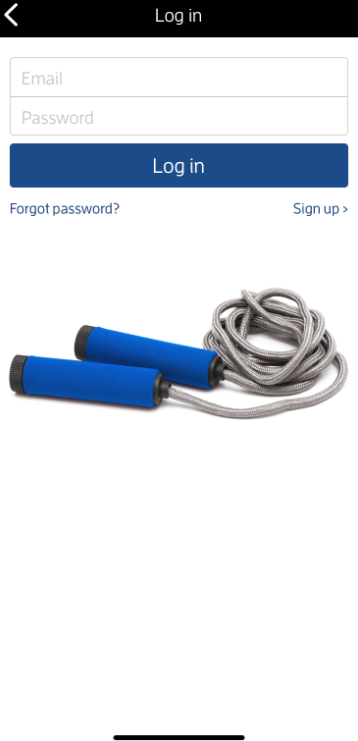
First, log in to your Fitli personal account.
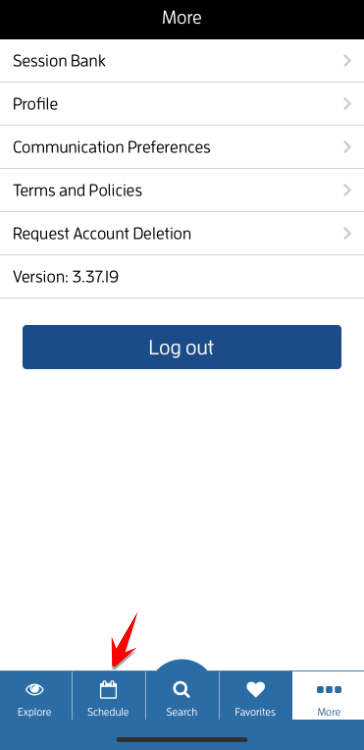
You'll typically be taken directly to “More”. Tap the “Schedule” button to view any and all upcoming classes or appointments you have.
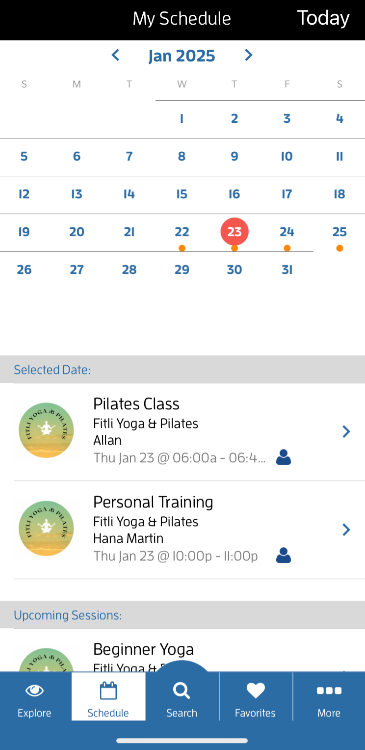
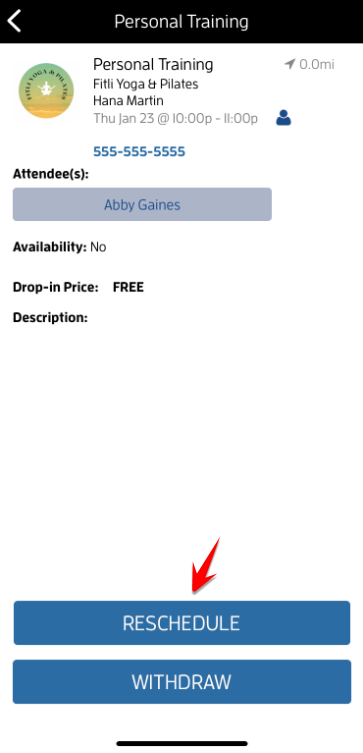
Tap the appointment you want to reschedule to open its profile.
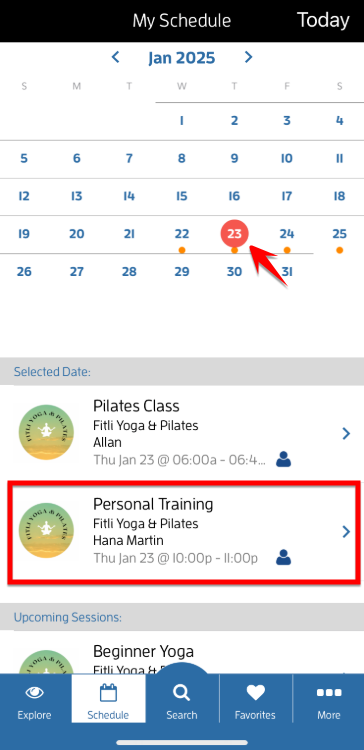
On the session profile, tap the Reschedule button.
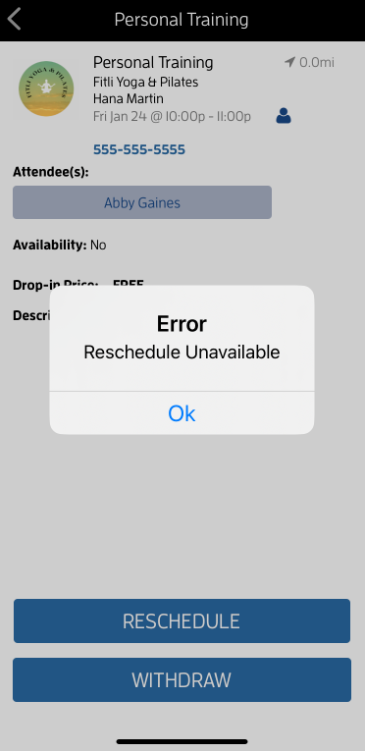
NOTE: Rescheduling is only available for appointments if the business allows clients to book the appointment, the appointment is still in the future AND there is no active cancellation policy for the session.
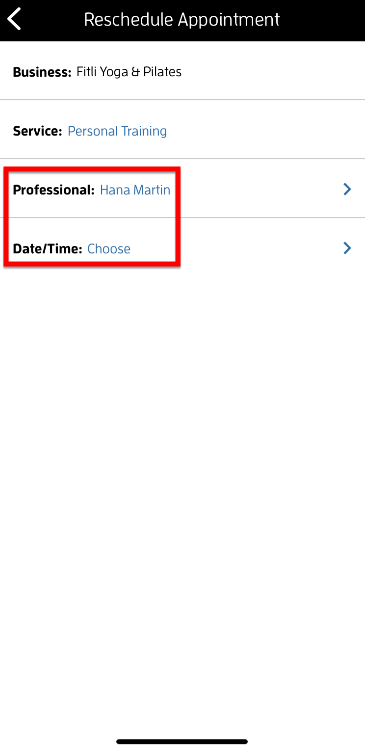
On the Reschedule Appointment page, you can choose a different trainer or leave it the way it is then choose the date and/or time.
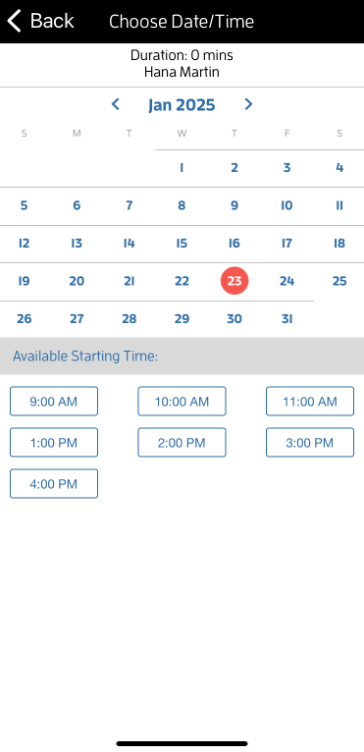
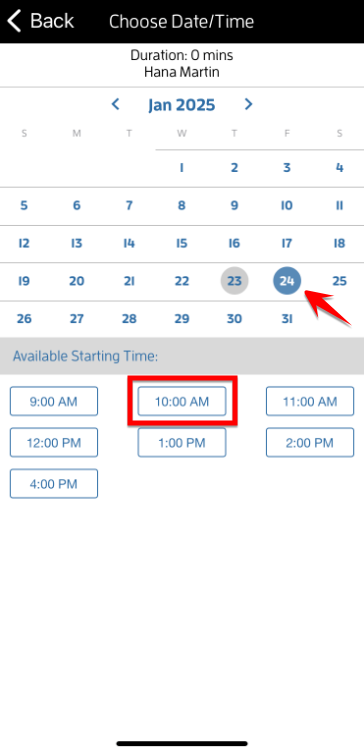
Tap CONFIRM.
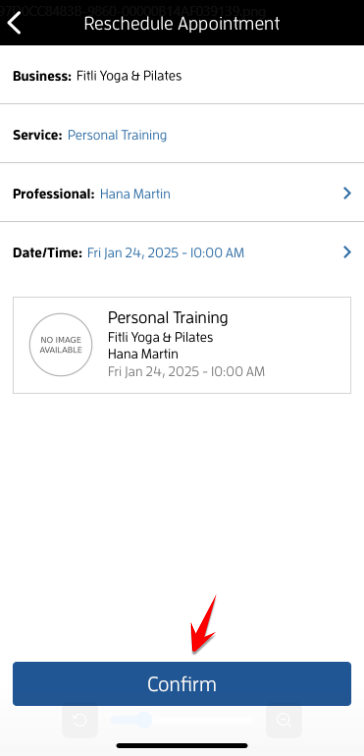
A message at the bottom will display confirming that you’ve successfully rescheduled/booked the appointment.
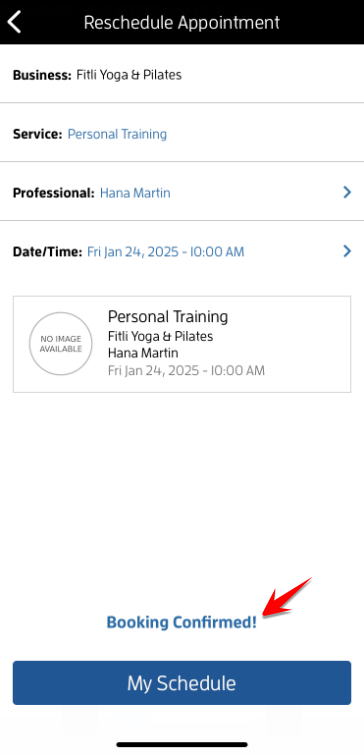
That’s it you’re done!
What will happen next?
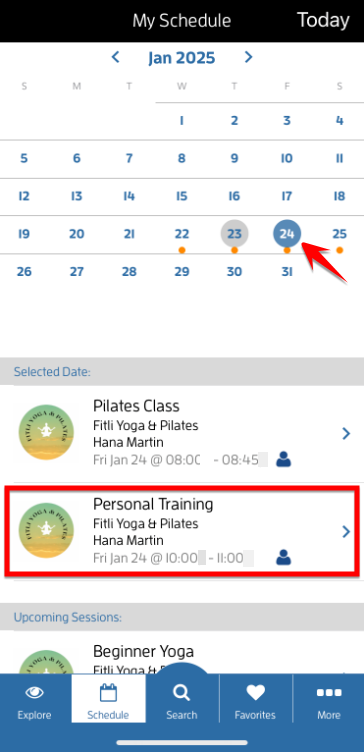
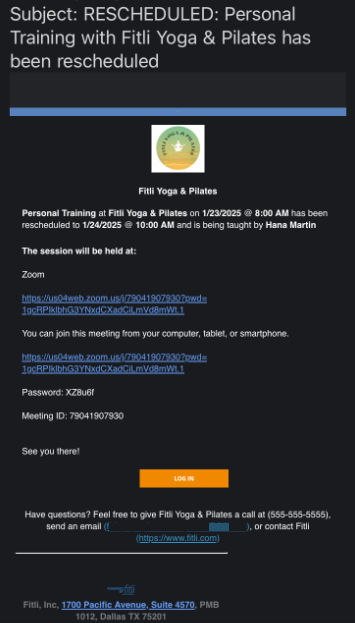
Once you’ve rescheduled the appointment, you’ll see it on your calendar in the new time slot and you’ll receive a rescheduled appointment email. Screenshots below.
IMPORTANT:
If the appointment you're trying to reschedule falls within a cancellation policy window set by the business, you won't be able to reschedule it. Additionally, rescheduling is not available if the business does not allow clients to book the appointment. This means that only the business can reschedule the appointment for you. For more info, contact the business directly.
That's about it! Any questions? Chat with us or send us an email to support@fitli.com.