View Bookings Report for a Single Session
Viewing the bookings report for a single session is easy. Just follow the step-by-step guide below.
Prerequisites:
- You should have classes set up on your business calendar.
- You should have "Reporting" permission.
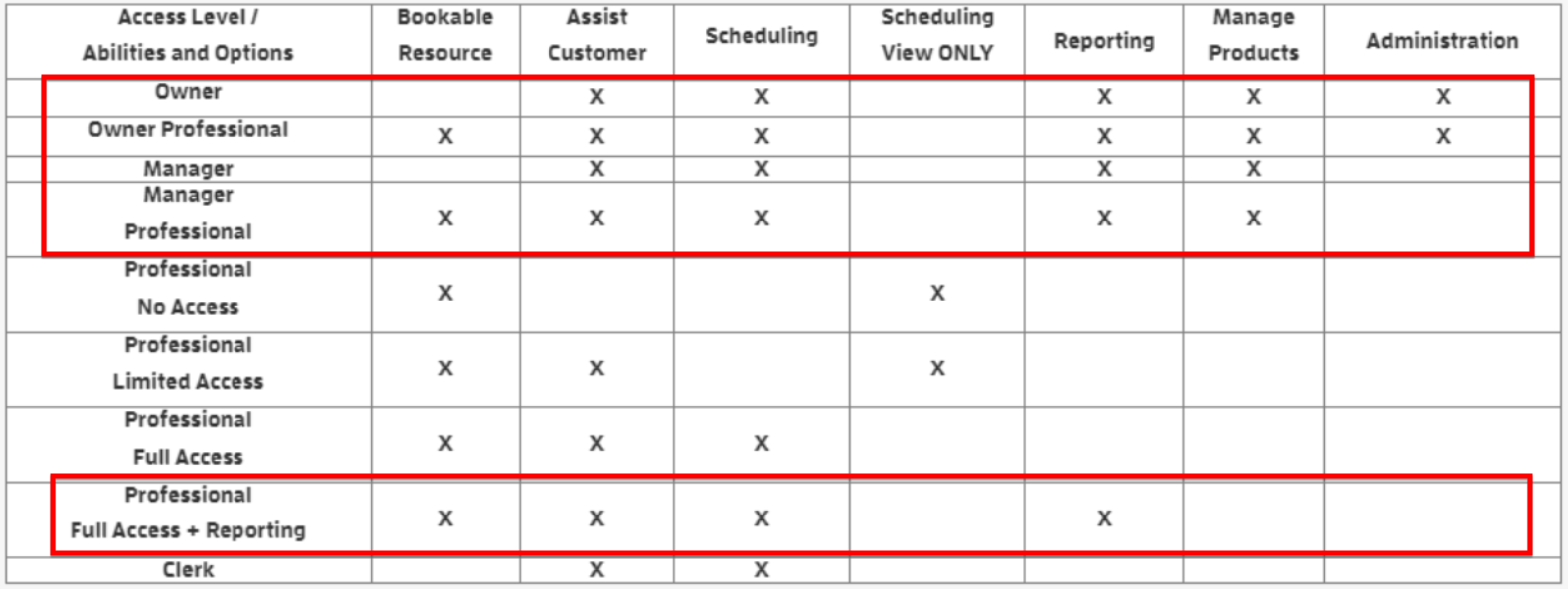
- You should have any of the following roles only: Owner, Owner Professional, Manager, Manager Professional or Professional Full Access + Reporting.
To do this, log in to your business account and click the class on your calendar to open the session profile of the class you wanted to view.

Click the "View Booking Report" link on the lower left side.

Now, you’ll see the Bookings Report for the session. You can use the search box to filter or the EXPORT button to download the .csv file.

To go back to the session profile, click "Back to Session".


To clear the single session filter, click "Clear Session Filter".

You’ll be directed to the Month to Date Bookings Report By Transaction section.

That's about it! Any questions? Chat with us or send us an email to support@fitli.com.
Related Articles
Bookings Report!
More about Bookings Report! Sections: The Bookings Report has 2 sections: Bookings Report By Transaction and By Service. Bookings Report By Transaction Bookings Report By Service Search Box, Pulldowns and Pagination: You can search/filter by using ...Granular Search on Bookings Report By Transaction
Due to the type of data contained in the Bookings Report By Transaction section, we’ve added a dropdown that allows you, the business, to select which column of data you would like to search specifically. This means you no longer need to download the ...Check-In and Your Attendance Report
You've got classes and appointments on your schedule/calendar but you want to know who is actually showing up. Using the check-in feature you can check off clients as they show up or mark them as no show if they are absent, and access reports to help ...Calendar/Schedule List View
We have a "LIST" style view for your classes and appointments, where you can see a clean, organized schedule. This list view looks great when you're embedding your calendar/schedule on your business' website. To start with the list view, choose the ...Session Adjustments and Expiration Dates
Here's how to edit/change session quantities and edit/change expiration dates. To get started, visit the Account Page for a client you're interested in updating or changing. Click you client's name or the "view" link to open his profile. At the ...