Mobile version: How to Add Relationships During Registration?
Did you know that you can also add your relationships during registration? Here’s how.
Prerequisites:
-
The business allows you to add relationships during registration.
-
You signed up via the business-specific "Sign Up Link" or “Book Link” a.k.a. Business’ public calendar.
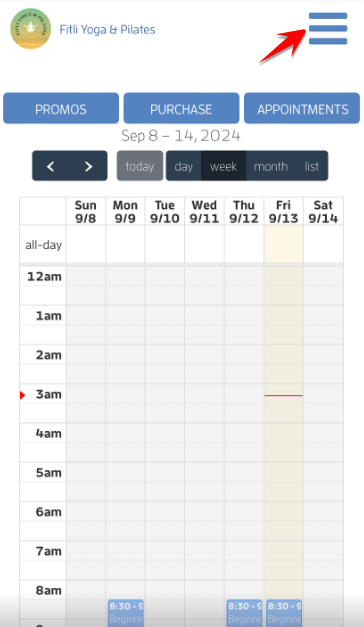
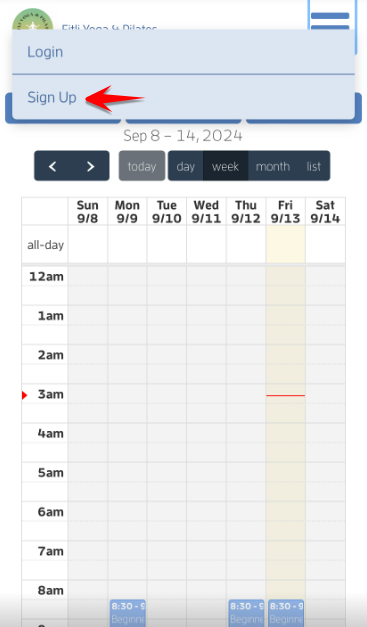
In the example below, the customer will sign up via the business’ public calendar. Tap the lines at the top right then select “Sign Up” to register.
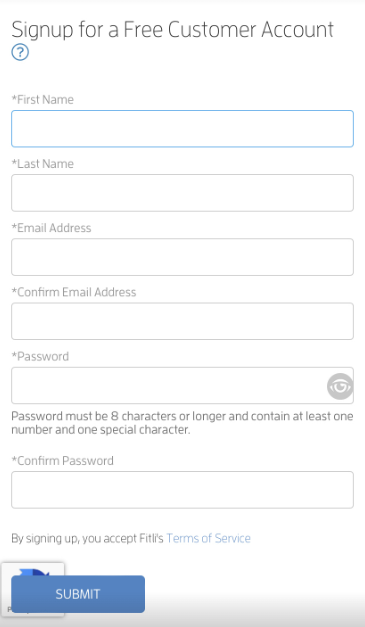
Enter your details then hit SUBMIT.
Note: Your password must be 8 characters or longer and must contain at least one number and one special character.
Fill out the Business Specific Sign Up Information page, scroll up then hit CONTINUE. Make sure to fill out all the required information as indicated by an asterisk (*).


On the Relationships page, tap + Add Relationship to add your relationship, fill out your relationship’s details, scroll up, make sure the business name is checked at the bottom then hit SAVE.
Note: If you want to add relationships at a later time, simply hit CONTINUE.
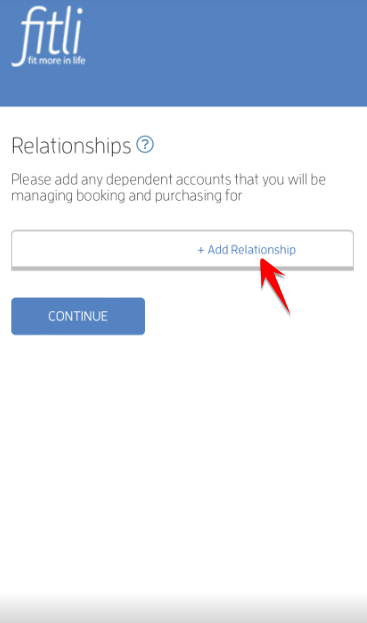
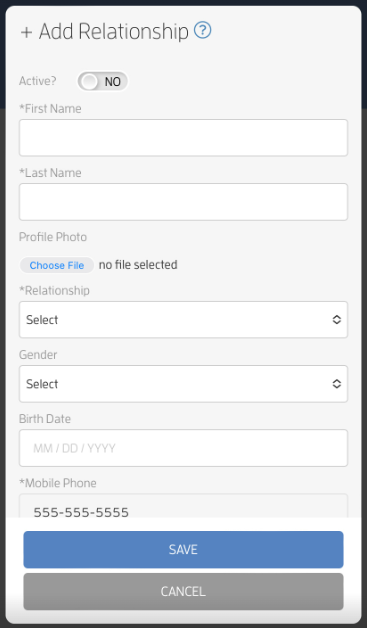
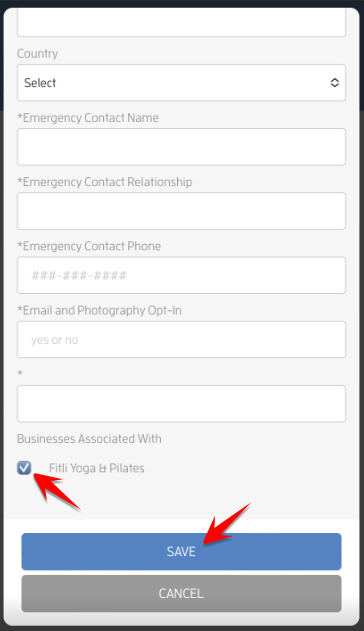
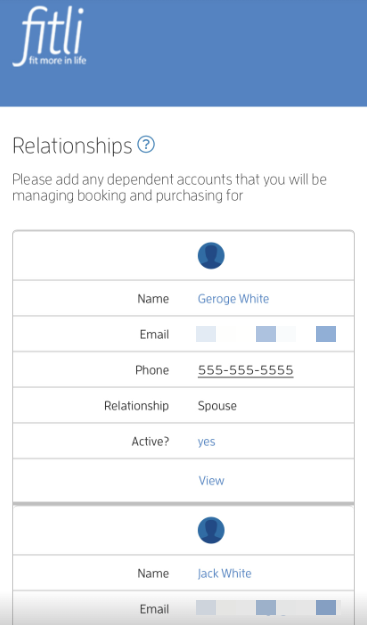
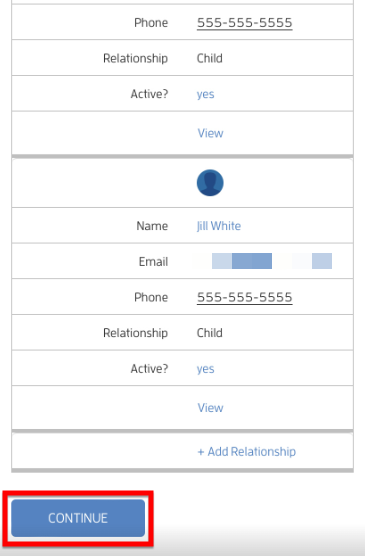
You can add as many as you want, simply repeat the steps above. When done, scroll up and hit CONTINUE at the bottom.
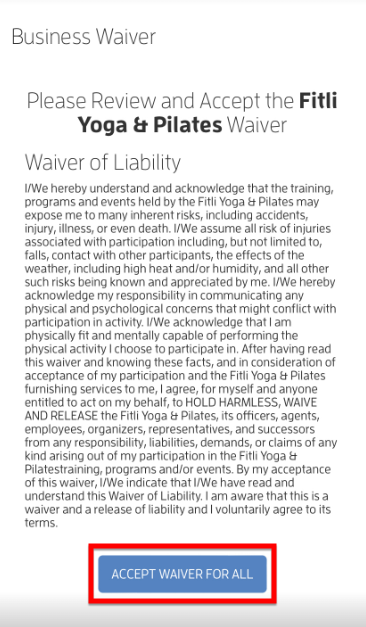
If your business requires you to accept their waiver, simply tap the “Accept Waiver For All” button. Otherwise, you’ll be directed to your business’ calendar.

That’s it you’re done!
Top Questions
Q: If I decide to add my relationships at a later date, where can I do this?
A: You can either add them while booking or go to ACCOUNT > Relationships then add them. Click HERE for a detailed guide.
Q: I want to delete my relationships, how can I do this?
A: Unfortunately, you can’t completely delete your relationships once added. You can either deactivate them or disconnect them from the business. Click HERE for a detailed guide.
Q: Can I add my relationships and book them via the iOs app?
A: The Relationships feature is only available on the desktop and mobile versions.
Any questions? Chat with us or send us an email to support@fitli.com.
Related Articles
How to Add Relationships During Registration?
Did you know that you can also add your relationships during registration? Here’s how. Prerequisites: The business allows you to add relationships during registration. You signed up via the business-specific "Sign Up Link" or “Book Link” a.k.a. ...Mobile version: How to Add Relationships
If you want to share balances with your family, relatives and/or friends, you can add them as your Relationships! To do this, tap "Account" at the top menu, select "Relationships" on the pulldown and tap "+Add Relationship". Fill the "+ Add ...How to Prompt Your Clients to Add Relationships During Registration?
As a business, you're able to add relationships to your clients’ accounts, allow packages to be shared by groups of people such as family, and friends instead of requiring each client to maintain an individual account with separate emails, logins, ...Mobile version: I want to sign up and book a session, now what do I do?
First off, welcome to Fitli! We provide the online scheduling and payment platform for the business you're trying to sign up for. Signing up and booking is as easy as 1-2-3! Here's a helpful guide to get started. Step 1: Sign up for an Account. On ...Mobile version: How to sign up and connect with your business?
Your business is booking classes for you but you've decided you want to sign up for an account so you can book and purchase classes yourself. If you have an existing account balance or package/membership and you want to use them, you'll want to be ...