How to Prompt Your Clients to Add Relationships During Registration?
As a business, you're able to add relationships to your clients’ accounts, allow packages to be shared by groups of people such as family, and friends instead of requiring each client to maintain an individual account with separate emails, logins, and packages. To save time, you can easily prompt your clients to add their relationships during registration. Here’s how.
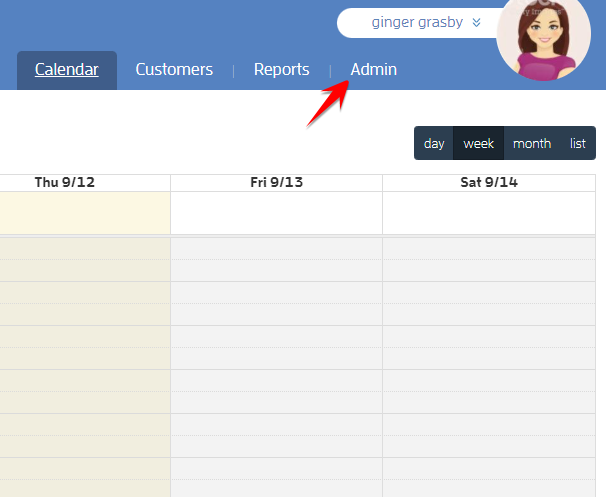
Log in to your Fitli Business account then click ADMIN at the top.
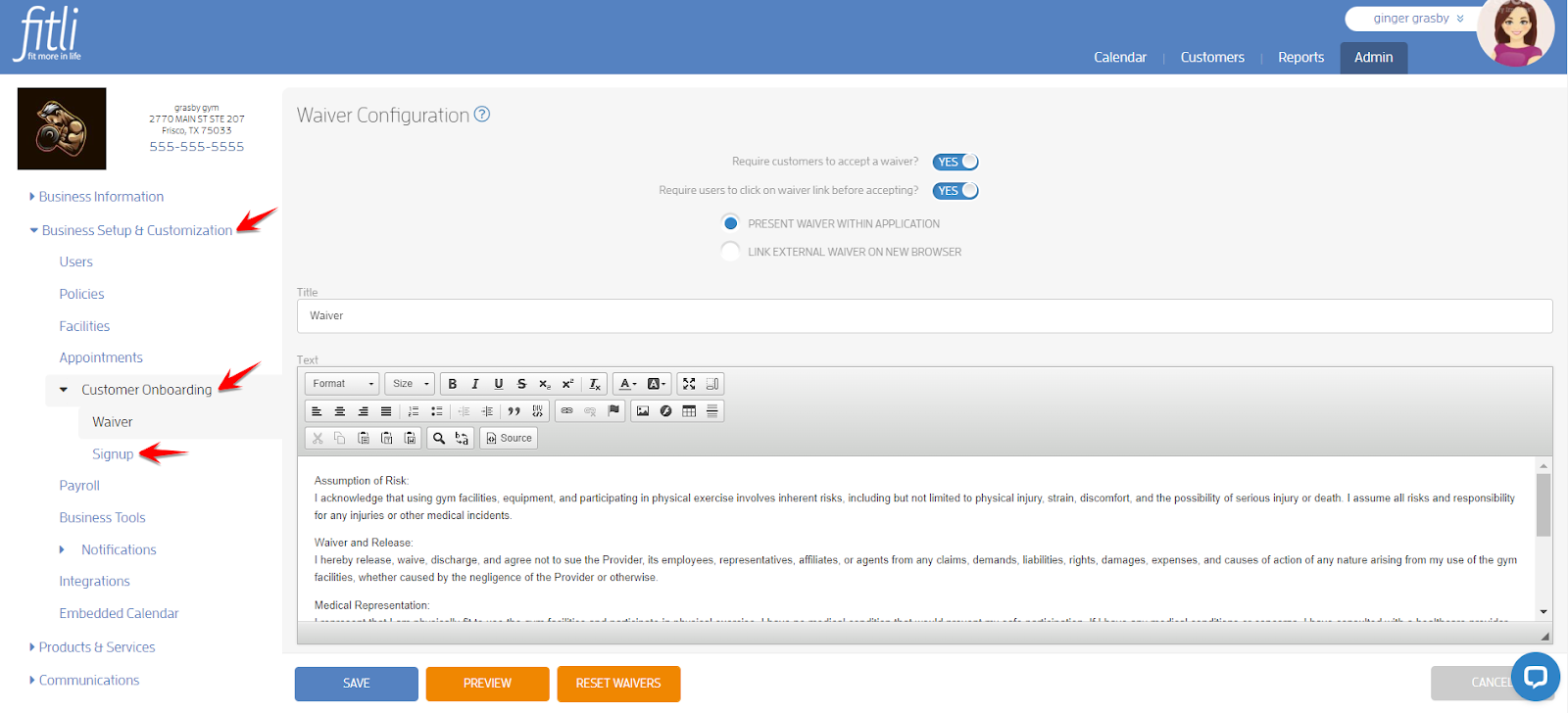
Go to Business Setup & Customization > Customer Onboarding > Signup.
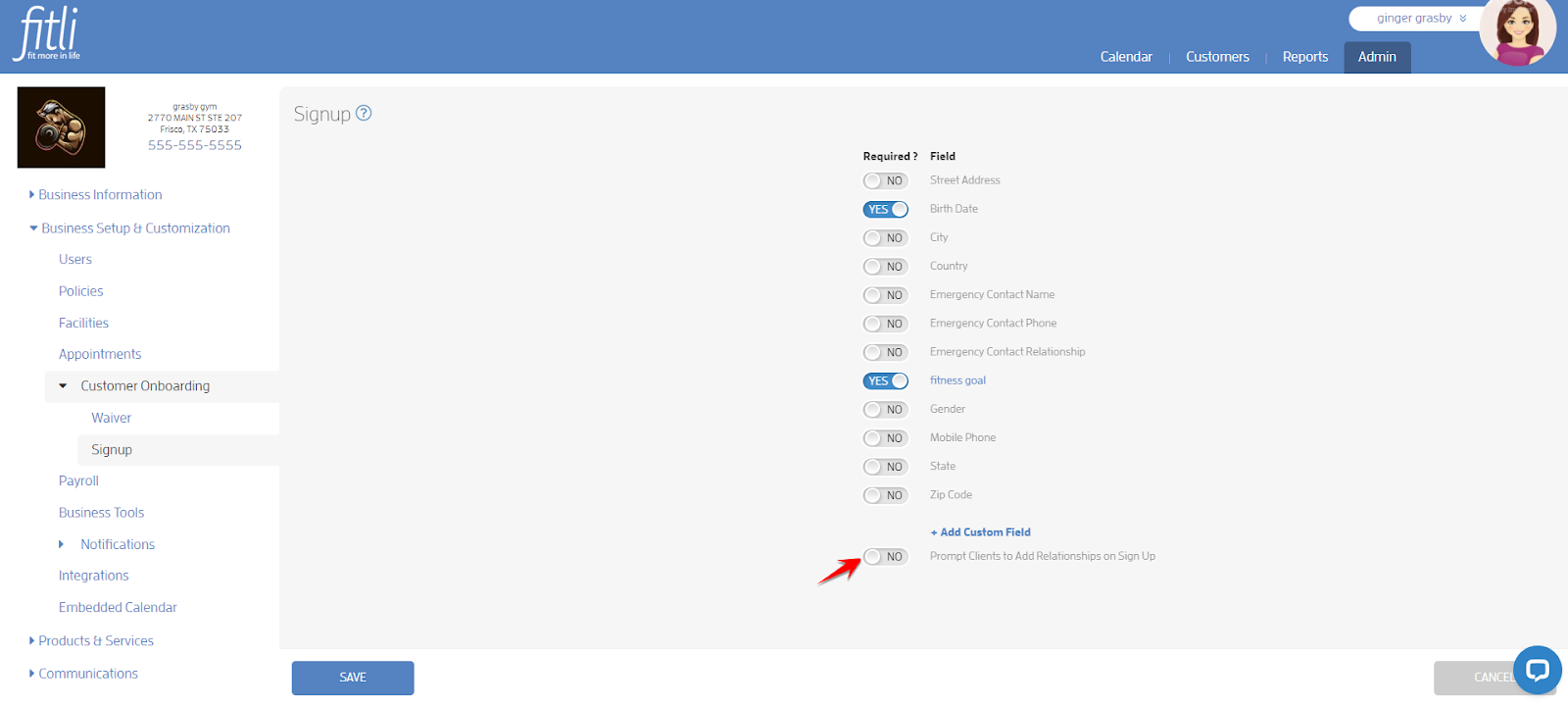
On the Signup page, turn on the toggle for “Prompt Clients to Add Relationships on Sign Up” then hit SAVE.
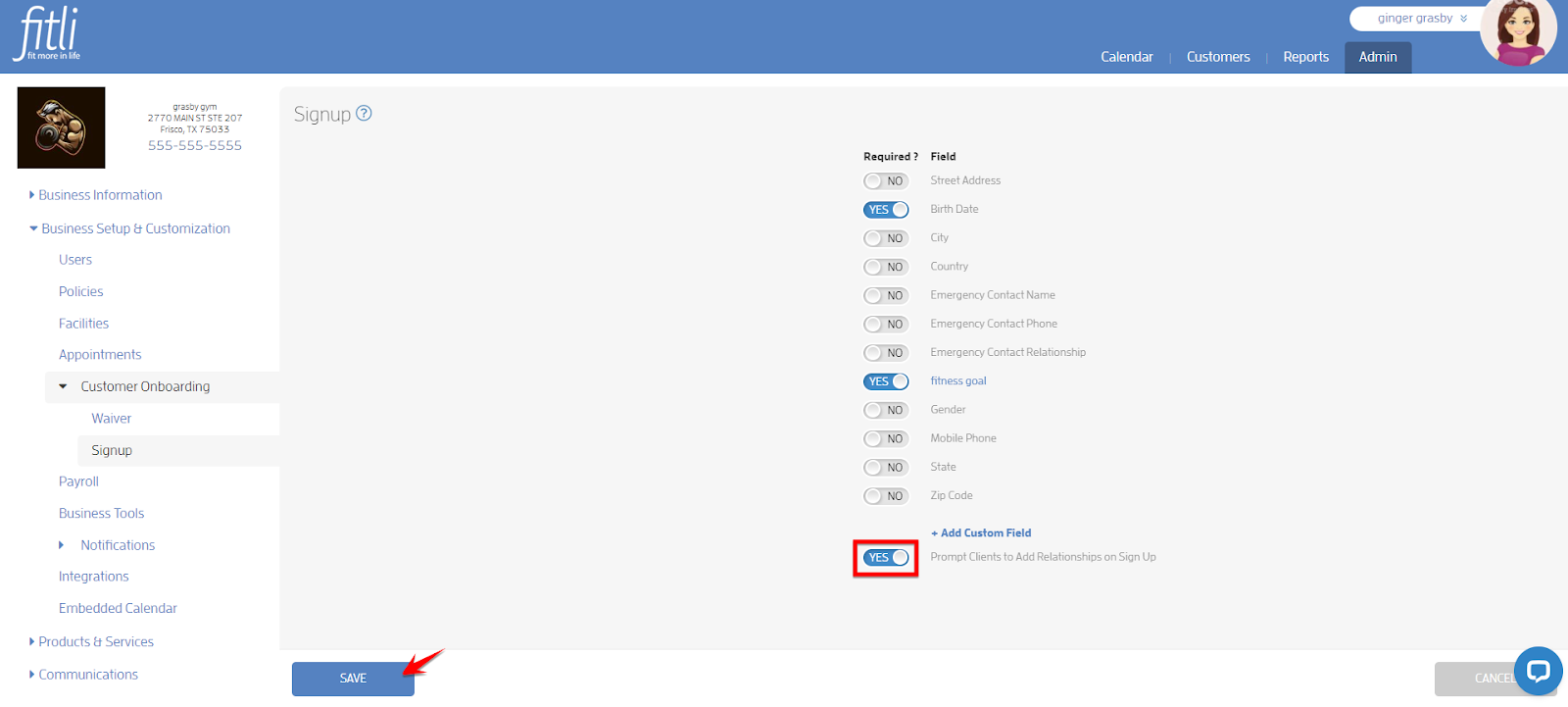
A confirmation in green will appear at the top that you’ve successfully updated your Signup configuration.
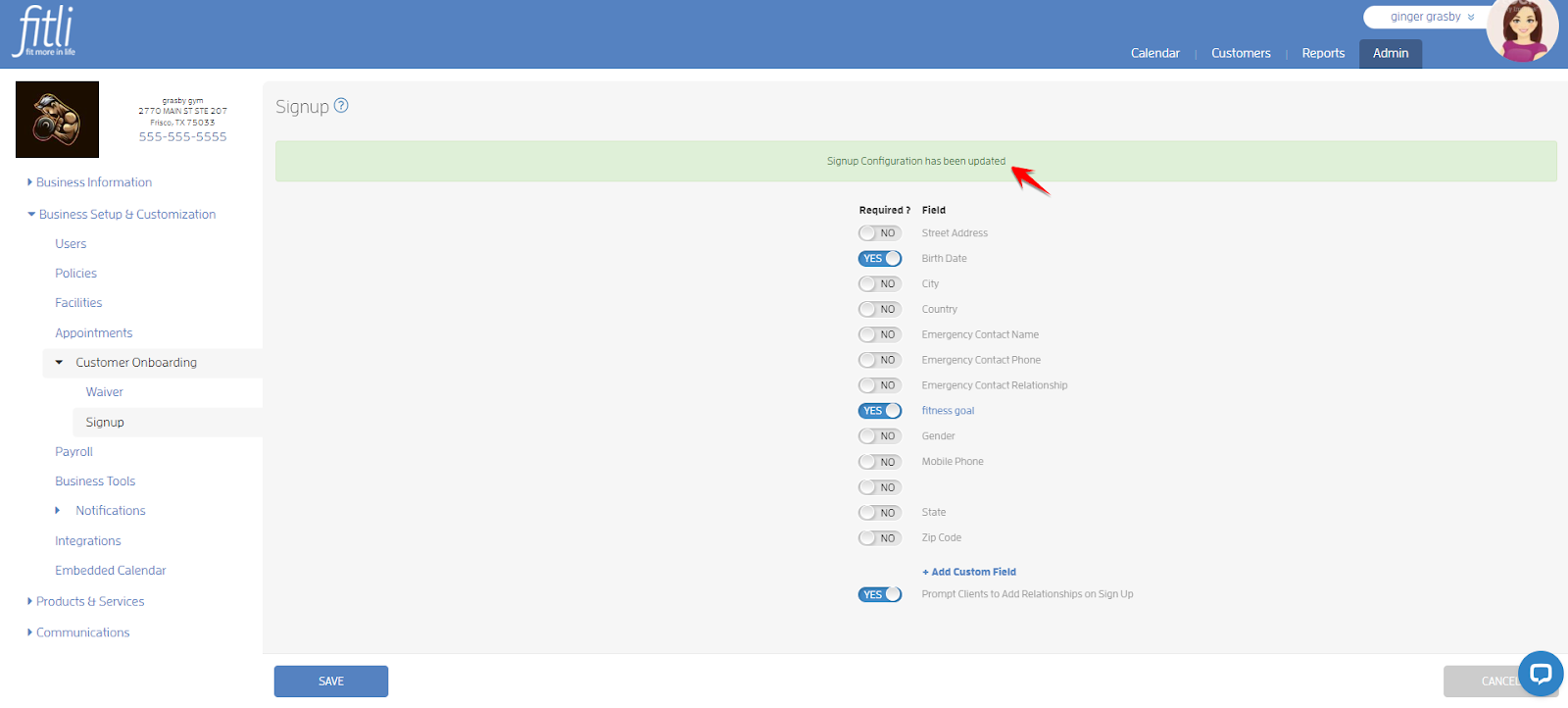
That’s it! You’re done!
What will happen next?
During registration, after the Business Specific Sign Up Information page, your clients will be prompted to add any dependent accounts that they will be managing booking and purchasing for.
Note: Your clients won’t be prompted to add relationships if they go directly to fitli.com and sign up. To make sure that they’ll be prompted to add relationships, send them the Sign Up link or the Book link on the Business Tools page.
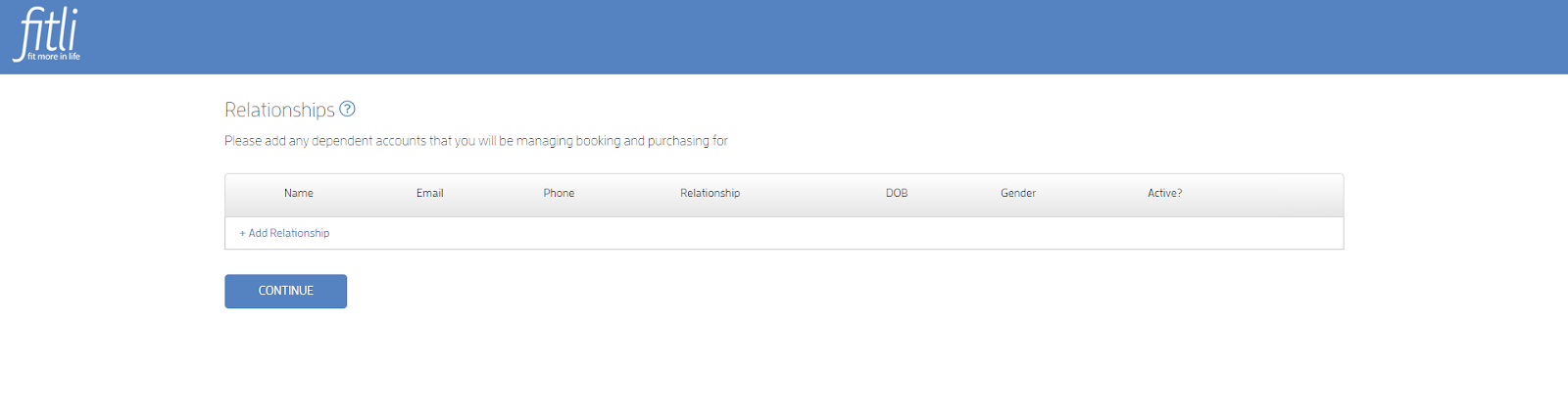
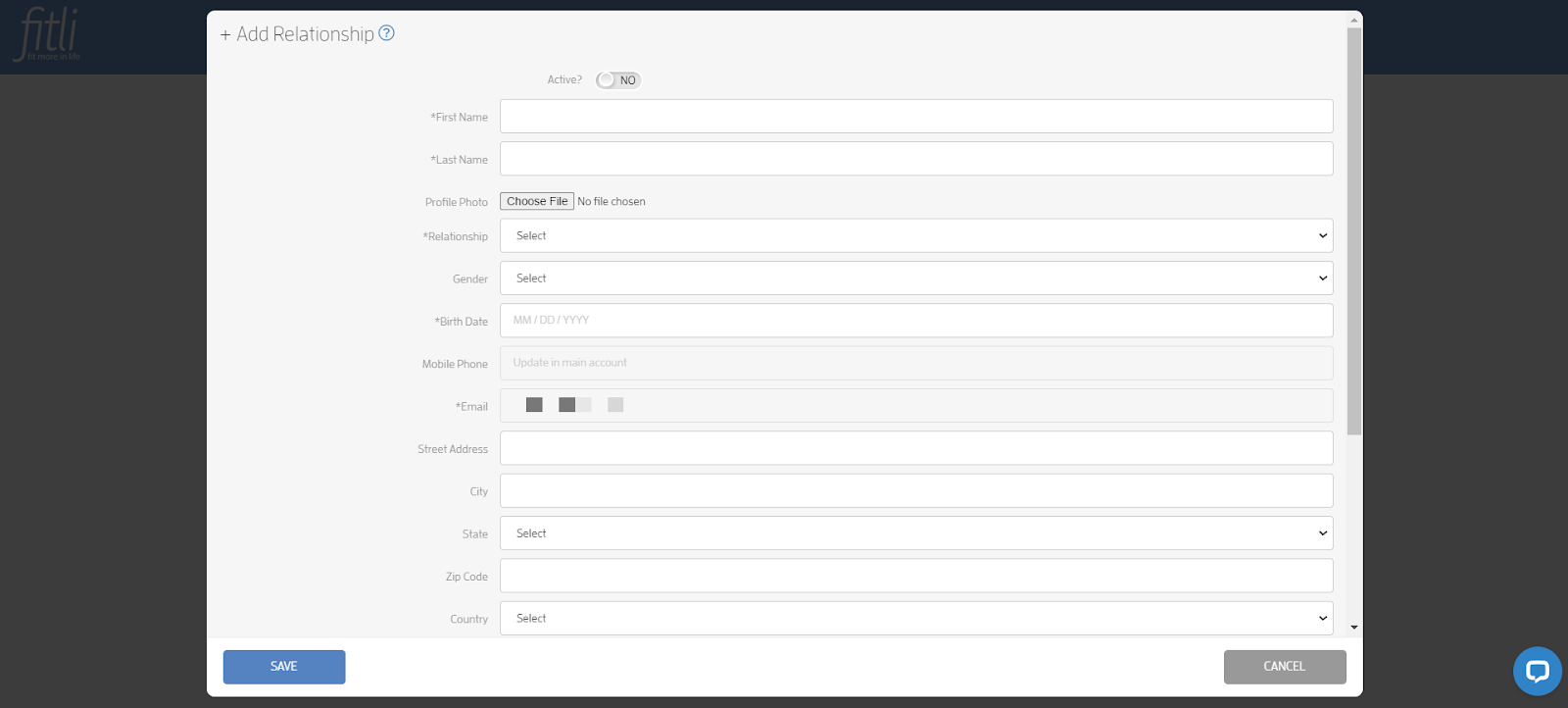
From here, they can click + Add Relationship, fill out the modal then hit SAVE. They can add as many as they want. If they intend to add their relationships at a later time, they can simply click CONTINUE. In the example below, the client added a relationship.
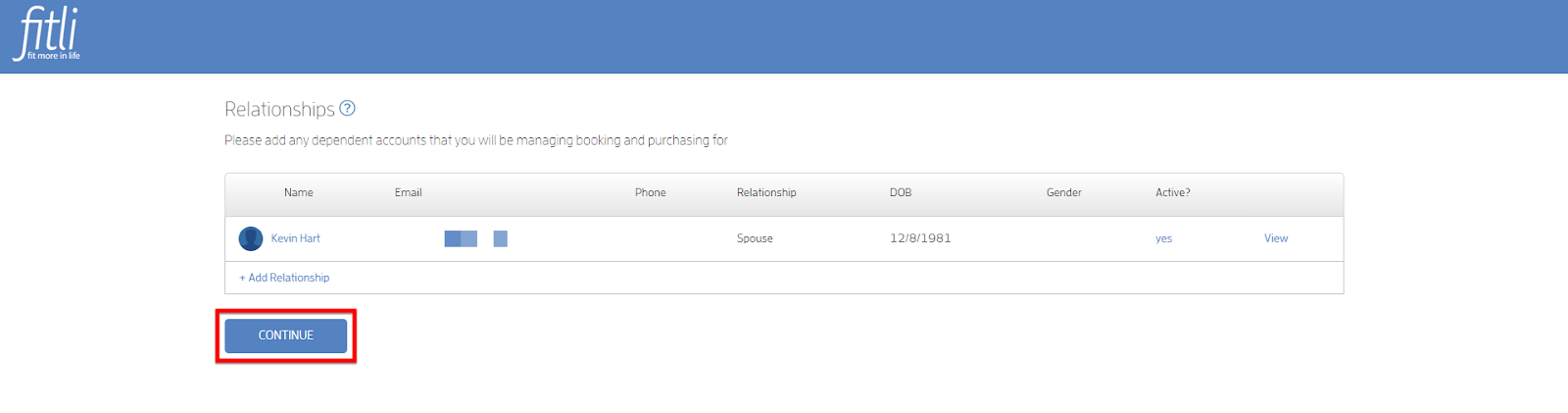
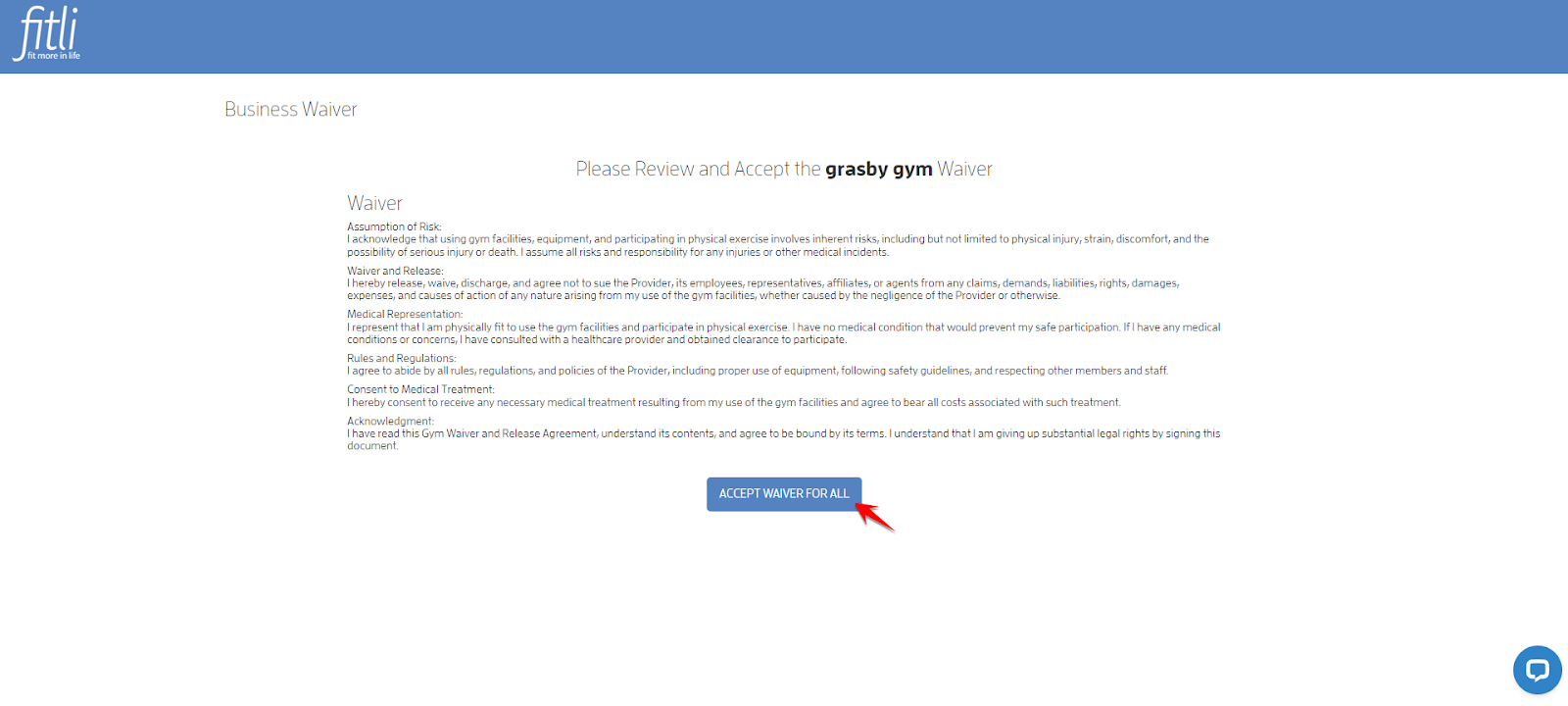
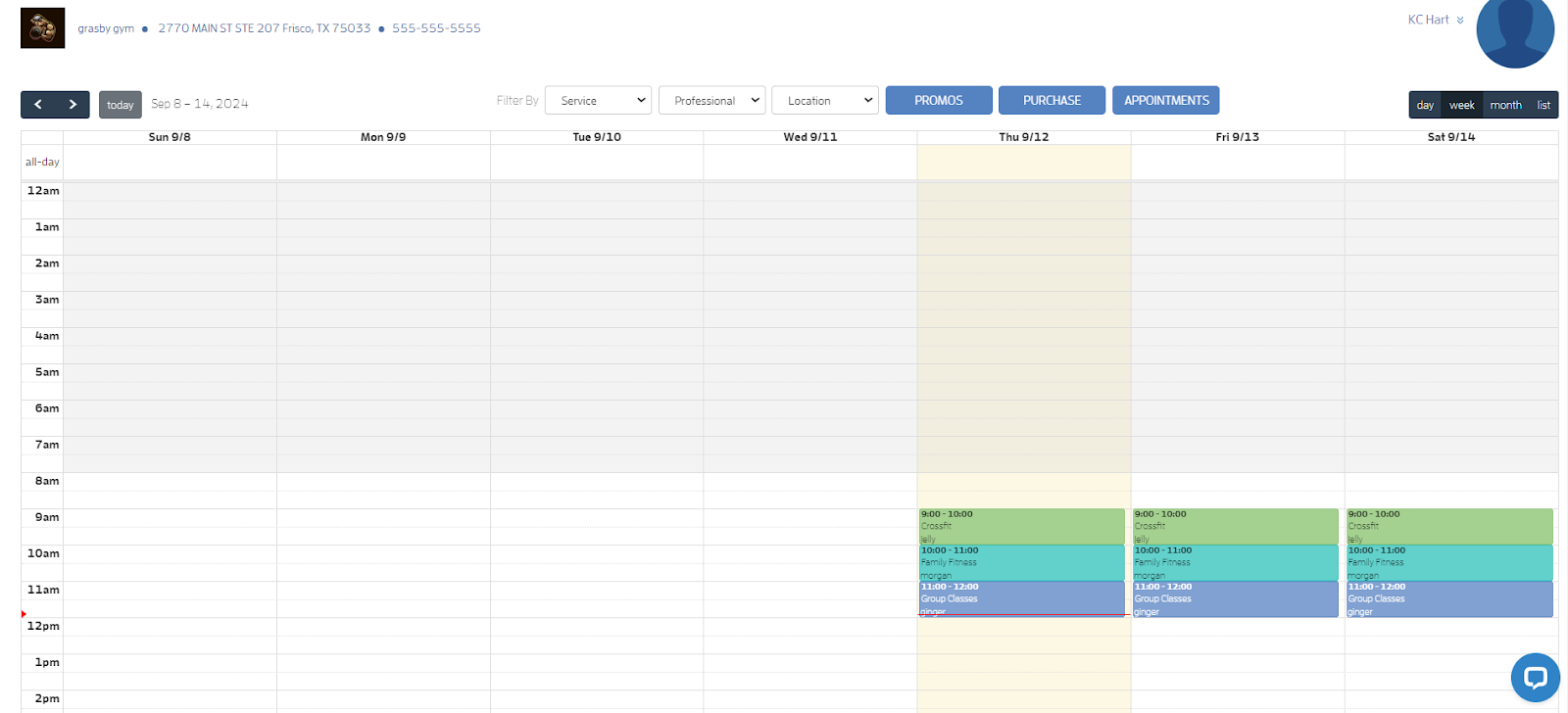
If you’ve activated a waiver for your business, they’ll be prompted to “Accept Waiver For All.” Otherwise, they’ll be simply directed to your business calendar.
That's about it! Any questions? Chat with us or send us an email to support@fitli.com.
Related Articles
How to Prompt Your Clients to Add Relationships While Booking?
You can easily prompt your clients to add their relationships while booking. Here’s how. Log in to your Fitli Business account then click ADMIN at the top. Go to Business Setup & Customization > Customer Onboarding > Signup. On the Signup page, turn ...How to Add Relationships During Registration?
Did you know that you can also add your relationships during registration? Here’s how. Prerequisites: The business allows you to add relationships during registration. You signed up via the business-specific "Sign Up Link" or “Book Link” a.k.a. ...Mobile version: How to Add Relationships During Registration?
Did you know that you can also add your relationships during registration? Here’s how. Prerequisites: The business allows you to add relationships during registration. You signed up via the business-specific "Sign Up Link" or “Book Link” a.k.a. ...How to Add Relationships While Booking?
Did you know that you can also add your relationships while booking? Here’s how. For Group Classes Log in to your Fitli account then click BOOK ACTIVITY at the top menu. Click the “View Schedule” button of your business. On the business calendar ...Relationships - Appointment Bookings!
Your clients have the ability to book themselves and their relationships into CLASSES. Your clients can also book themselves and their relationships into appointments! Here's how to get started: For Businesses: If you're a business and want to book ...