How to Add Booking Hibernation for Unlimited Auto-Renewing Memberships?
This feature provides you more control over booking permissions of unlimited auto-renewing plans. This is solely for unlimited auto-renewing plans, not limited auto-renewing plans.
How to Add Booking Hibernation?
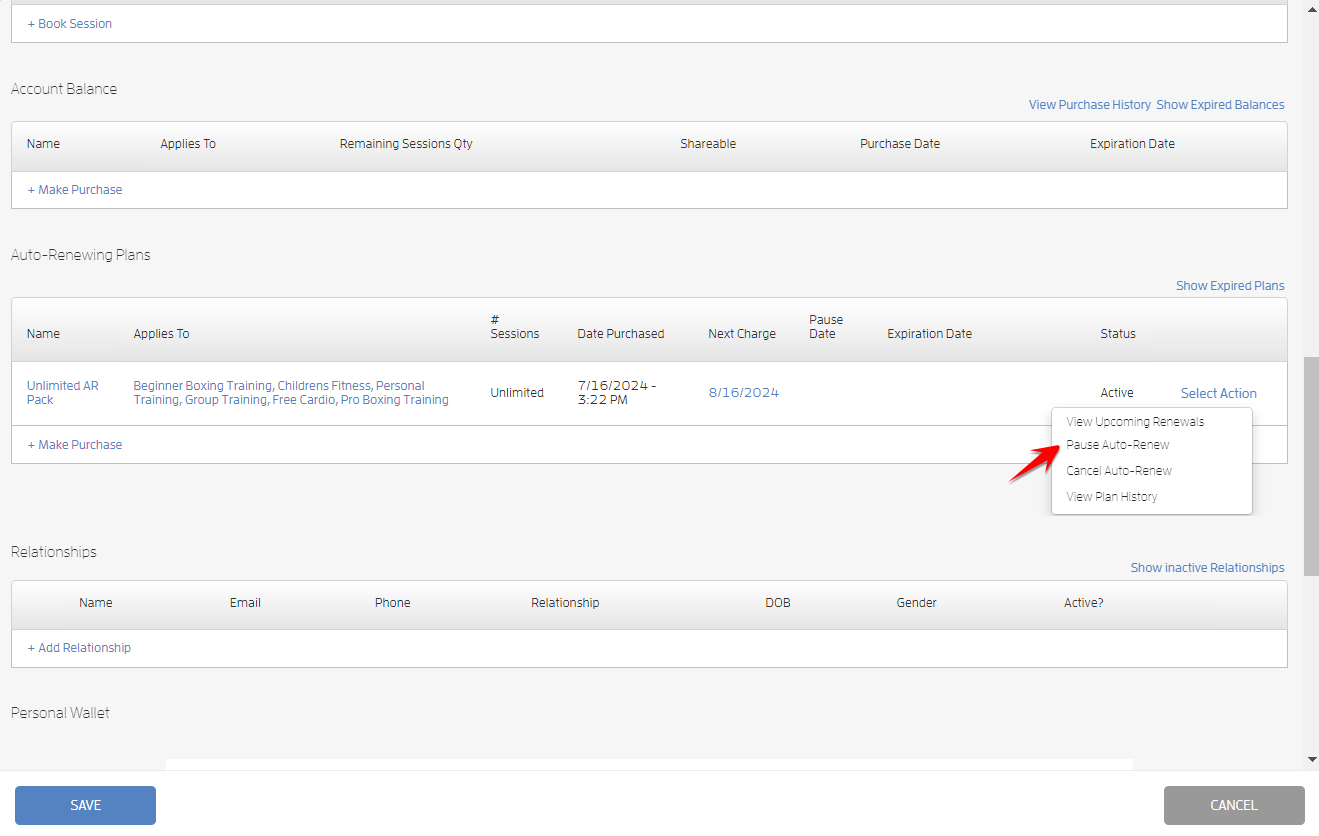
To add booking hibernation, go to your customer’s profile on your Customers list and scroll down to “Auto-Renewing Plans”.

Click the “Select Action” link on the right side then choose “Pause Auto-Renew.”
Click the “Pause Date” to open the date picker then choose your preferred pause date. You can also do this on the “Next Renewal Date” dropdown. Click SAVE.
Notes:
-
Pause Date cannot be after the Next Renewal Date.
-
If Pause Date is already selected, the Next Renewal Date should be required to be at least 1 day after the Pause Date
-
Pause Date has to be scheduled at least 1 day before the Next Renewal Date.
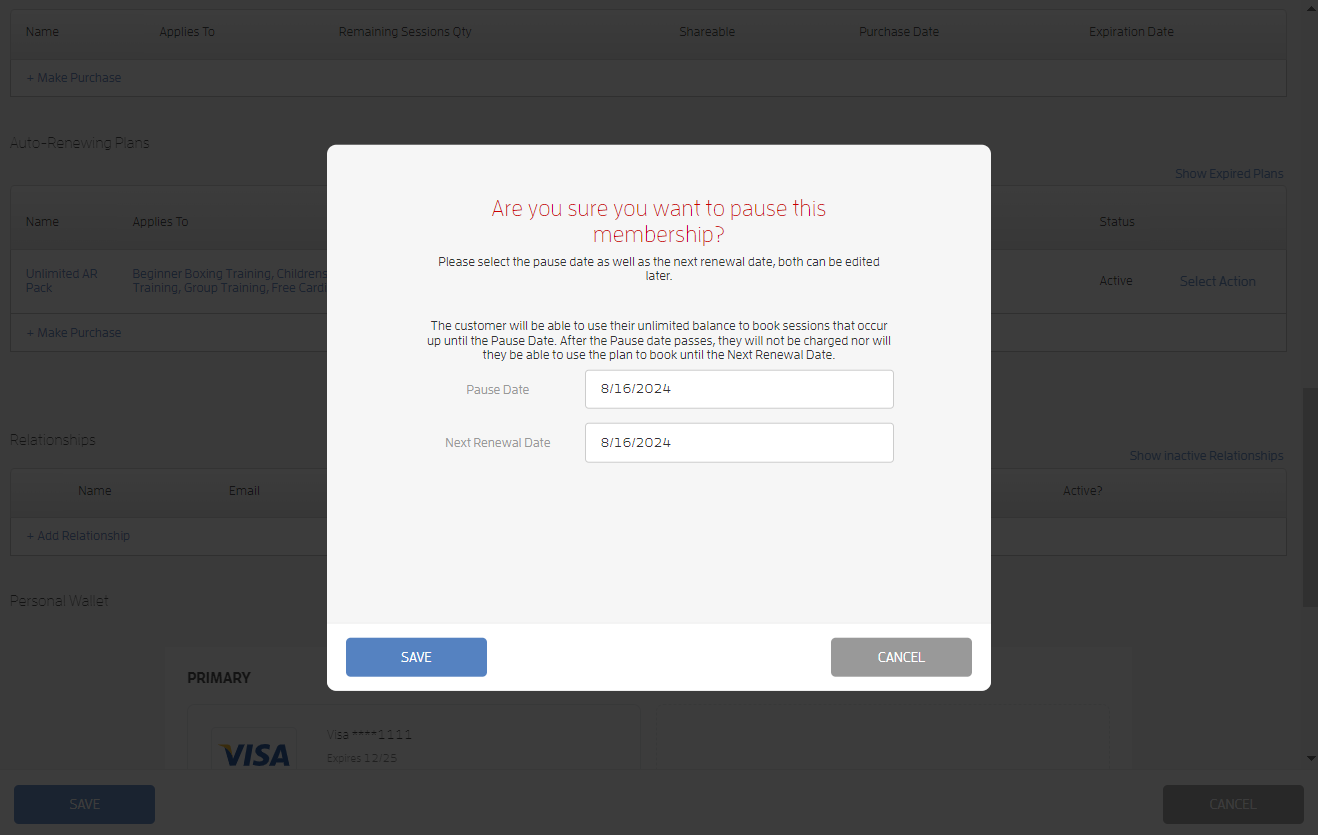


Your customer will be able to use their unlimited balance to book sessions that occur up until the Pause Date. After the Pause date passes, they will not be charged nor will they be able to use the plan to book until the Next Renewal Date.
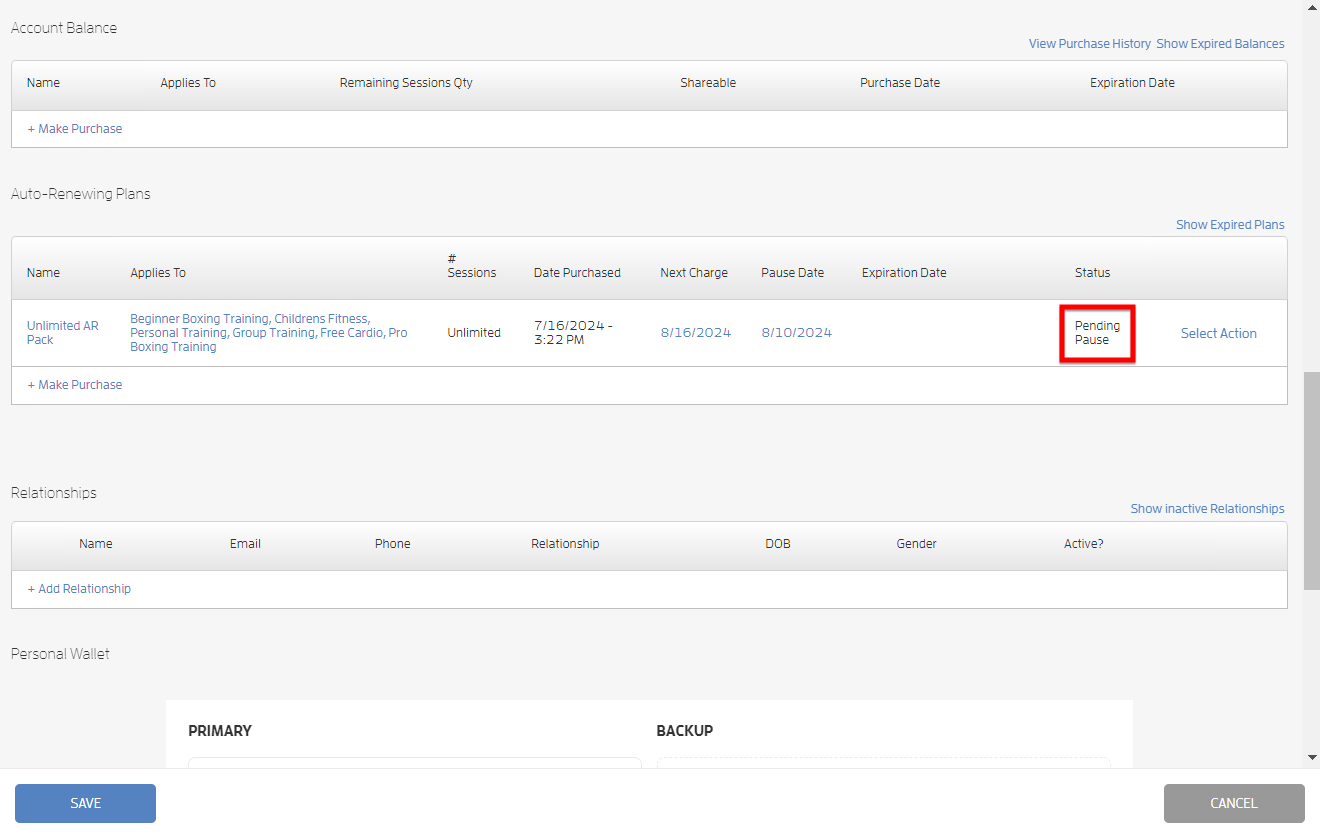
How to cancel Scheduled Booking Hibernation?
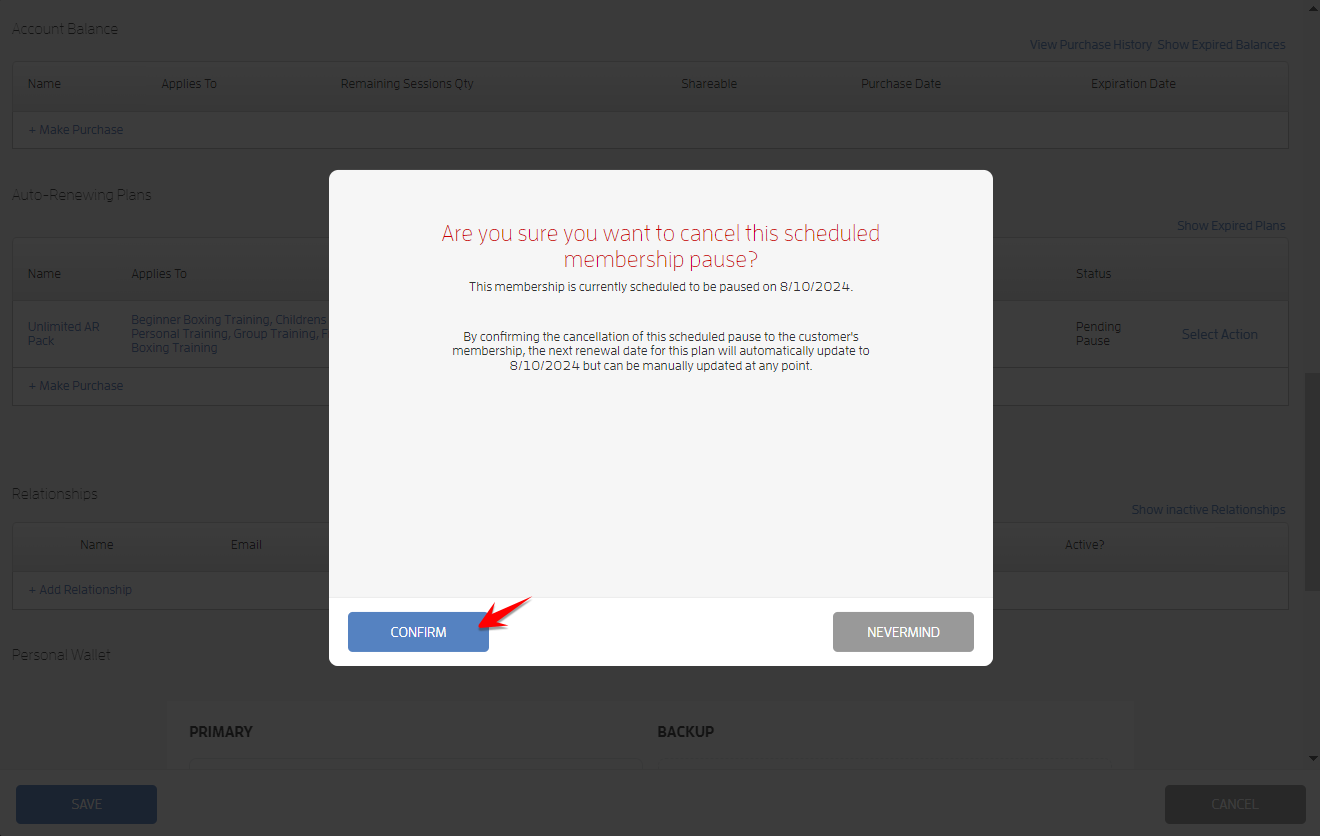
To cancel a scheduled booking hibernation, go to your customer’s profile on your Customers list and scroll down to “Auto-Renewing Plans”. Click the “Select Action” link on the right side then choose “Cancel Scheduled Pause.”
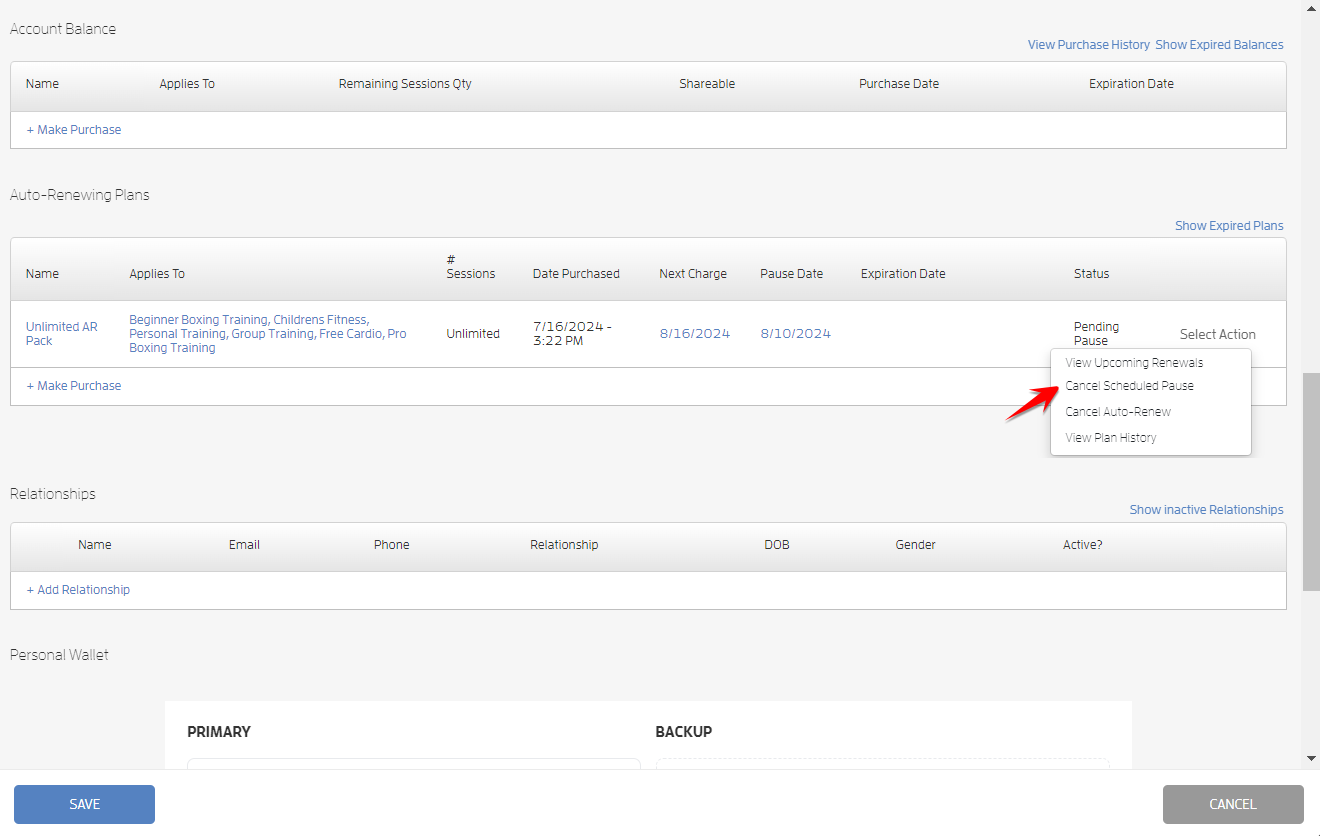
By confirming the cancellation of the scheduled pause to the customer's membership, the next renewal date for the plan will automatically update to the scheduled pause date, in this case it’s 8/10/2024, but can be manually updated at any point. Click CONFIRM.
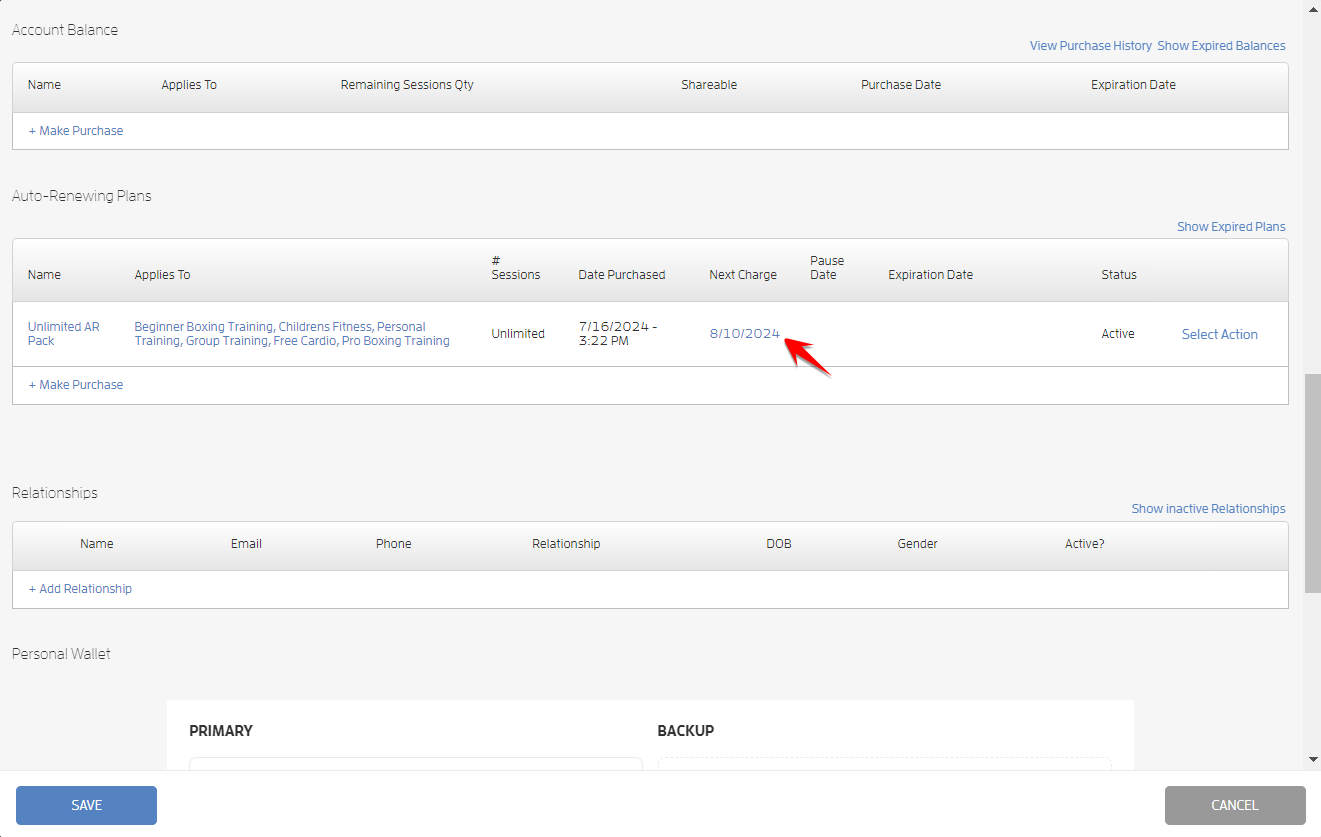
The Auto-Renewing plan’s status will change to Active.

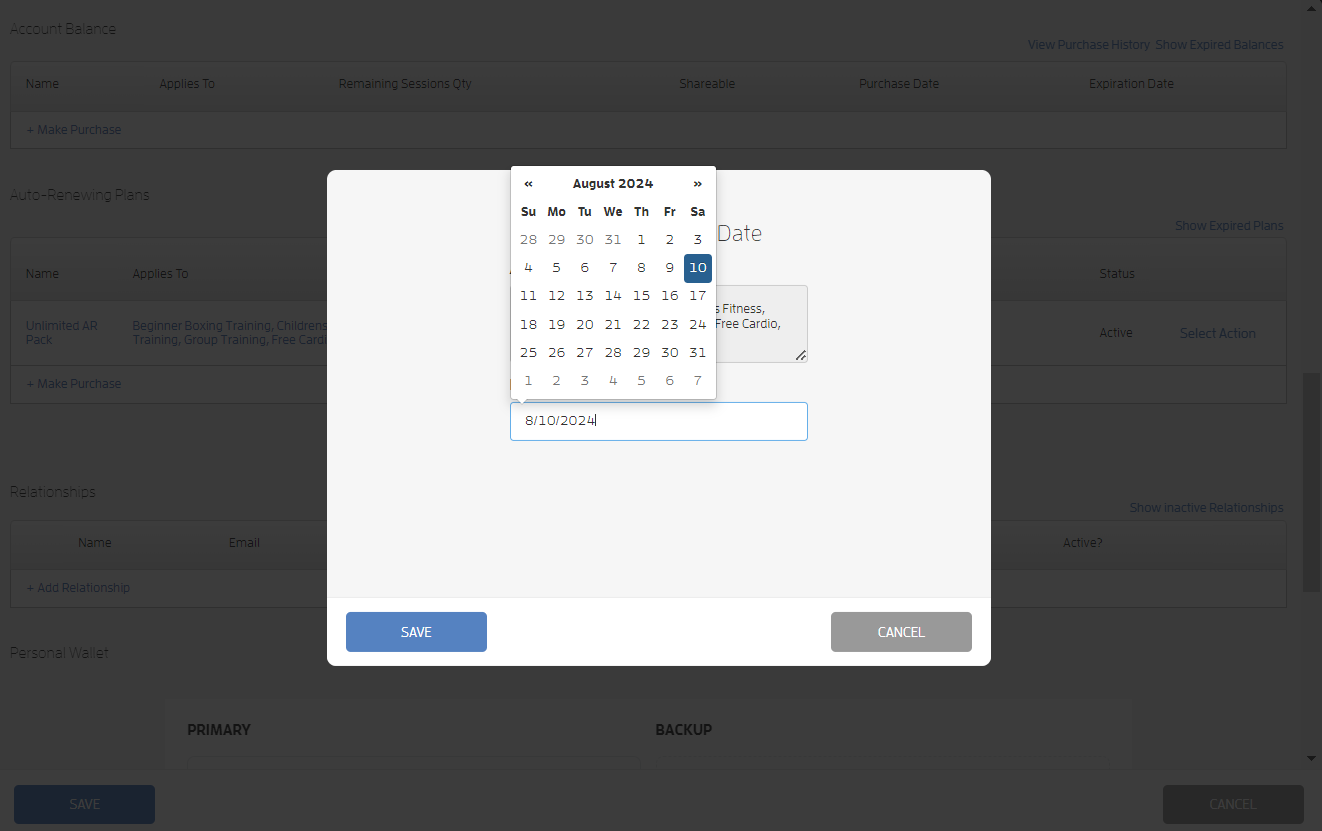
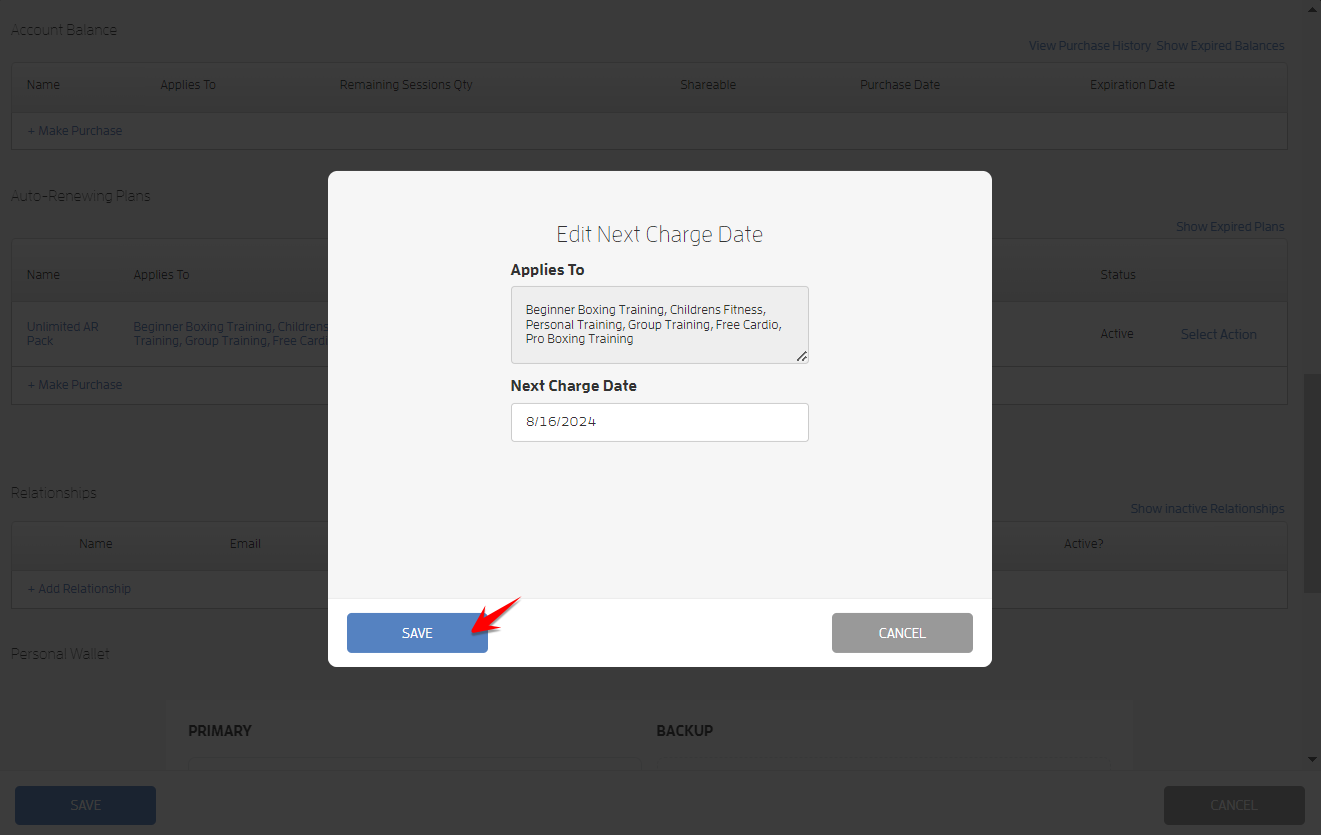
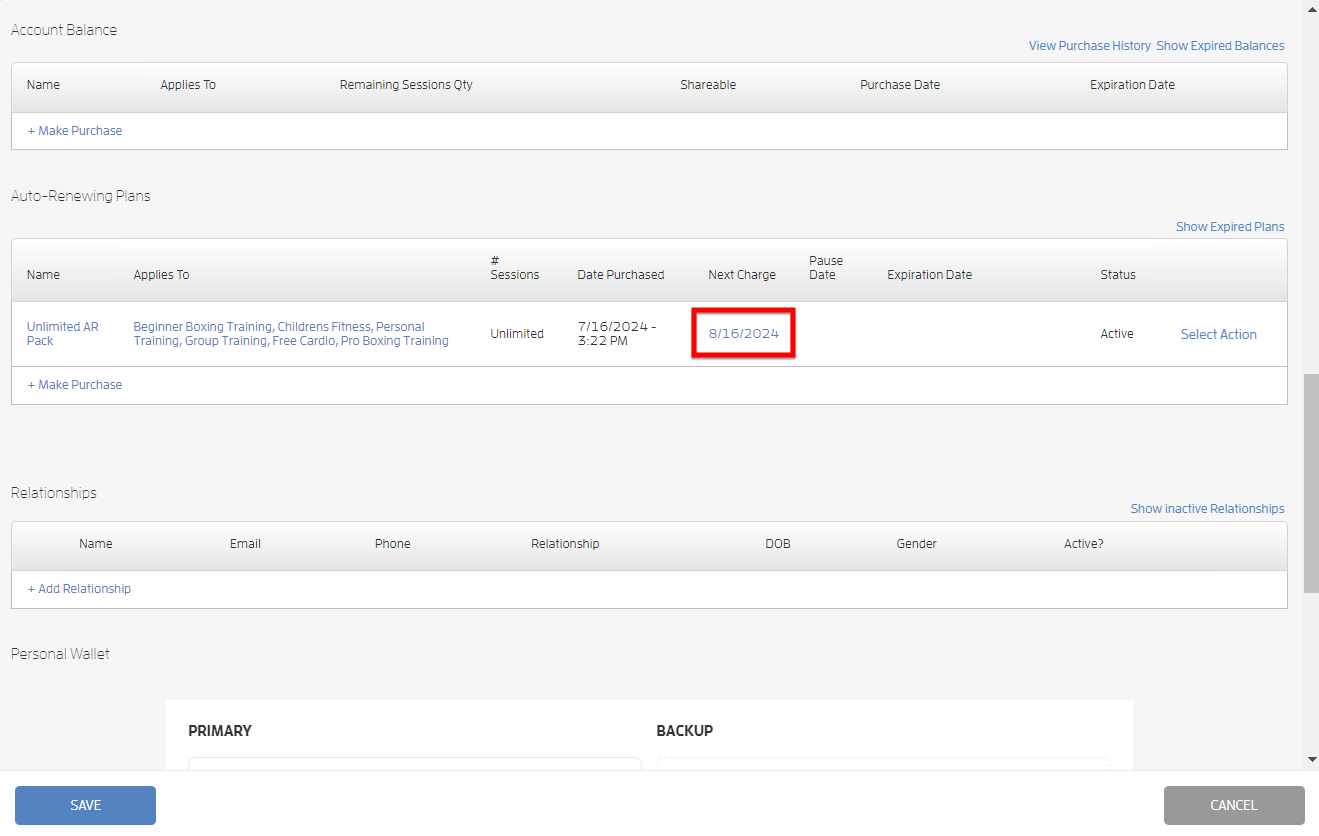
As mentioned above, you can manually update the next renewal date. To do this, click the date under the Next Charge column, use the date picker to select the next charge date then hit SAVE. Screenshots below.
That's about it! Any questions? Chat with us or send us an email to support@fitli.com.
Related Articles
Handling Failing Auto-Renewing Memberships (Client Guide)
As a client, you may run into problems where your auto-renewing memberships fail to renew. This happens when your payment method fails due to insufficient funds, expired credit card, invalid zipcode etc etc. Furthermore, if you paid cash, check or ...Handling Failing Client Auto-Renewing Memberships (Business Guide)
Here's a comprehensive guide on how to easily manage your clients' auto-renewing memberships The Problem: Clients who are on periodic auto-renewal of their memberships, either by credit card, check, or cash, can run into problems where their payment ...How to Skip Renewals for Auto-Renewing Memberships?
This feature will allow business users with Assist Customer access to skip future plan renewals beyond the next charge date for both Limited and Unlimited Auto-Renewing plans with just a few clicks. Here’s how. Go to your customer’s profile on your ...Mobile version: Handling Failing Auto-Renewing Memberships (Client Guide)
As a client, you may run into problems where your auto-renewing memberships fail to renew. This happens when your payment method fails due to insufficient funds, expired credit card, invalid zipcode etc etc. Furthermore, if you paid cash, check or ...Can I book classes past my Unlimited, auto-renewing package date?
Are you a customer/client and have purchased an unlimited, auto-renewing membership or pass? Your membership gives you access to book for the entire month your membership is active! And NOW, you can book an extra month into the future, setting up ...