Business Guide: How to Reschedule an Appointment?
Rescheduling an appointment is easy. Here’s how.
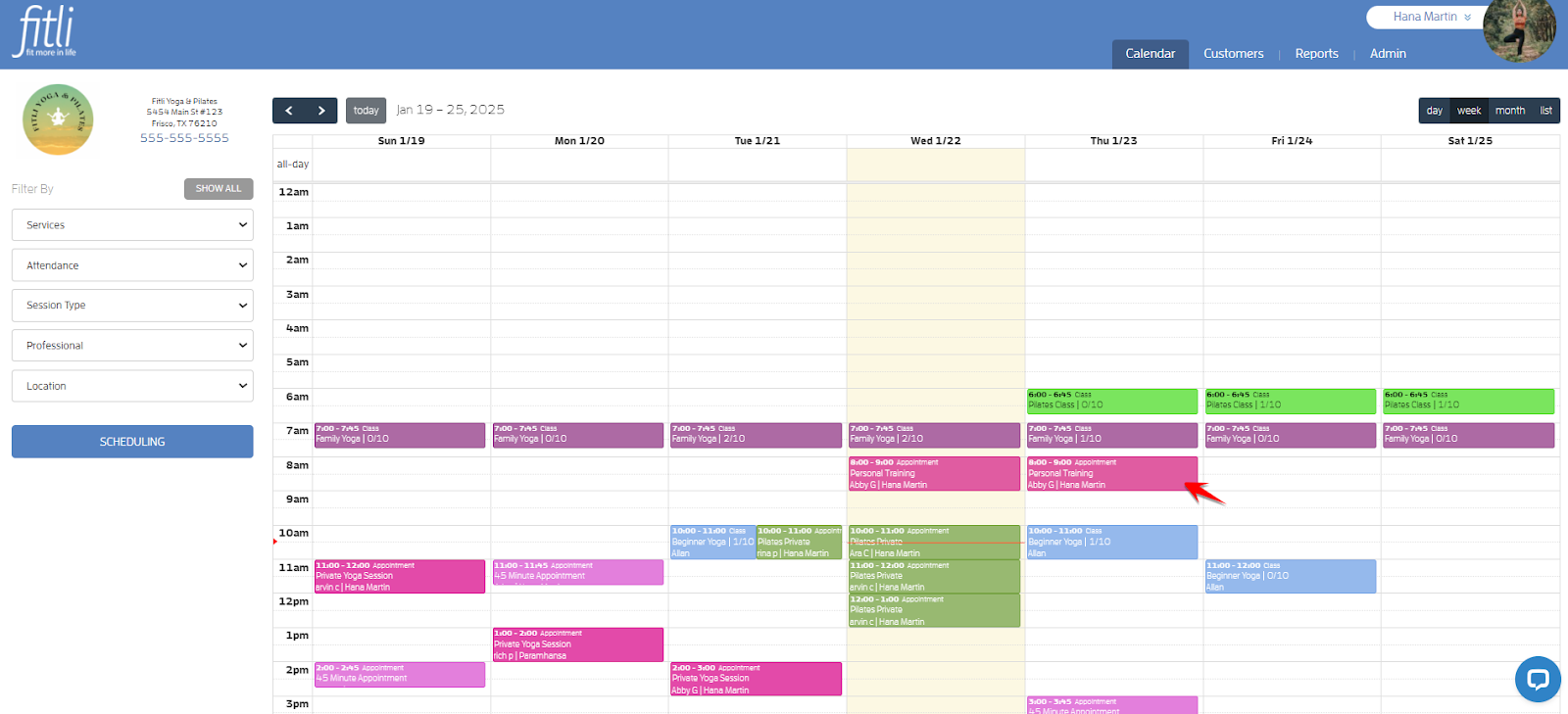
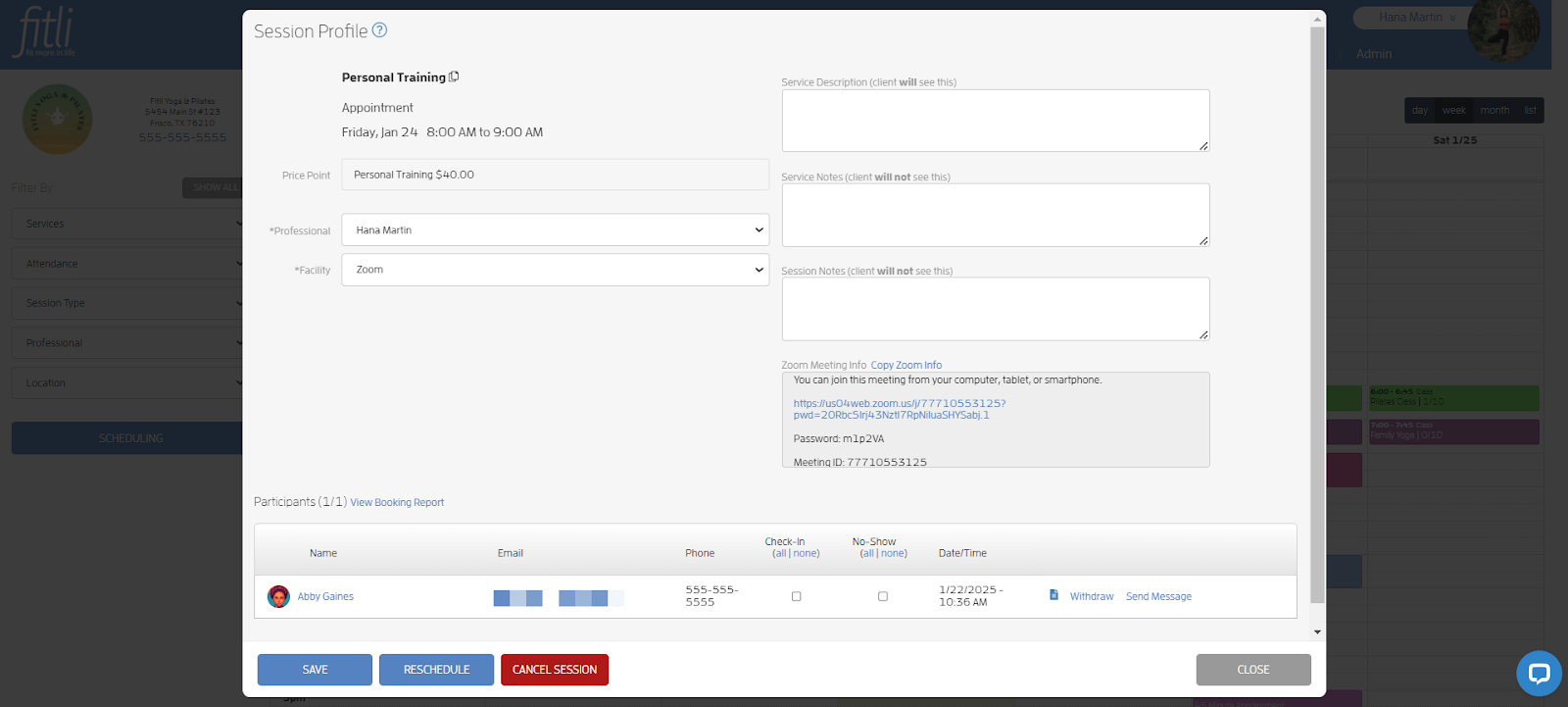
Log in to your Fitli business account then click the appointment on your calendar to open its profile.
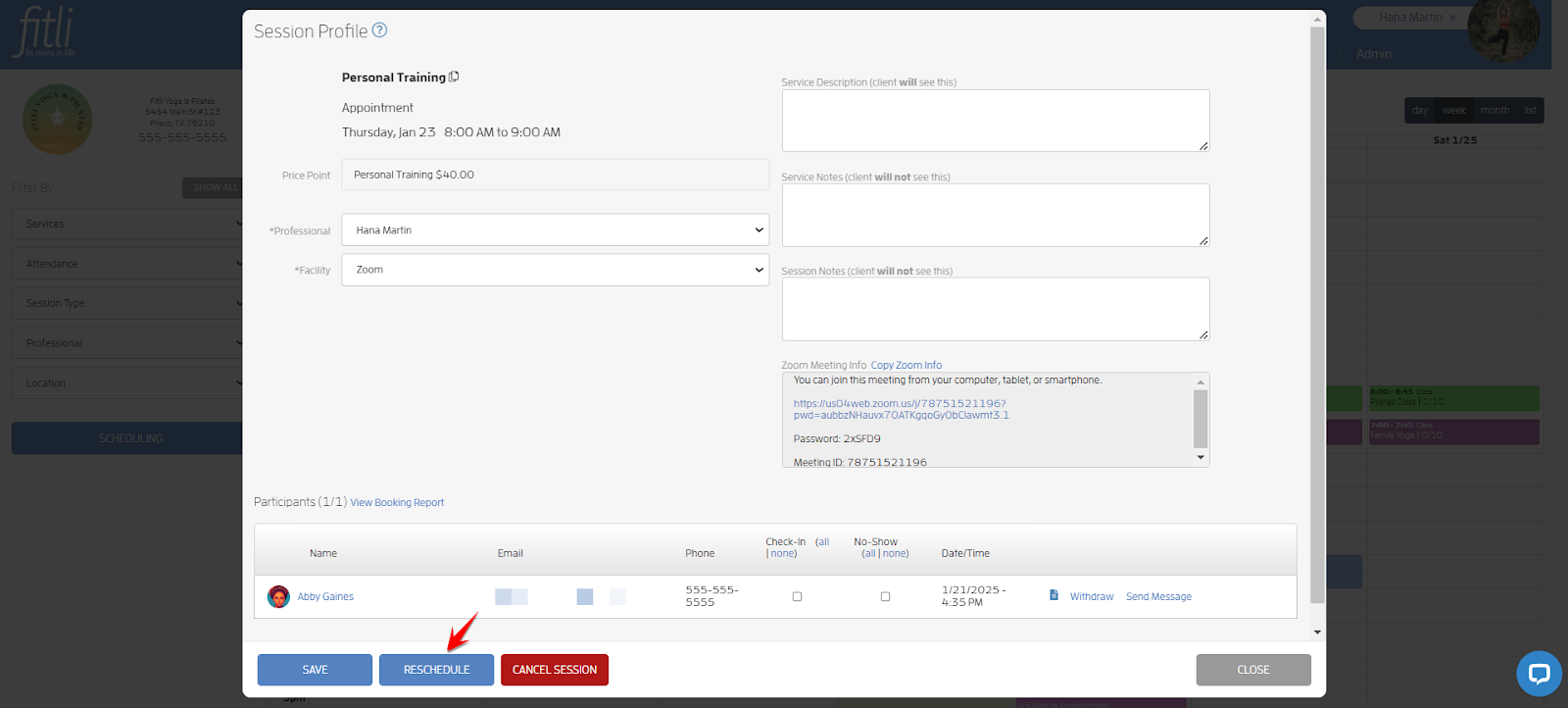
Click the RESCHEDULE button.
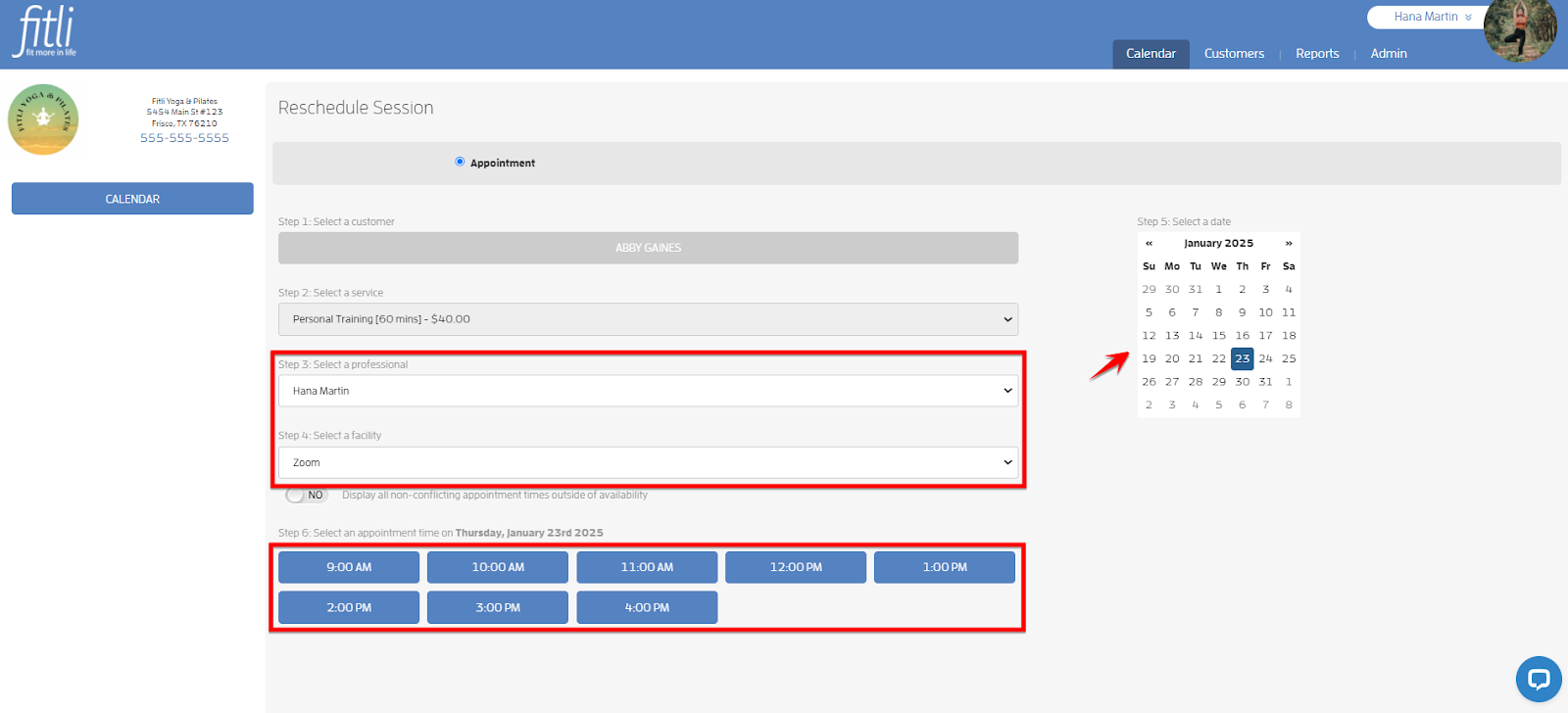
On the Reschedule Session page, you can change the professional and the facility but not the appointment type. Use the pulldowns if you want to change any editable details, otherwise, leave it as it is. In the example below, the business did not change any of these.
Note: You cannot reschedule appointments in the past and those within the business’ cancellation policy.
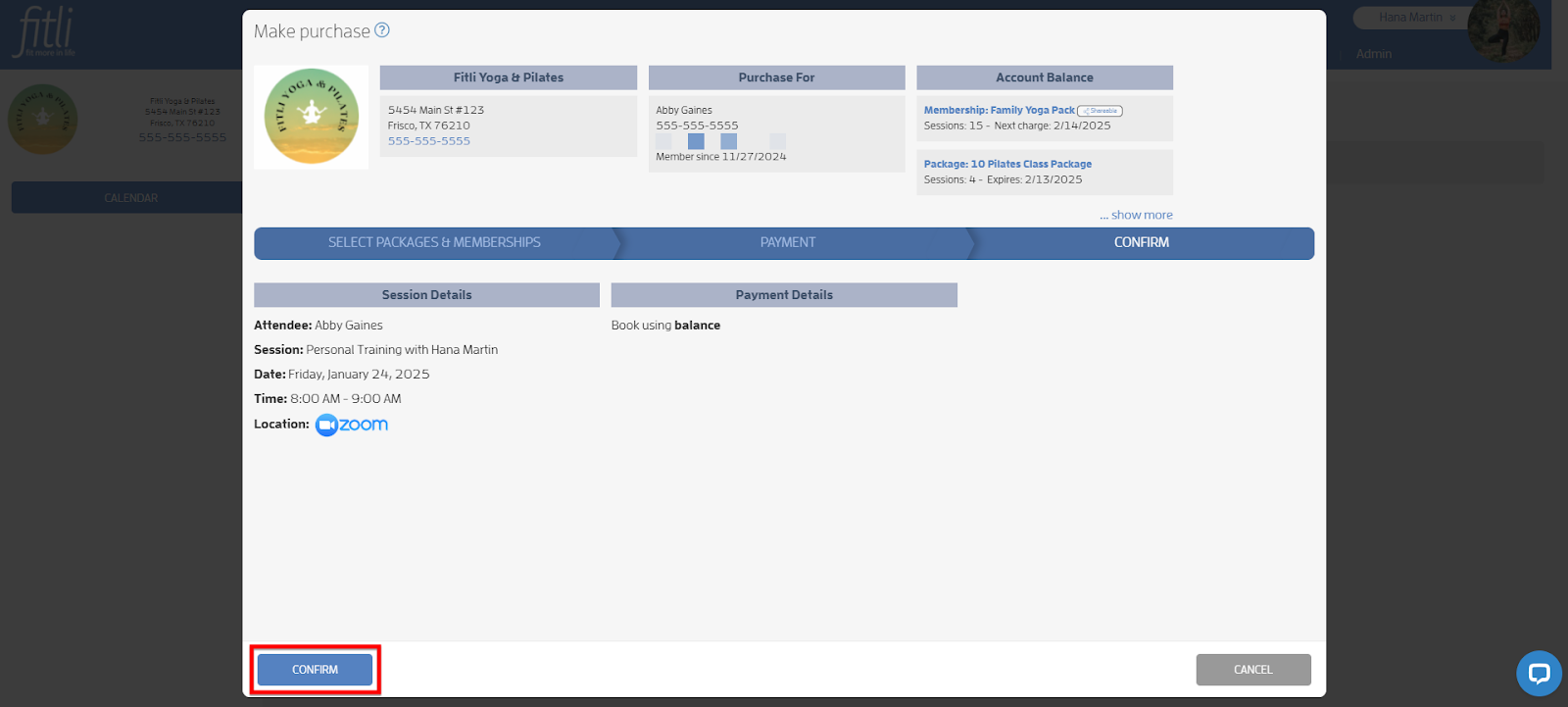
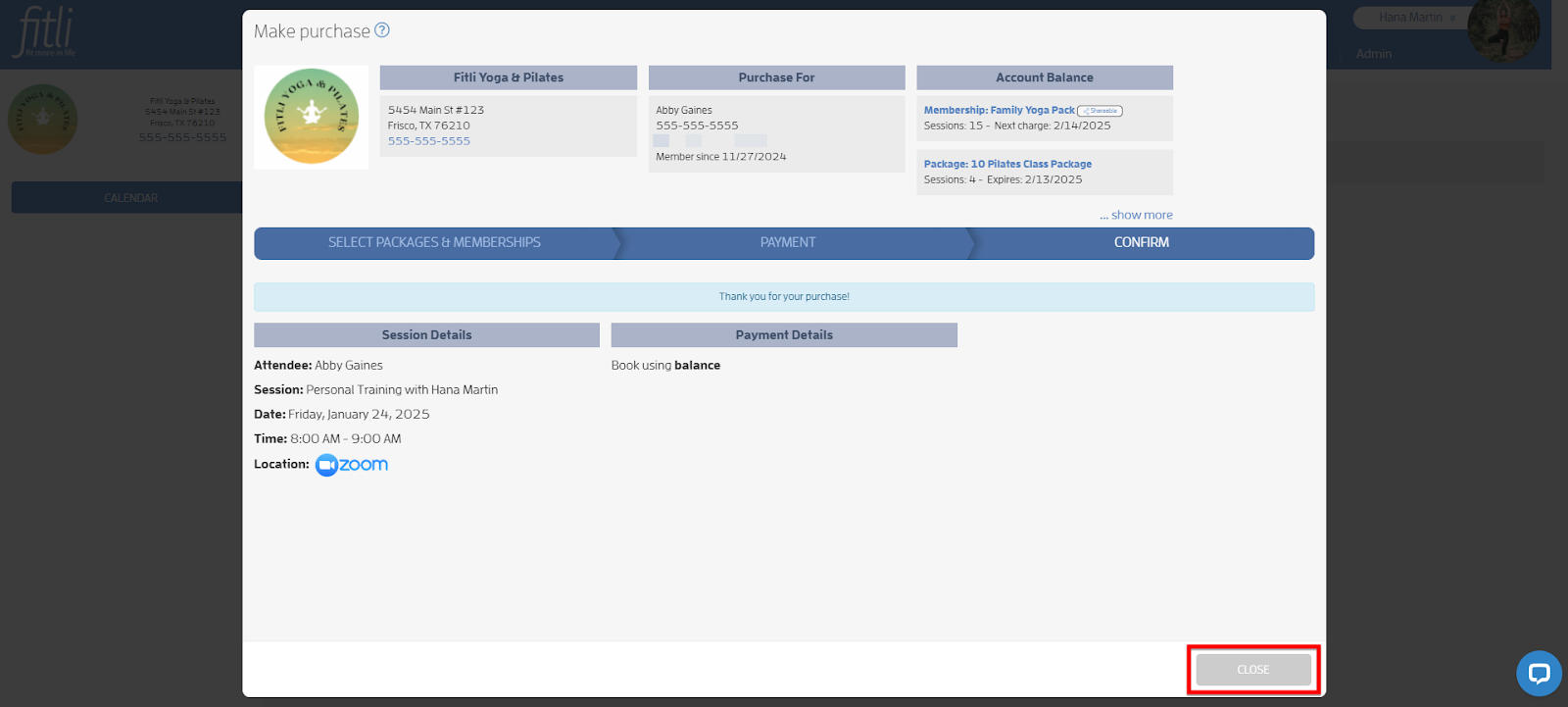
Choose the new date and/or time to reschedule the appointment. Click CONFIRM and CLOSE.
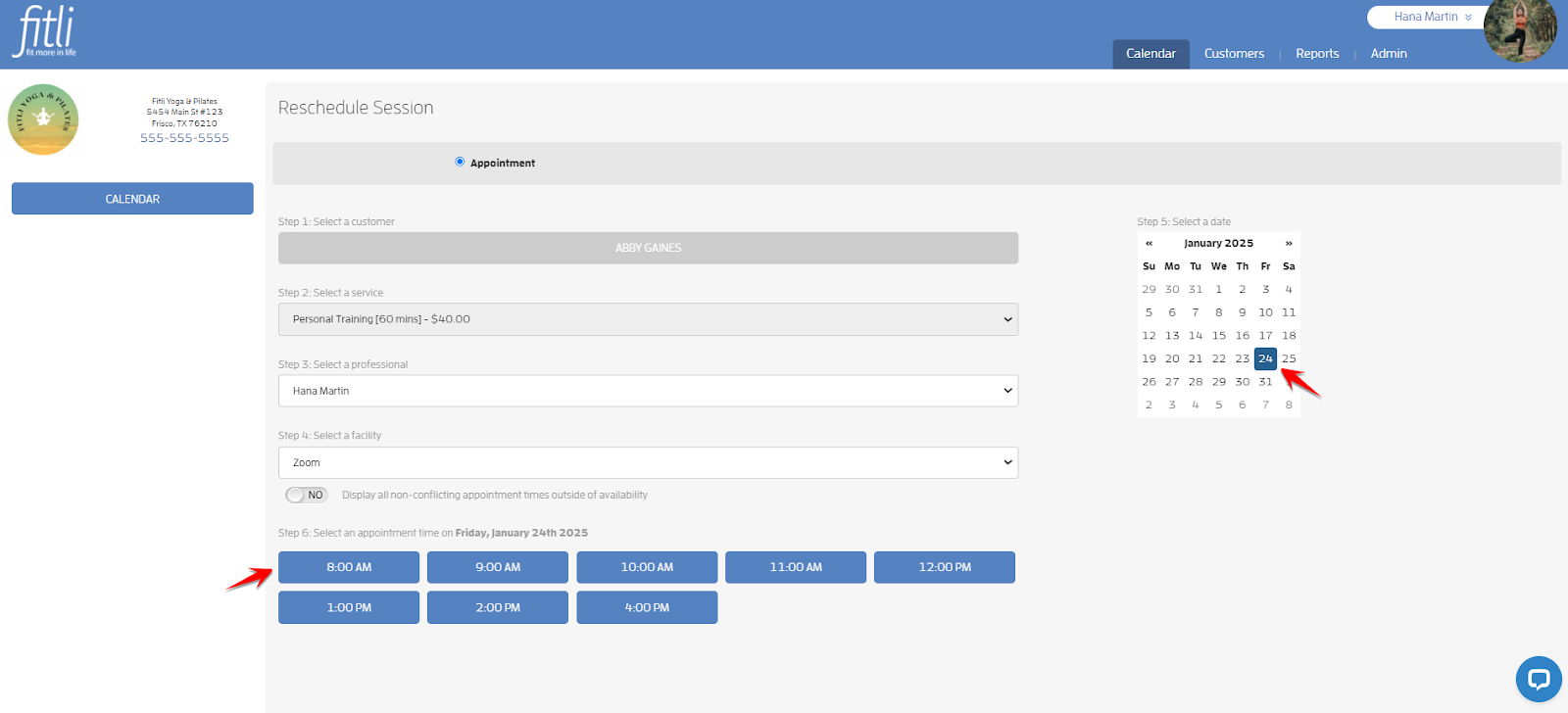
That’s it! You’re done!
What will happen next?
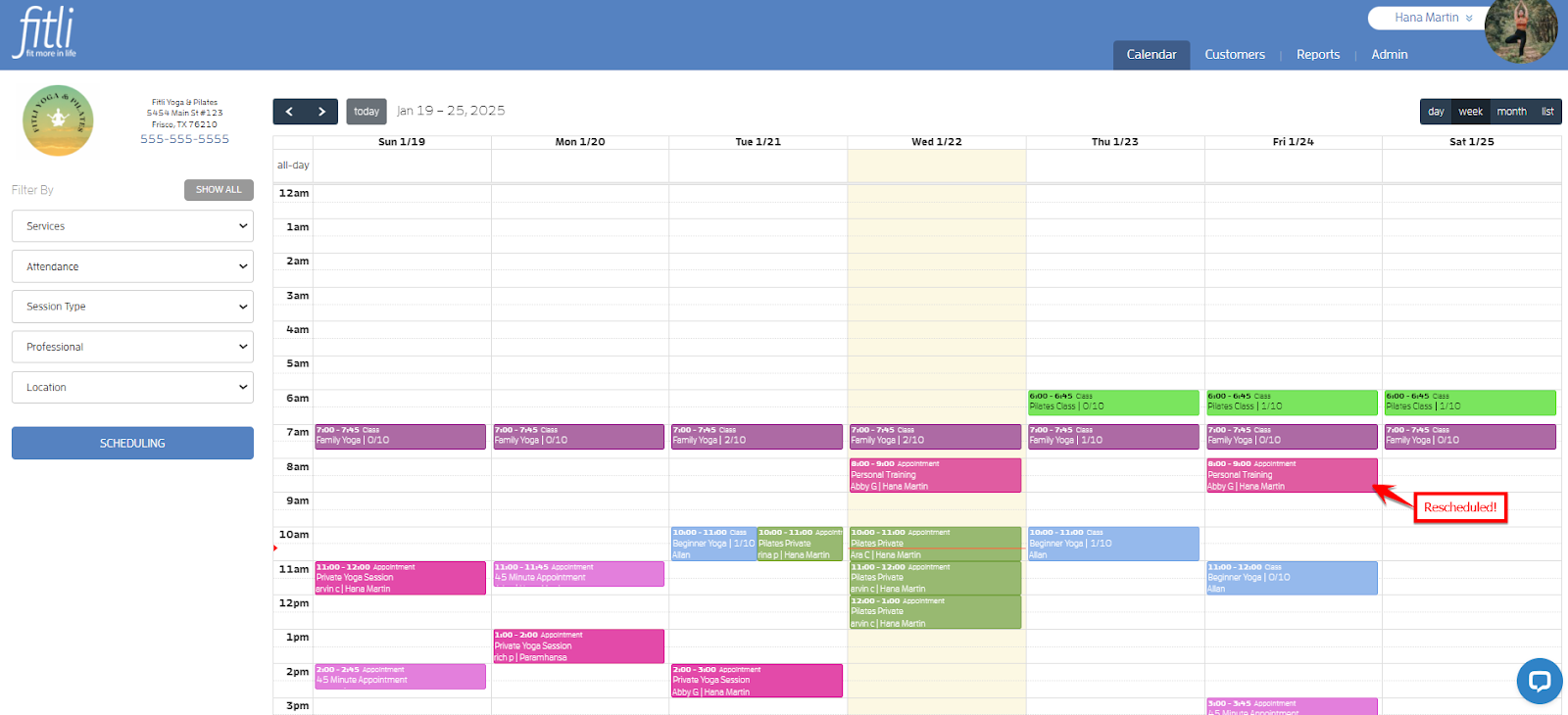
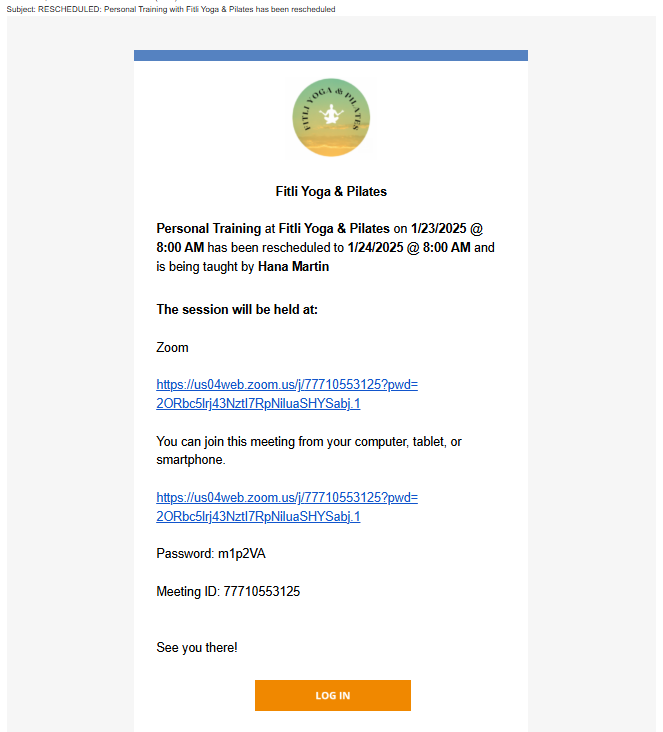
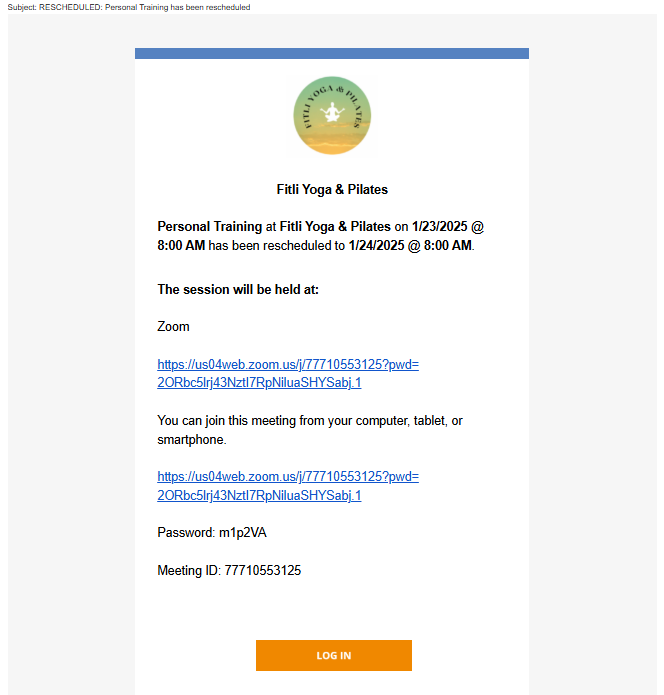
Once you’ve rescheduled the appointment, you’ll see it on your business calendar in the new time slot. The client and the professional will also receive a rescheduled appointment email. Screenshots below.
Client Session Rescheduled Email
Professional Session Rescheduled Email
That's about it! Any questions? Chat with us or send us an email to support@fitli.com.
Related Articles
Personal Guide: How to Reschedule an Appointment?
Are you a customer or client of a business, who wants to reschedule an appointment? Here's how. First, log in to your Fitli personal account. You'll typically be taken directly to your schedule/calendar, where you can view any and all upcoming ...iOs App: How to Reschedule an Appointment?
Are you a customer or client of a business, who wants to reschedule an appointment? Here's how. First, log in to your Fitli personal account. You'll typically be taken directly to “More”. Tap the “Schedule” button to view any and all upcoming classes ...Mobile version: How to Reschedule an Appointment?
Are you a customer or client of a business, who wants to reschedule an appointment? Here's how. First, log in to your Fitli personal account. You'll typically be taken directly to your schedule/calendar, where you can view any and all upcoming ...Relationships - Appointment Bookings! (Client Guide)
You can book yourself and your relationship/s into appointments with just a few clicks! Here's how. Step 1: Choose the "Appointment" option to book. Then choose the service, trainer, date and time. Step 2: Then, choose yourself or any of your ...Relationships - Appointment Bookings!
Your clients have the ability to book themselves and their relationships into CLASSES. Your clients can also book themselves and their relationships into appointments! Here's how to get started: For Businesses: If you're a business and want to book ...