
The Relationships feature lets you and your family members and friends share any shareable packages or memberships offered by the business you've signed up for. It also allows you to book yourselves and your relationships into classes!
In order to book your relationships the following are required:
- You must have a shared package that you can use (this is set up by your business).
- You must have a relationship created (the relationship can be added by you or your business.)
Note: This feature is only available on the web, or via the mobile website at this time. Coming later for the standalone Fitli iOS app.
Step 1: Start from your business' schedule.
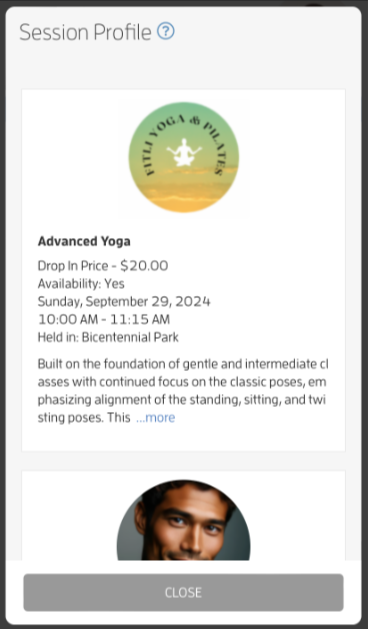
First, find the class on your business' schedule that you'd like to book into. In the screenshot below, we've chosen a class. Tap on it and the booking window will appear.
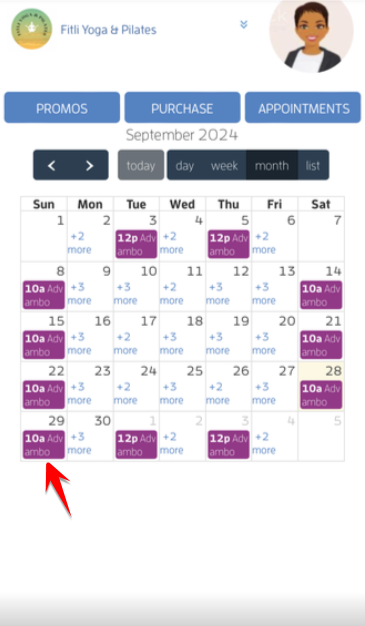
Step 2: Click the Class to Book.
Once on the Booking Window as shown below, scroll up, tap the "Book" button to book yourself or any of your relationships.
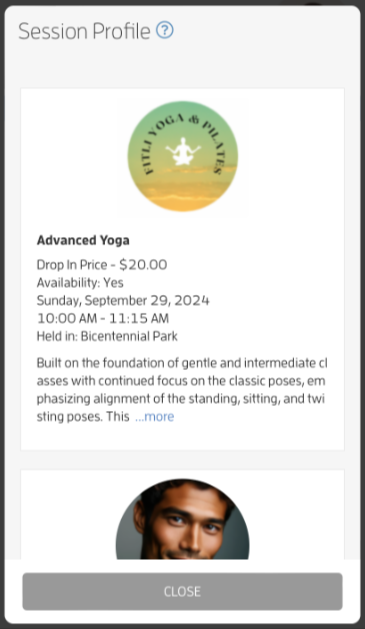
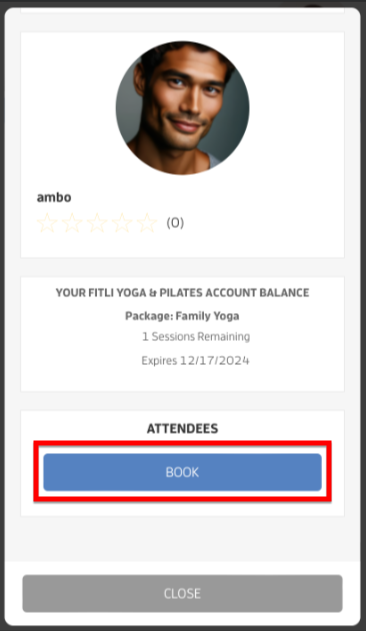
Step 3: Choose who to Book!
Once the pop-up appears, choose the person or relationship you'd like to book. You can choose either yourself (the top option) or any of your Relationships. Remember, your relationships have to be created by you or your business.
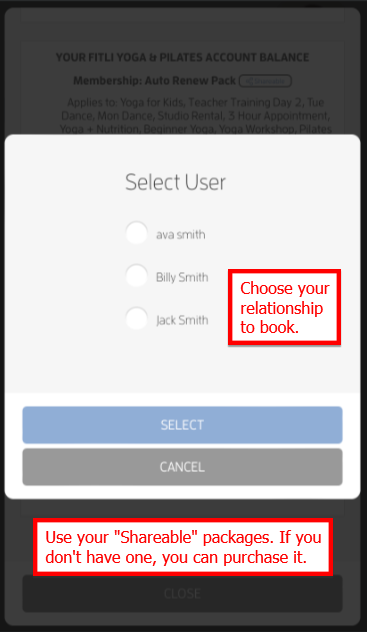
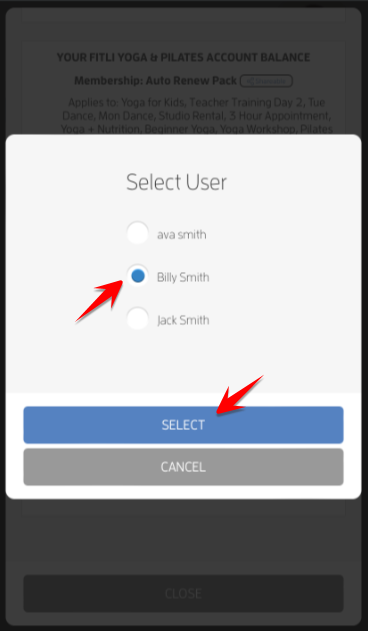
Step 4: Complete the Booking or Purchase.
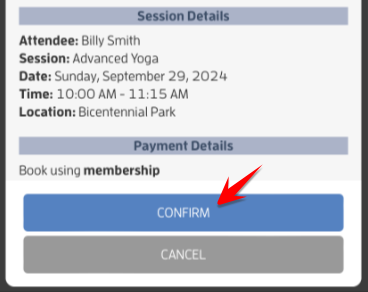
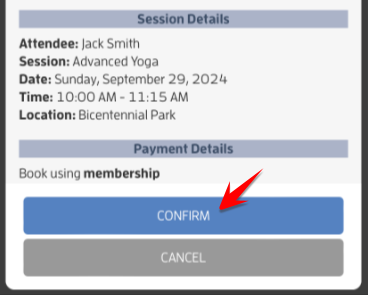
If you've already got a package or membership which includes the classes you're trying to book, just tap the CONFIRM button to complete the booking. Alternatively, you might be prompted to purchase a package or membership to complete your booking. If so, and you believe you should have credits or sessions remaining, please contact your business directly so they can assist you.
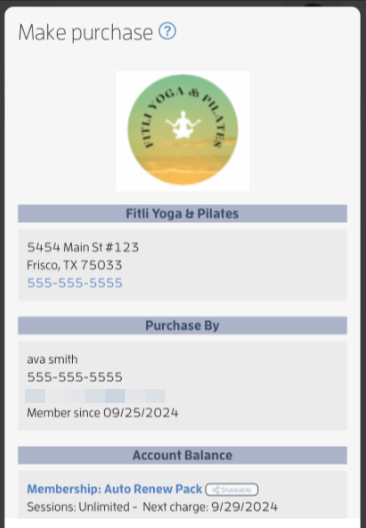
You can also add relationships to classes that you're already booked into. Just click on the class, scroll up and you'll see an option called, "+ Book Another" at the bottom. Tap that, then choose the other relationship (such as another child, spouse, etc) and book that person into the same class.
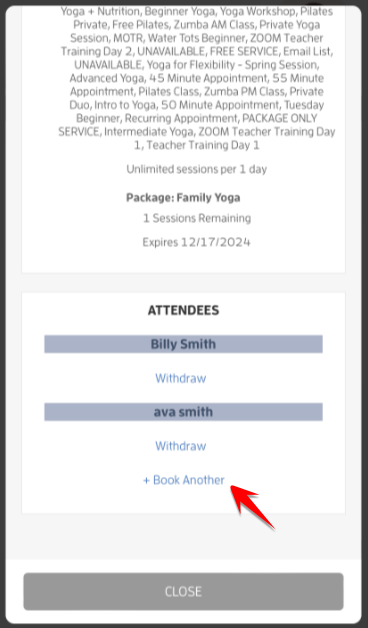
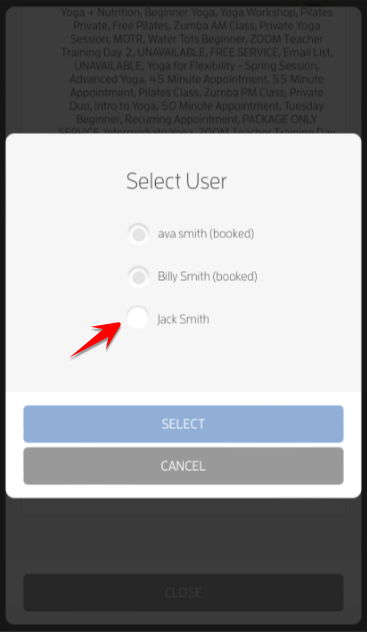
Note: You can add relationships while booking via the select user modal, scroll up to add a new relationship. Click HERE for a detailed guide.
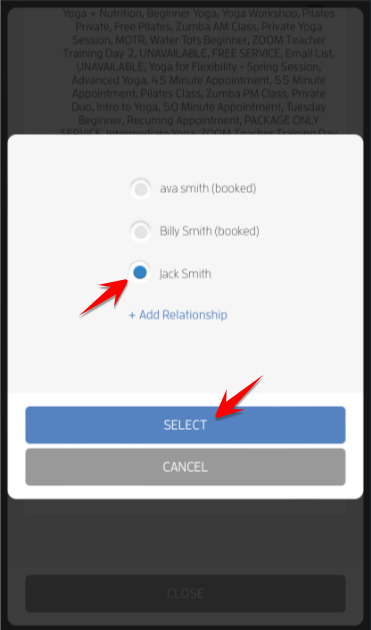
Tap the CONFIRM button to complete the booking. Alternatively, you might be prompted to purchase a drop-in or a package or a membership to complete your booking. If so, and you believe you should have credits or sessions remaining, please contact your business directly so they can assist you.
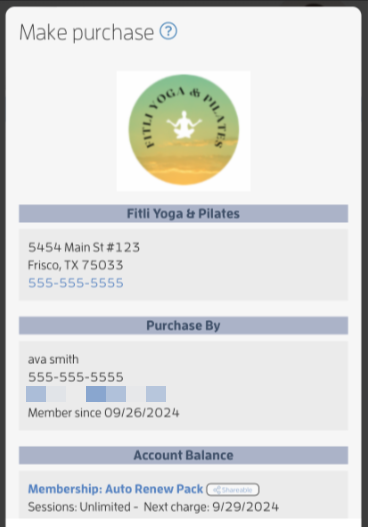
Note: If your business has a waiver requirement, tap the waiver link and/or toggle to accept it and hit CONFIRM. This is a one time process. If you accept the waiver, the site won't prompt you to tap on it again on your next purchase/booking unless you add relationships and purchase/book for them, or, your business updates and/or resets the waiver, in which case you will need to re-accept the waiver.
That's about it! Any questions? Contact your business directly or chat with us or send us an email to support@fitli.com.