
We all know reviews are important. It helps businesses and instructors understand their customers, improve their service, and build long-lasting relationships with their clients. Positive reviews validate the business' and the instructors' hardwork and dedication.
How to Leave a Review?
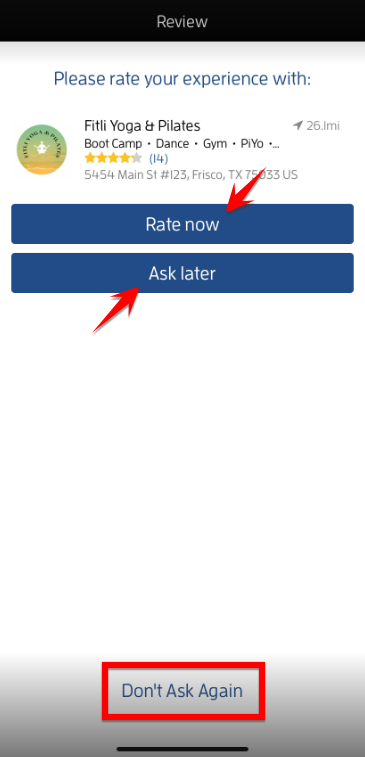
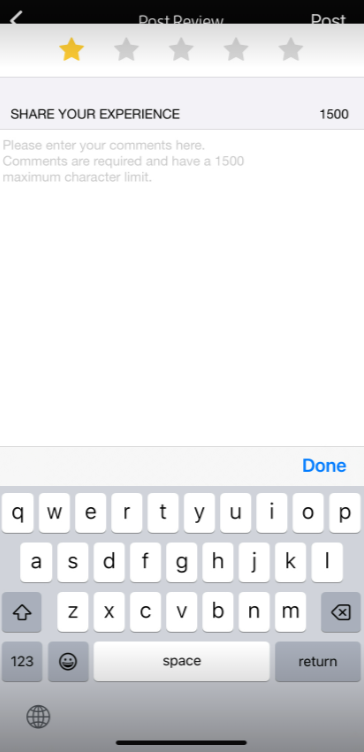
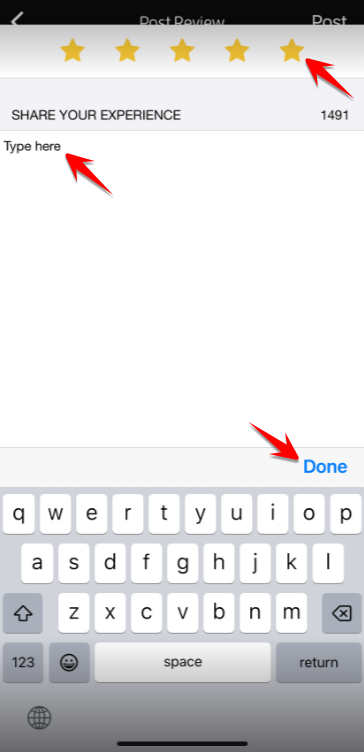
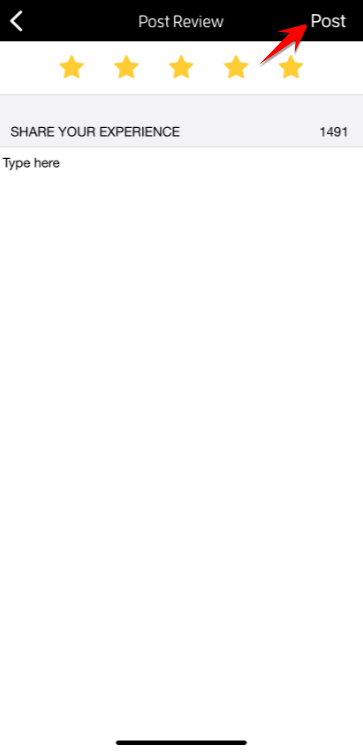
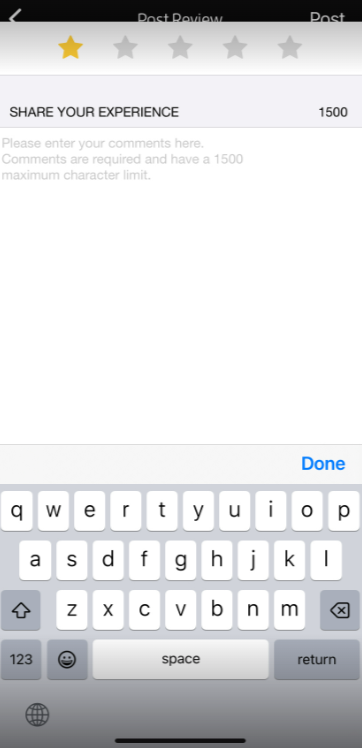
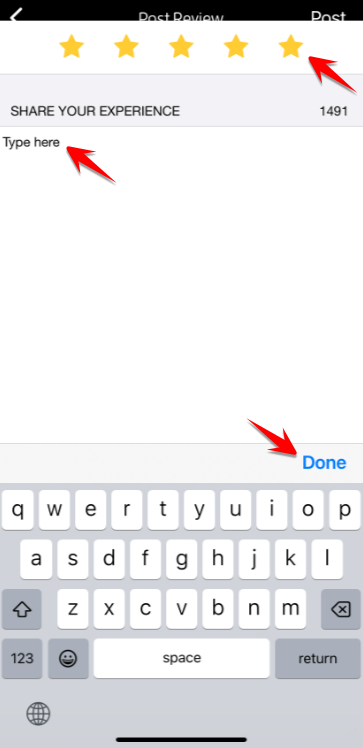
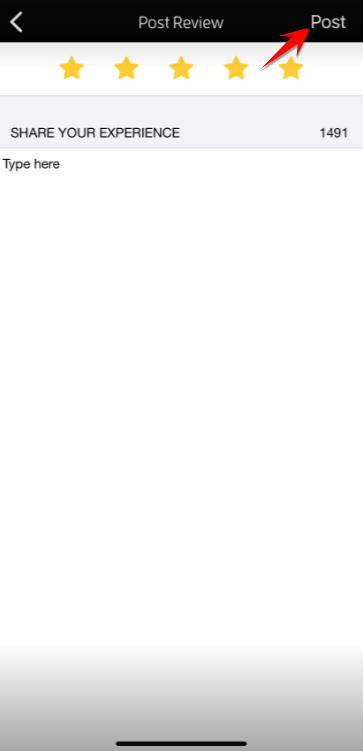
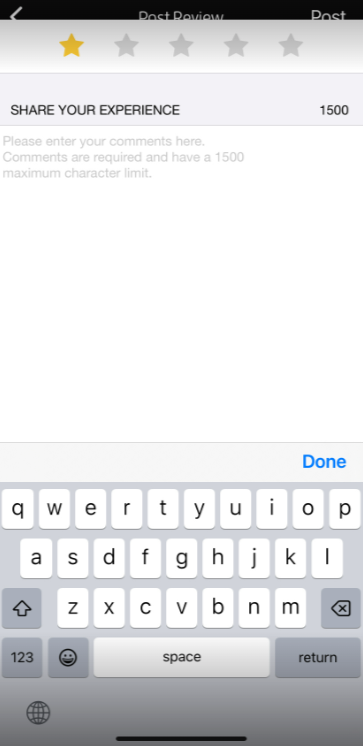
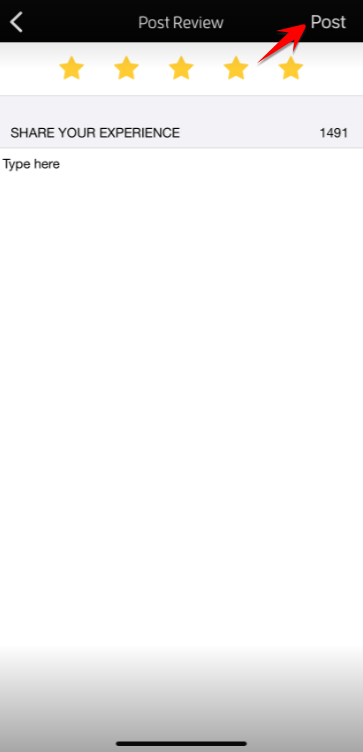
On your next login, after attending a class or appointment, you'll see a review popup. To leave a review, tap the "Rate Now" button to be directed to the "Post Review" page. Choose any star rating, leave your comments on the comments section, hit Done then "Post".
Note: If you prefer to leave a review some other time, tap the "Ask later" button. Otherwise, tap the "Don't Ask Again" link. If you inadvertently tapped the "Don't Ask Again" link, don't fret! You can proactively leave a review for the business which I will discuss later.
How to Proactively Leave a Review?
To leave a review for the instructor, go to "Favorites", tap the business to open its profile, tap "Professionals" then the instructor's name to open their profile.
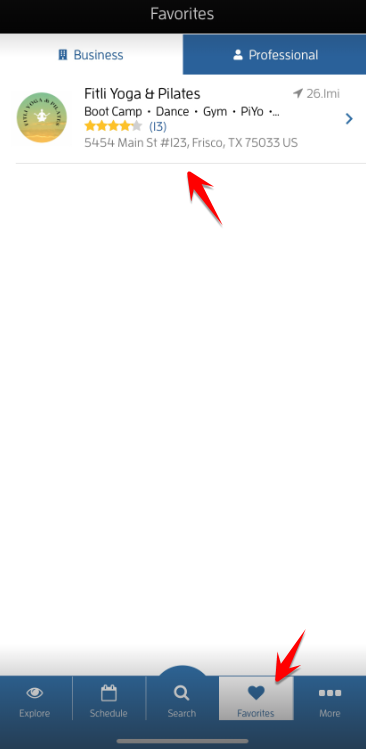
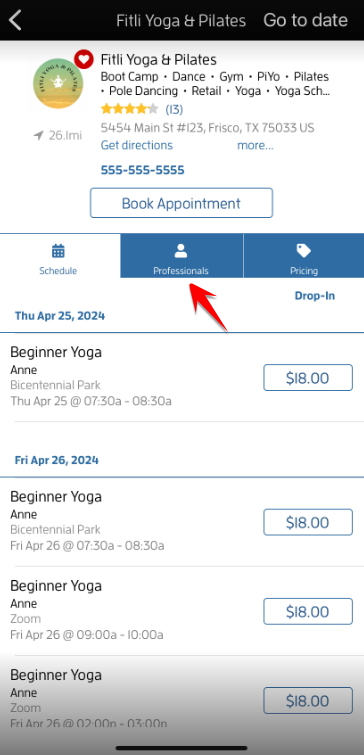
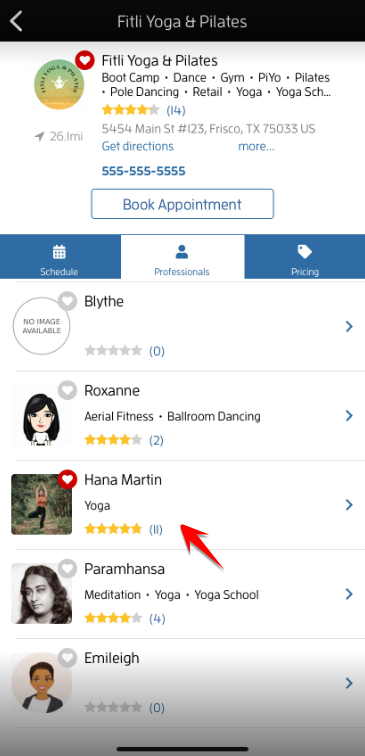
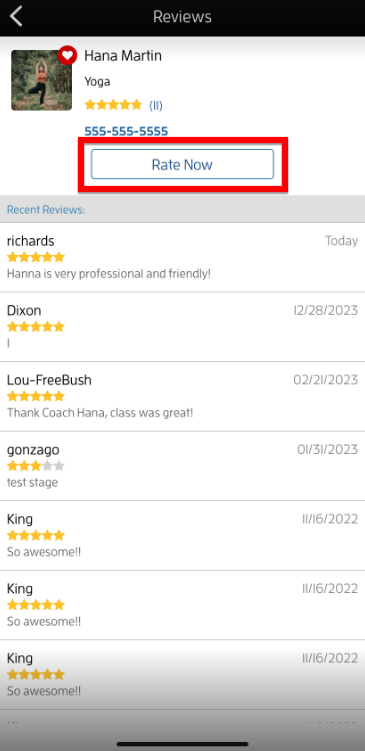
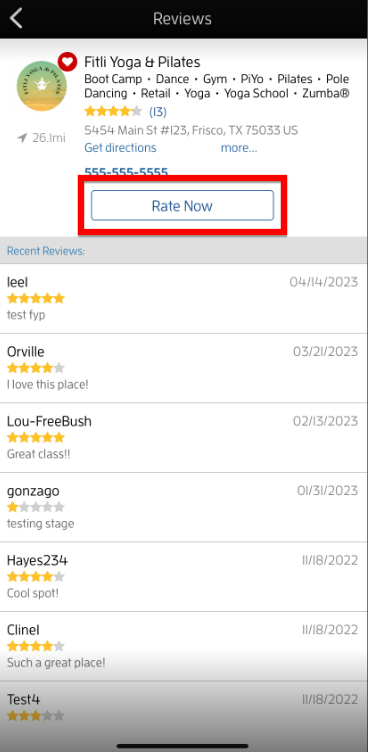
On the "Reviews" section, tap the "Rate Now" button to be directed to the "Post Review" page.
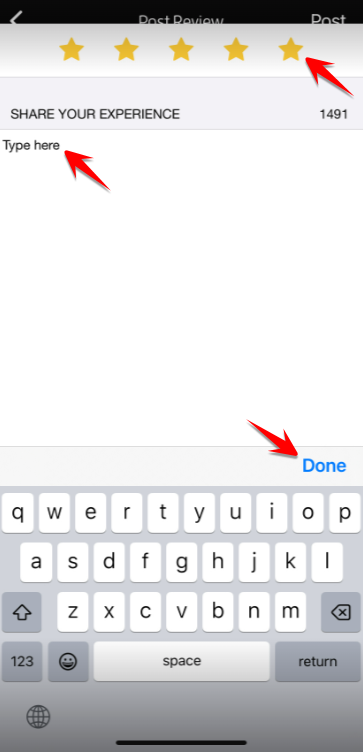
Choose any star rating, leave your comments on the comments section, hit DONE then "Post".
To leave a review for the business, go to "Favorites", tap the business to open its profile.
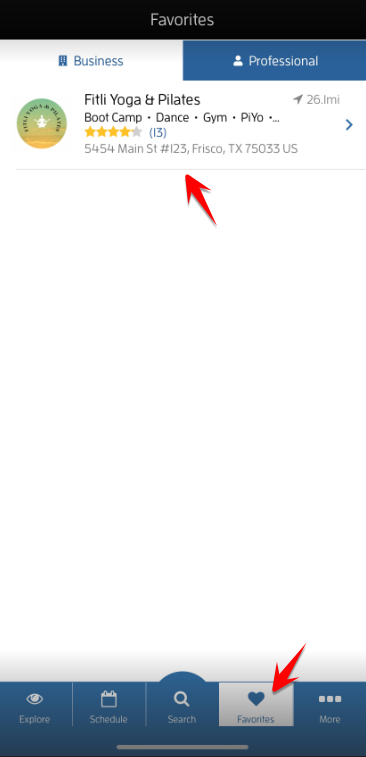
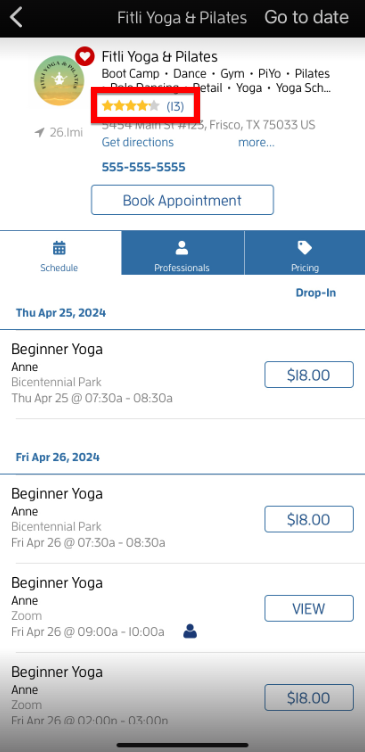
Tap the link or the star rating of the business to be directed to the "Reviews" section then tap the "Rate Now" button.
On the "Post Review" section, choose any star rating, leave your comments on the comments section, hit DONE then "Post".
That's it! You're done!
Top Questions:
Q: I'm using an Android device, how can I leave a review for the business?
A: To leave a review log in to fitli.com and follow this GUIDE.
Q: How can I view the review I left for the business?
A: To view the review you left for the business, go to the business, tap the link or the star rating at the top to be directed to the "Reviews" section then check for "Recent Reviews" under "Rate Now".
Q: How can I view the review I left for the instructor?
A: To view the review you left for the instructor, go to the business, tap "Professionals" and the instructor's name, then check for "Recent Reviews" under "Rate Now."
Q: I accidentally gave the business/instructor a 1-star rating, how can I change this?
A: Unfortunately, you can't edit a review once it's submitted. To change the star-rating or delete your review, contact us directly.
Q: I inadvertently clicked the "Don't Ask Again" link, can I still leave a review?
A: Yes, you can proactively leave a review for the business and instructor by following the steps above.
Any questions? Chat with us or send us an email to support@fitli.com.