
To book a session using the link you received is easy. Just follow these steps:
1 - Click the link you received for the session.
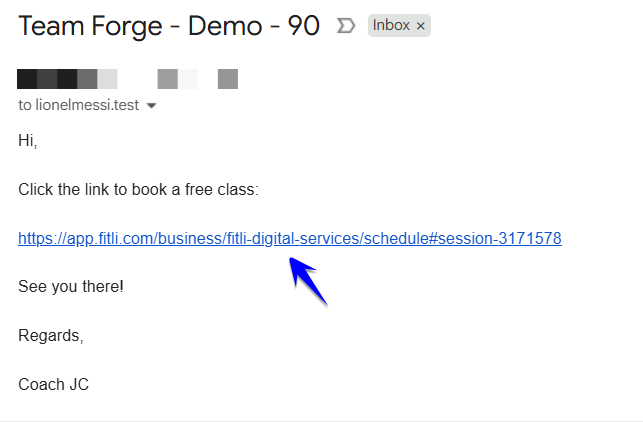
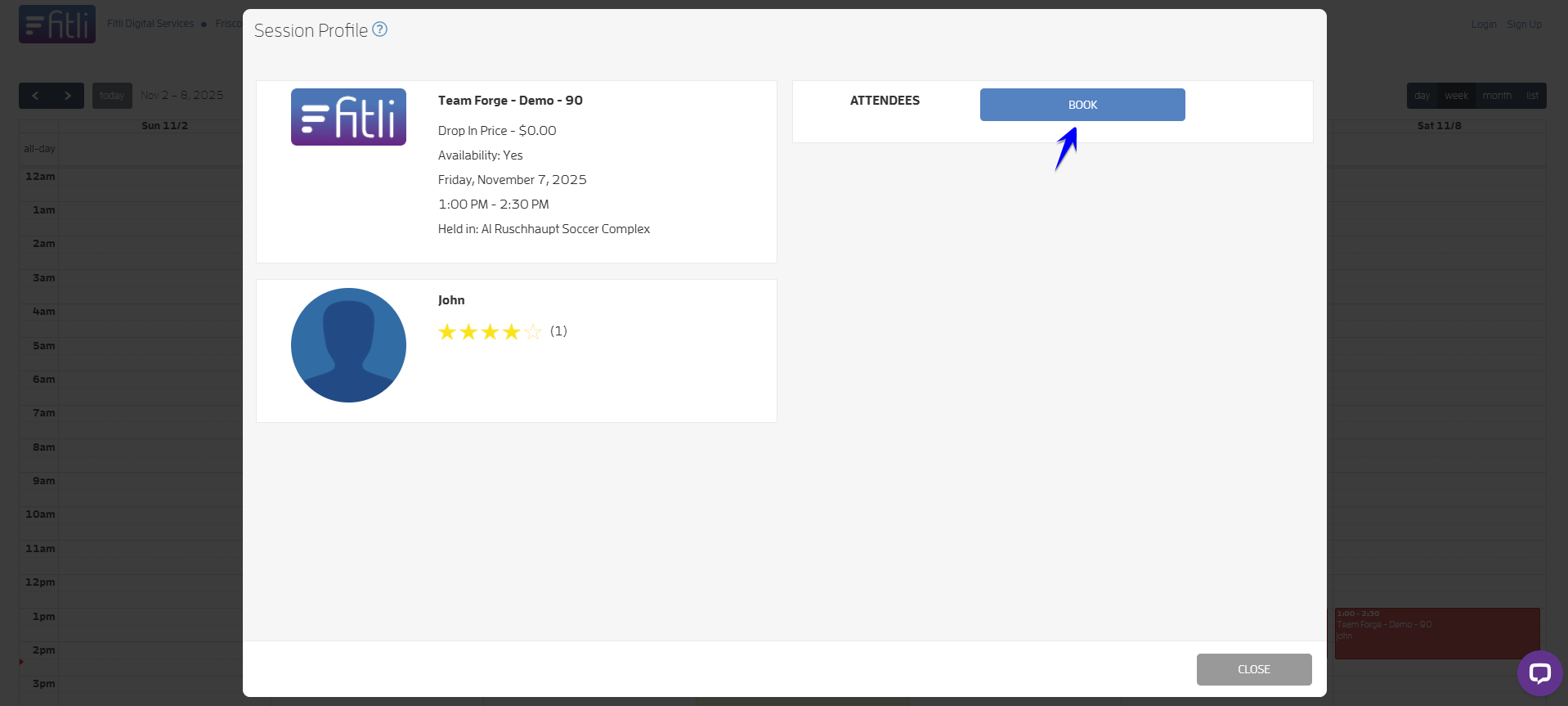
2 - Hit the "Book" button to get started.
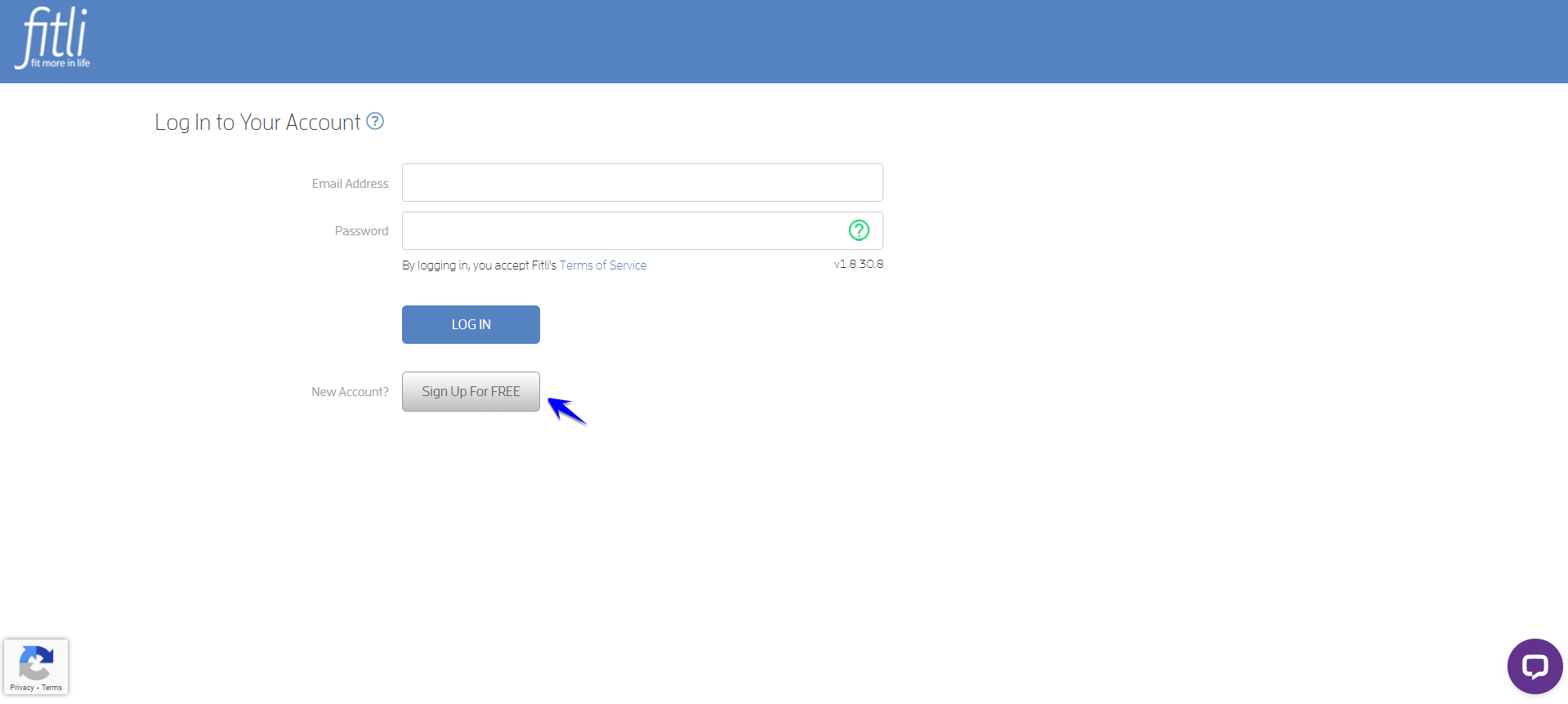
3 - Choose "Sign Up For FREE" to create your account.
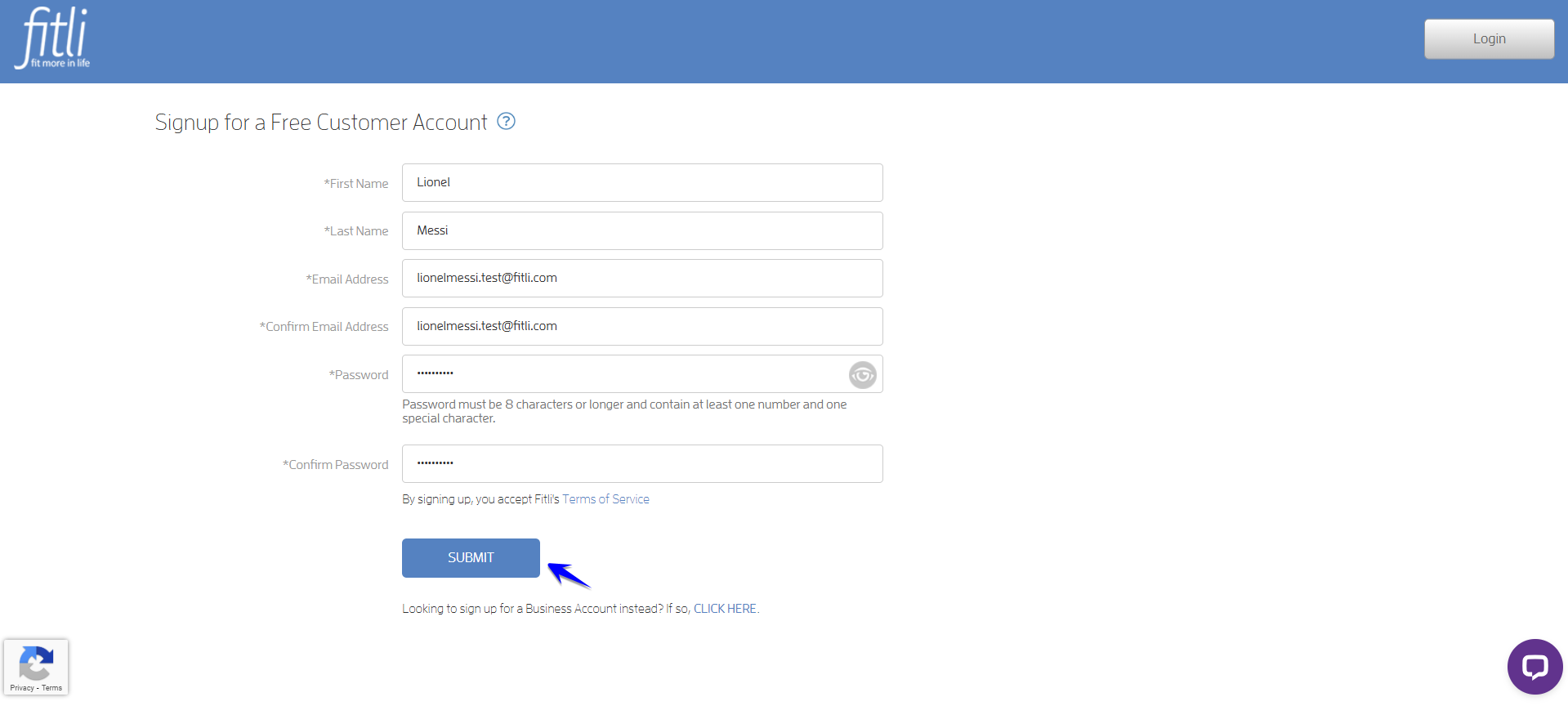
4 - Fill out your basic info — first name, last name, email, and a password — then click "Submit."
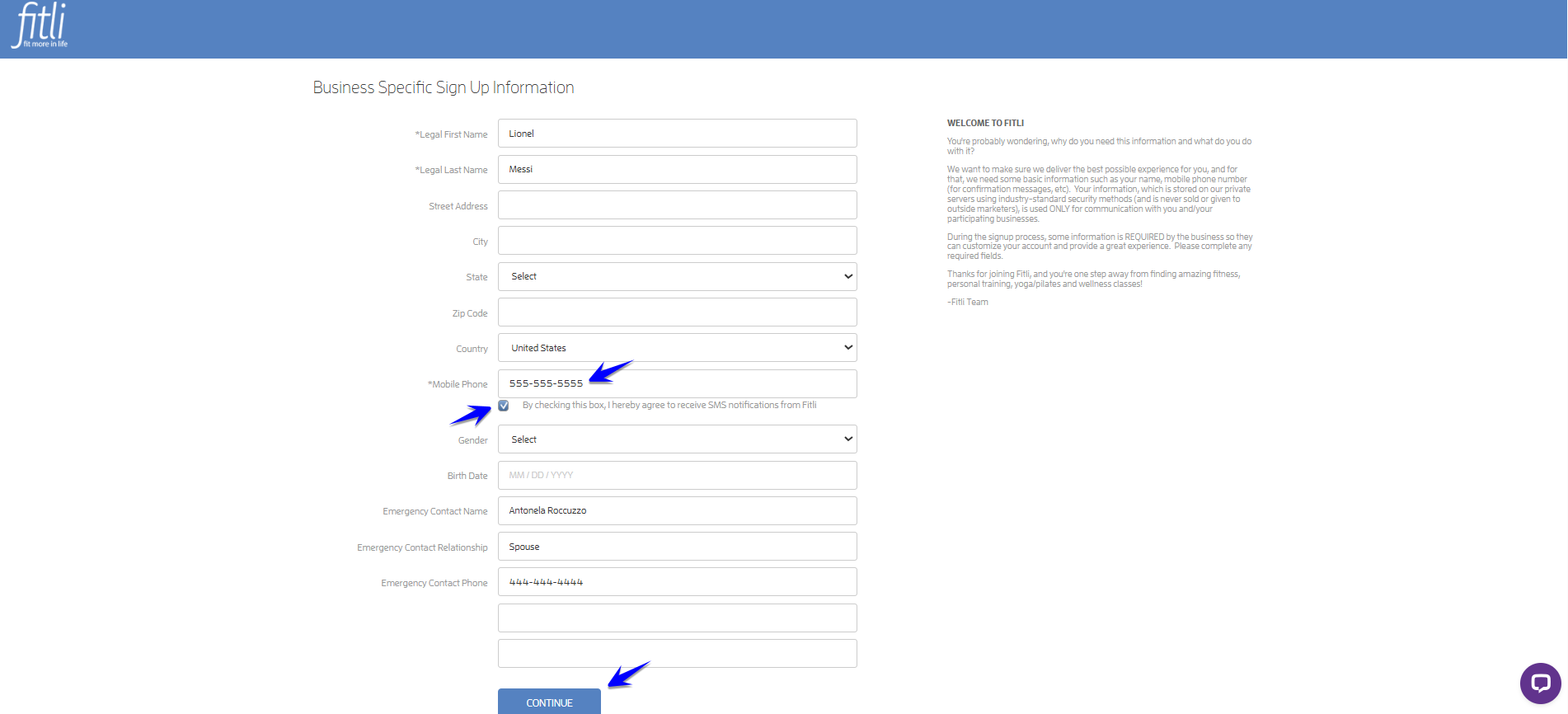
5 - Add any additional contact info if you want. Mobile number is the only required field. Check the box below it to opt-in to receive sms notifications then click "Submit."
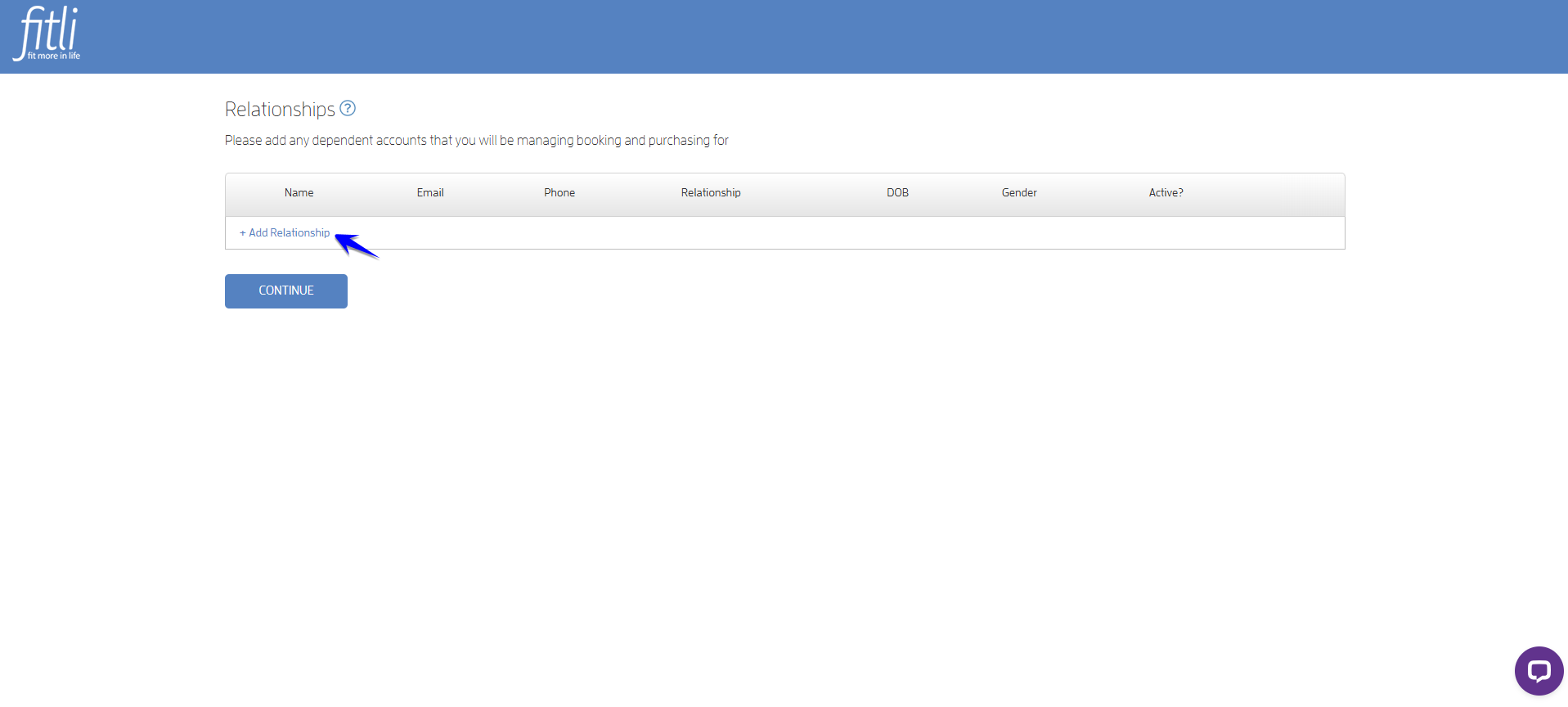
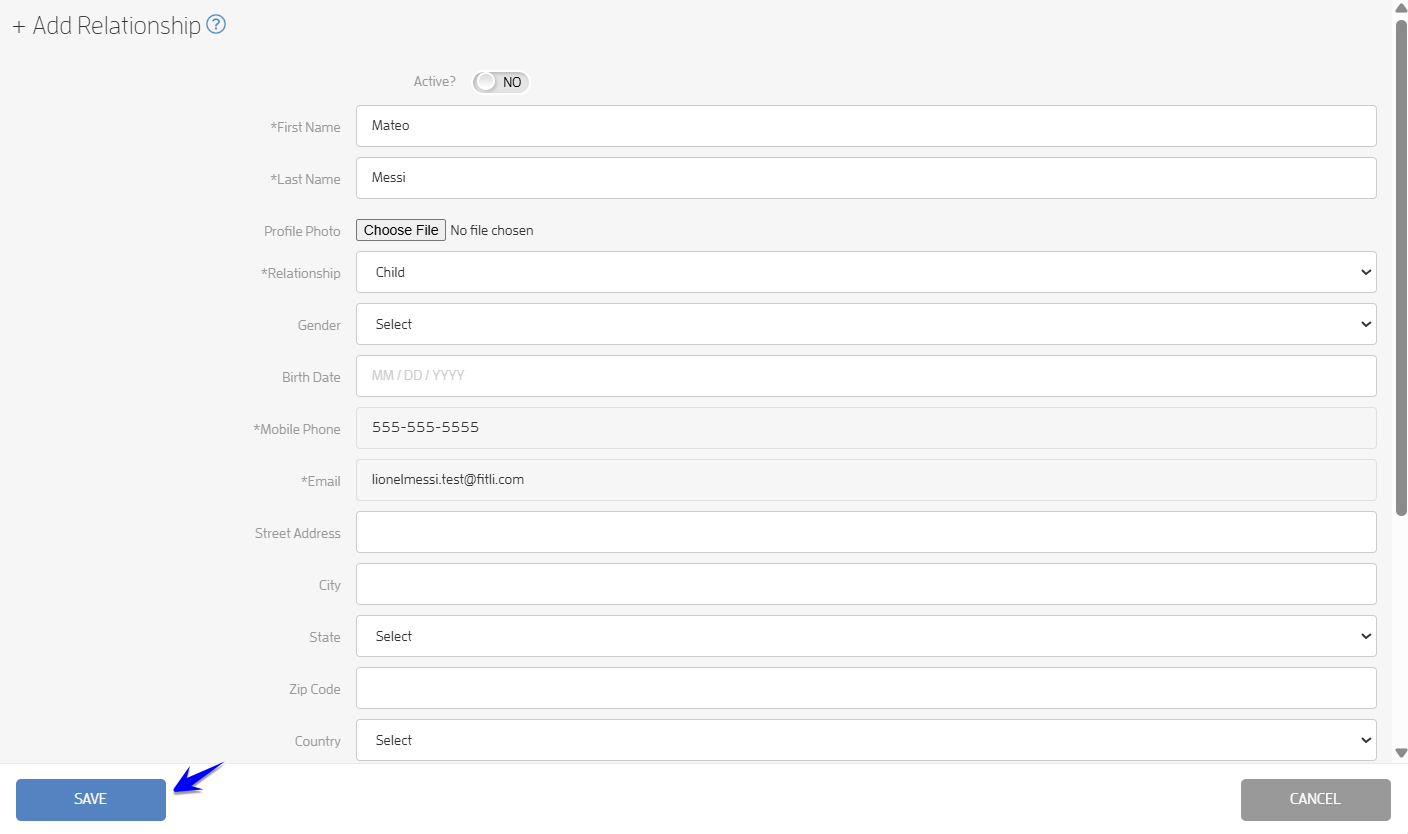
6 - Add your child’s information (first name, last name, and your relationship). Click "Save" and "Continue." Add another if you have more than one child attending.
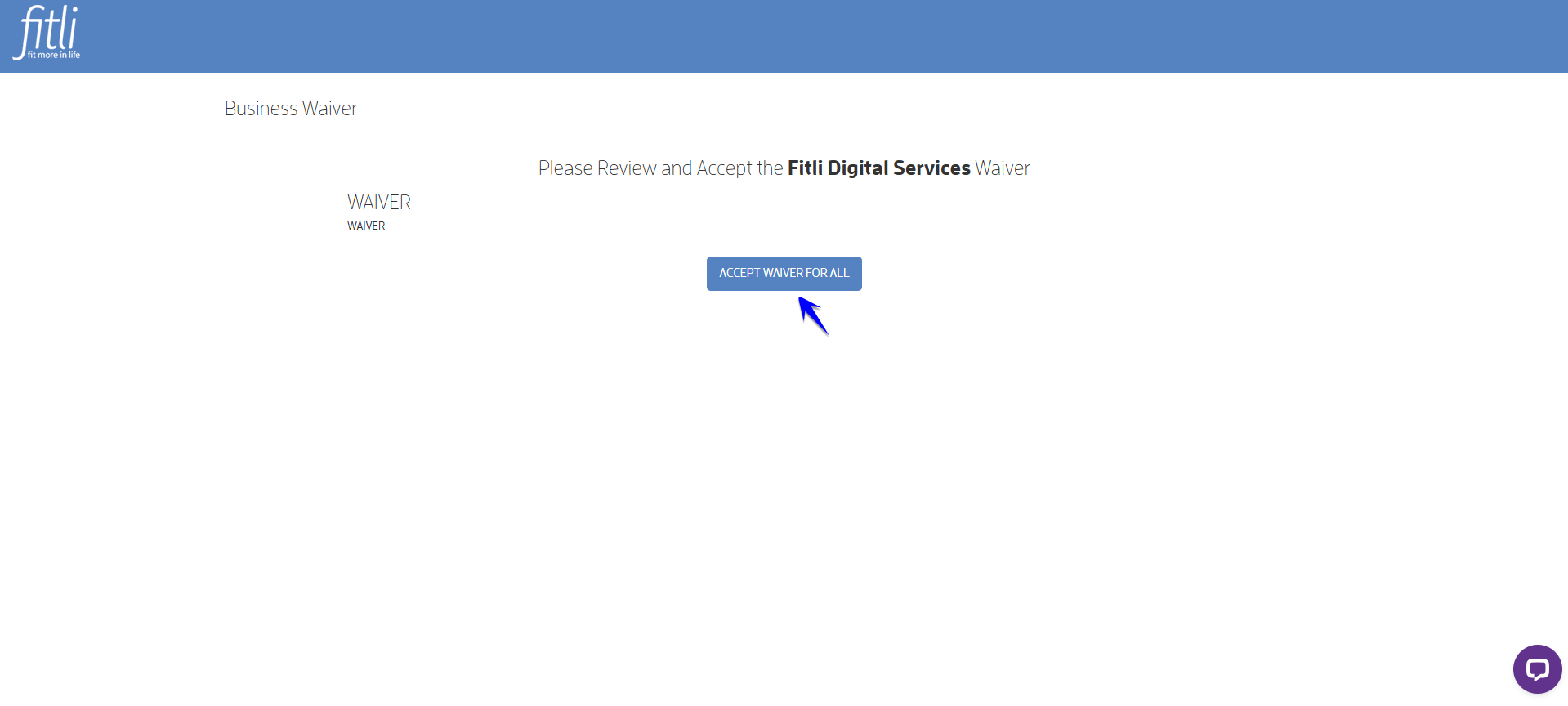
7 - Review and accept the waiver to move forward.
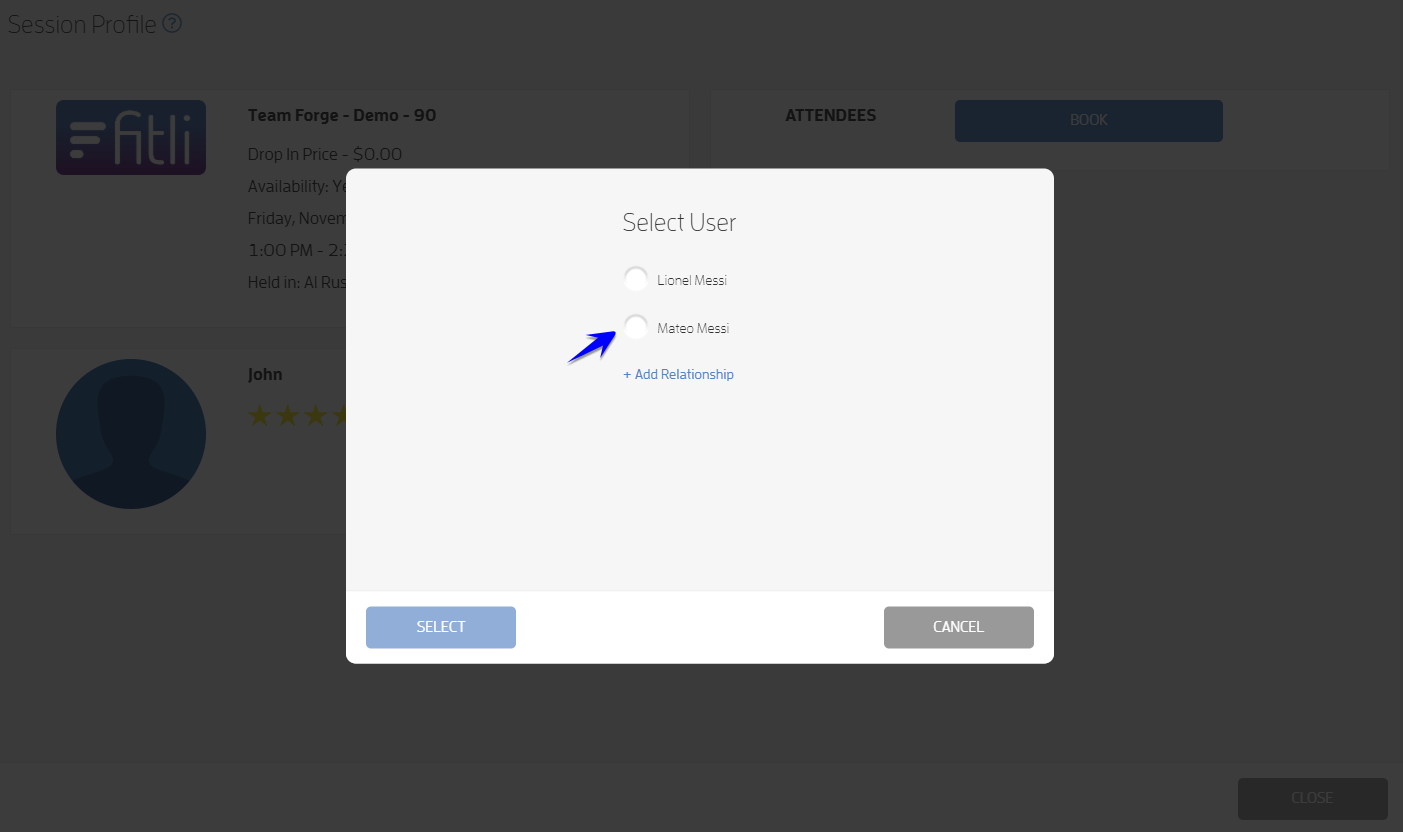
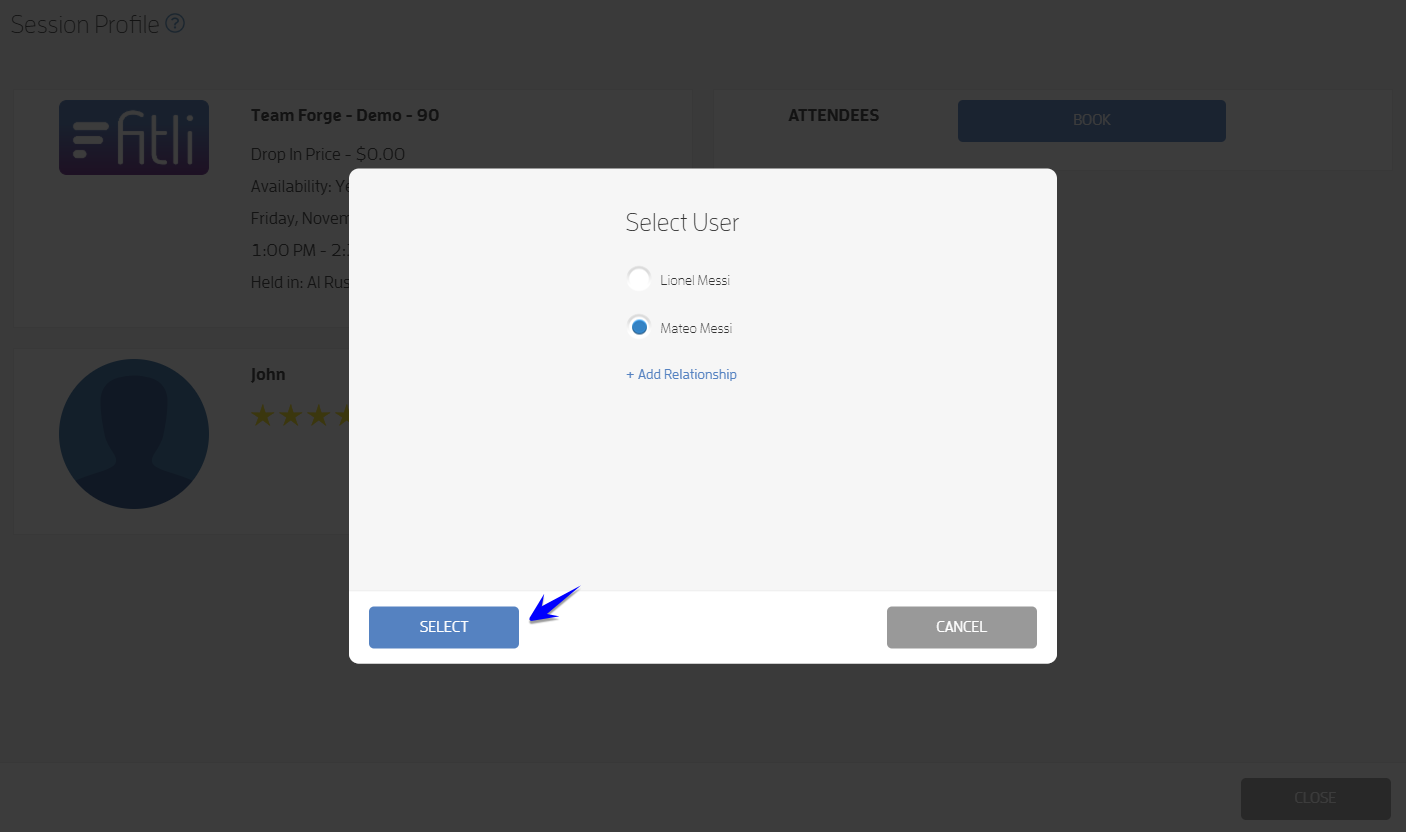
8 - Choose your child for the booking and click "Select."
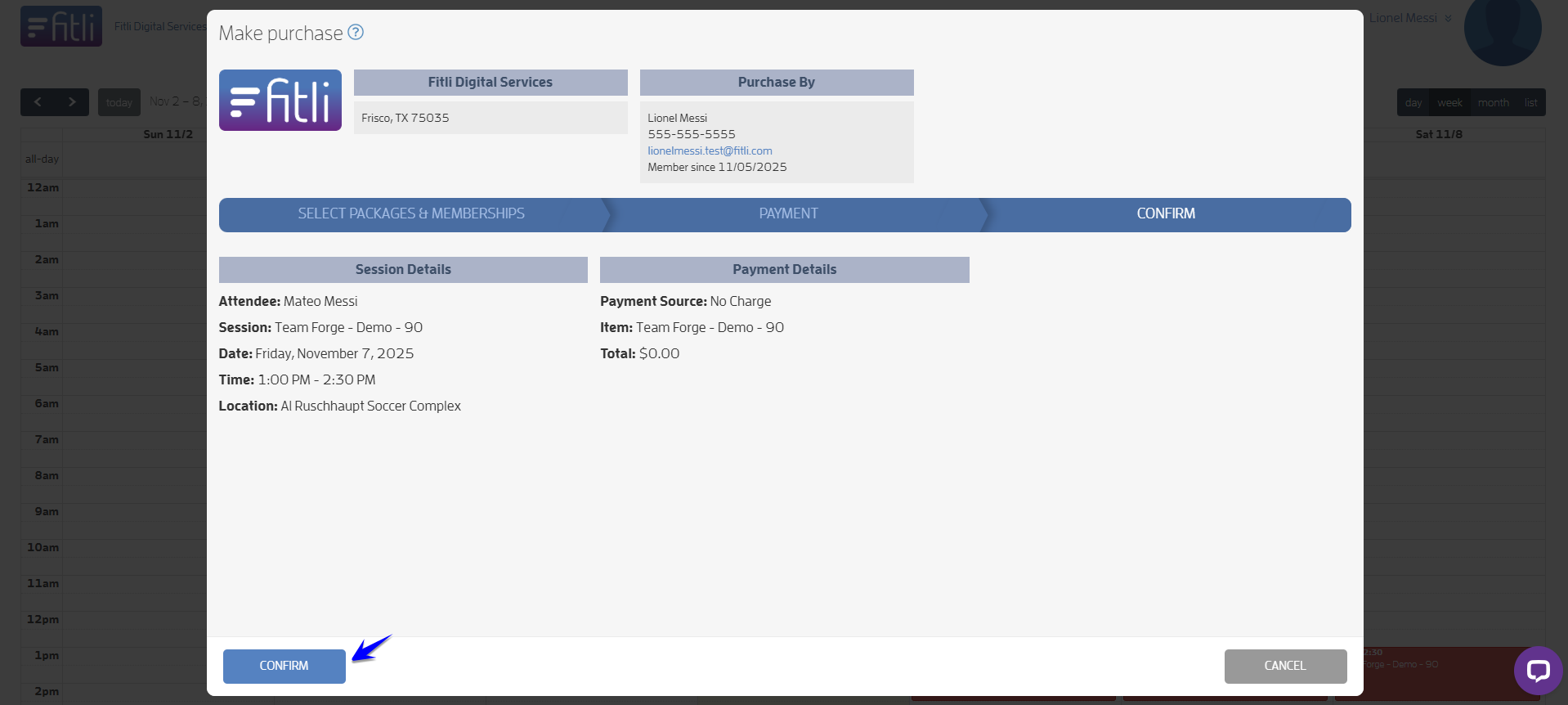
9 - Review, hit CONFIRM and CLOSE.
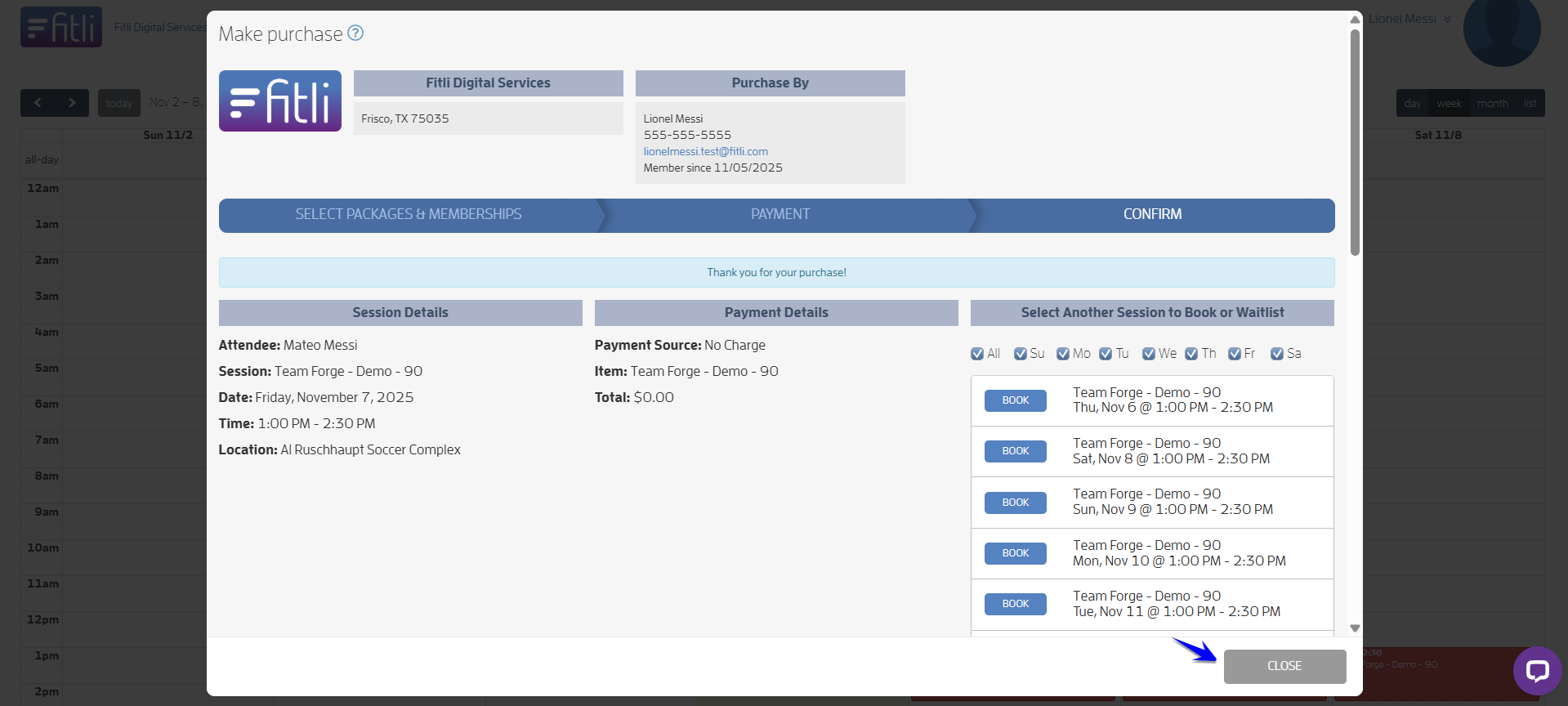
10 - All done! You’ll get a confirmation email and/or text with all the session details — plus a reminder before the session starts.