
This feature gives you more flexibility in how you manage late cancellations for classes and appointments.
By default, Default Policies prevent clients from canceling once the cancellation policy window has gone into effect. With Cancellation Options, however, you can allow clients to cancel during the policy window and choose how the late cancellation is handled.
You have two options for handling late cancellations:
Charge a cancellation fee: Charge the client a cancellation fee and return the session credit to their account balance.
If the session was booked using an unlimited package or membership, there is no session credit to return because it includes unlimited sessions. For drop-ins and limited-session packages, the session credit will be returned to the client’s account balance.
Withhold session credit: Withhold the session credit used for the booking instead of returning it to the client’s account balance.
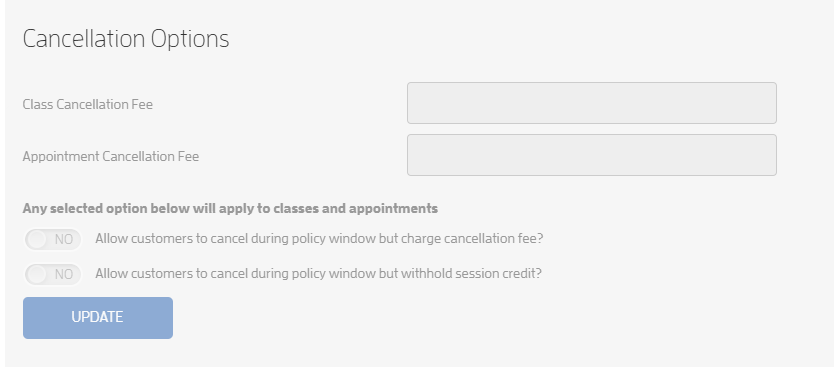
The Charge Cancellation Fee and Withhold Session Credit options are mutually exclusive. While both options are visible to the business, only one can be selected as the cancellation response for clients. If neither option is selected, the applicable default cancellation policy will remain in effect.
IMPORTANT: If you use a custom cancellation policy for a service, it replaces the default cancellation policy for that service—the two policies do not work together. Custom policies only determine what happens when a client cancels within the configured cancellation window; they do not automatically apply a separate no-show charge.
Setting the custom cancellation window to 0 / Immediately means clients can cancel up until the session starts without triggering the custom cancellation response.
Set up Cancellation Options
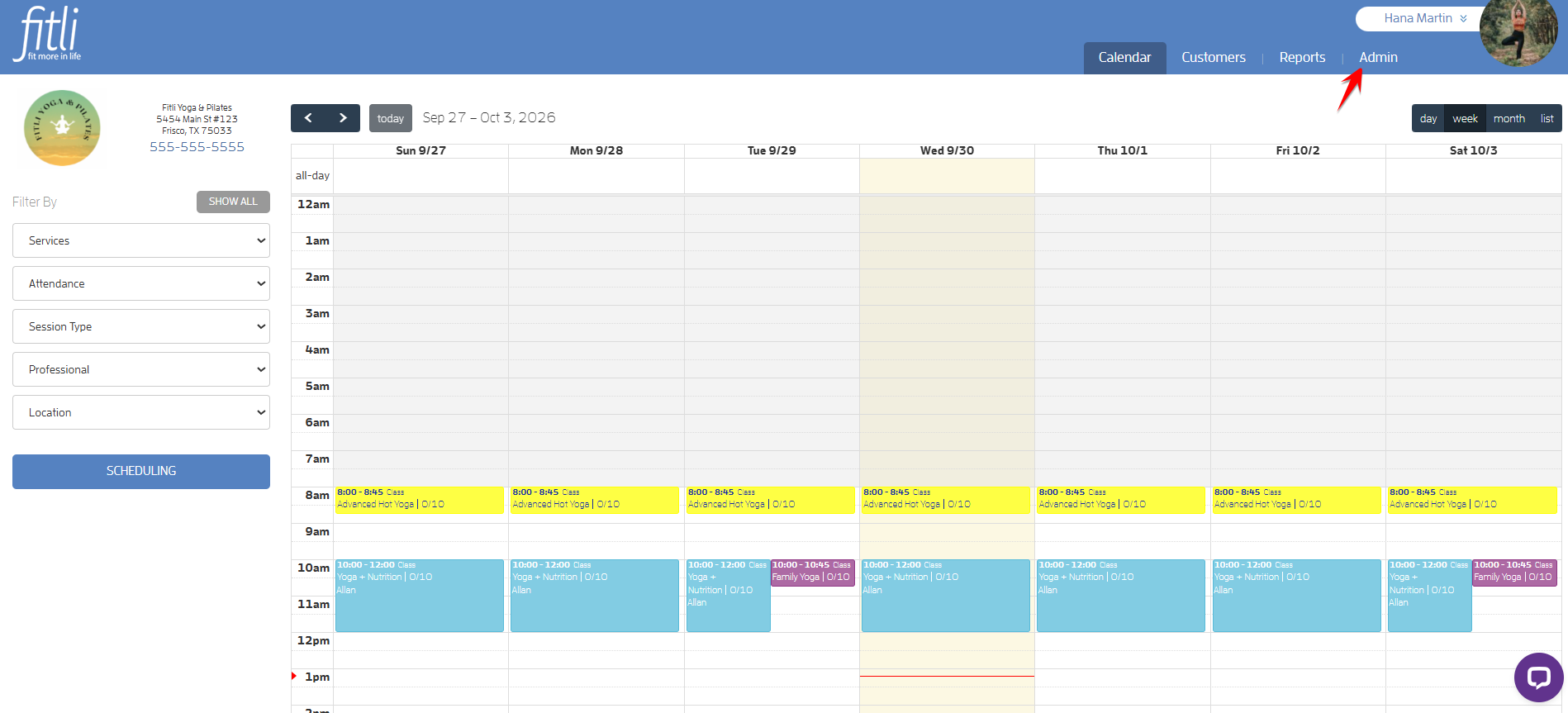
Log in to your Fitli business account and click Admin on the top menu bar.
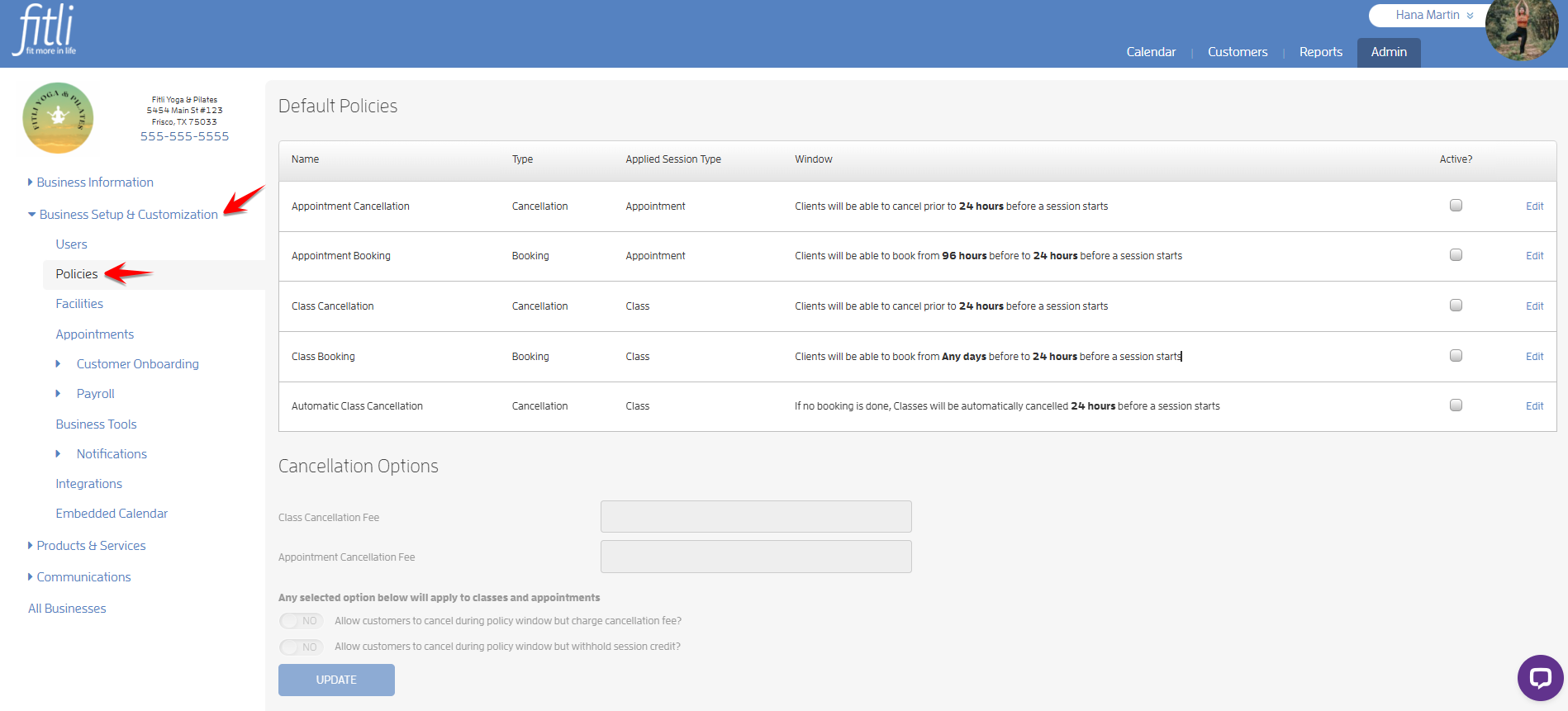
Click Business Setup & Customization, then Policies on the left side.
To enable Cancellation Options, check the boxes for Appointment Cancellation and/or Class Cancellation in the Default Policies section.
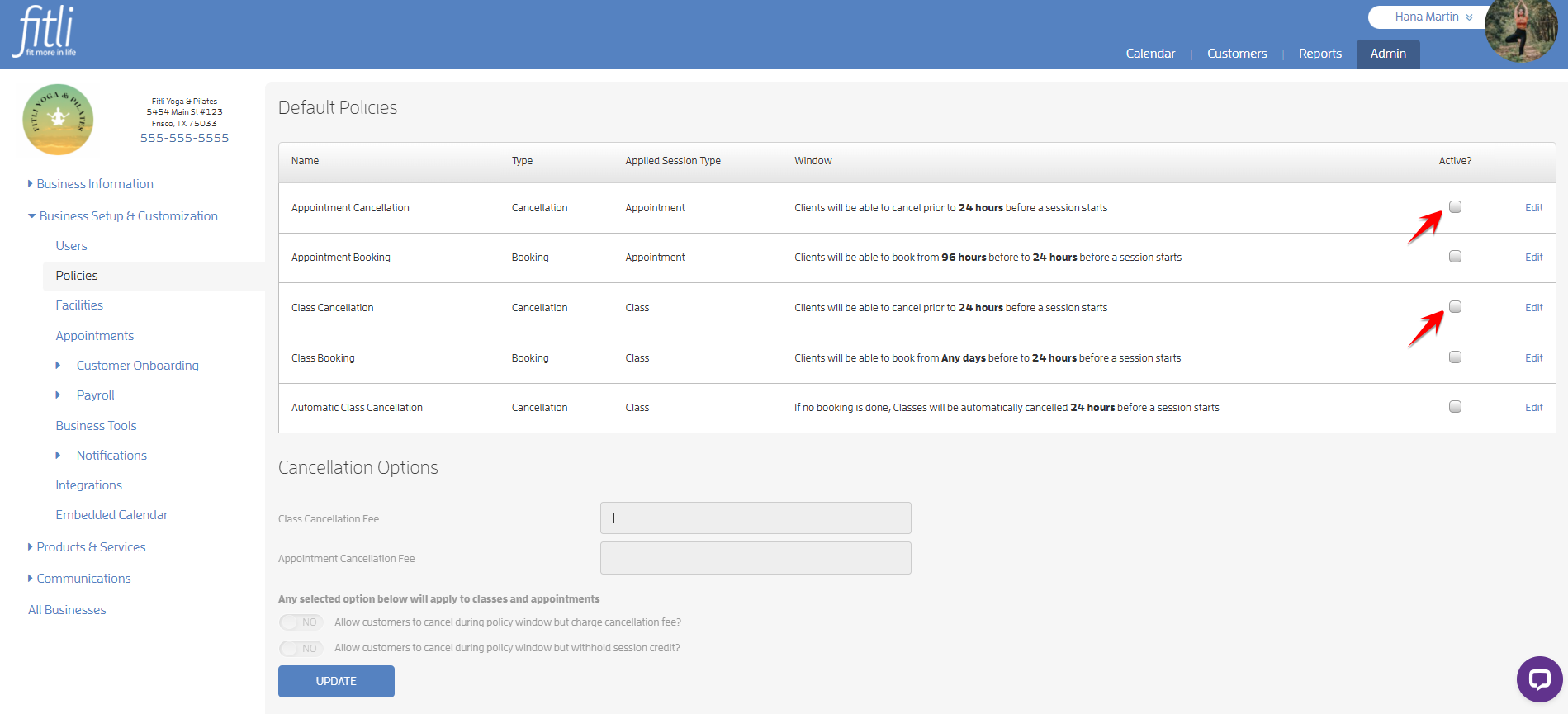
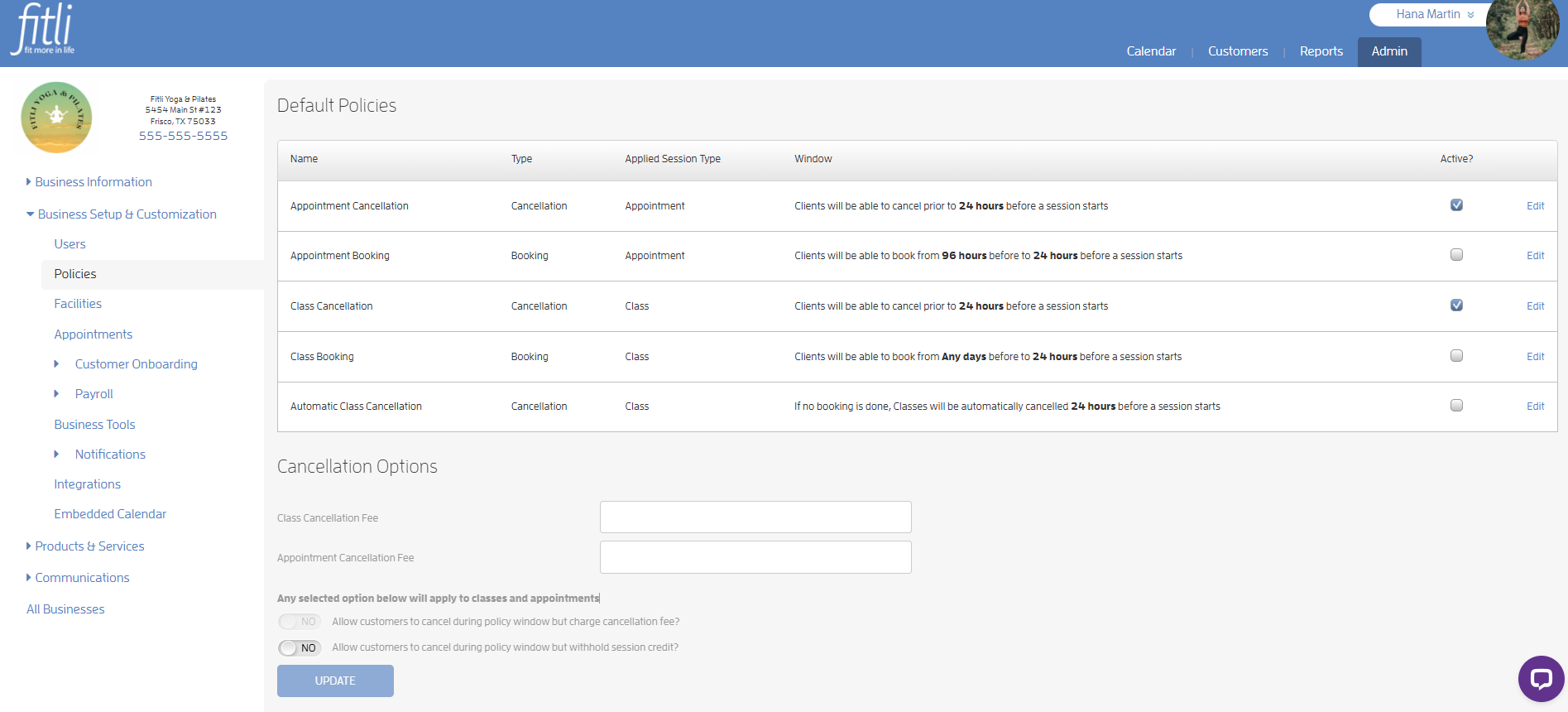
Under Default Policies, you’ll see Cancellation Options. Choose how late cancellations should be handled when clients cancel during the cancellation policy window.
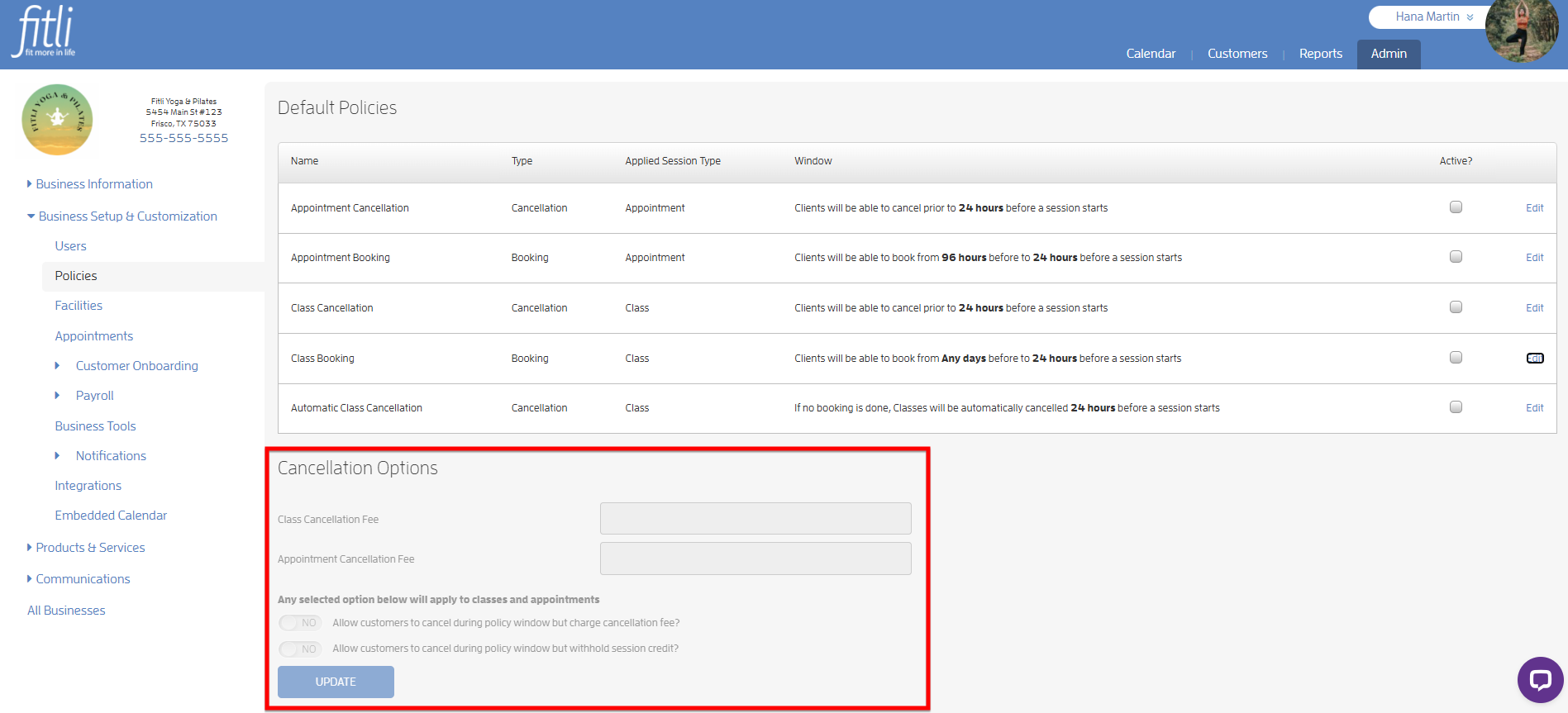
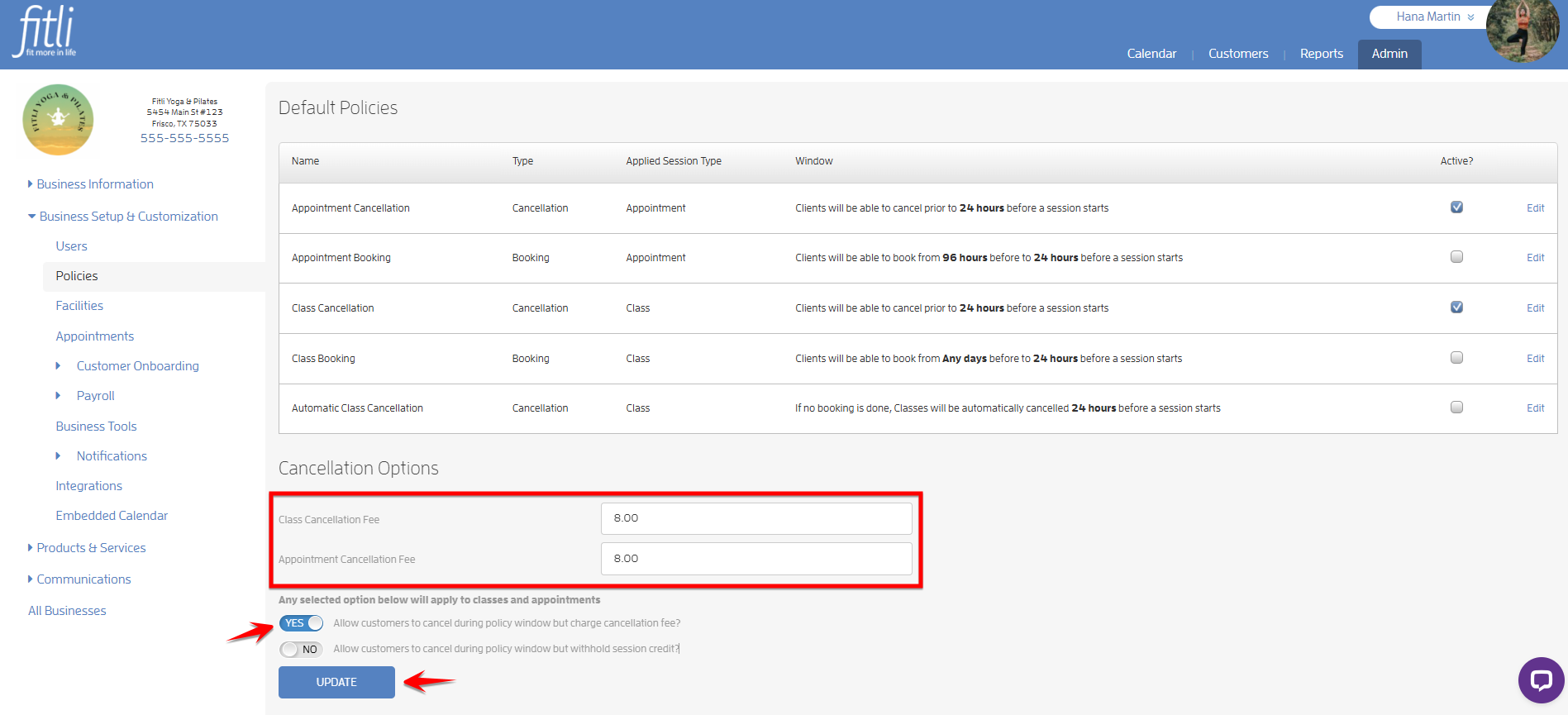
Option 1: Charge Cancellation Fee
To charge a cancellation fee, enter a dollar amount in the Class Cancellation Fee and/or Appointment Cancellation Fee fields. Turn on the Charge Cancellation Fee toggle, then click UPDATE.
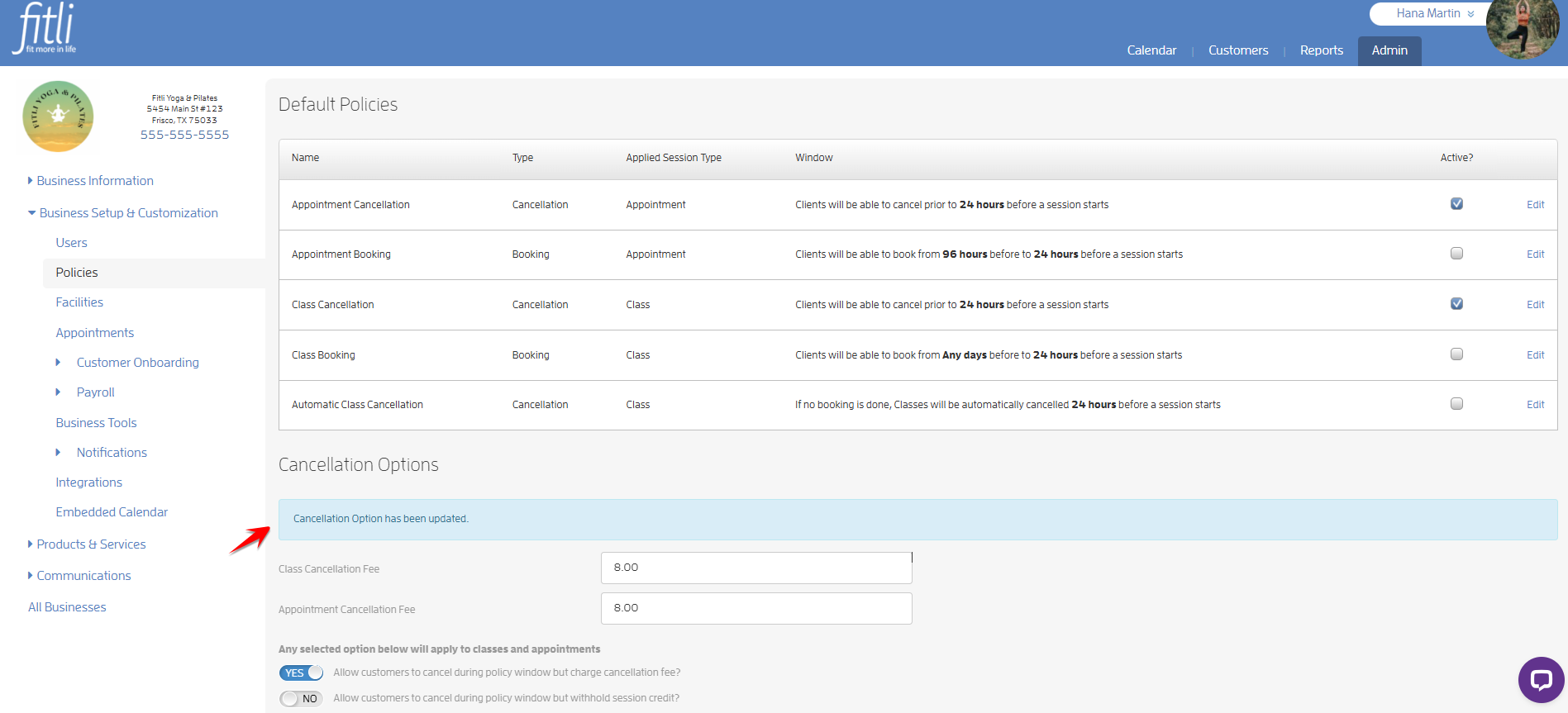
A blue message will appear confirming that your cancellation option was successfully updated.
The Cancellation Fee fields allow you to set the amount that will be automatically charged when a client cancels during the cancellation policy window.
What happens when a client cancels?
Charge Cancellation Fee — Personal View
If your client cancels during the cancellation policy window and Charge Cancellation Fee is selected, they'll be notified that they will be charged the cancellation fee and that their session credit will be returned to their account, similar to the example below.
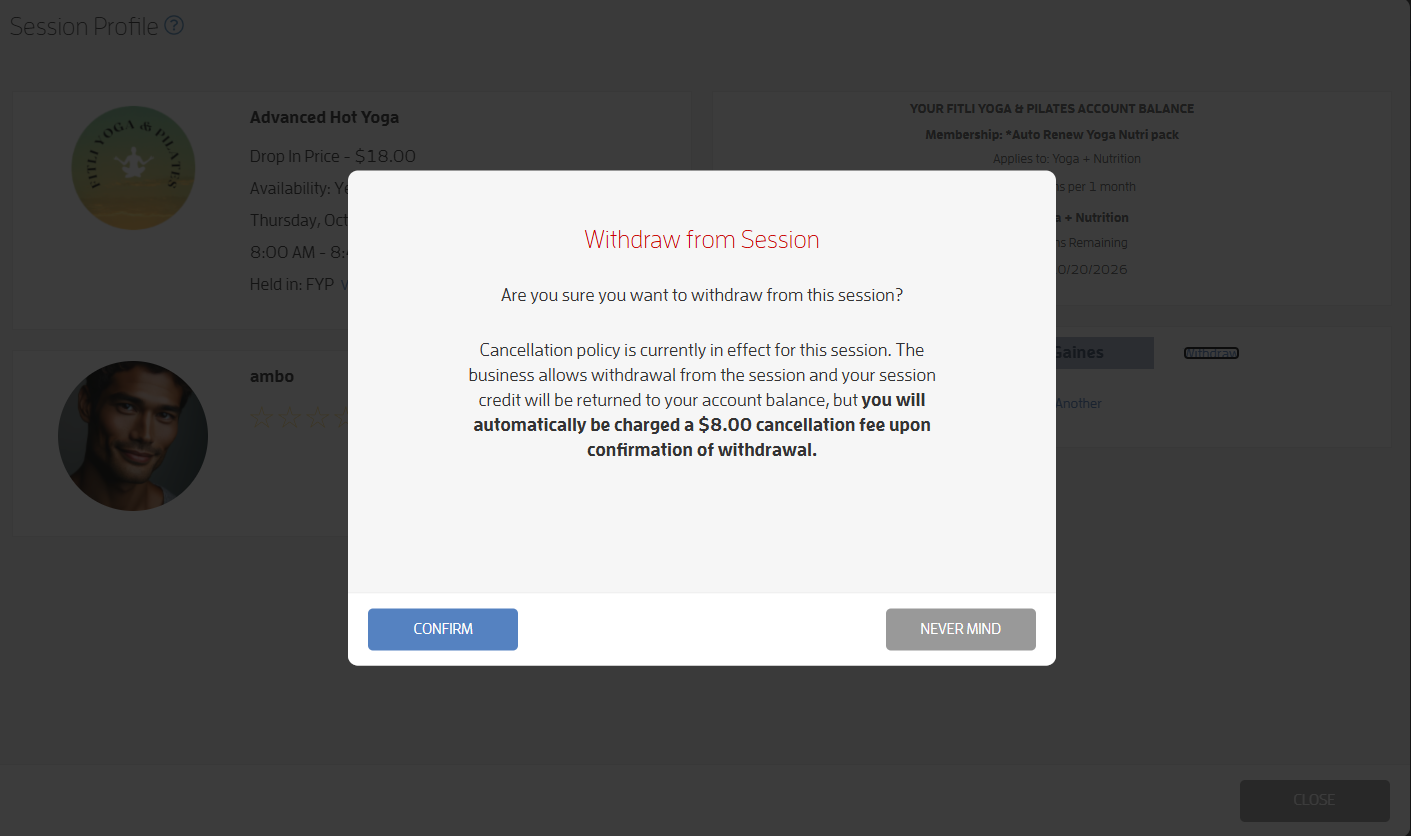
After confirming, the client will see the charge in their Purchase History, and the session credit will be returned to their account balance.
If the session was booked using an unlimited package or membership, there is no session credit to return because it includes unlimited sessions. For drop-ins and limited-session packages, the session credit will be returned to the client’s account balance.

Charge Cancellation Fee — Business View
If you withdraw a client while the cancellation policy is in effect, you'll be given up to three options:
Refund the client's session credit and charge the cancellation fee.
Withdraw the client and withhold the client's session credit.
Override the policy and refund the client's session credit.
By default, business users with Owner or Manager level access can see and choose from the available options. Other business users will only see the option configured as the default response.
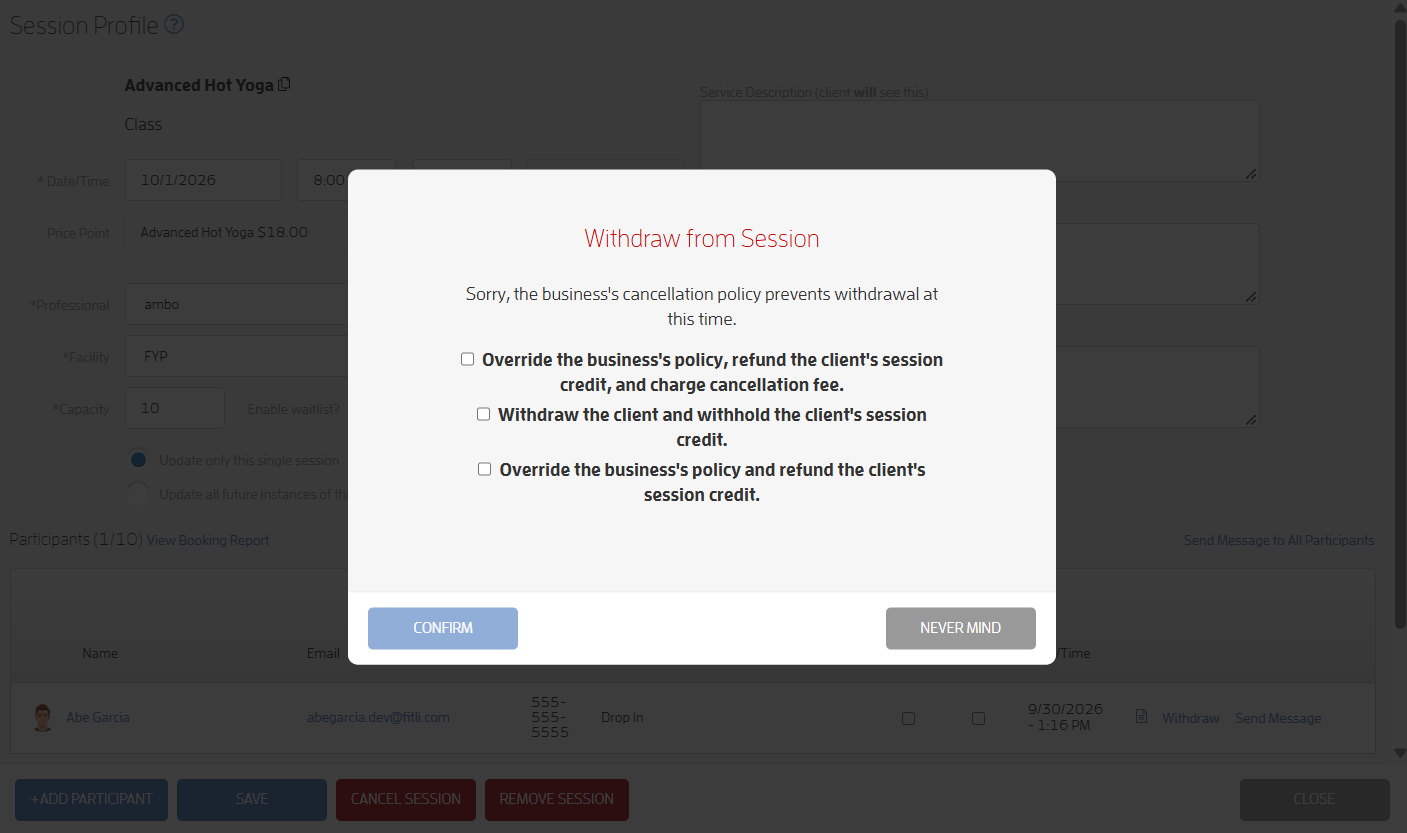
Select an option, then click CONFIRM.
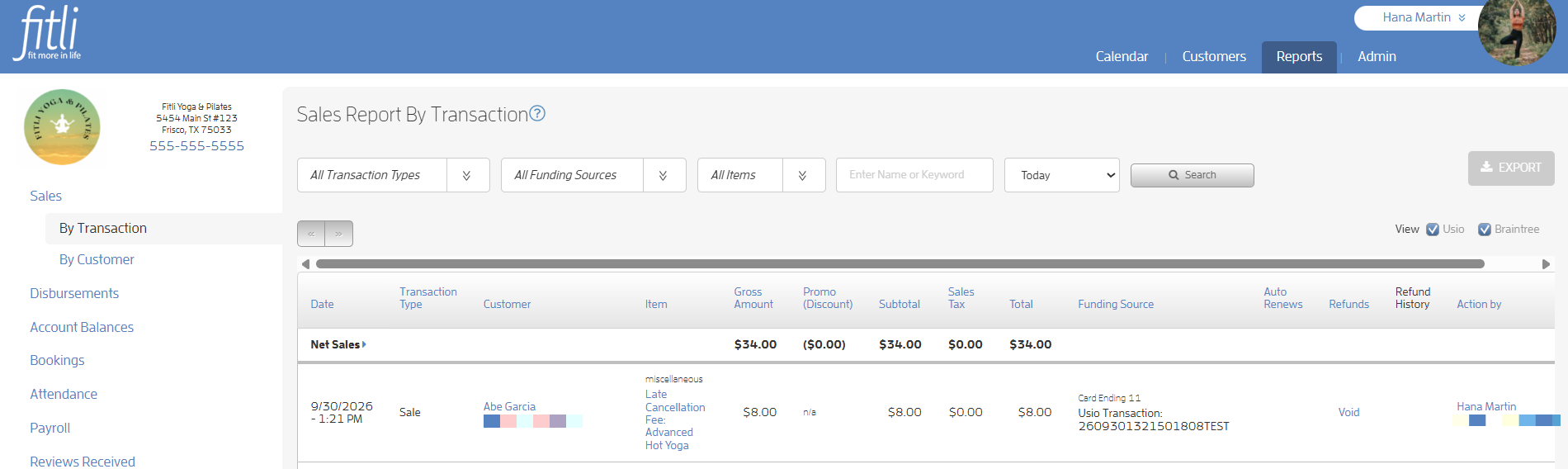
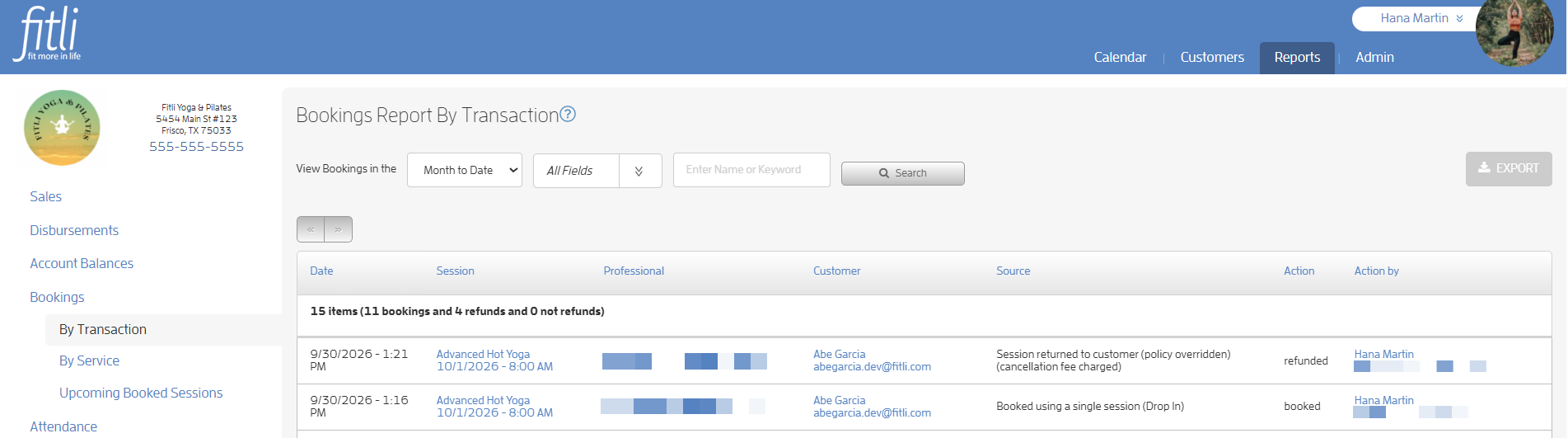
After confirming, you will see the charge on the Sales Report and the action on the Bookings Report By Transaction. If the session was booked using a drop-in or limited-session package or membership and the selected action refunds the session credit, the credit will be returned to the client’s account balance.
Option 2: Withhold Session Credit
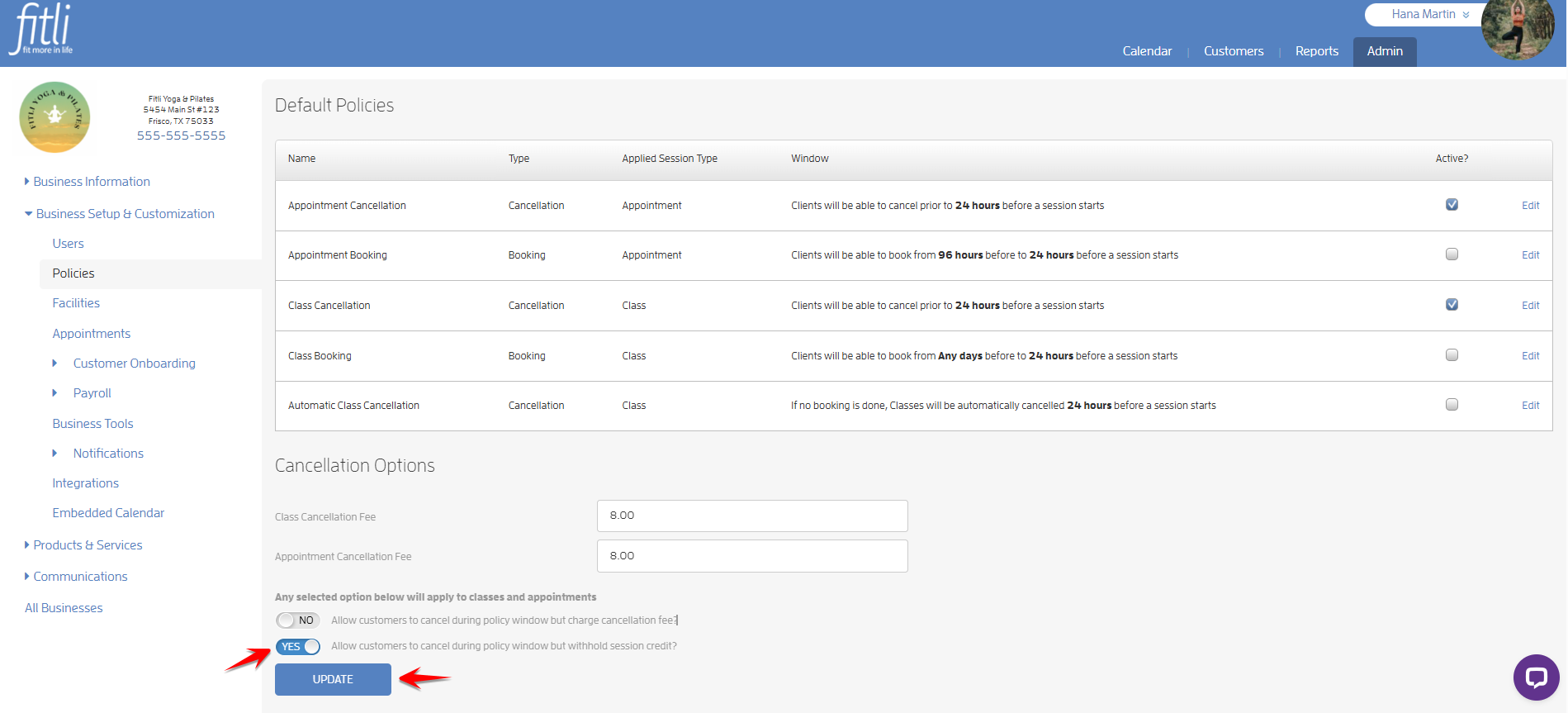
To allow clients to cancel during the cancellation policy window without returning the session credit used for the booking, turn on the Withhold Session Credit toggle, then click UPDATE.
A blue message will appear confirming that your cancellation option was successfully updated.
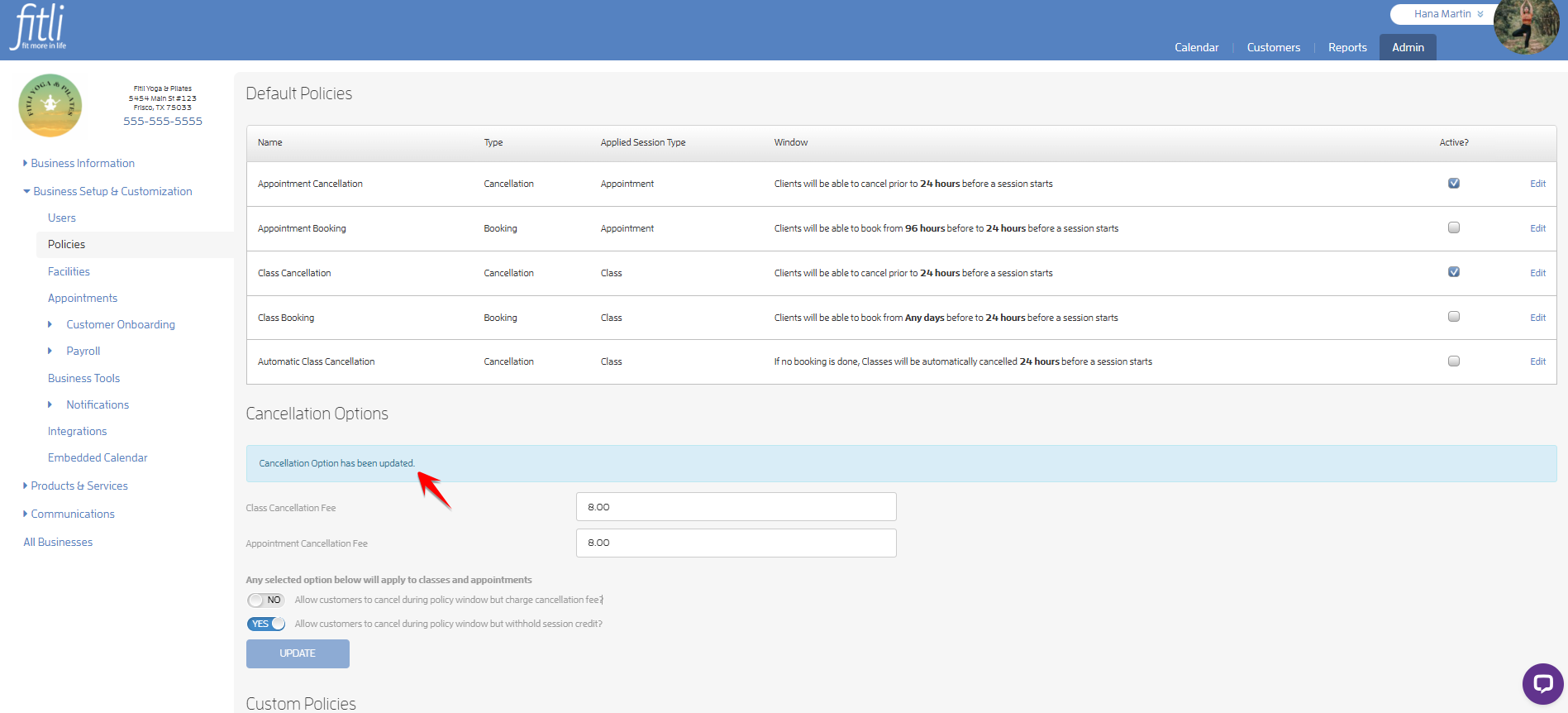
You can enter a cancellation fee while Withhold Session Credit is in effect. The fee will remain available as a business-side option when withdrawing clients, but clients will not automatically be charged the fee when they cancel during the cancellation policy window.
What happens when a client cancels?
Withhold Session Credit — Personal View
If your client cancels during the cancellation policy window, they'll be notified that the session credit used for the booking will not be returned to their account balance.
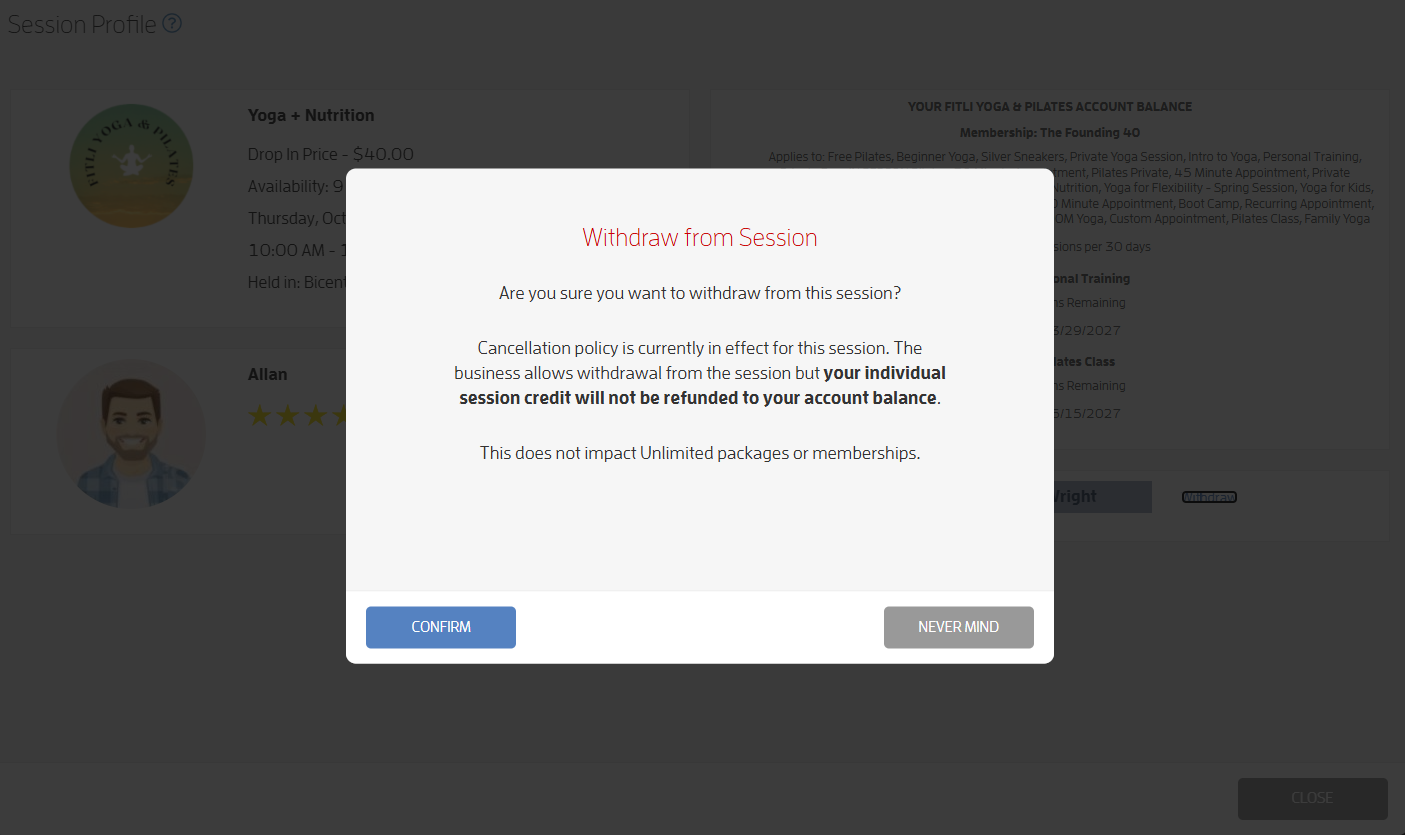
If the session was booked using an unlimited package or membership, there is no session credit to withhold because it includes unlimited sessions. For drop-ins and limited-session packages, the session credit used for the booking will not be returned to the client’s account balance.
Withhold Session Credit — Business View
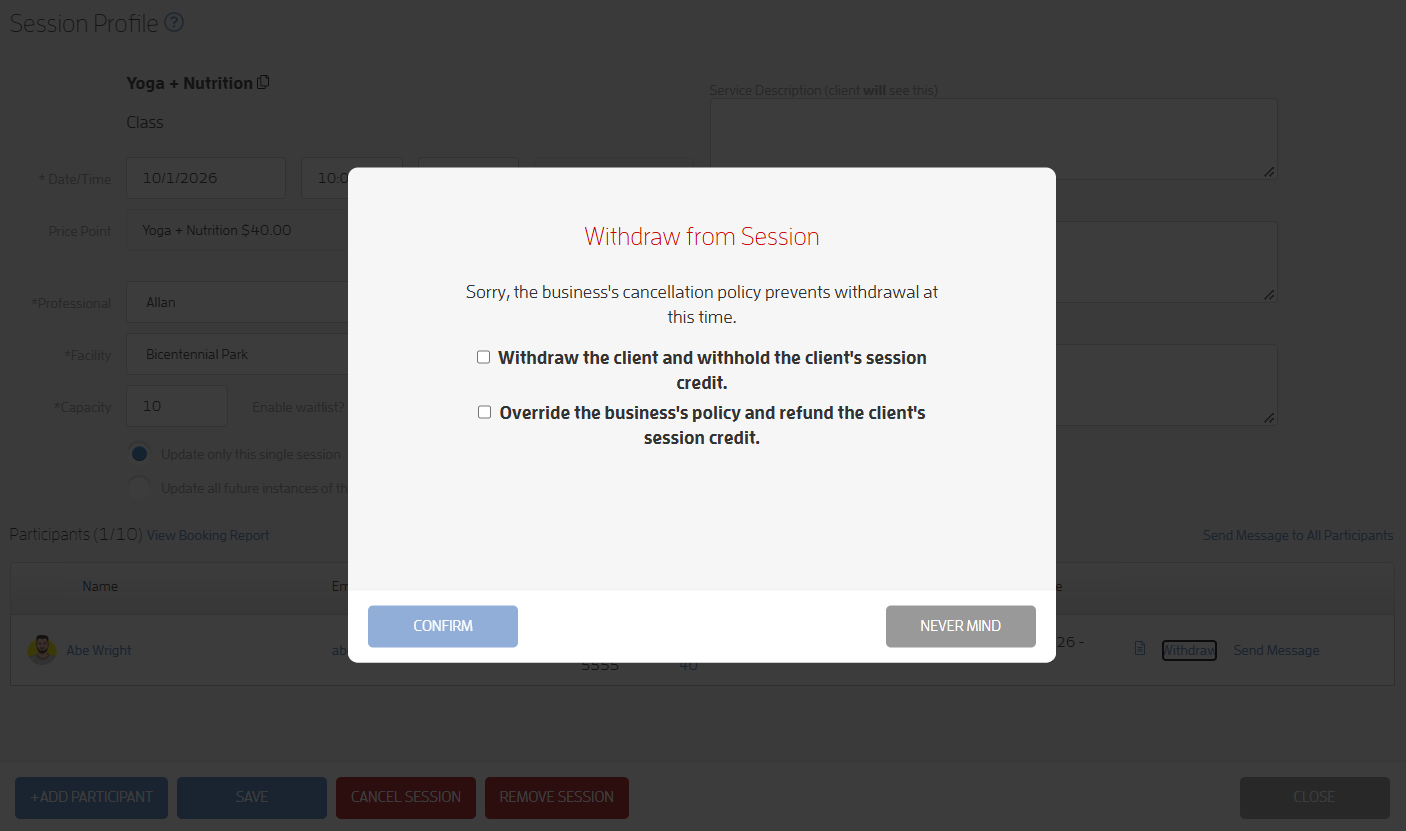
If an Owner or Manager withdraws a client while the cancellation policy is in effect, they'll be given either two or three options, depending on whether a cancellation fee has been configured.
If no dollar amount has been entered in the cancellation fee fields, the available options are:
Withdraw the client and withhold their session credit.
Override the policy and refund their session credit.
If a cancellation fee has been configured, all three options are available:
Refund the client's session credit and charge the cancellation fee.
Withdraw the client and withhold the client's session credit.
Override the policy and refund the client's session credit.
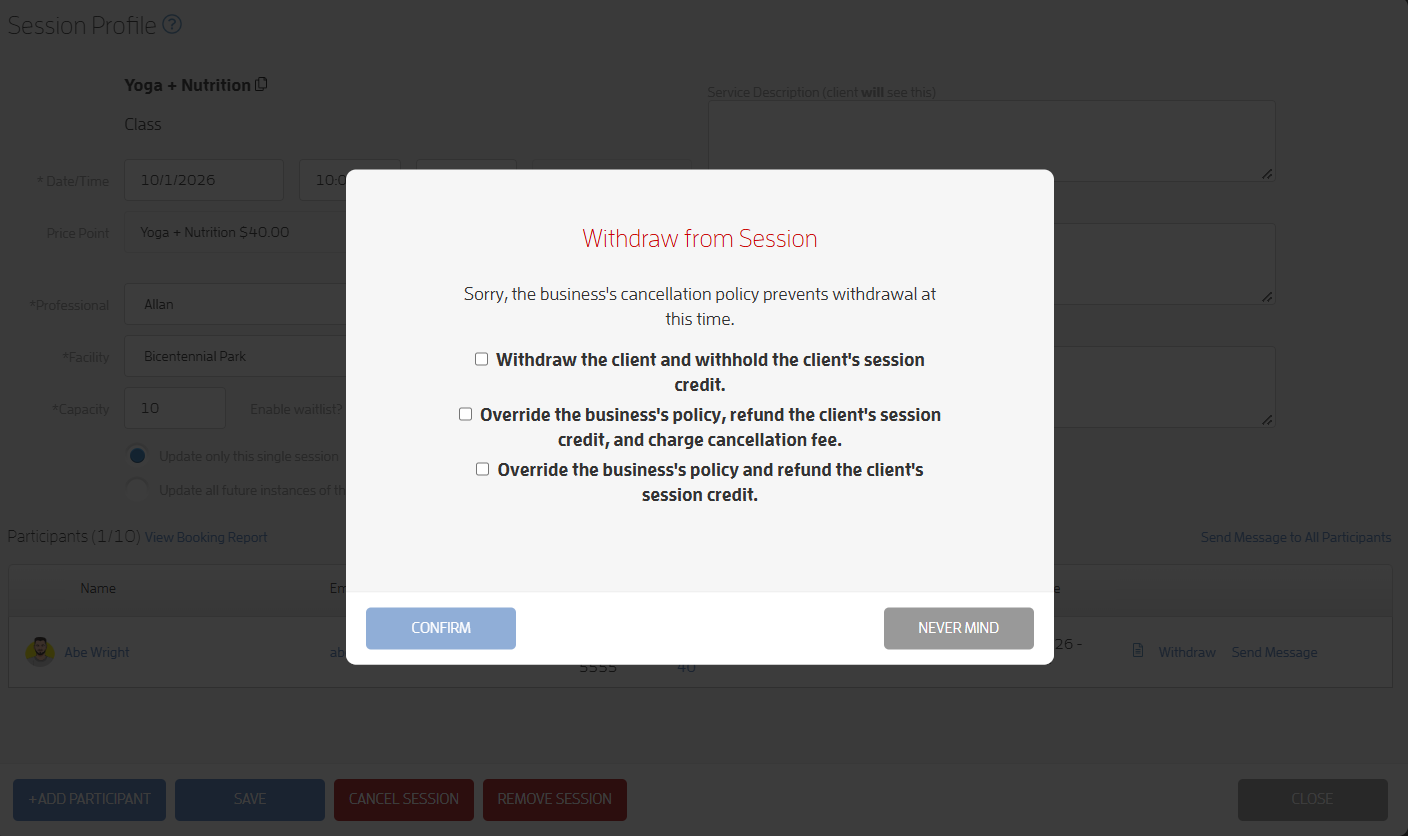
Select an option, then click CONFIRM.
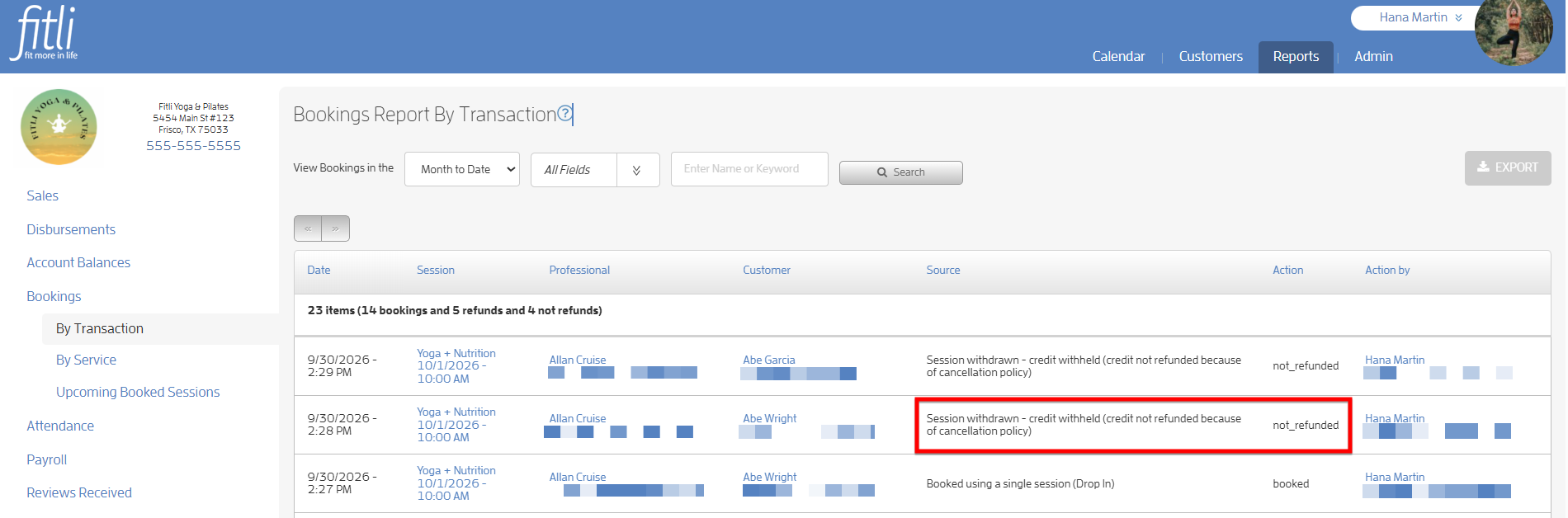
Once the client is withdrawn, you will see the action on the Bookings Report By Transaction, showing whether the session credit was returned to the client’s account balance.
That's about it! If you have any questions, chat with us or send us an email at support@fitli.com.