
Your clients have the ability to book themselves and their relationships into CLASSES (see Relationships - Client Bookings). Your clients can also book themselves and their relationships into appointments!
Here's how to get started:
For Businesses:
If you're a business and want to book your client and/or their relationship into an appointment, nothing changes in the way you book a client into a class or appointment. Instead of choosing the client, you'll choose a relationship.
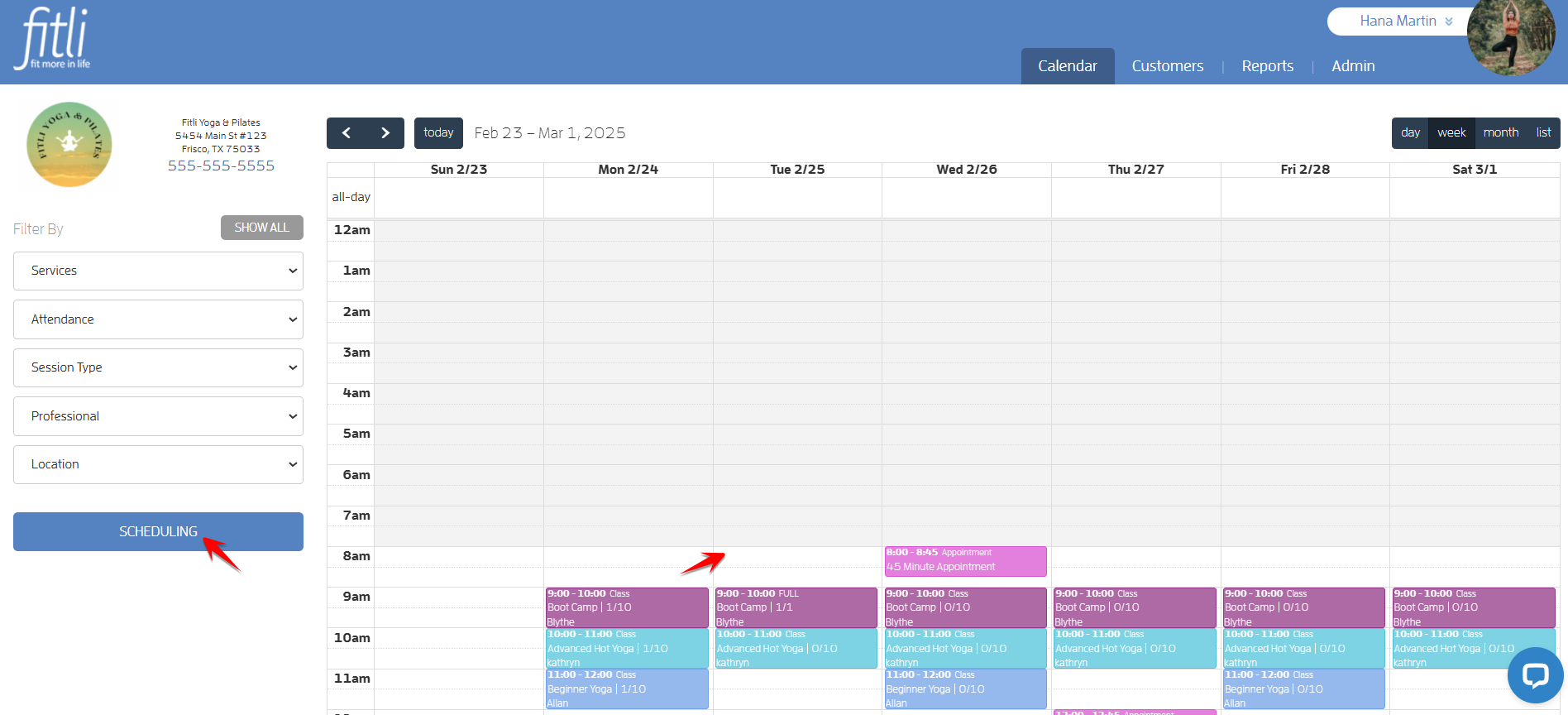
Step 1: Click on the SCHEDULING button or any spot on your calendar to bring up the "Create Session" interface.
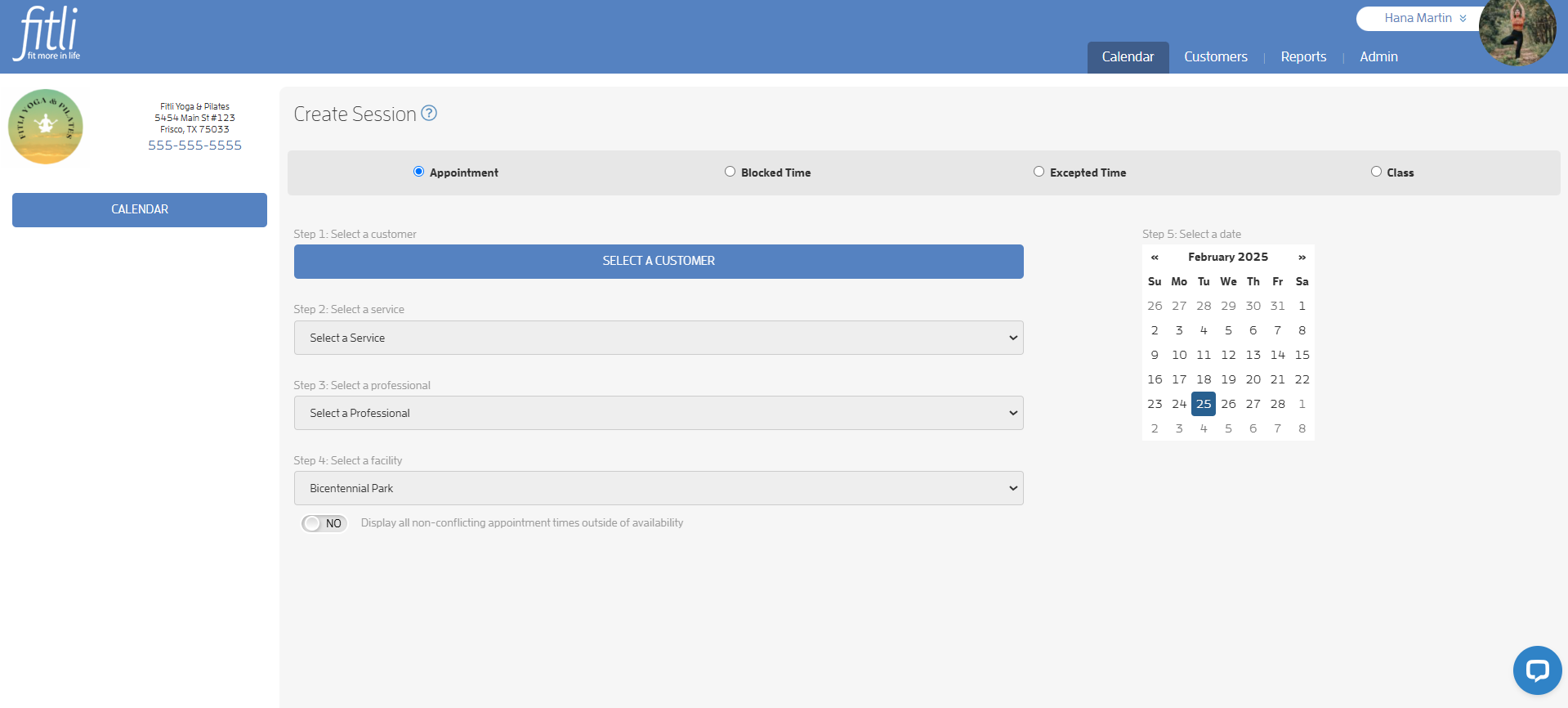
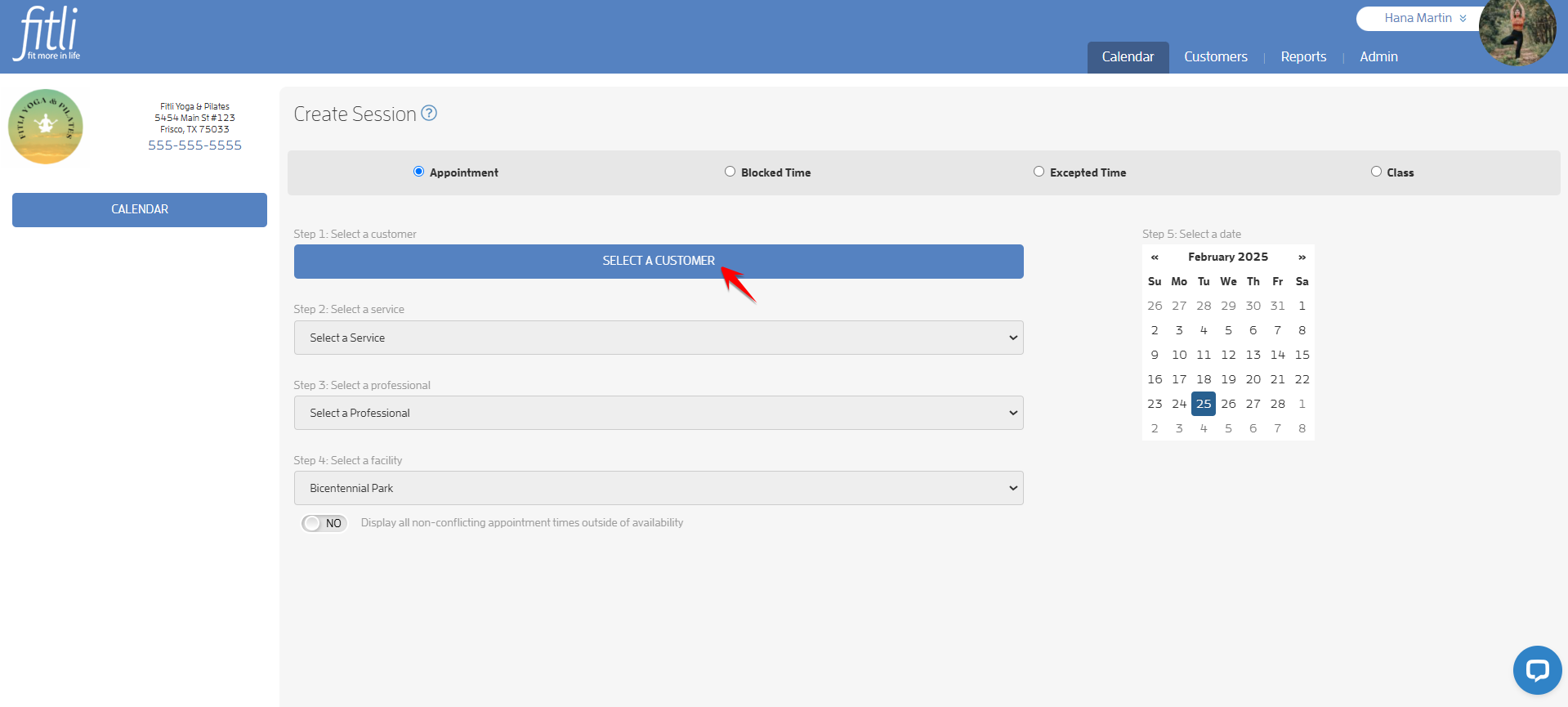
Step 2: Click "Select A Customer". When the system goes to your Customer List, find the client or their relationship, then click the "Add to Appointment" link on the right side.
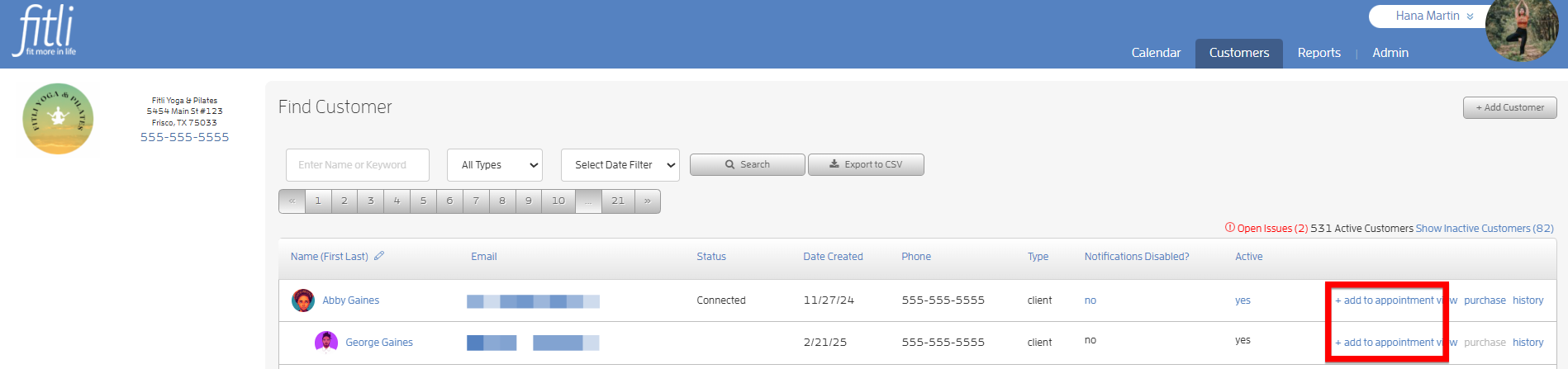
Step 3: Choose an appointment type, trainer, facility, and the date/time you're looking to book the client into.
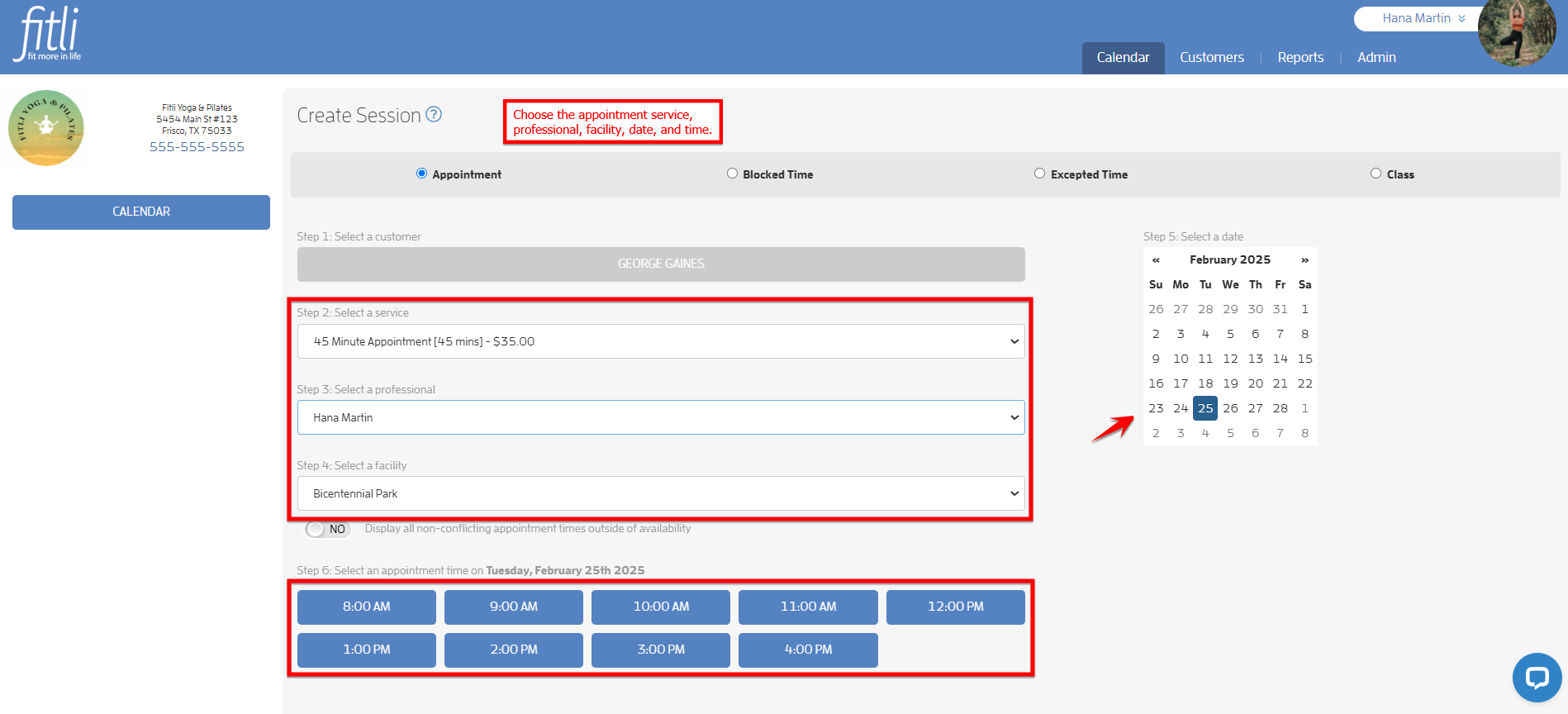
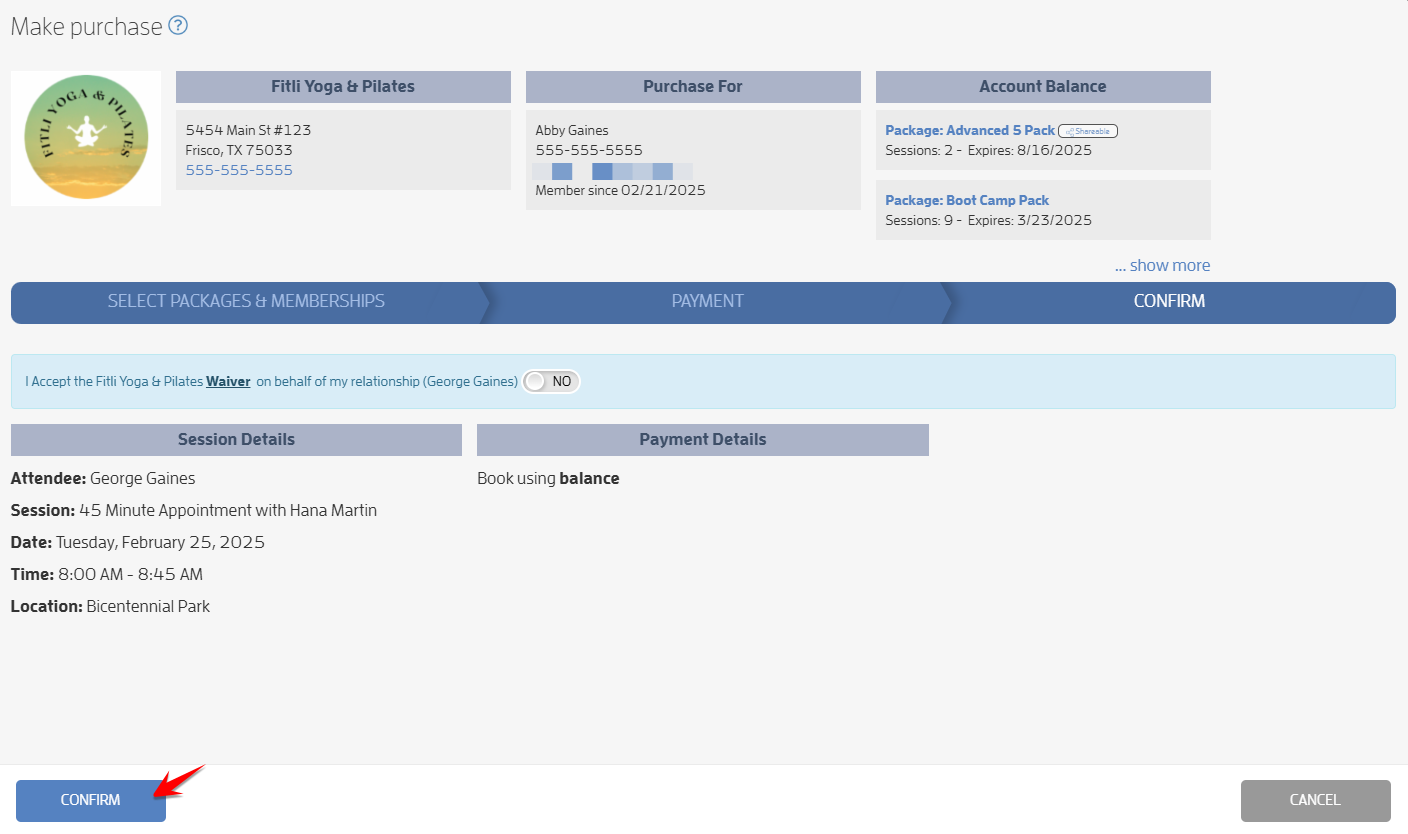
Step 4: Confirm the booking by using an existing package/membership, OR, purchase a drop-in or a package/membership.
If you're not seeing the relationship for your client you're looking for, refer to the Relationship Guide on how to add client relationships!
For Clients:
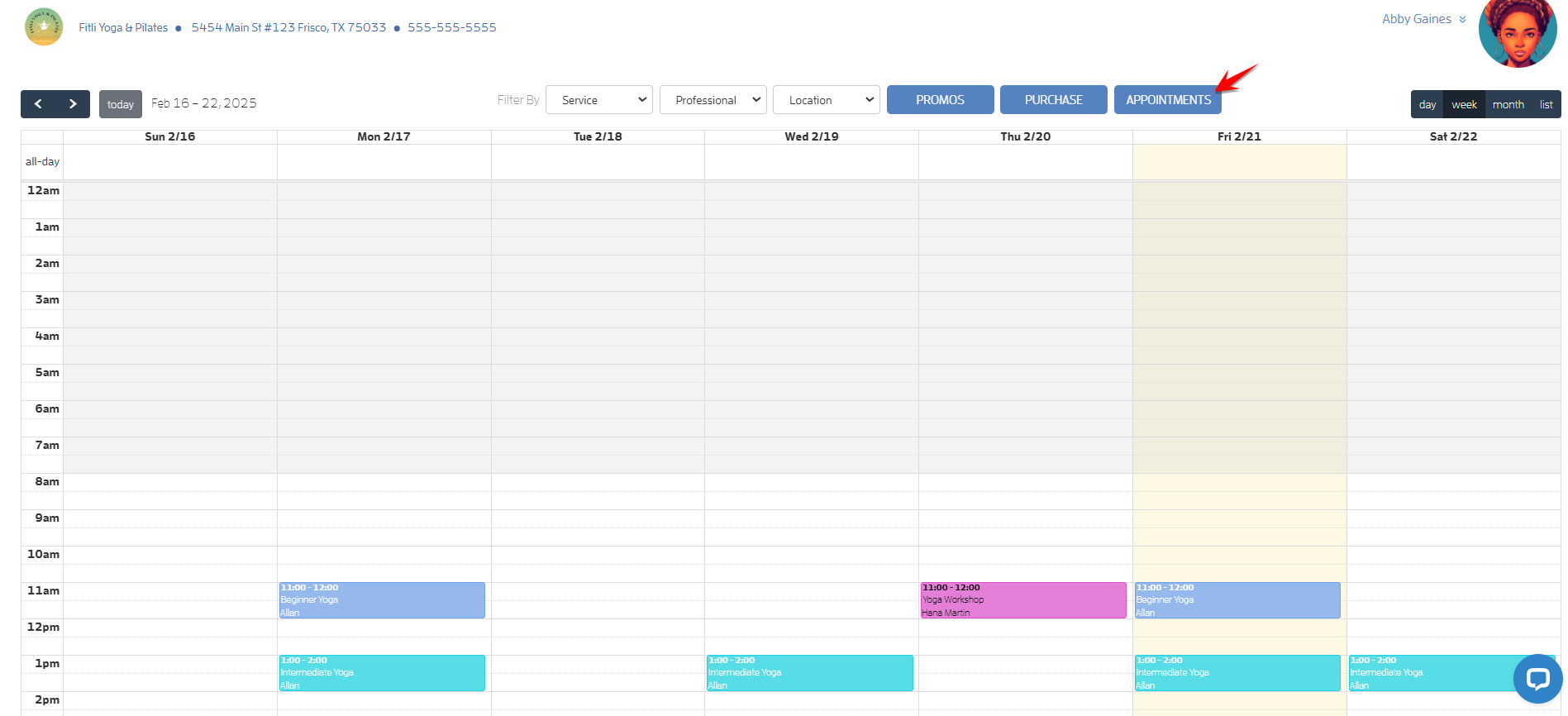
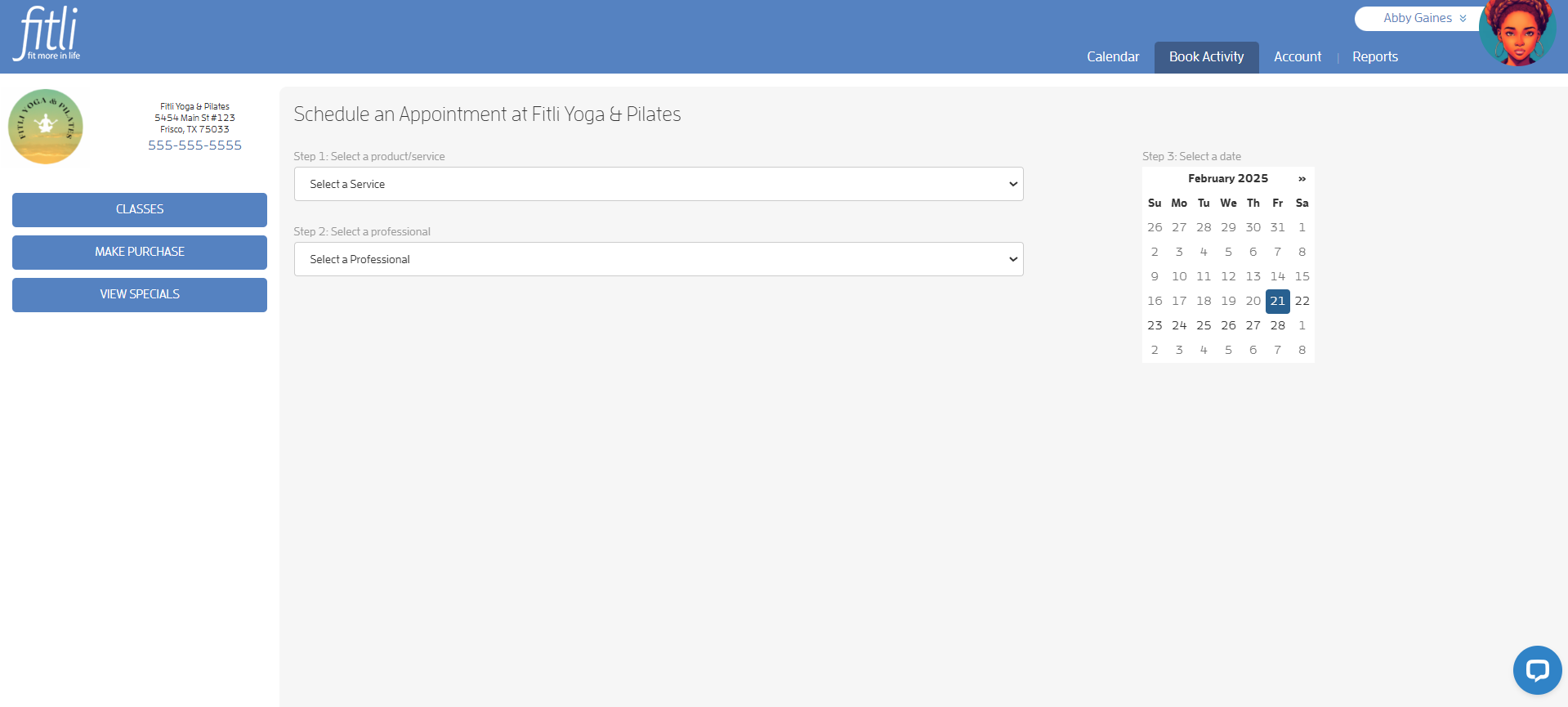
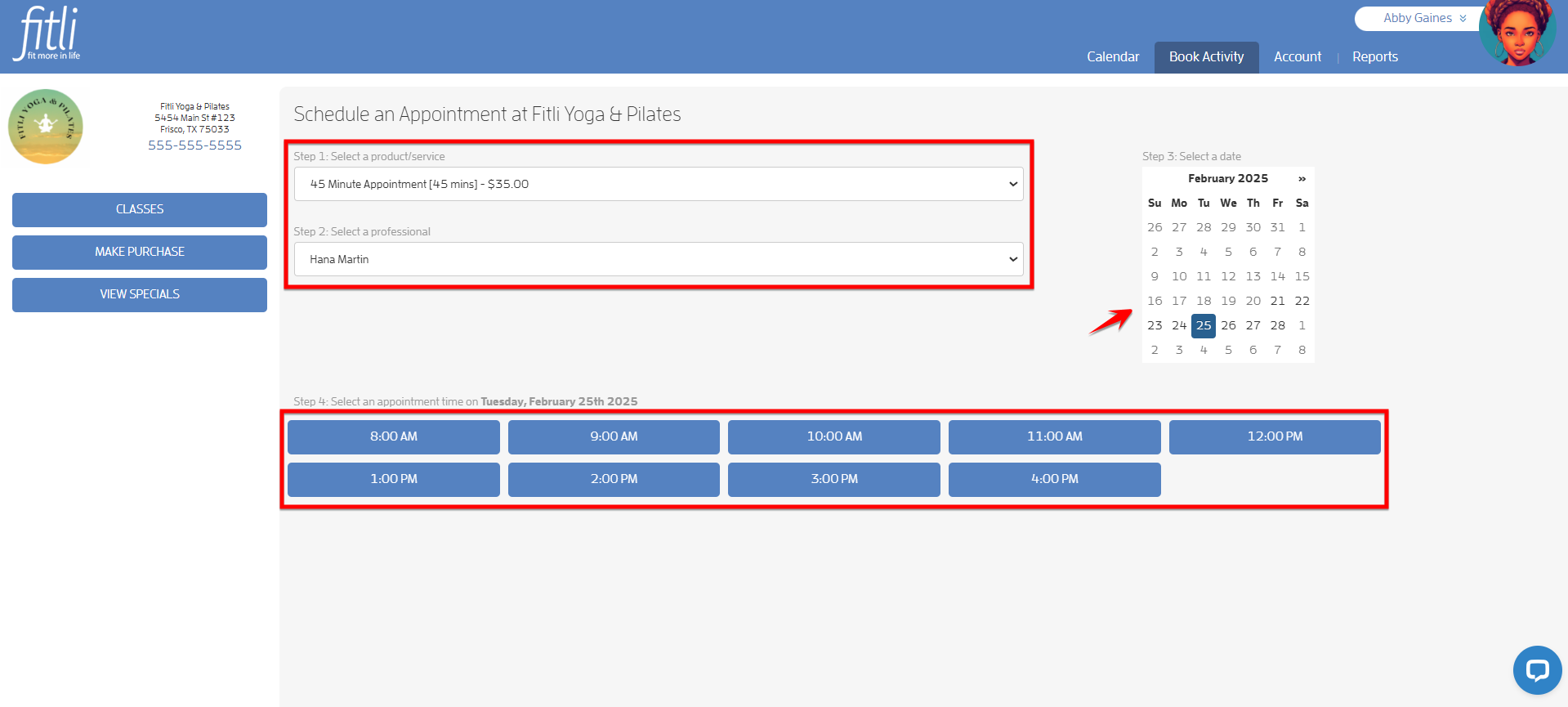
Step 1: Choose the "Appointments" option. Then choose the service, trainer, date, and time.
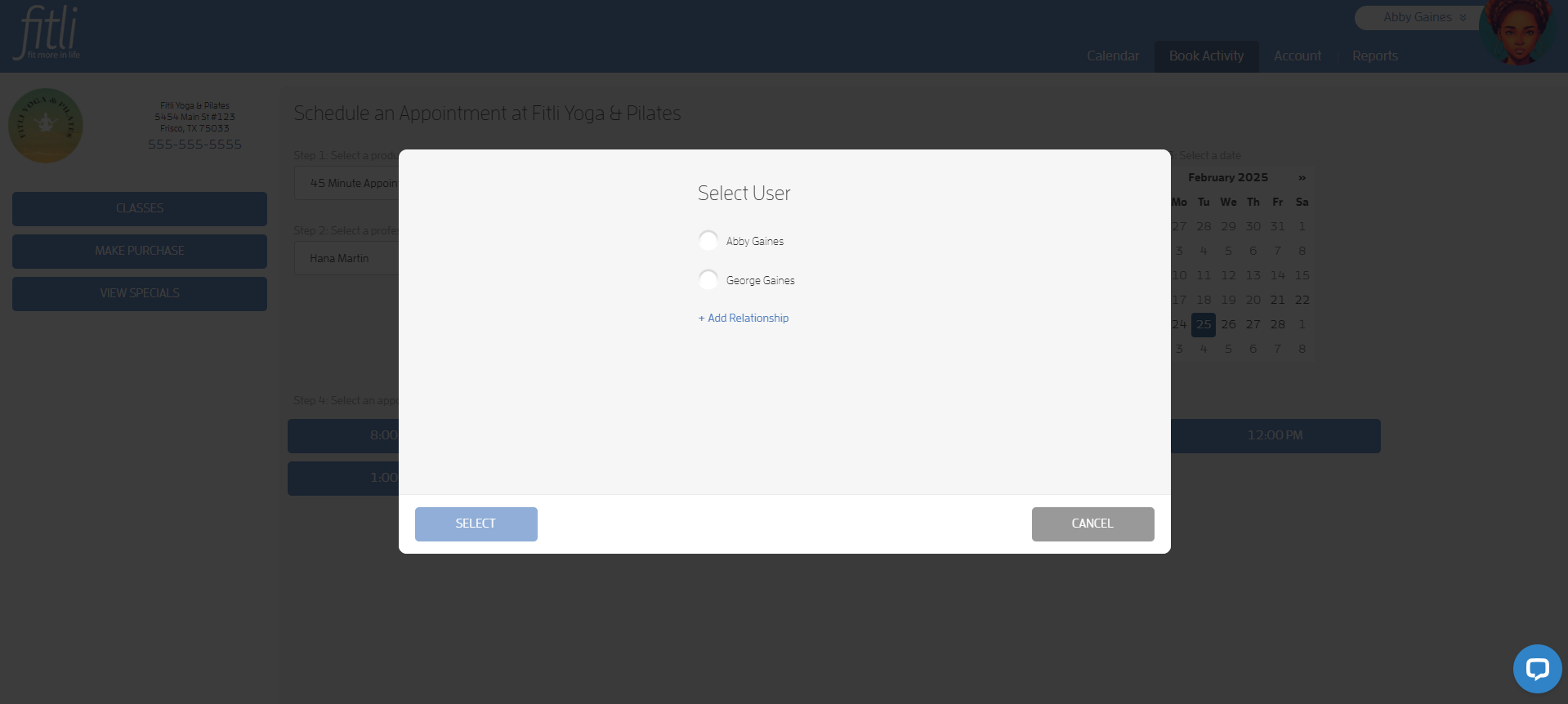
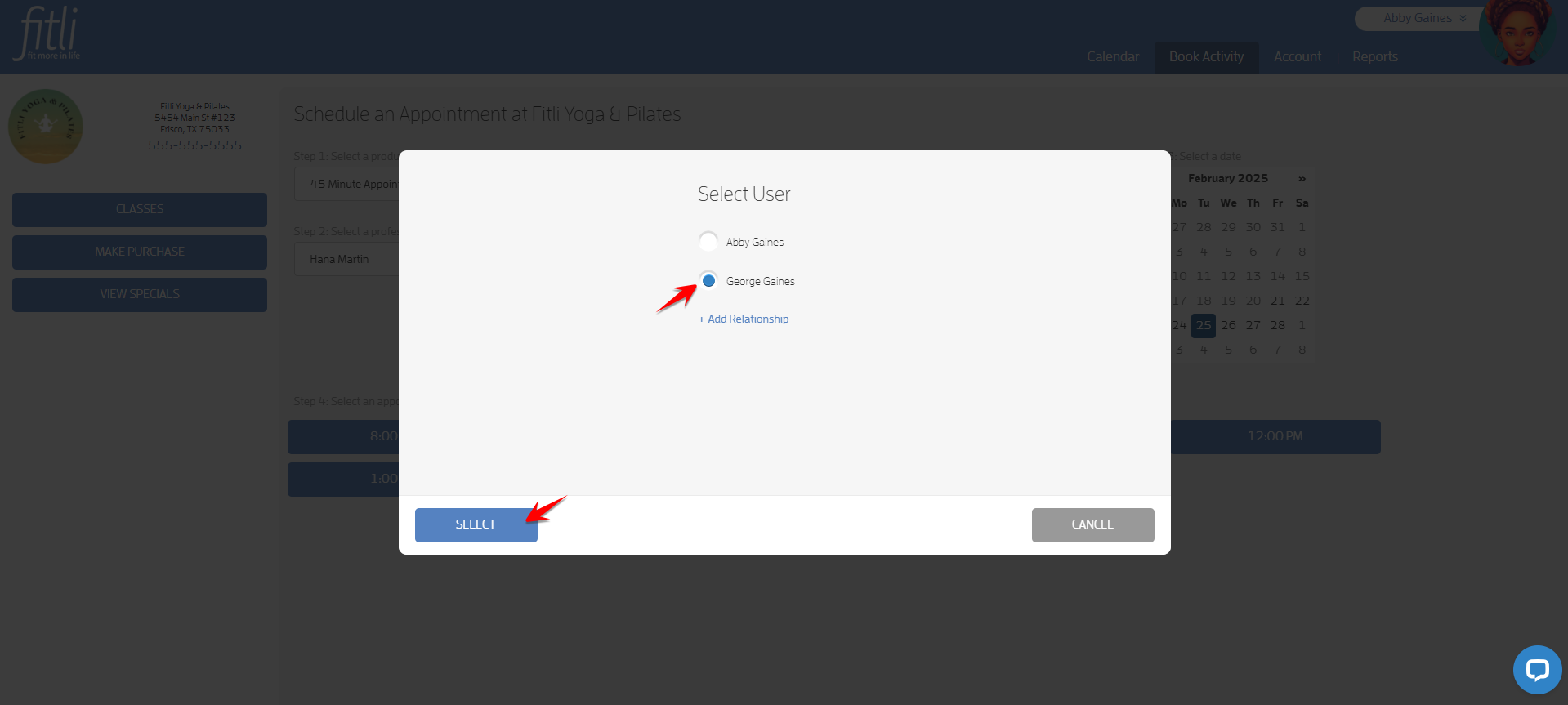
Step 2: Then, choose yourself or any of your relationships you'd like to book into the appointment and hit SELECT.
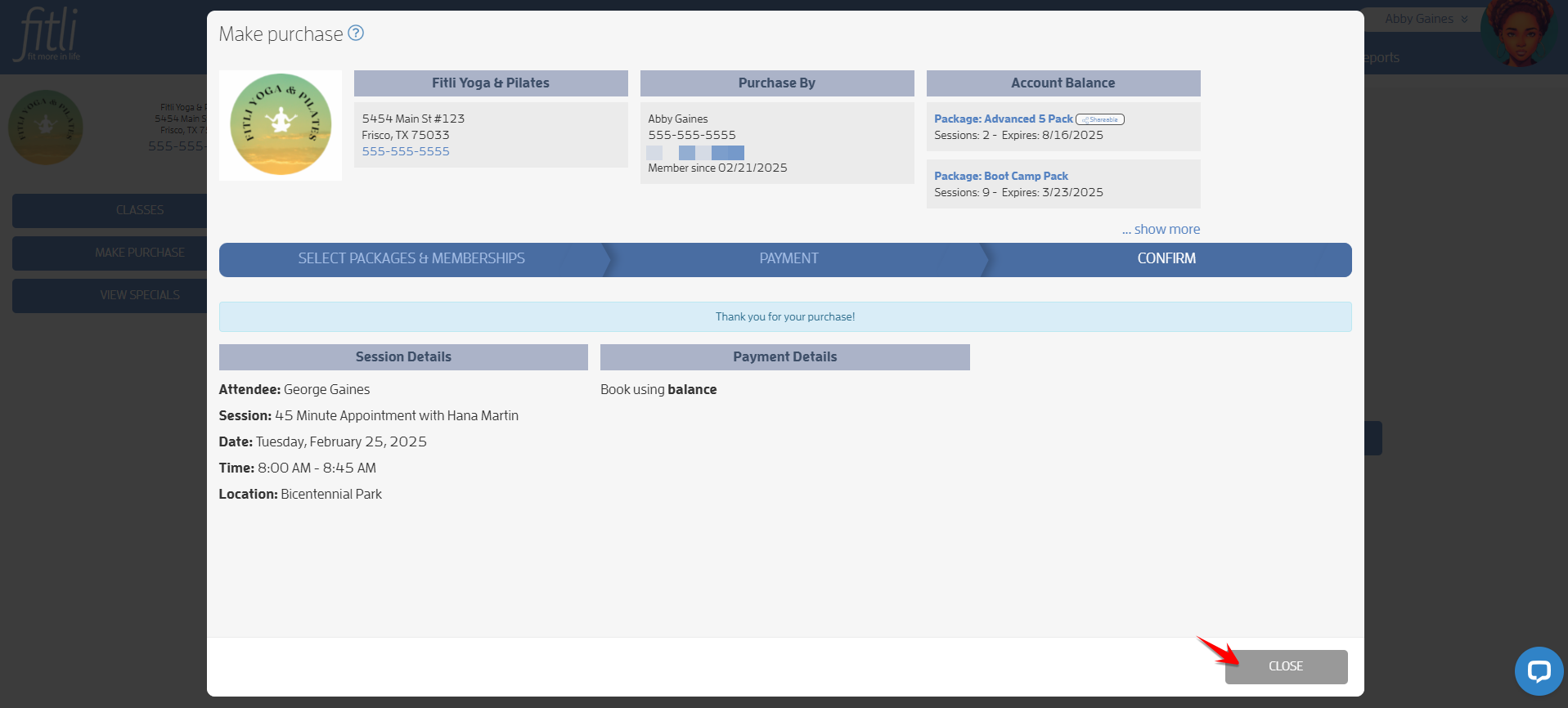
Step 3: If you have an existing shared package/membership for you and your relationships, you'll be taken to the booking confirmation page. If not, you'll be able to purchase a drop-in or a package/membership.
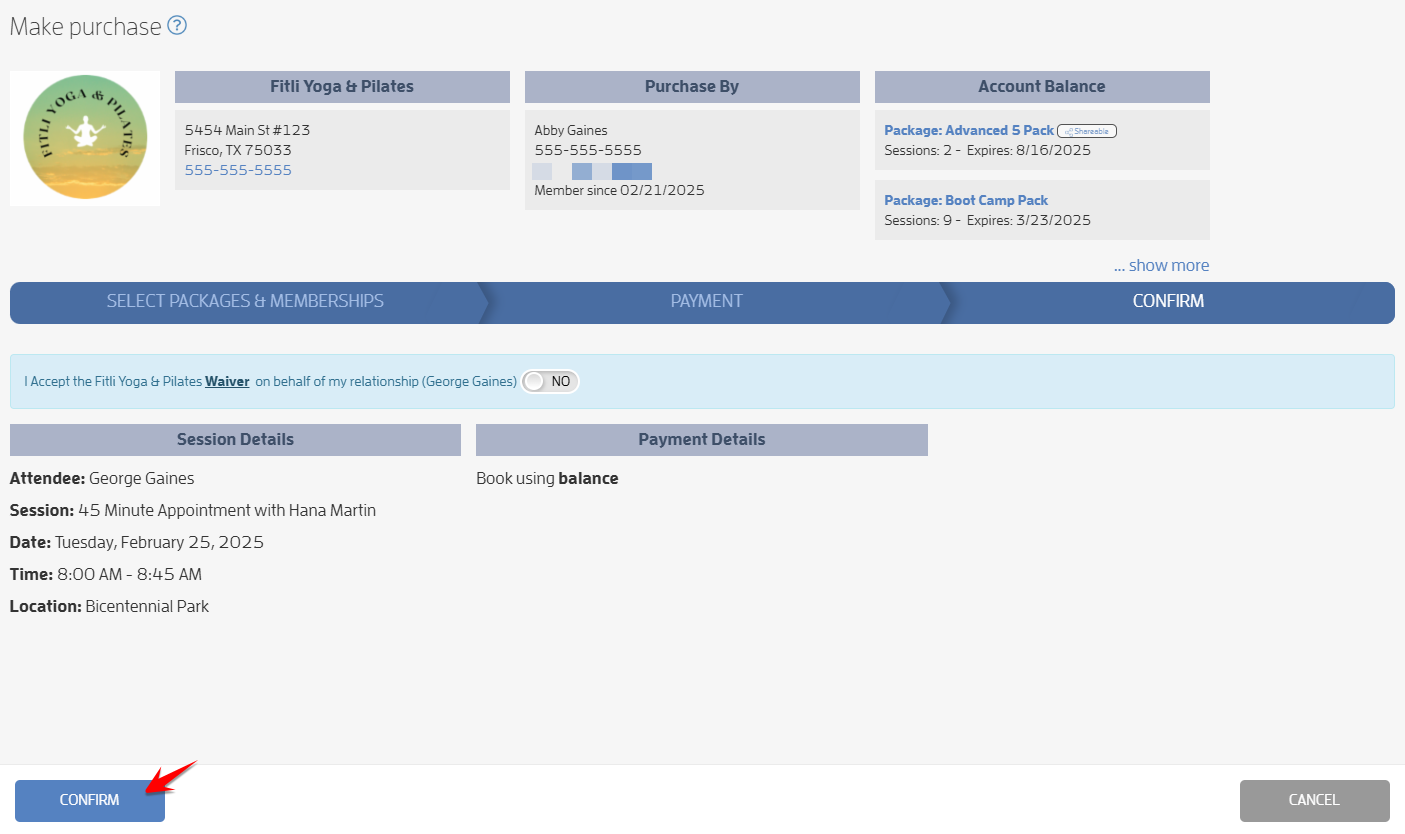
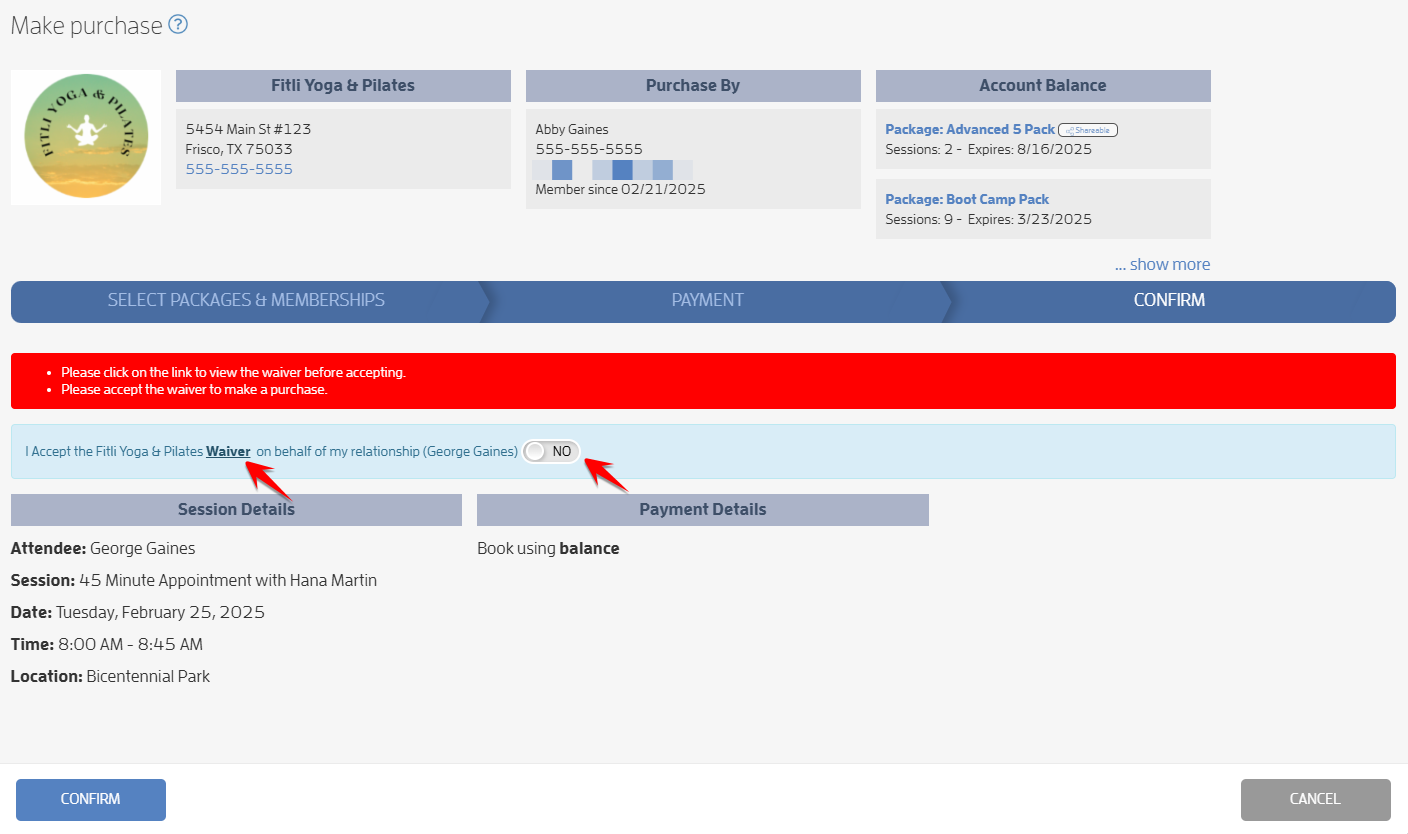
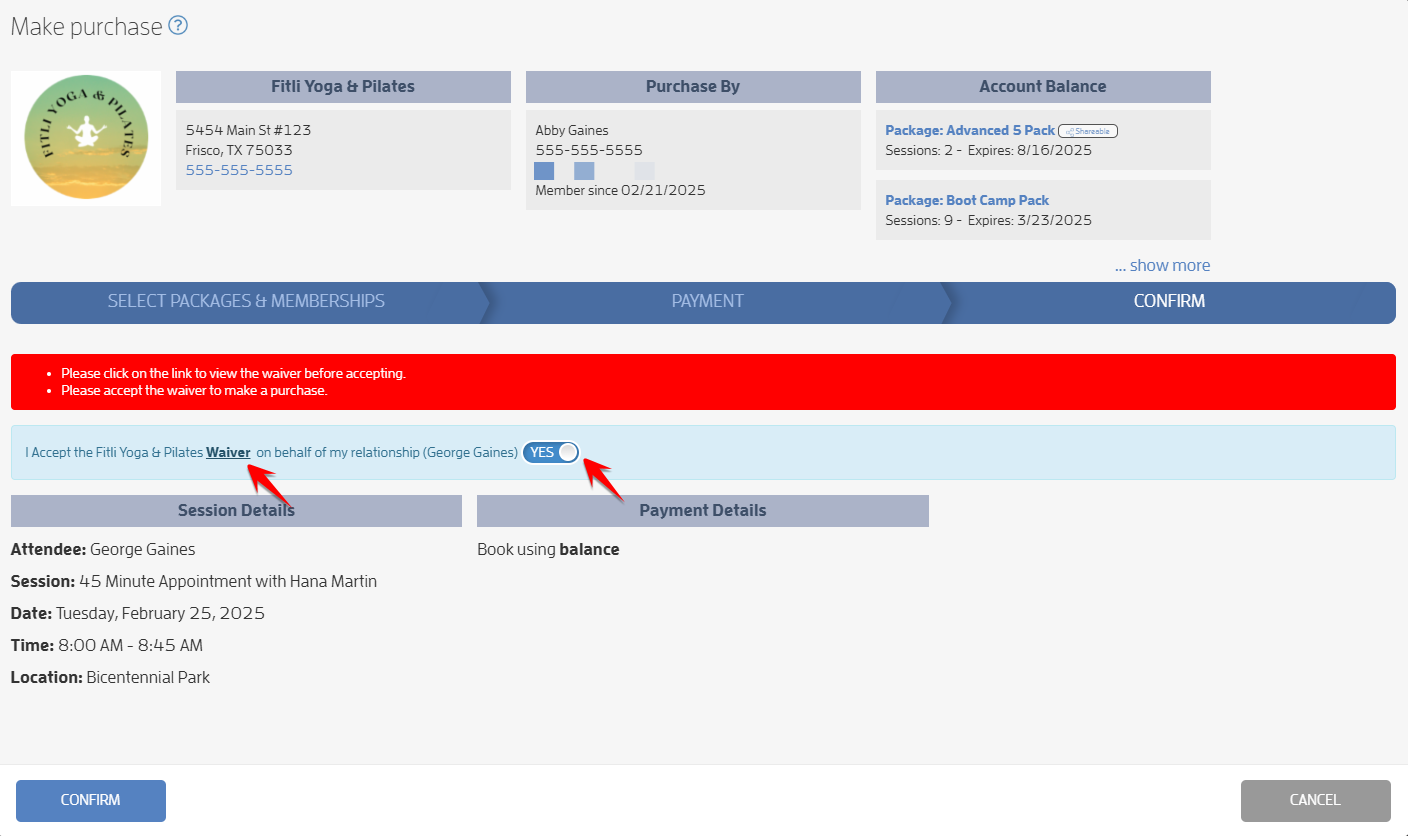
If you're prompted to accept the waiver, click the toggle and/or link to accept it. Otherwise, you won't be able to confirm your booking.
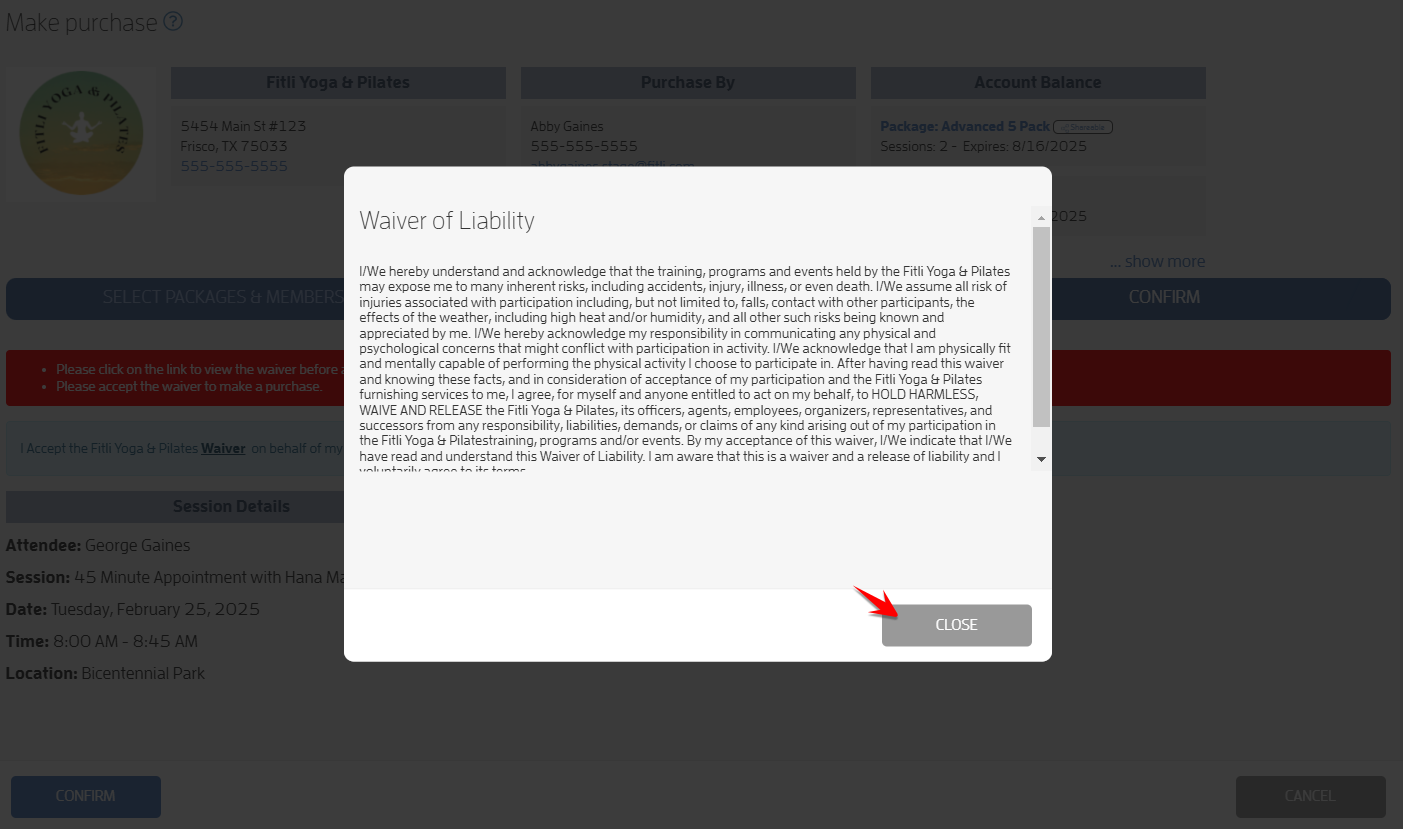
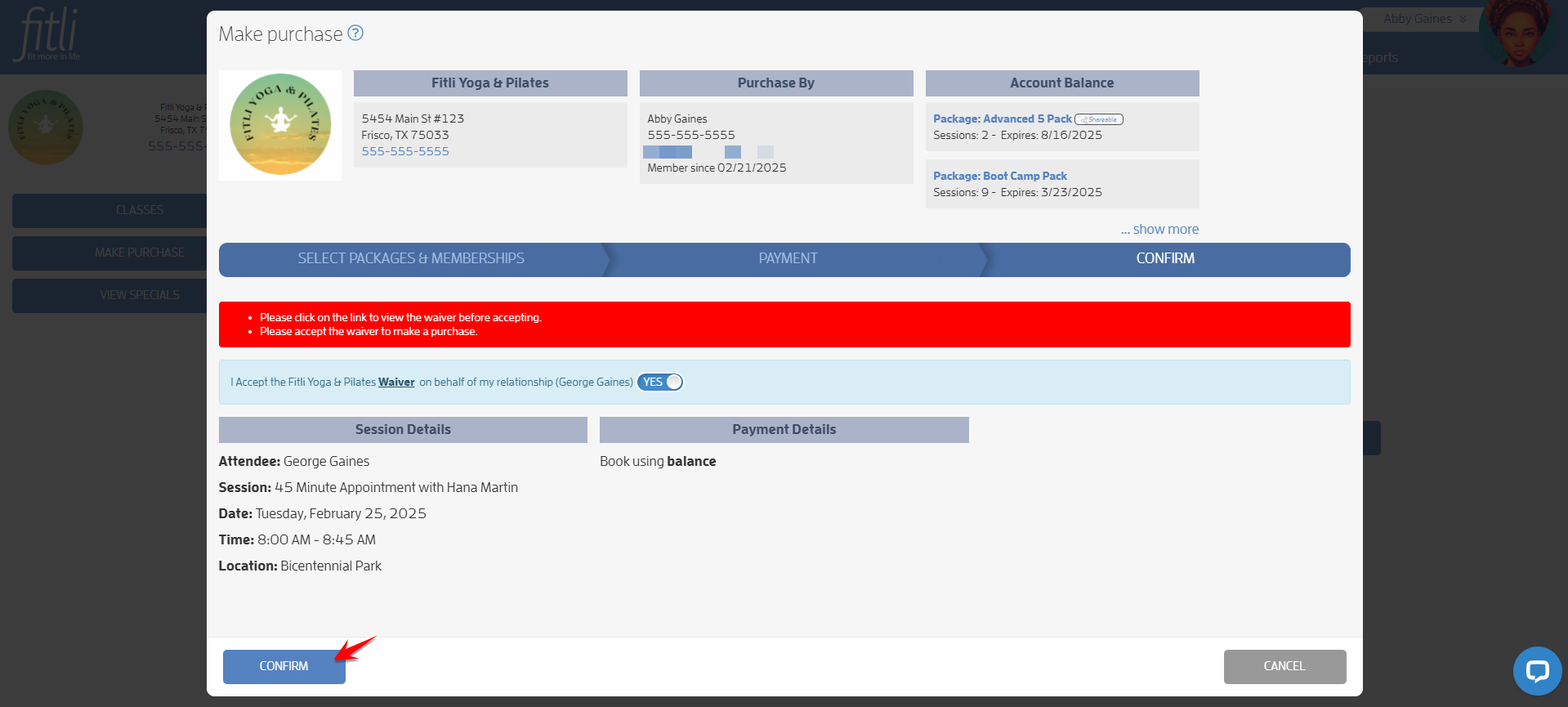
Click CONFIRM then CLOSE.
That's about it! Any questions? Chat with us or send us an email to support@fitli.com.