Setting up Appointments for Your Business
To configure appointments (one-on-one sessions with clients) for your business, there are three main things you'll need to do:
- Set Up your User Profile for Appointments
- Add at least One Appointment "Service"
- Configure your Appointment Business Settings
Set Up Your User Profile for Appointments
To set your professional's work hours, go to ADMIN and click "Business Setup & Customization" on the left to be directed to the "Users" page. Click "Edit" beside your user/employee. You'll see the following screen where you can choose if the professional can book appointments, set their work hours, and choose the services they can book appointments for.

There are a few selections here you should take note of:
"Is this professional available for appointments?"
If you set this to NO, then the professional will NOT be able to book/receive appointments. If yes, then they can!
Allow availability override by other users
If you set this to YES, you and other users can override your professional’s appointment availability while scheduling the appointment. If you set this to NO, the professional themselves will have the option to override their availability while scheduling an appointment with themselves as the professional. Additionally, any user with Owner level access would be able to utilize the toggle to schedule for any User available for appointments outside of their normal availability. For a detailed guide, refer to article "How to Override Appointment Availability?"
Set Appointment Work Hours
Once YES is selected, you can set their work hours by using the pulldowns, and choose the services they can book appointments for. Note: To have them available for ALL services types, leave it blank or choose the "Select All" option on the pulldown. Otherwise, if your trainers have specialties or can only book for certain types of services, you can set them here.
Add At Least ONE Appointment Service
Service duration is a required field for new appointments. When making a new class or appointment, you'll enter the length as showing in the screen below:
-
Classes - You can set a specific length for classes, in the services section.
-
Appointments - You can set a length for an appointment, and when to start the classes.

You can create an appointment OR a class. Decide which type of service you'd like to create, as they are specific. Appointment (individual class) or classes (group class).
The drop-in price (as opposed to membership price) is now optional, you can use the slider to turn on or off a different drop in price.
Configure Your Appointment Business Settings
Finally, once you've set your business hours, defined the hours and services for your professional employees, and updated your services, you're ready to turn on appointments.
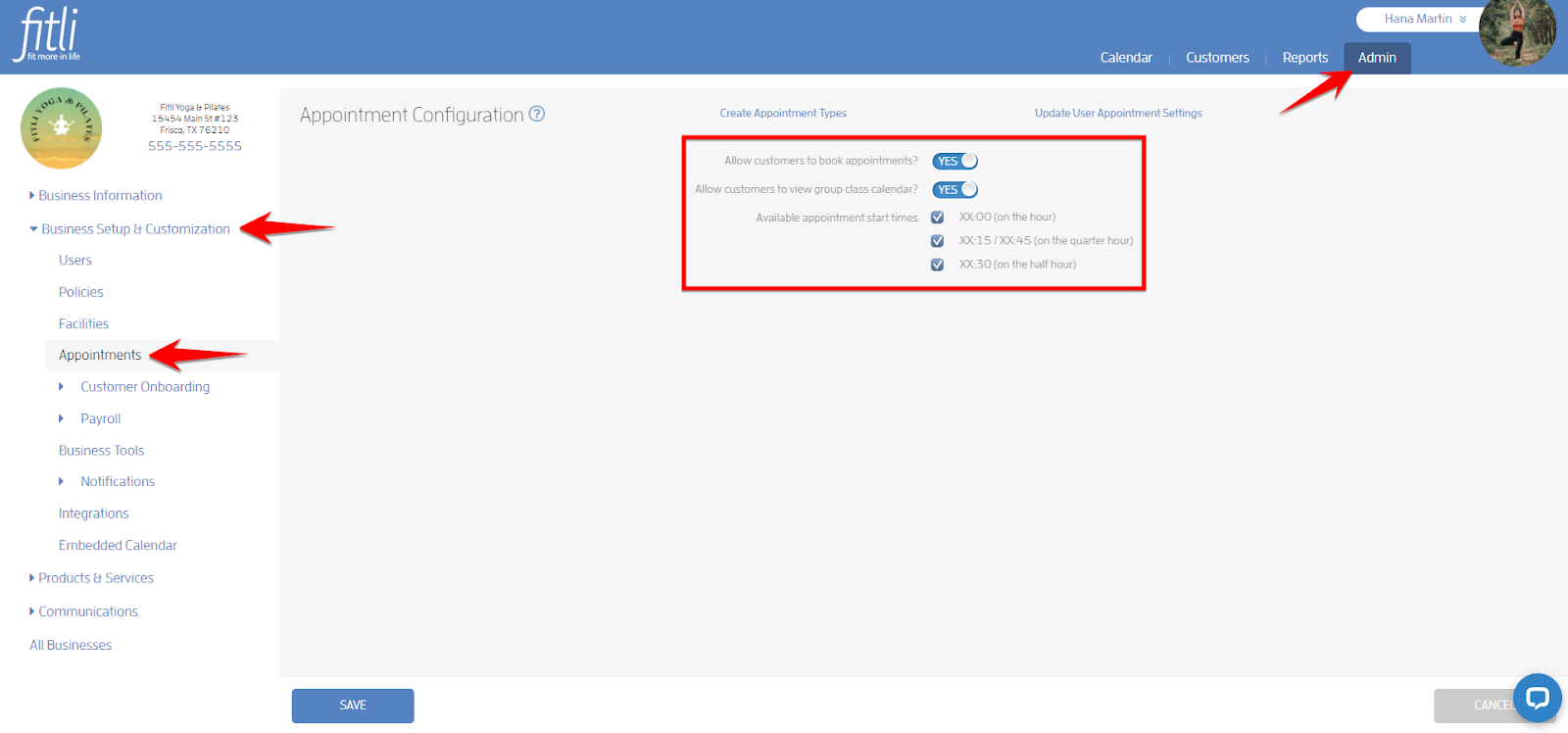
To do this, head to the ADMIN page, and choose "Appointments" under "Business Setup & Customization". Turn on appointments, and select the option when you want your appointments to be bookable (quarter hour, half-hour or top of the hour). Save and your appointments will be up and ready for booking!
If you have any questions or comments, please chat with us or email us at support@fitli.com.
Related Articles
Class Calendar can "start" at your Business Hours
Previously, your business class calendar would "start" at 12am, no matter what classes, schedule, or business hours you may have configured. You can set your class calendar to start later in the morning, let's say at 8am. To set this, head to the ...Getting Started with Appointments
So we know what appointments are, 1 on 1 sessions with a trainer or professional. But how to get started using them? Typically, appointments are either booked by the professional or the client. For the professional, a client might call or email, ...Zoom Integration for Online Classes and Appointments
OVERVIEW Connect Fitli + Zoom to automatically add video conferencing details to your classes, appointments, and events. Eliminate the need to manually send conference details out to your clients with automated booking confirmations and email or text ...What are Appointments and how do they work?
What are Appointments and how do they work? Appointments are just like what they sound like, 1 on 1 sessions scheduled with a single client, for a time length you determine, with a specific professional. They're great for individual client sessions, ...How to Add Appointments, Blocked Times, Excepted Times or Classes to your Business Calendar?
Your business is all about classes and appointments, but how do you add them to your Fitli calendar/schedule? Easy! Just follow the step-by-step guide below! Prerequisites: In order to schedule an appointment or class, you'll need: - At least one ...