How to set up booking and cancellation policies for your business?
Have you ever had the problem where a client cancels 5 minutes prior to a class or appointment or is a no show? Or, do you want to limit how soon before a class or appointment your clients can book or cancel? Well, with Fitli, we let you define booking and cancellation policies to save you time and streamline your business operations. All of these booking and cancellation policies apply to when CLIENTS can book and/or cancel/withdraw. The business can ALWAYS book or cancel a client regardless.
Fitli allows you to set up 4 pre-set business policies:
-
Class Booking: Booking policy for group sessions/classes
-
Class Cancellation: Cancellation policy for group sessions/classes
-
Appointment Booking: Booking policy for private sessions/appointments
-
Appointment Cancellation: Cancellation policy for private sessions/appointments
By default, all these policies are disabled unless you opt to turn them on.
Configuration Overview:
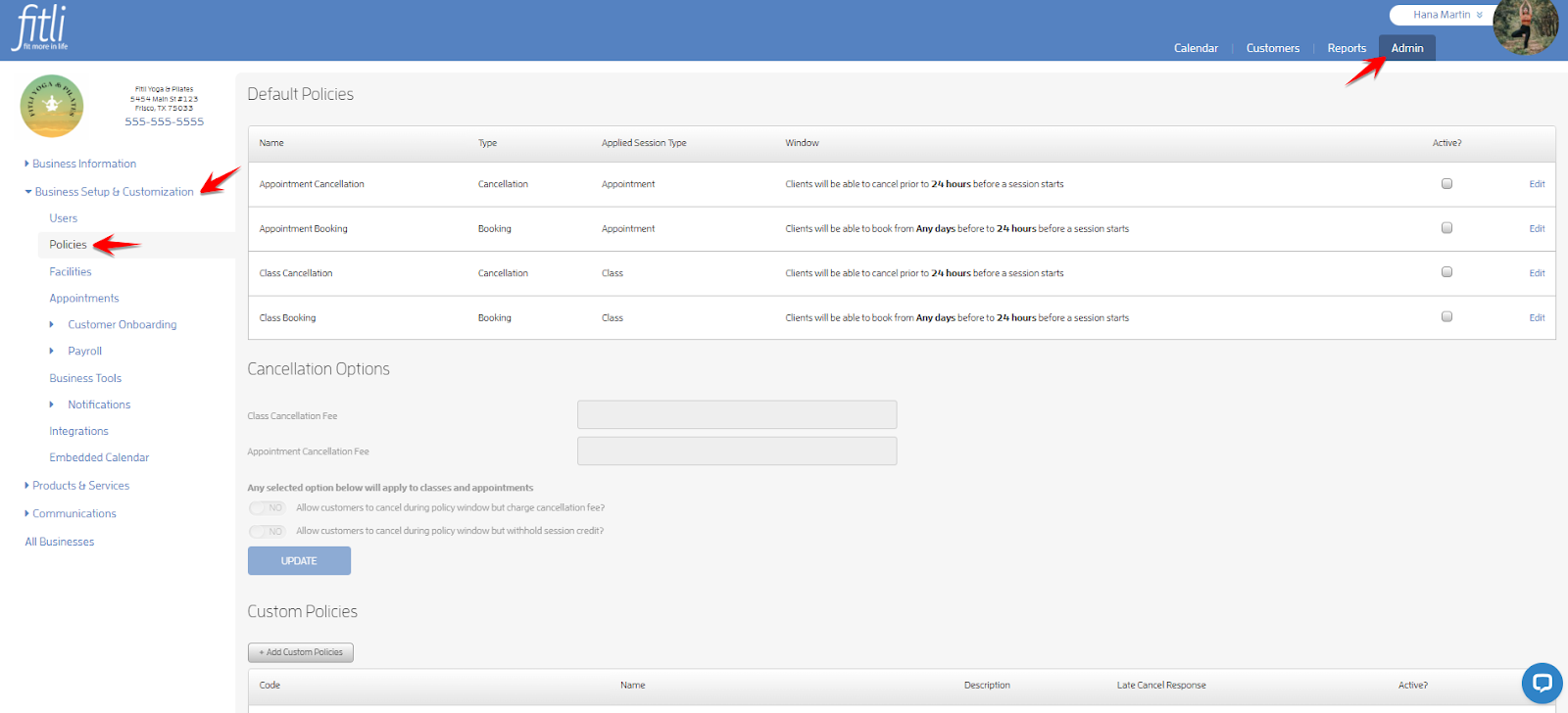
You'll notice that each booking policy has a "start" and an "end", or as we call it, a booking "window". This way, you can be very specific about when your clients can/can't book and/or cancel.
To control the booking window, click “Edit” beside the policy. On the + Edit Policy modal, enter an amount of time in the "From" section, and an amount of time in the "To" section. Or, if you leave these blank, the booking option will default to unlimited booking.


Example 1 - Let's say you wanted to limit clients to ONLY be able to cancel an appointment MORE than 24 hours before the appointment starts.
To do this, set the policy as "active", click “Edit”, enter 24 on the cancellation window field, make sure that hours is selected on the pulldown then hit SAVE.
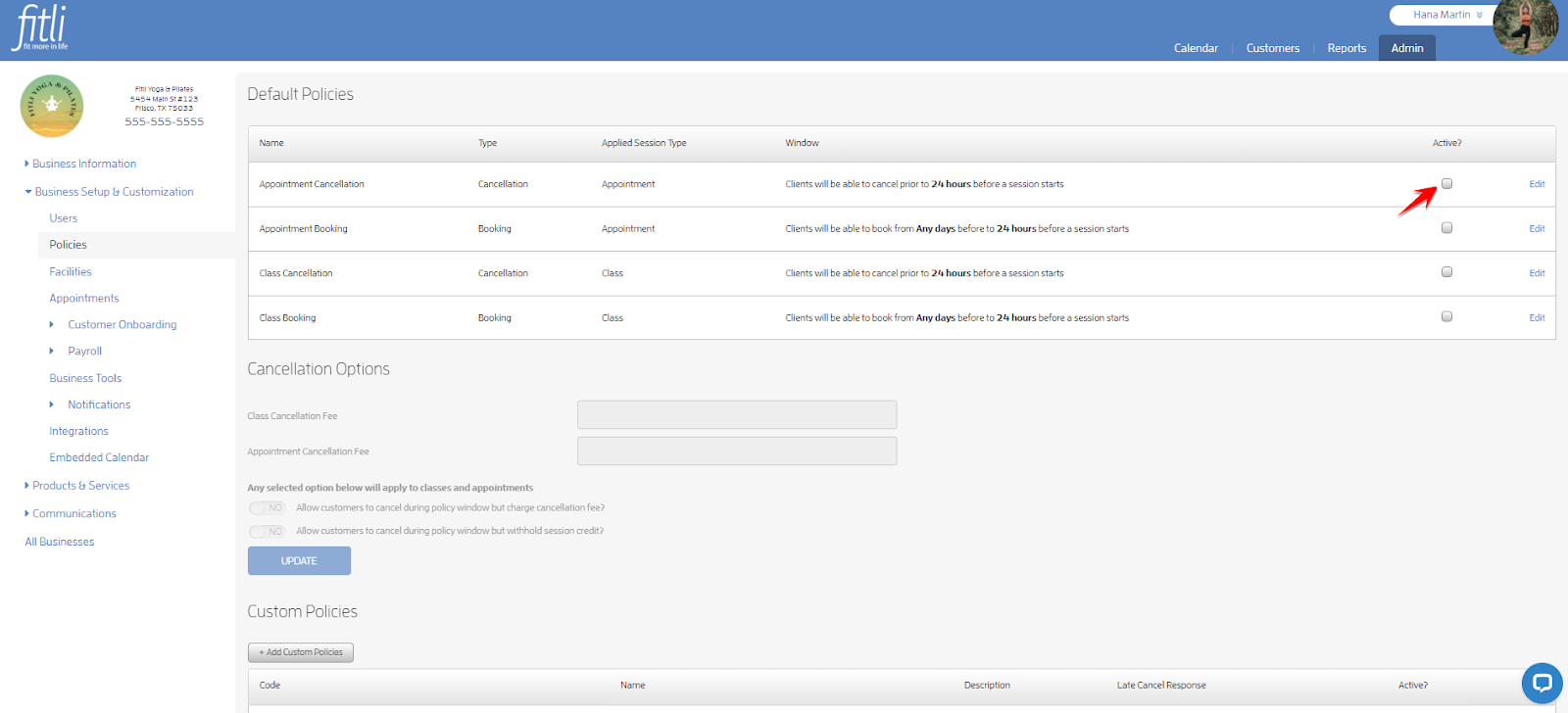
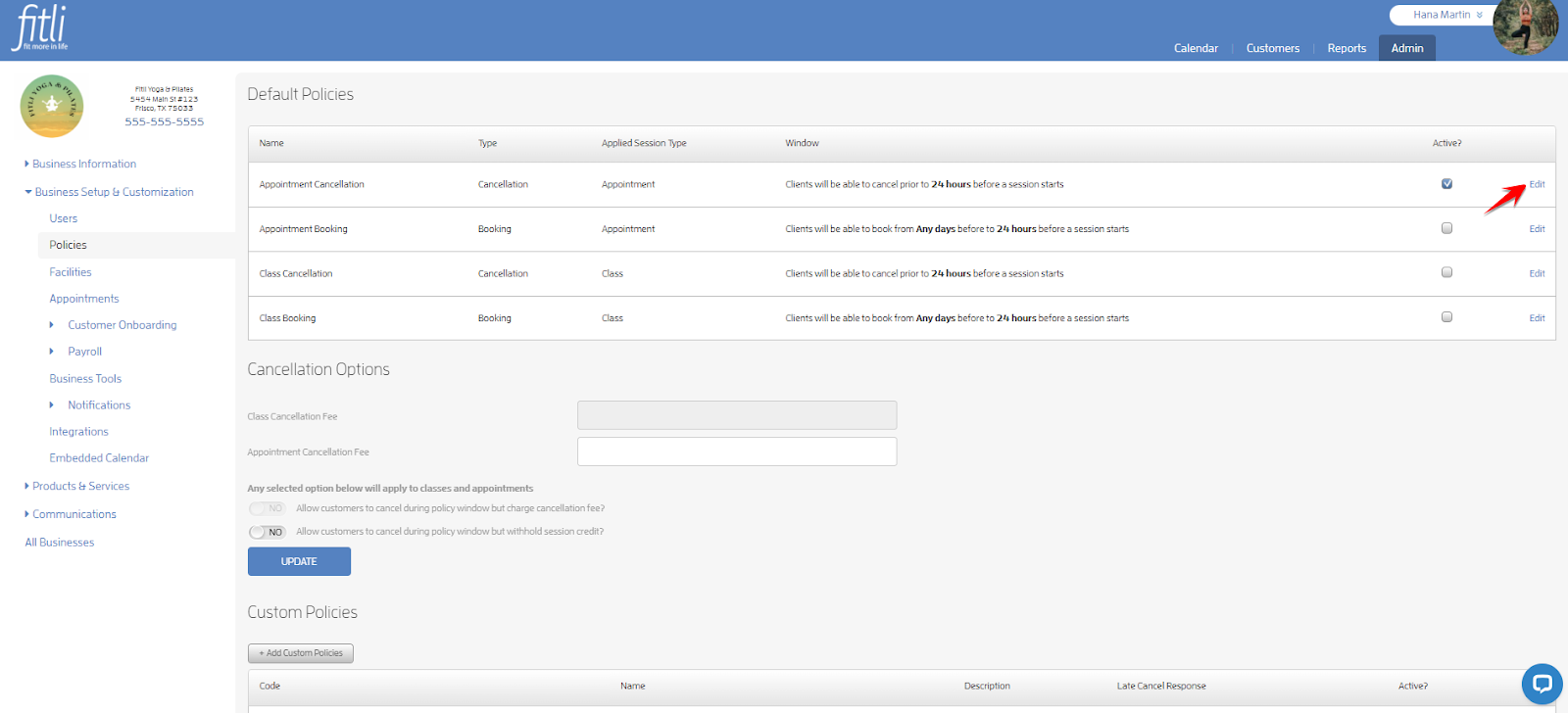
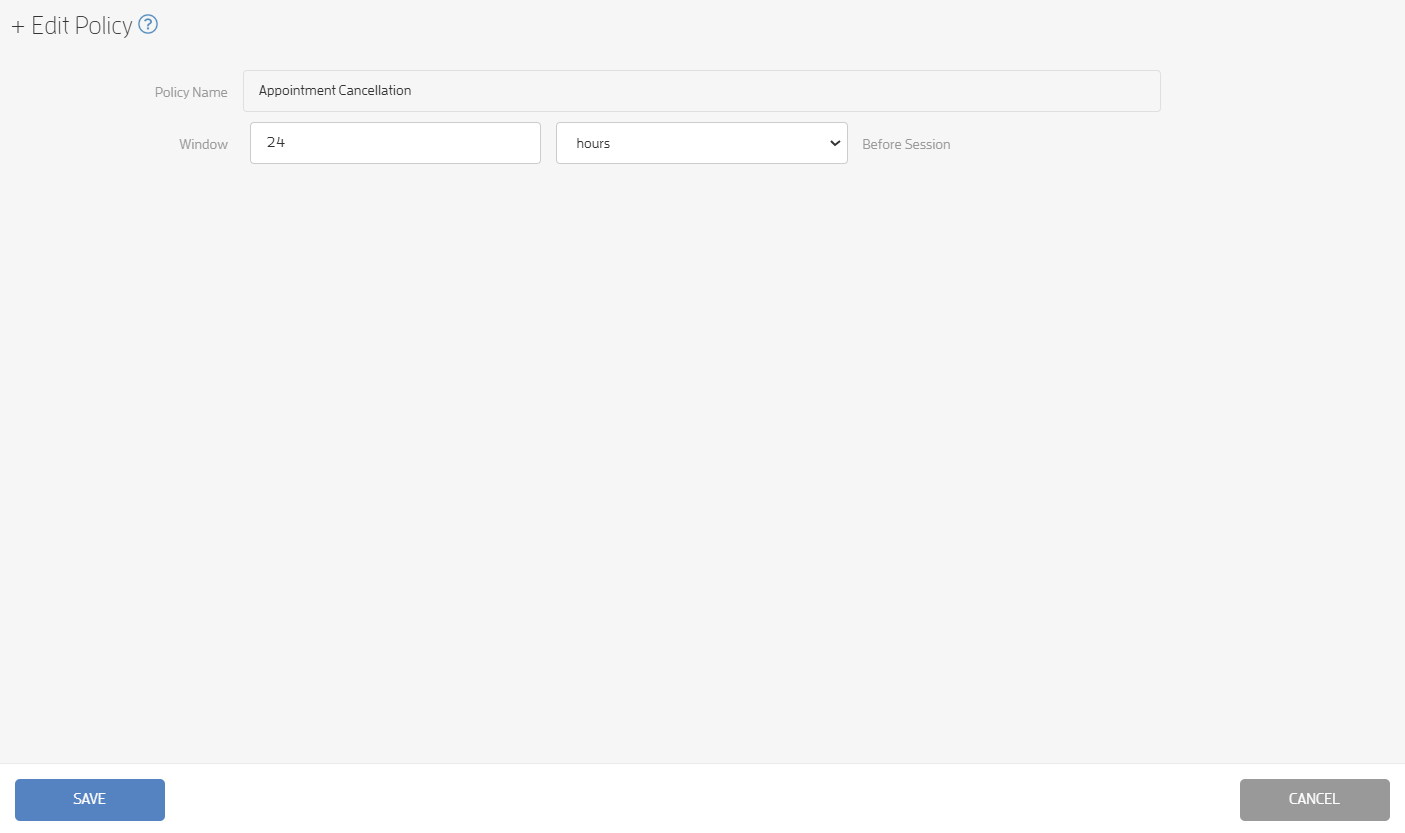
This way, a client can ONLY cancel greater than 24 hours before the session starts.
Example 2 - Let's say you wanted to set the appointment/class booking window to only allow clients to book MORE than 24 hours in advance, but LESS than 96 hours.
To do this, set the policy as "active" and enter the "FROM" window to 96 hours, and the "TO" to 24 hours.
To do this, set the policy as "active", click “Edit”, enter 96 on the "FROM" field and 24 on the “TO” field, make sure that hours is selected on the pulldowns then hit SAVE.
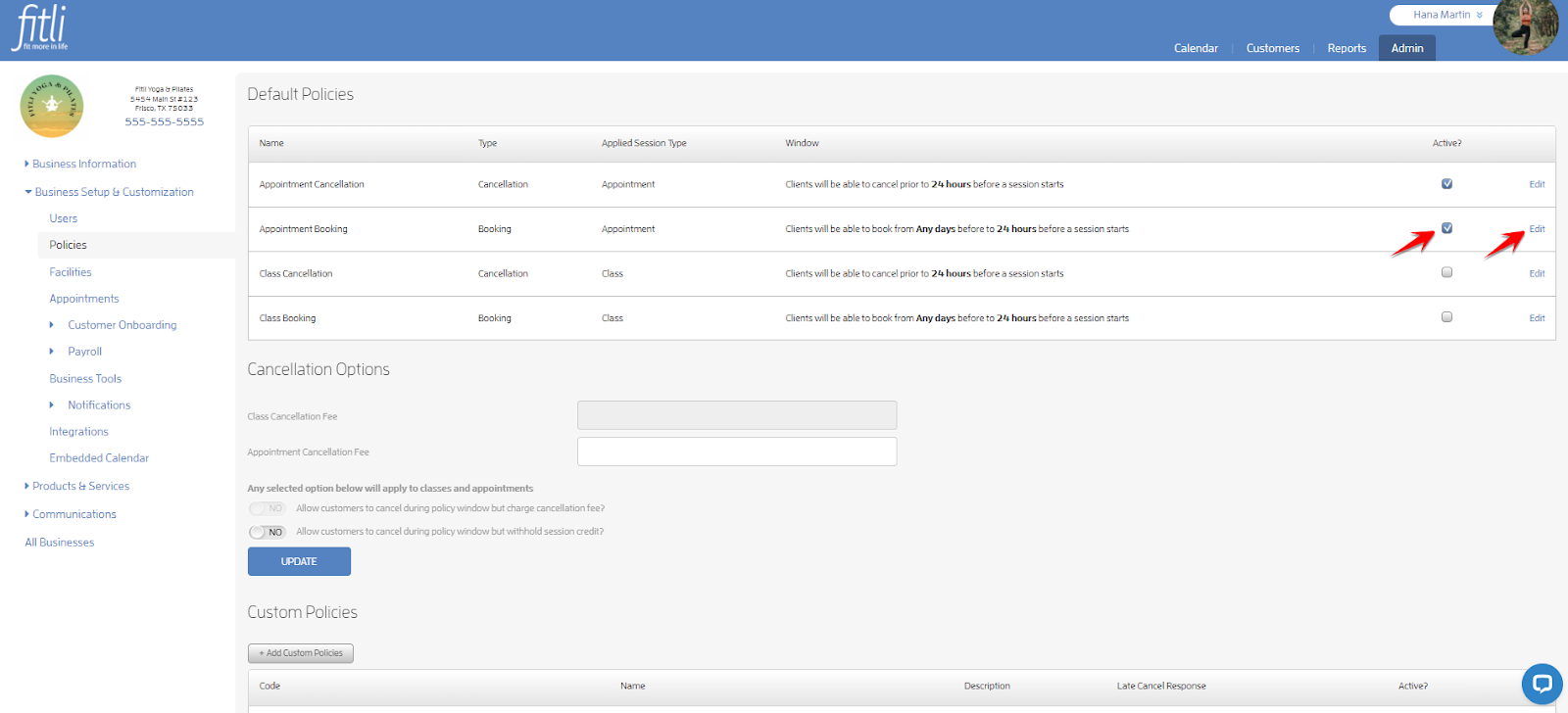
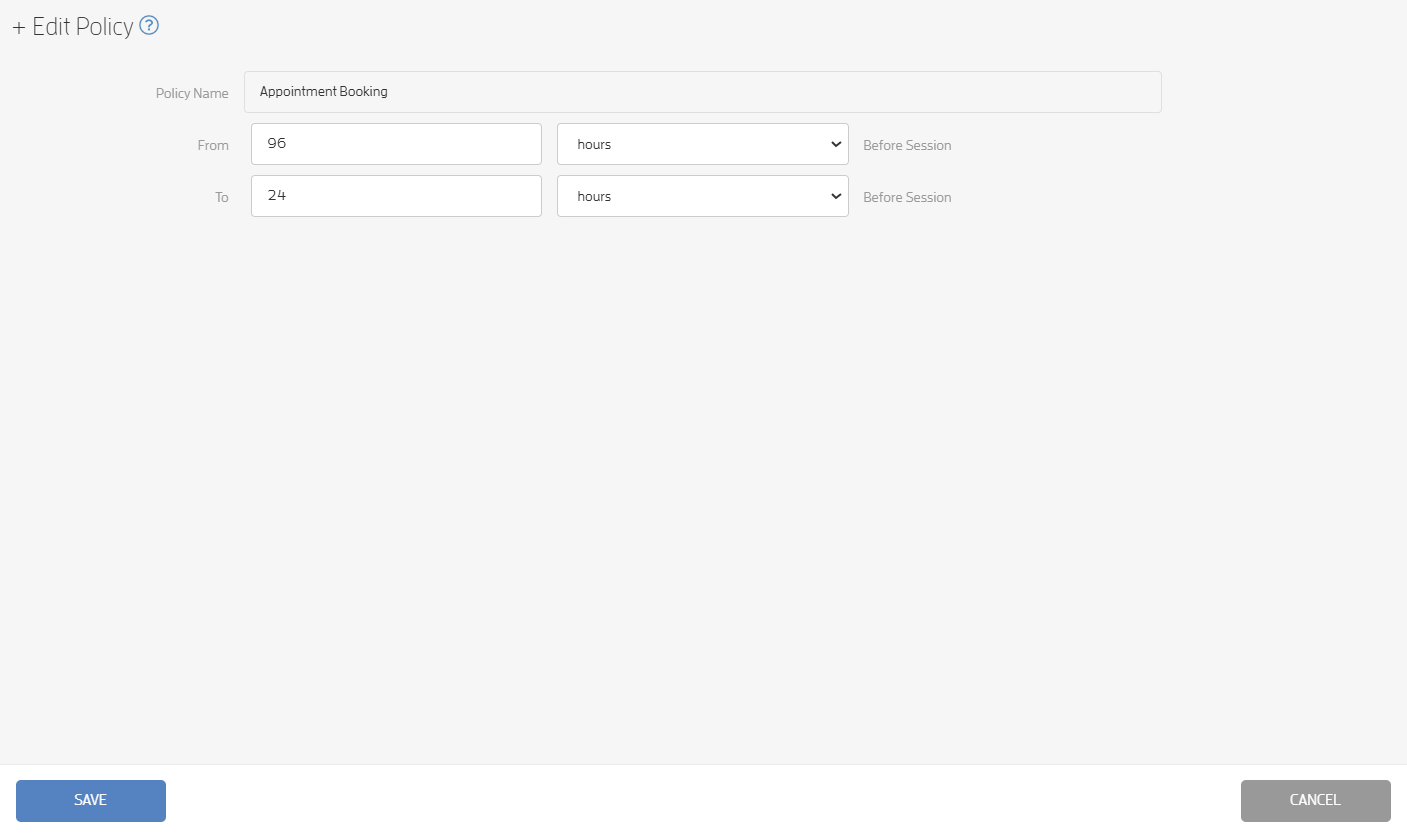

This way, a client could ONLY book between 24 hours and 96 hours prior to the session. (Or greater than one day, and less than 4 days).
These policies will NEVER impact your ability as a business to book and/or cancel clients out of classes or appointments. You can override the policies, set a late cancellation fee or allow your clients to cancel during the cancellation period without refunding their session credit. You can also set custom booking policies by service as well.
Here are some helpful guides:
What Options are there to Handle Late Cancellations?
How to Set Custom Booking & Cancellation Policies by Service?
That's about it! Any questions? Chat with us or send us an email to support@fitli.com.
Related Articles
How to Set Custom Booking & Cancellation Policies by Service?
You can set custom booking & cancellation policies by service with just a few clicks. Here’s how. Log in to your Fitli business account and click "Admin" on the top menu bar. Click on "Business Setup & Customization" then "Policies" on the left side. ...Appointment Booking: Default Professional
This feature would easily make booking appointments efficient and help you determine which of your users have appointment availability configuration issues. SOLO USER If you're a solo business user, you're the owner and professional, you are ...How to Add Relationships While Booking?
Did you know that you can also add your relationships while booking? Here’s how. For Group Classes Log in to your Fitli account then click BOOK ACTIVITY at the top menu. Click the “View Schedule” button of your business. On the business calendar ...Kiosk Check-In and Booking: Business Guide
Prior to your clients checking and booking themselves into classes, there are several steps you, as a business owner/admin, need to complete to enable this feature. Turn "ON" Check-In for your business and Client Kiosk Check-In for each SERVICE (see ...Quick Booking for Classes
The Quick Booking feature lets you add yourself as a client, or add customers as a business, to multiple upcoming classes at once, based on available sessions, packages, and expiration dates. With Quick Booking, you can quickly book in several future ...