How to Edit your Services and Packages from the List View?
Editing details about existing Services and Packages/Memberships from the list view is easier than ever!
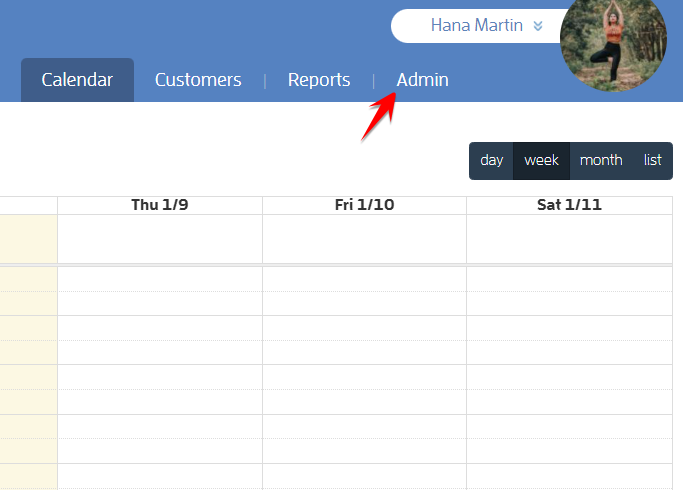
Log in to your Fitli Business account then click ADMIN at the top.
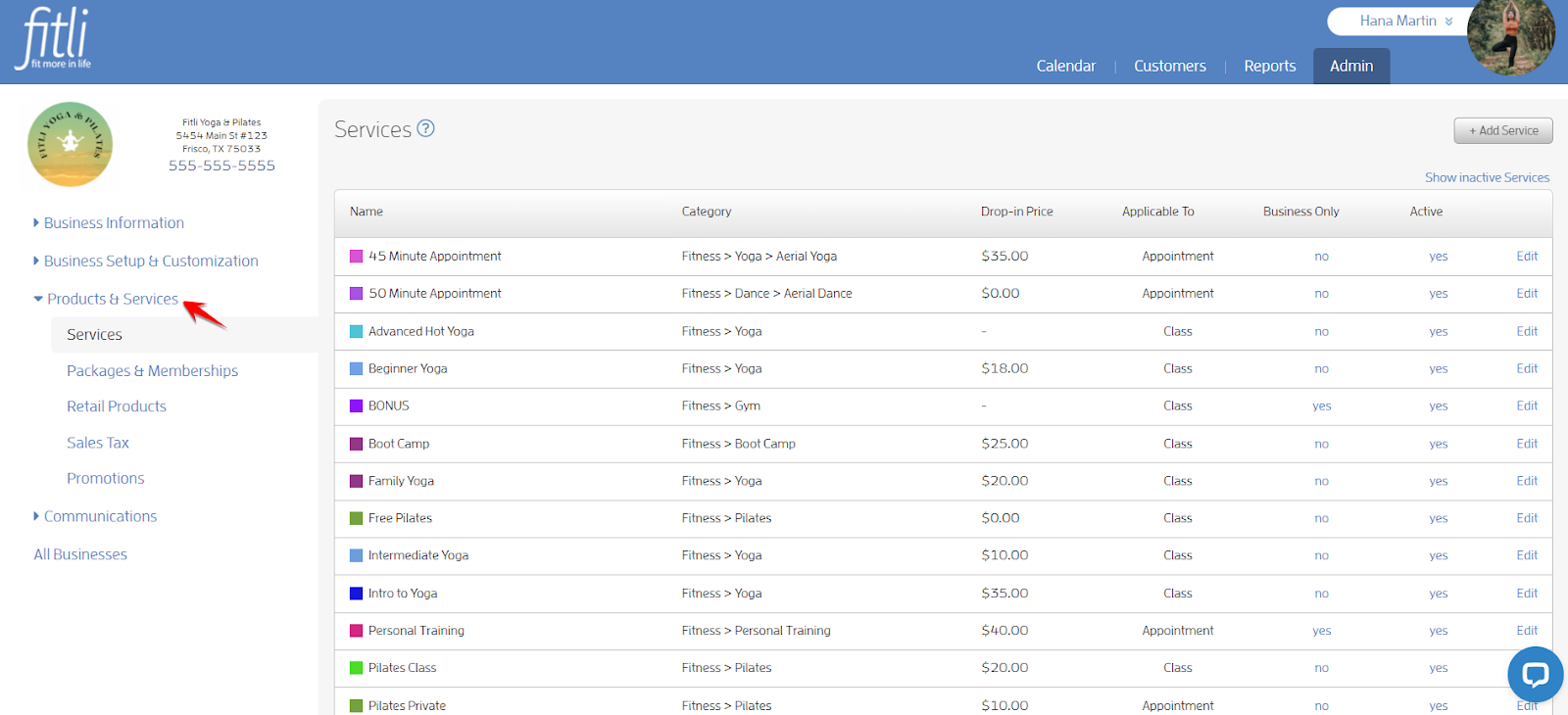
Go to Products & Services.
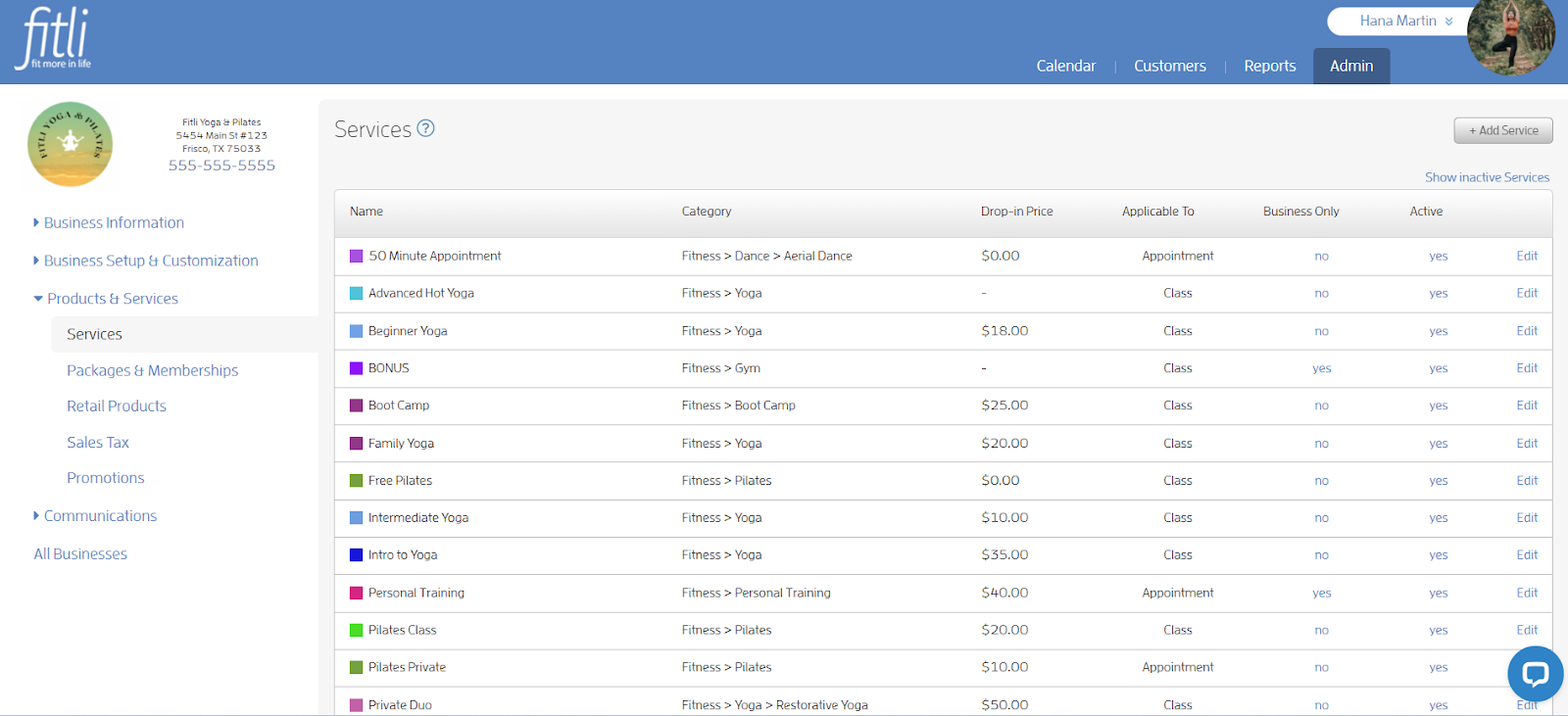
On the Services list, you can set the service for Business Only or Deactivate/Activate it.
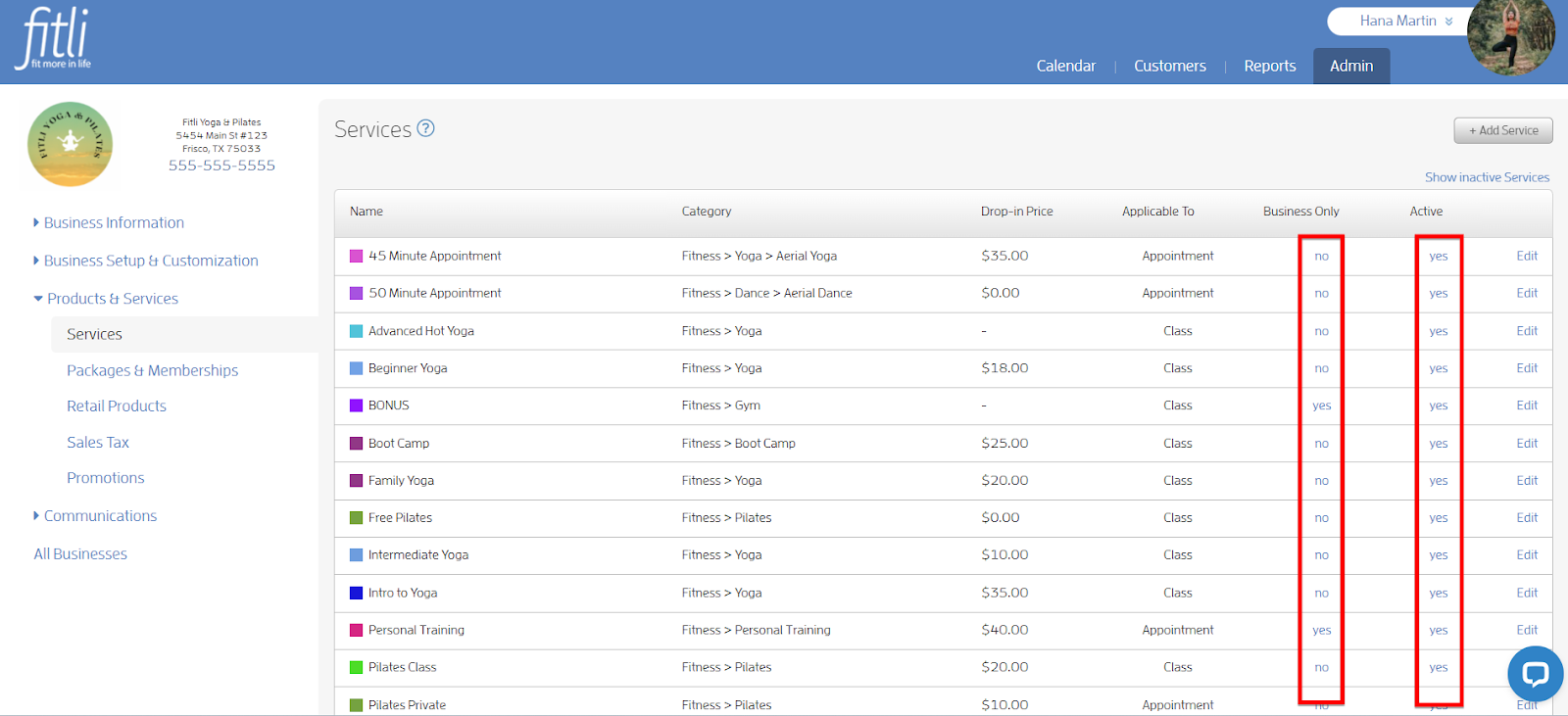
Services
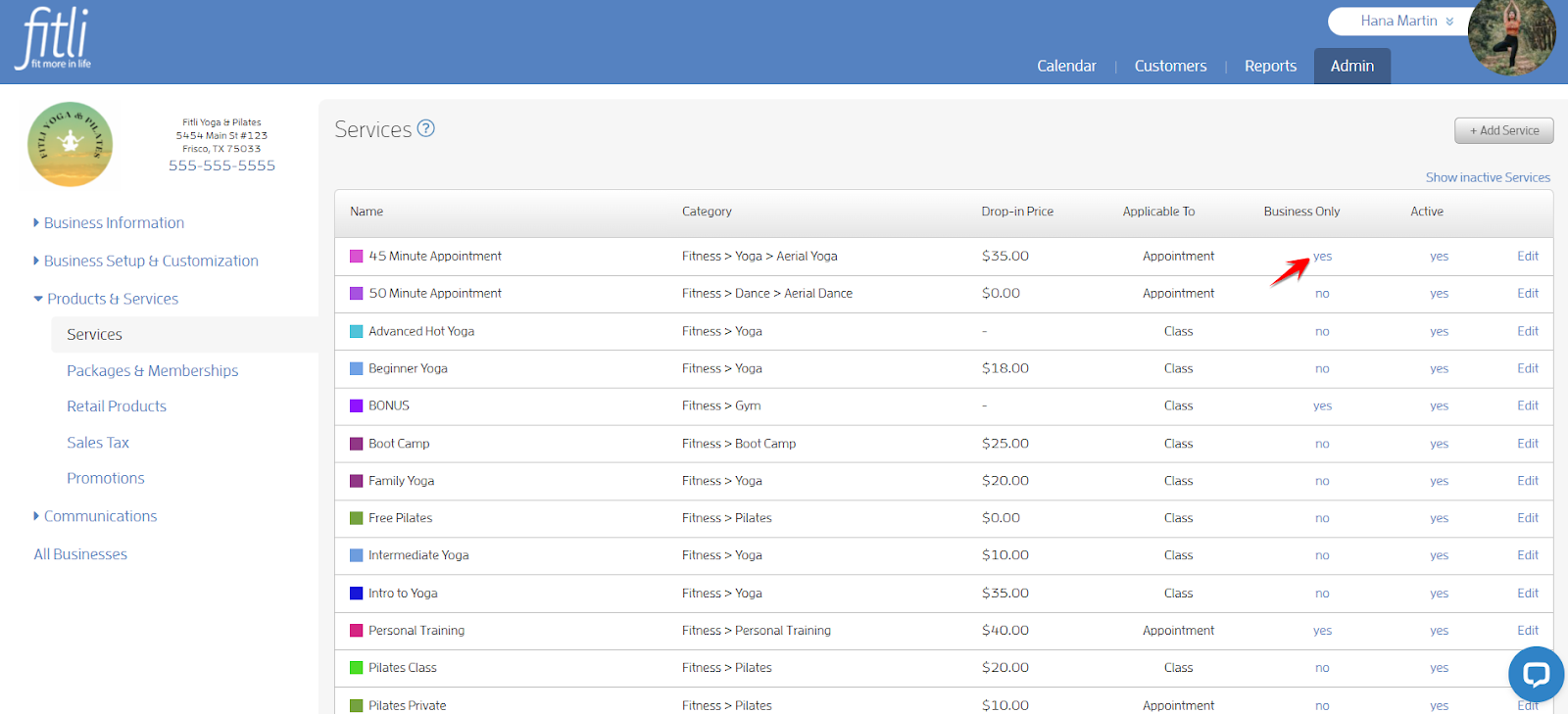
To set the service for Business Only, click “no” under the Business Only column on the service row you intend to edit.
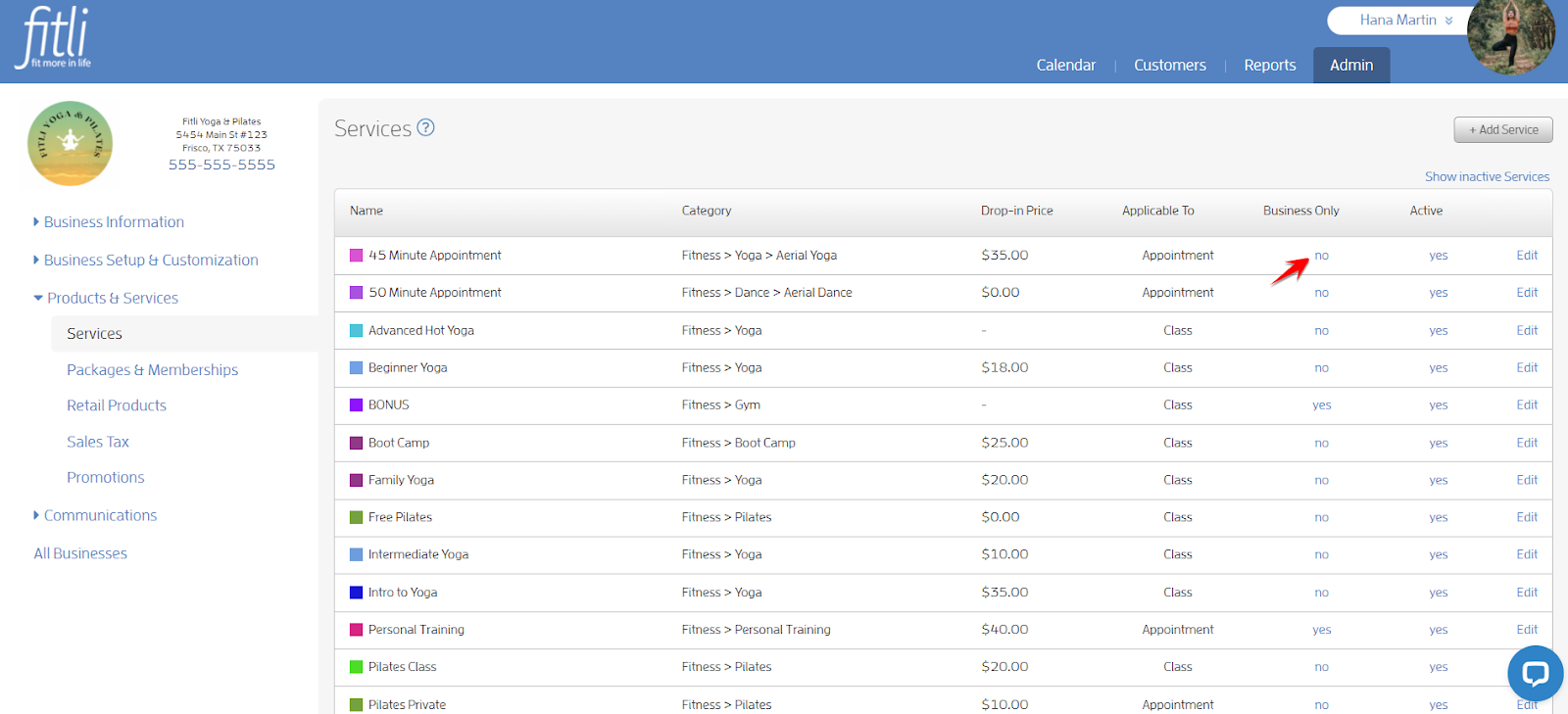
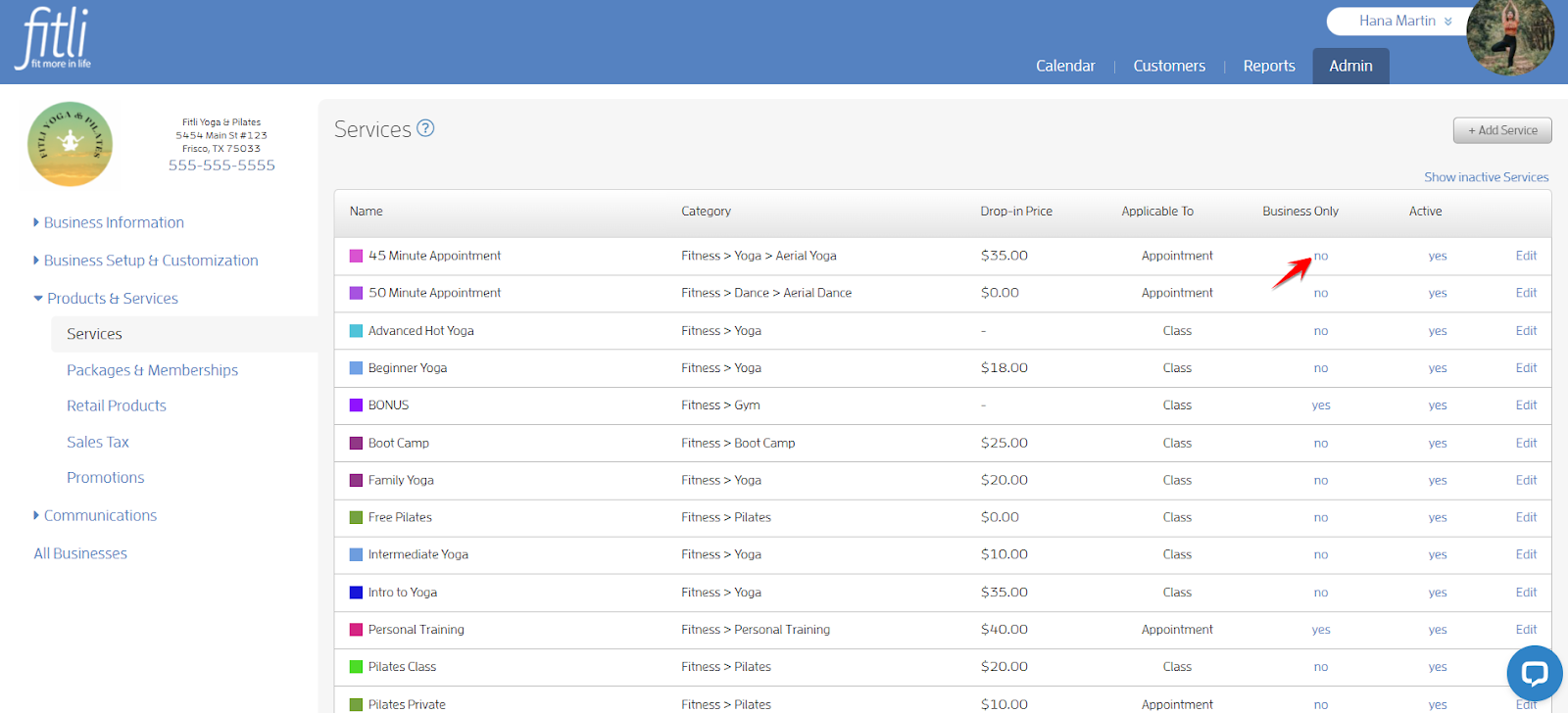
As soon as you click on "no", the service will turn to “yes”. This means that your clients won’t be able to book the service on their end, hence, it’s bookable by business only.
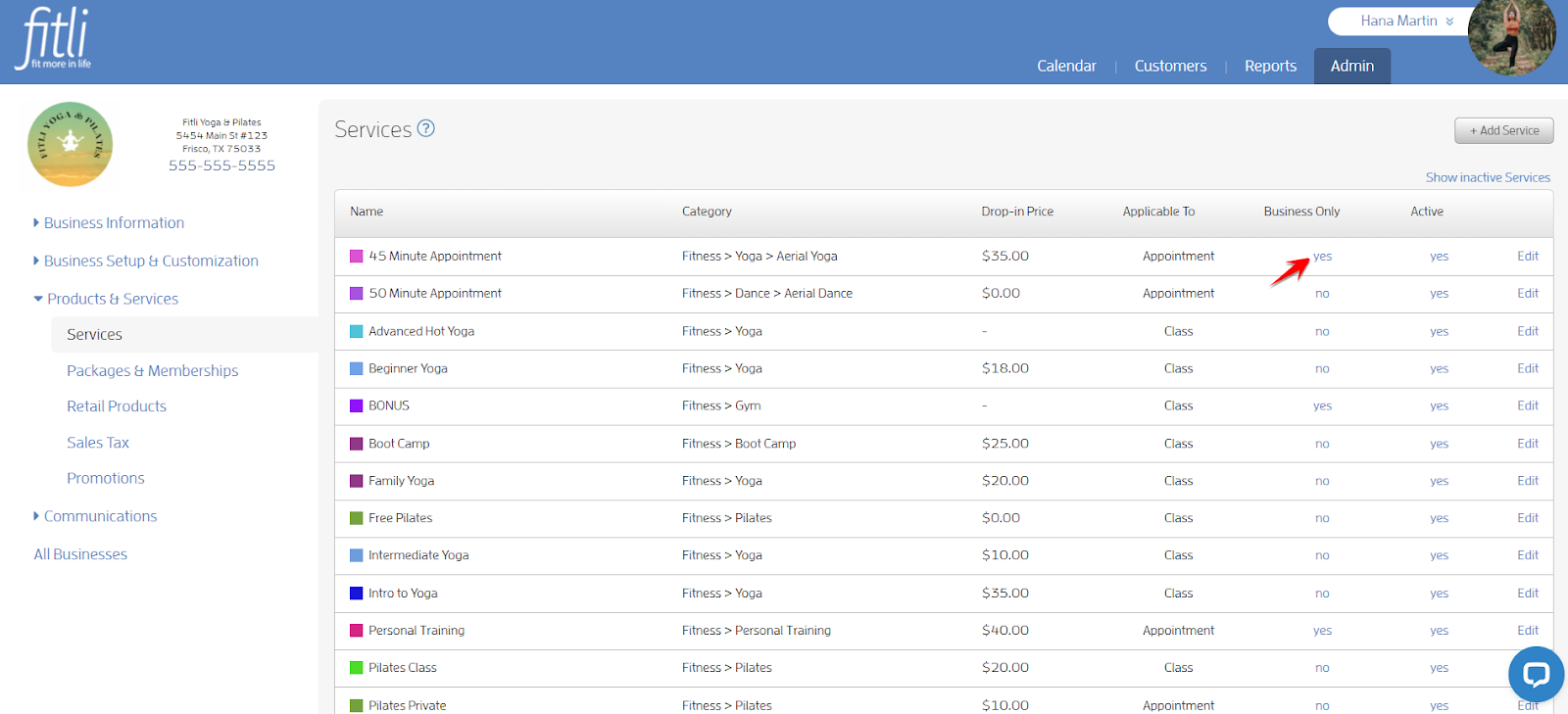
To make it bookable by your clients, click “yes”. As soon as you click on "yes", the service will turn to “no”.
To deactivate a service, click on the "yes" link on the service row you intend to deactivate.
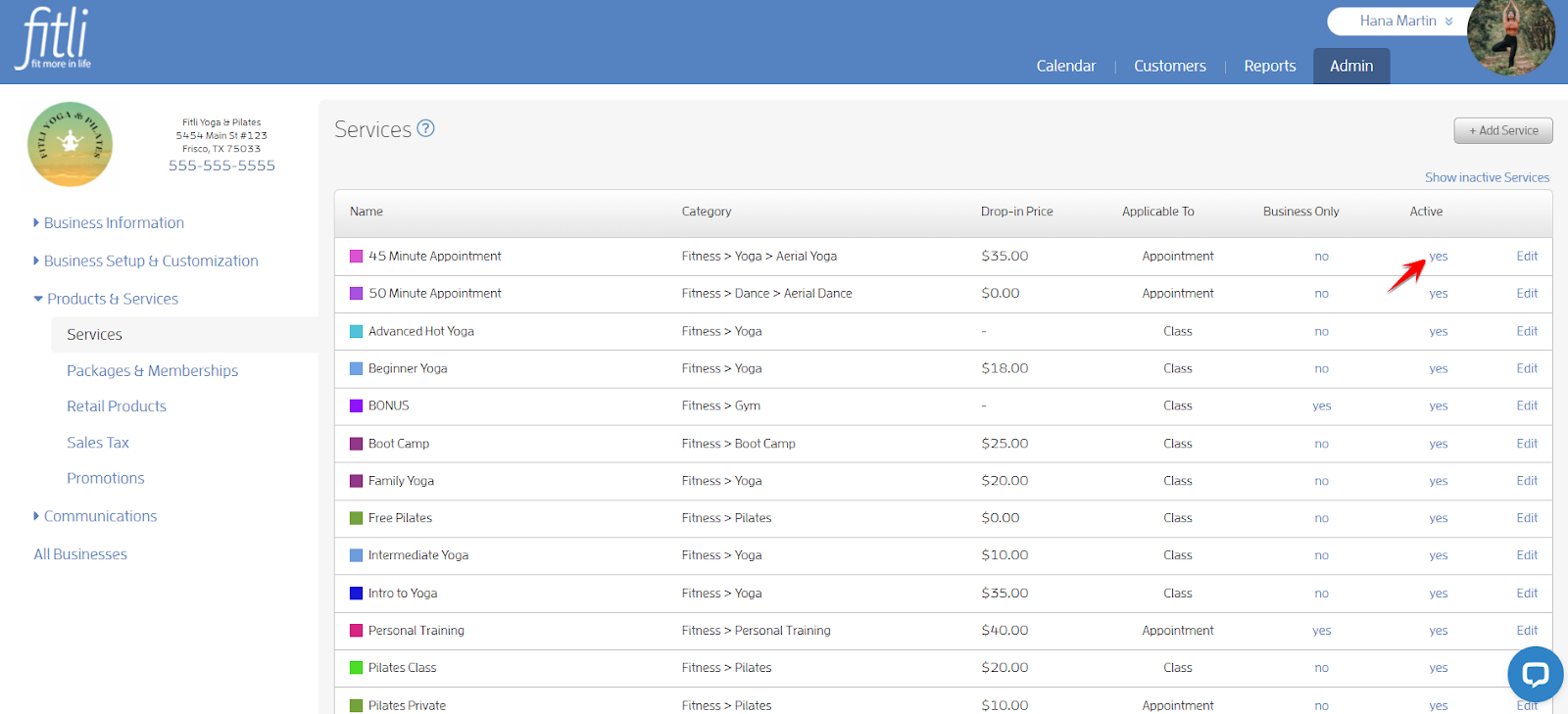
As soon as you click on the "yes" link, the service will disappear from the list. It just means that this service becomes inactive.
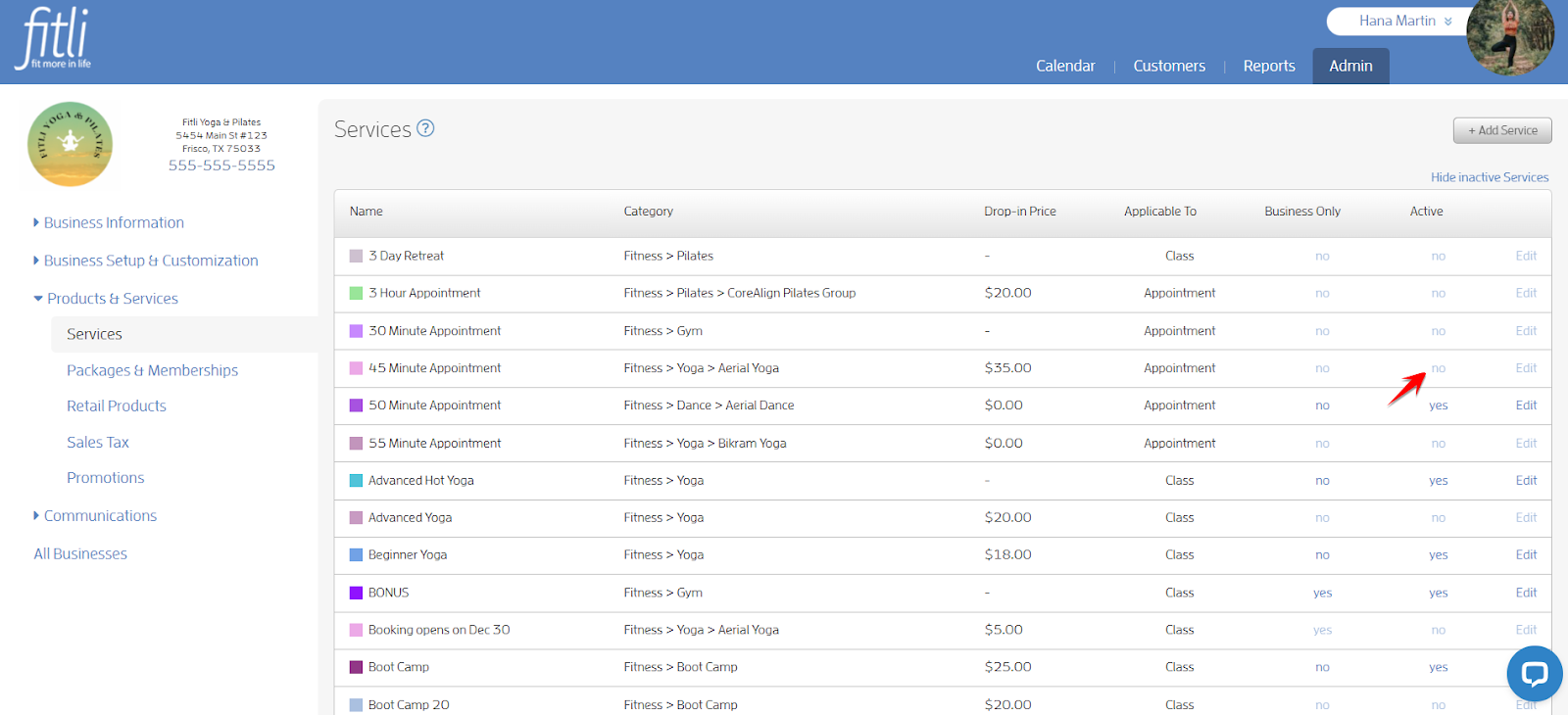
To re-activate the service, click “Show inactive Services”. As soon as you click on this link, it will show the inactive service/s together with the active services and it will be grayed out.

Click on “no.” This will toggle the value Active from "no" to "yes".
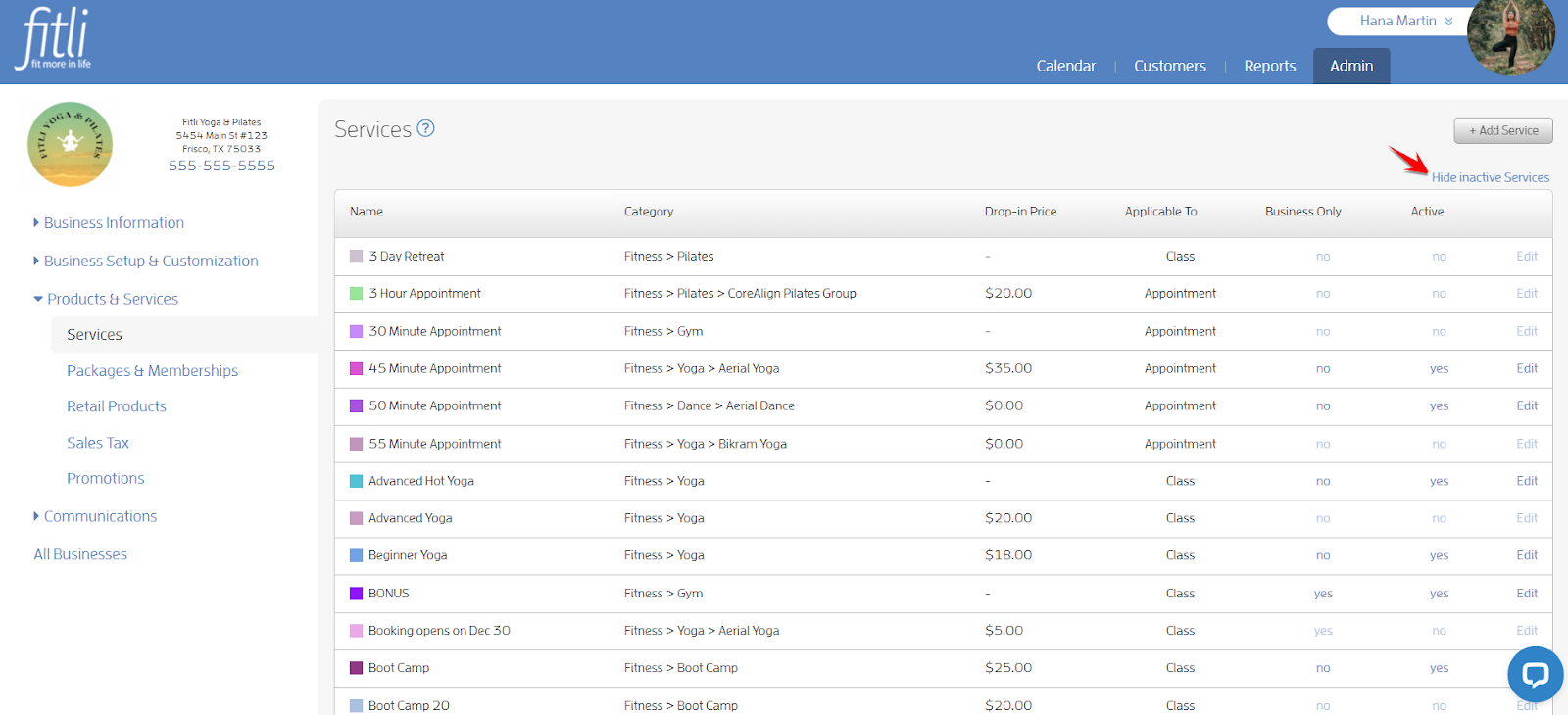
Click “Hide inactive Services” to show all active services only.
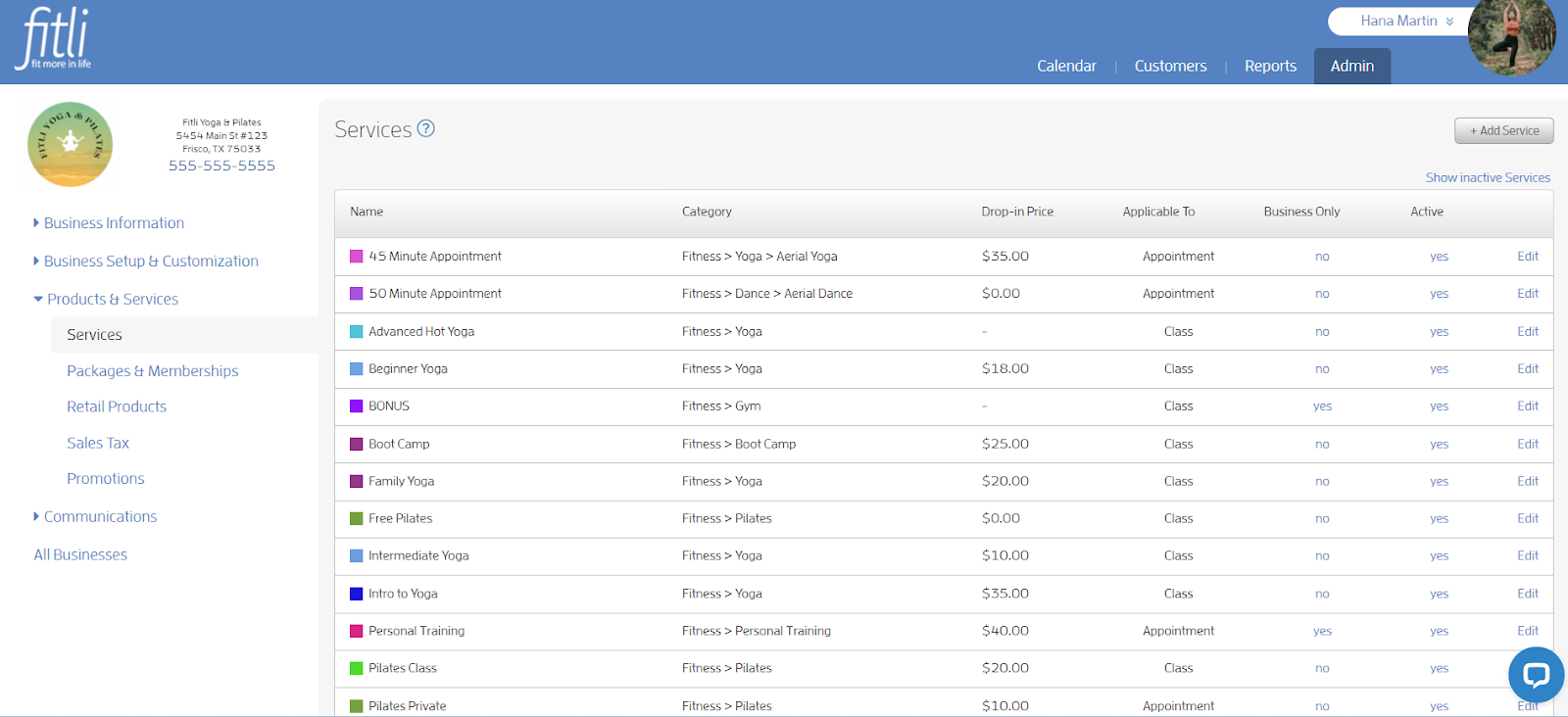
That’s it you’re done!
Packages & Memberships
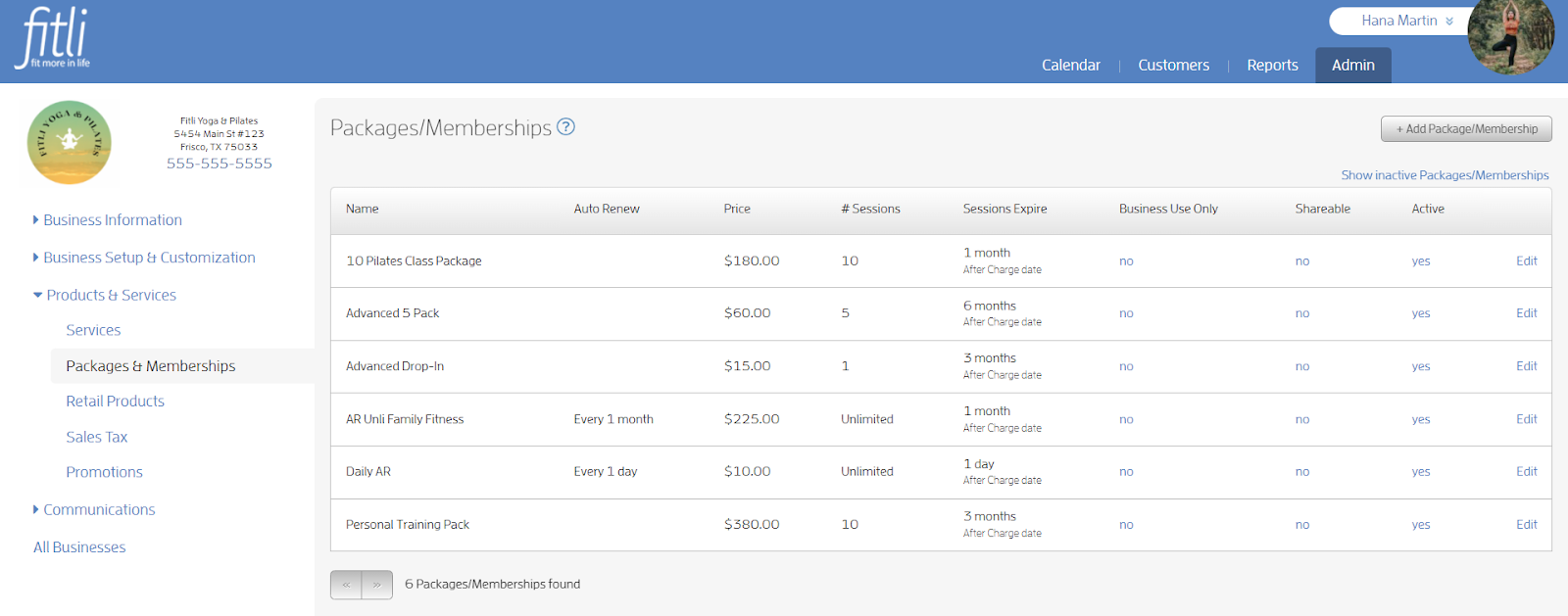
To edit your Packages & Memberships, click on it on the Products & Services menu.
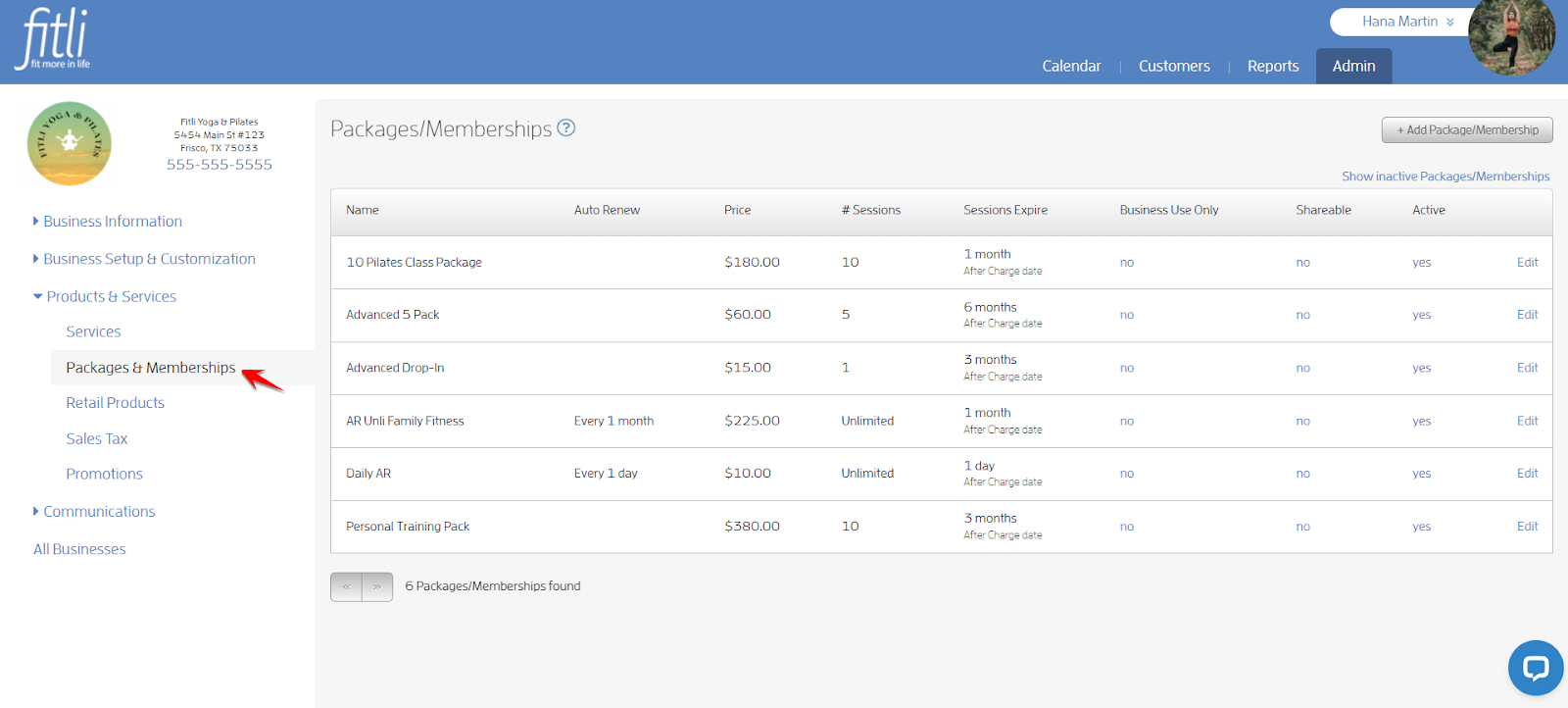
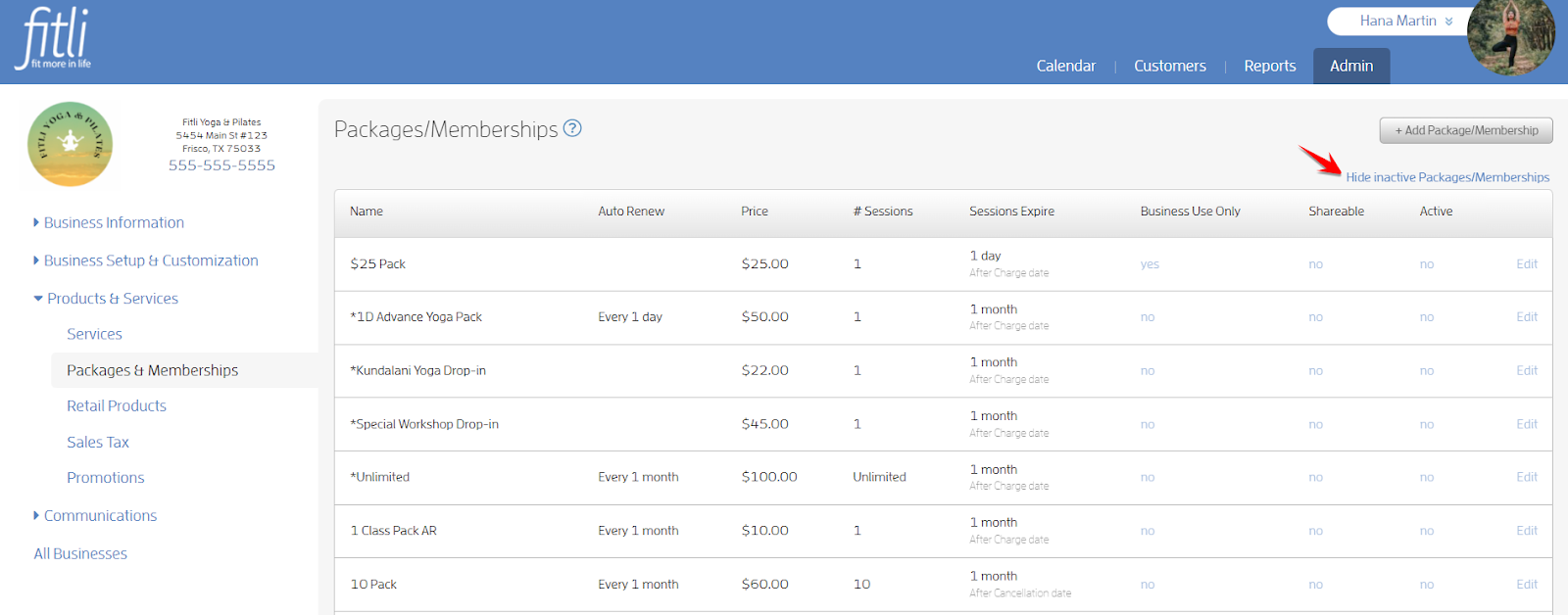
To set the package/membership for Business Use Only, click “no” under the Business Use Only column on the package/membership row you intend to edit.
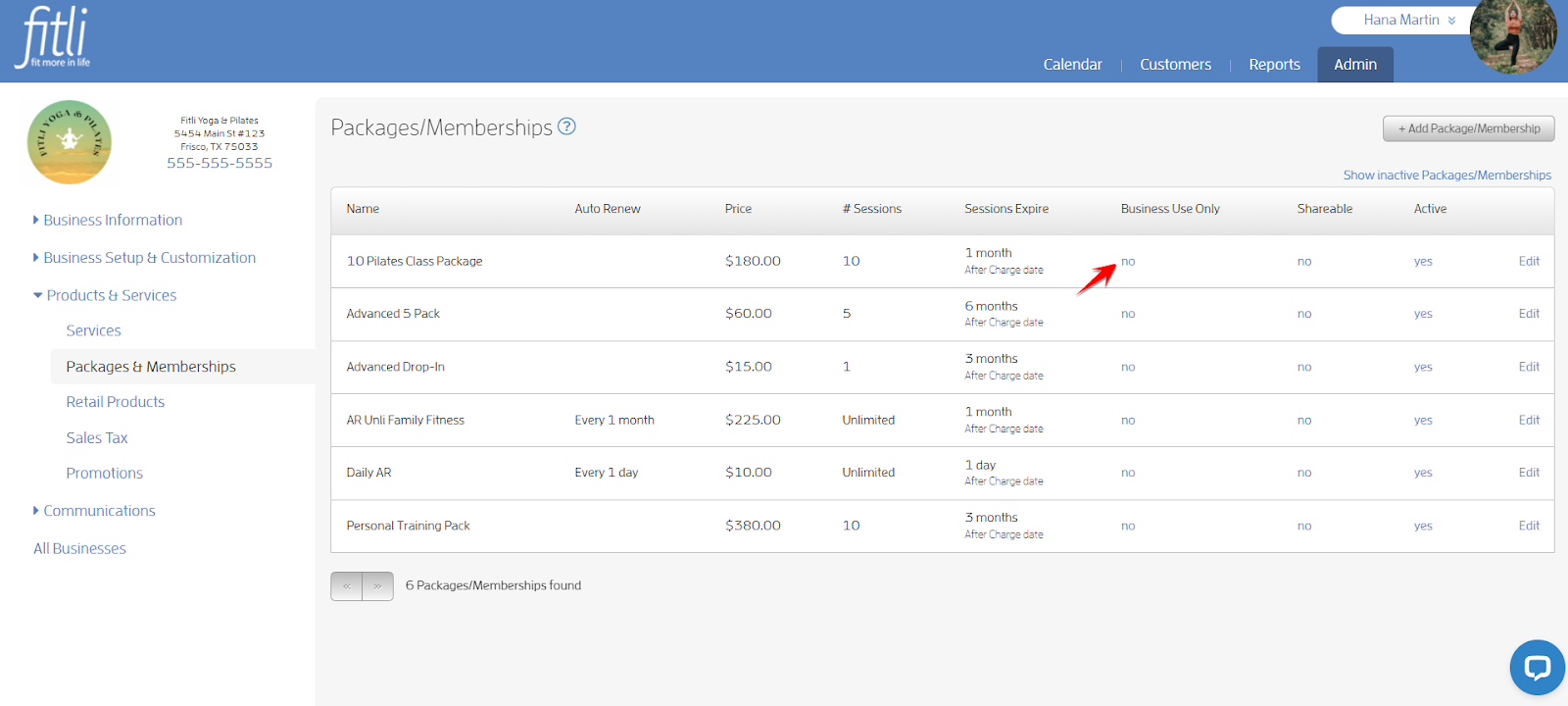
As soon as you click on "no", the package/membership will turn to “yes”. This means that your clients won’t be able to purchase it on their end, hence, it’s for business use only.
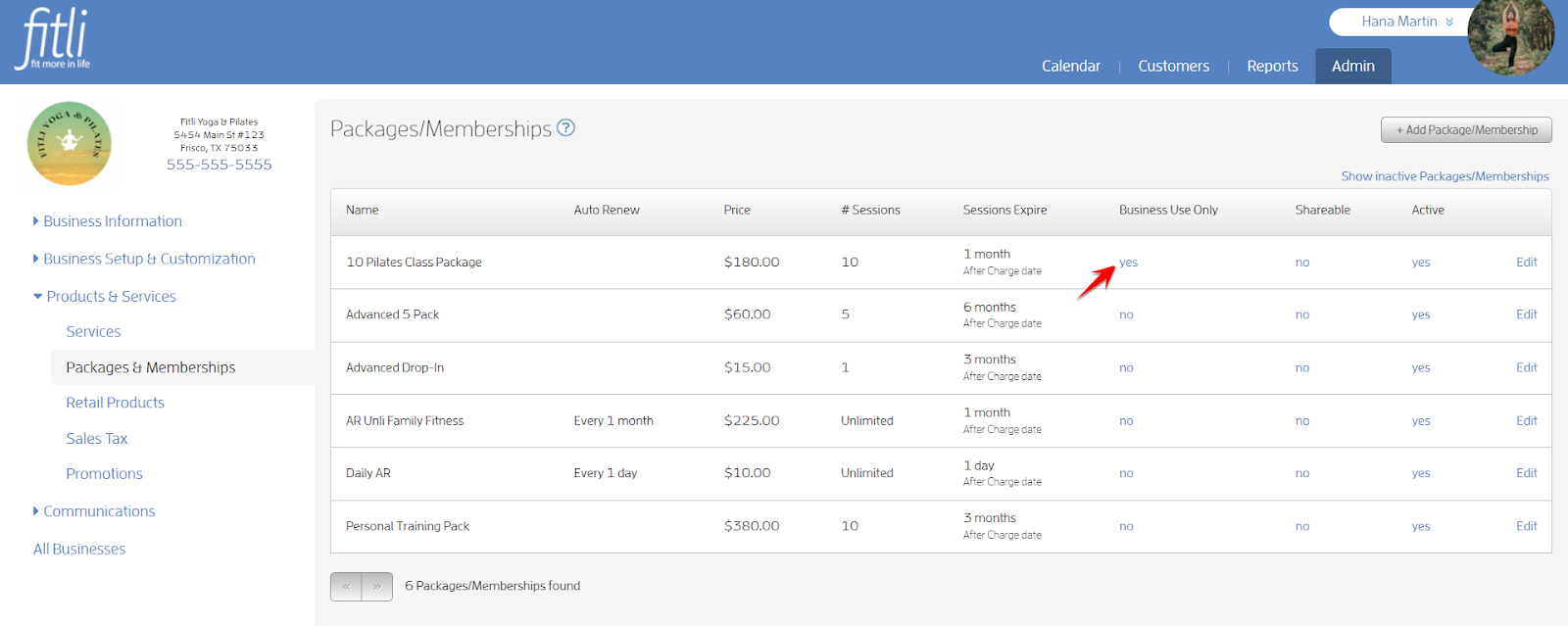
To make it available for your clients to purchase, click “yes”. As soon as you click on "yes", it will turn to “no”.
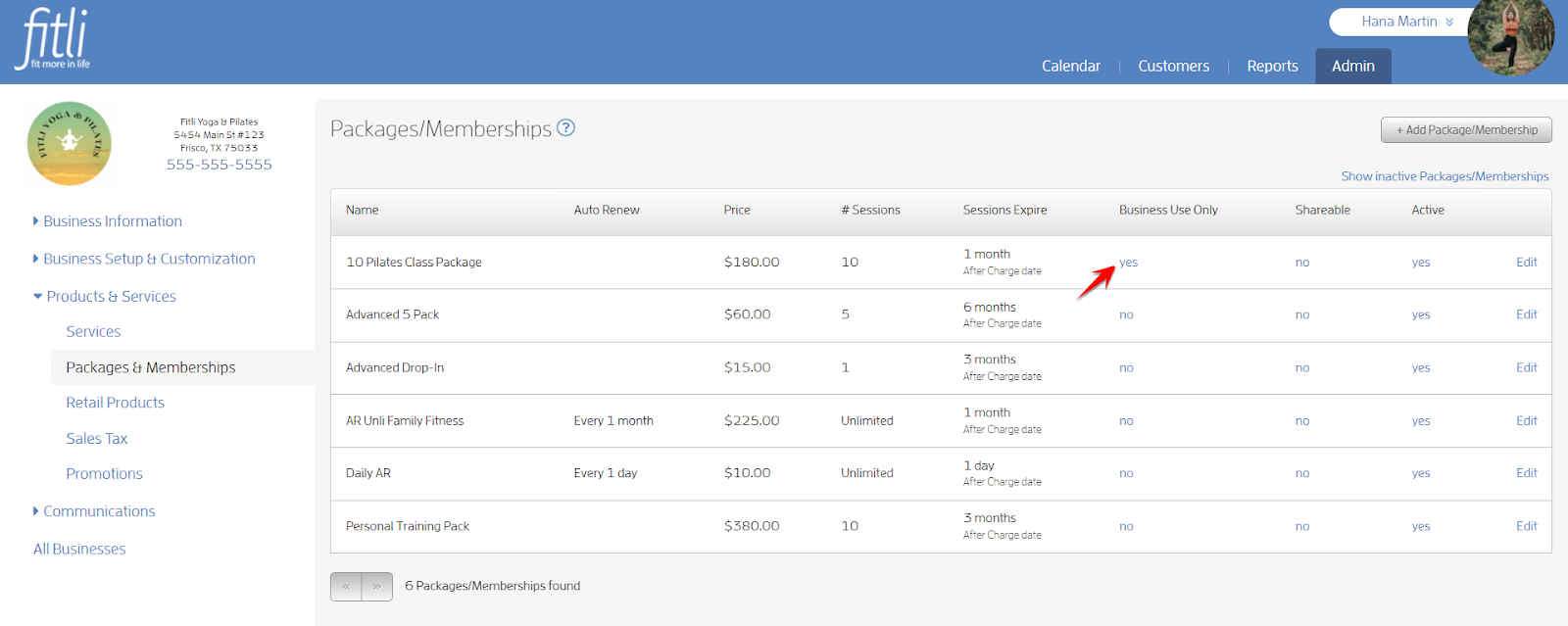
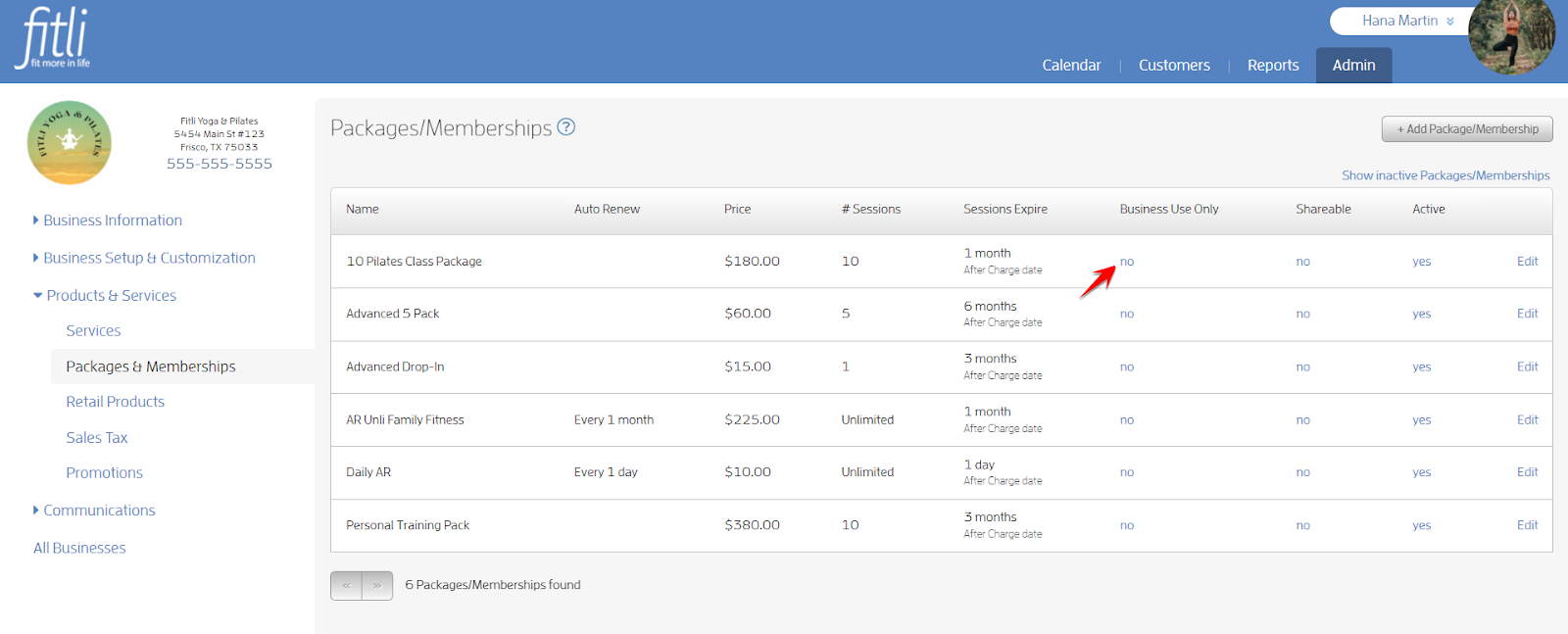
To set the package/membership shareable for your clients and their relationships, click “no” under the Shareable column on the package/membership row you intend to edit.
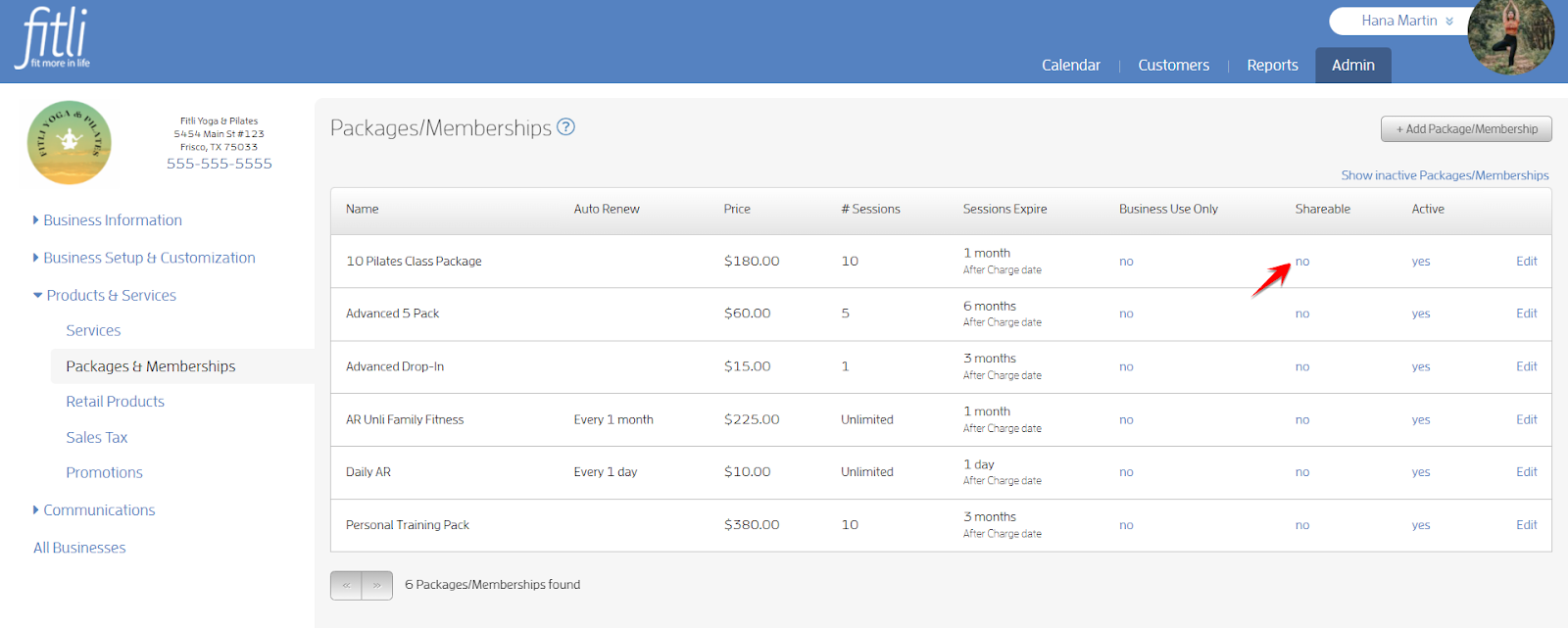
This will toggle the value from "no" to "yes".
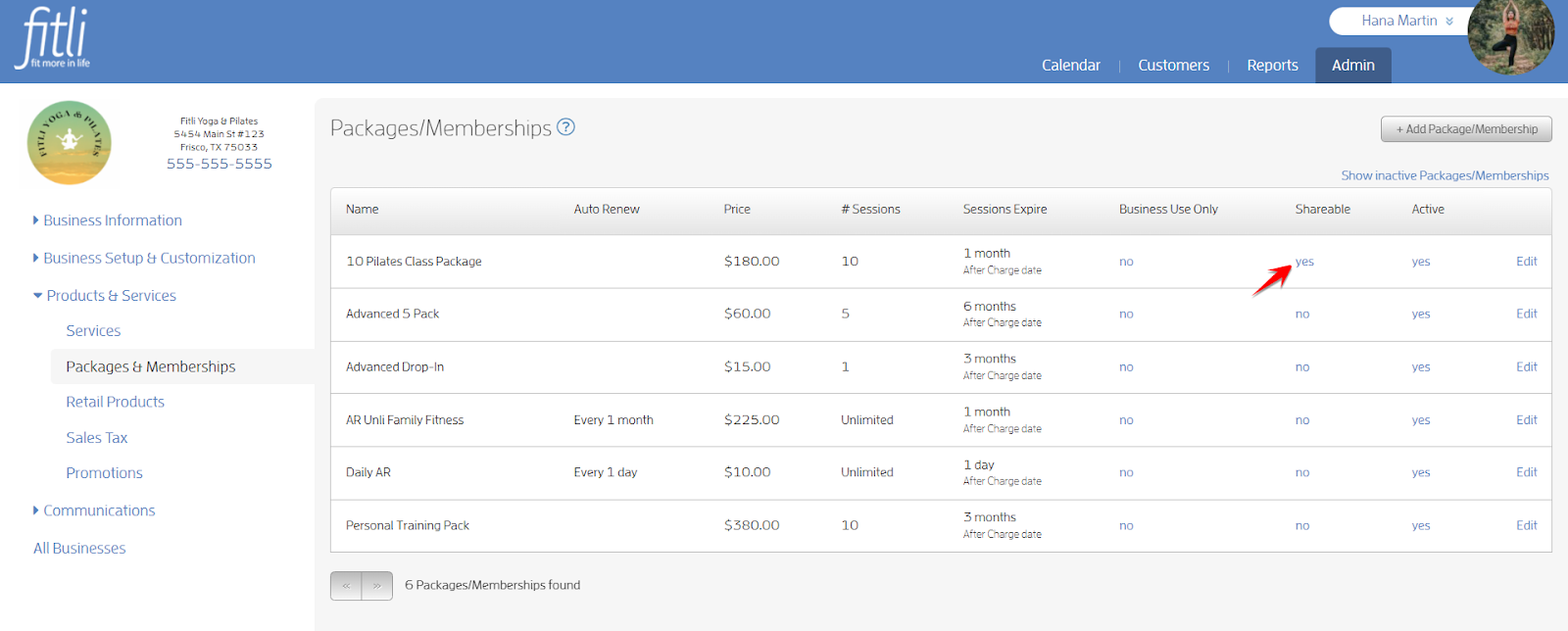
To make it not shareable, click “yes” to toggle the value to “no.”
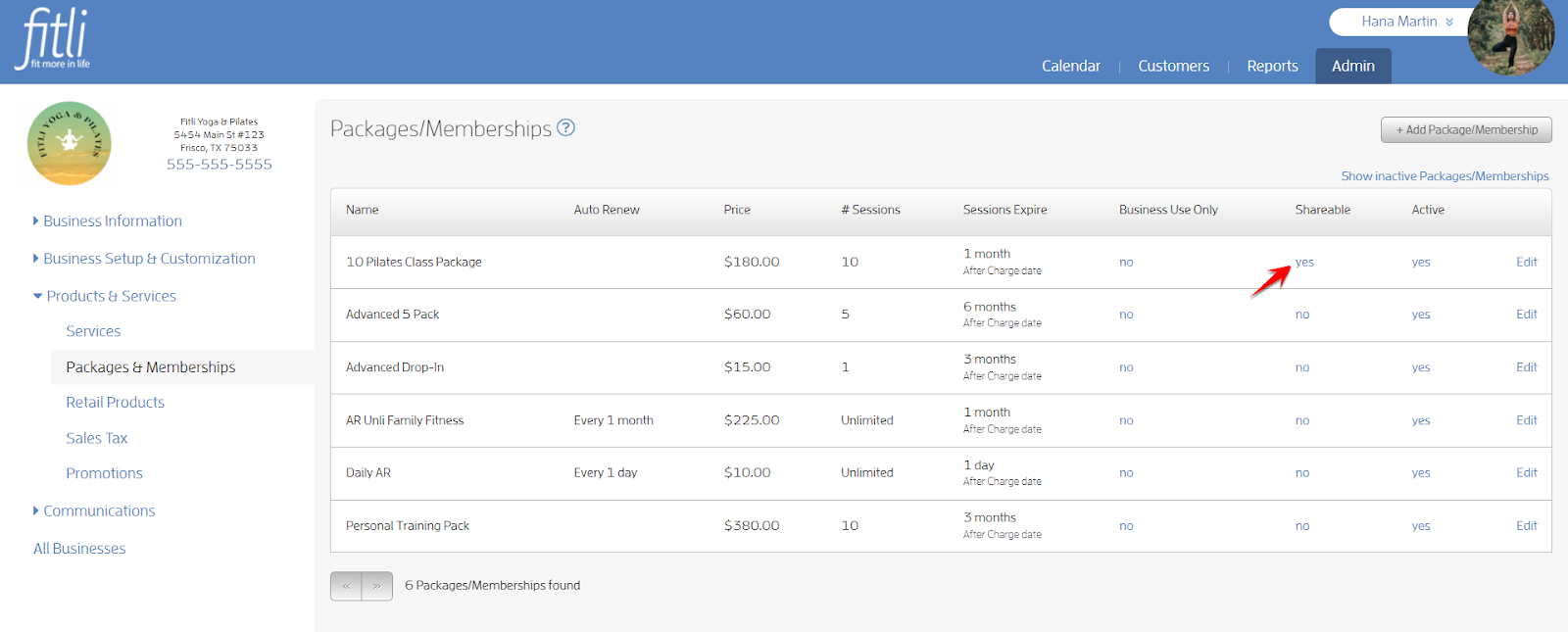
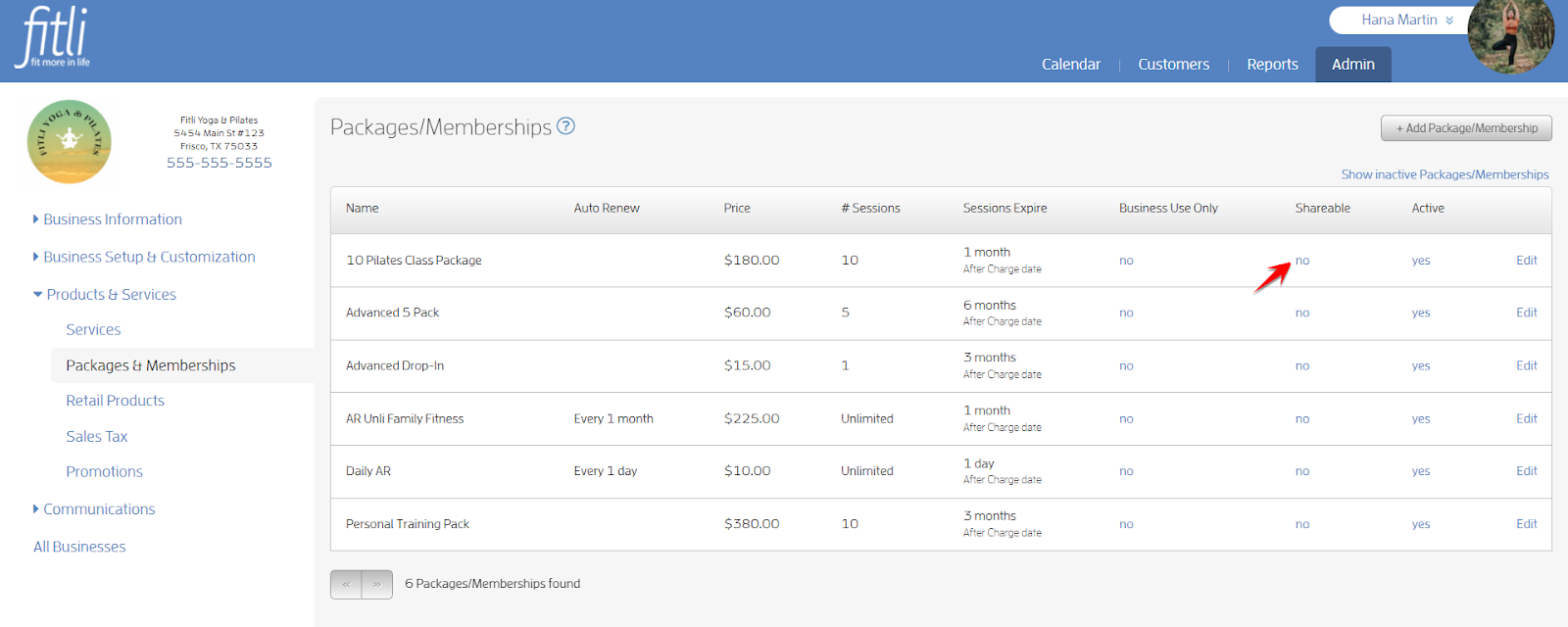
To deactivate the package/membership, click on the "yes" link on the package/membership row you intend to deactivate.

As soon as you click on the "yes" link, the package/membership will be grayed out and it will disappear from the list once the page is refreshed. It just means that it becomes inactive.
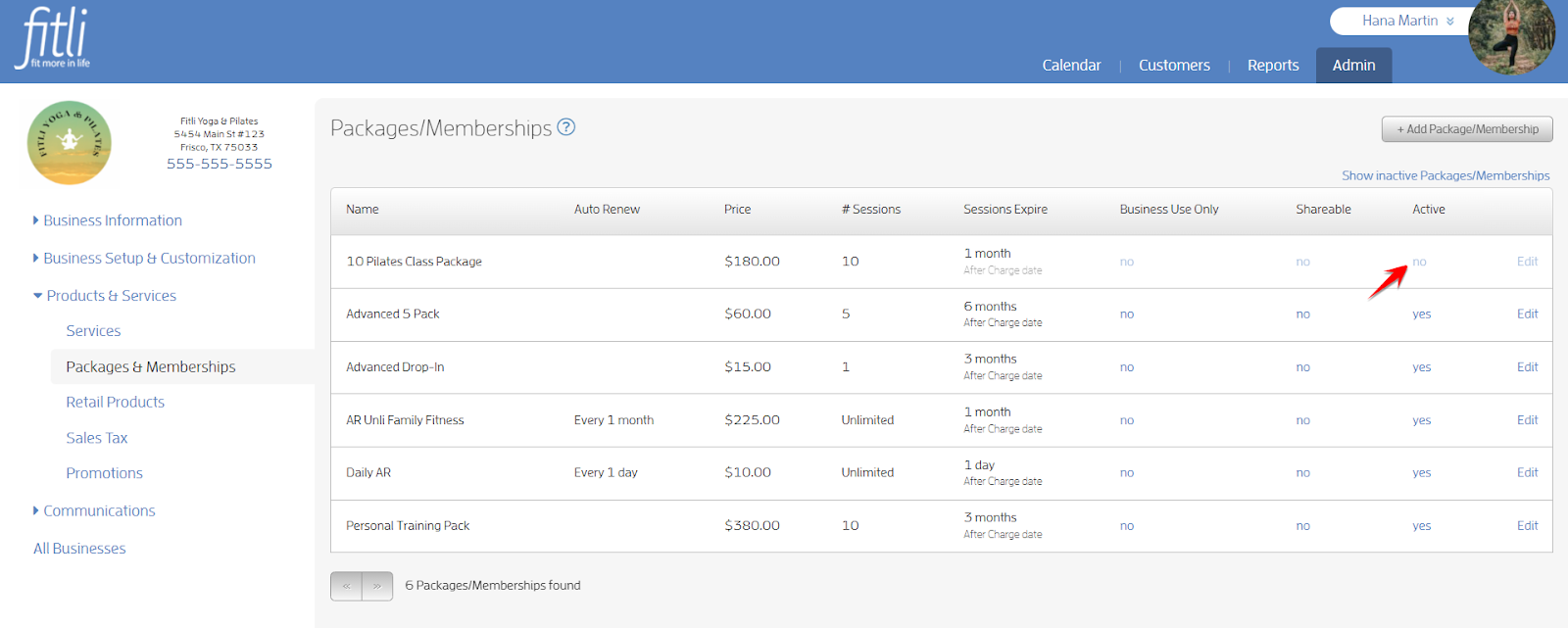
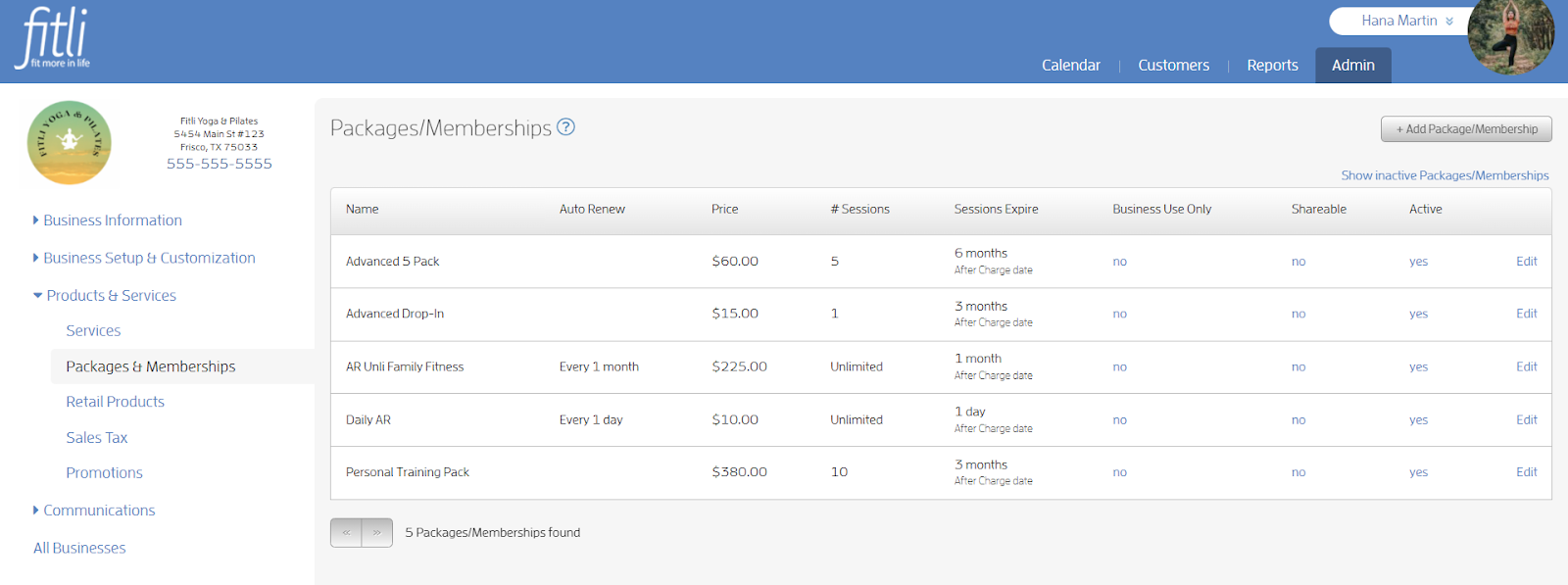
To re-activate the package/membership, click “Show inactive Packages/Memberships”. As soon as you click on this link, it will show the inactive packages/memberships together with the active ones and it will be grayed out.
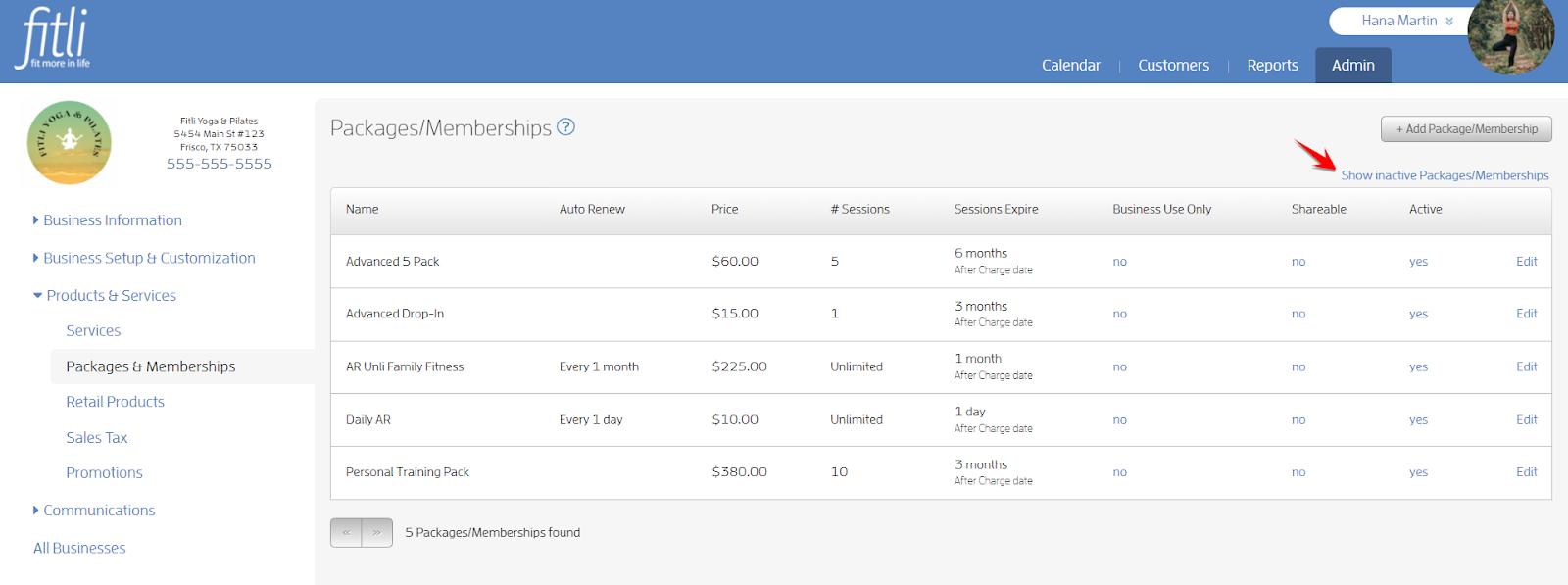
Click on “no.” This will toggle the value from "no" to "yes".


Click “Hide inactive Services” to show all active services only.
That’s it you’re done! If you have any questions, chat with us or send us an email to support@fitli.com.
Related Articles
How to Clone Packages?
Cloning an existing Package or Membership Are you wishing to update pricing on an existing package or membership or are you otherwise looking to create a new package or membership with almost the same information as an existing one? If yes, this ...Calendar/Schedule List View
We have a "LIST" style view for your classes and appointments, where you can see a clean, organized schedule. This list view looks great when you're embedding your calendar/schedule on your business' website. To start with the list view, choose the ...Updating Client Balances with Specific Services
Currently, after a client makes a purchase of a package, it's difficult to edit the classes, services or appointments that are included in that specific package. We wanted to give you, the business, the ability to modify specific purchases of ...Can I add or charge Sales Tax on Services, Retail or Packages/Memberships?
Do you need to add sales tax to purchases for either Retail Products or Services/Memberships and Packages? Yes you can! To enable/turn on sales tax for your business, head to the "Admin" section, then look for "Sales Tax" under the "Products and ...Add Limits to Packages & Memberships
You can limit how many times a package can be purchased and who can and cannot purchase it with just a few clicks! You can limit how many times your clients can purchase a package, automatically deactivate it after "X" number of purchases, limit it ...