
The Notifications to Business section allows you to control which business notifications you'd like to receive from Fitli. Some settings cannot be changed, as they are essential for your business—such as notifications regarding your business account status, profile, refunds, voids and returns on payments, and important updates to clients’ recurring memberships.
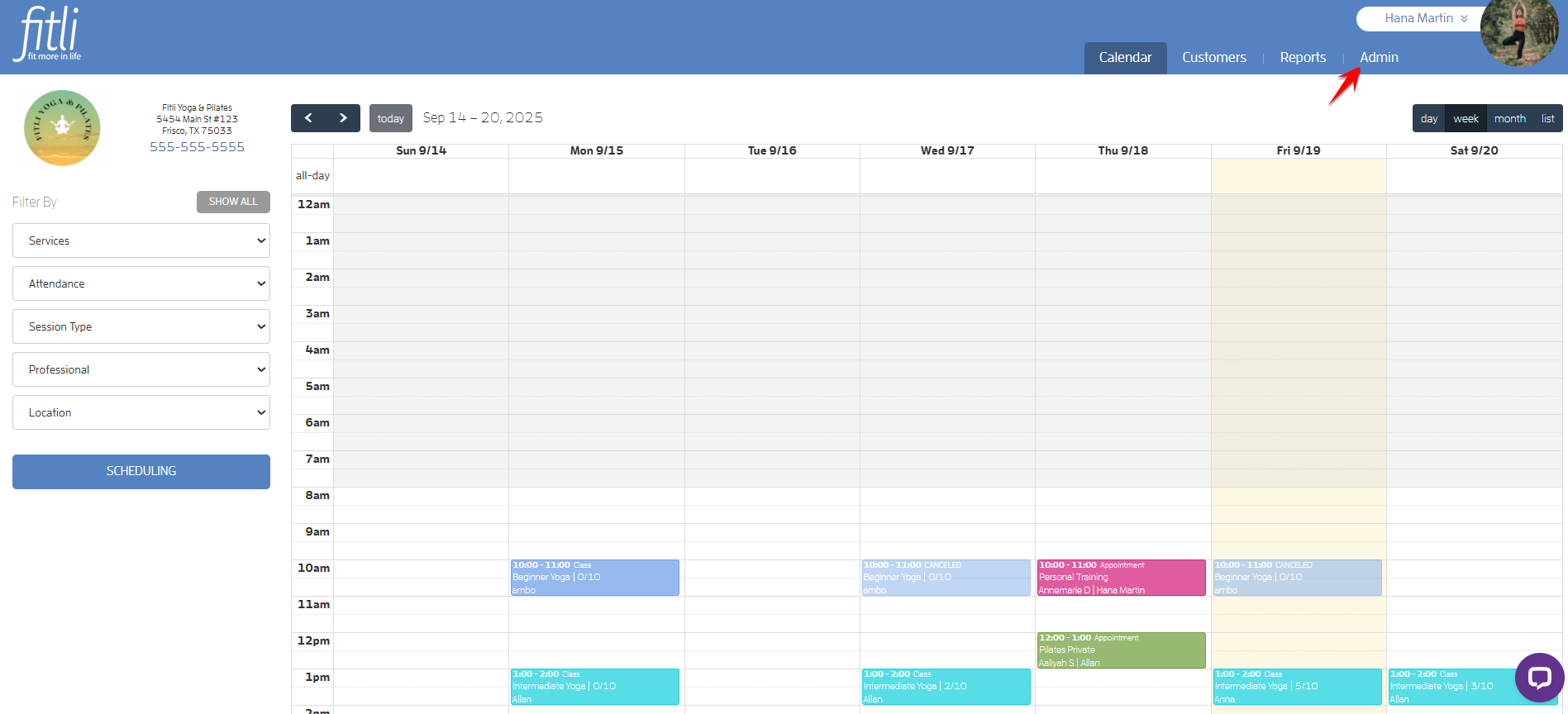
You can manage your business notifications with just a few clicks. To do this, go to ADMIN.
Click Business Setup & Customization, then Notifications on the left to be directed to Notifications to Business > Notification Settings.
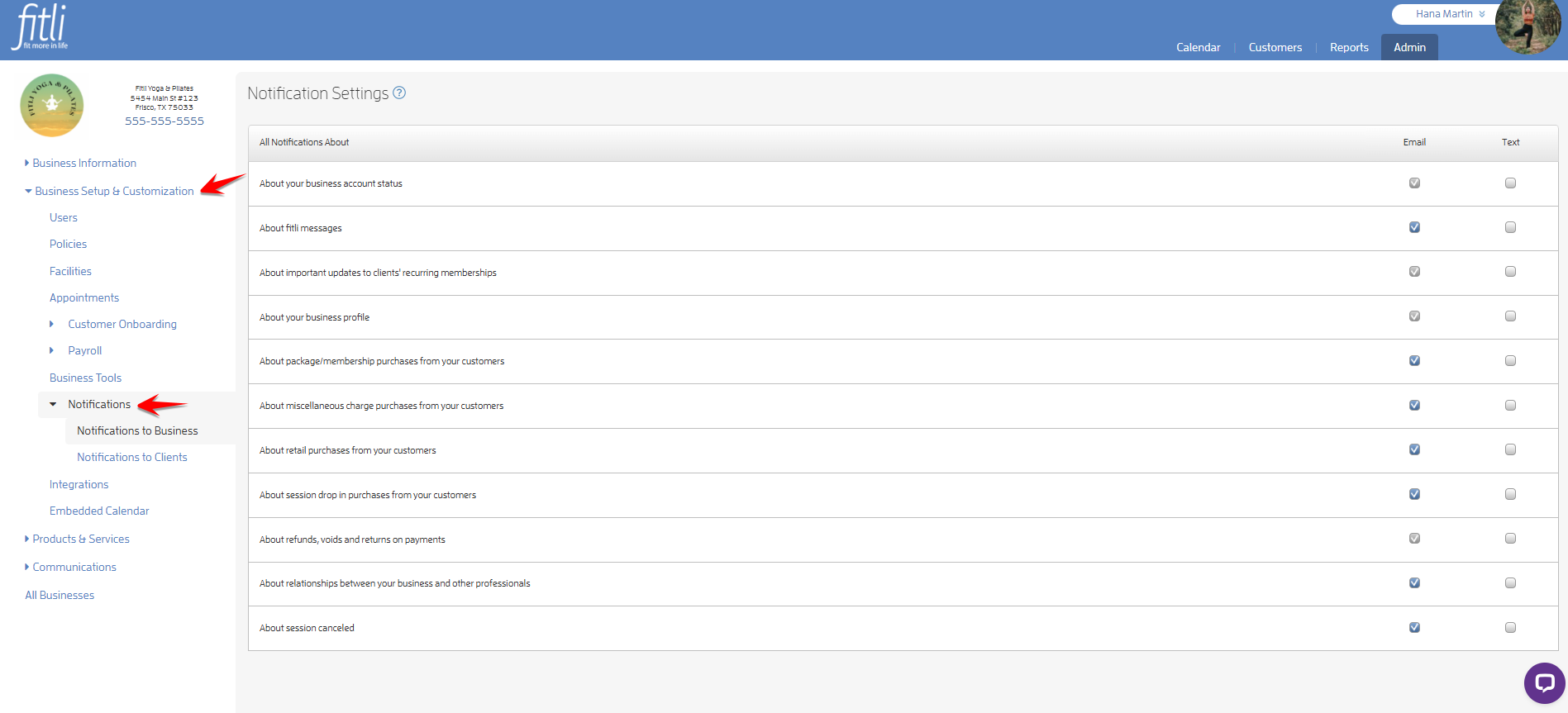
As mentioned above, some email settings cannot be changed, including notifications related to your business account status, profile, refunds, voids and returns on payments, and key updates to clients’ recurring memberships.
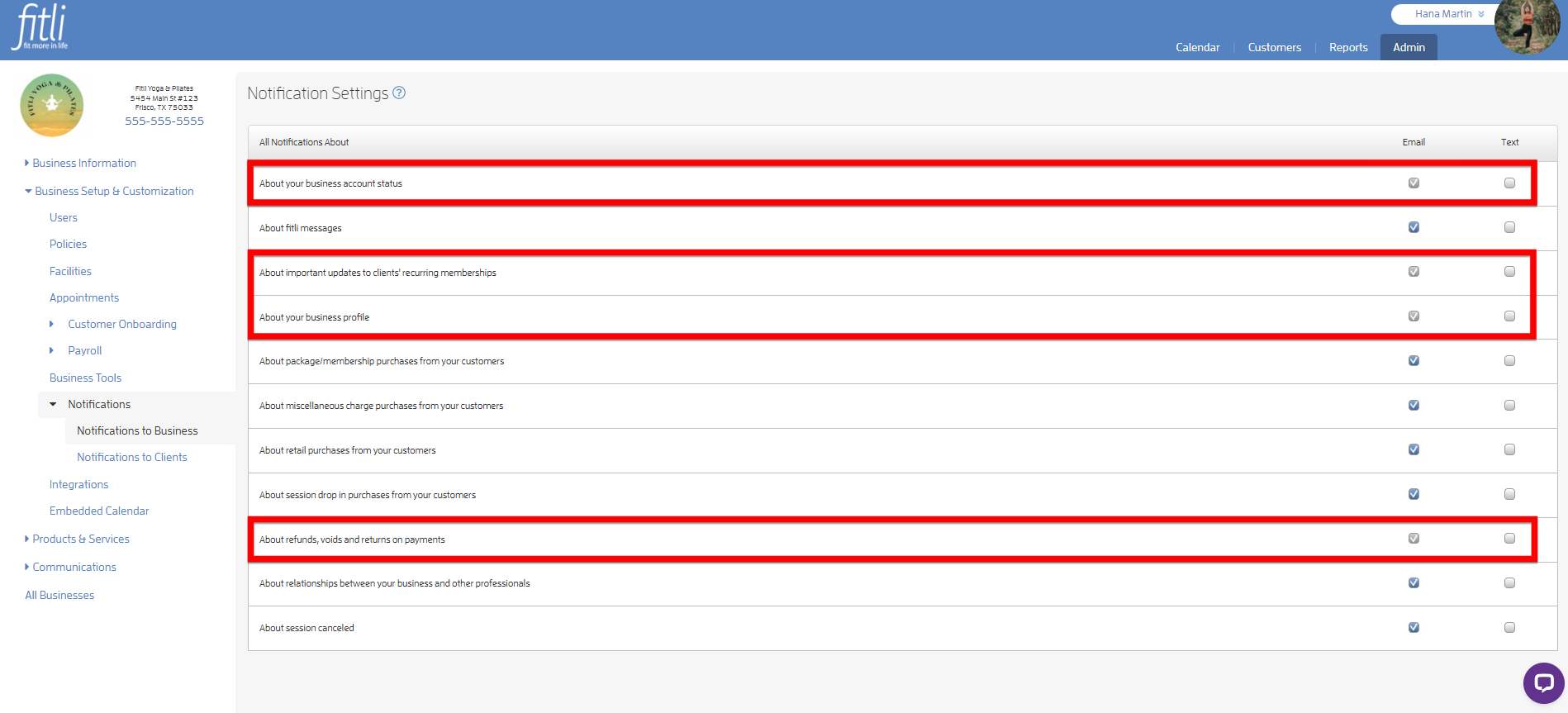
Most other email notifications can be turned on or off. To do this, check the boxes under the Email column for the notifications you want to receive. To stop receiving certain emails, simply uncheck the boxes. In the example below, the business has unchecked the notifications for drop-in purchases.
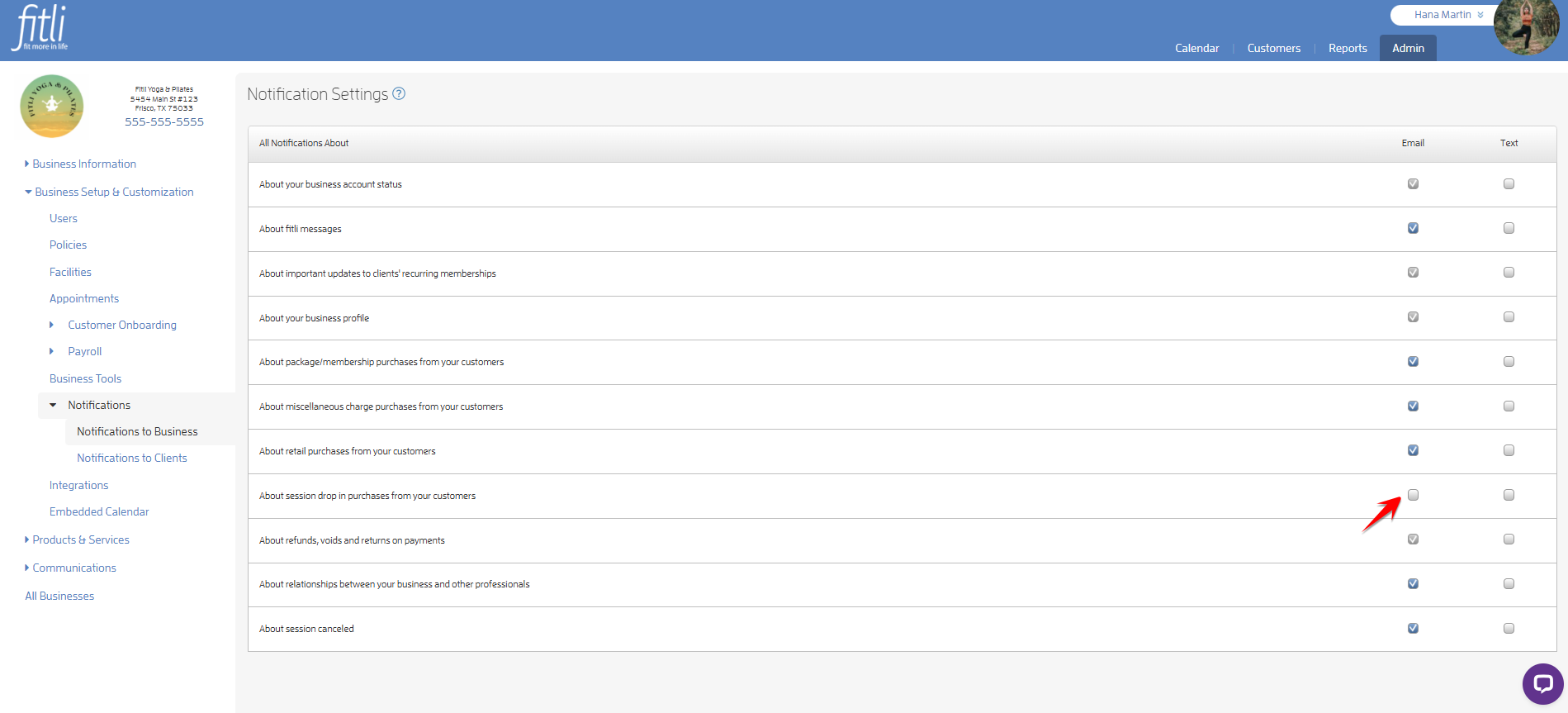
To enable Text (SMS) notifications, check the boxes under the Text column for the ones you'd like to receive. Leave them unchecked if you don’t want to receive those texts.
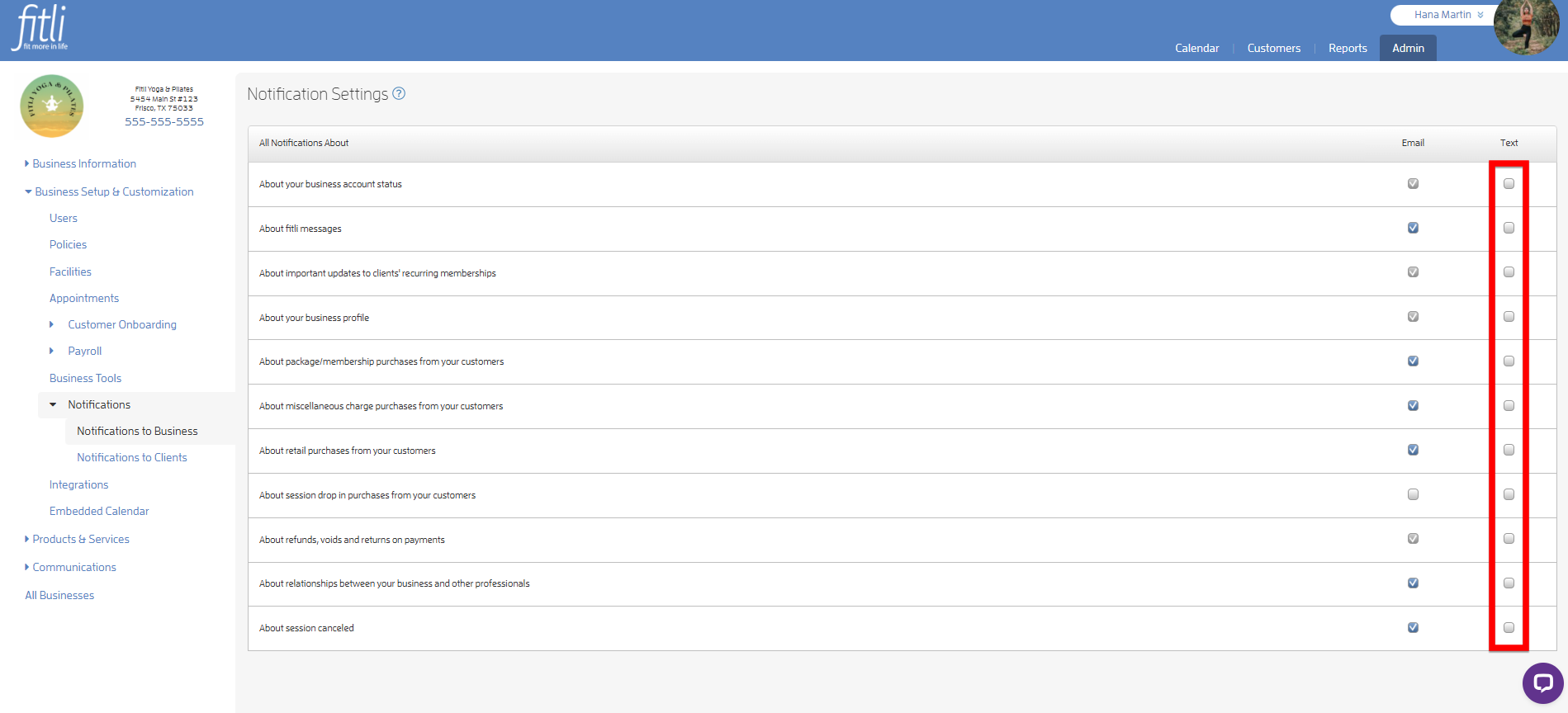
In the example below, the business has selected all the text boxes except for drop-in purchase notifications.
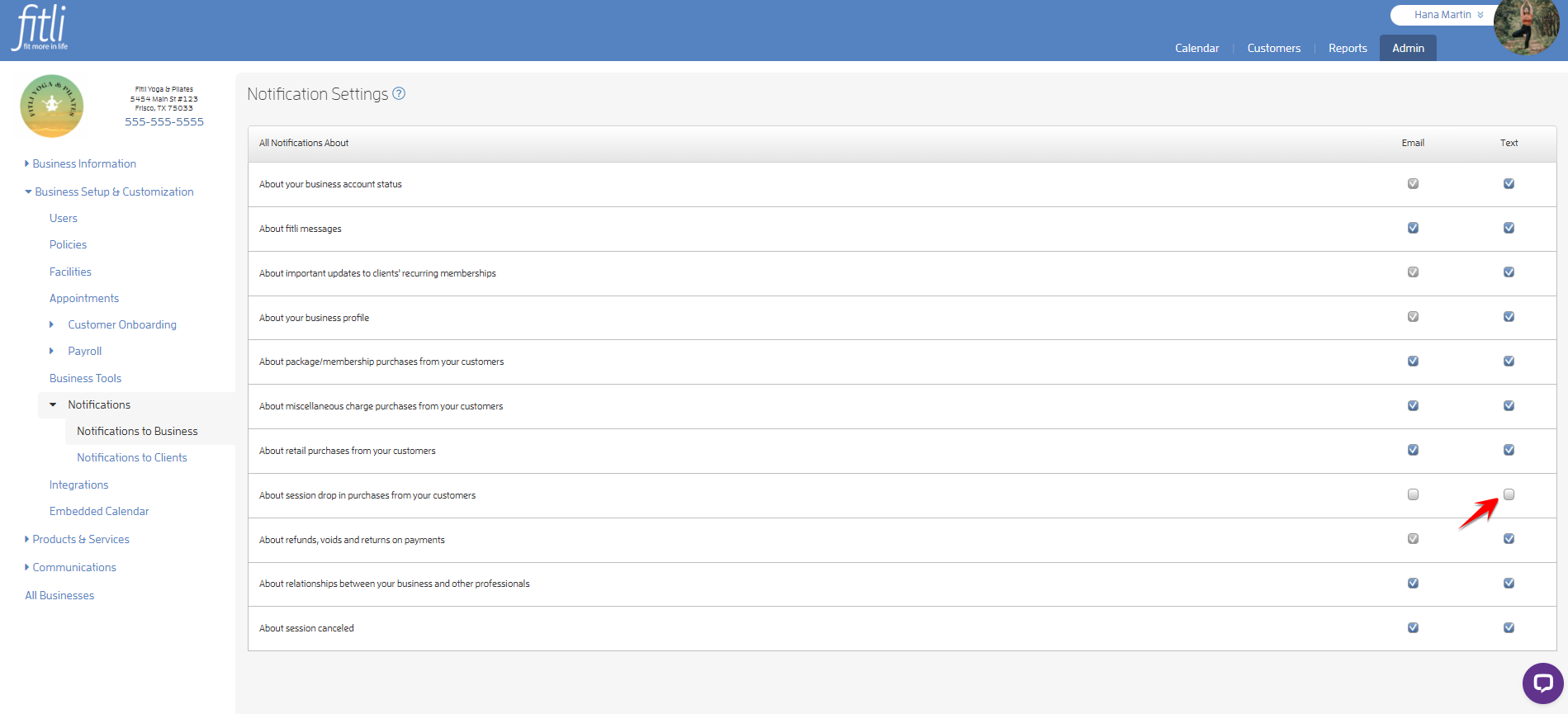
You'll receive email and/or SMS notifications for the options you've checked and none for the ones you've unchecked.
IMPORTANT:
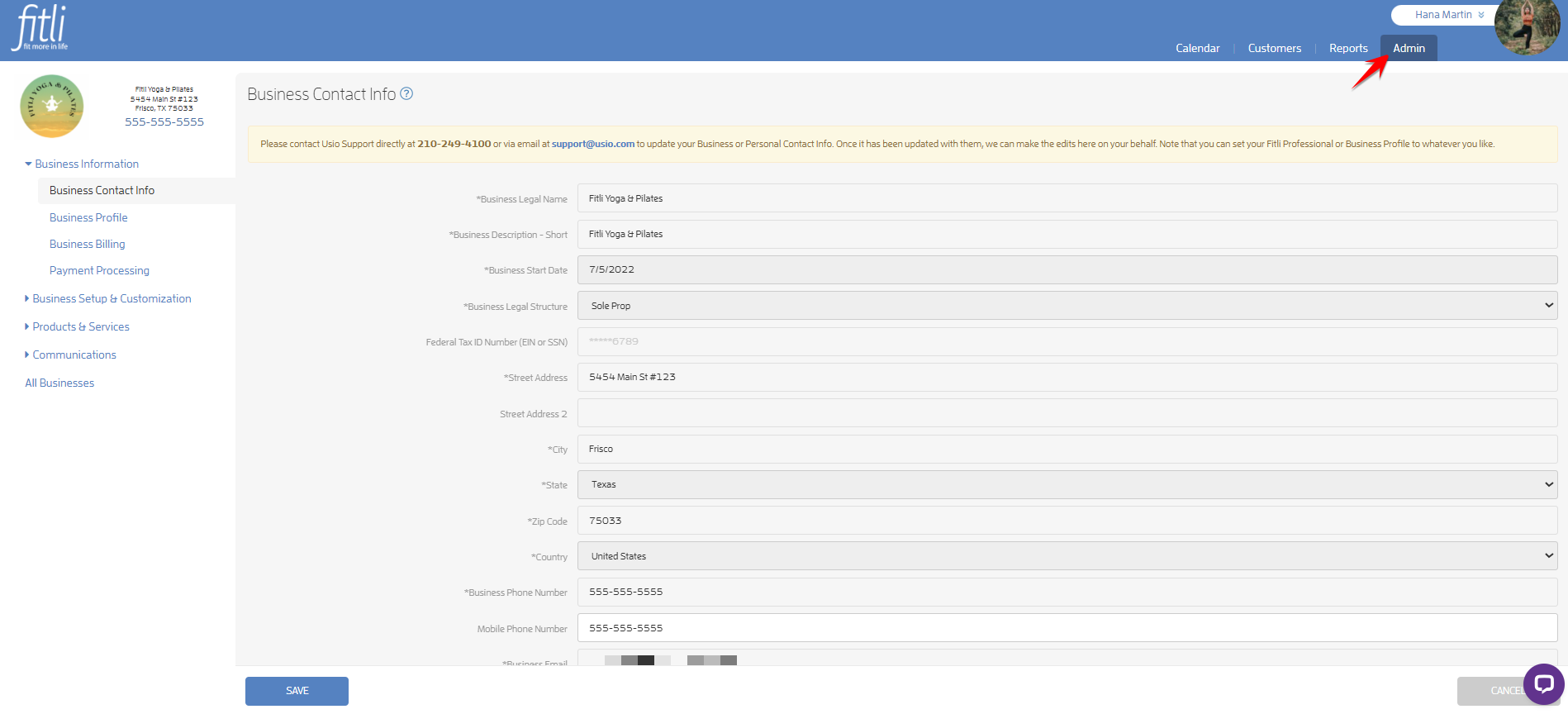
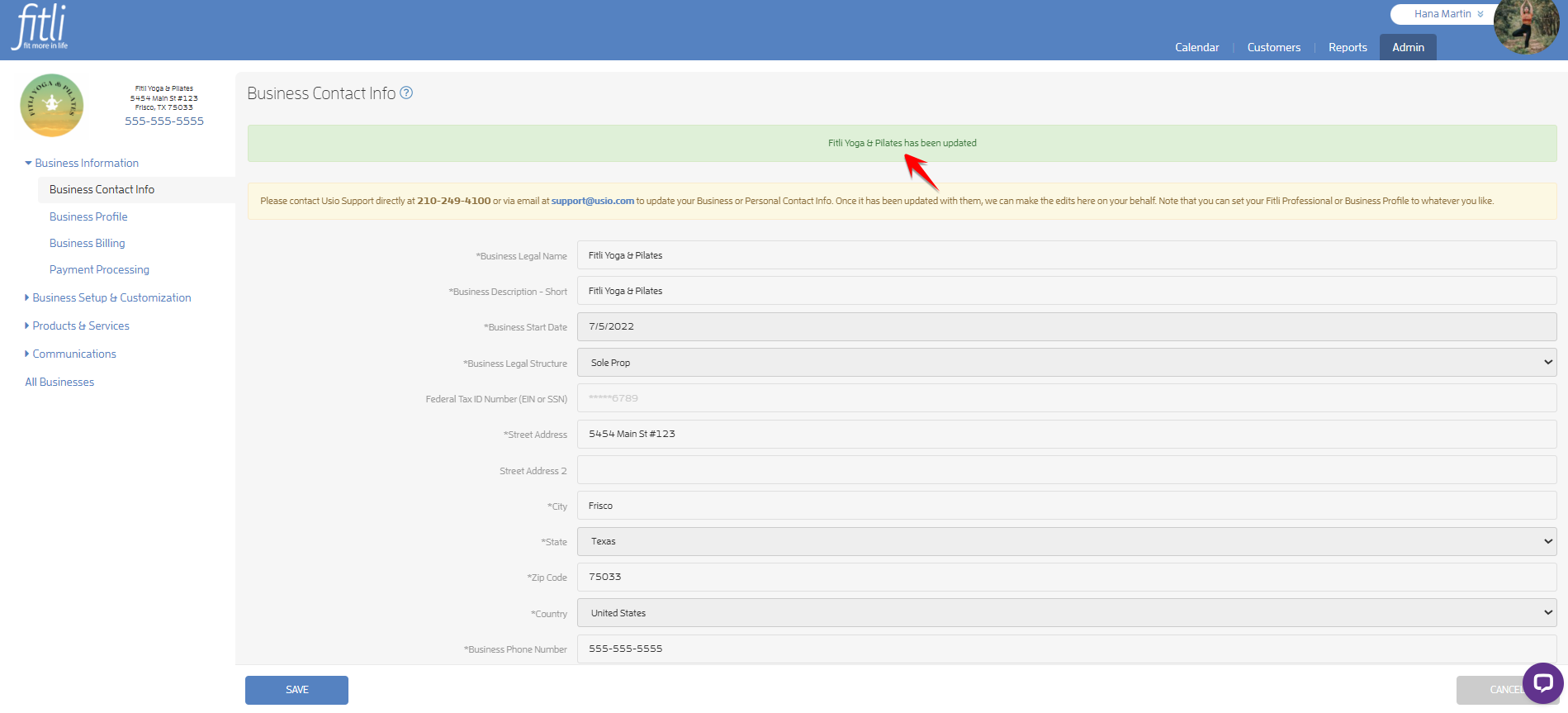
Make sure your mobile number is updated on the Business Contact Info page to receive SMS notifications. To do this, click ADMIN at the top, then go to Business Information > Business Contact Info.
Update your mobile number in the Mobile Phone Number field and hit SAVE.
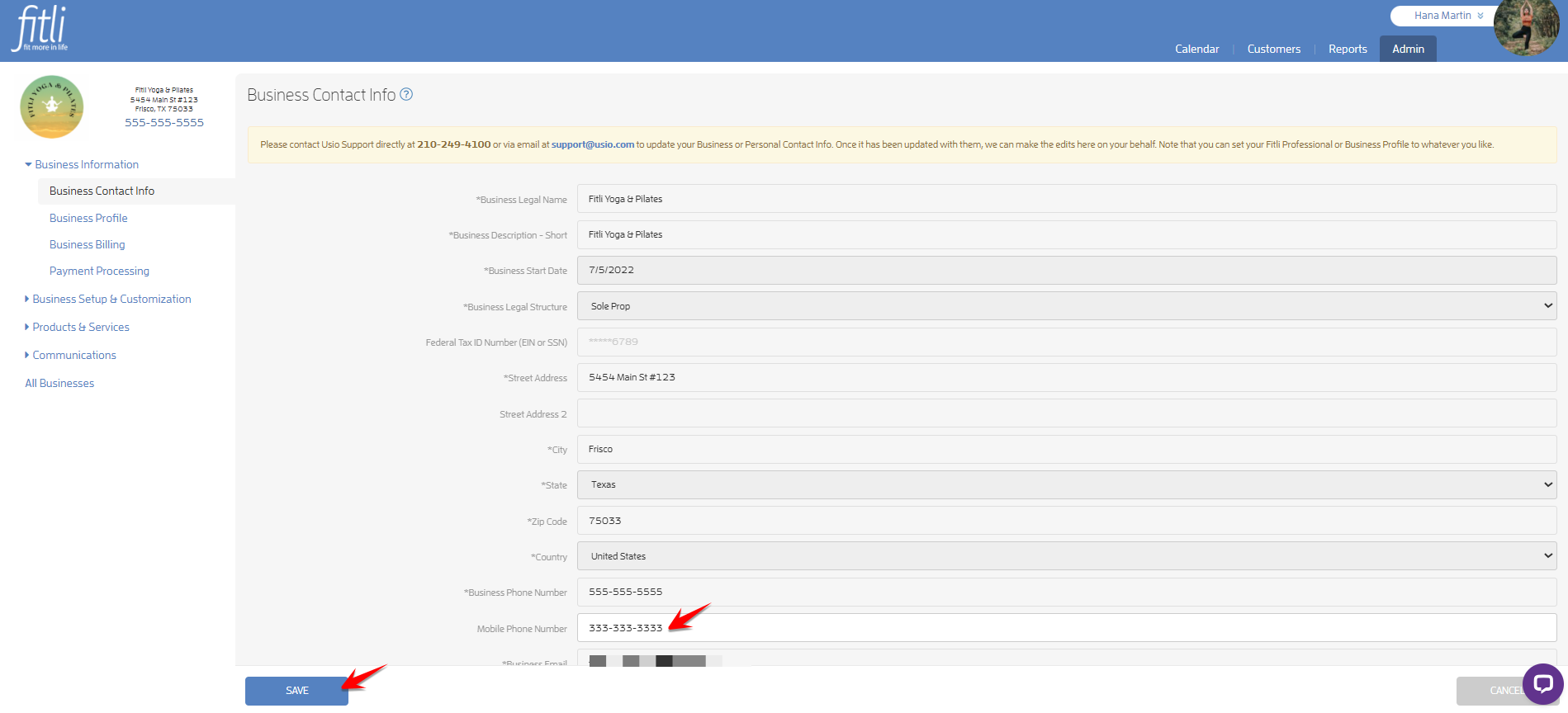
A green confirmation message will appear at the top of the screen confirming that your Business Contact Info has been updated.
That's about it! Any questions? Chat with us or send us an email to support@fitli.com.