
Your business is booking classes for you but you've decided you want to sign up for an account so you can book and purchase classes yourself. If you have an existing account balance or package/membership and you want to use them, you'll want to be sure to connect to your existing profile.
To do this, you'll first want to contact the studio or business you attend directly. They need to update the profile they have for you so you'll receive the invitation link to sign up with Fitli.
Then, check your email, scroll down, then tap "Activate Account" to be directed to the registration page.
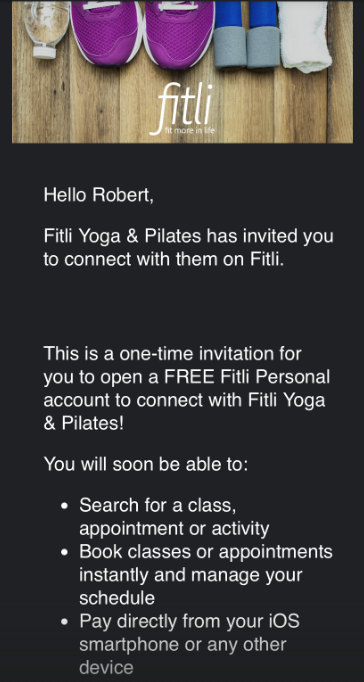
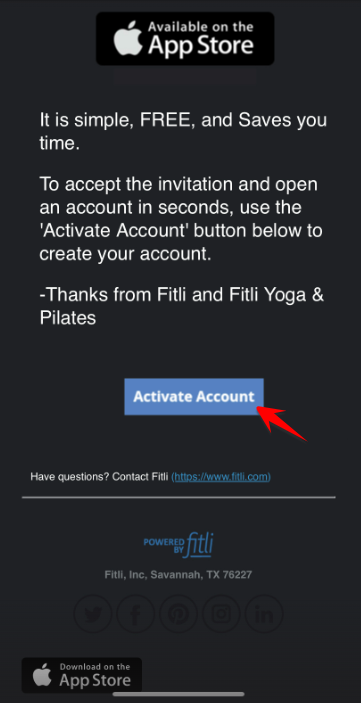
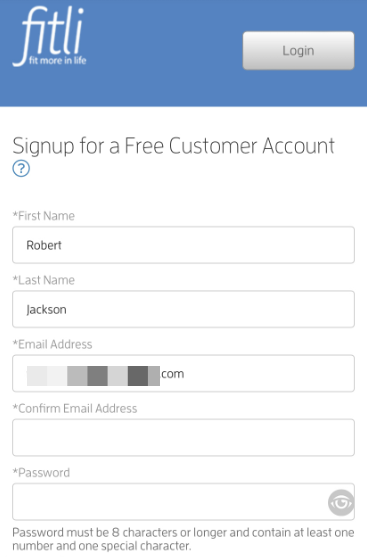
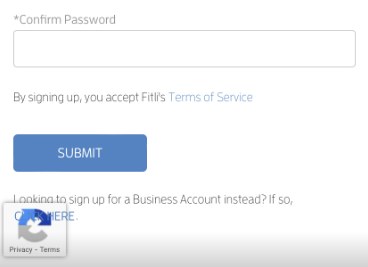
Re-enter the email that shows on the email address field to confirm it. You can change it afterwards once you're done signing up. Enter your desired password, re-enter it to confirm, then hit SUBMIT.
If your business set up required field/s to be filled out (field/s with asterisks) enter the needed info, scroll down and click CONTINUE. A message will appear at the top and the required field/s will be highlighted in red prompting you that the required field/s should be filled out if you click CONTINUE on the "Business Specific Sign Up Information" page.
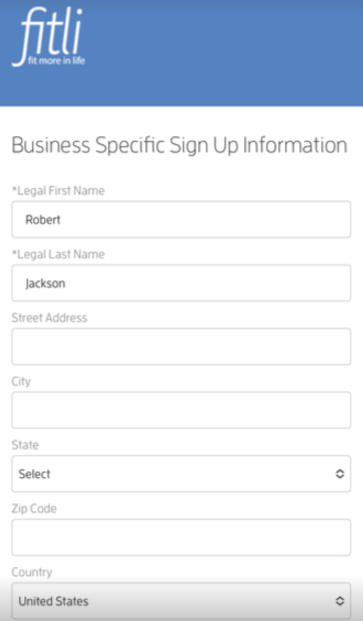
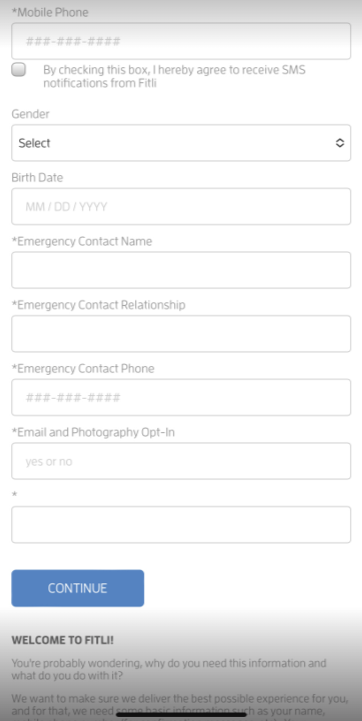
IMPORTANT:
- If the business allows you to add relationships during registration, click + Add Relationship, fill out your relationship's info, hit SAVE and CONTINUE. Otherwise, you'll be directed to their public calendar. Click HERE for a detailed guide.
- If the business you're trying to sign up for has a waiver, you'll be directed to the Business Waiver page. Click the ACCEPT WAIVER button to complete signing up. Otherwise, you'll be directed to their public calendar.
Screenshots below.
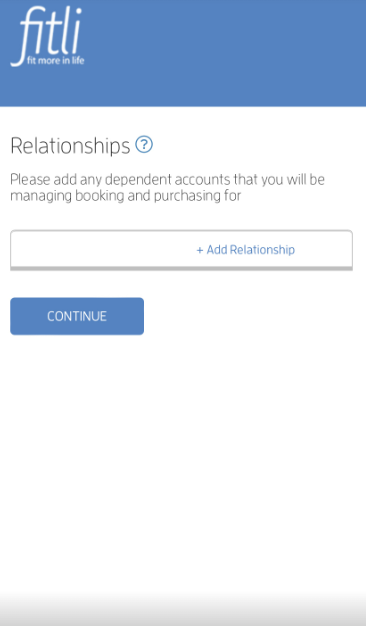
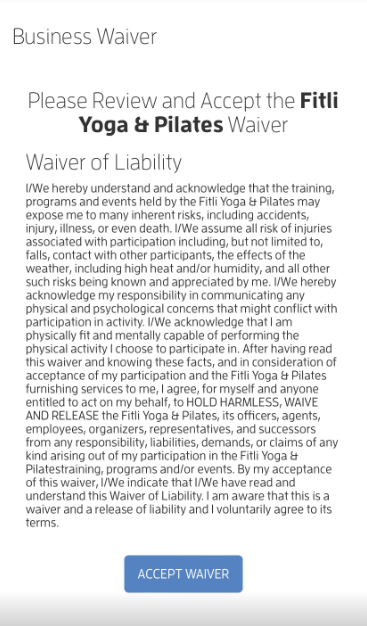
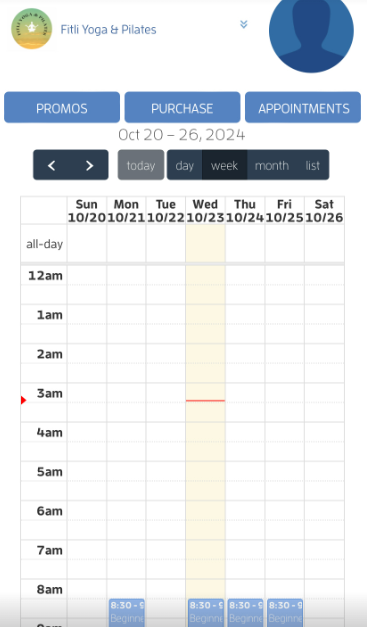
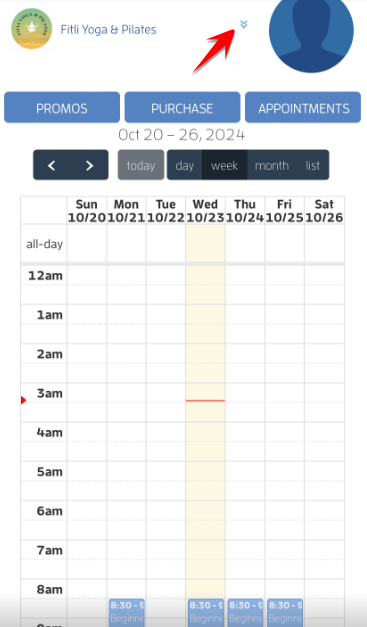
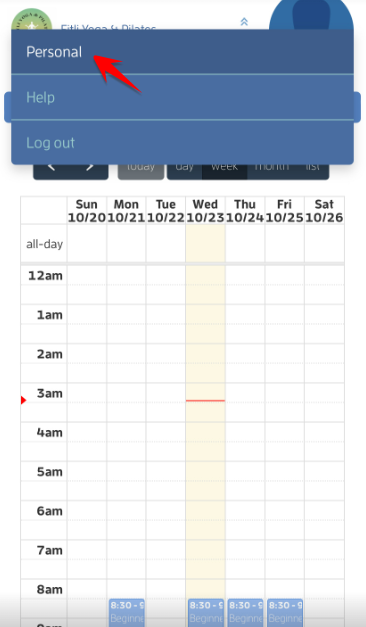
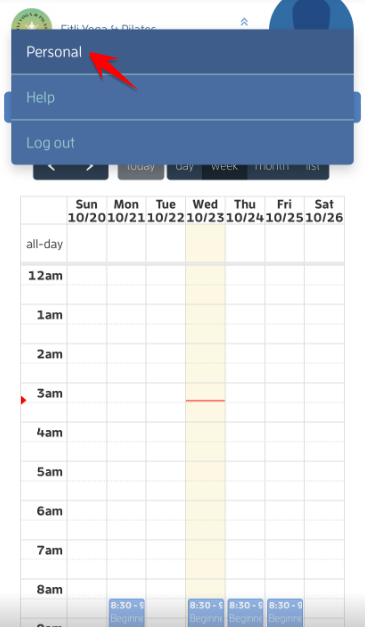
You'll be automatically logged in to your account. Tap the arrows at the top right and hit Personal on the pulldown to be directed to your calendar.
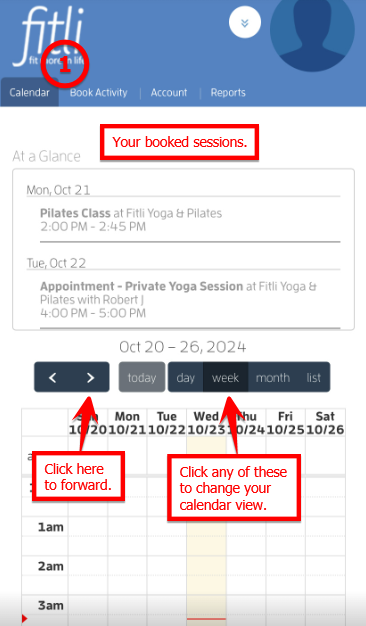
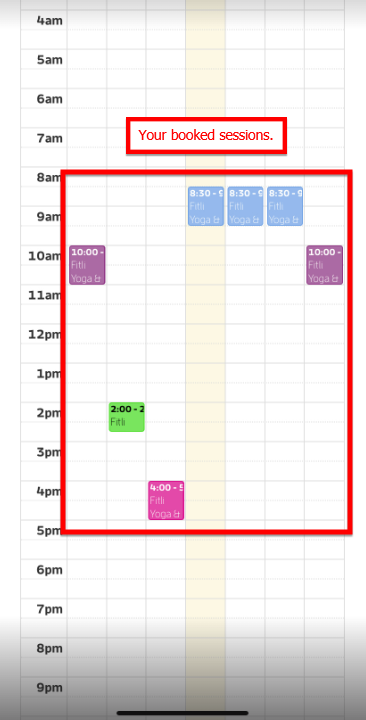
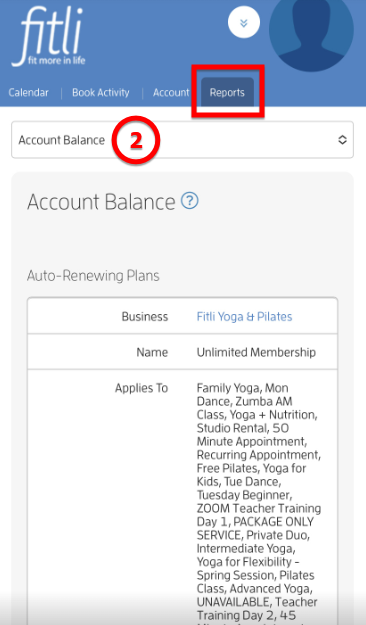
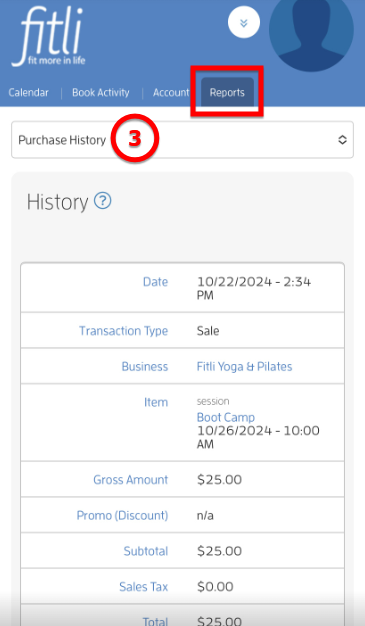
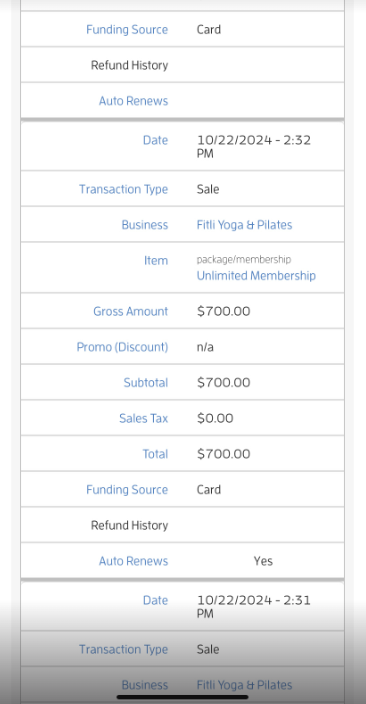
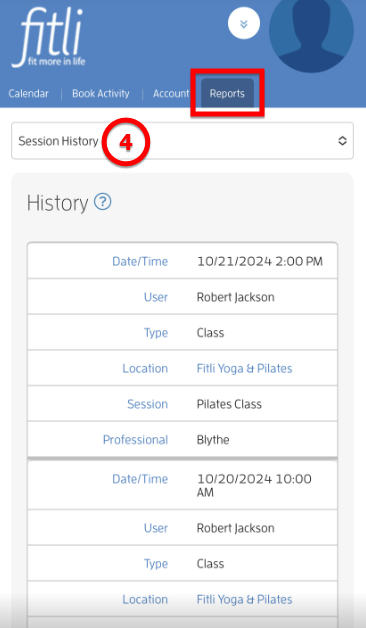
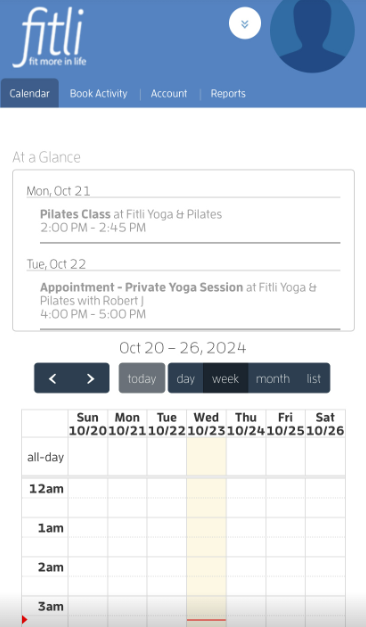
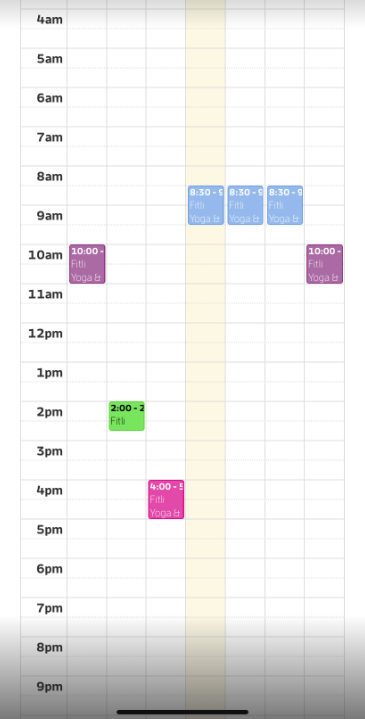
From here, you'll be able to see the sessions you've already been signed up for on the Calendar section. You'll also be able to see your Account Balance, Purchase History and Session History under the "Reports" section.
Screenshots below:
1 - CALENDAR
2 - ACCOUNT BALANCE
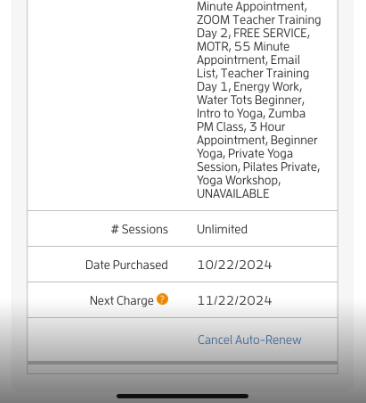
3 - PURCHASE HISTORY
4 - SESSION HISTORY
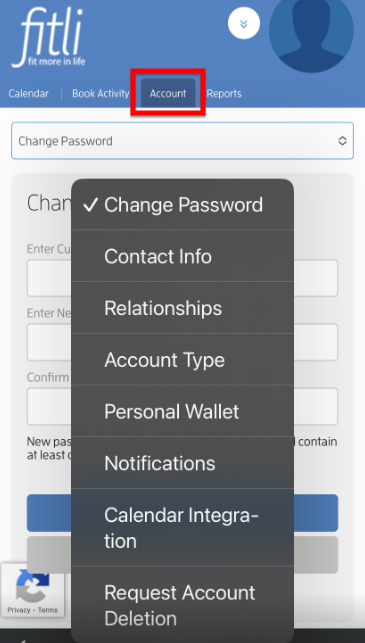
If you need to update any information, you may do it under the "Account" section.
Note: Make sure to hit SAVE to preserve your changes.
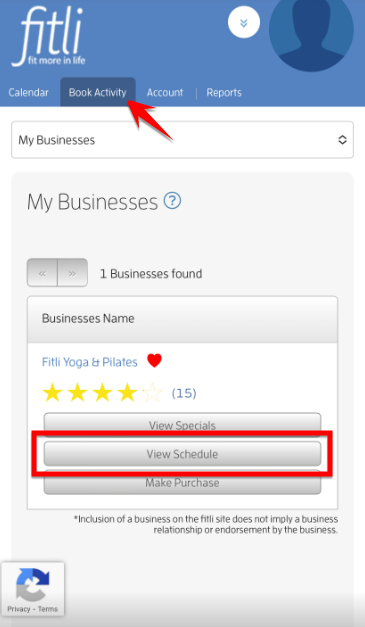
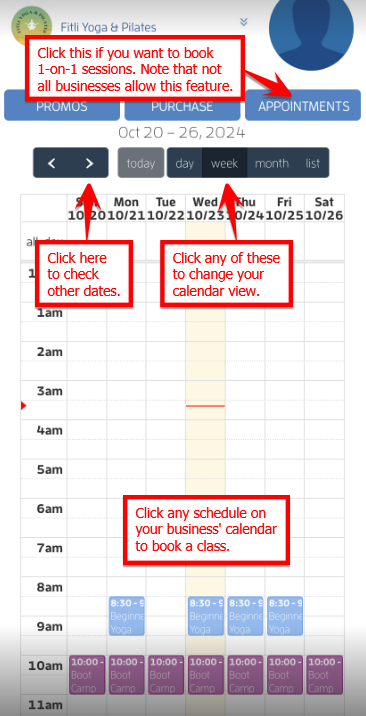
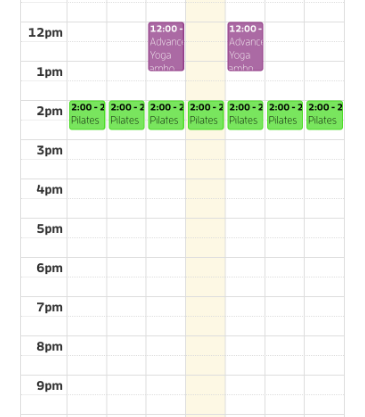
If you want to book a session, you may do it under the Book Activity section. Tap the "View Schedule" button of your business, select the class you want to book on your business' calendar and complete the booking process. Click HERE for a detailed guide.
To go back to your dashboard (Calendar), tap the arrows at the top right and hit "Personal."
That's about it! Any questions? You may contact your business directly. You may also chat with us at fitli.com or send us an email to support@fitli.com.