
This feature allows you, the business, to require customers to complete essential signup questions before finalizing a booking, helping ensure that all necessary information is collected in advance. This will help avoid losing important customer information during the booking process. In some cases, businesses have been unable to contact clients after a session because required contact details were not completed at the time of registration, making it difficult to follow up or maintain communication after the session. By ensuring these details are collected, you can maintain accurate client records and stay connected with your customers.
To enable this feature, log in to your Fitli Business account.
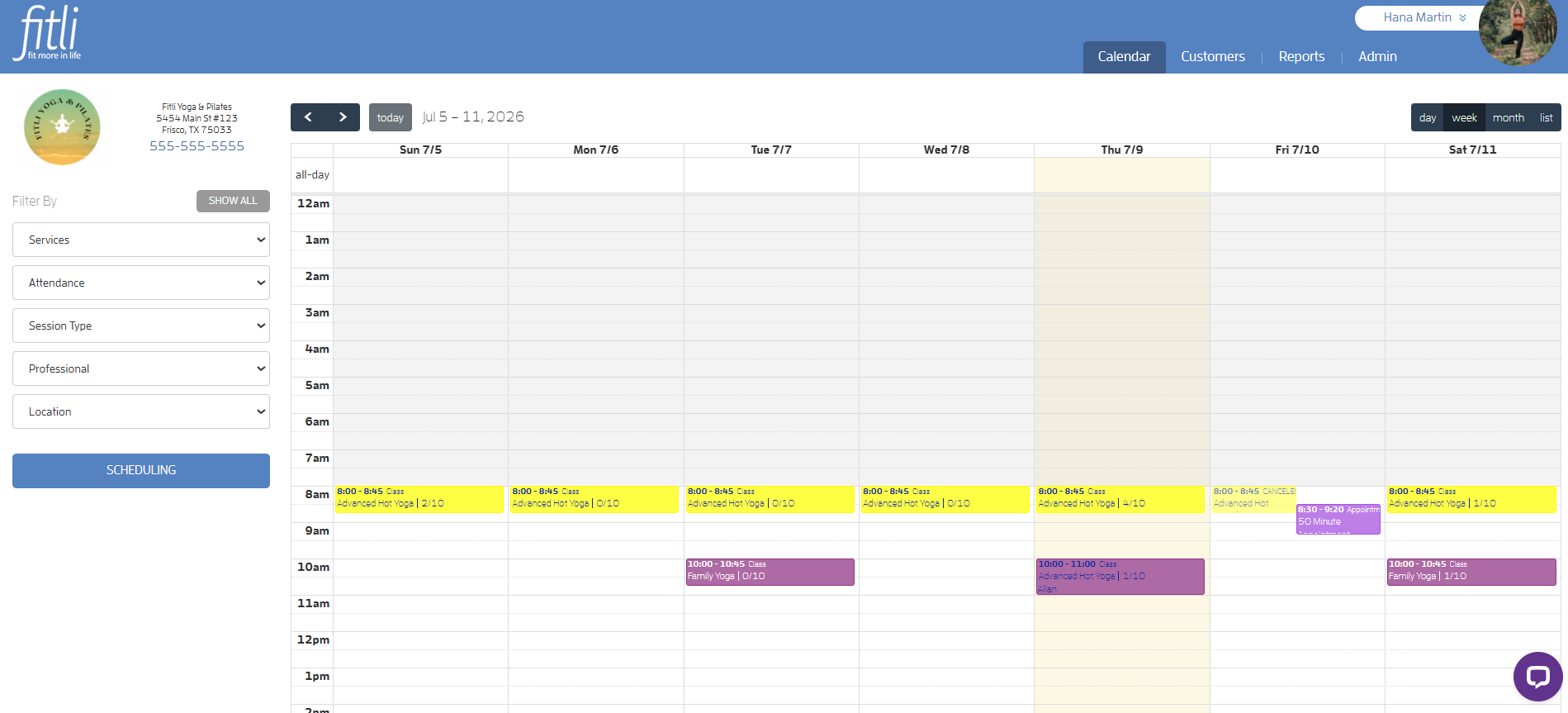
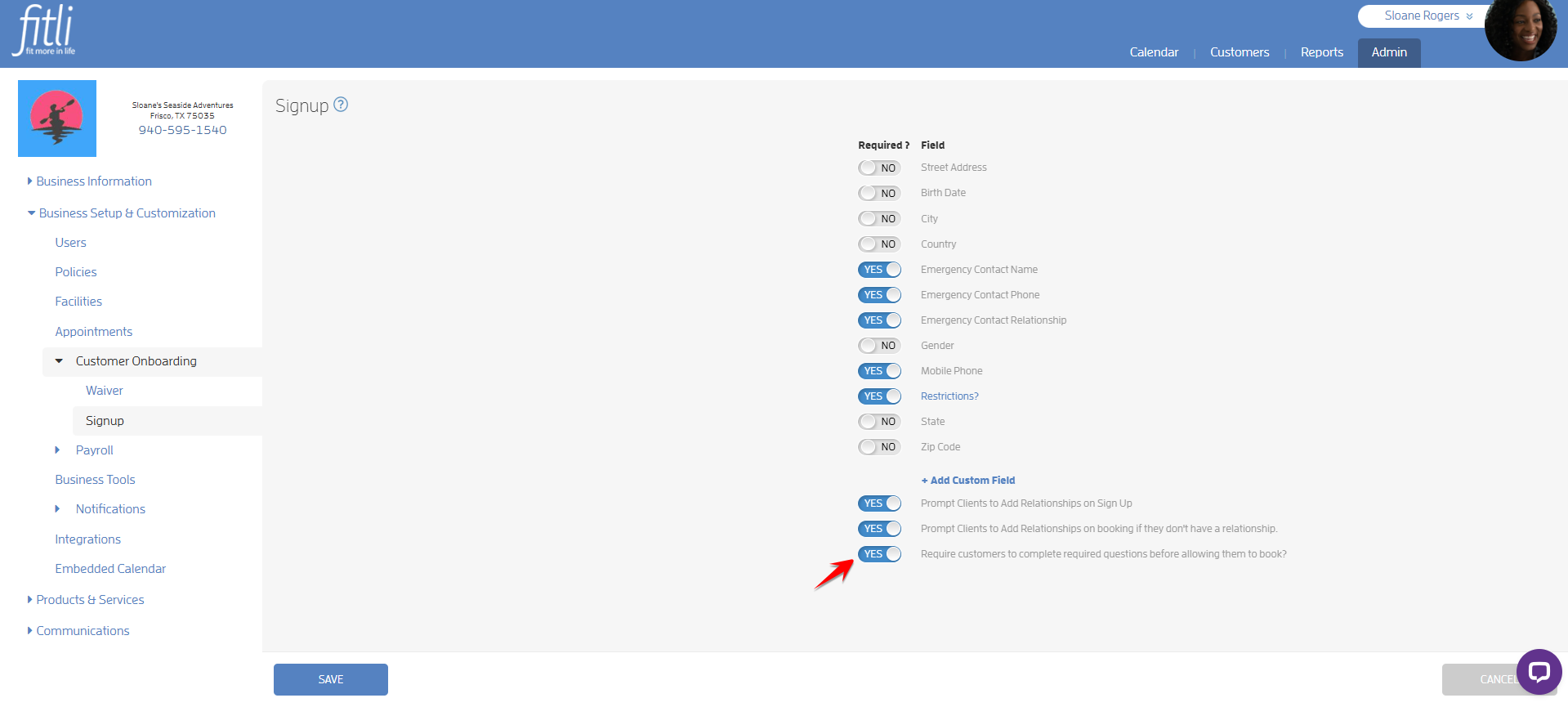
Go to ADMIN > Business Setup & Customization > Customer Onboarding > Signup.
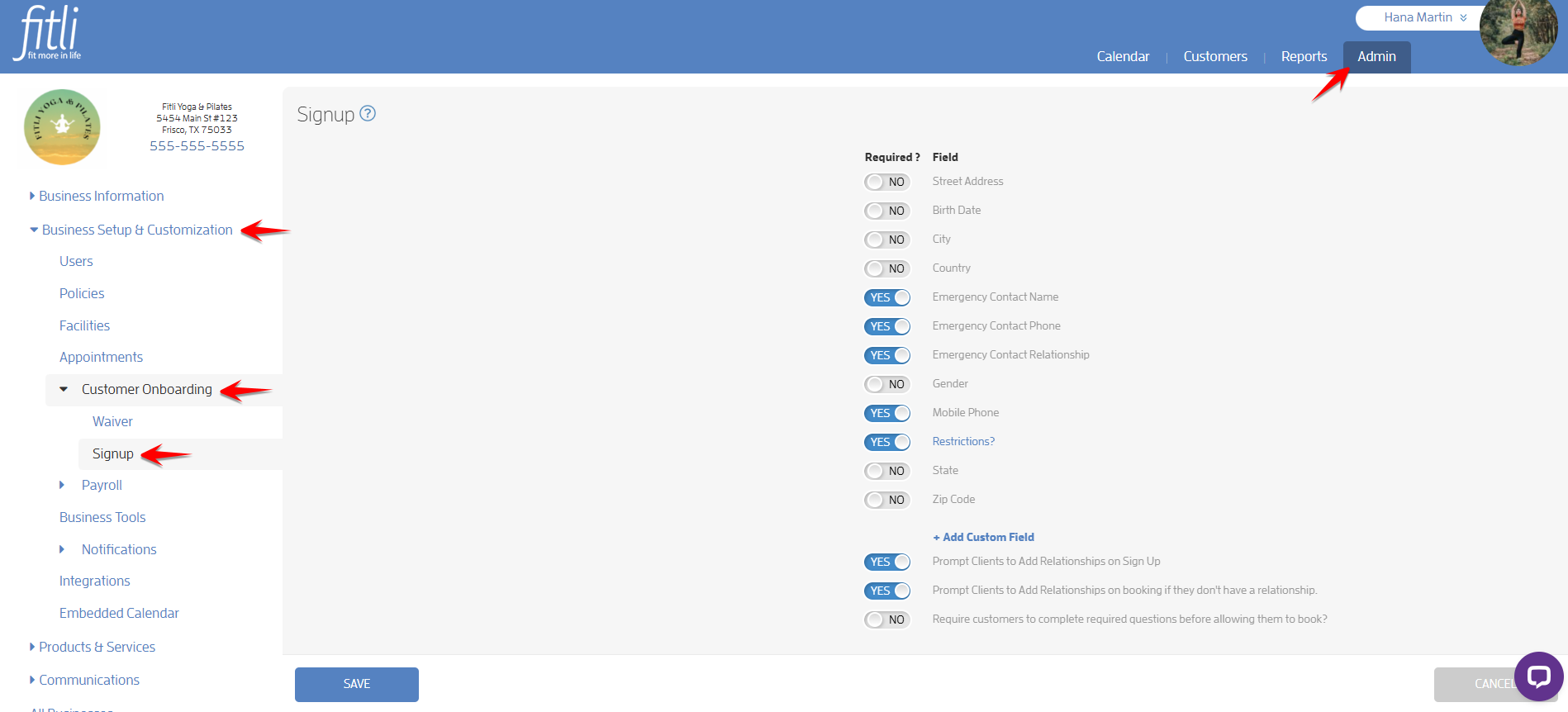
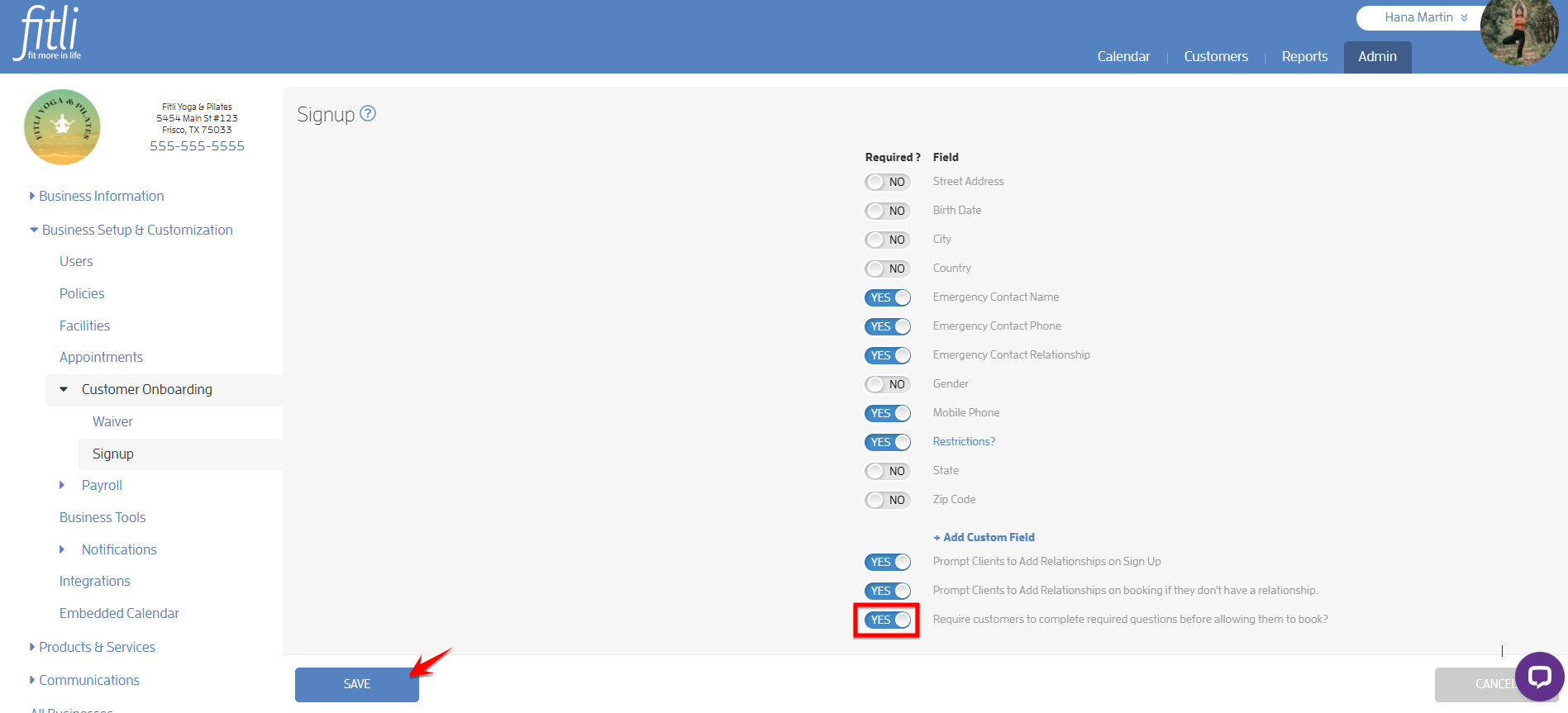
On the Signup page, you can set existing fields as required or add new custom fields with specific names and descriptions, and mark them as required. These fields will appear during client registration, and if marked as required, clients will be prompted to complete them in order to finish signing up. In the example below, the business set 4 existing fields (the gray ones) as required and also set a custom field (the blue clickable one that’s added by the business) as required.
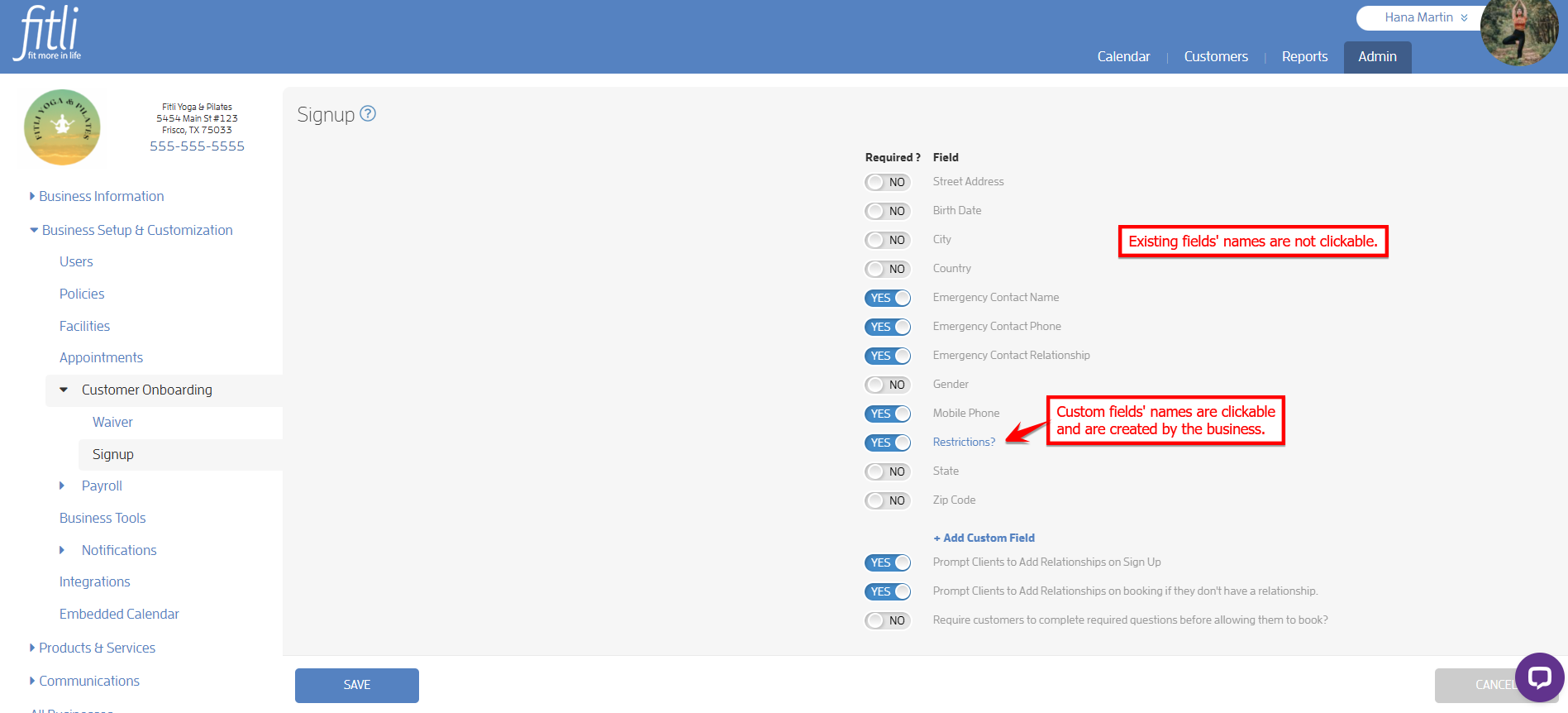
To require customers to complete required questions before being allowed to book, turn on the toggle to YES, then click SAVE.
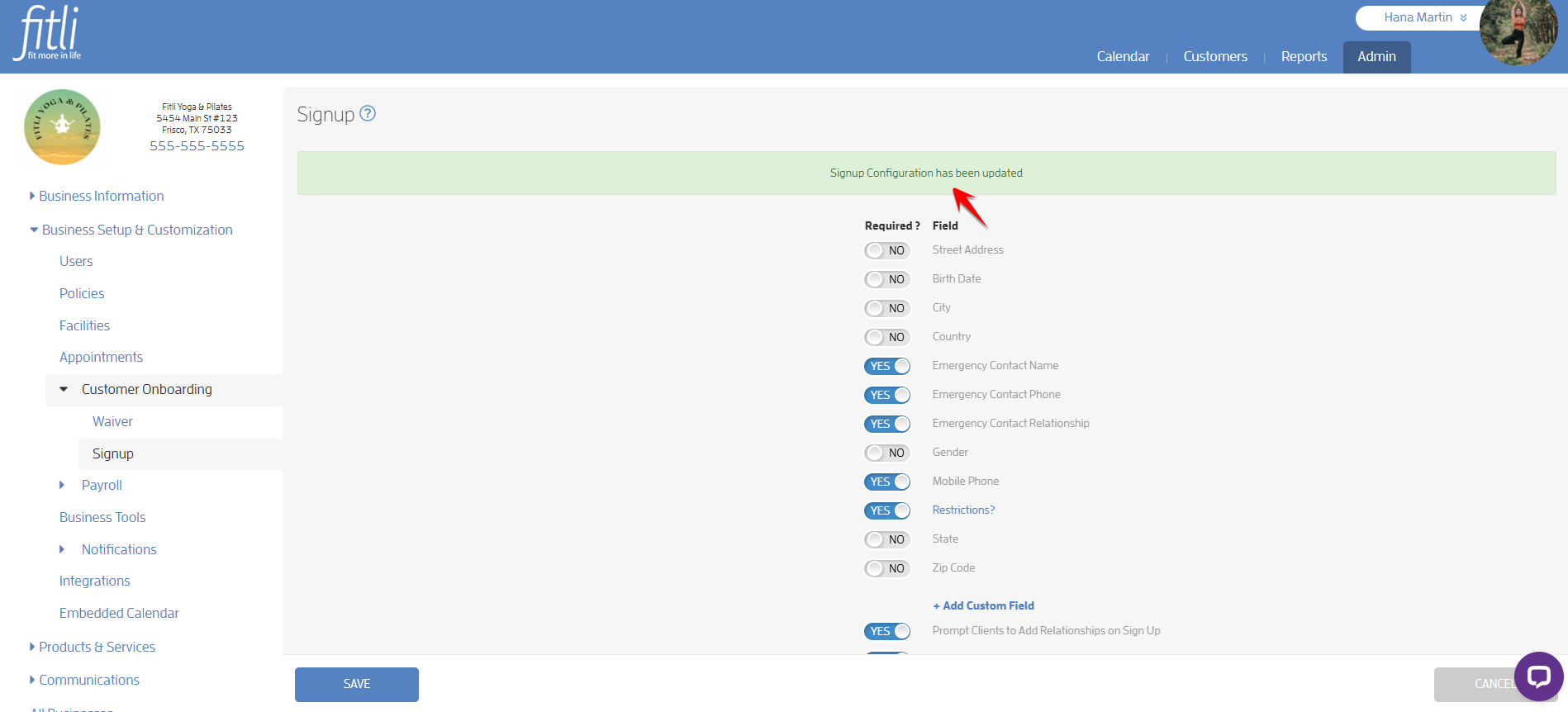
A message in green will appear at the top confirming that you’ve updated the Signup Configuration settings.
That’s it! You’re done.
What will happen next?
If your client went directly to fitli.com and registered for an account, or if you set up custom fields after they’ve already registered, they will not be prompted to complete those fields during signup. However, since the business has enabled the requirement for clients to answer specific questions before booking, on their next booking, clients will be prompted to complete their profile information (the required questions) before confirming a booking.
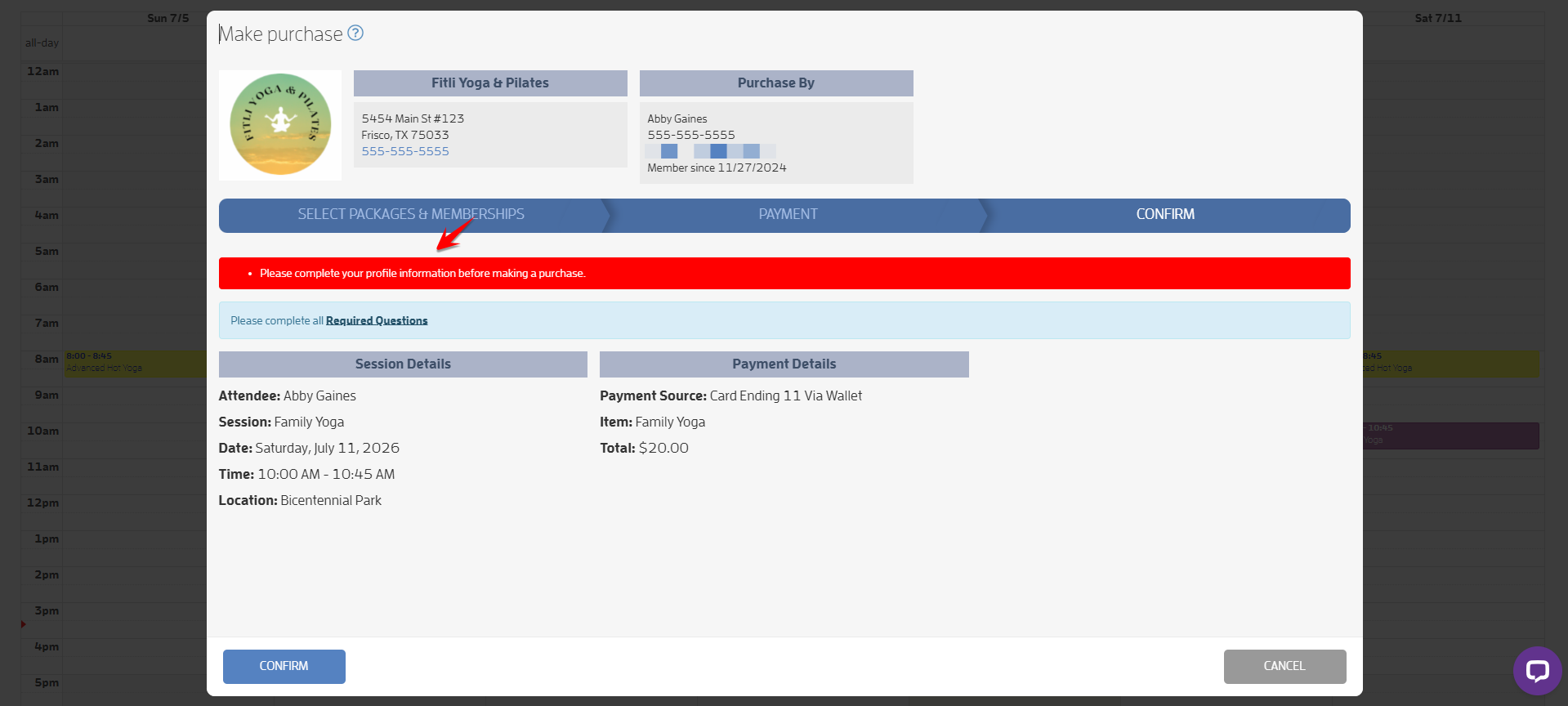
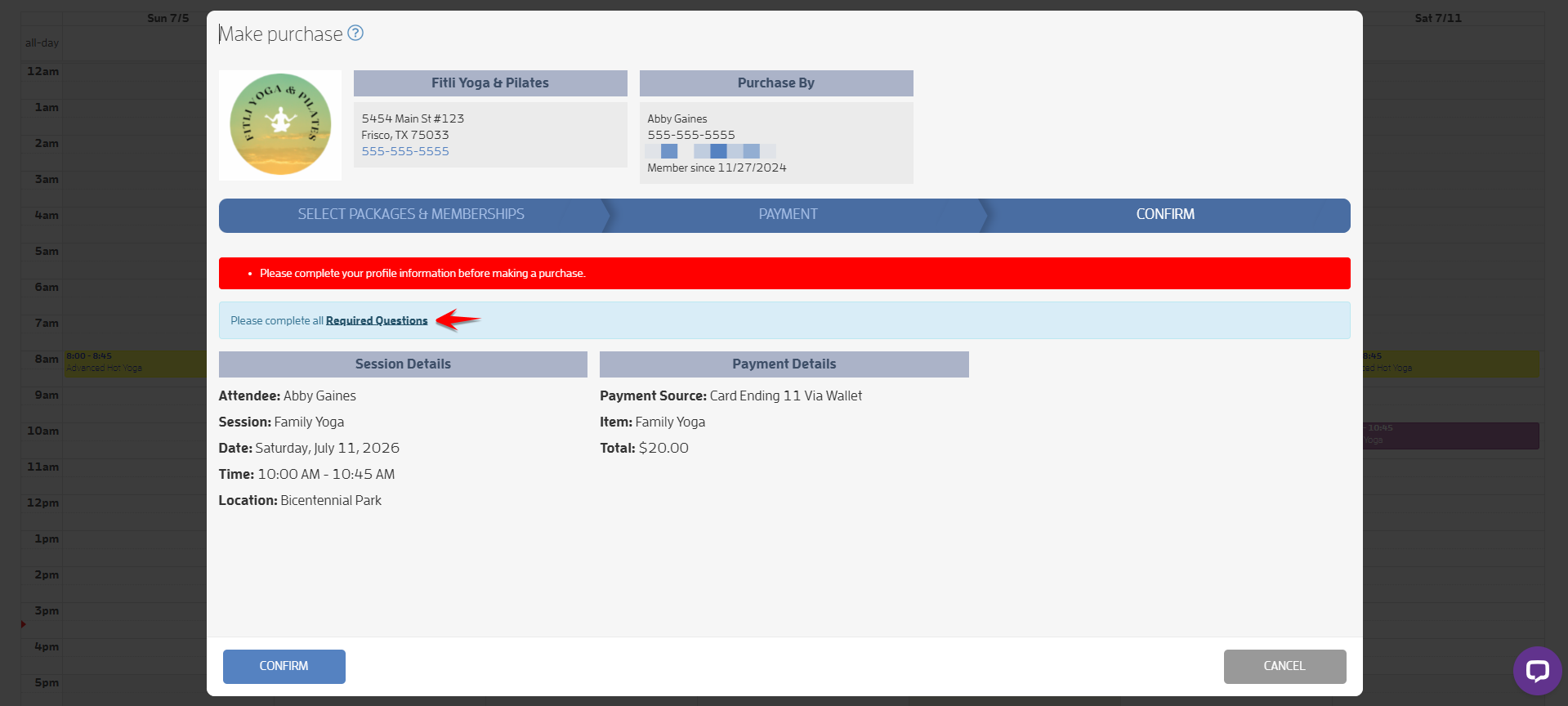
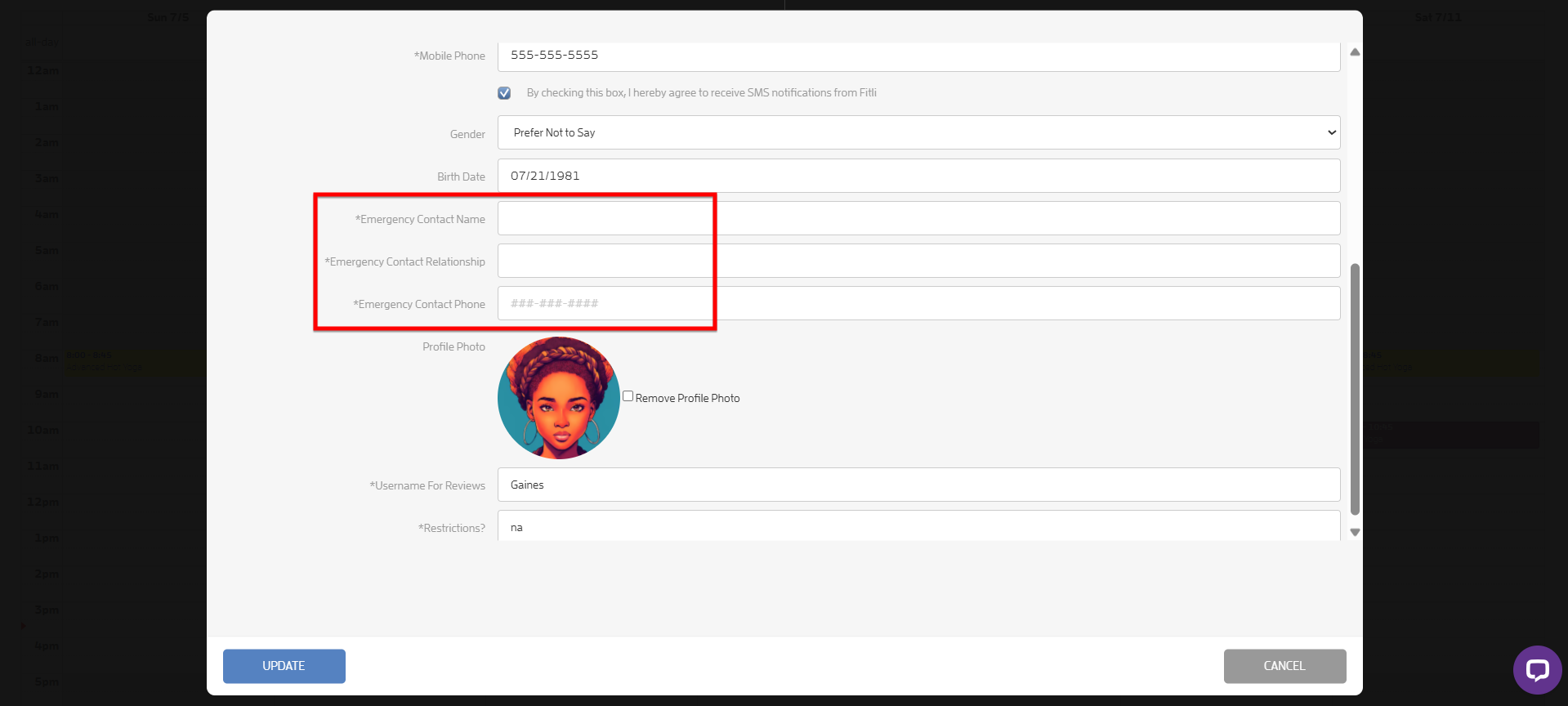
To complete the booking process, they need to click the Required Questions link, fill out the required fields (those marked with asterisks), then click SAVE.
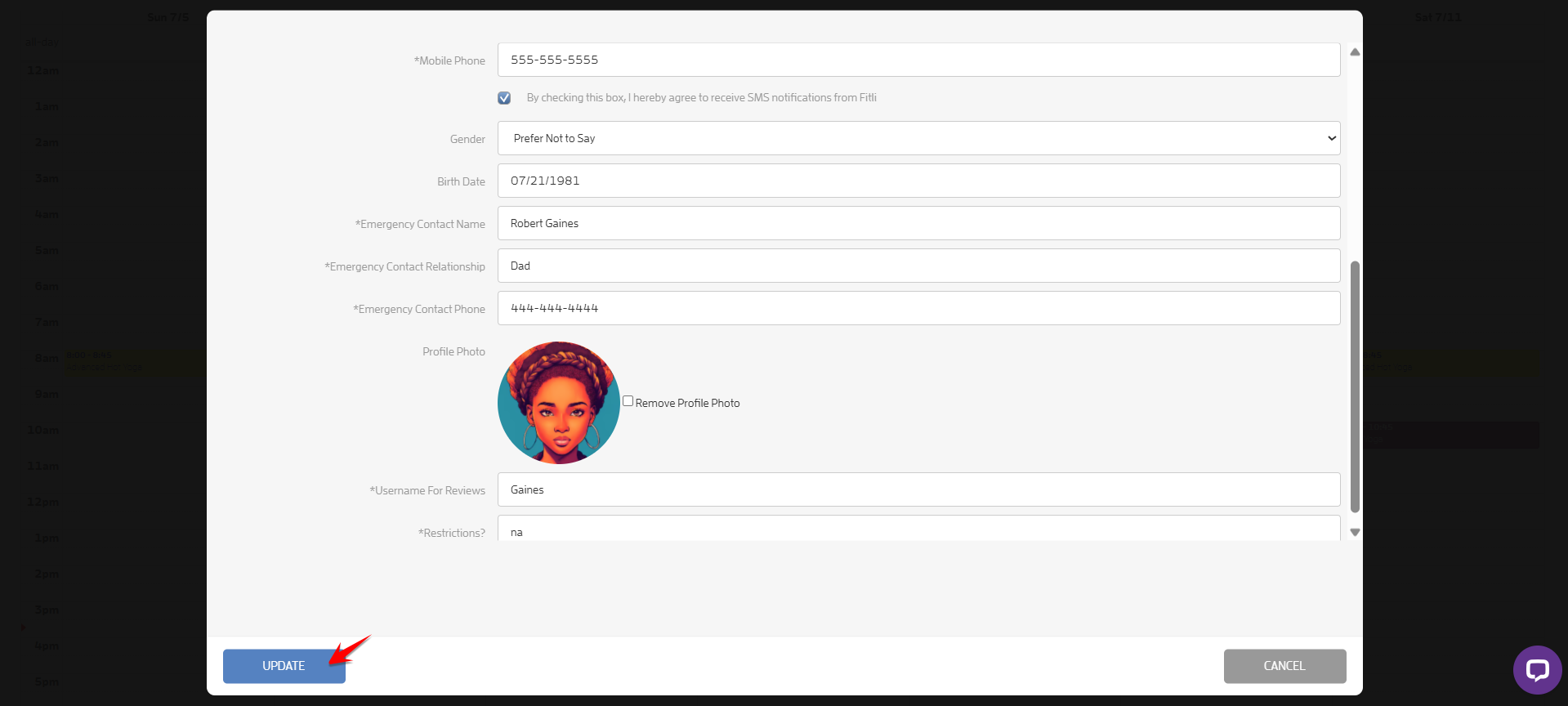
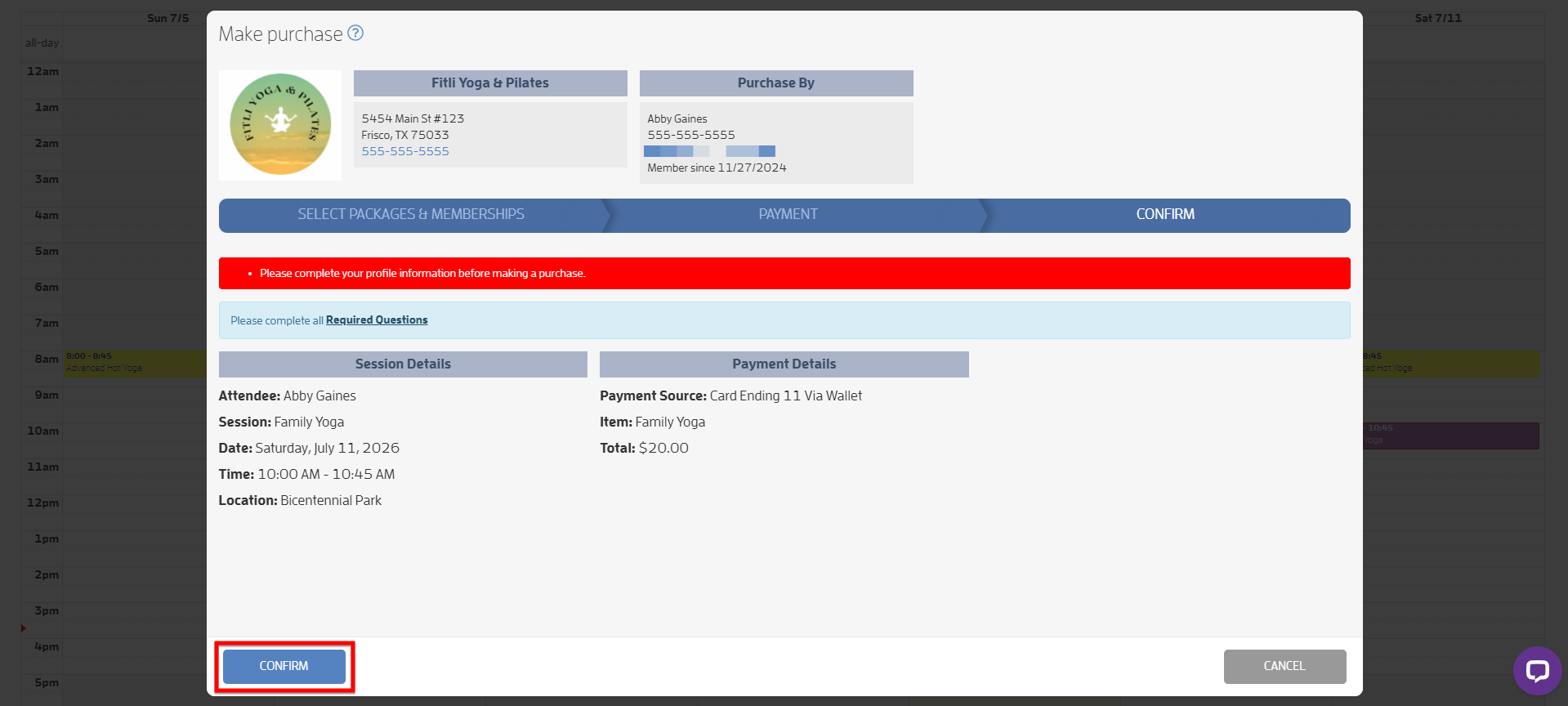
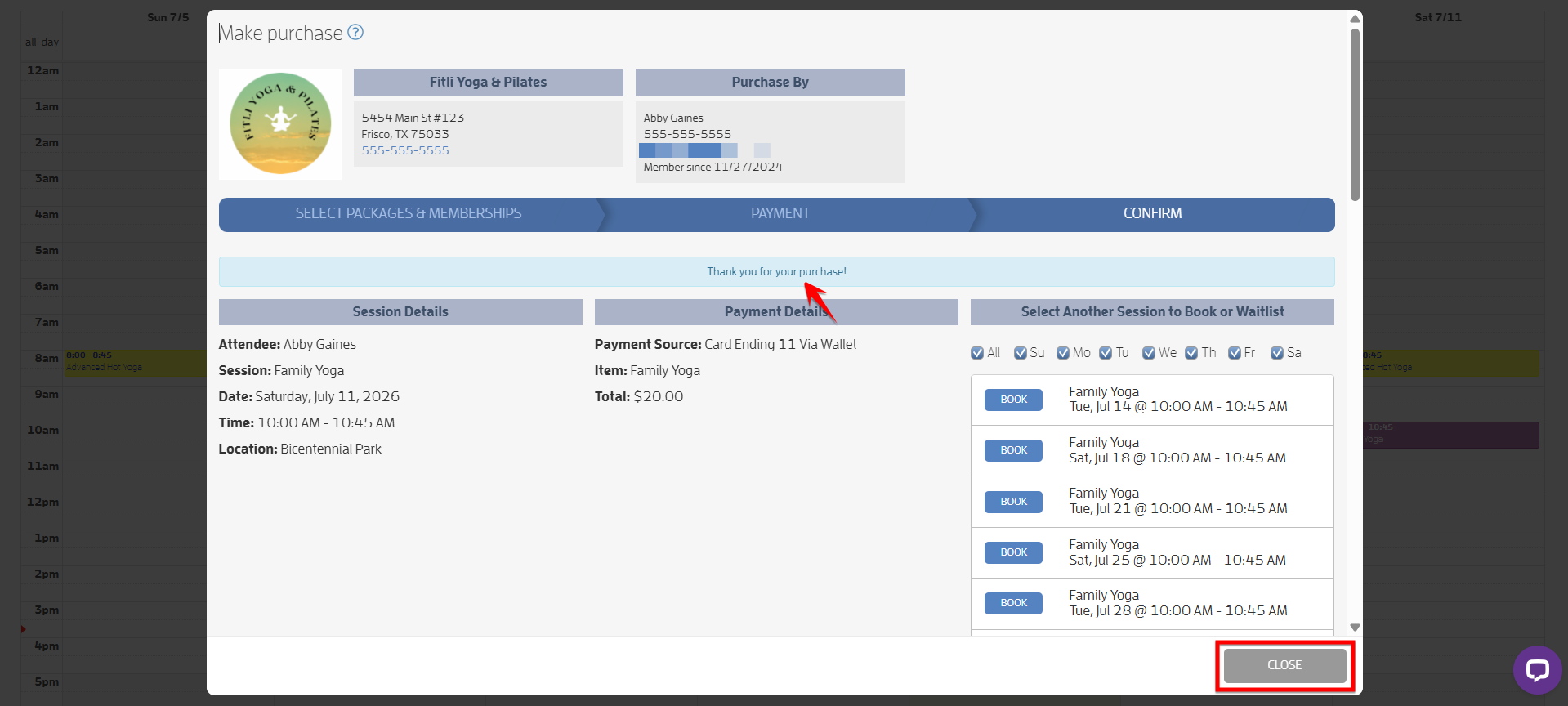
Once all required questions have been answered, the system will allow them to complete booking. Click CONFIRM and CLOSE.
Commonly Asked Questions:
Q: I have a new customer who just signed up. I set up a custom field and made it required, but he is able to sign up without completing the required information. Why is this possible?
A: Custom fields will only work for clients who have signed up using the invitation or referral link sent via email, or the “Sign Up Link,” or the “Book Link” found on the “Business Tools” page. If your client went directly to fitli.com and registered for an account, they will not be prompted to complete those fields during signup.
Q: I set existing fields as required and also added a custom required field. I have a customer who just booked a session without completing the required questions. Why is this possible?
A: Make sure to turn on the toggle for “Require customers to complete required questions before allowing them to book,” then click SAVE, so they will be prompted to answer the required questions during their next booking.
Q: How can I have my existing clients update their details for the required information I need for my business?
A: Advise them to go to the “Contact Info” section under the “Account” page, answer the required details for the fields marked with asterisks, and click SAVE. Alternatively, turn on the toggle for “Require customers to complete required questions before allowing them to book,” then click SAVE, so they will be prompted to answer the required questions during their next booking.
That's about it! Any questions? Chat with us or send us an email to support@fitli.com.