
We understand that some clients are reluctant to sign up for a class if the attendees are low (0 or 1). With just a few clicks, you can hide the number of participants in a class. Here's how.
Step 1: Create or Edit a Class Service
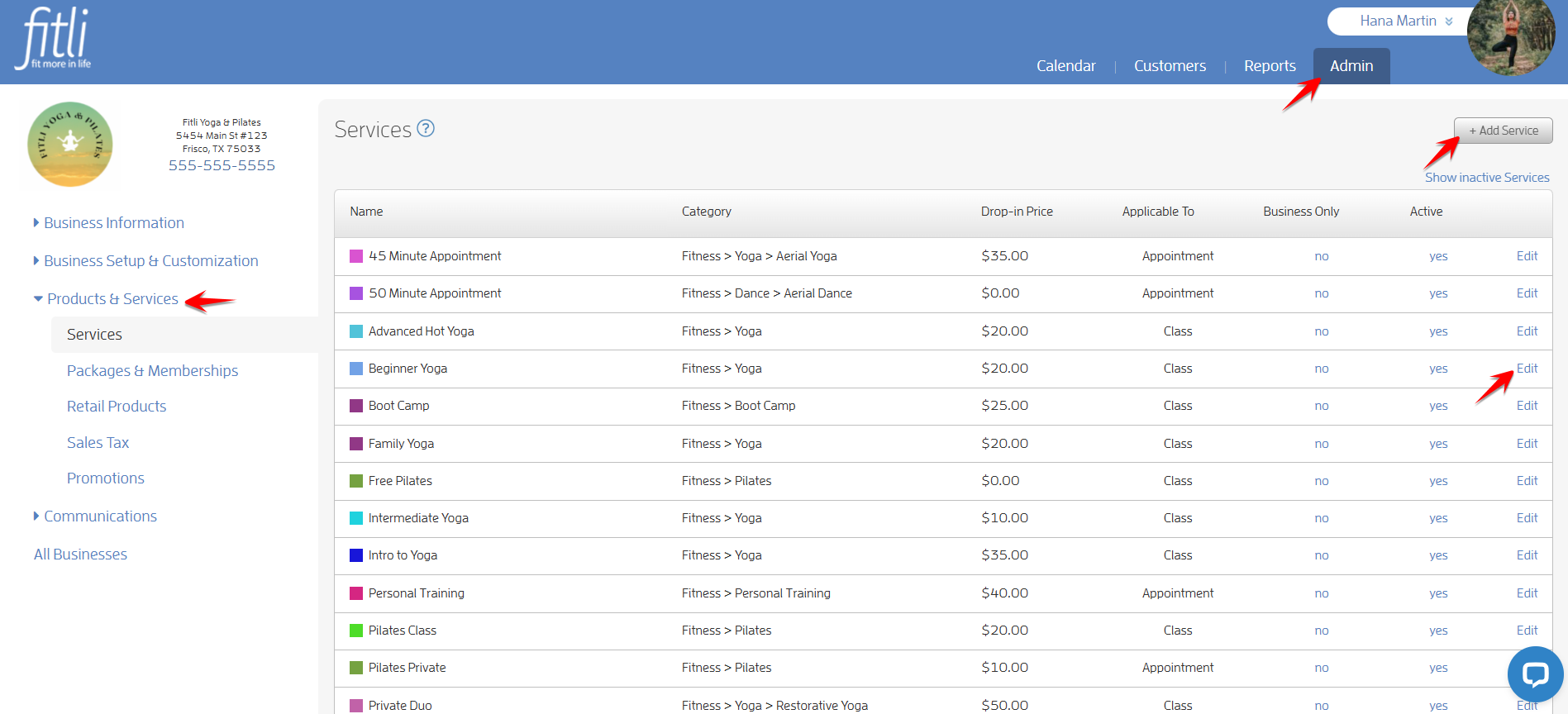
First, you'll either need to create a new service or edit an existing service and enable the "Hide Attendance" ability. Go to "Admin" on the top menu, then "Products & Services" section on the left, click "Services", and then click "+ Add Service" to create a new one or click "Edit" to edit an existing one.
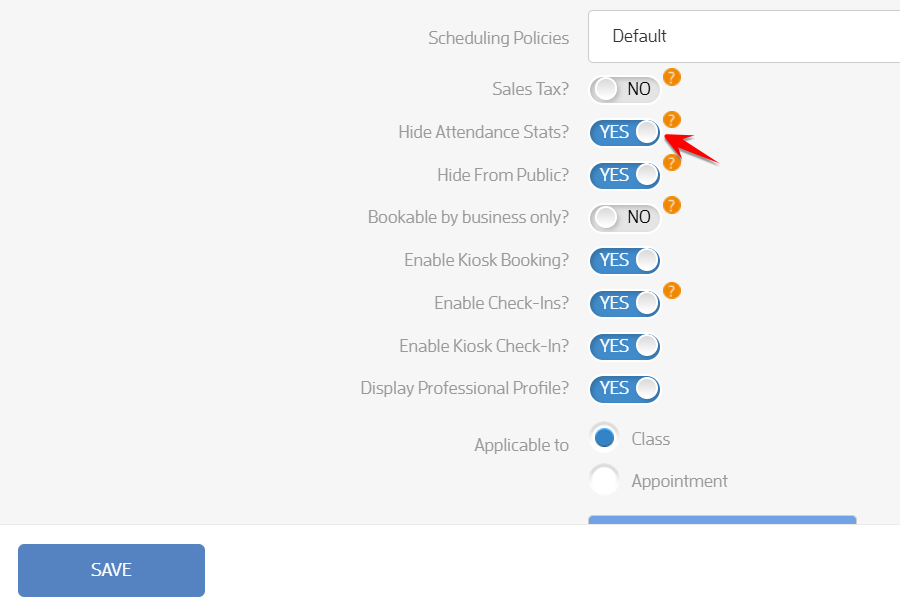
Scroll down, turn on the "Hide Attendance?" slider to Yes and hit SAVE.
Step 2: Create a Class on your Calendar or View an Existing Class
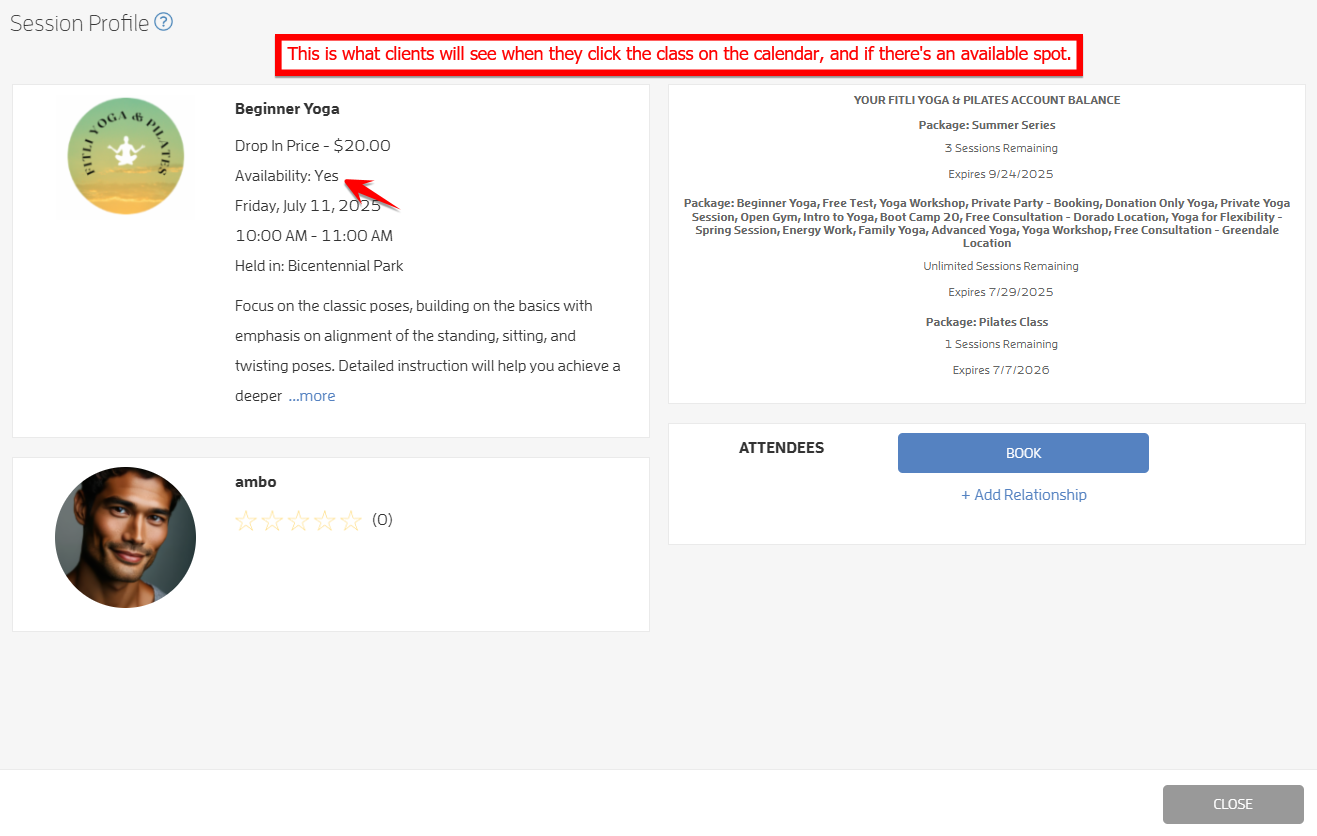
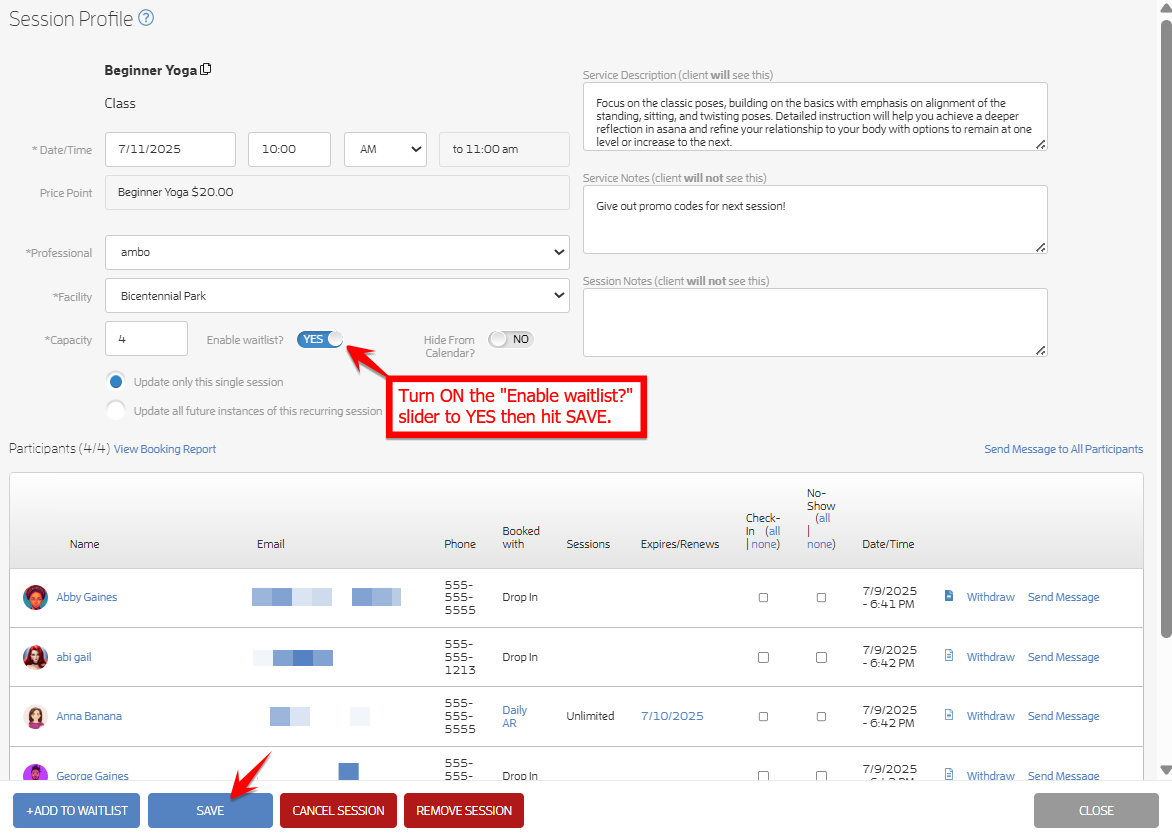
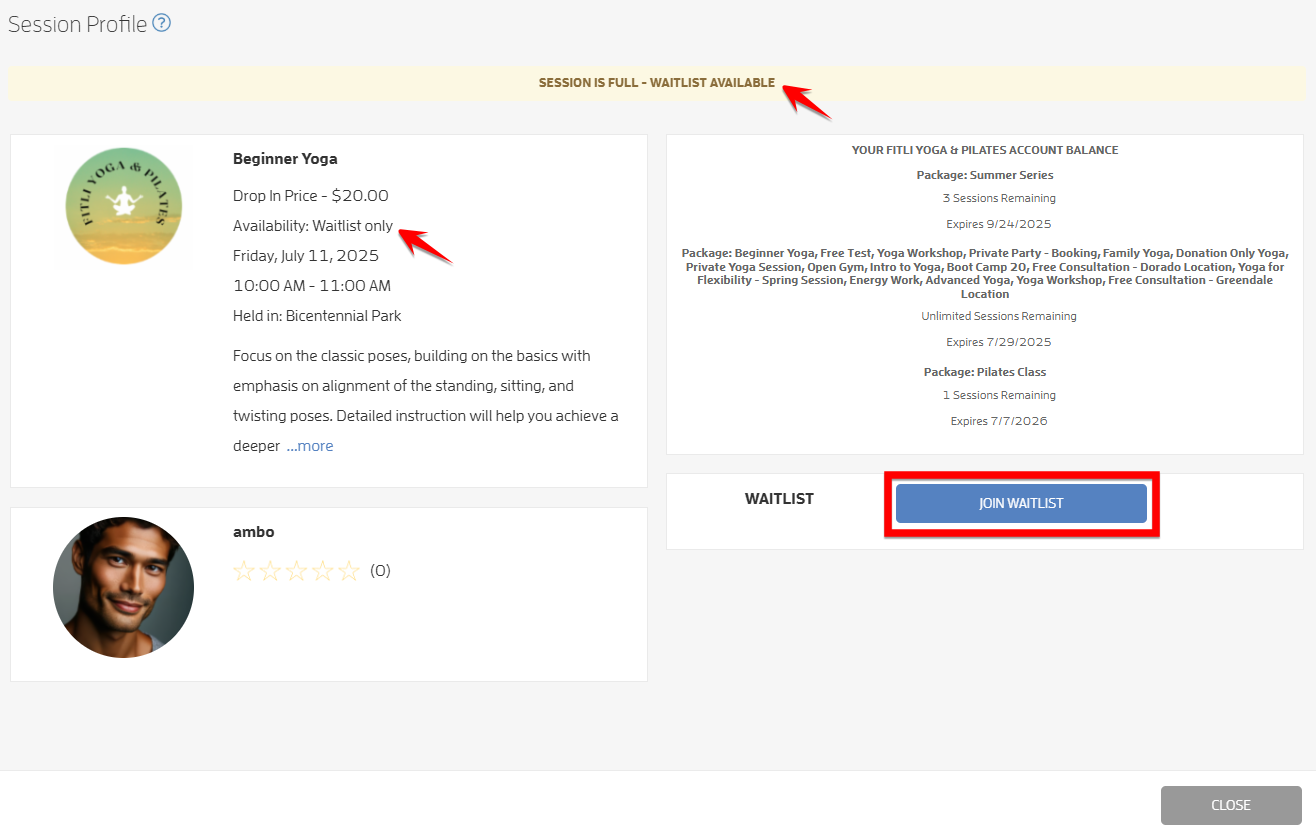
You will notice that the number of participants is only visible on the business calendar view and not shown on the client's calendar view. Same goes when a business opens the Session Profile, the session details are shown including the number of attendees. However this is not shown when a client clicks a class on the calendar— it will only show "Availability: Yes" if a class is not yet full, otherwise it will show "Availability: No".
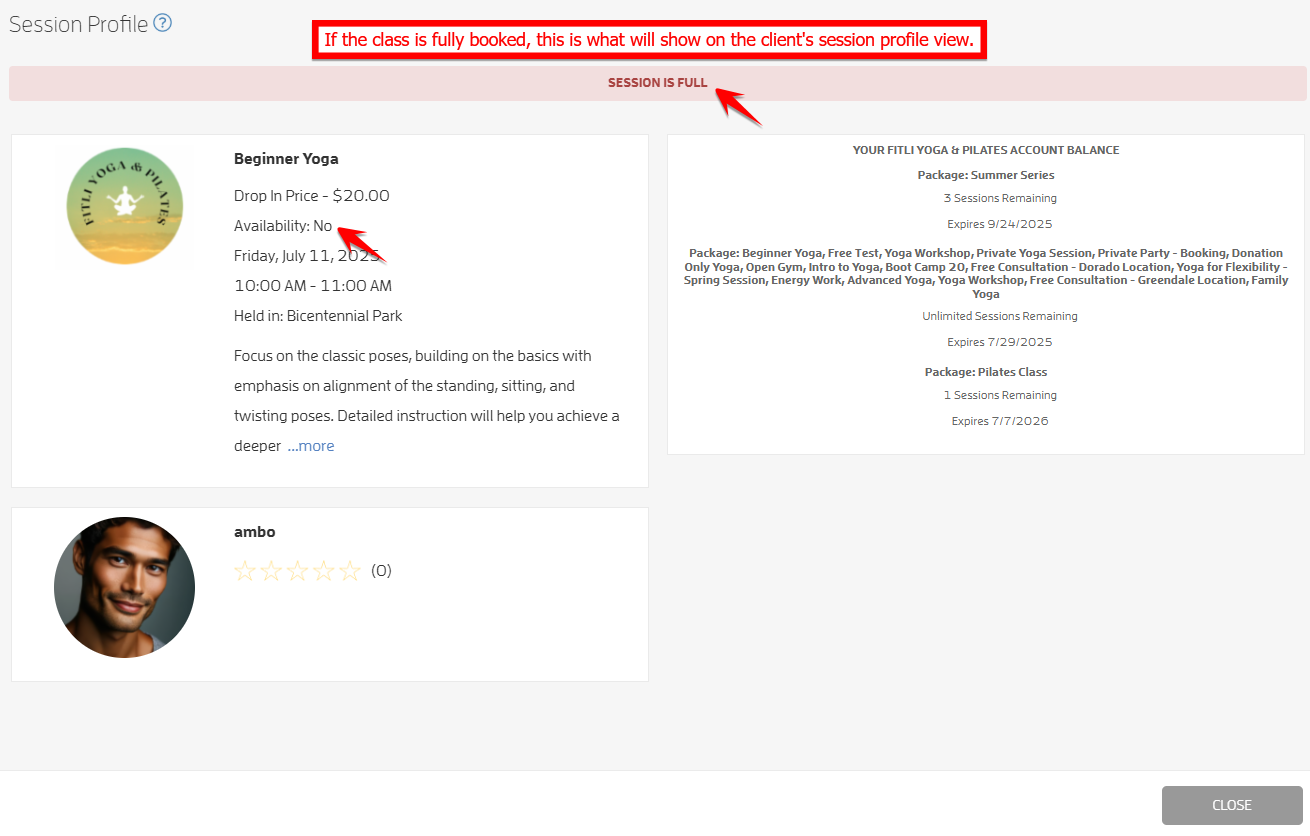
If you enabled Waitlist, it will show "Availability: Waitlist only" and the "Join Waitlist" button at the right.
That's about it! We hope that you will get more people to book your classes! If you have any questions or feedback, please chat with us or contact us at support@fitli.com.