
You can "hide" classes from the calendar, with just a few clicks! Maybe you'd like to have classes on the schedule and you just aren't ready to show yet, or you're building out your calendar and don't want to show classes. It's easy! Here's how.
Step 1: Create or Edit a Class Service.
First, you'll either need to create a new service, or edit an existing service and enable the "hidden" ability.
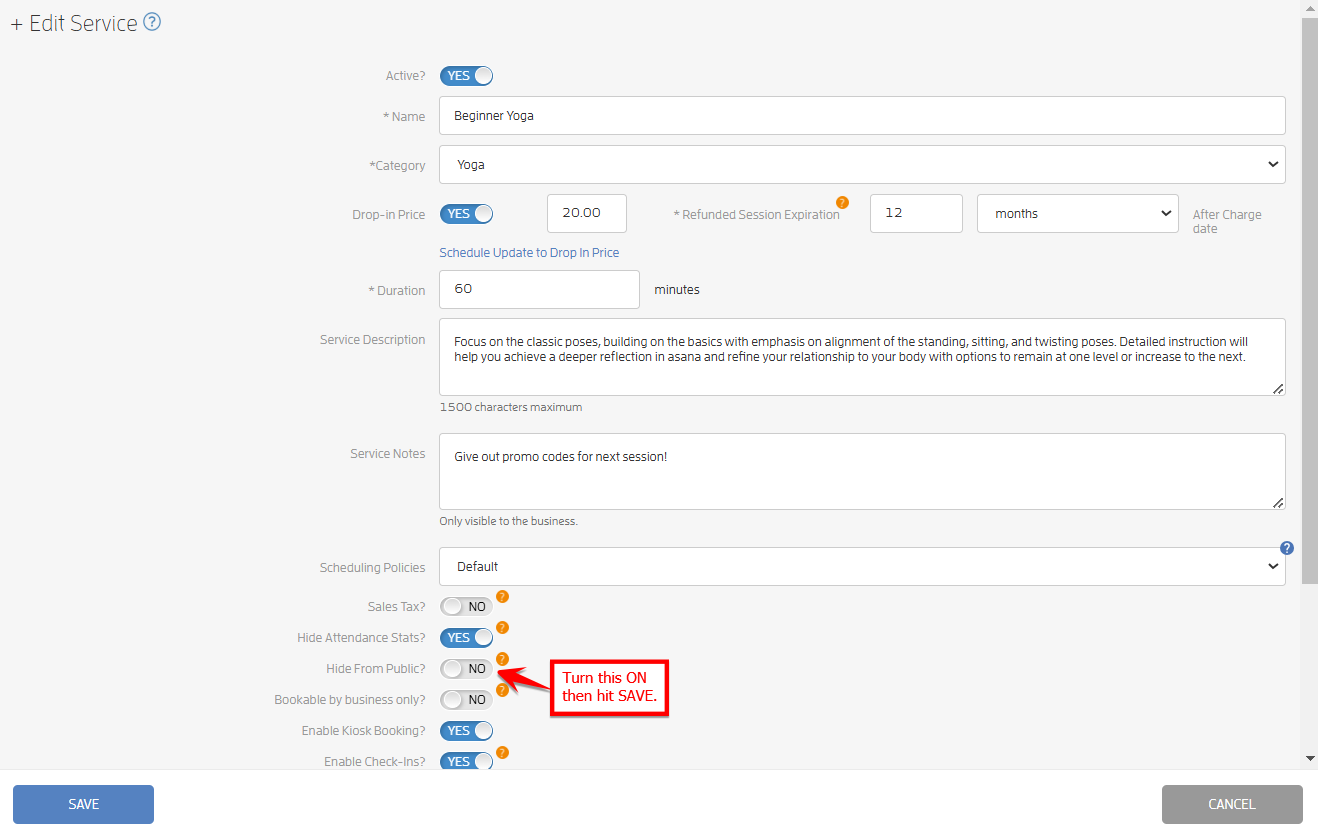
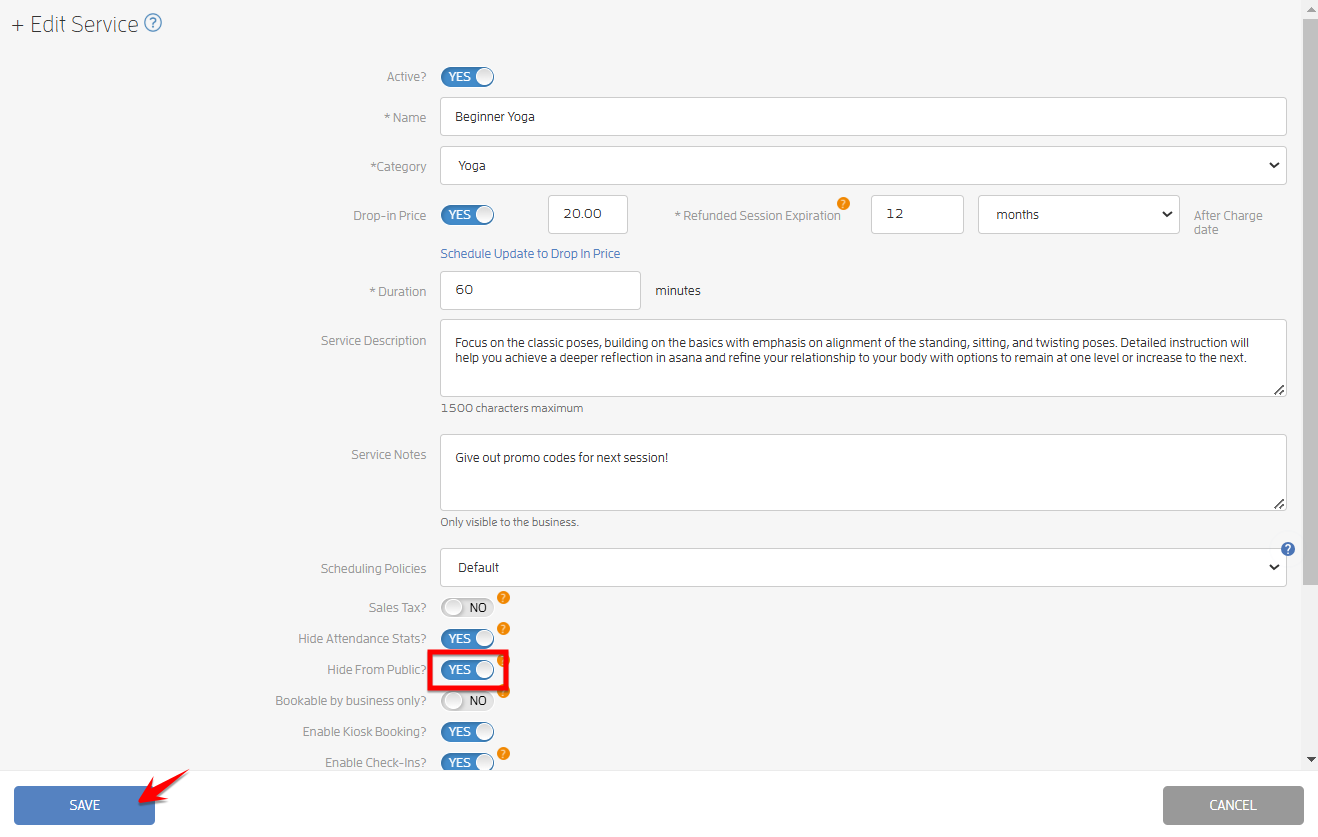
Head to the "Services" section under "Products & Services". Click "Edit" beside the service, turn on the "Hide From Public?" option then hit SAVE.
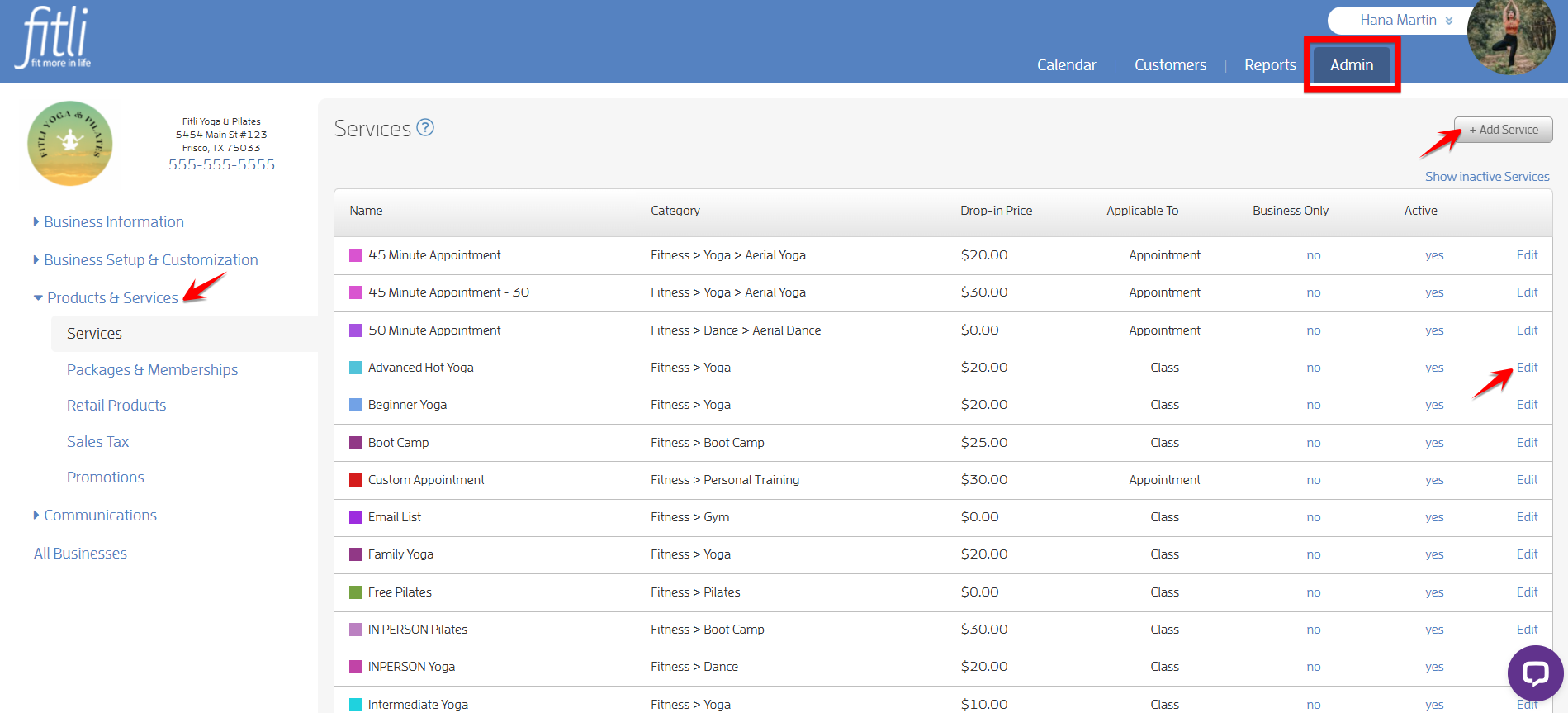
Tip: In order to be able to "hide" classes, you first need to enable the ability in this step.
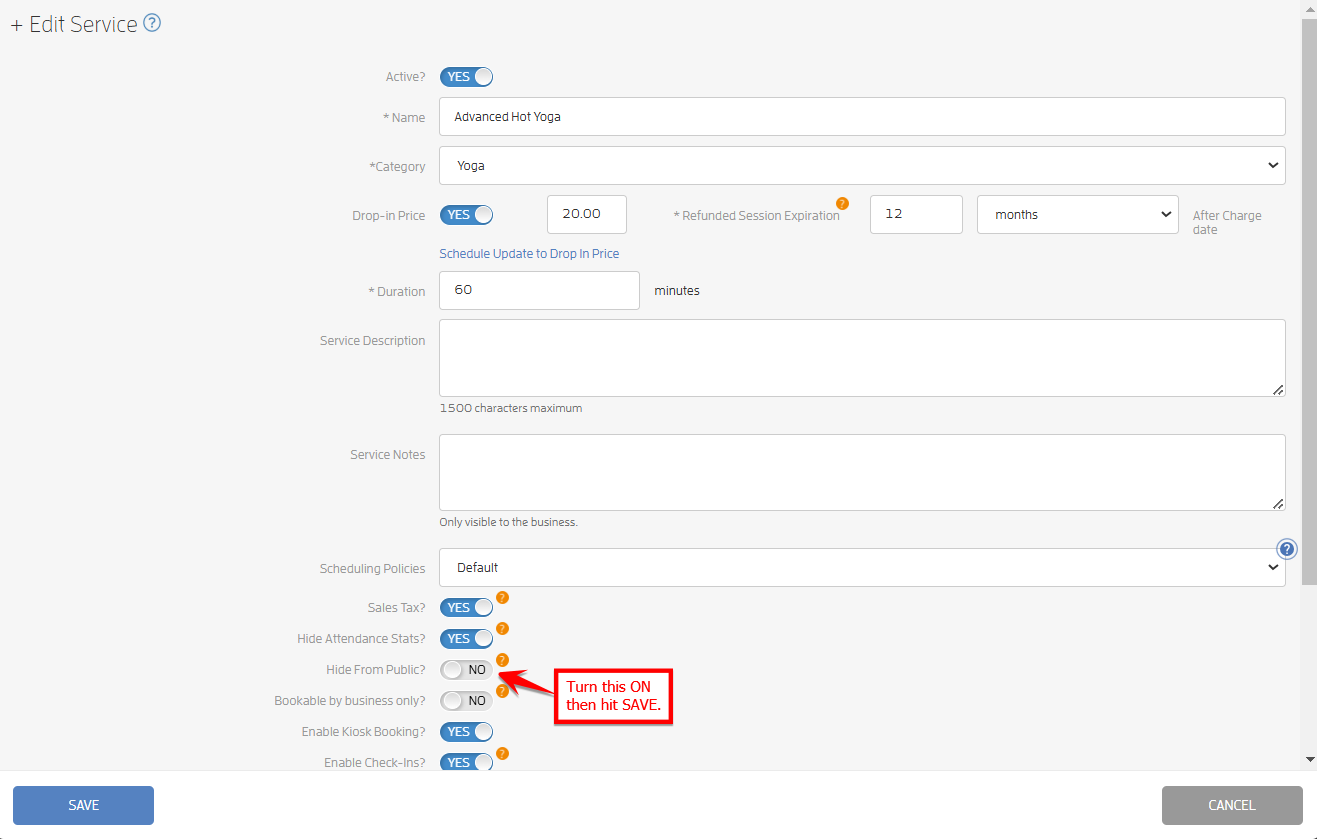
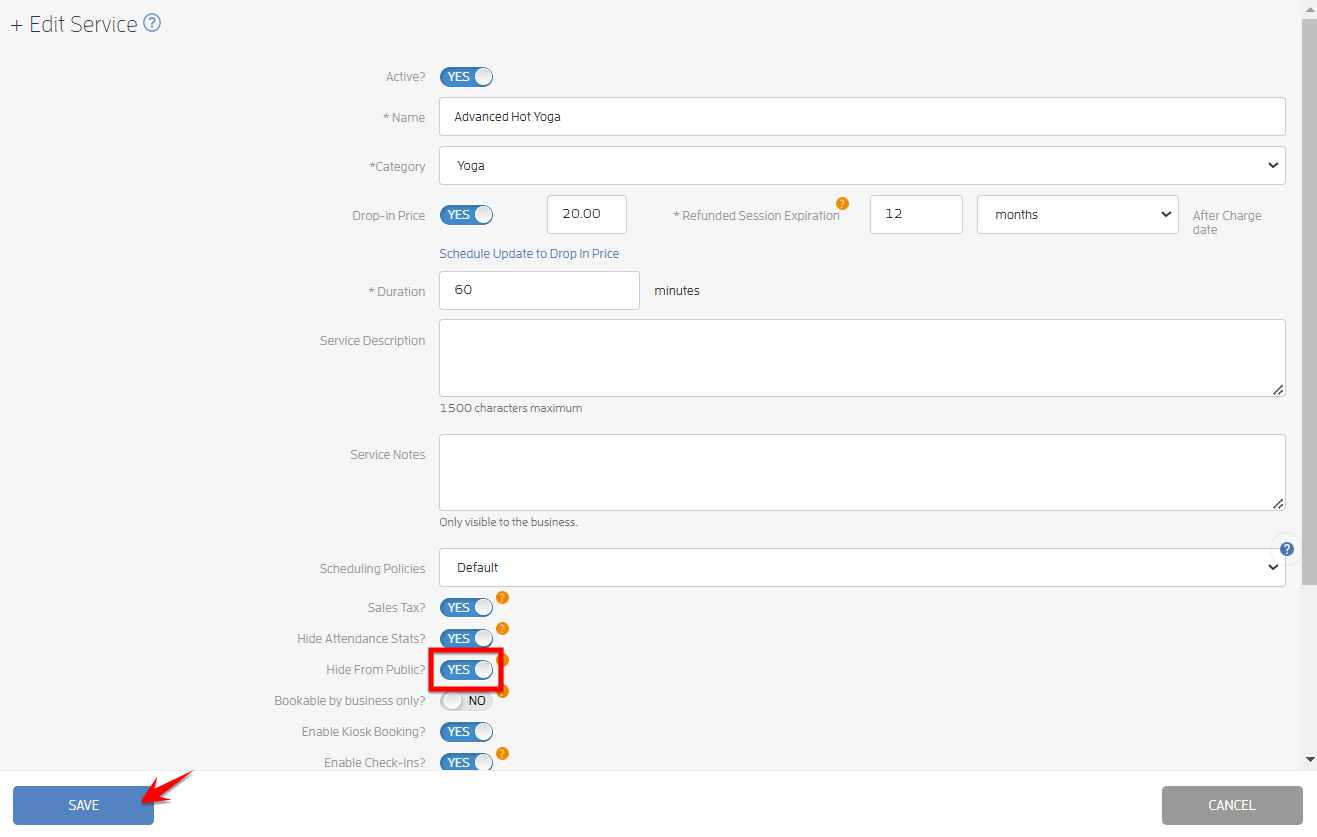
Step 2: Add the Classes on the Schedule.
Choose the service, the professional, the facility, and determine the date and time for the classes to appear. Then, choose if it's a repeating session or not. Turn ON the "Hide From Public?" toggle, and click "Create Class" at the bottom.
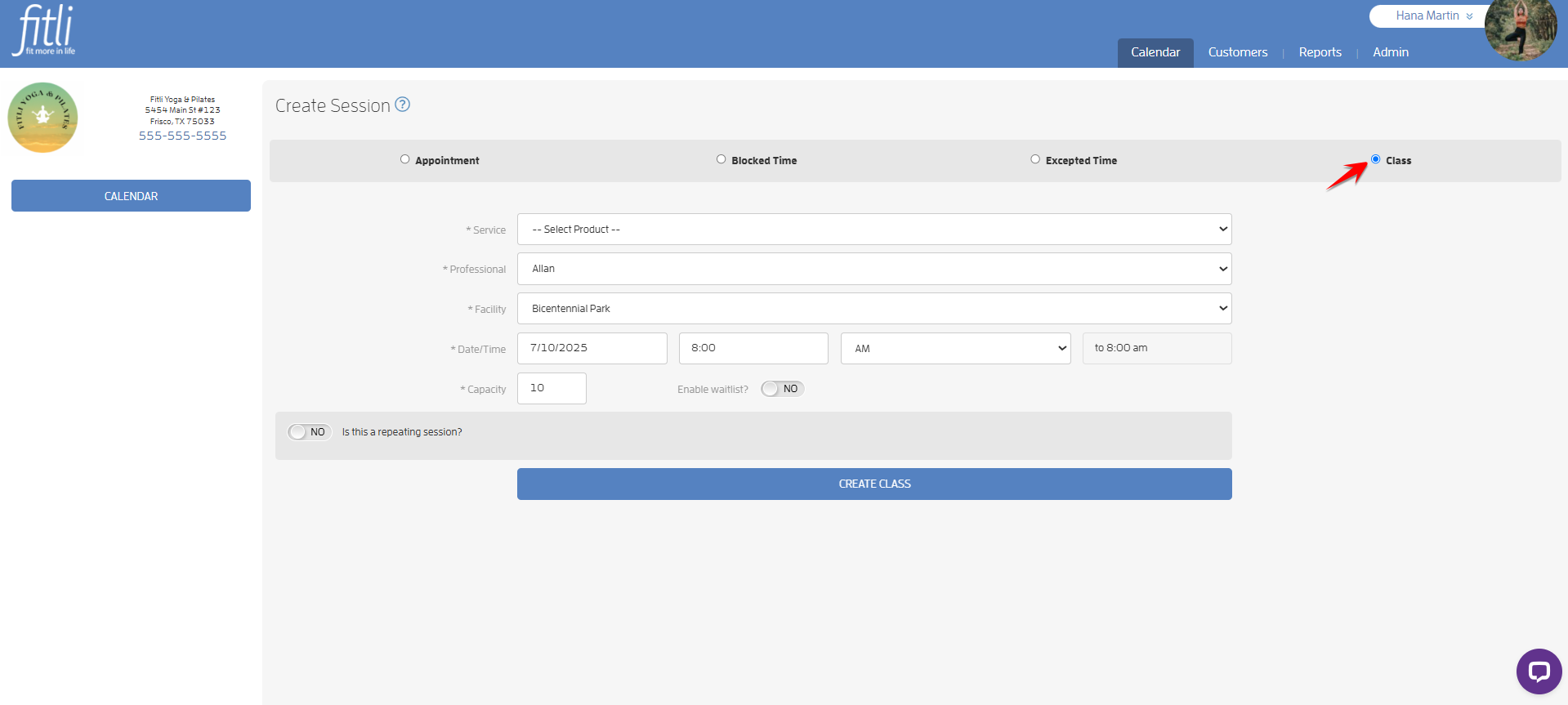
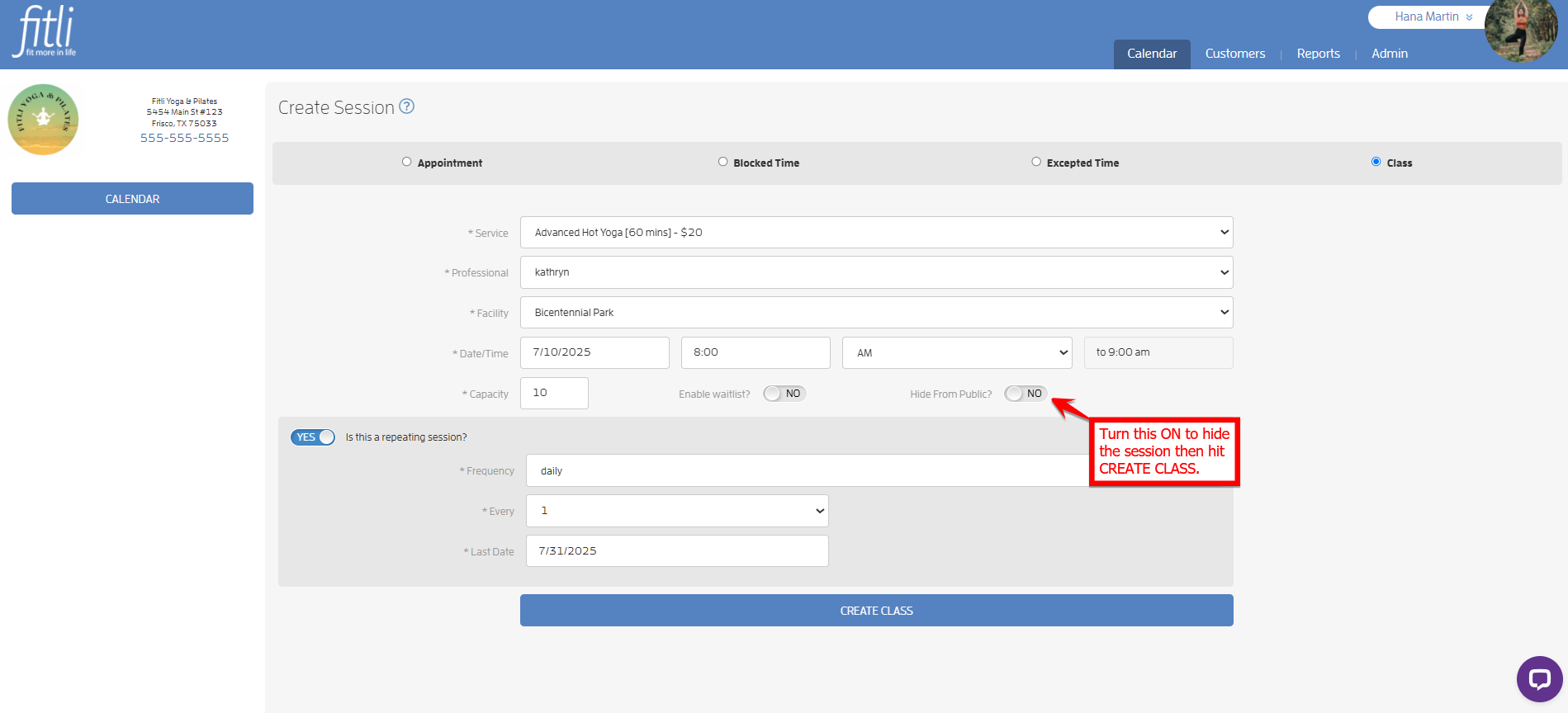
Note: The "Hide From Public?" toggle will only appear for services that are "hidden" from the public schedule. The toggle will not appear for services that are not "hidden". To show this option for the service, refer to Step 1.
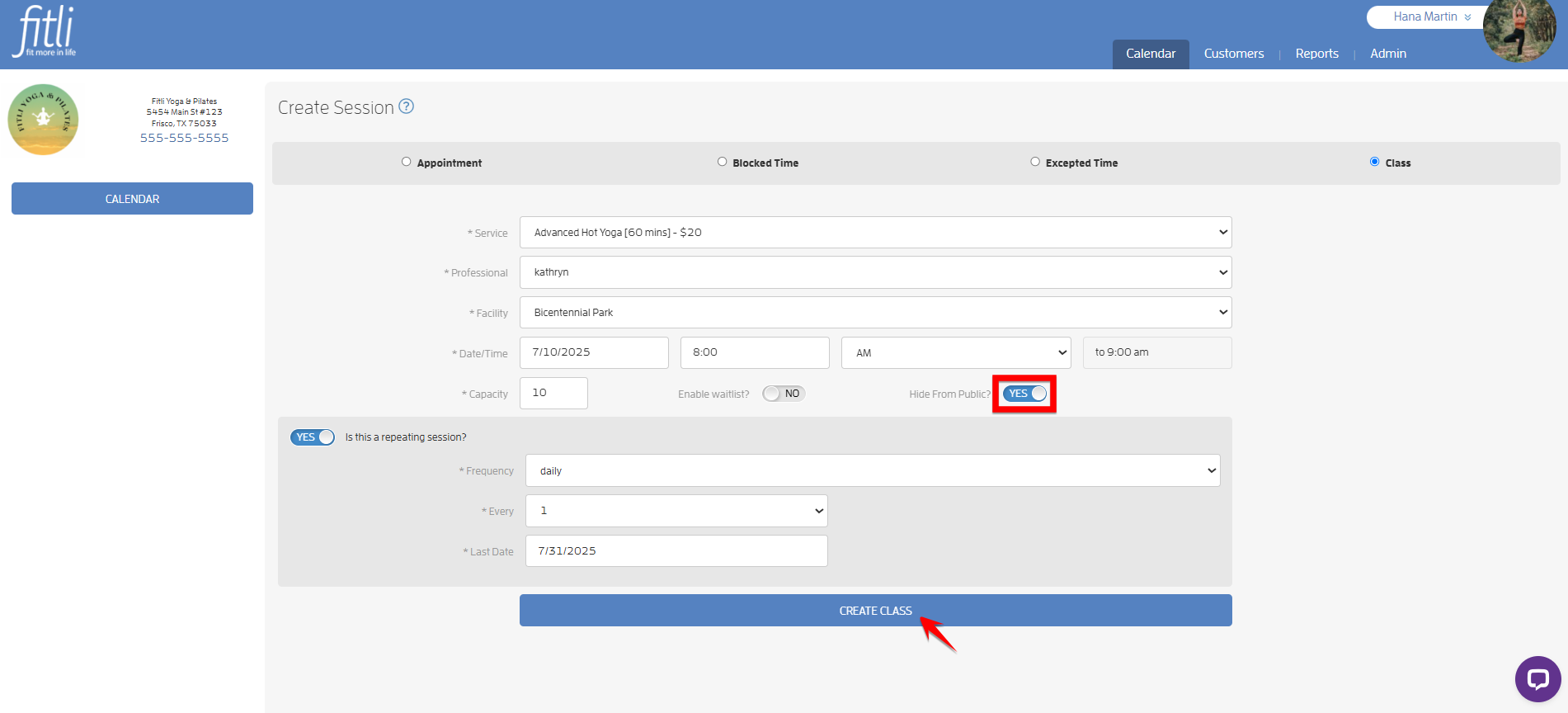
A confirmation in blue will appear at the top that you've successfully added your classes.
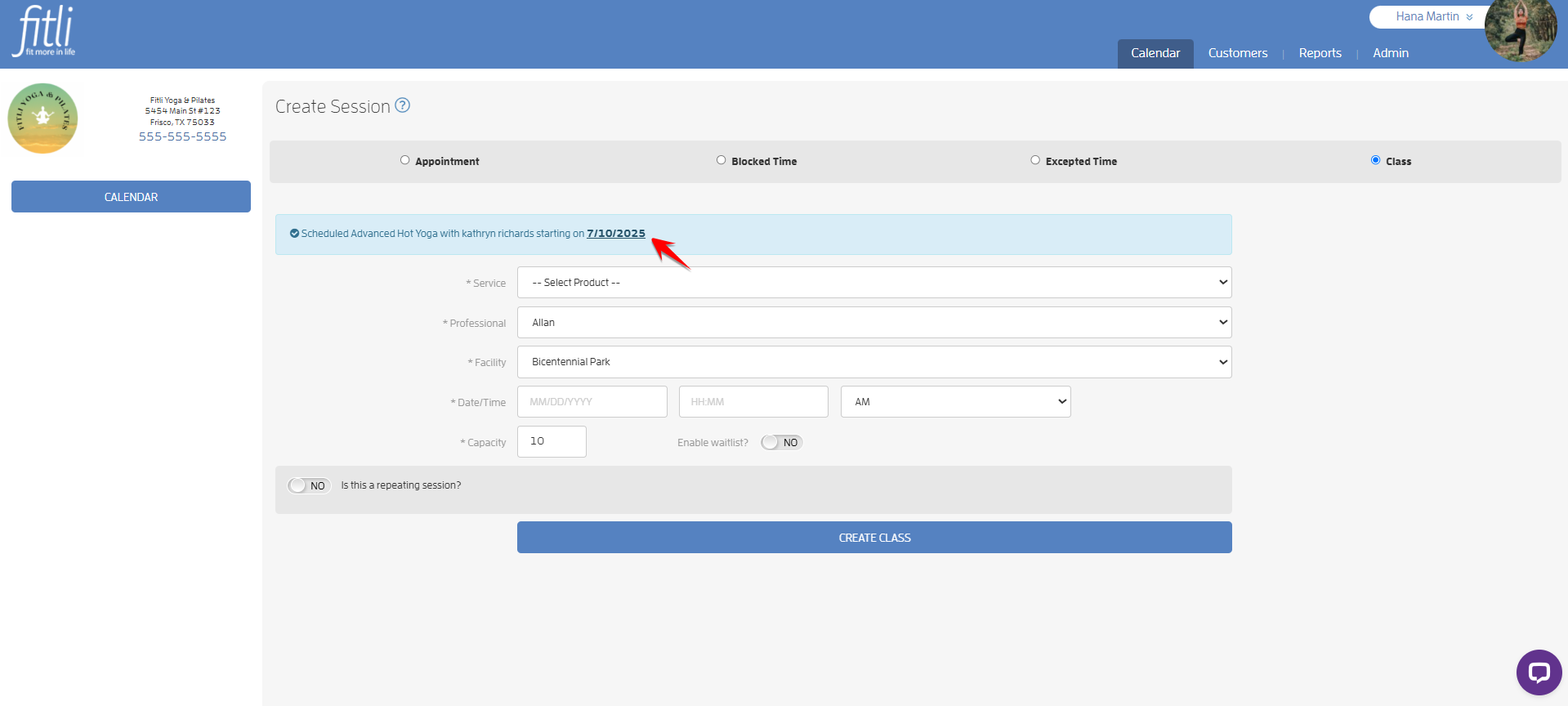
Step 3: Confirm your Classes are Hidden.
On the BUSINESS view of your class schedule, nothing will appear different, as you can still see the classes.
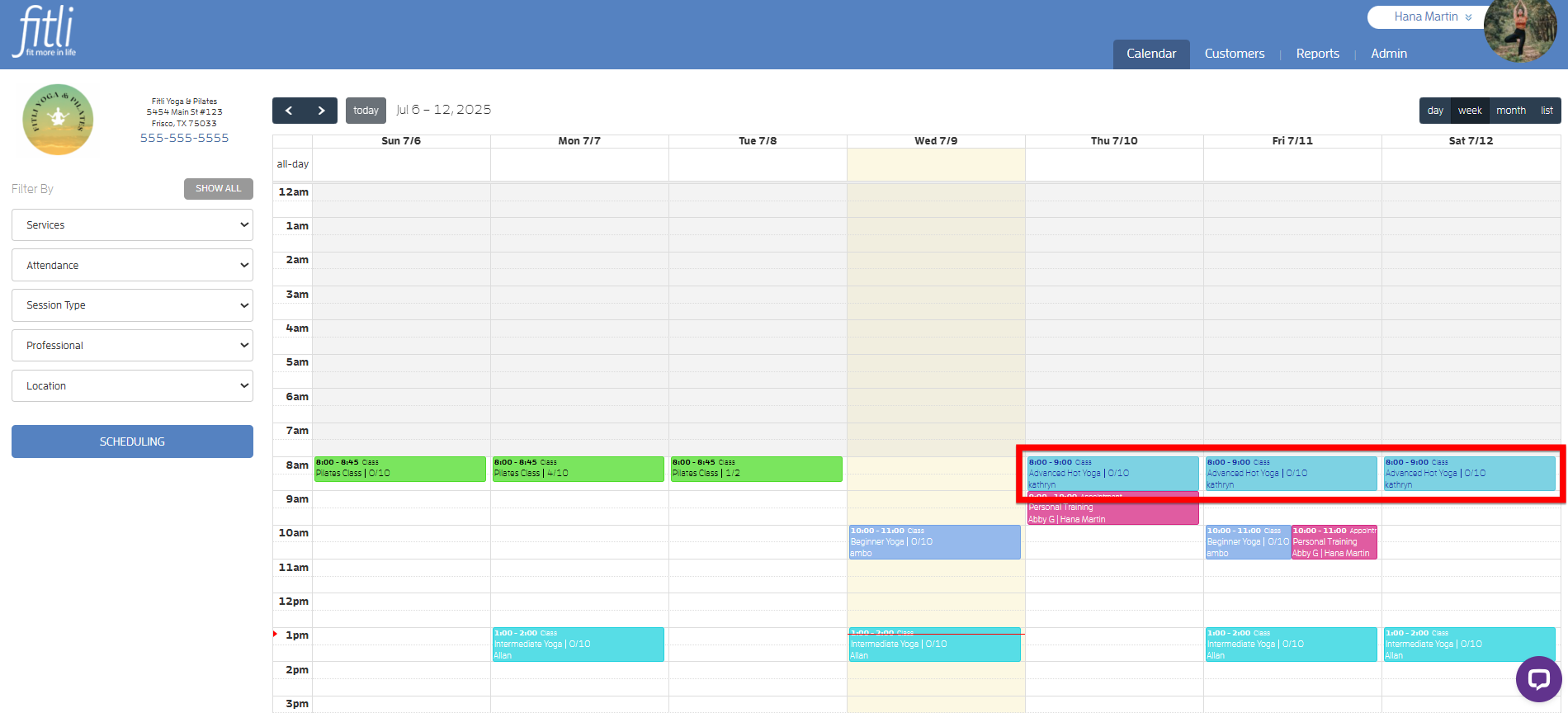
However, CLIENTS can no longer see the classes on your schedule for hidden classes.
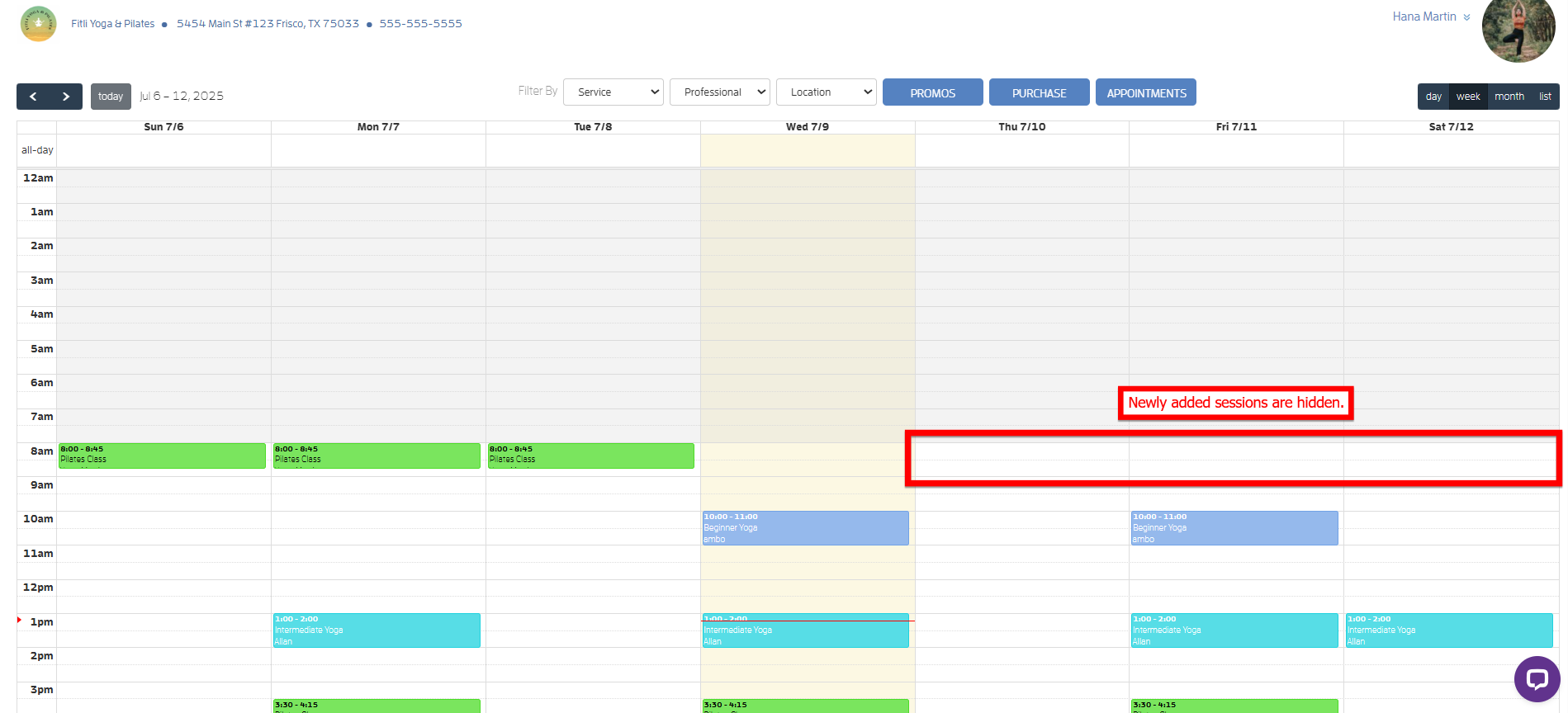
Note that if you've provided clients with a DIRECT link to the class for scheduling or booking, they will be able to book and view the class by clicking on the link. The "hidden" option only affects the public viewing of the schedule of clients.
How to 'hide' a session or class on your Business Calendar
Step 1: Head to your schedule and click the class you want to hide to open its profile.
Tip: In order to be able to "hide" a class, you first need to enable the ability on the services section then hit SAVE.
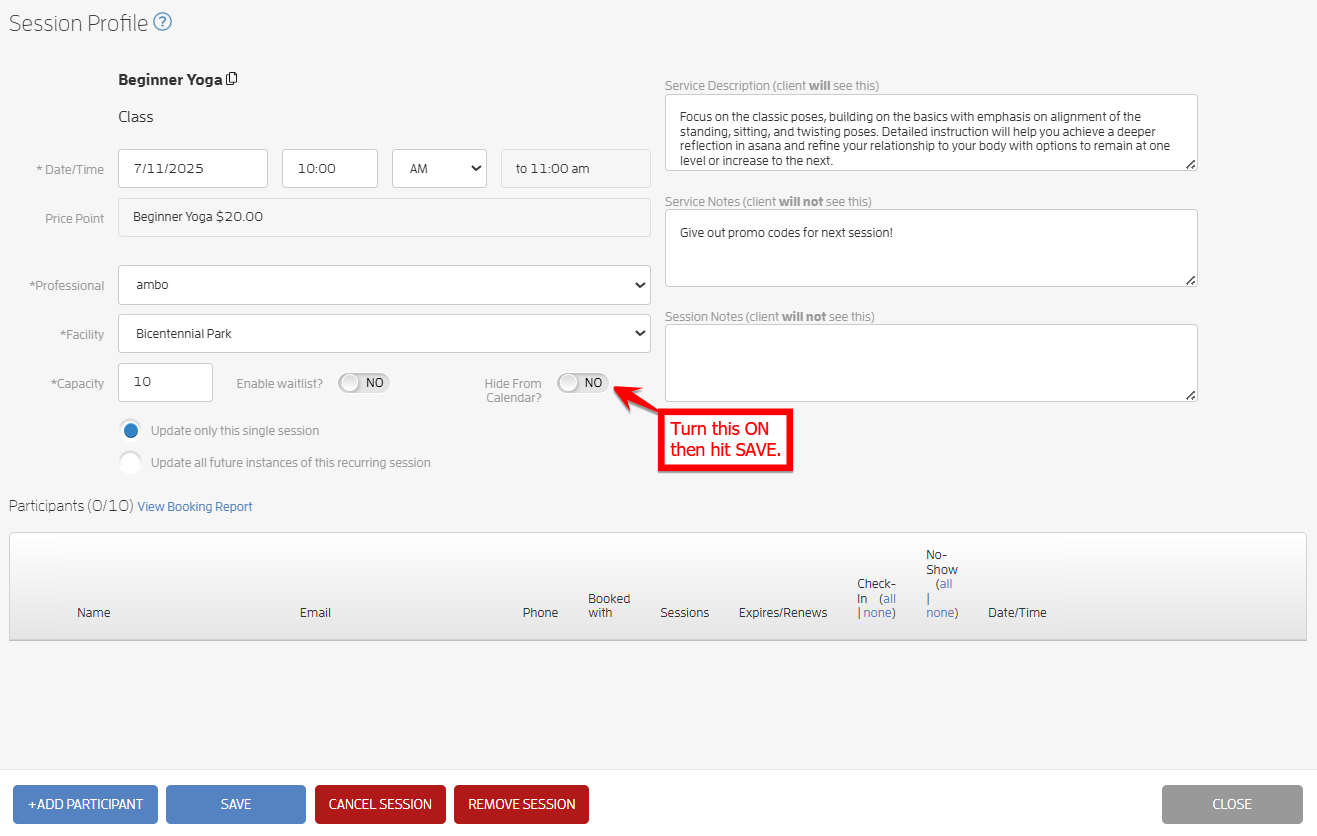
Step 2: On the Session Profile, turn on the "Hide From Calendar?" toggle and hit SAVE.
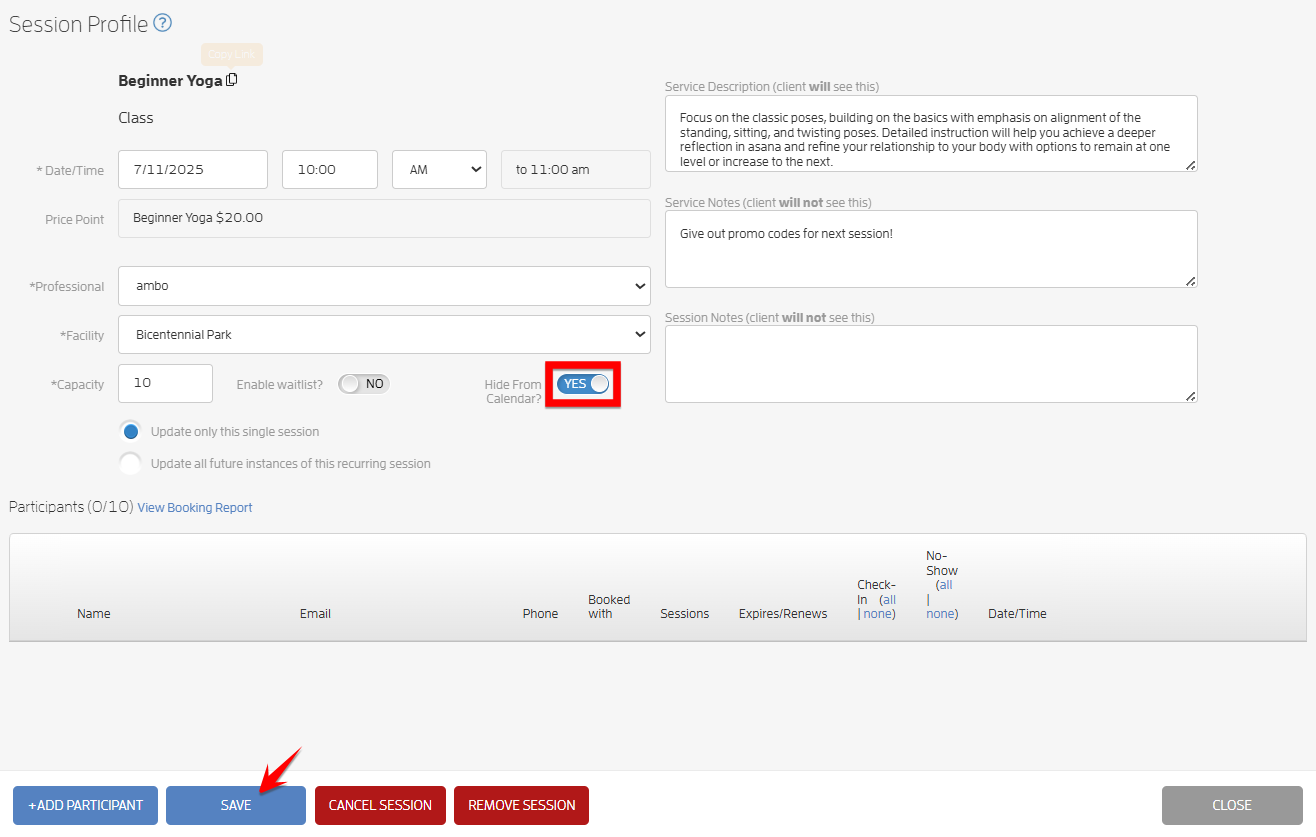
Step 3: Confirm the Class is Hidden.
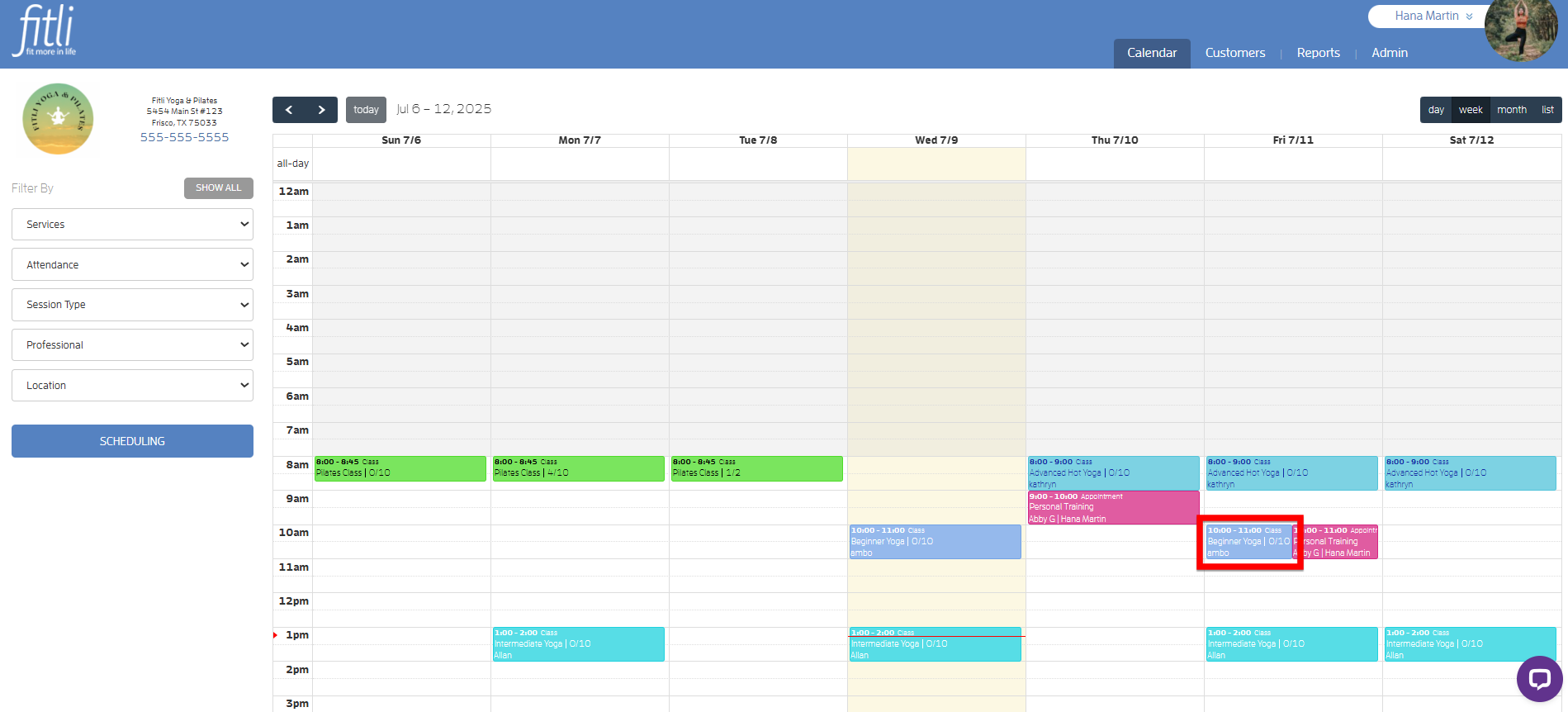
On the BUSINESS view of your class schedule, nothing will appear different, as you can still see the class.
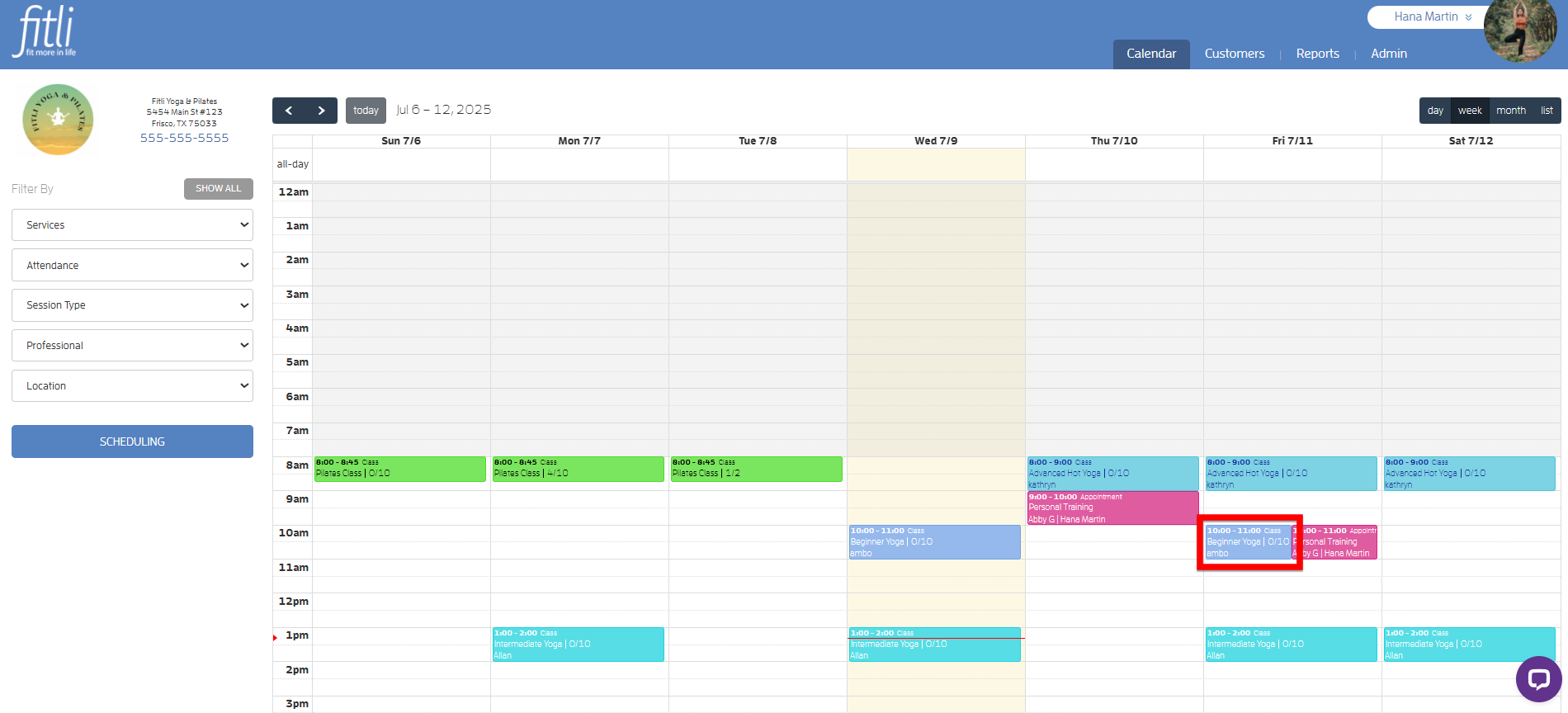
However, CLIENTS can no longer see the class on your schedule for the hidden class.
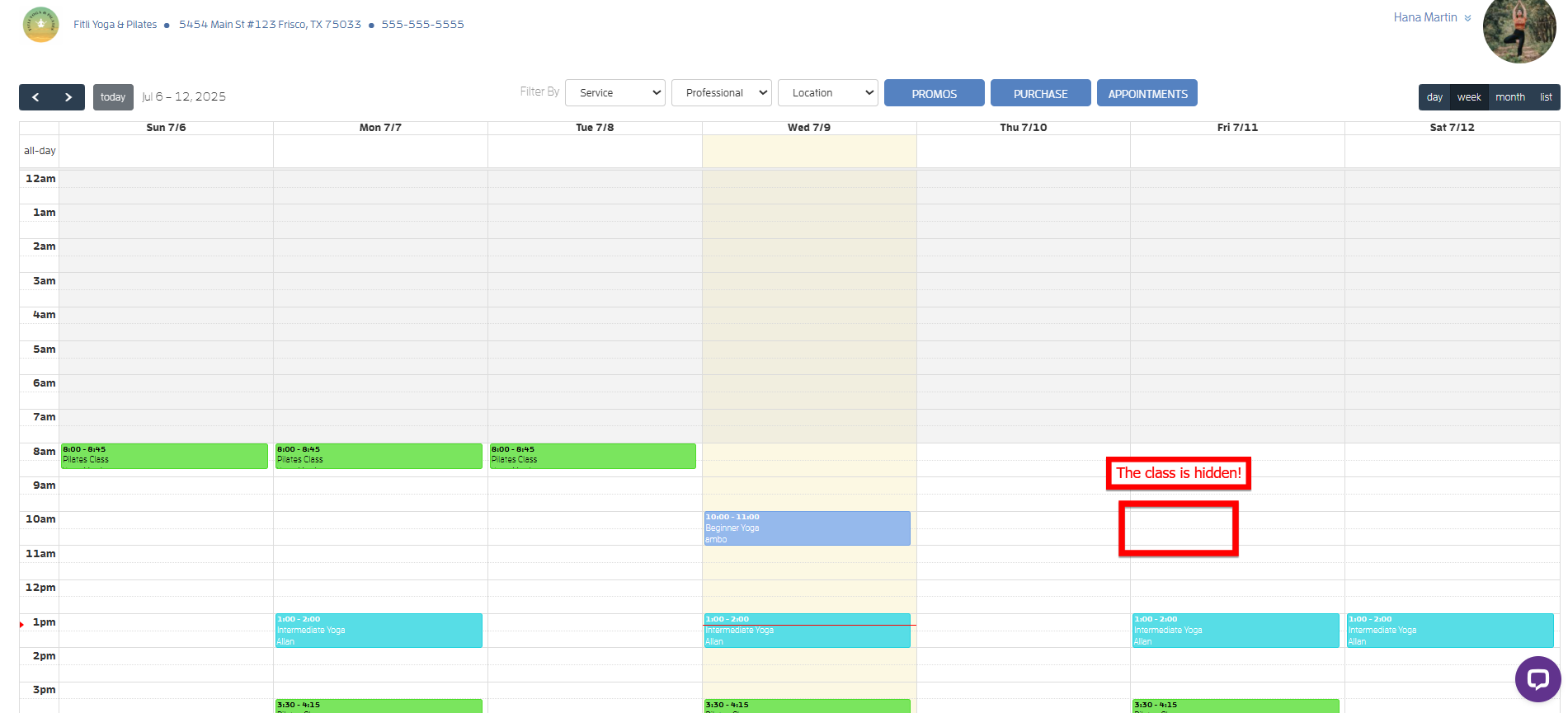
Note that if you've provided clients with a DIRECT link to the class for scheduling or booking, they will be able to book and view the class by clicking on the link. The "hidden" option only affects the public viewing of the schedule for clients.
Commonly Asked Questions:
Q: If I turn OFF the "Hide from Public" toggle for my service that was hidden, will the hidden classes show up on my public calendar?
A: Unfortunately, the classes won't show up. You actually have to go back into the specific class or series of classes, and make it visible. An easier way of doing this is to go into a specific class, or series of classes, and just click SAVE or choose the option to "Update All future instances" then click SAVE. These steps will show your classes back up on your public calendar.
That's about it! Any questions? Chat with us or send us an email to support@fitli.com.