
Definition:
De-activating a service means to make an active service become inactive. An inactive service will not be listed when you create a new session.
Please note, de-activating a service will not remove or cancel any session that is tied with the service.
Steps:
Step 1 - Log in to your Fitli business account.
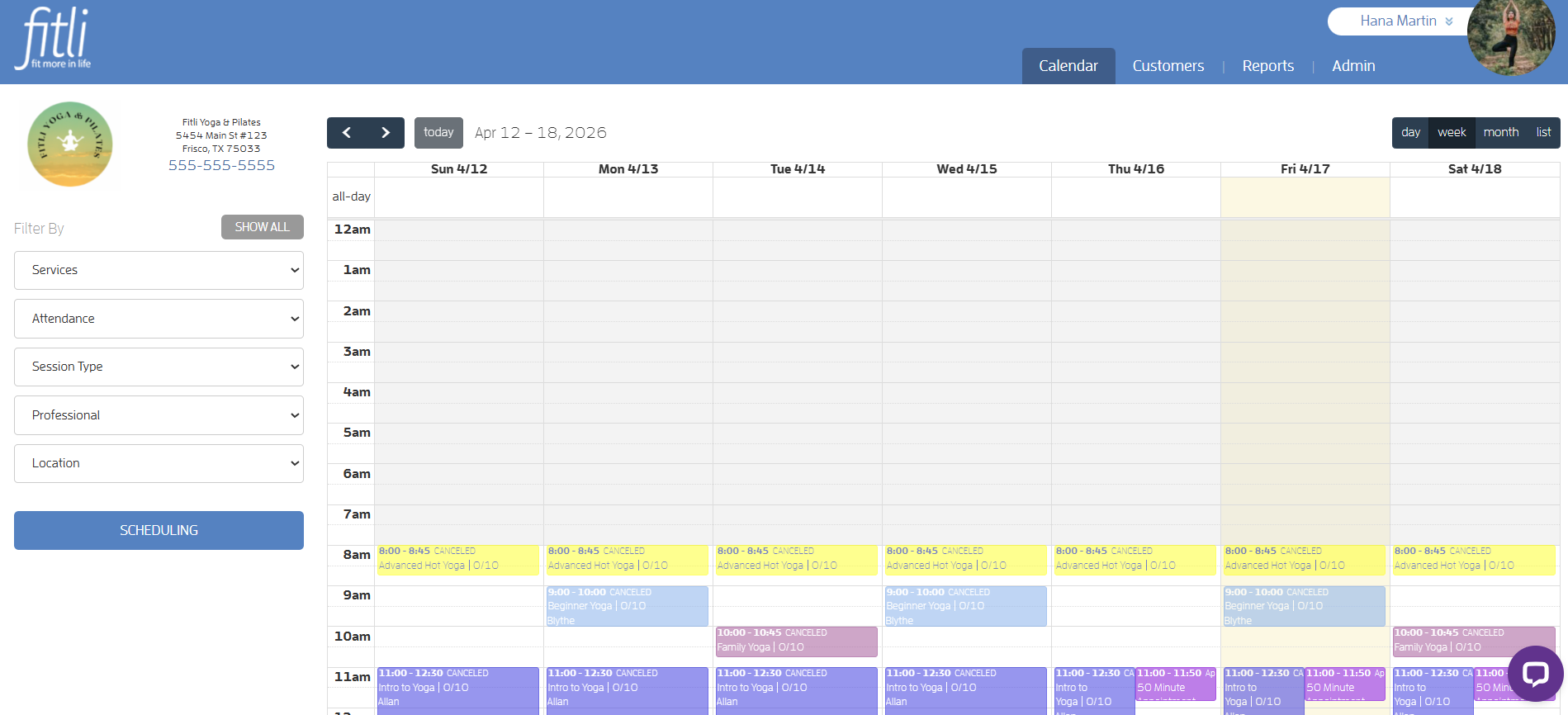
Step 2 - Go to "Admin" on the top menu bar, click "Products & Services" on the left side.
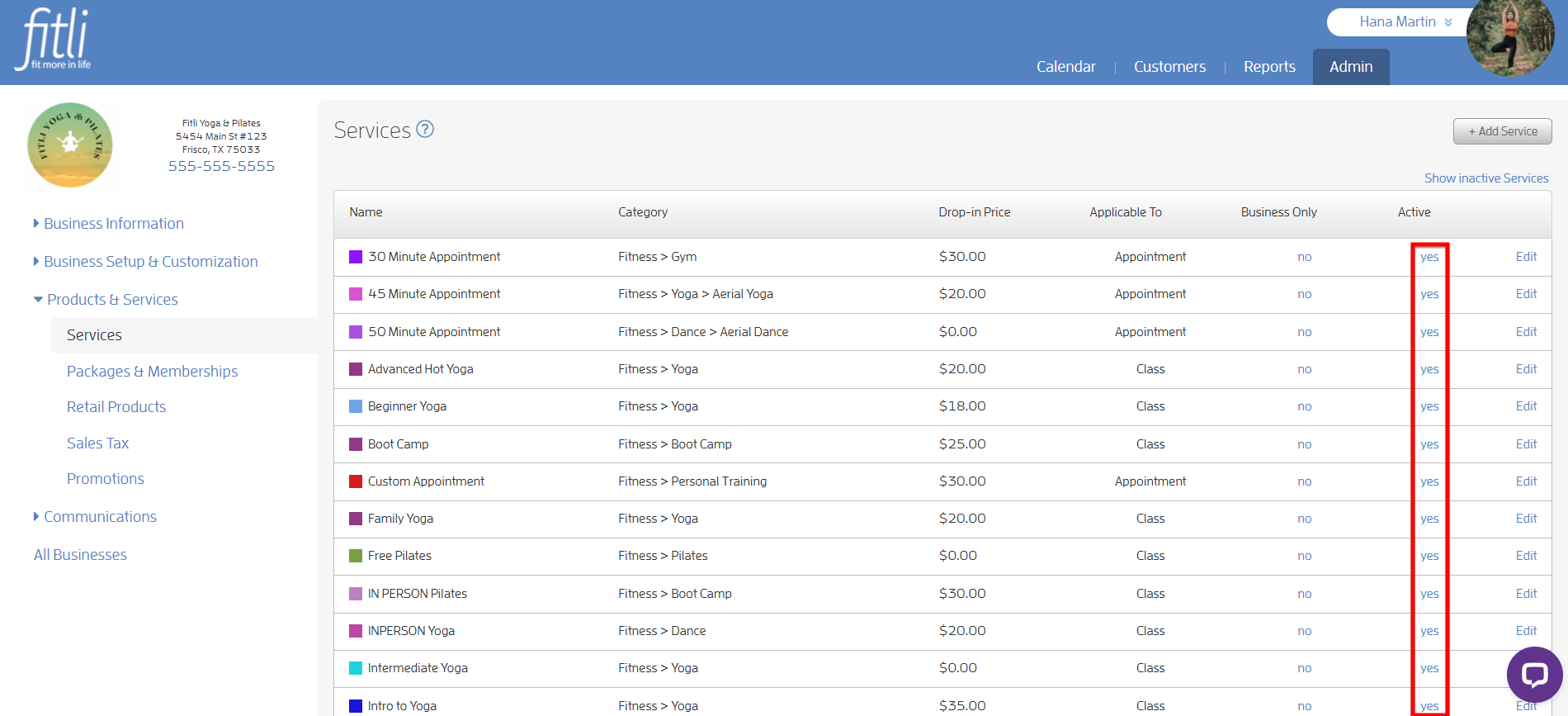
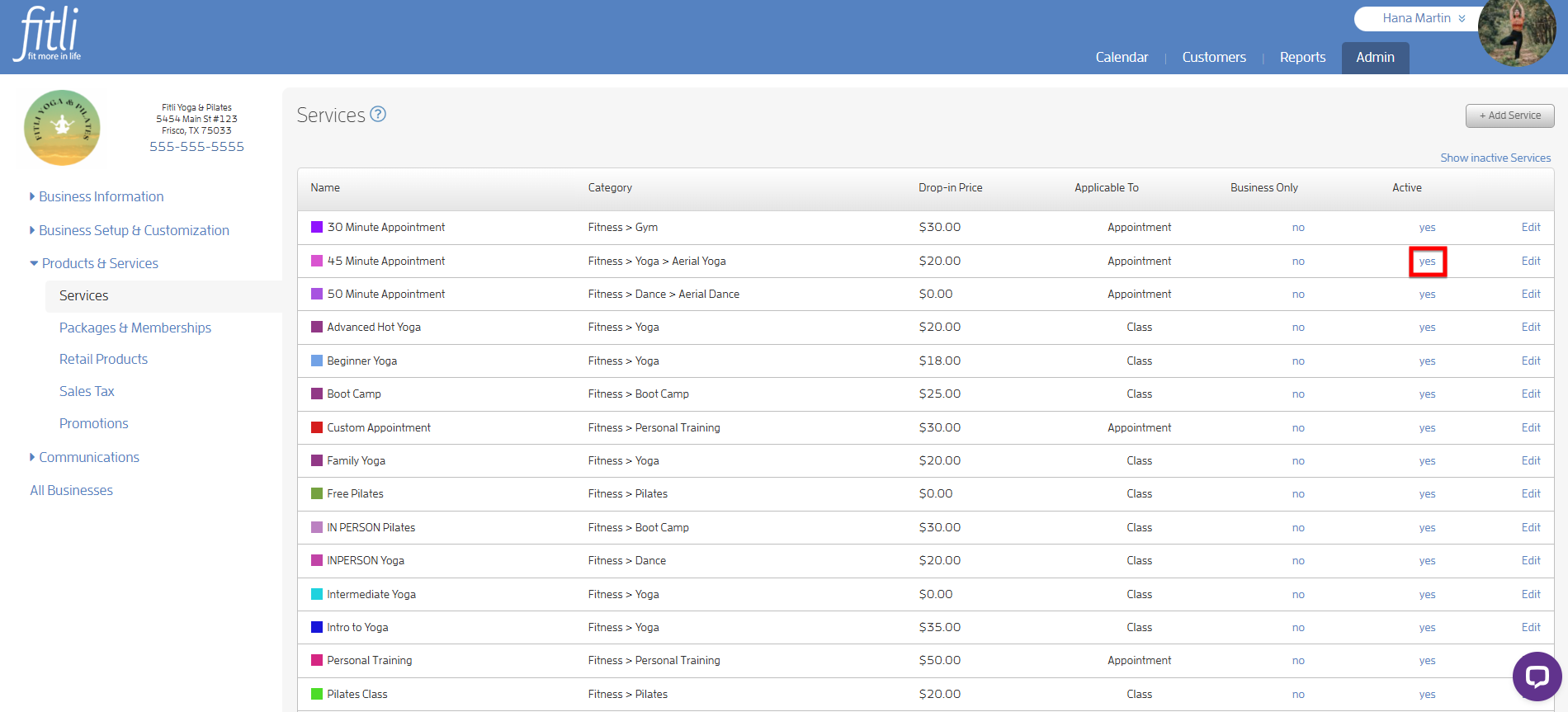
The first page is "Services": list of services (aka. what you are offering to your clients).
You will see the "Active" column on this list. All active services have the value "yes" under this column.
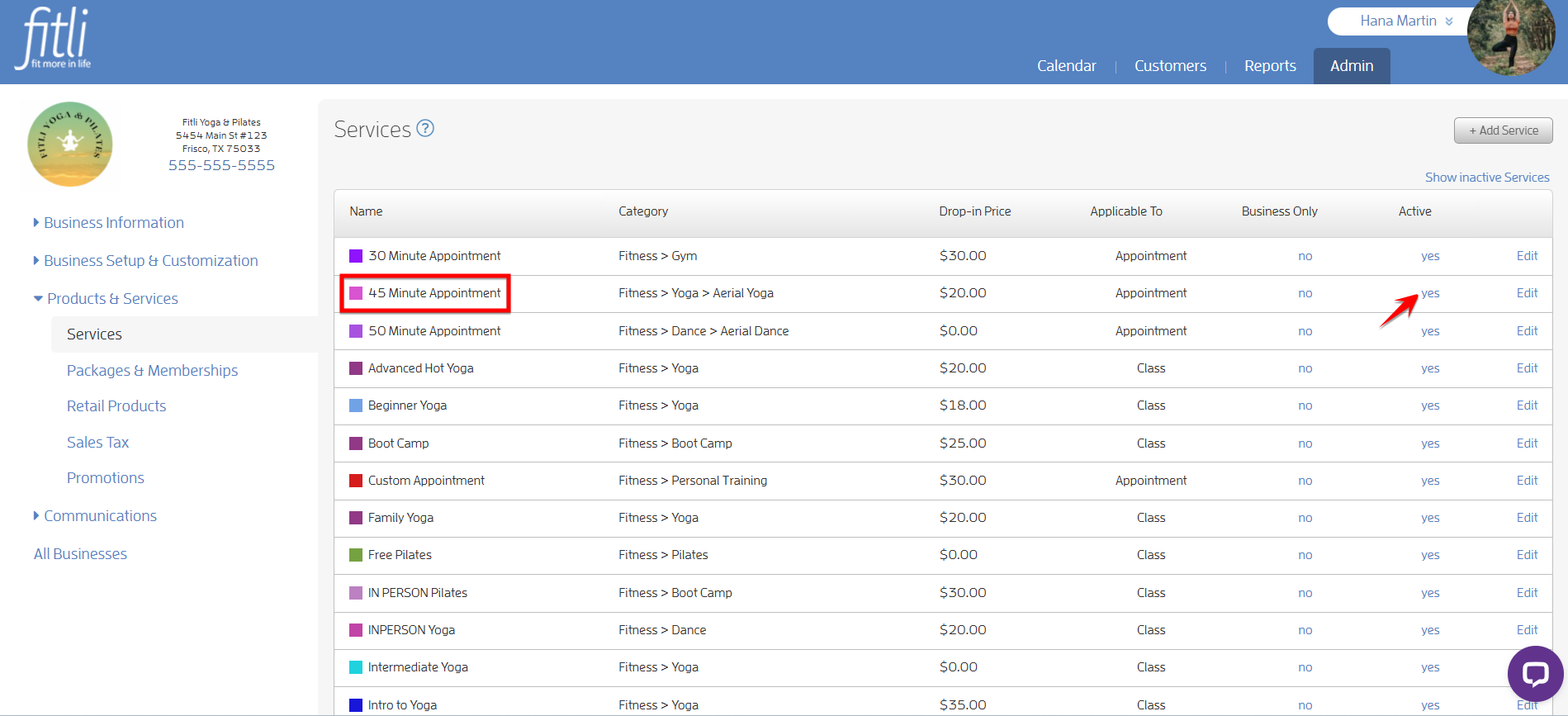
Step 3 - To deactivate a service, click on the "yes" link on the service row you intend to deactivate.
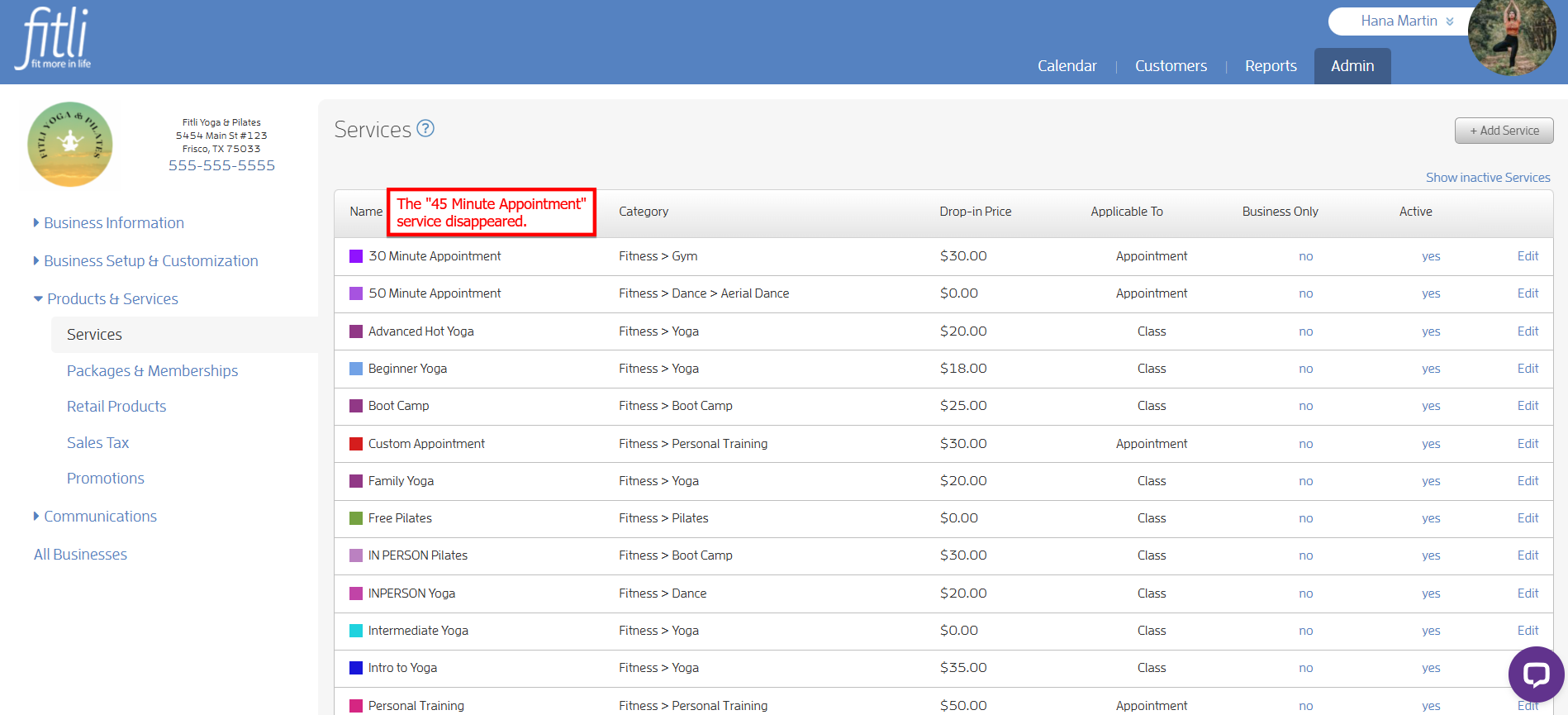
As soon as you click on the "yes" link, the service will disappear from the list. It just means that this service becomes inactive.
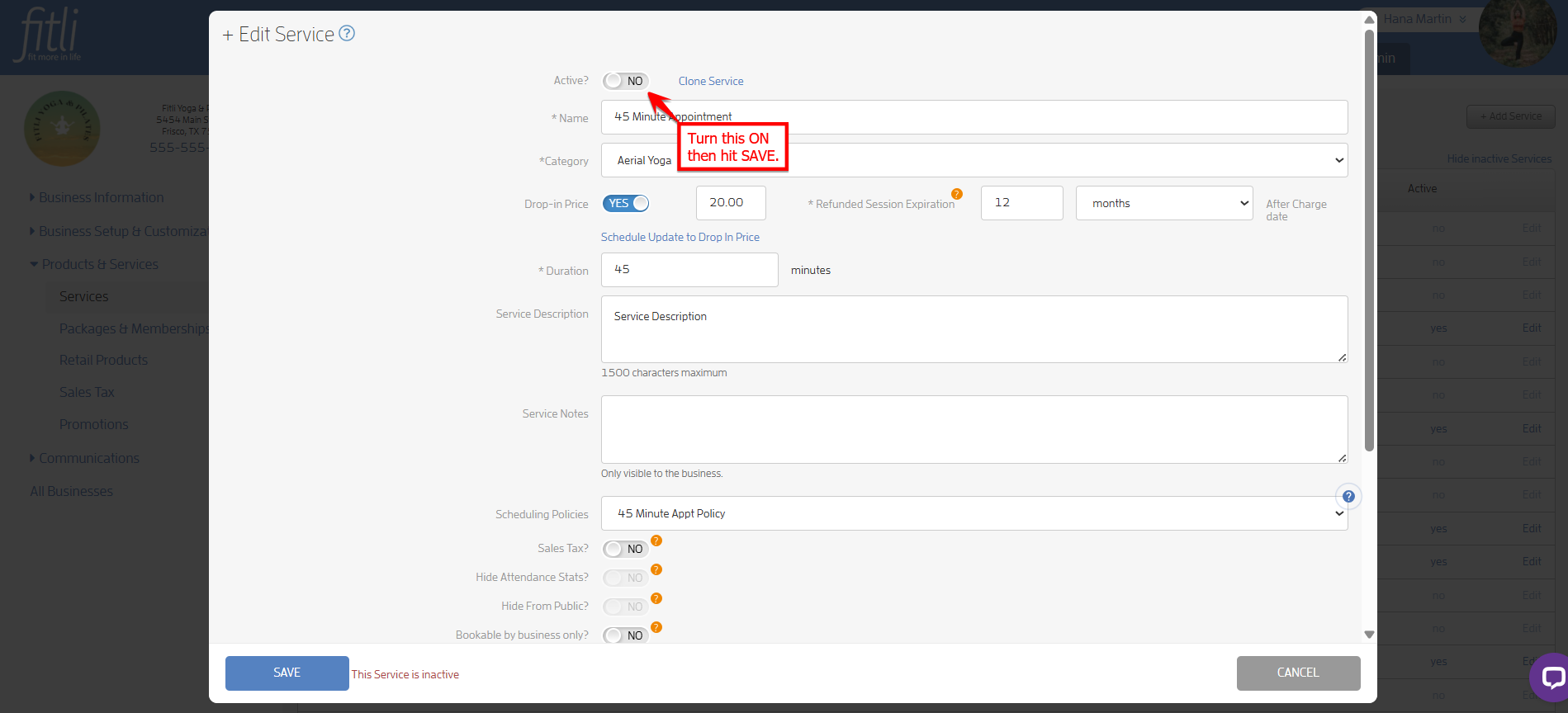
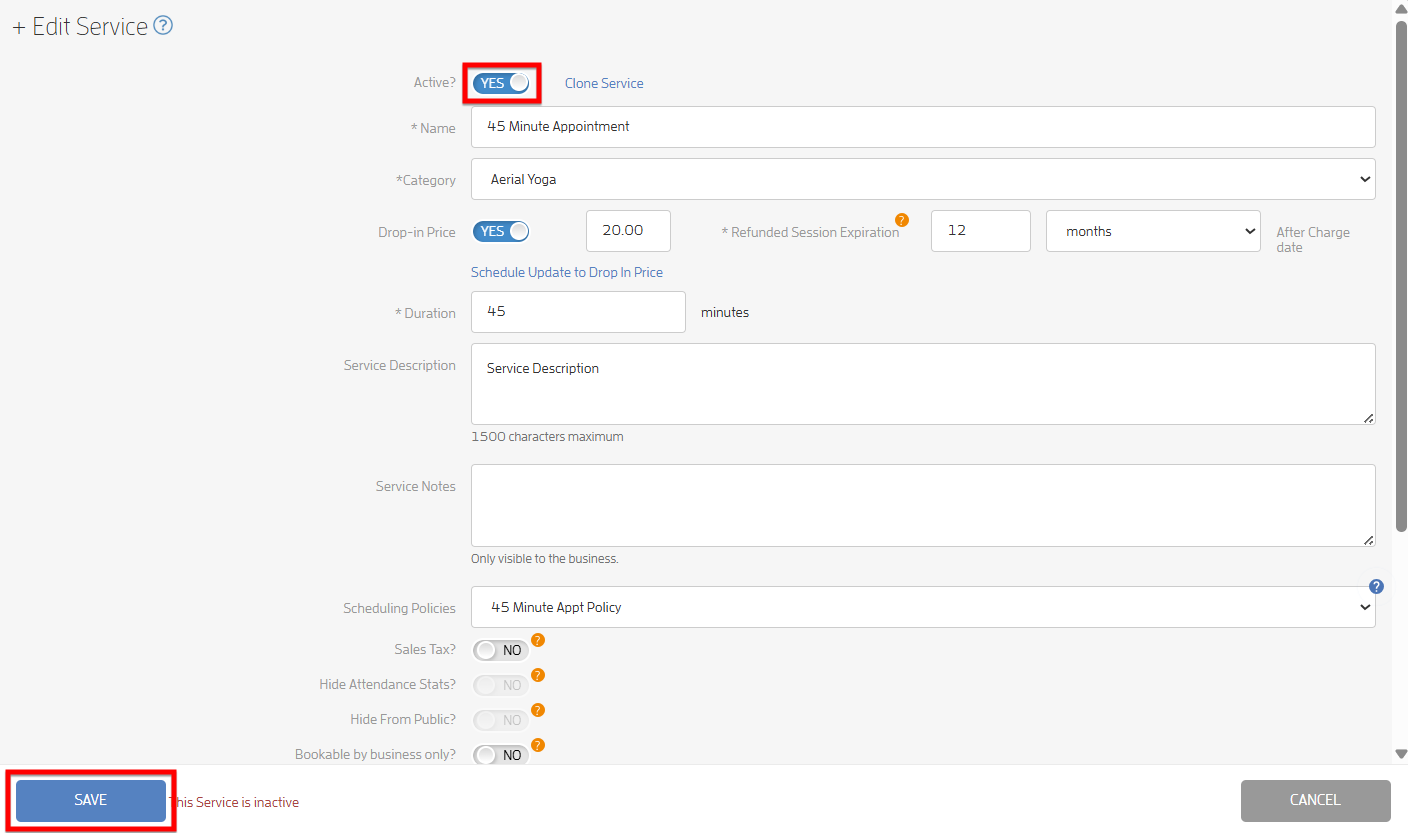
Alternatively, click "Edit" beside the service, turn off the "Active" toggle and hit SAVE.
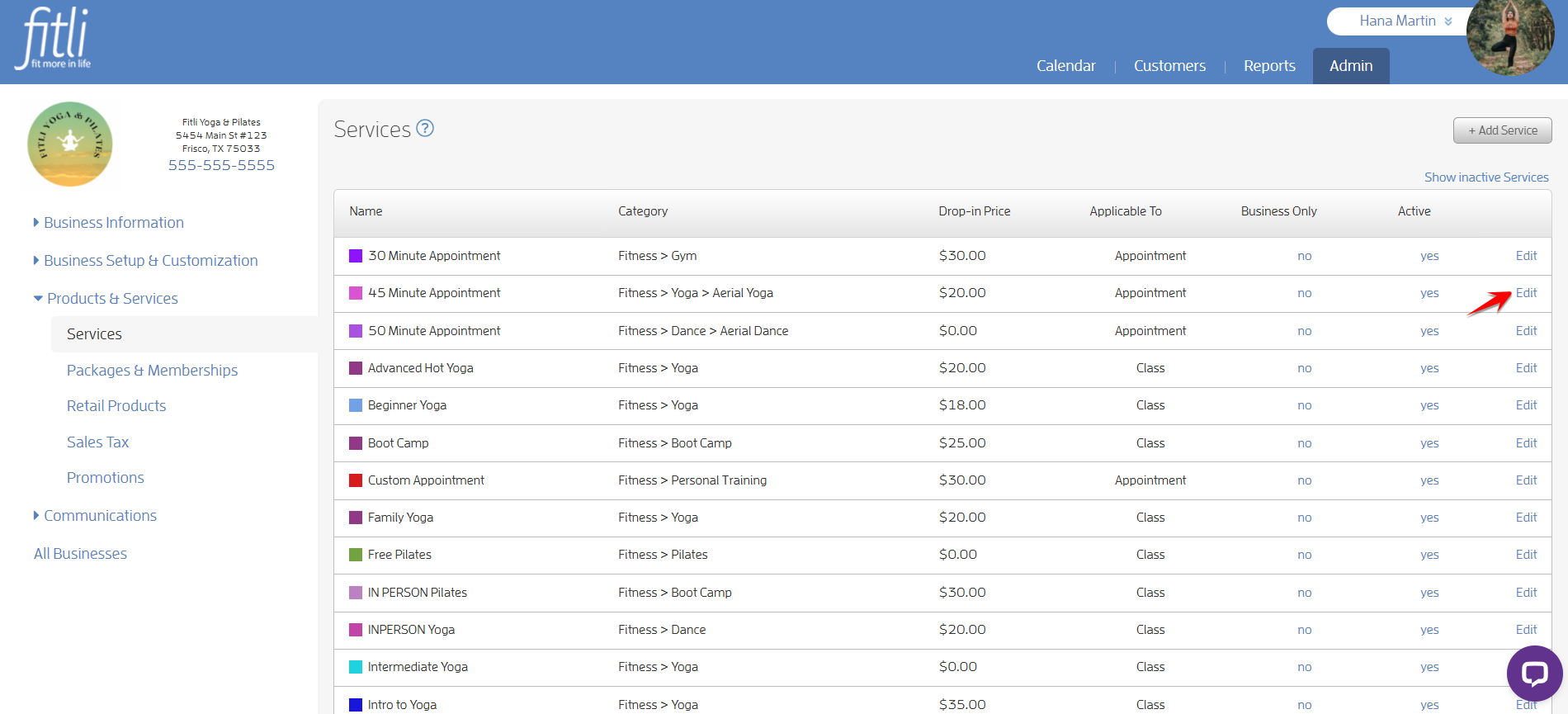
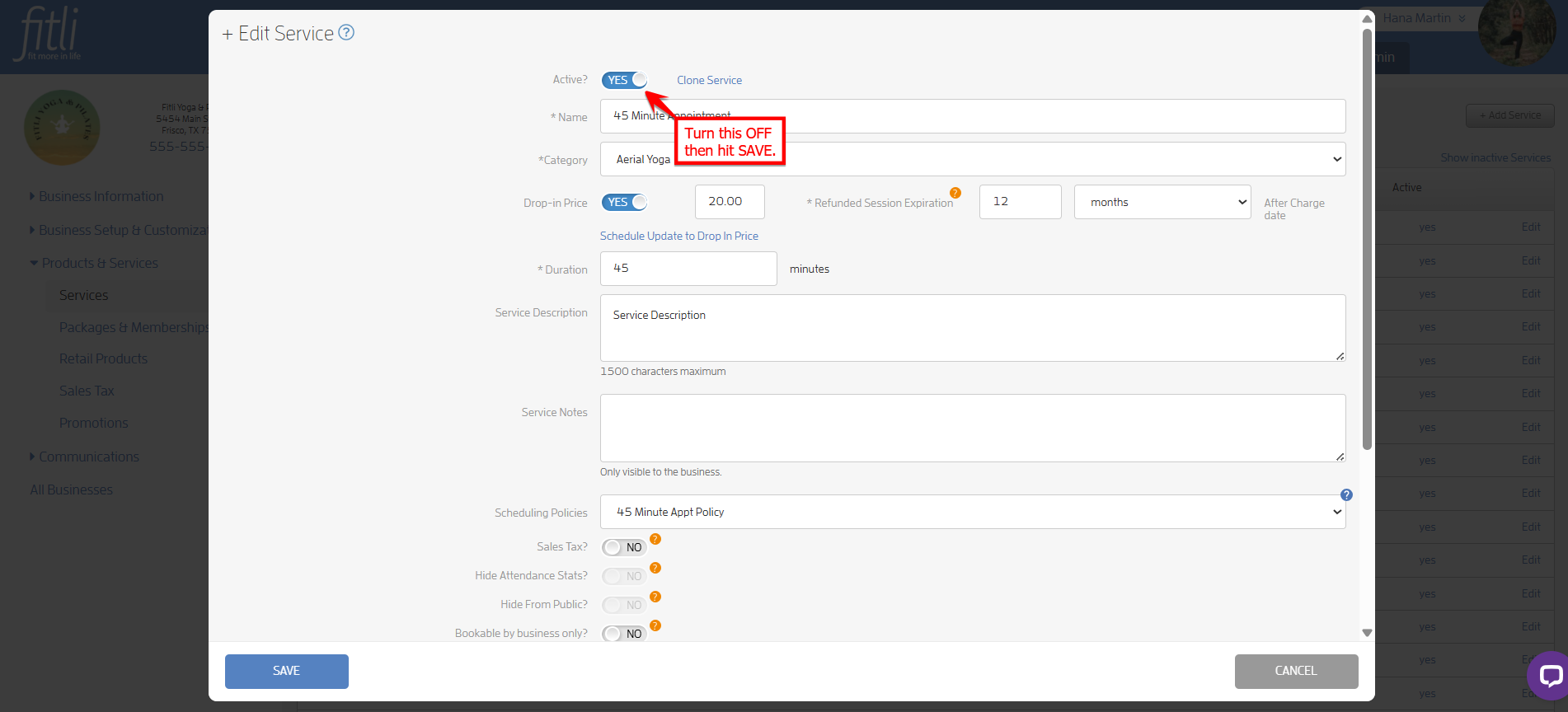
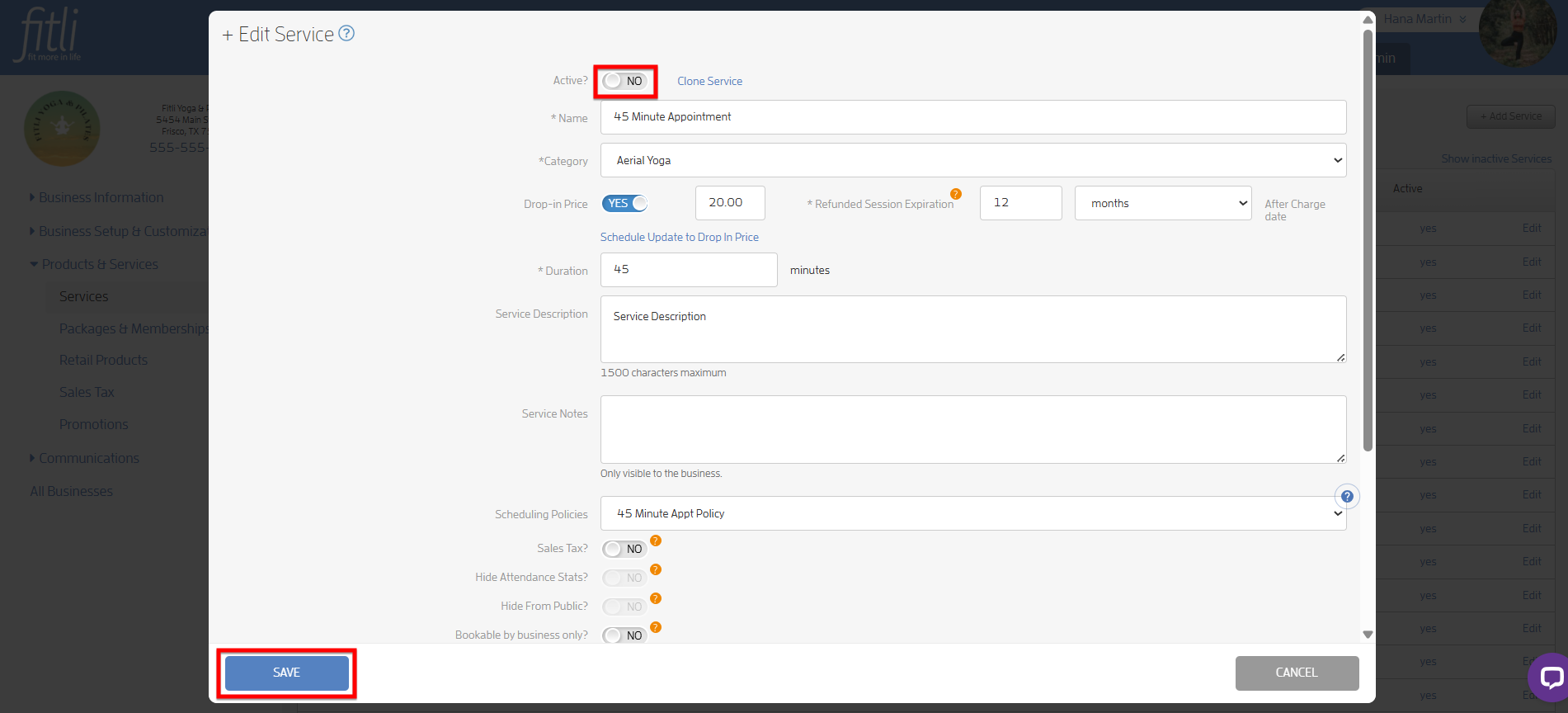
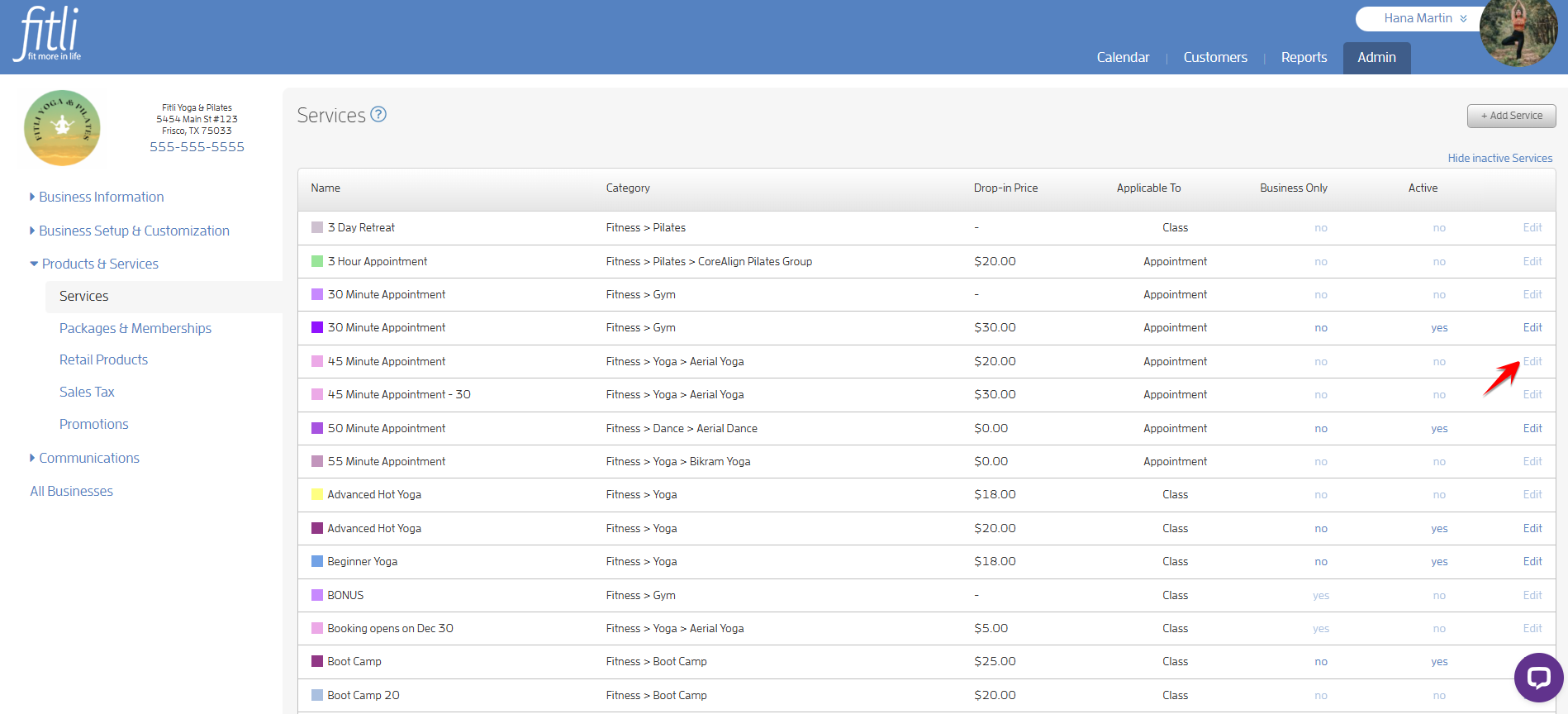
To show all inactive services, click on the "Show inactive Services" link right below the "+Add Service" button. As soon as you click on this link, it will show the inactive service/s together with the active services and it will be grayed-out.
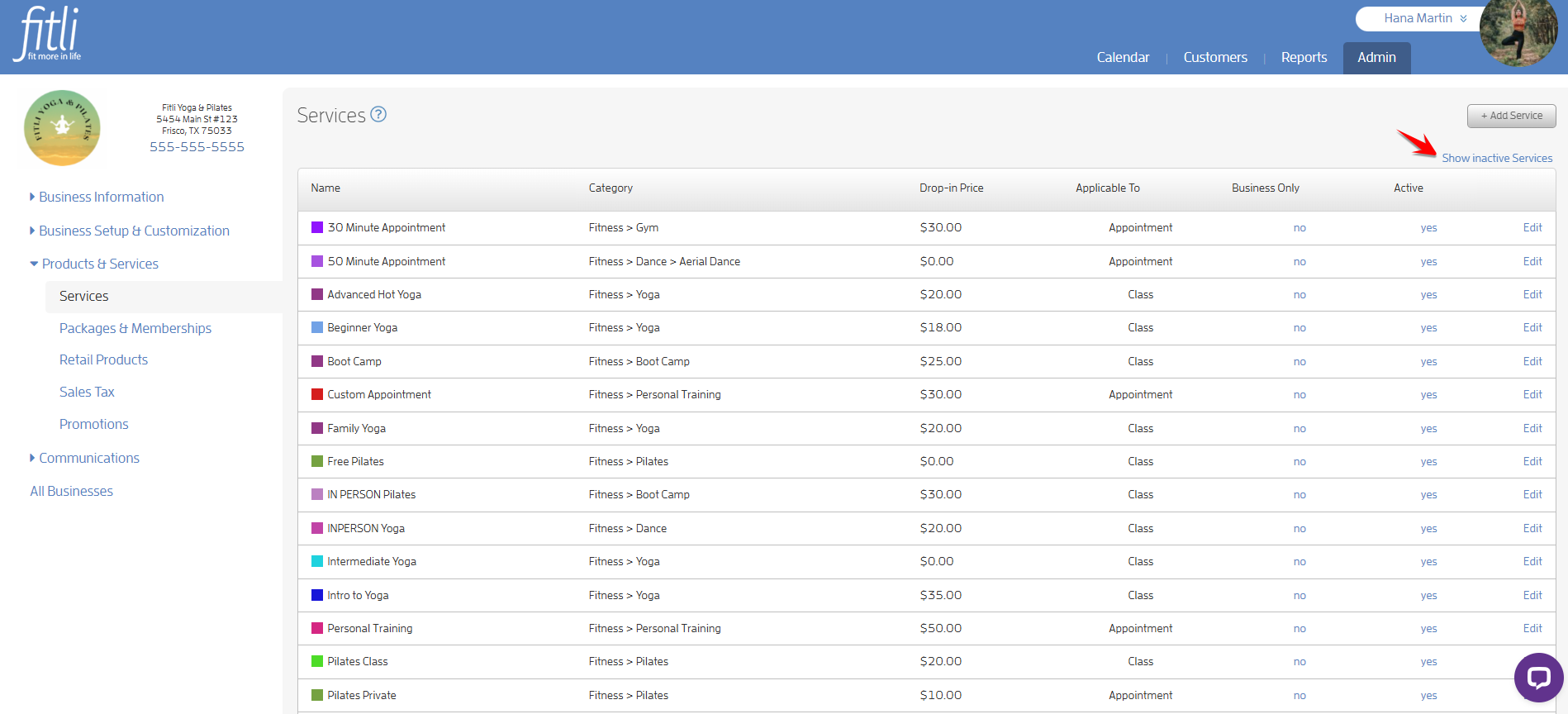
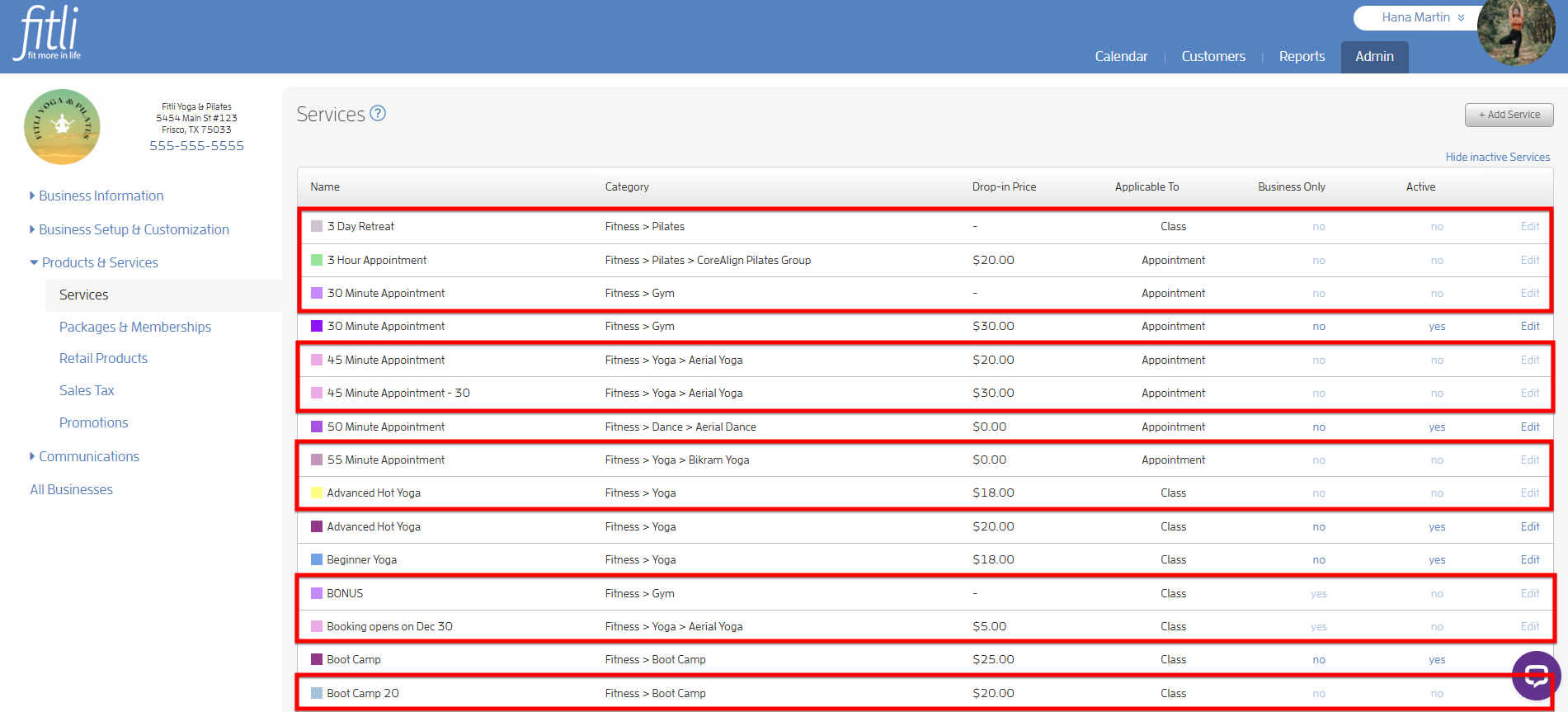
To show all active services only, click on the "Hide inactive Services" link.
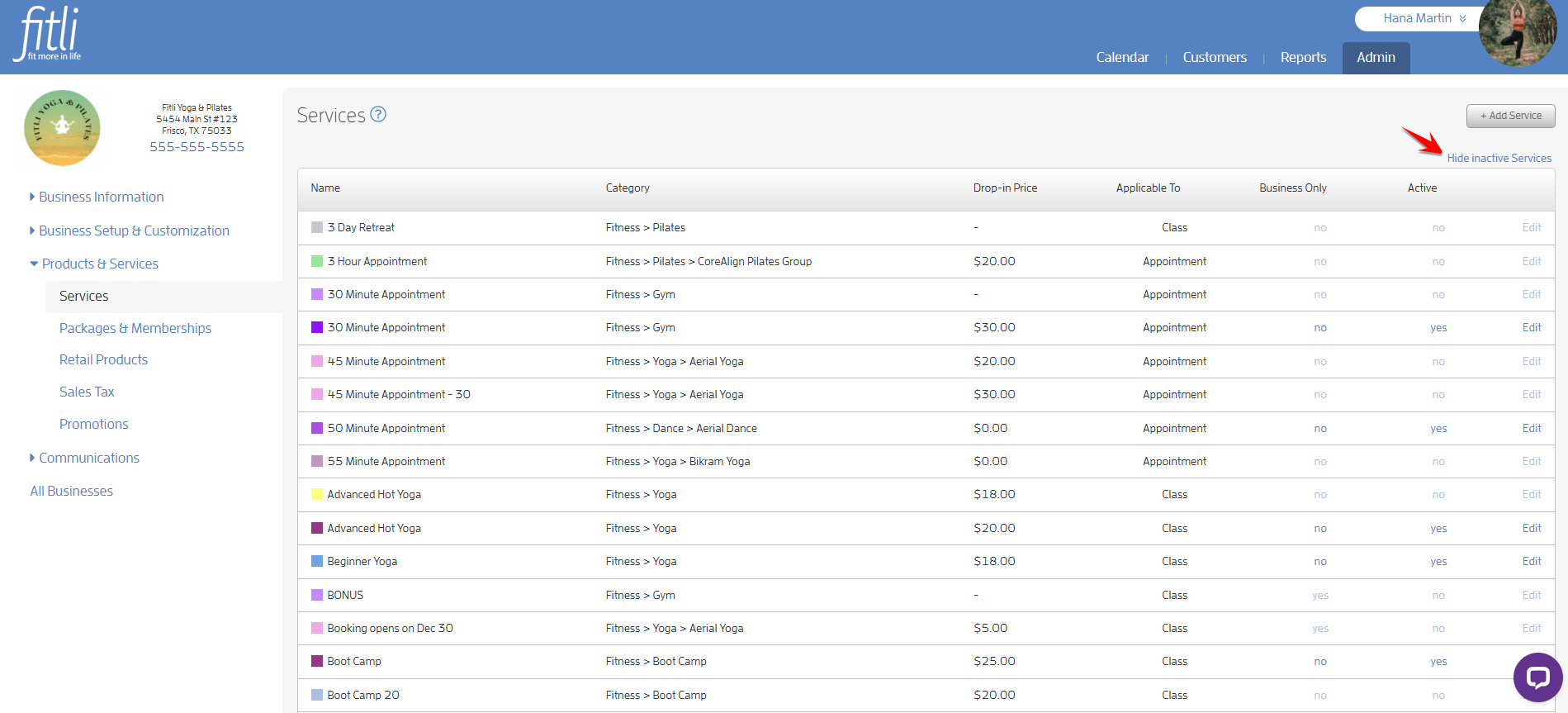
To re-activate a service, click "Show inactive Services".
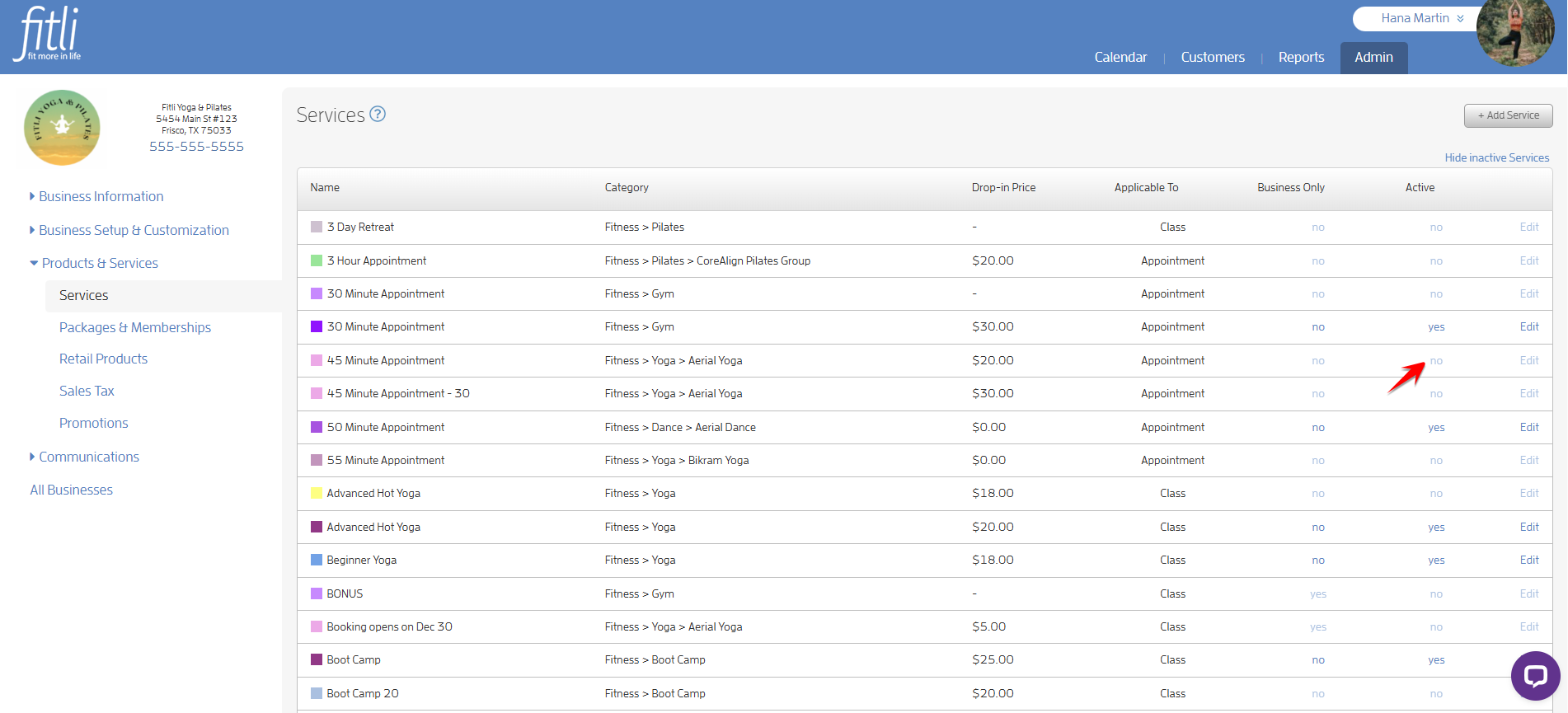
Click on the "no" link of the inactive service. This will toggle the value Active from "no" to "yes".
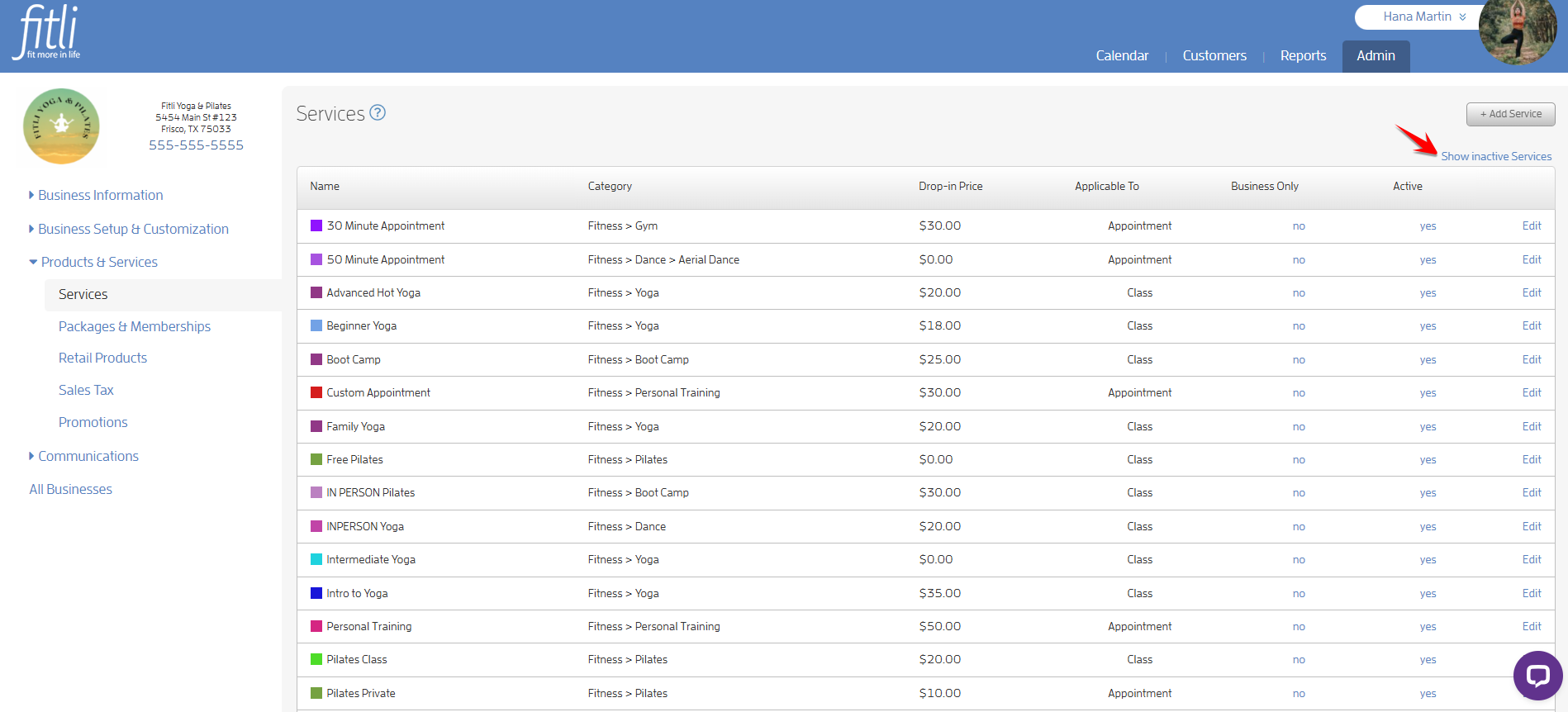
Alternatively, click "Edit" beside the inactive service, turn on the "Active" toggle and hit SAVE.
That's it! If you have any questions, chat with us or send us an email to support@fitli.com.