
Do you need to clone an existing service with mostly the same information as another one? If so, this feature allows you to clone any existing service and edit the details to make small changes.
IMPORTANT:
When a service is cloned, it creates a brand new product. Existing bookings are not updated automatically. If the cloned version is meant to replace it, you can deactivate the old service and add new classes for the cloned service.
If you are updating pricing, previously booked sessions with the old pricing will still appear on your calendar, even if you have deactivated the older version of the service.
Cloning Existing Services
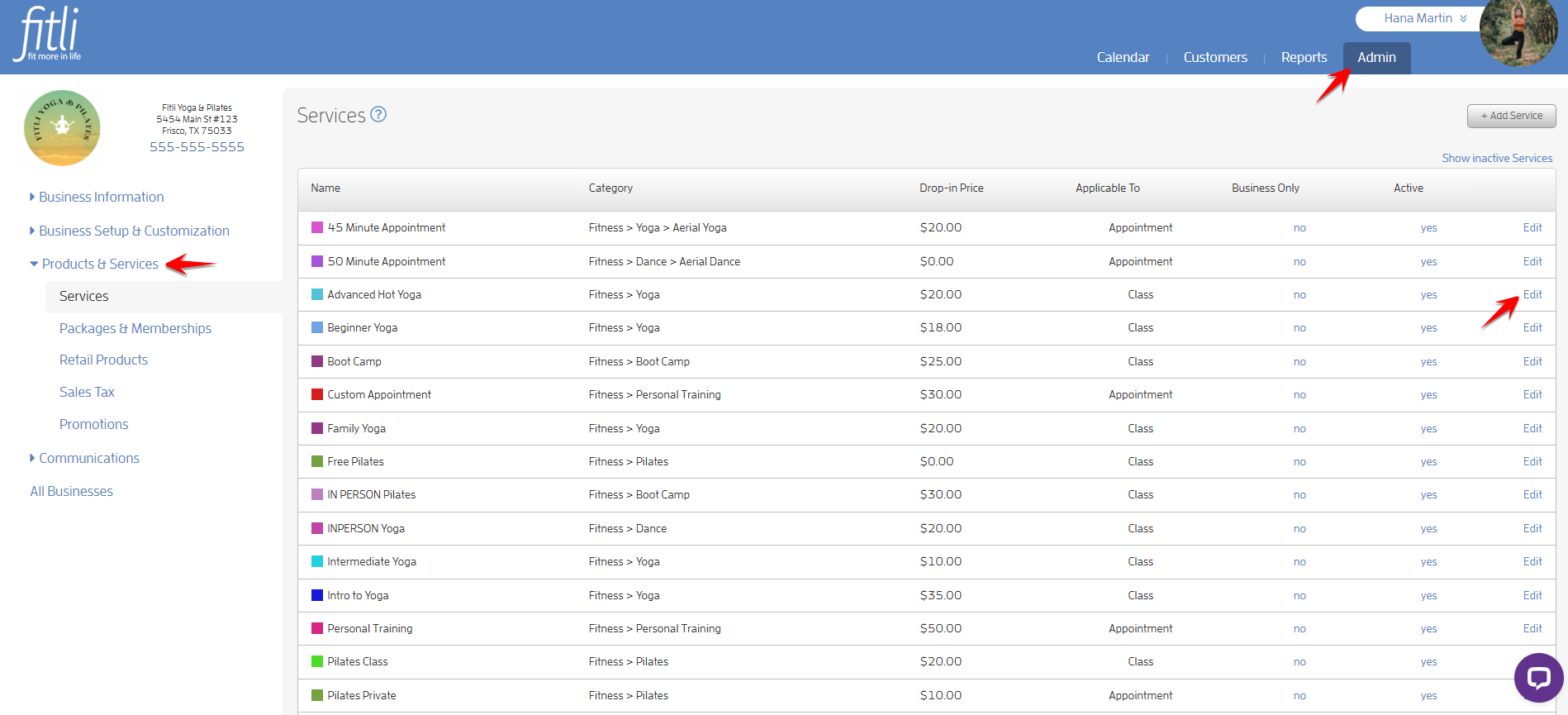
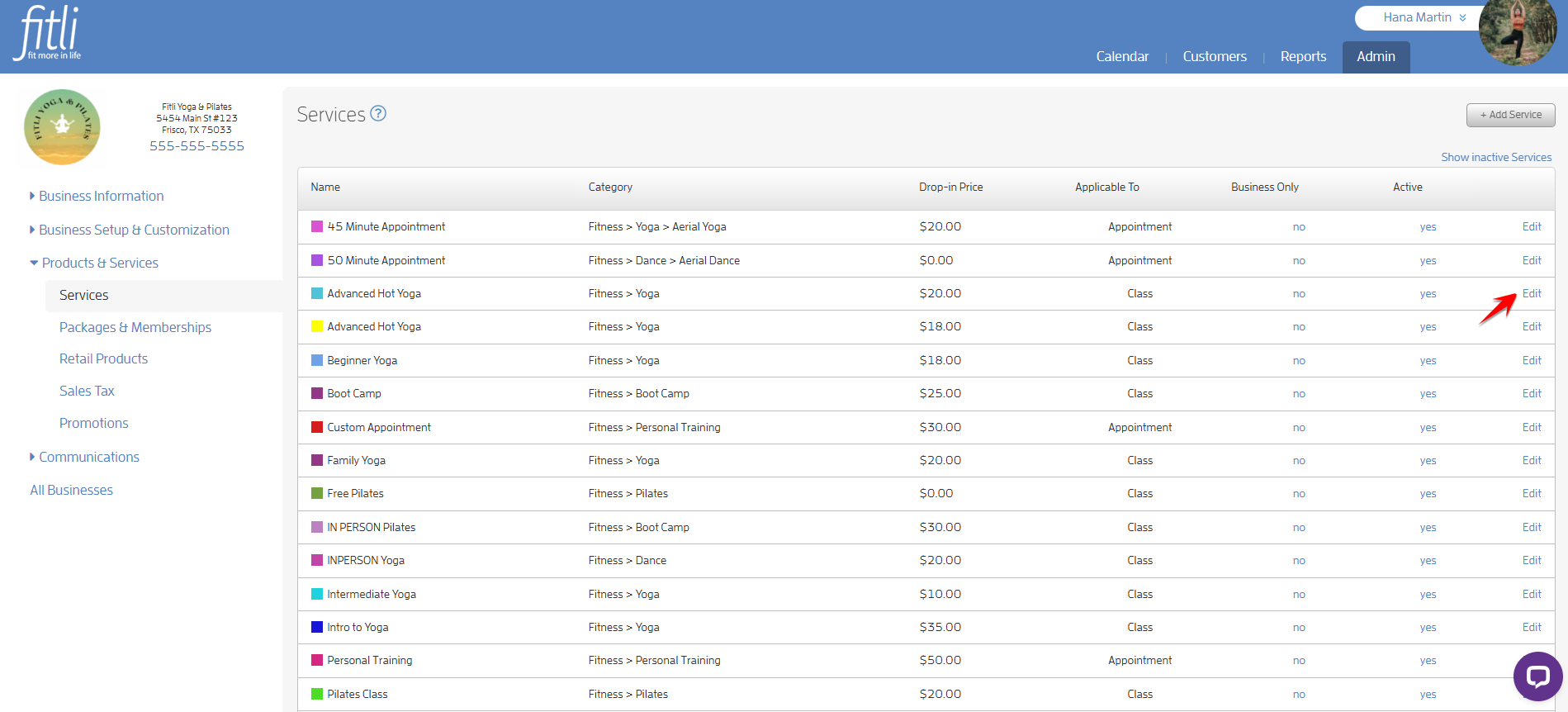
To do this, go to the ADMIN section. Click "Products & Services" on the left side to be directed to “Services.” Click "Edit" next to the service you want to clone.
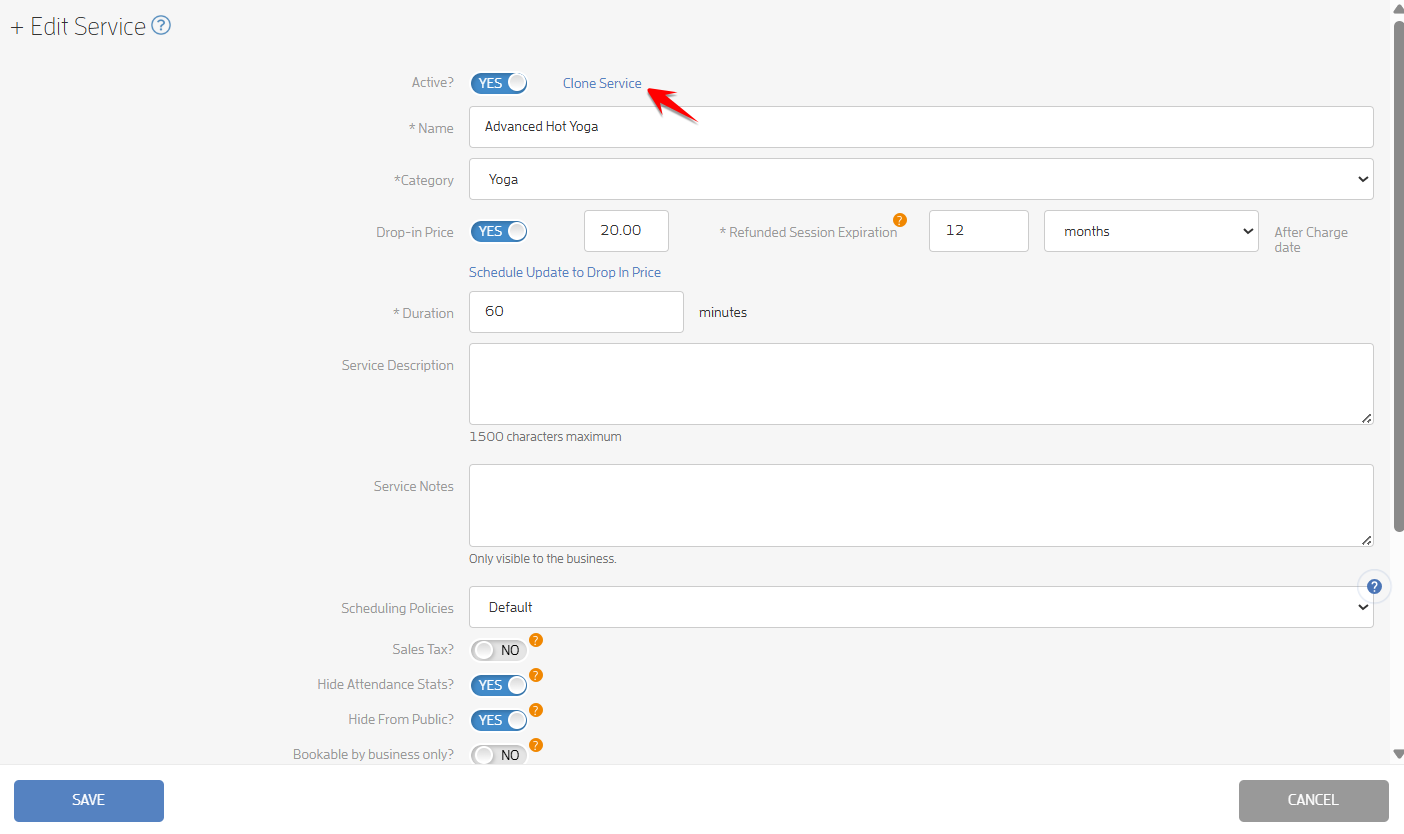
On the "+ Edit Service" modal, click the "Clone Service" link at the top.
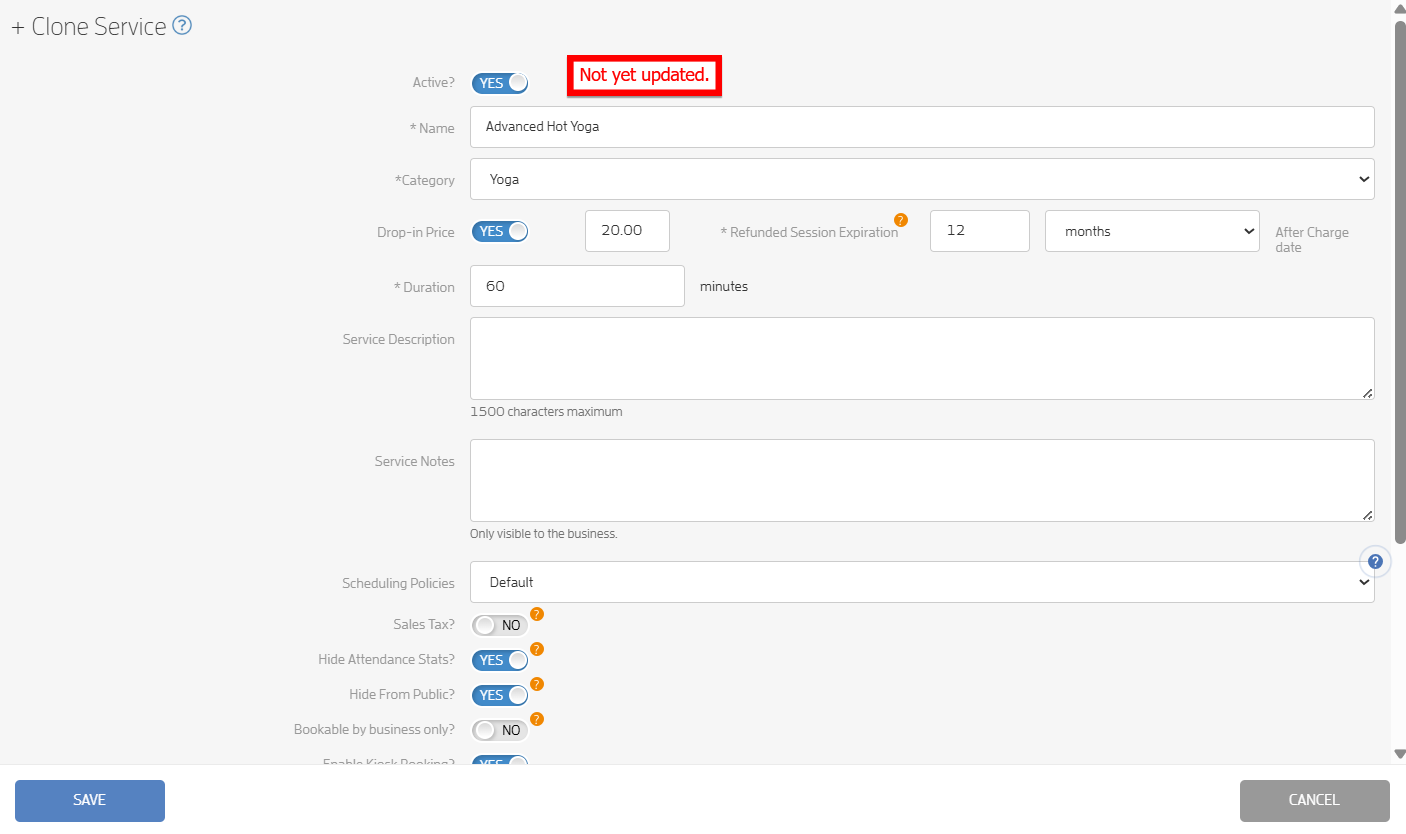
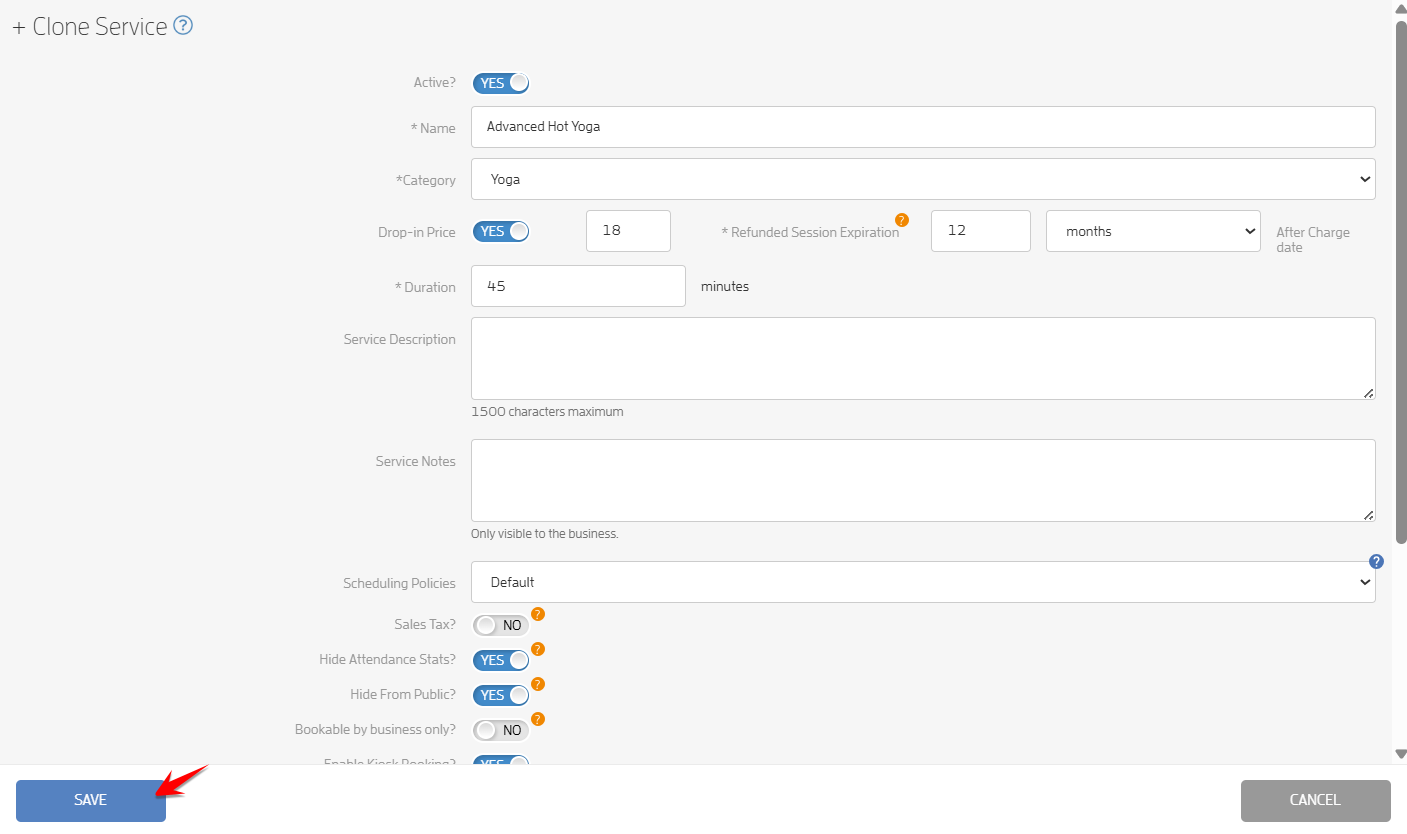
You will be directed to the "+ Clone Service" modal. From here, you can edit the service’s details and hit SAVE. Otherwise, you can just click SAVE and edit it later. In the example below, I’ll change the service’s drop-in price, duration and color.
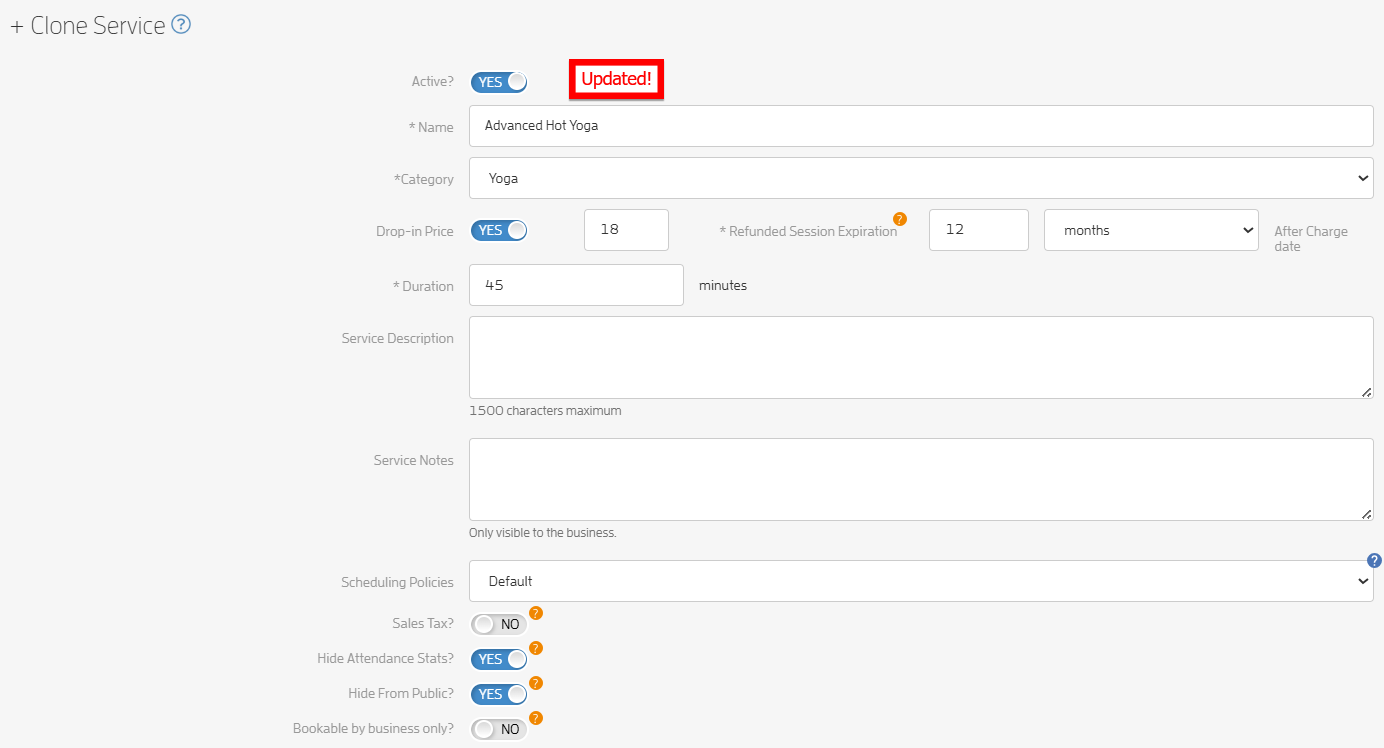
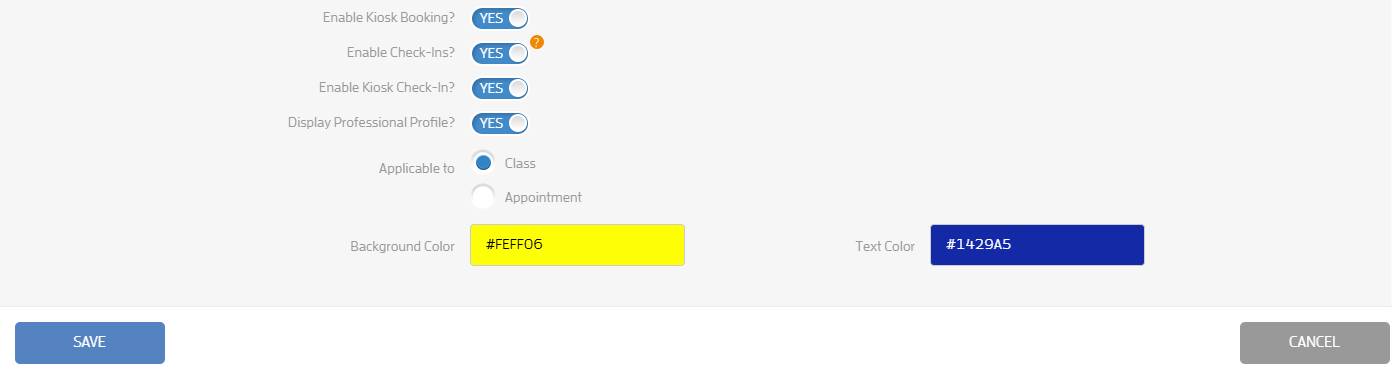
Click SAVE to save your changes.
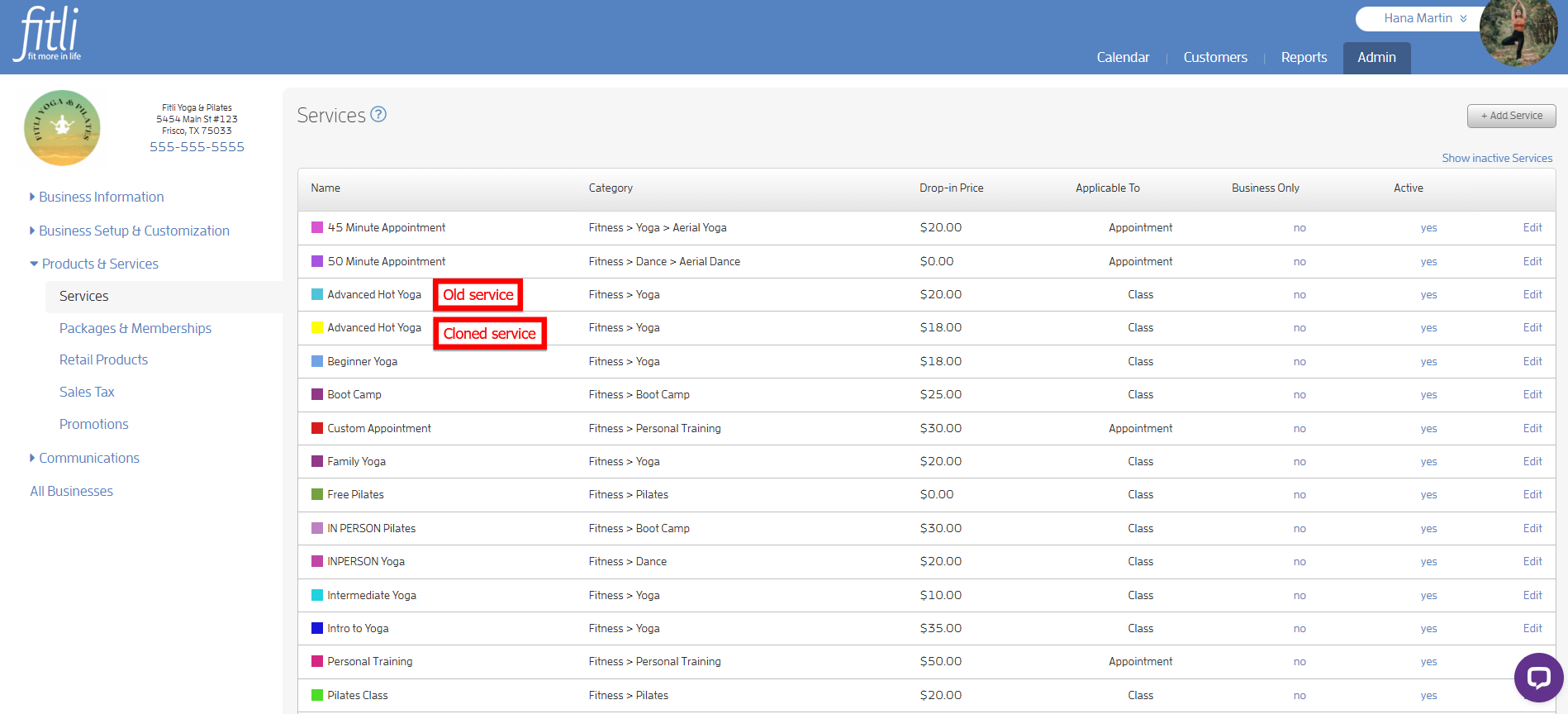
That is it! You will see both the old service and the cloned service on the Services page.
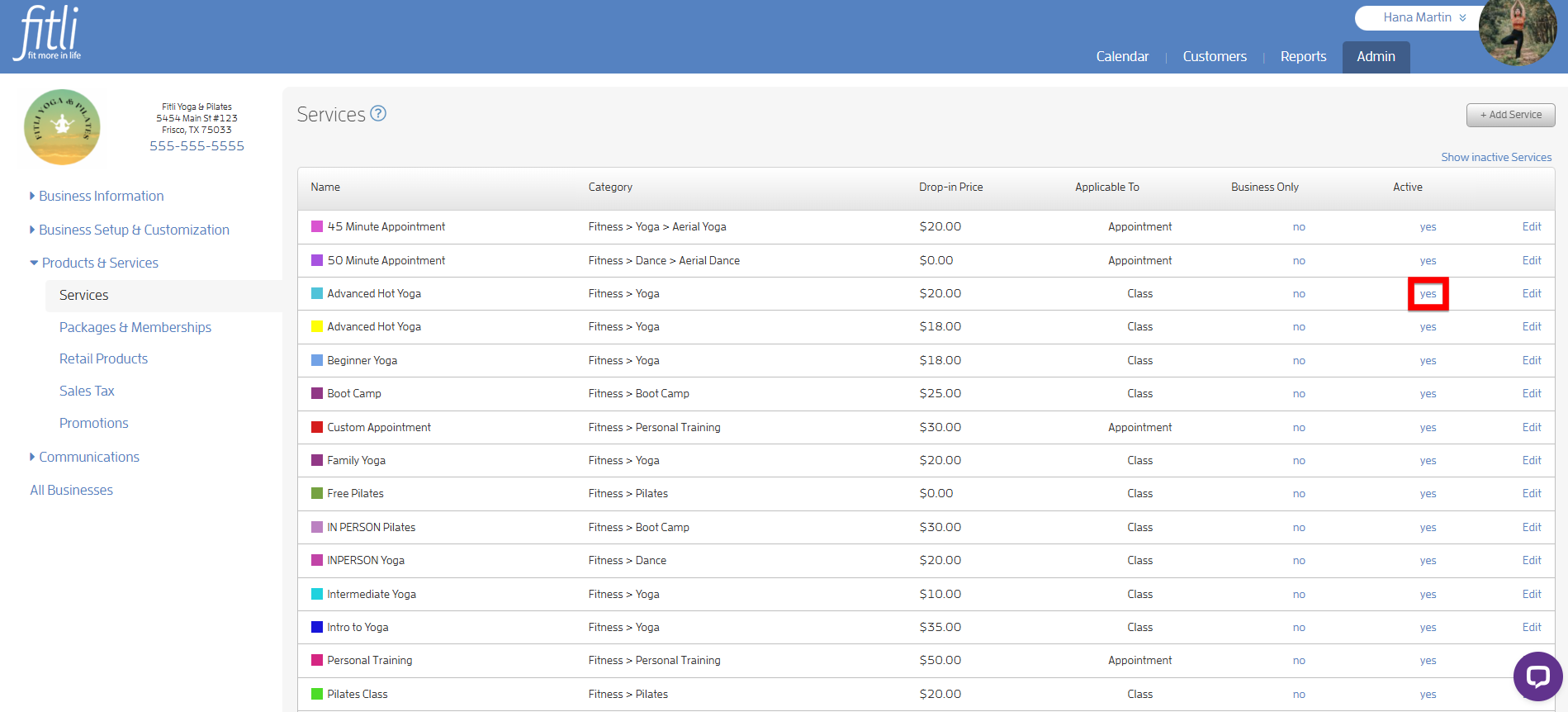
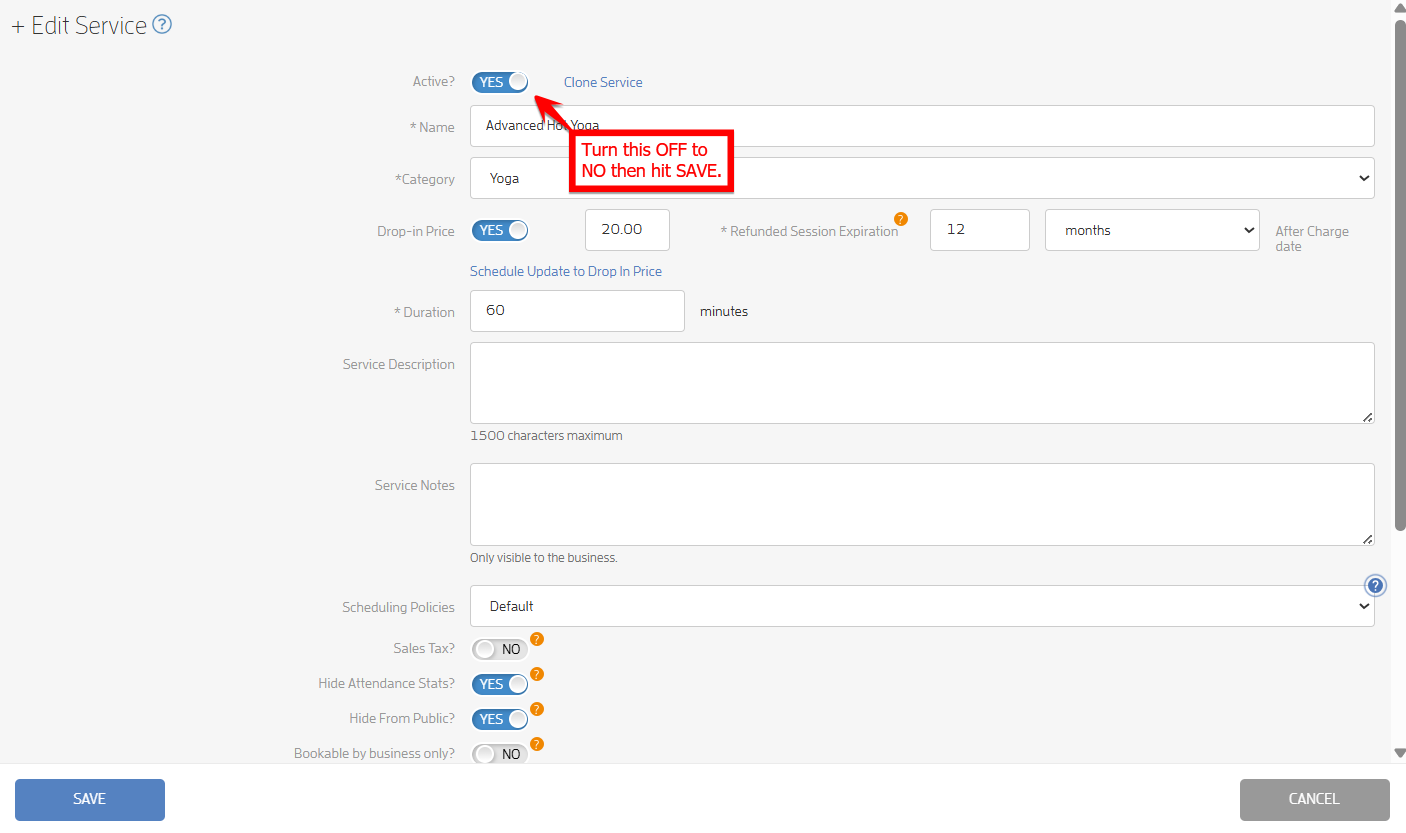
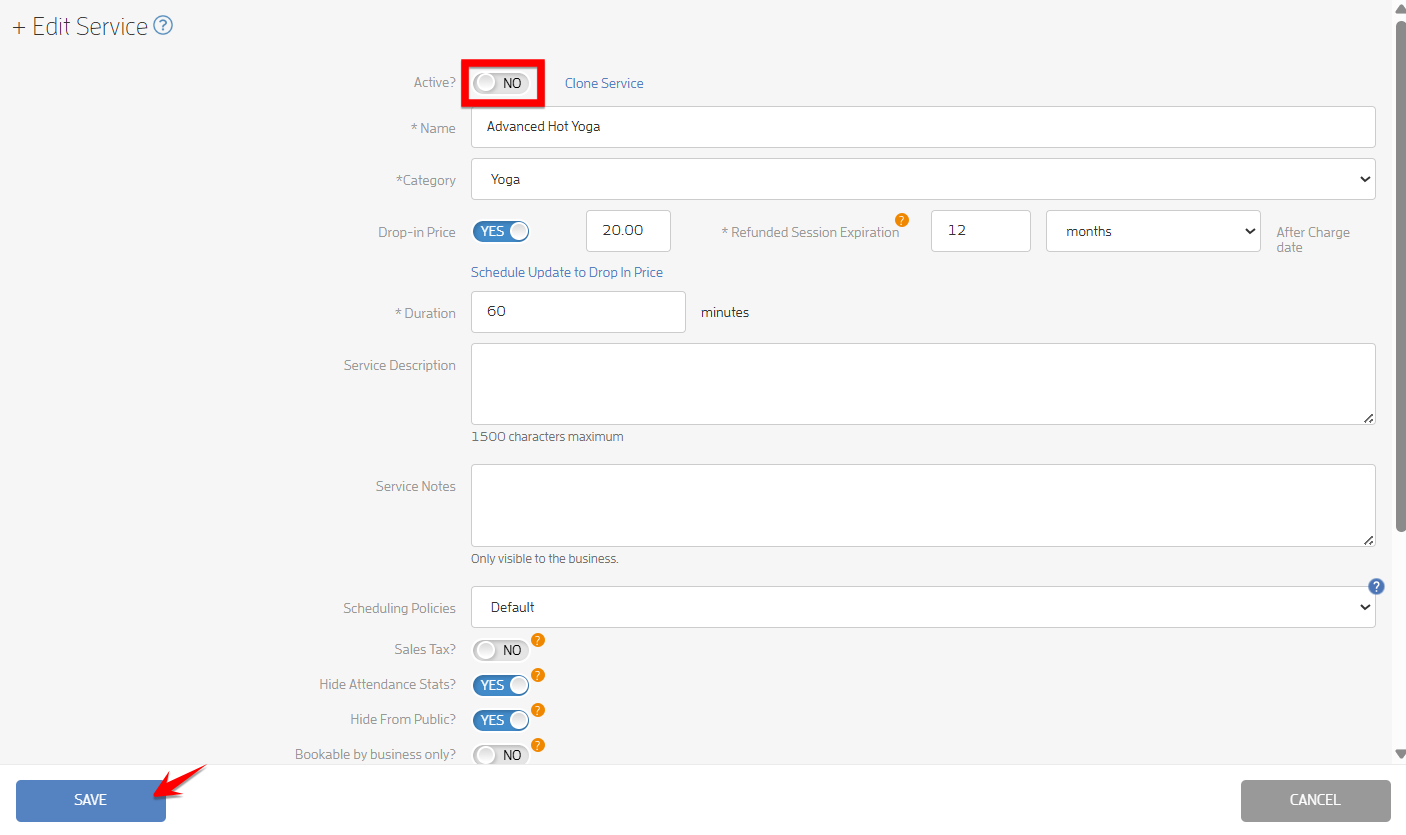
If you want to deactivate the old service, click "yes" in the Active column, or click "Edit," turn off the Active toggle at the top, and then click Save.
Cloning Inactive Services
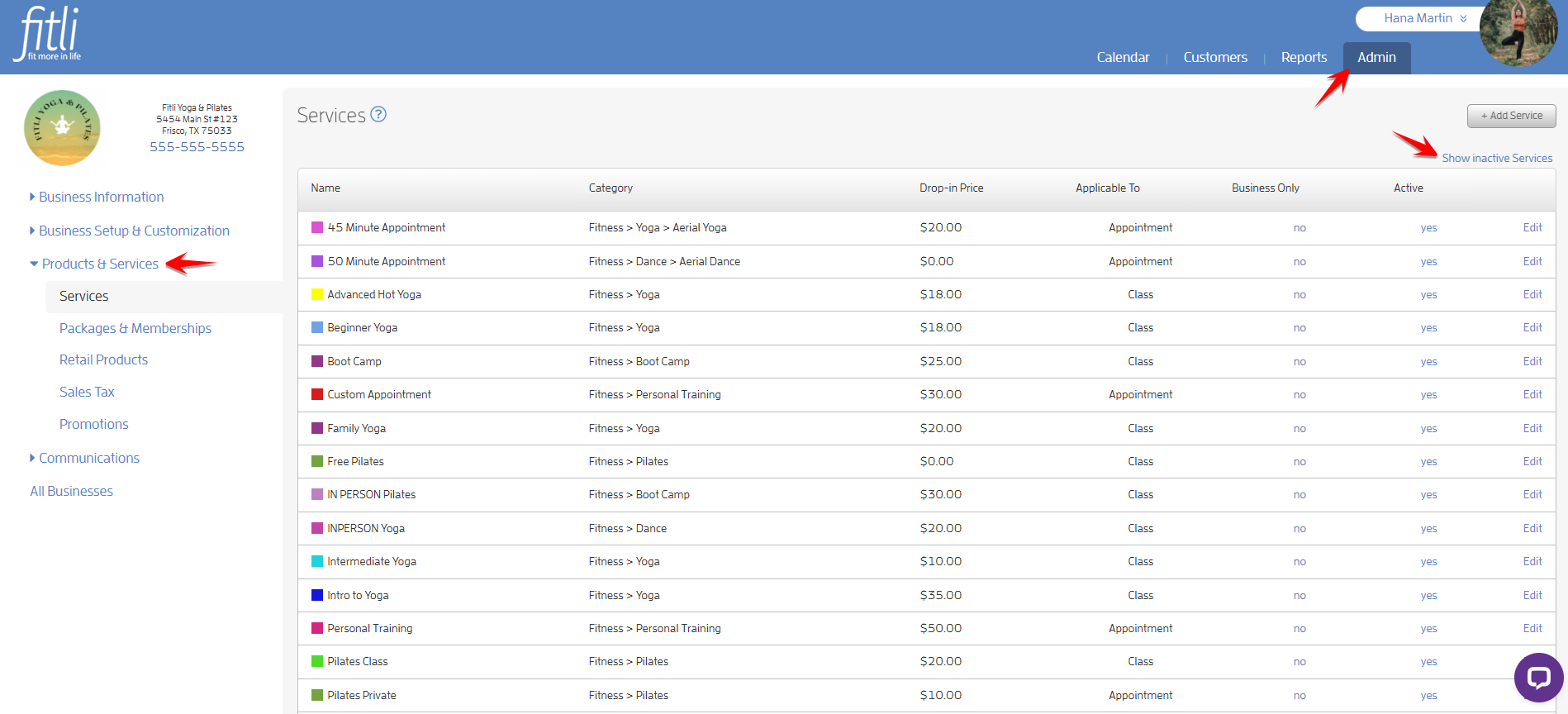
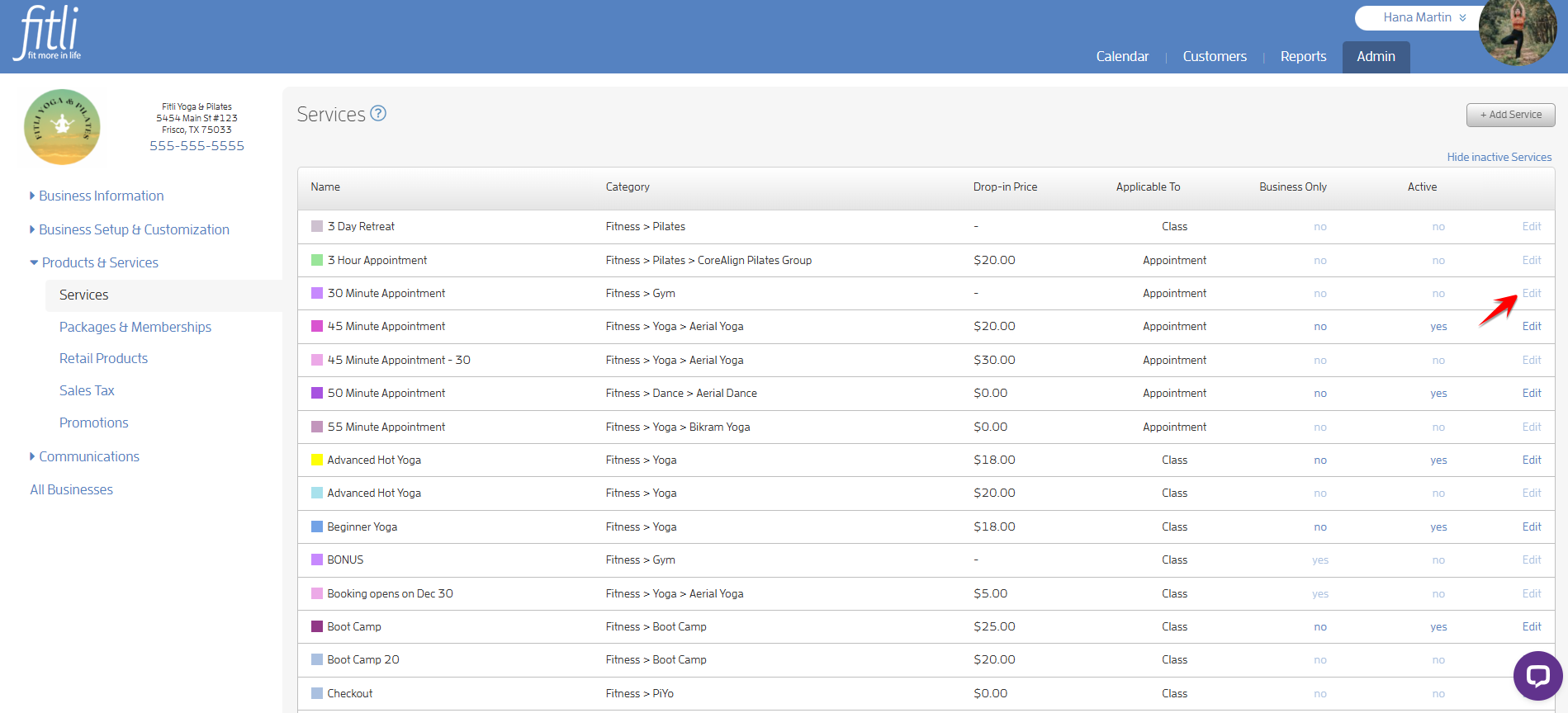
To do this, go to the ADMIN section. Click "Products & Services" on the left side to be directed to “Services.” Click “Show inactive Services.”
Click "Edit" next to the inactive service you want to clone.
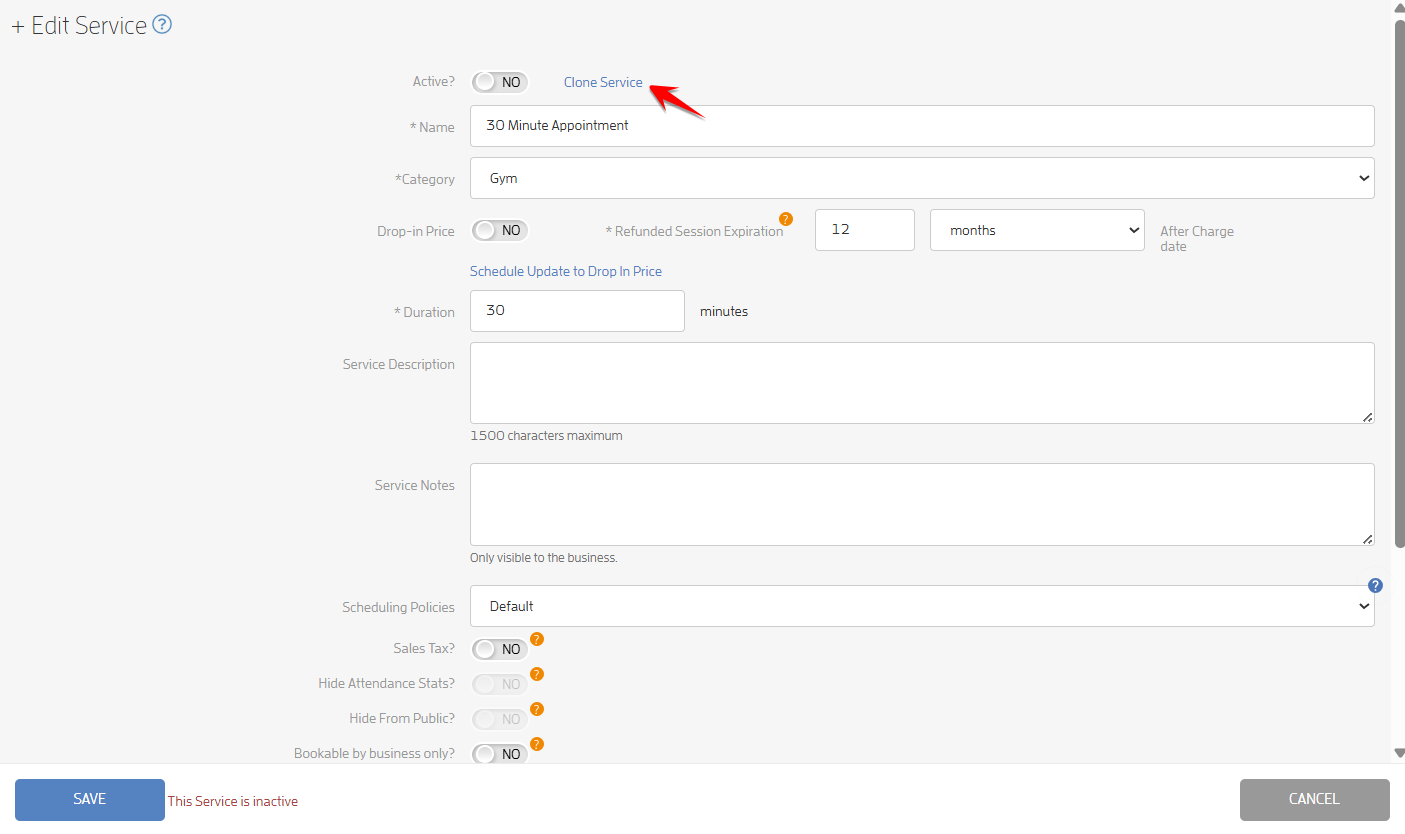
On the "+ Edit Service" modal, click the "Clone Service" link at the top.
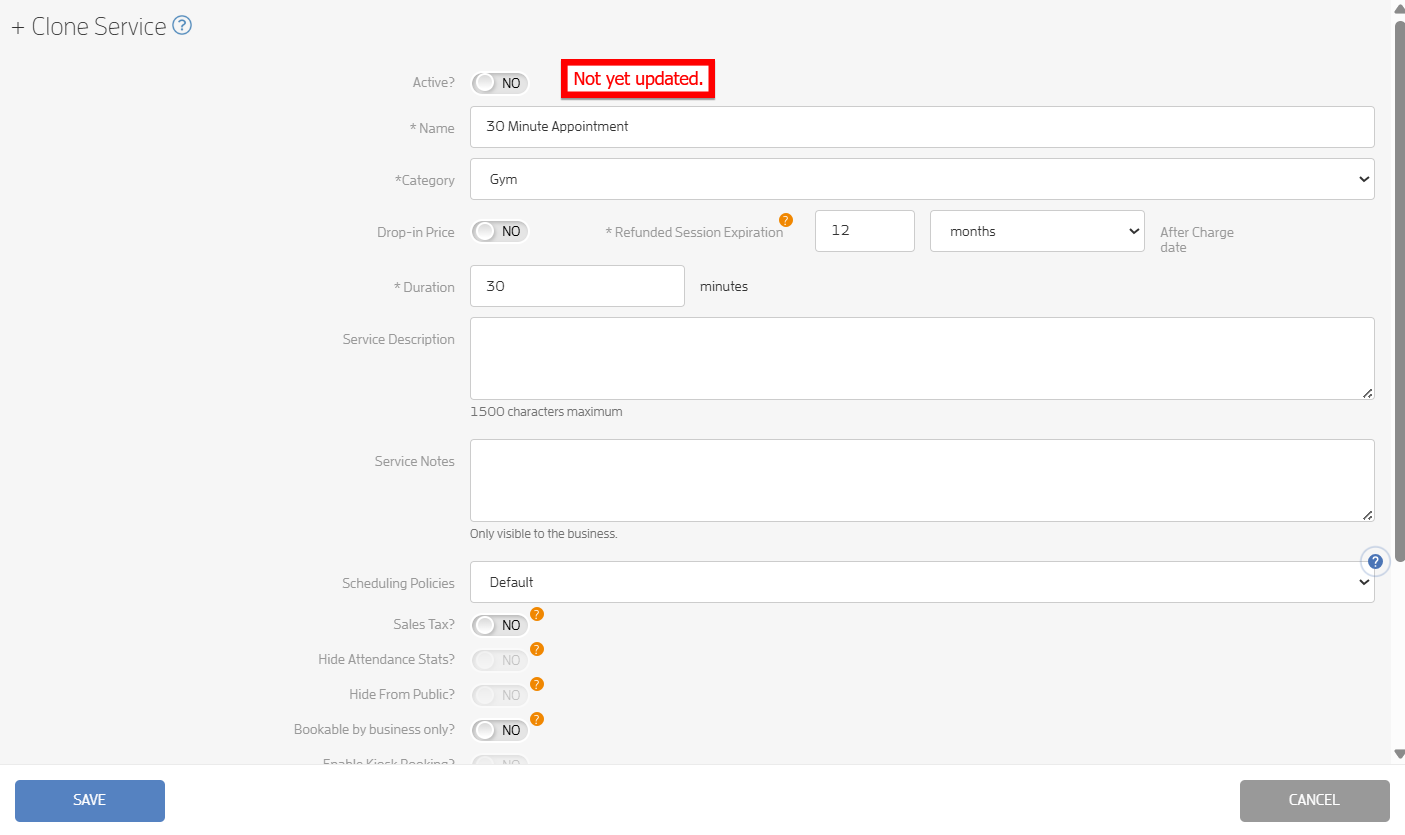
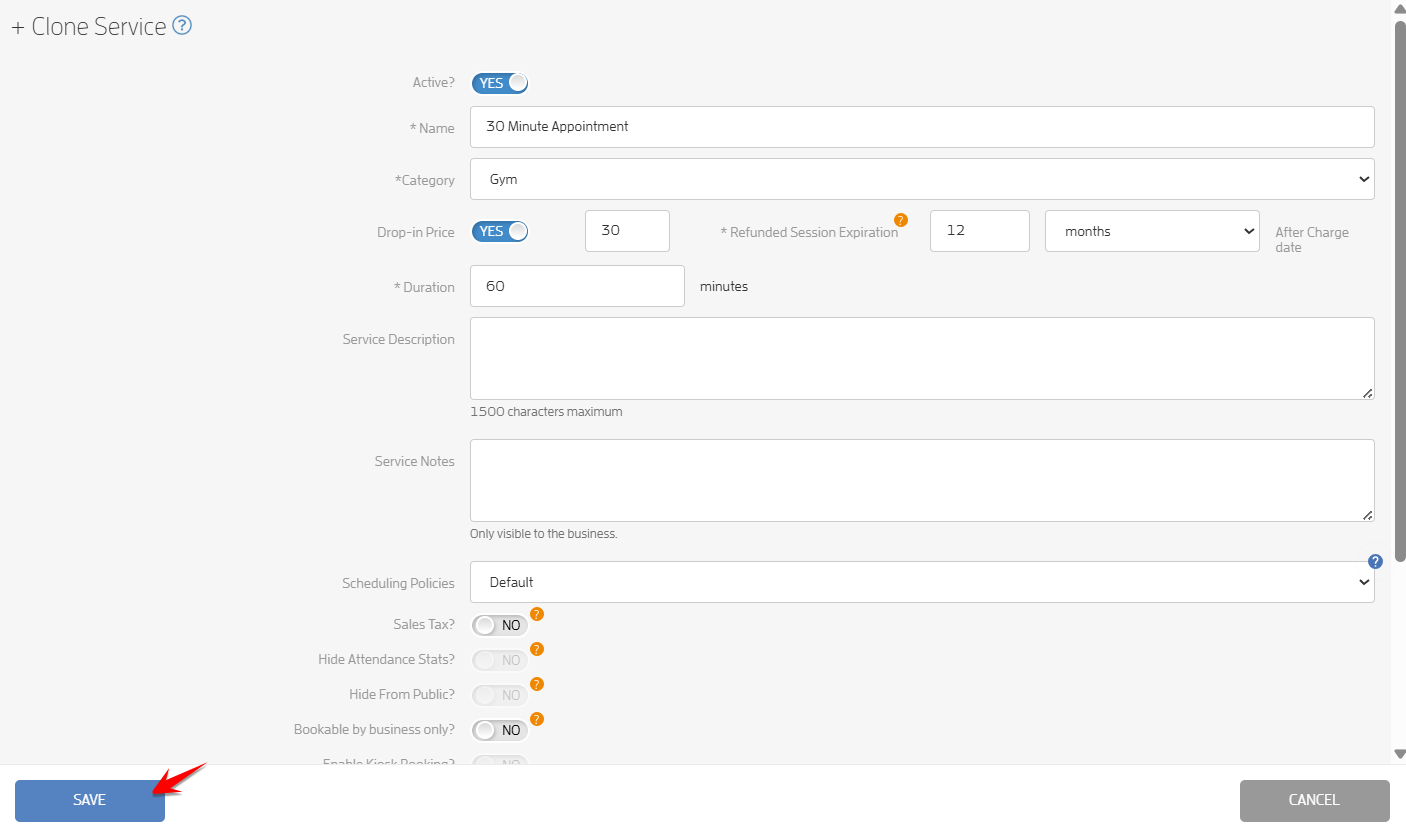
You will be directed to the "+ Clone Service" modal. From here, you can edit the service’s details and click Save. Otherwise, you can just click Save and edit it later. In the example below, I will make the service active by turning on the Active toggle, set the drop-in price to $30, and change the duration.
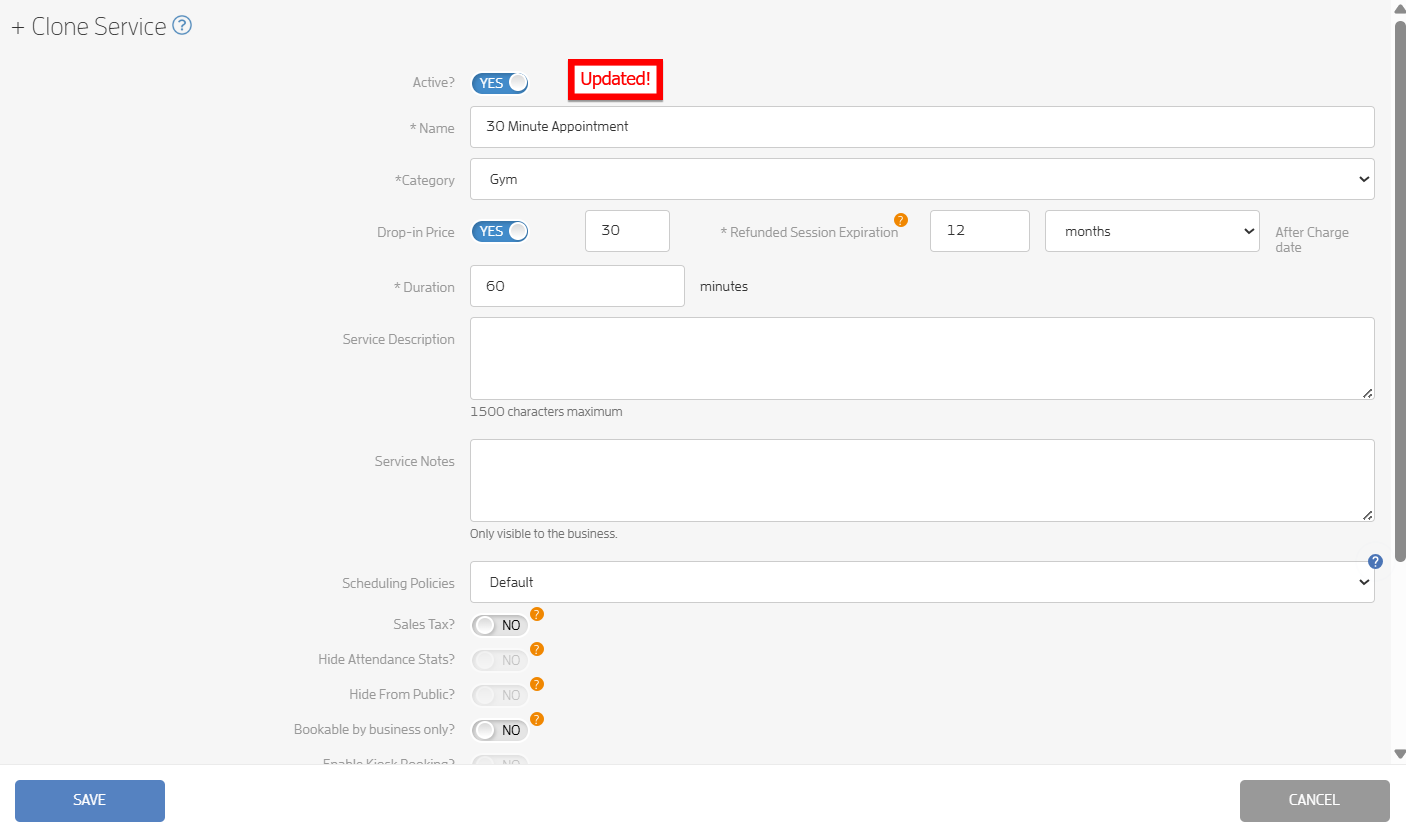
Click SAVE to save your changes.
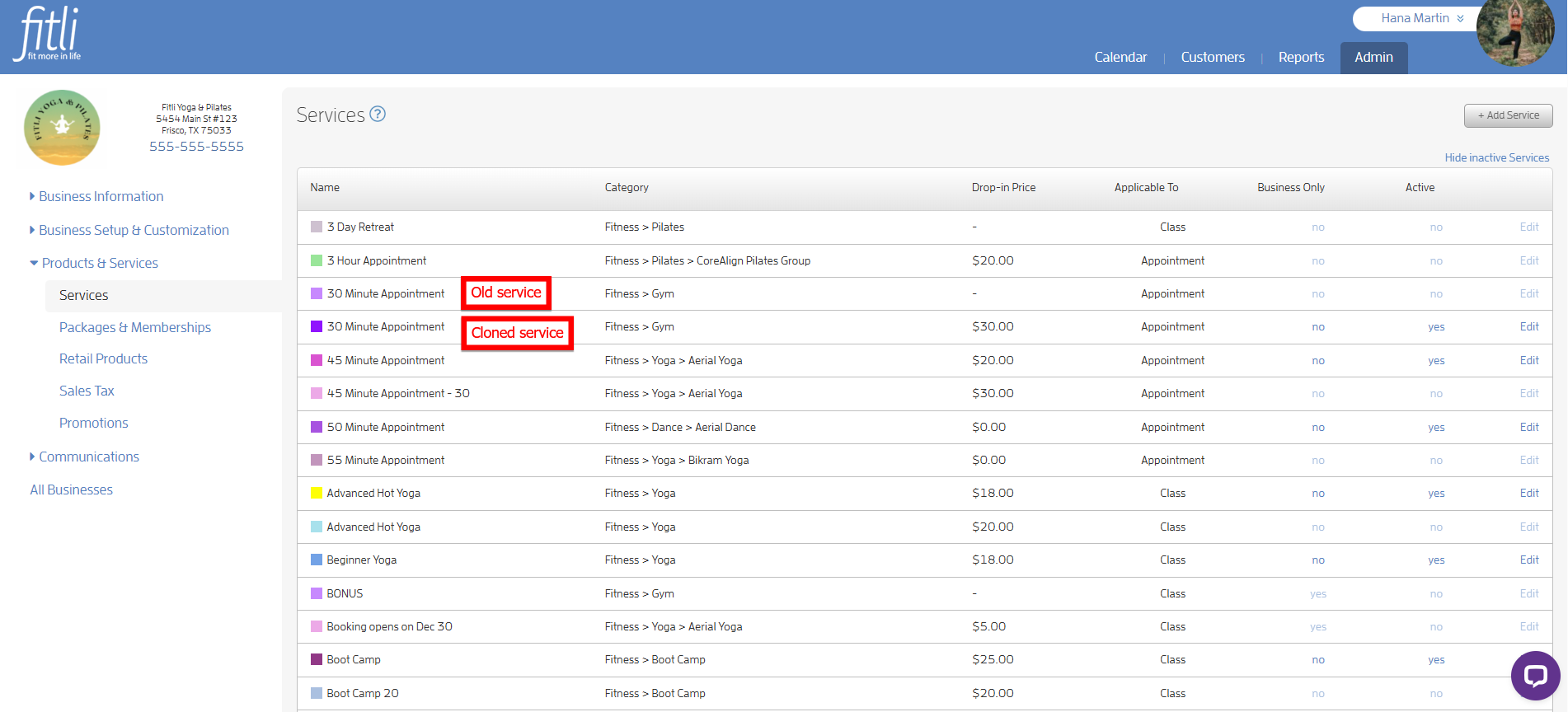
You will see both the old service and the cloned service on the Services page.
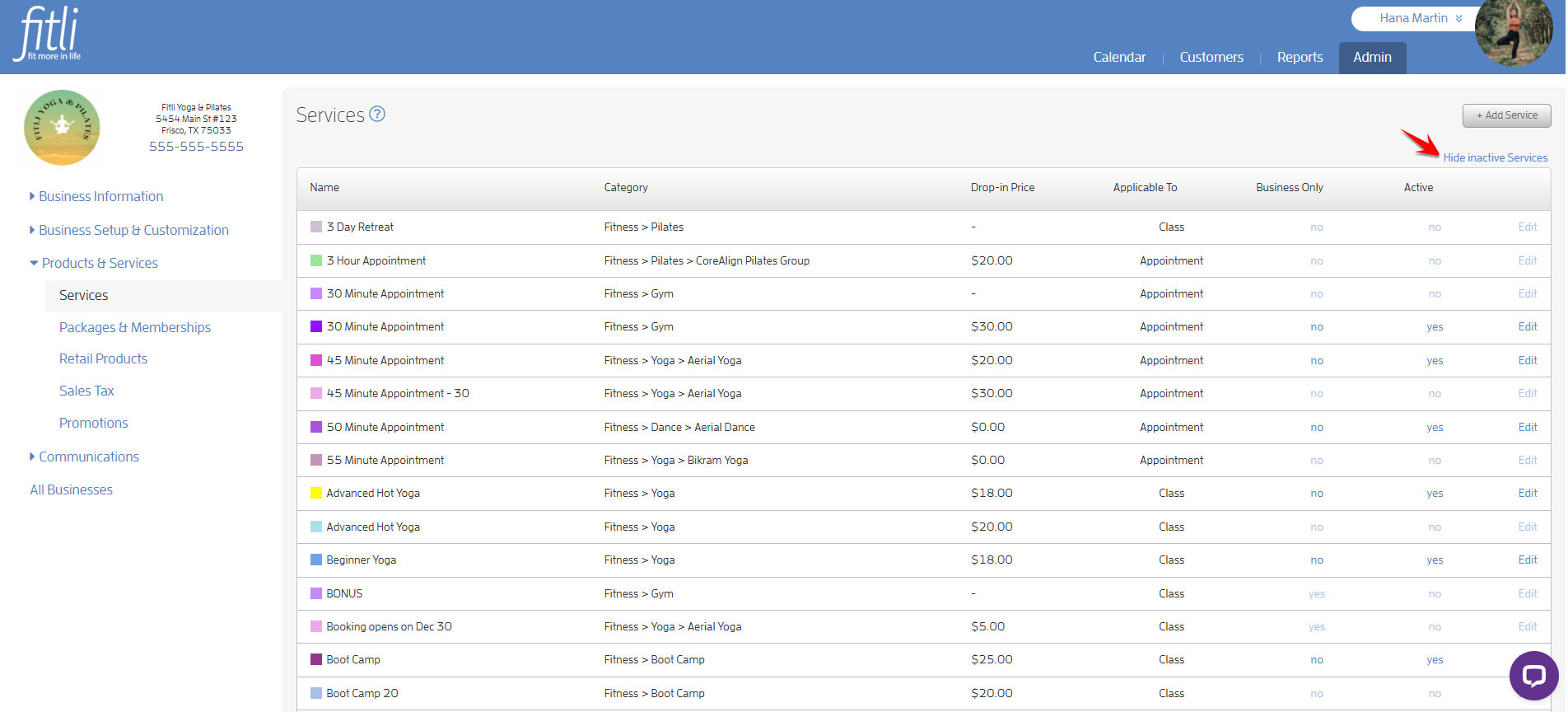
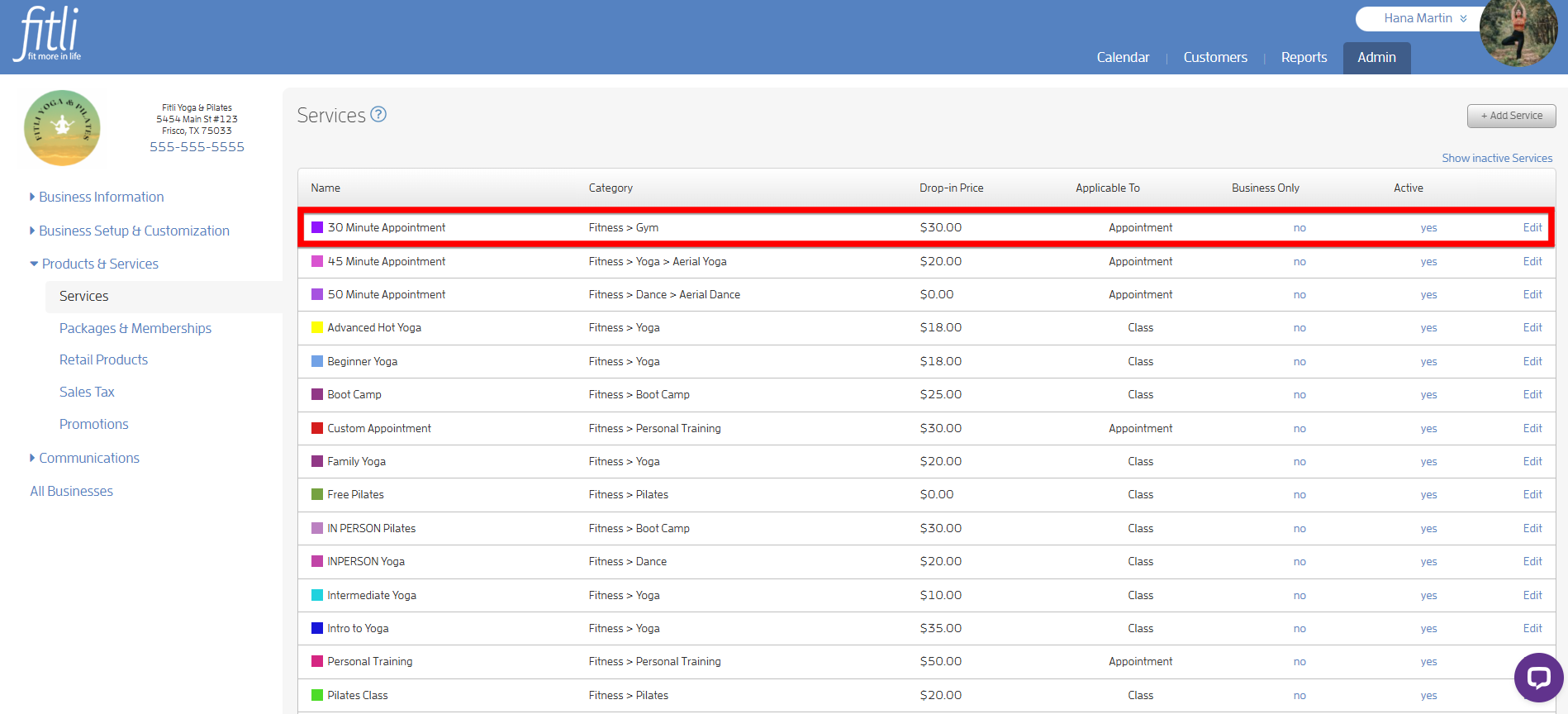
Click “Hide inactive services” to show your active services.
That's about it! Any questions? Chat with us or send us an email to support@fitli.com.