
Do you need to clone an existing pay rate with mostly the same information as another one? If so, this feature allows you to clone any existing pay rate and edit the details to make small changes.
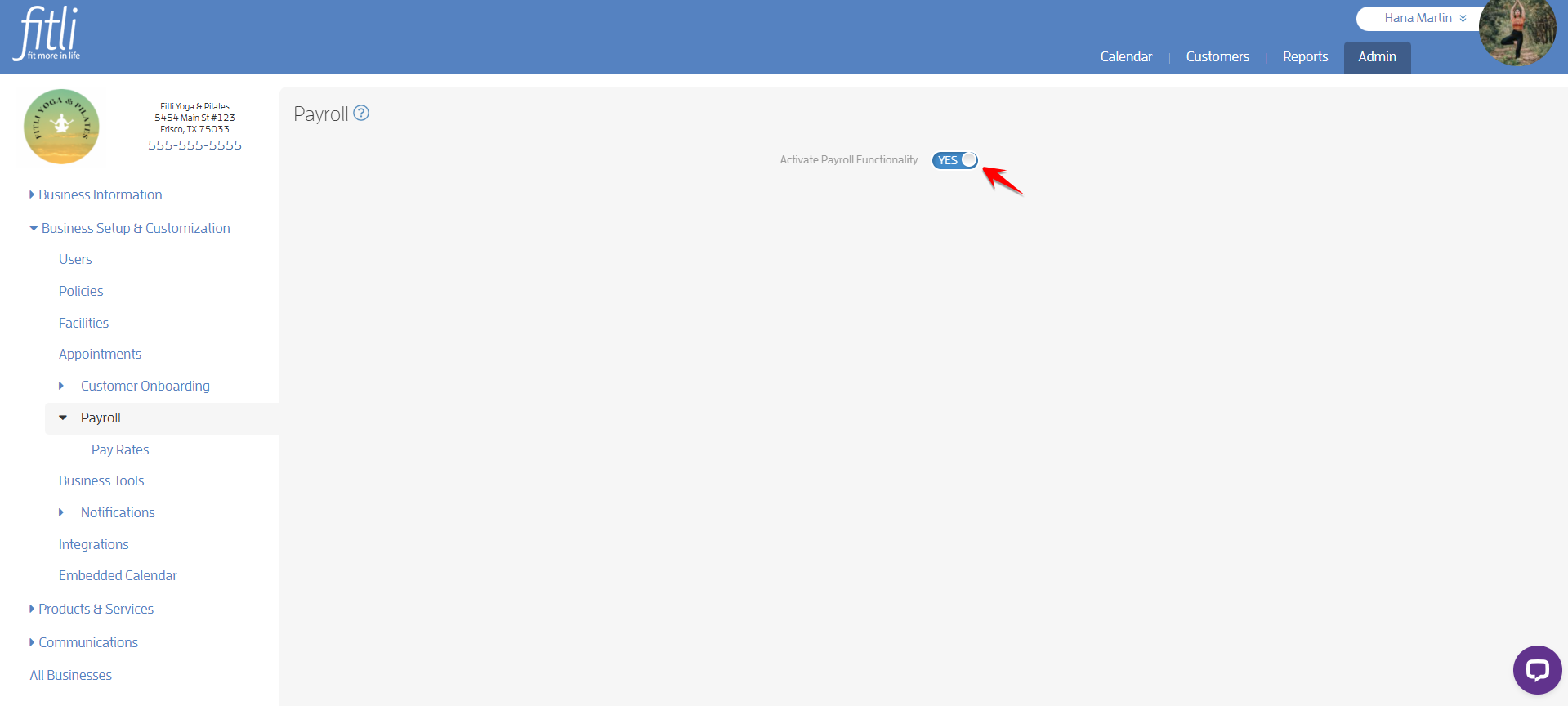
Note: You can only clone a pay rate if you have activated the Payroll functionality for your business and have existing pay rates.
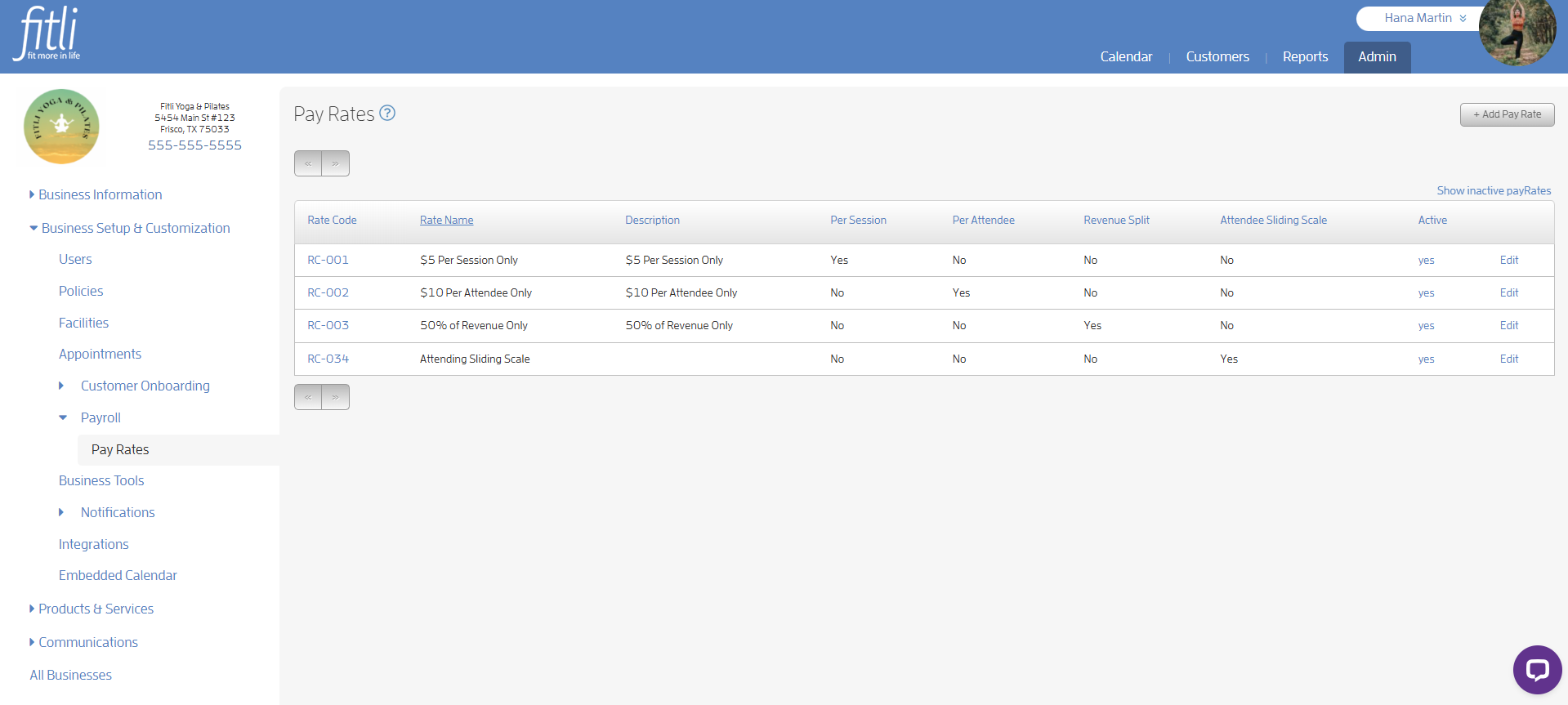
When a pay rate is cloned, it creates a brand new one. You can deactivate the old pay rate if the cloned version is meant to replace it.
Cloning Existing Pay Rates
To do this, log in to your Fitli business account.
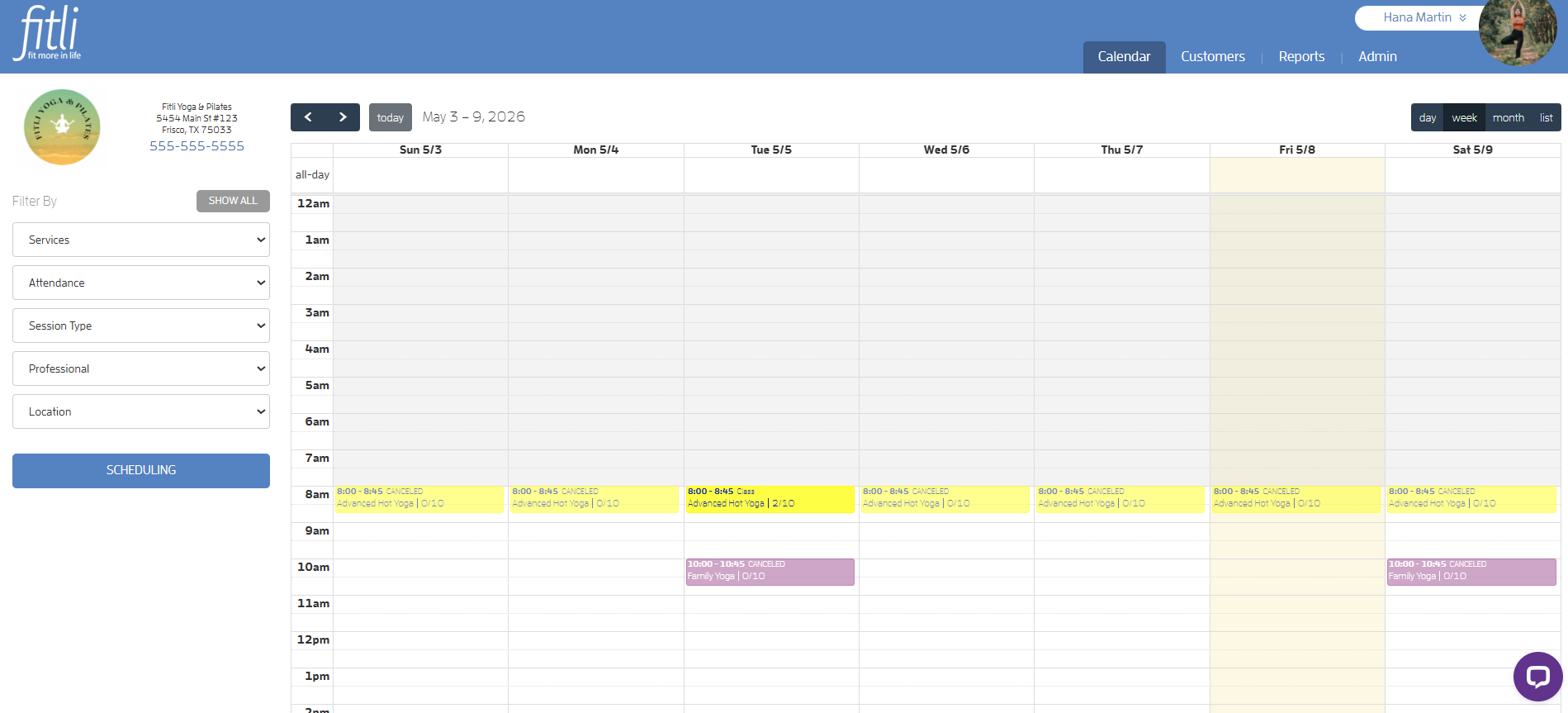
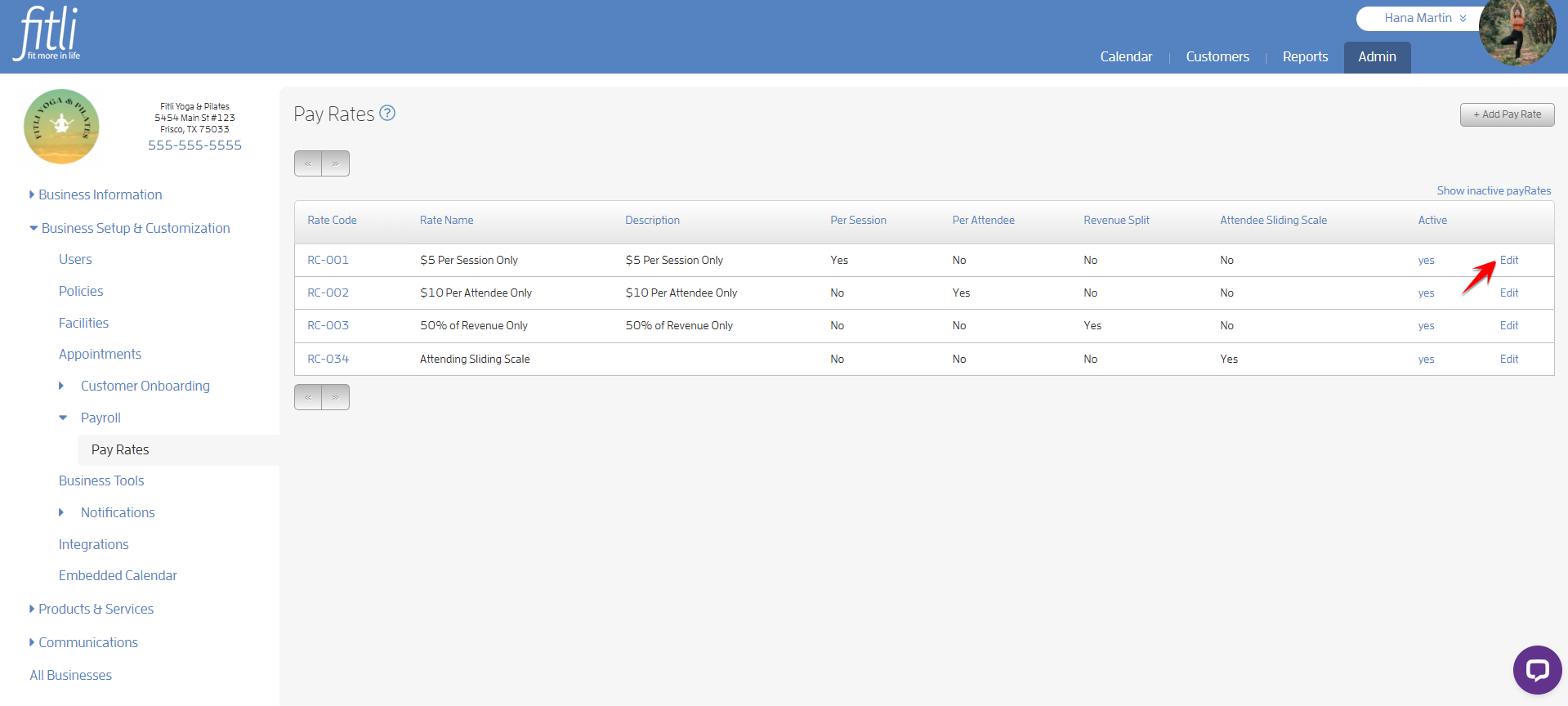
Go to the ADMIN section. On the left side, click Business Setup & Customization > Payroll > Pay Rates.
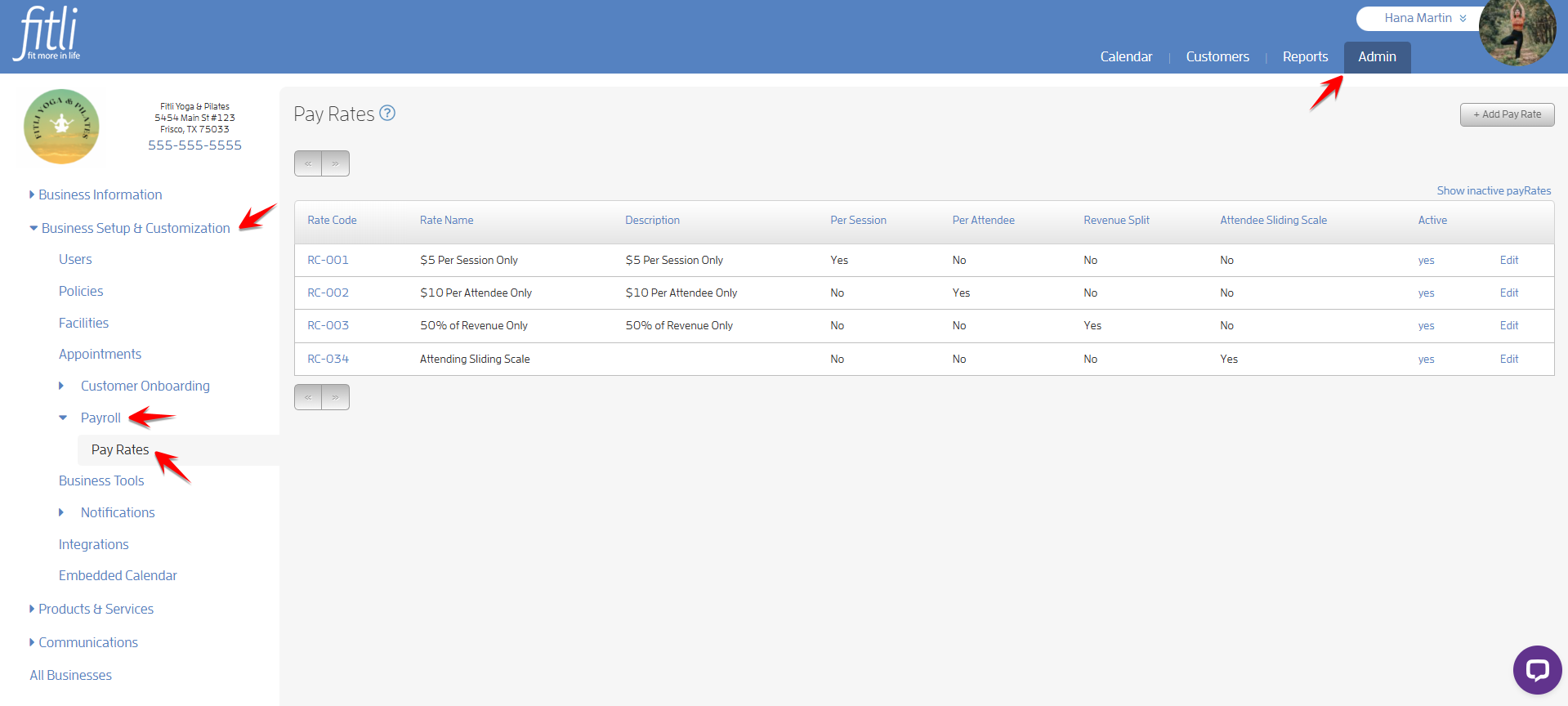
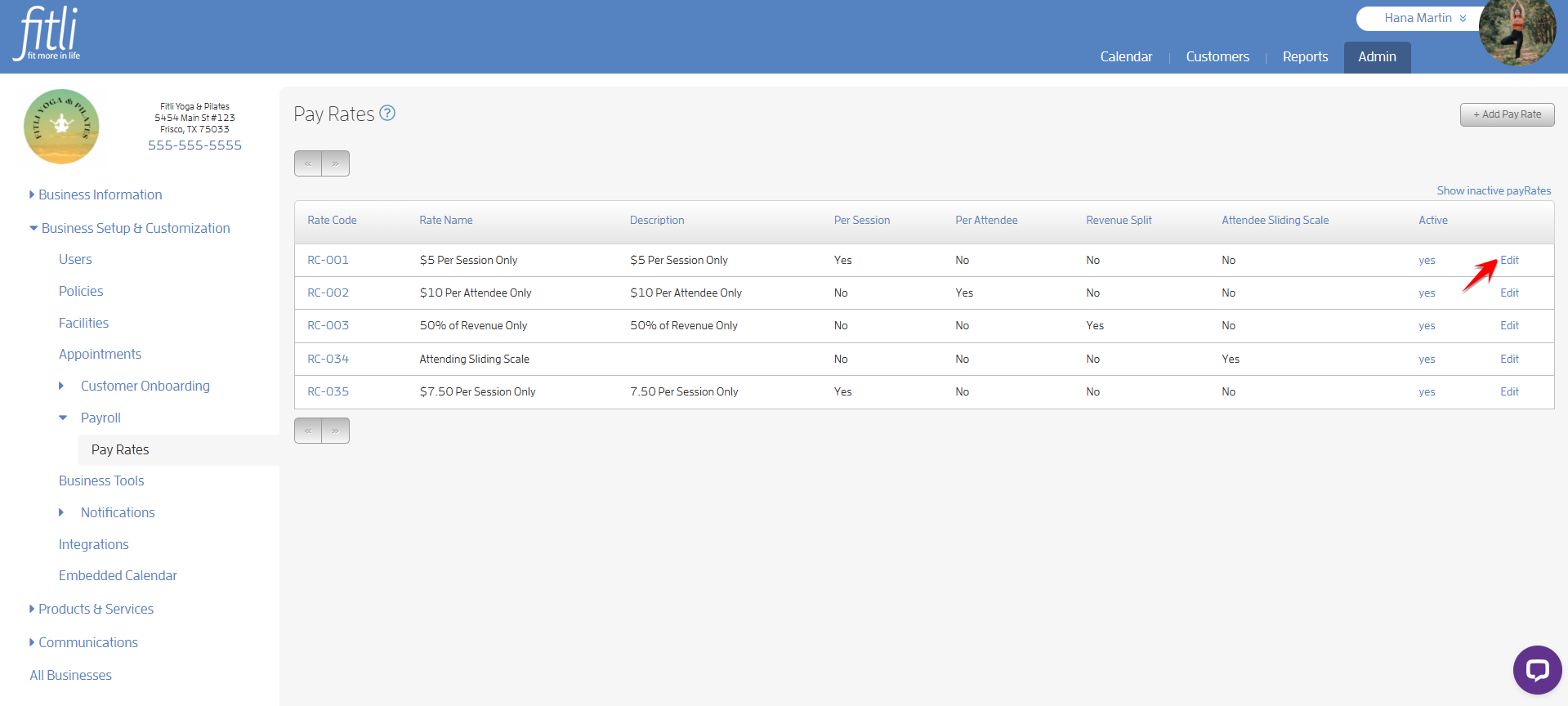
On the Pay Rates page, click Edit next to the pay rate you want to clone.
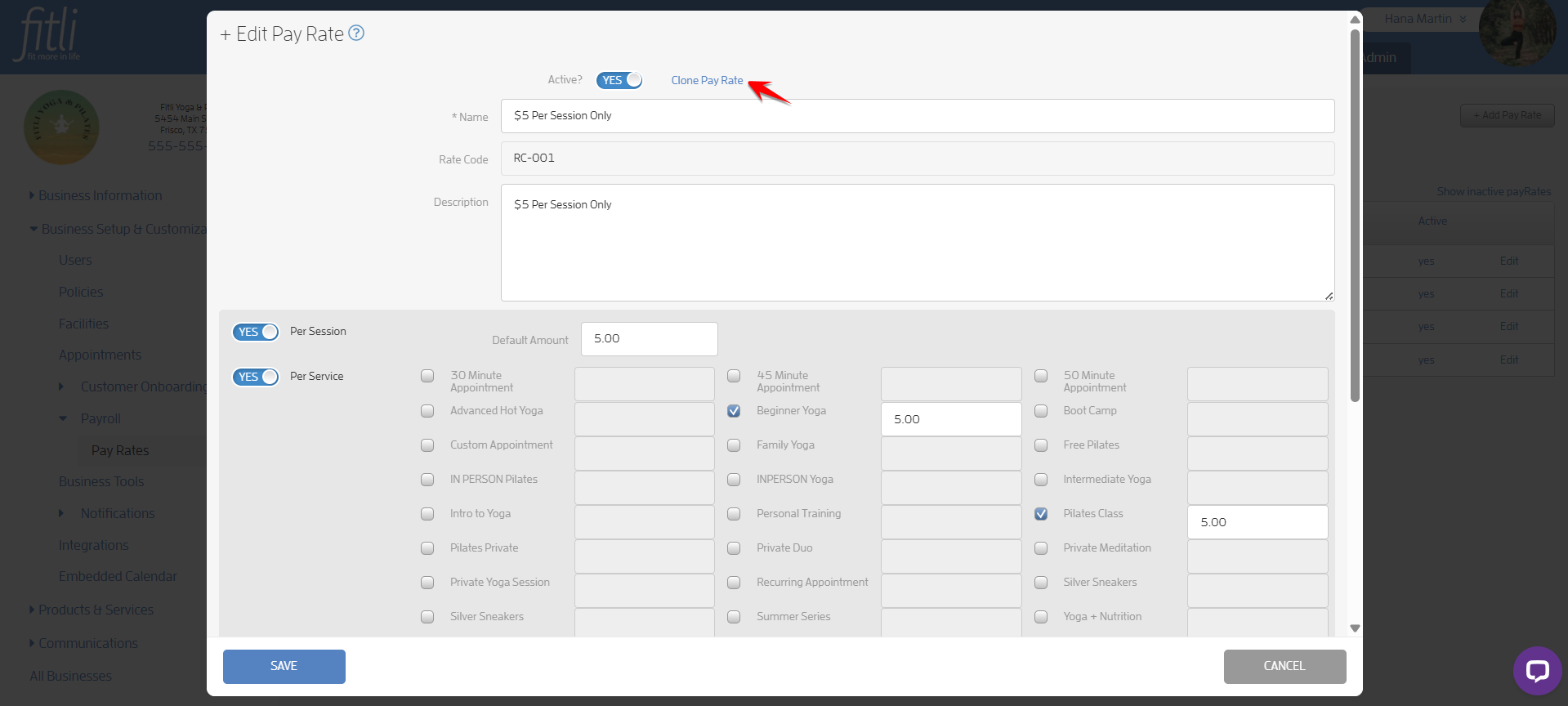
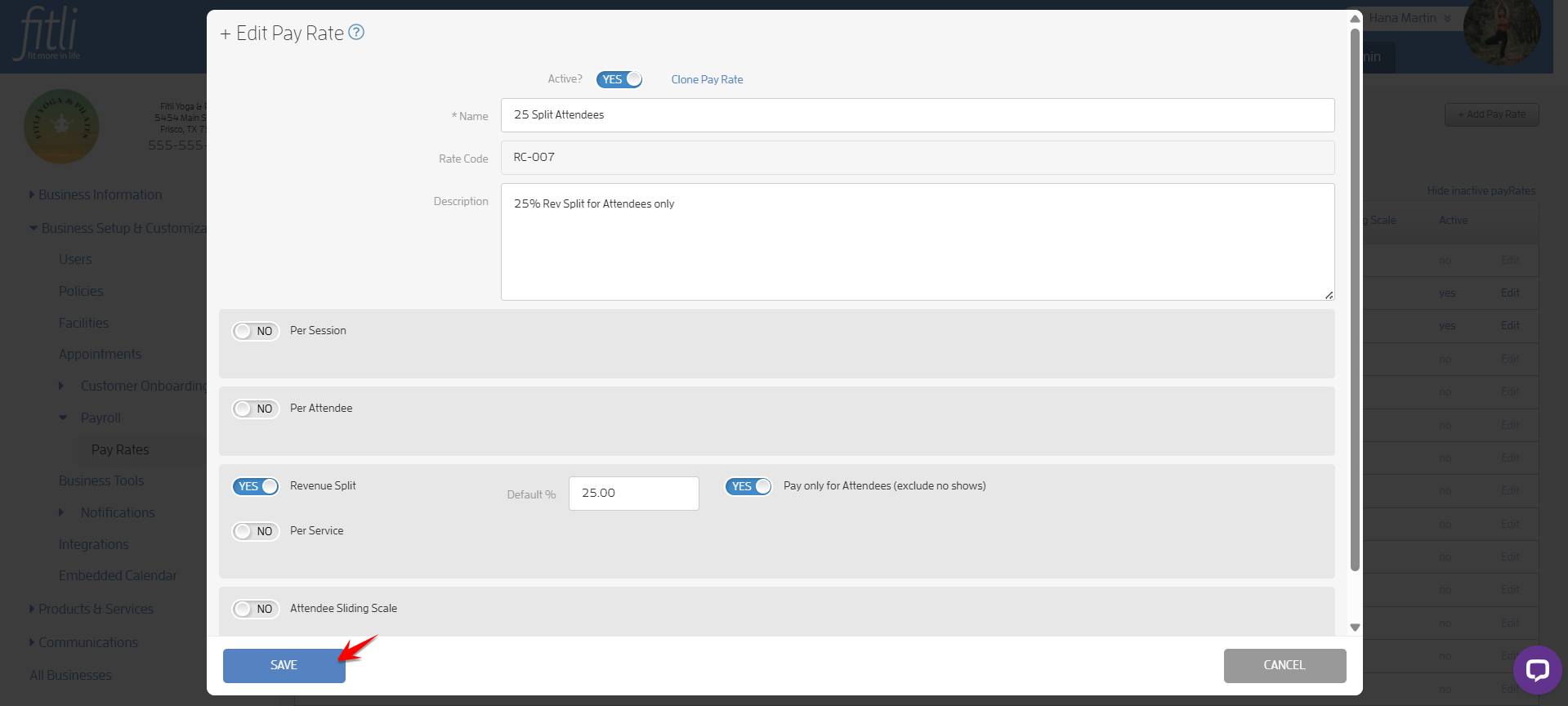
On the + Edit Pay Rate modal, click the Clone Pay Rate link at the top.
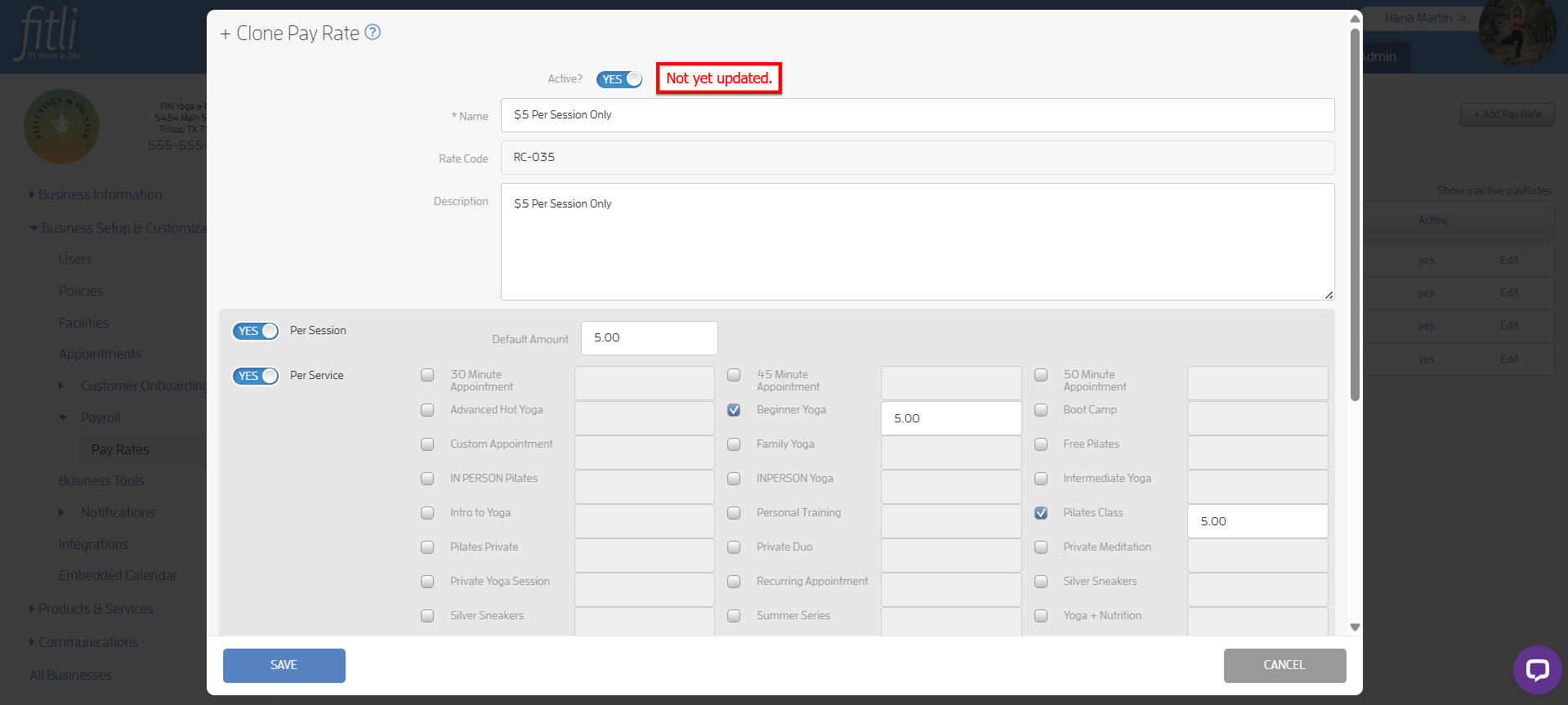
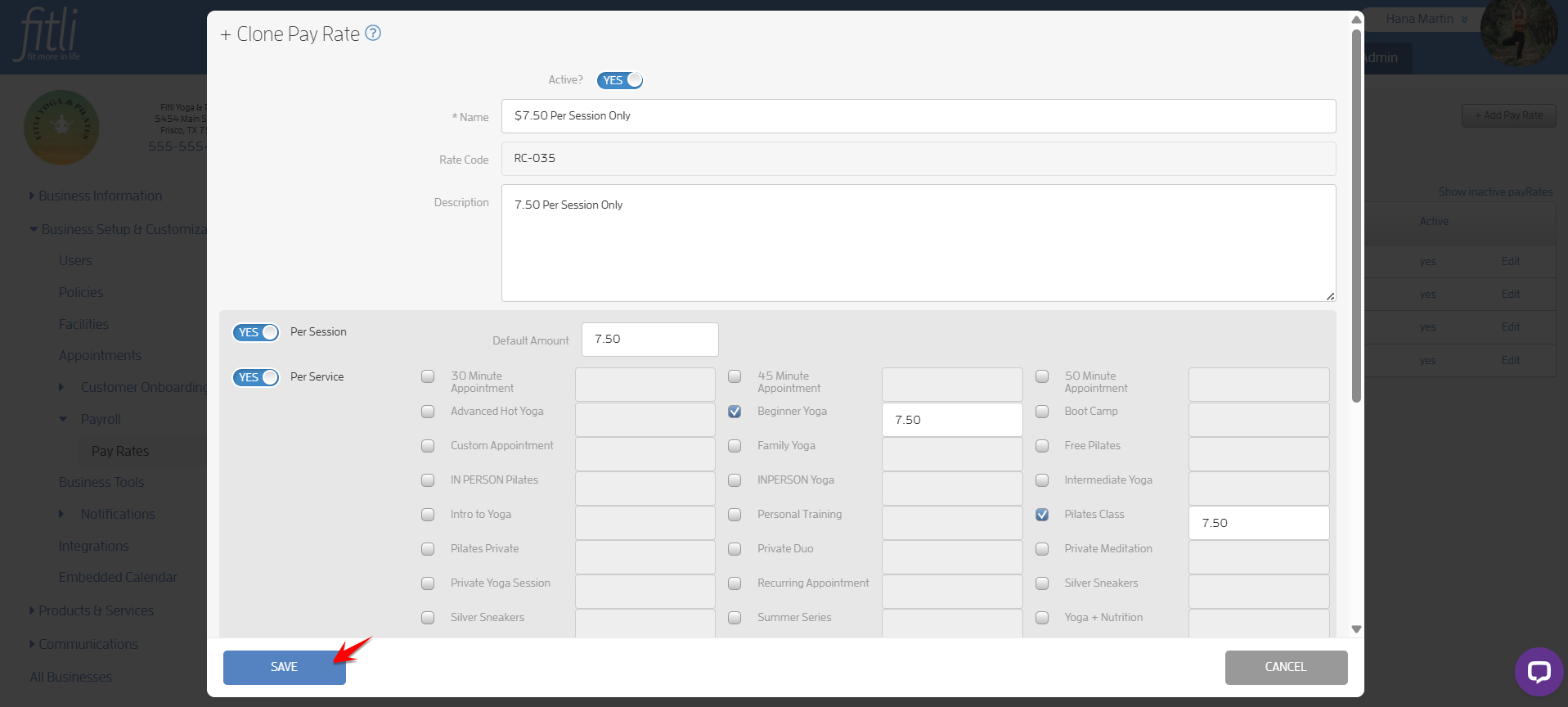
You will be directed to the + Clone Pay Rate modal. From here, you can edit the pay rate details and click Save. Otherwise, you can click Save and edit it later. In the example below, I will change the pay rate’s name, description, default amount, and service amount.
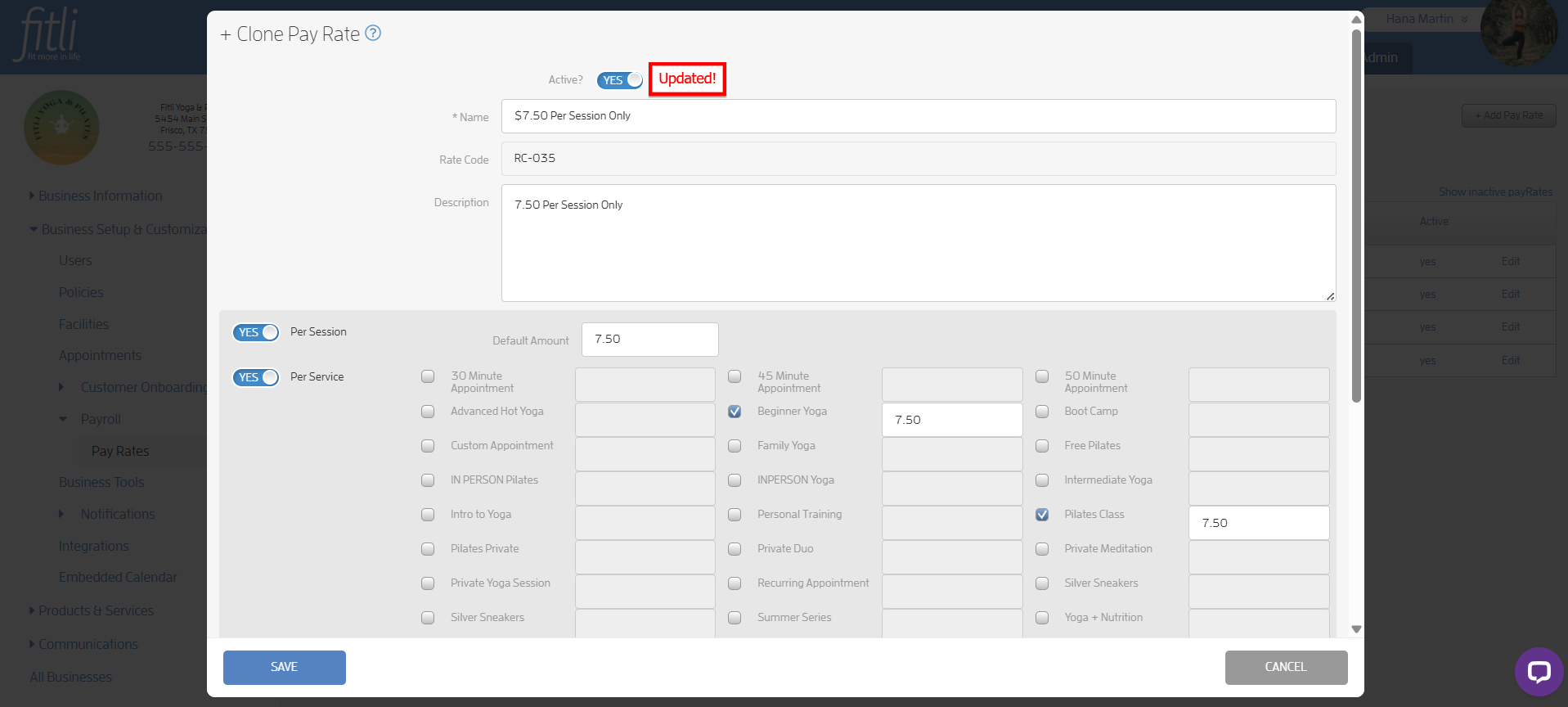
Click SAVE to save your changes.
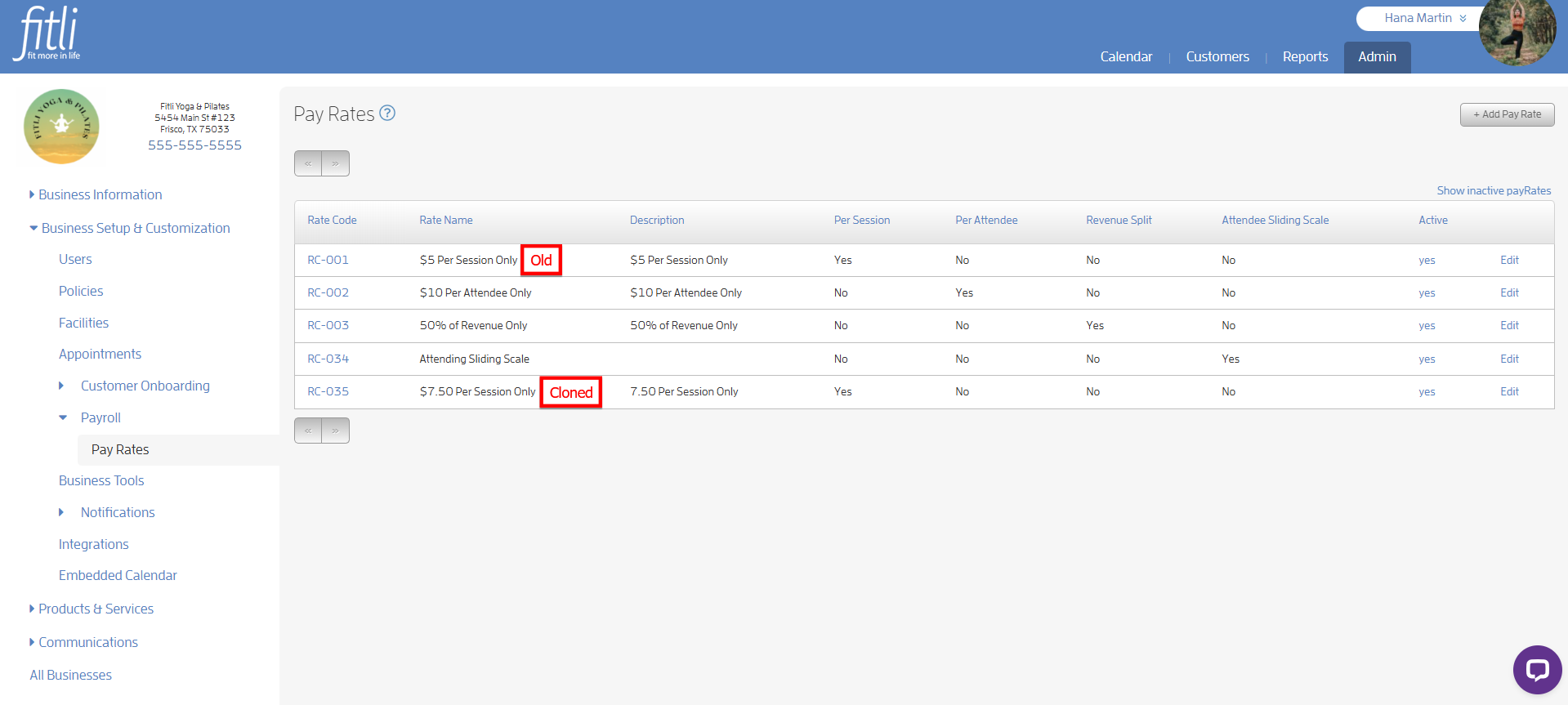
That’s it! You will see both the old and cloned pay rates on the Pay Rates page.
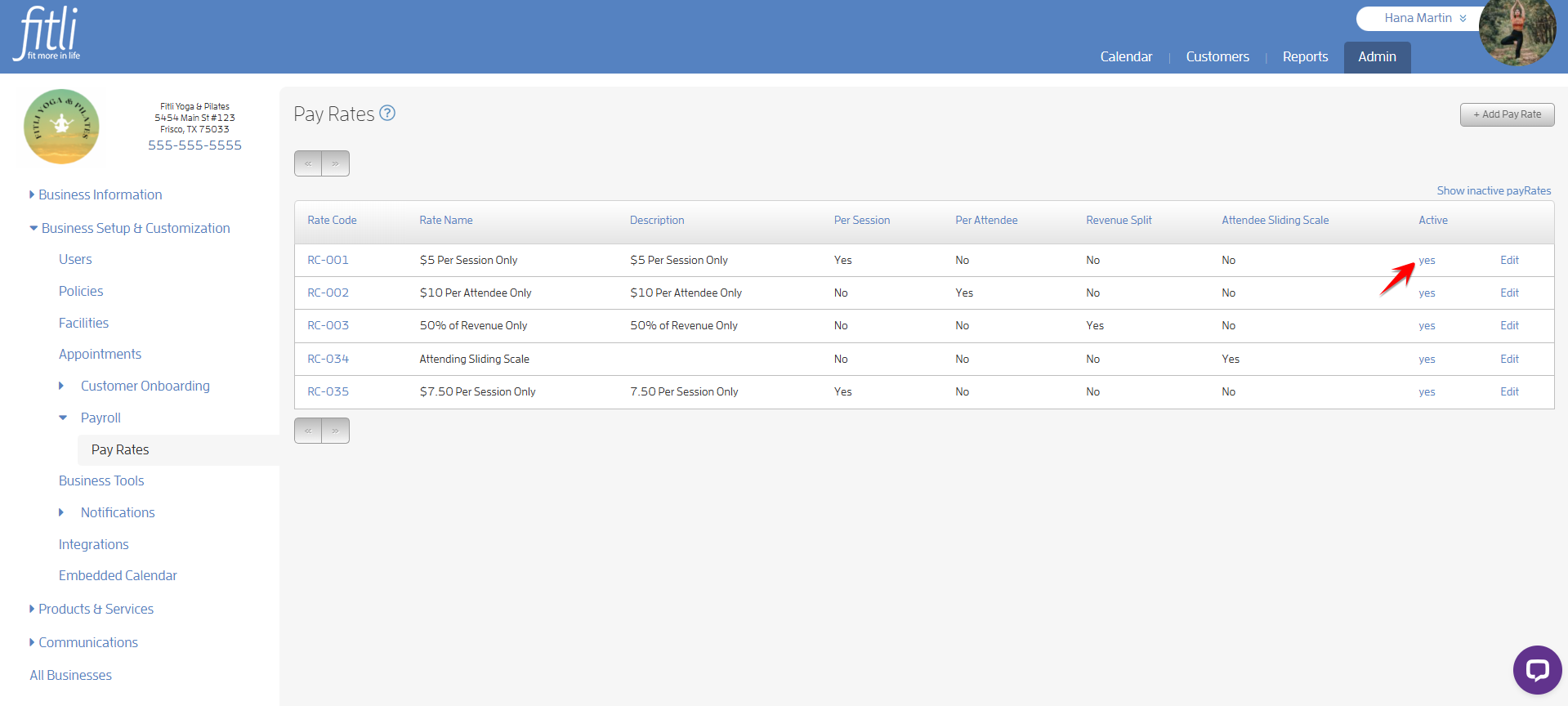
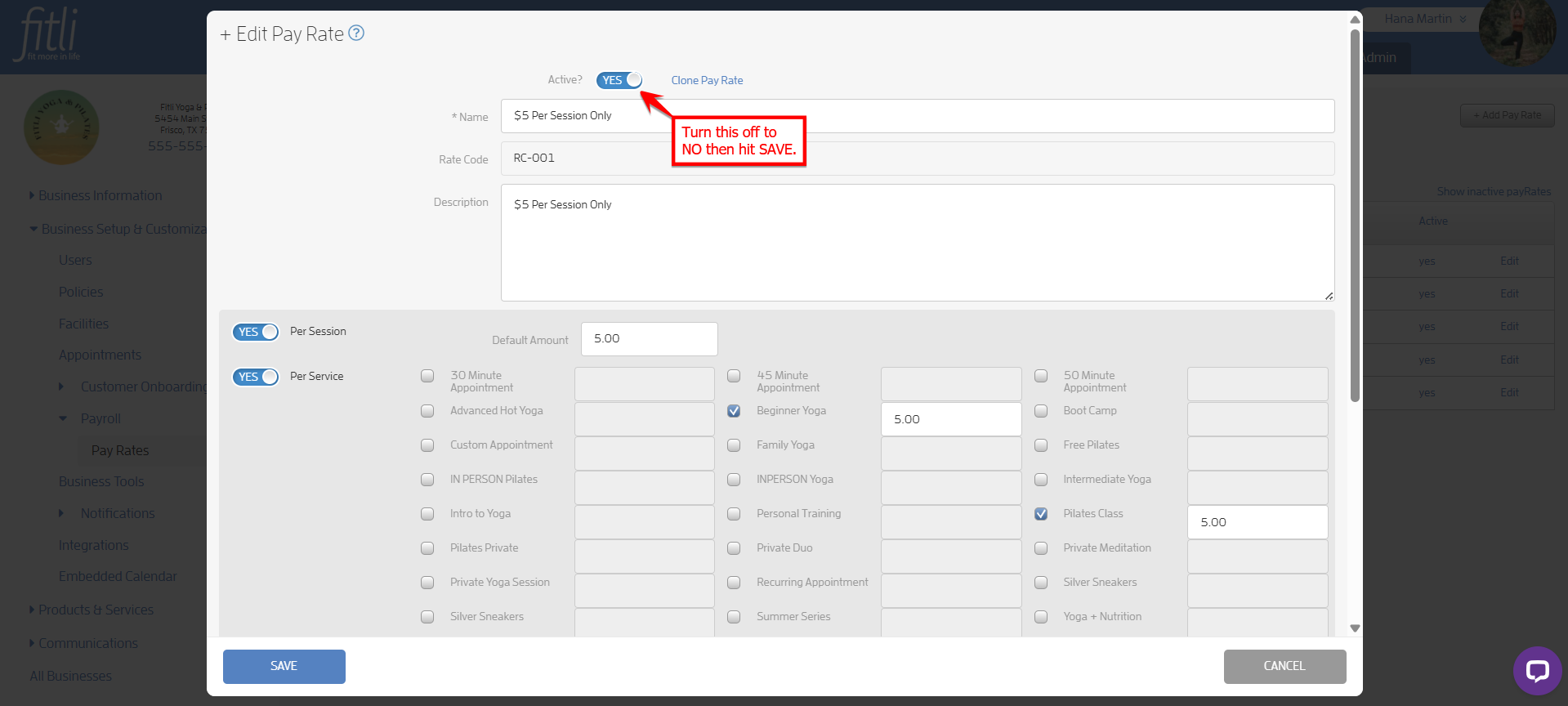
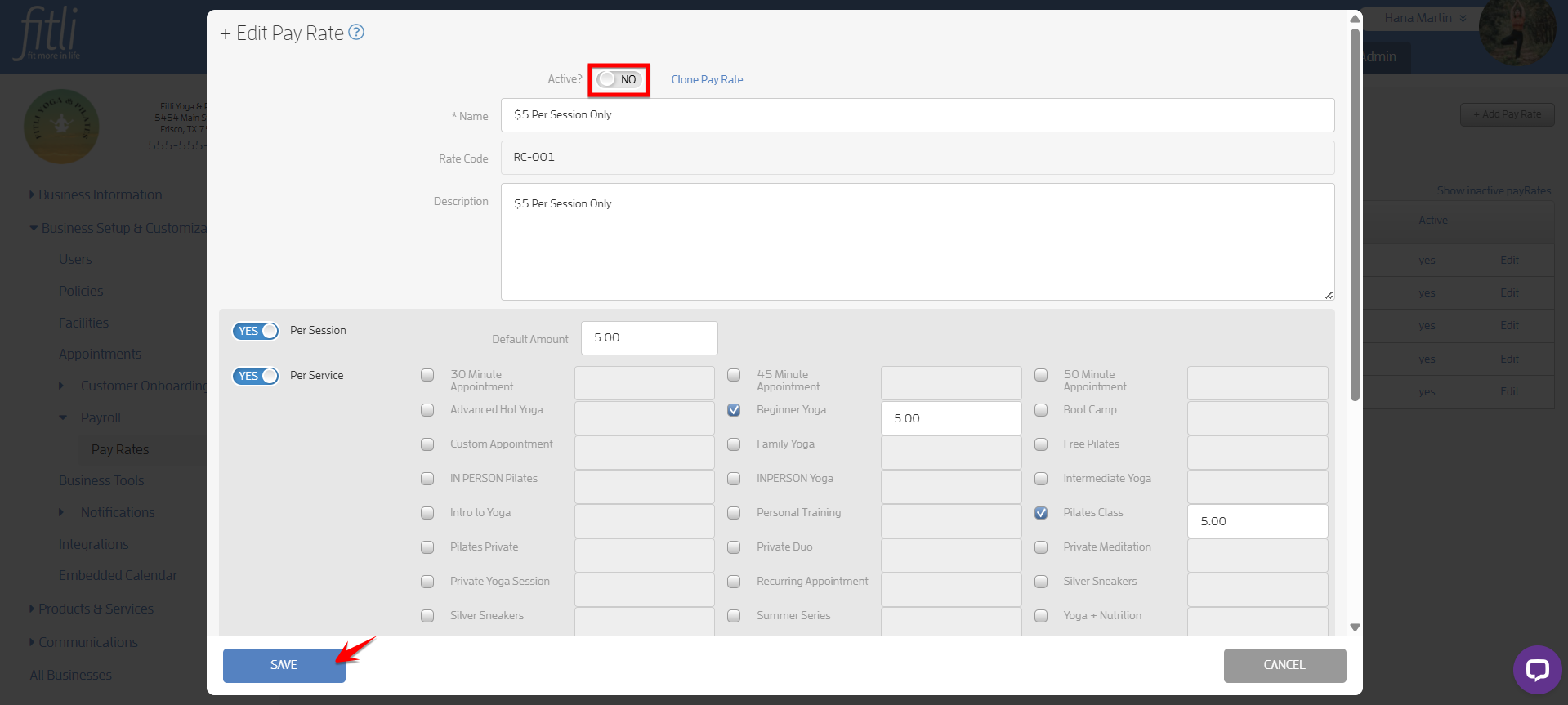
If you want to deactivate the old pay rate, click “yes” in the Active column, or click Edit, turn off the Active toggle at the top, and then click Save.
Cloning Inactive Pay Rates
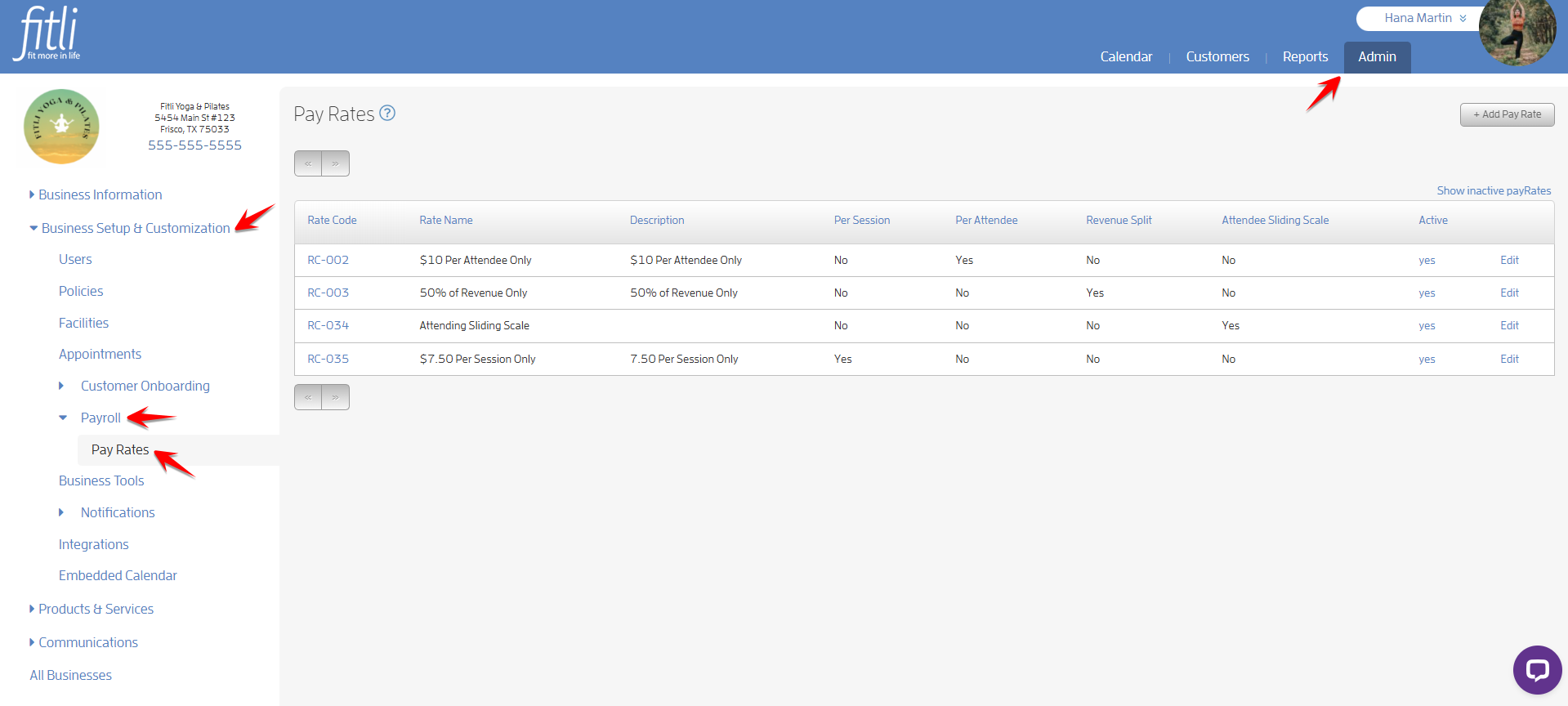
To do this, go to the ADMIN section. On the left side, click Business Setup & Customization > Payroll > Pay Rates.
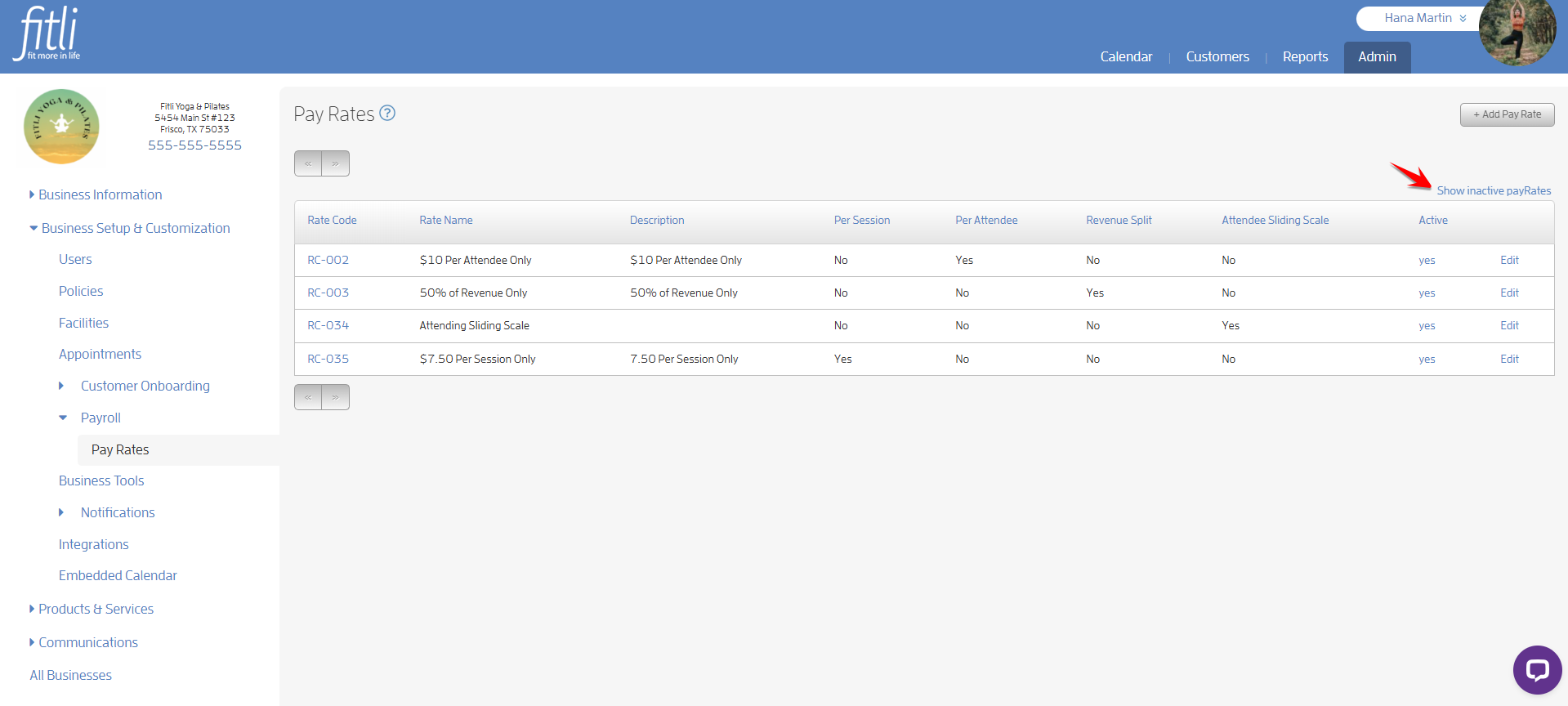
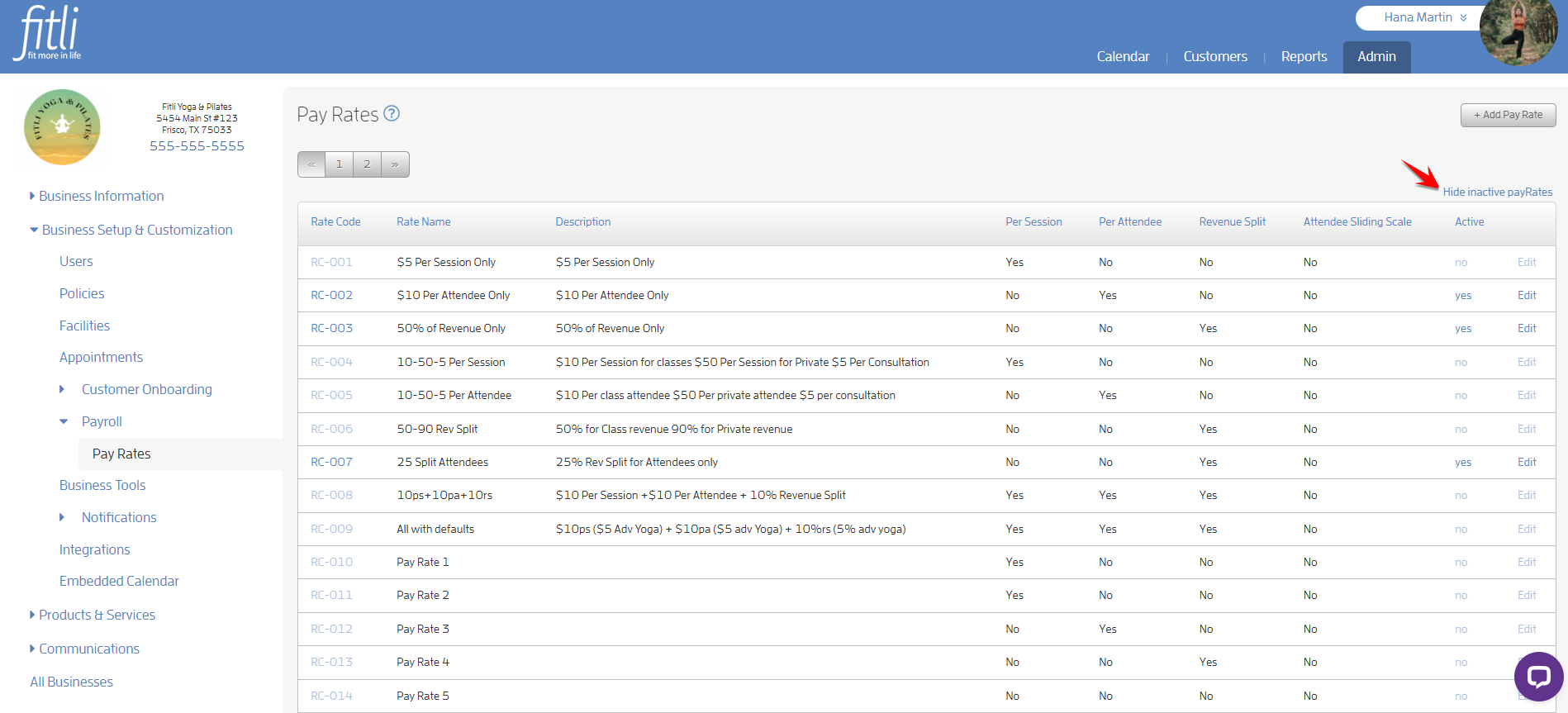
On the Pay Rates page, click Show inactive payRates on the right.
Click Edit next to the inactive pay rate you want to clone.
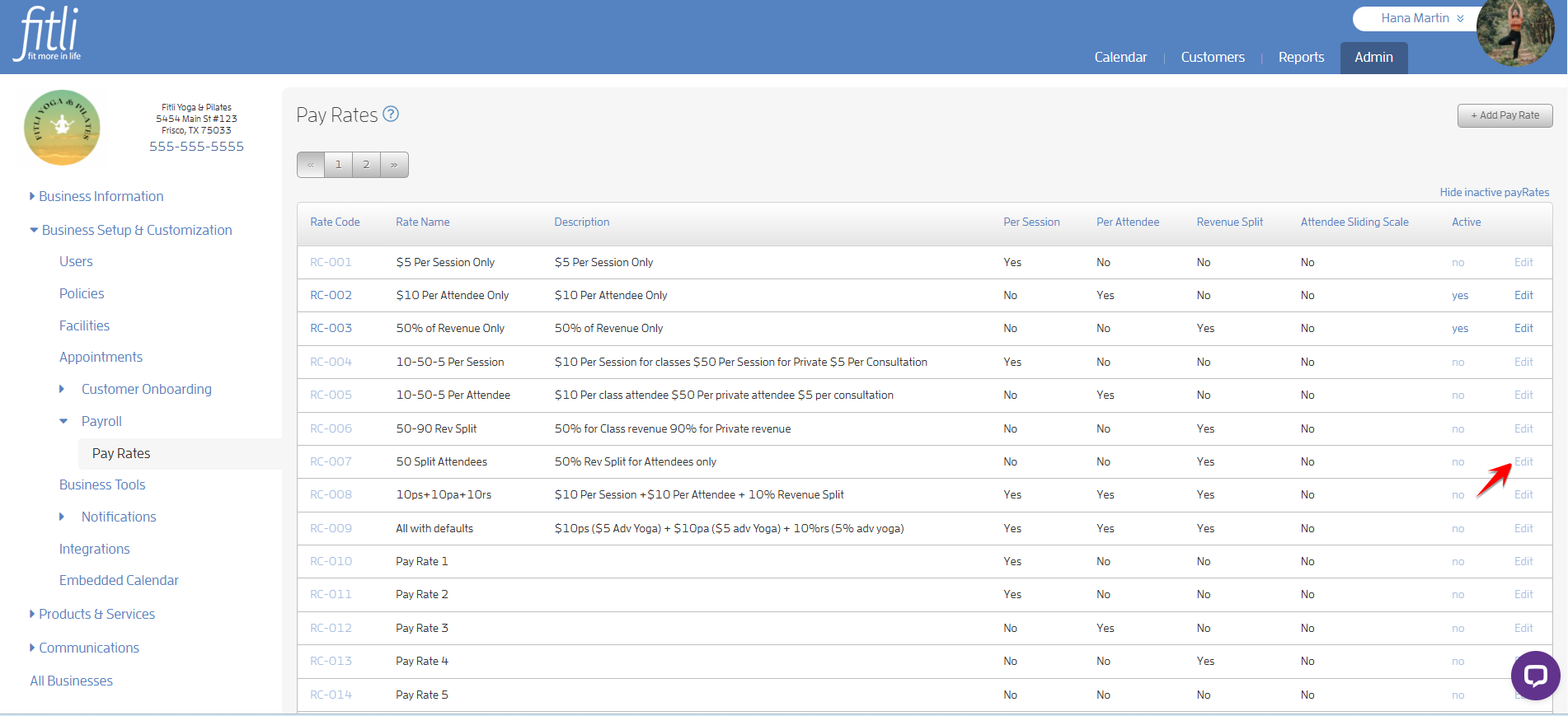
On the + Edit Pay Rate modal, click the Clone Pay Rate link at the top.
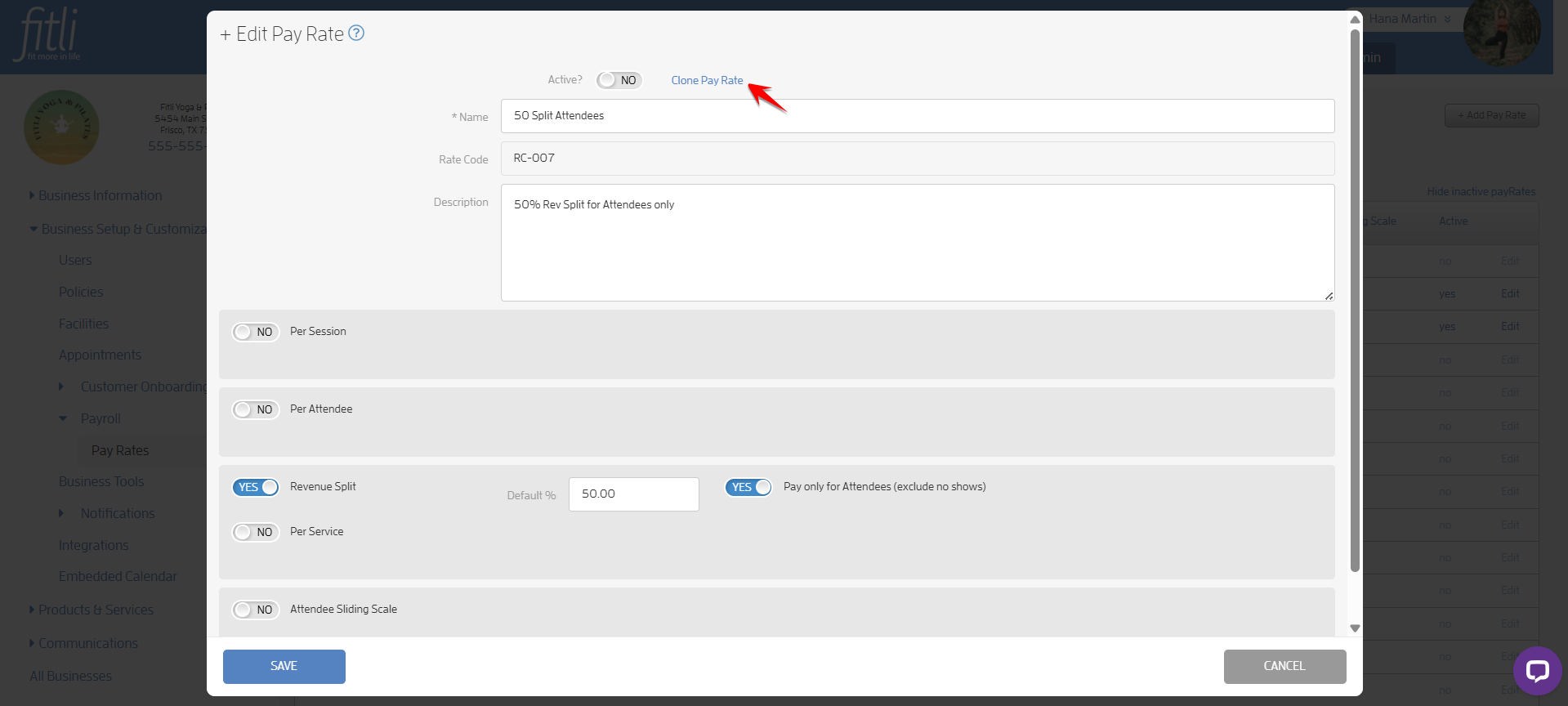
You will be directed to the + Clone Pay Rate modal. From here, you can edit the pay rate details and click Save. Otherwise, you can click Save and edit it later. In the example below, I will make the pay rate active by turning on the Active toggle, change its name, description and default percentage.
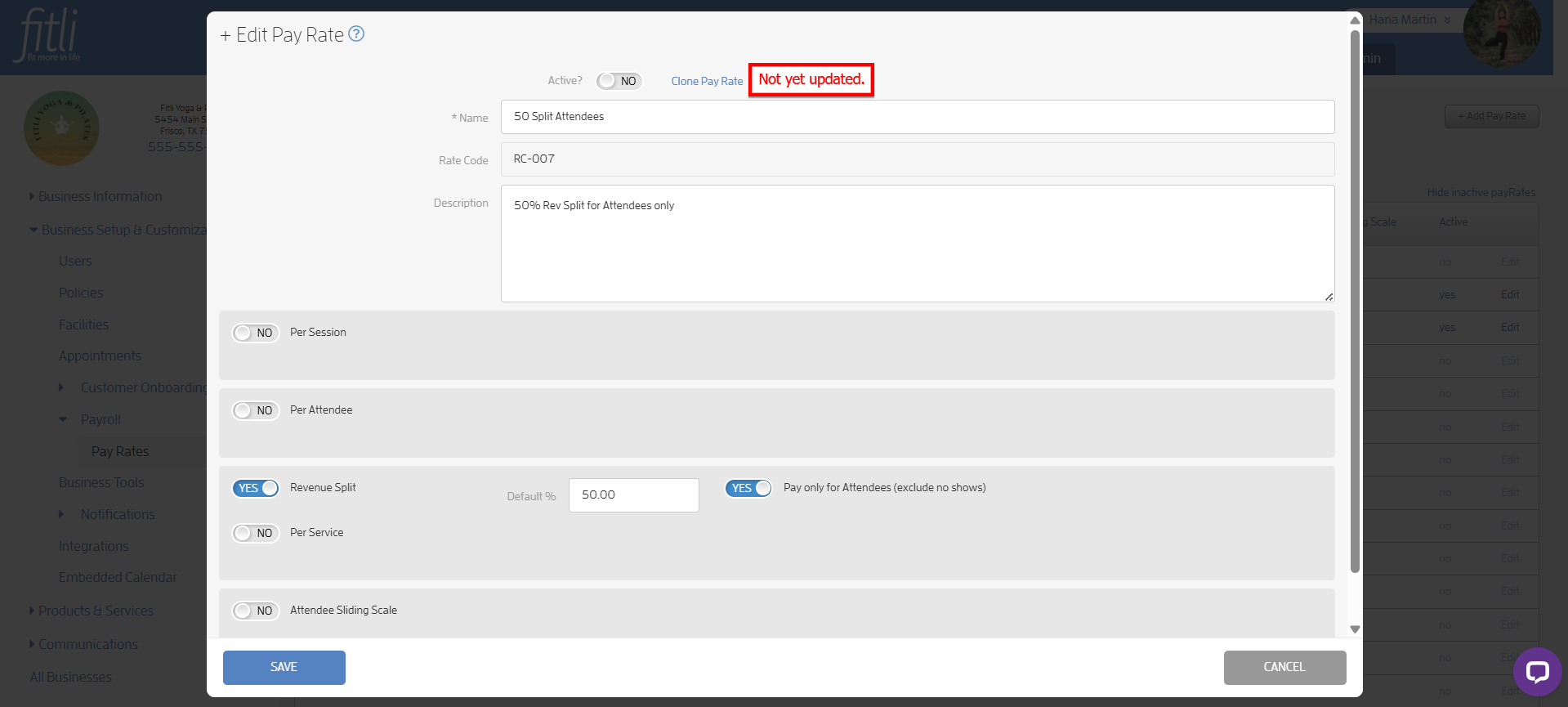
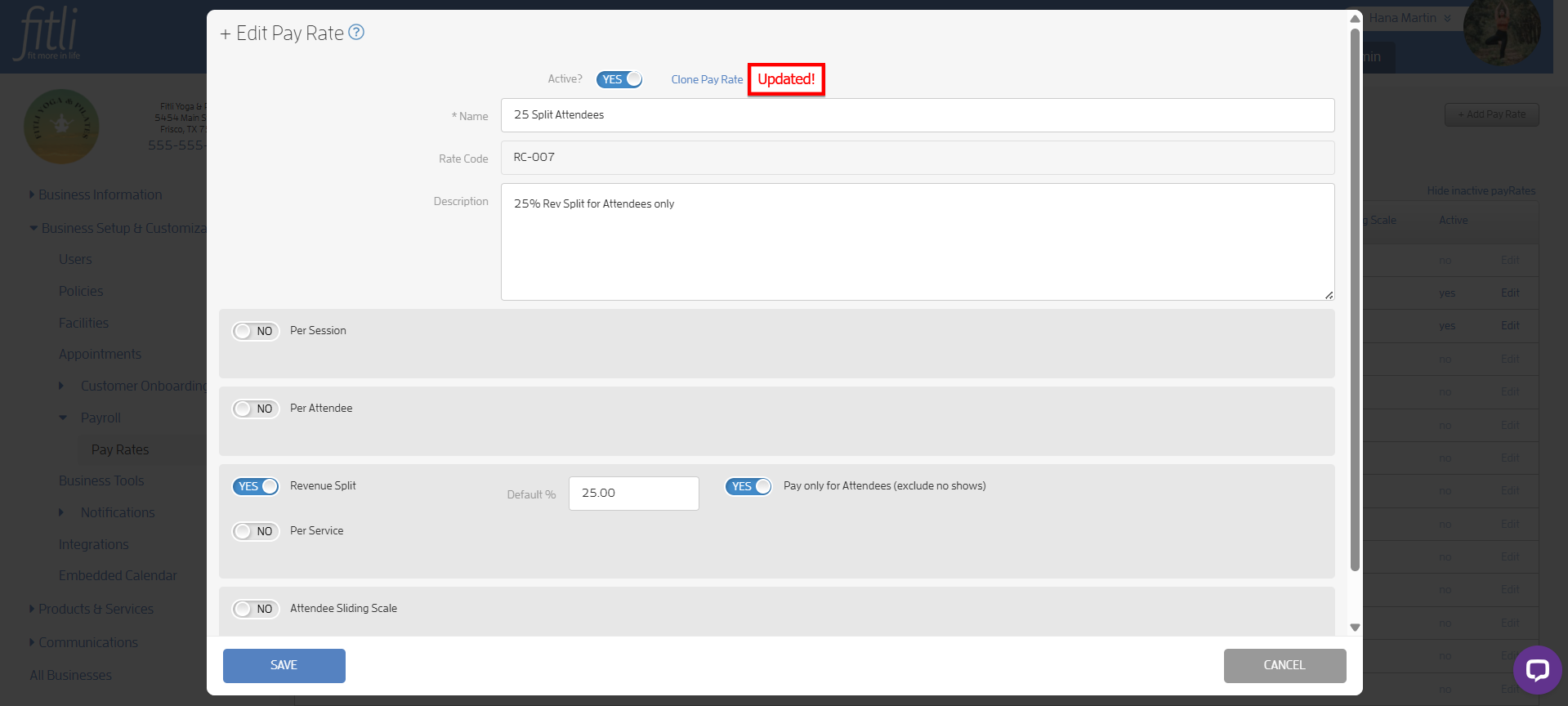
Click SAVE to save your changes.
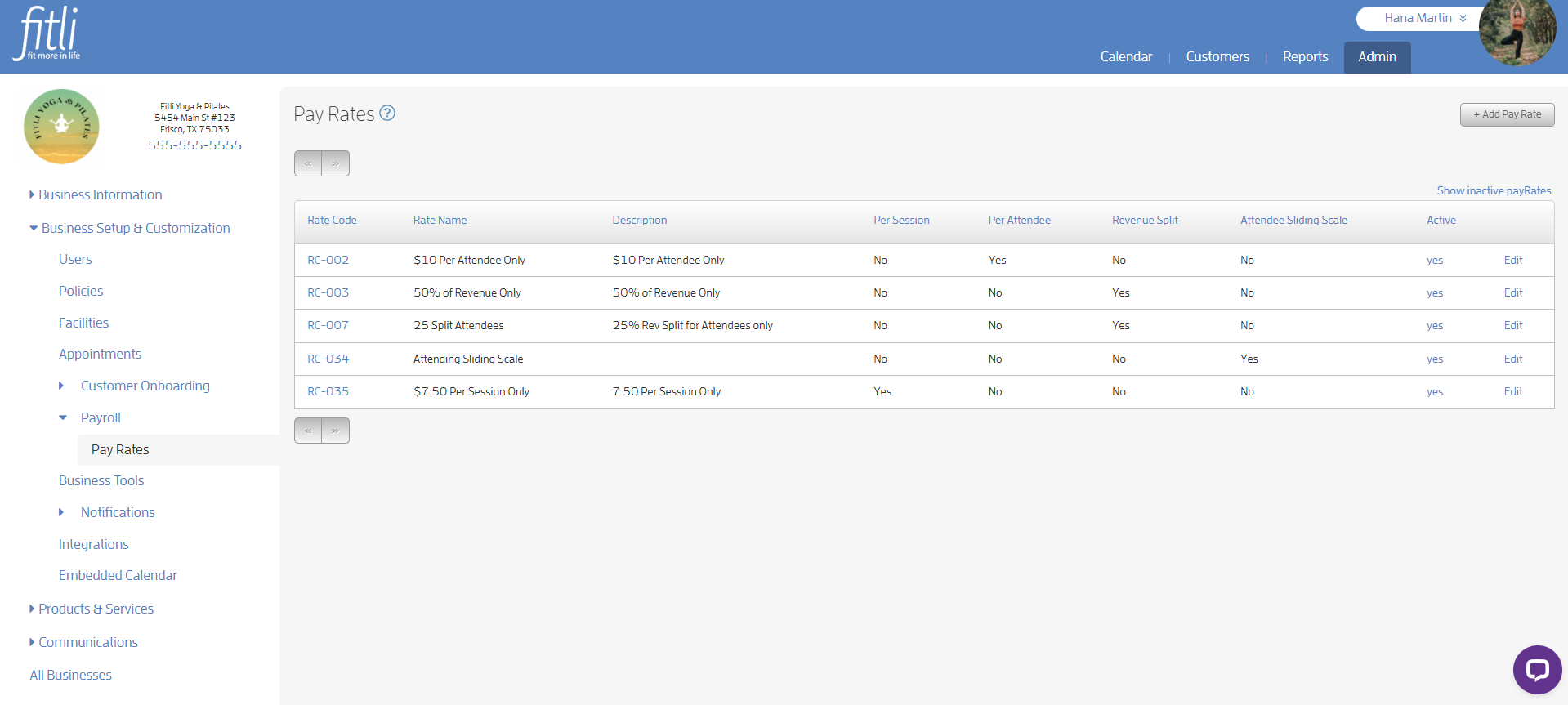
You will see both the old pay rate and the cloned pay rate on the Pay Rates page. Click Hide inactive payRates to show your active pay rates.
Important Final Step
After cloning, make sure to update the pay rate for any users who were assigned the old or deactivated version so they are linked to the new cloned pay rate.
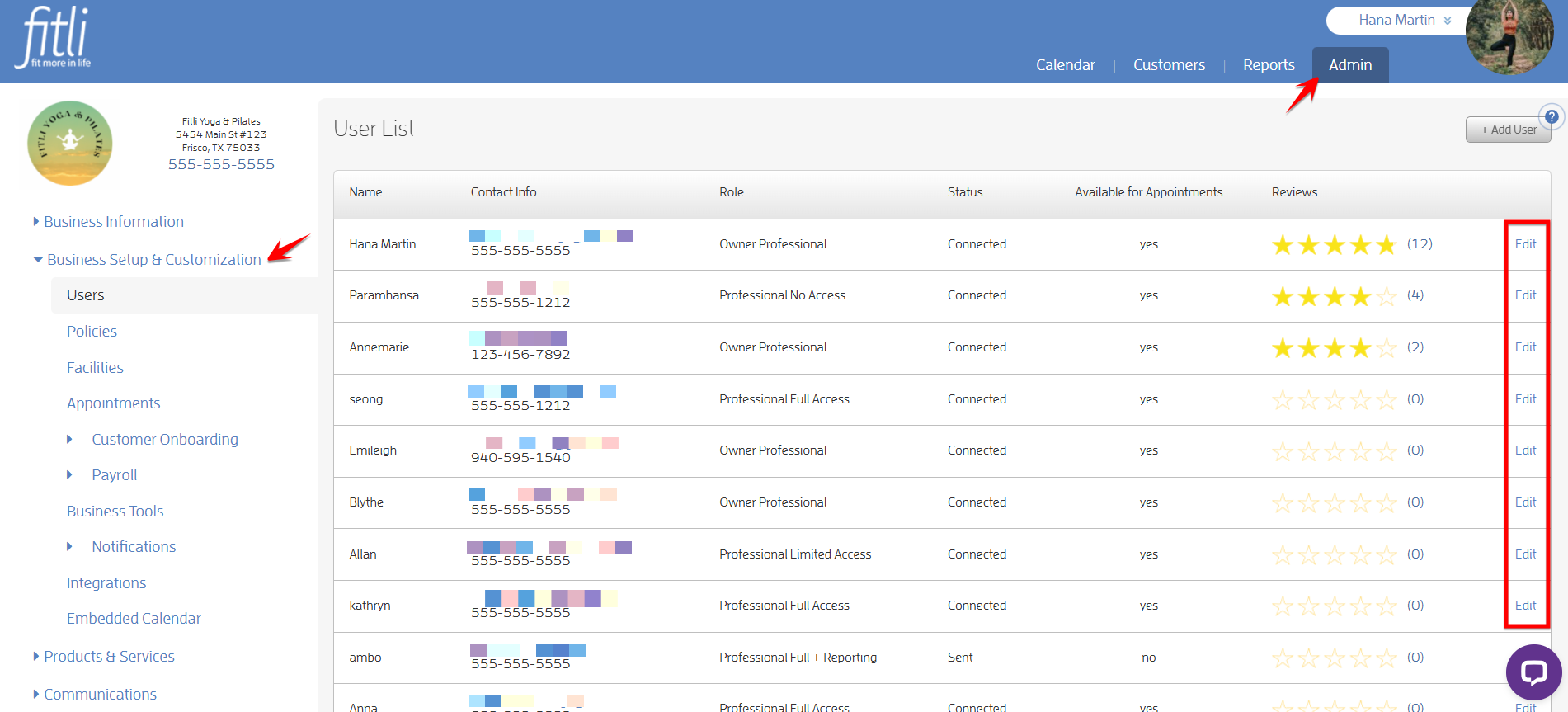
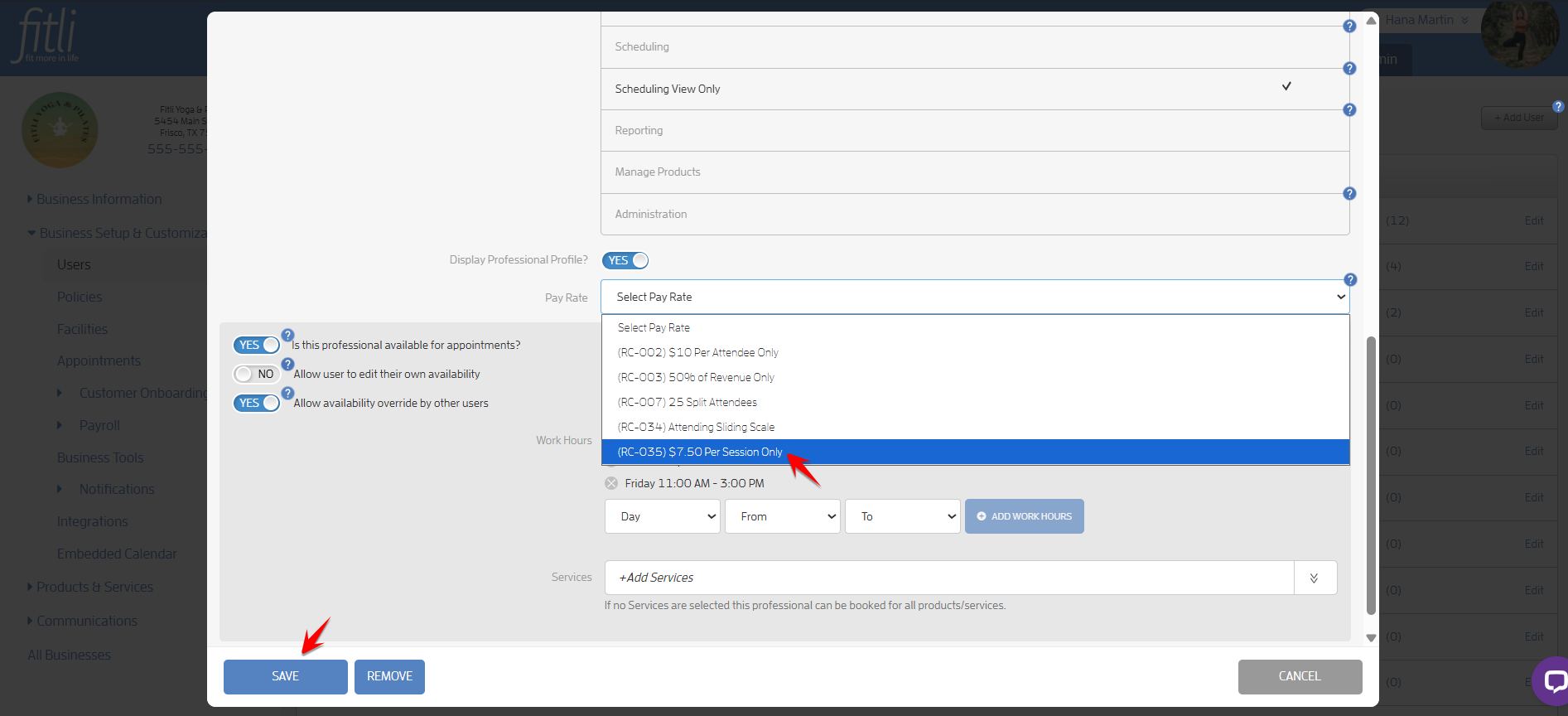
To do this, go to Admin and click Business Setup & Customization to open the Users List page. Click Edit next to the user, scroll down to the Pay Rate dropdown, select the new cloned pay rate, and then click Save. Screenshots below.
That's about it! Any questions? Chat with us or send us an email to support@fitli.com.