
This feature provides you more control over booking permissions of unlimited auto-renewing plans. This is solely for unlimited auto-renewing plans, not limited auto-renewing plans.
How to Add Booking Hibernation?
To add booking hibernation, go to your customer’s profile on your Customers list and scroll down to “Auto-Renewing Plans”.
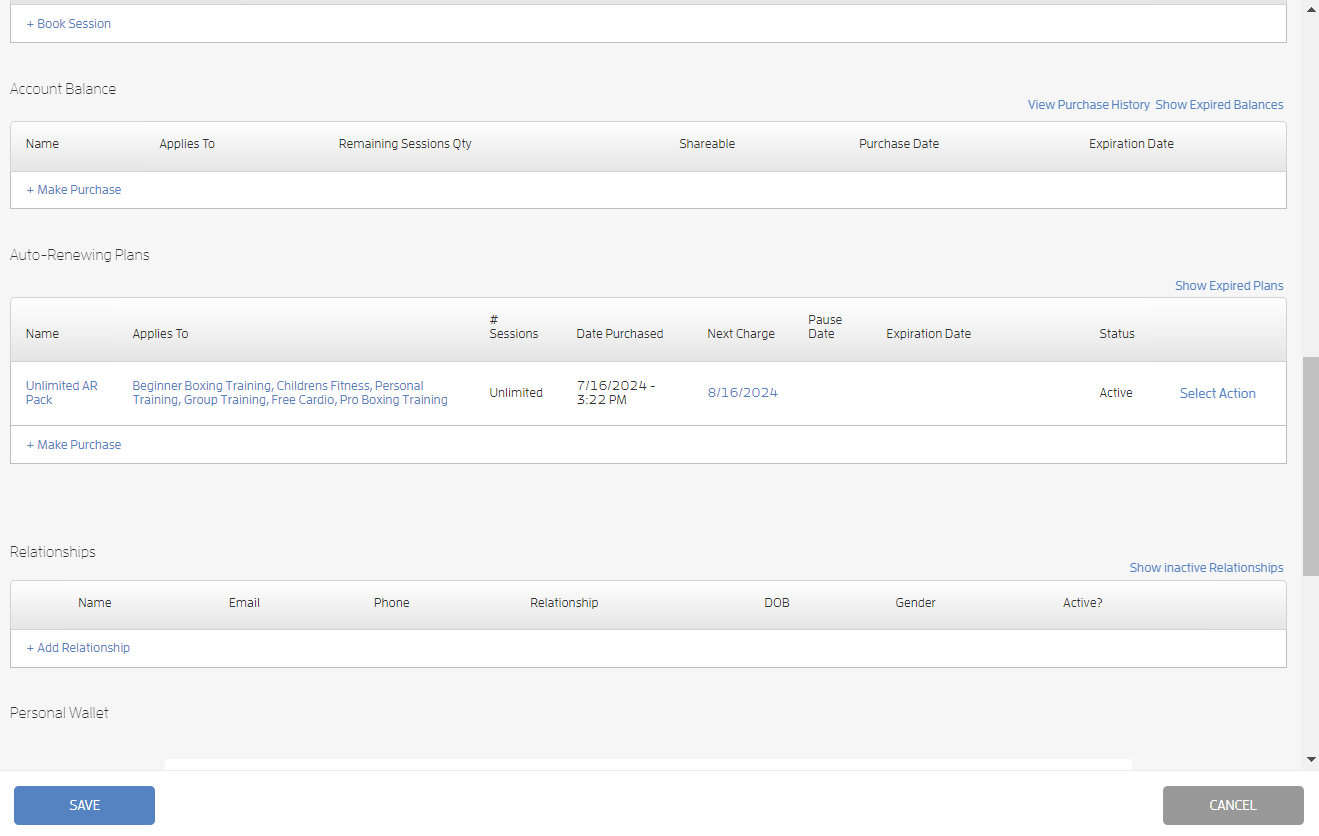
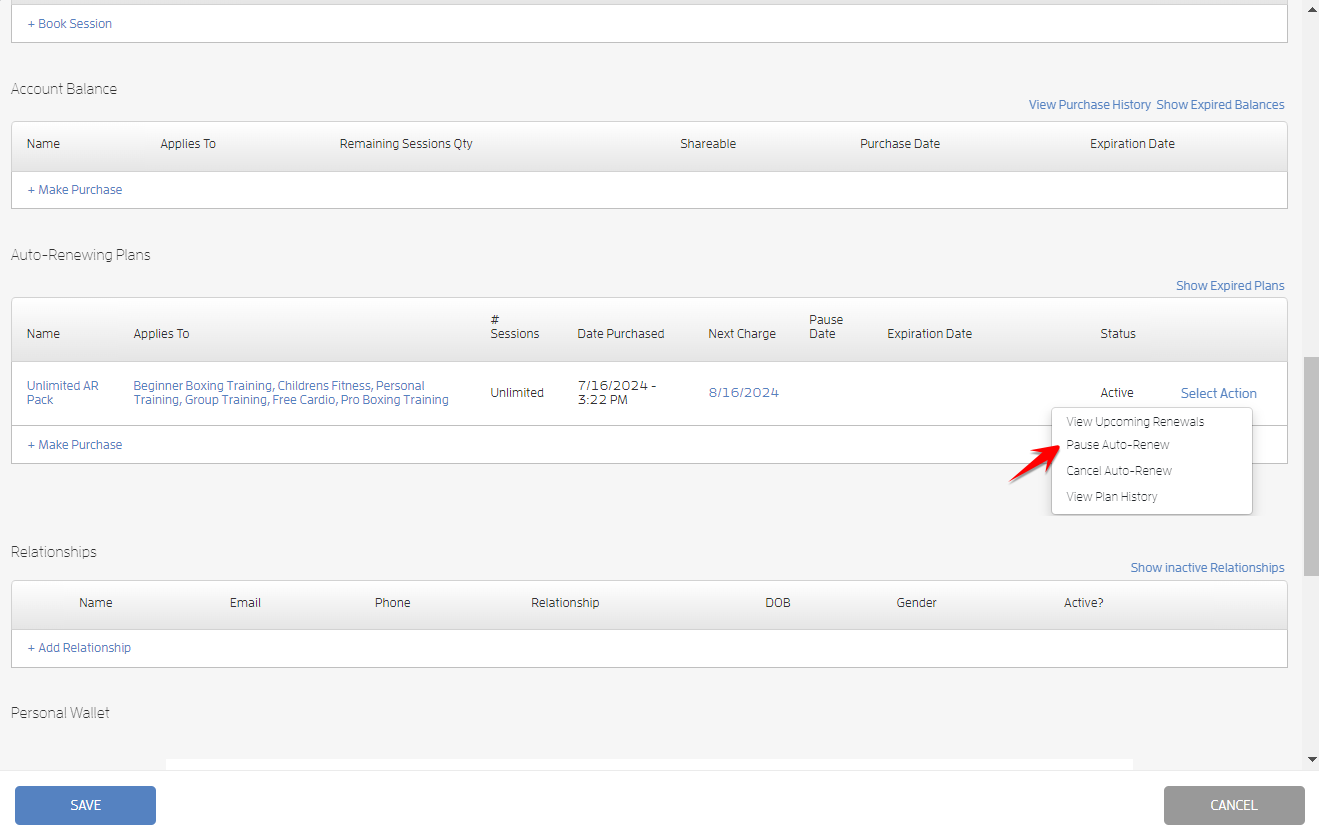
Click the “Select Action” link on the right side then choose “Pause Auto-Renew.”
Click the “Pause Date” to open the date picker then choose your preferred pause date. You can also do this on the “Next Renewal Date” dropdown. Click SAVE.
Notes:
-
Pause Date cannot be after the Next Renewal Date.
-
If Pause Date is already selected, the Next Renewal Date should be required to be at least 1 day after the Pause Date
-
Pause Date has to be scheduled at least 1 day before the Next Renewal Date.
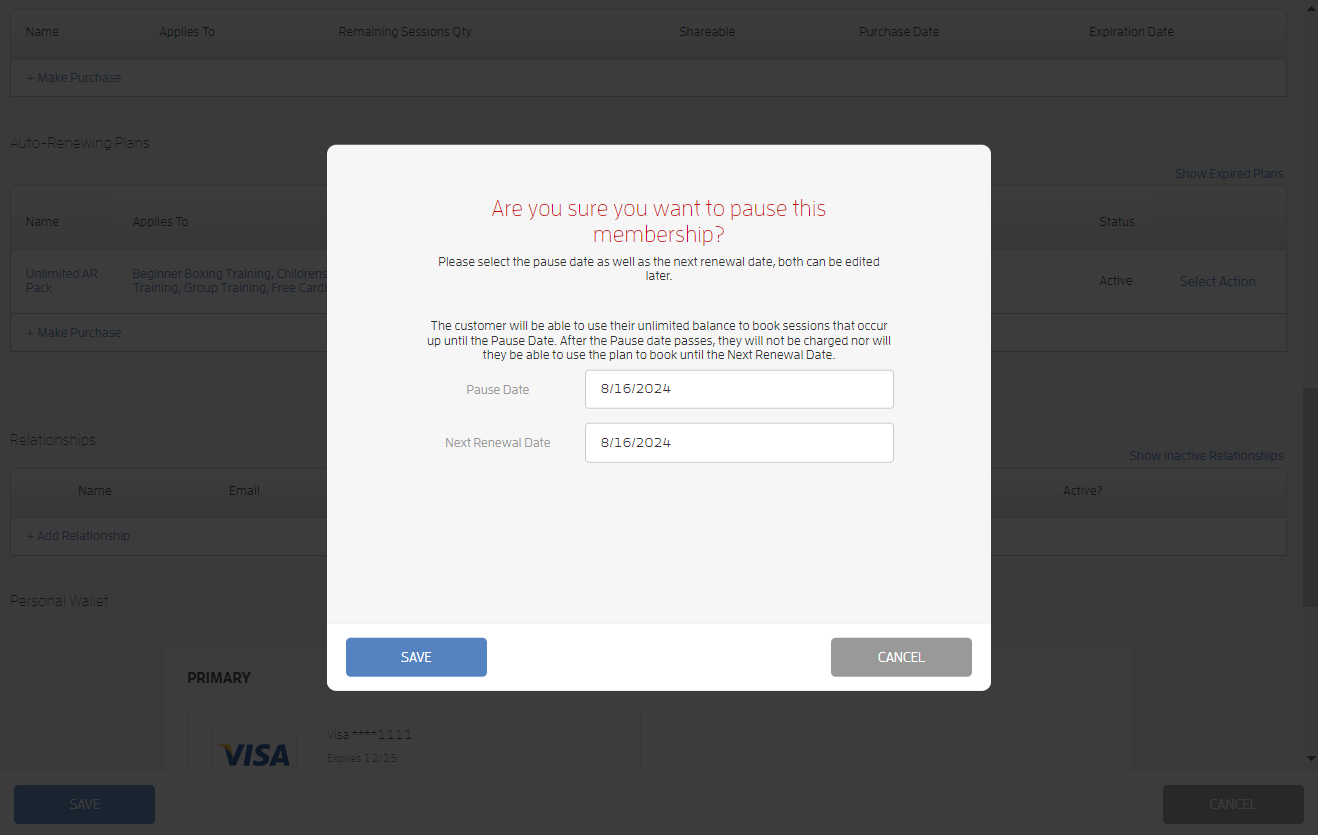
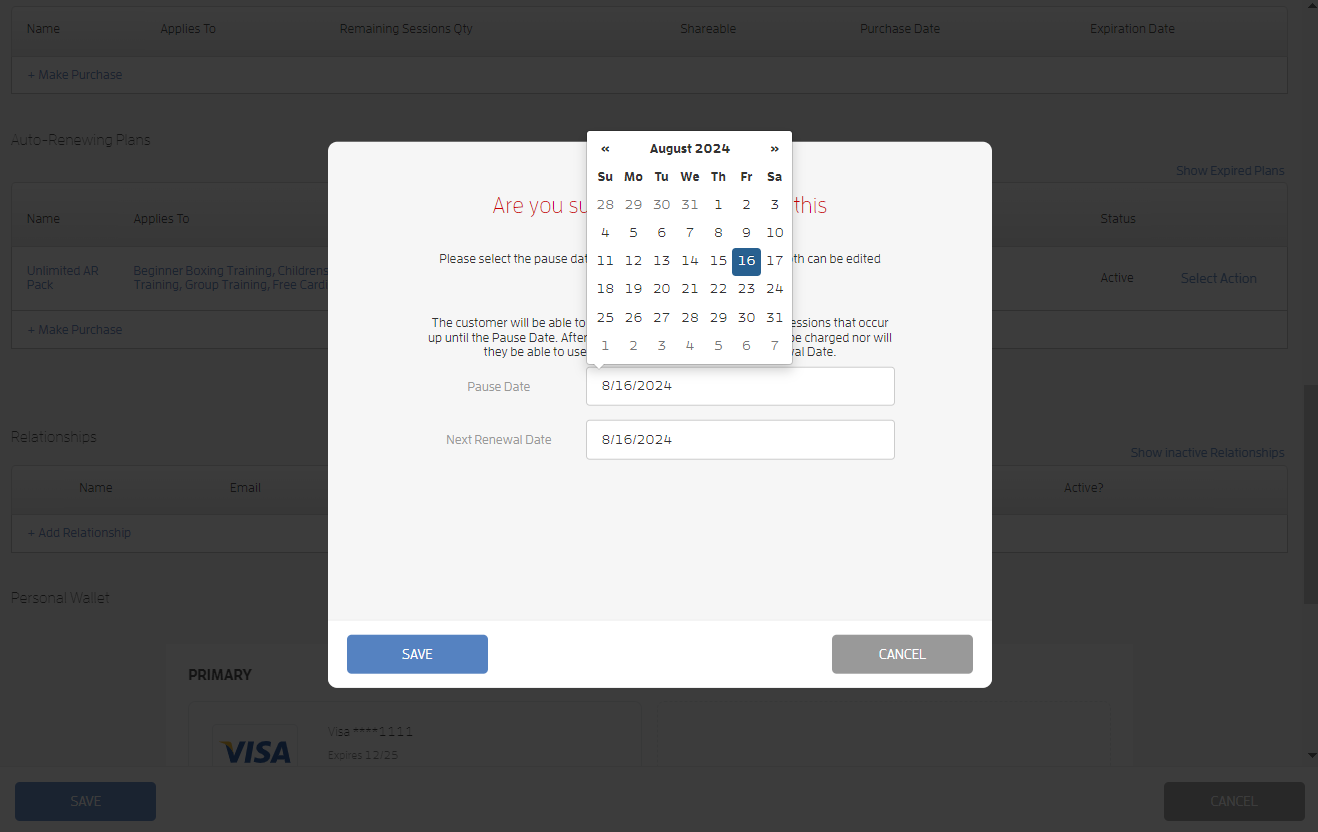
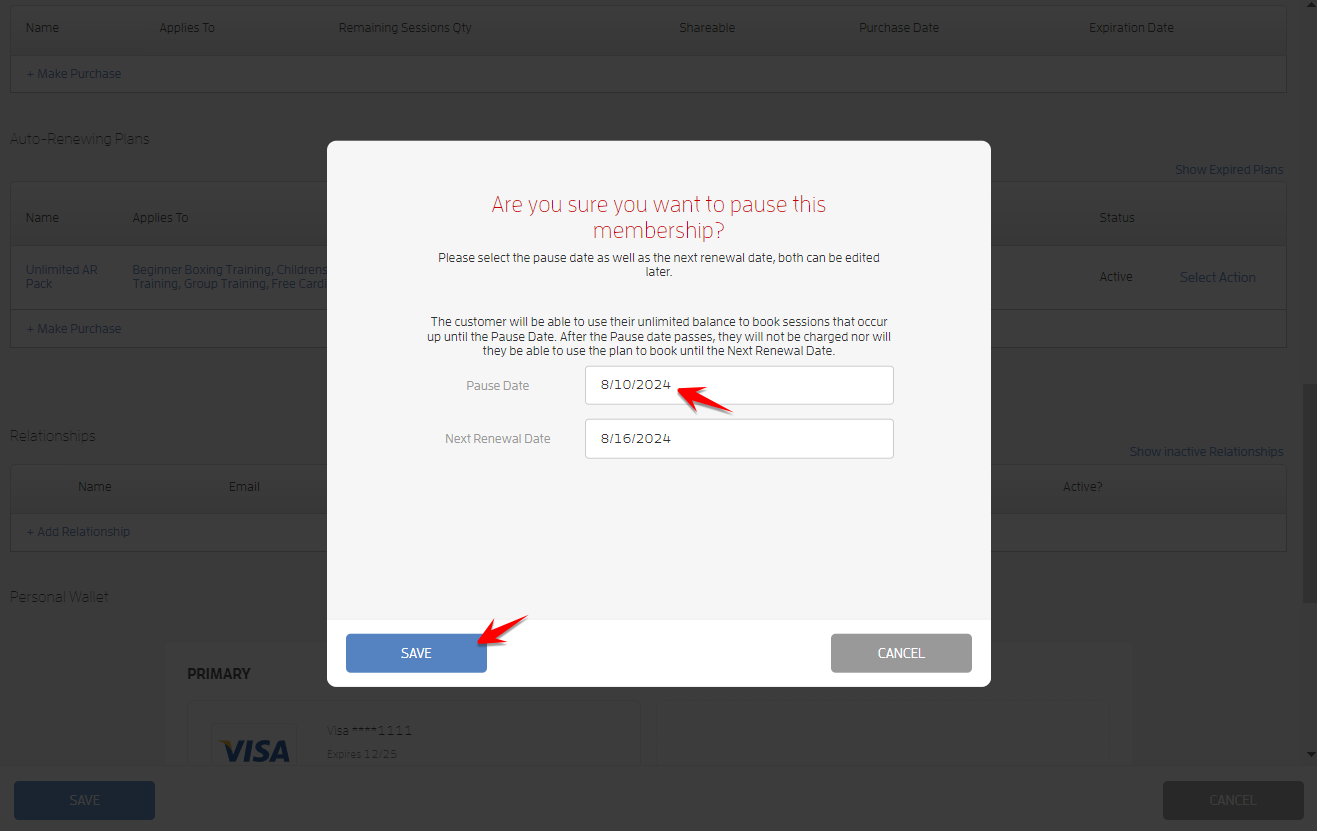
Your customer will be able to use their unlimited balance to book sessions that occur up until the Pause Date. After the Pause date passes, they will not be charged nor will they be able to use the plan to book until the Next Renewal Date.
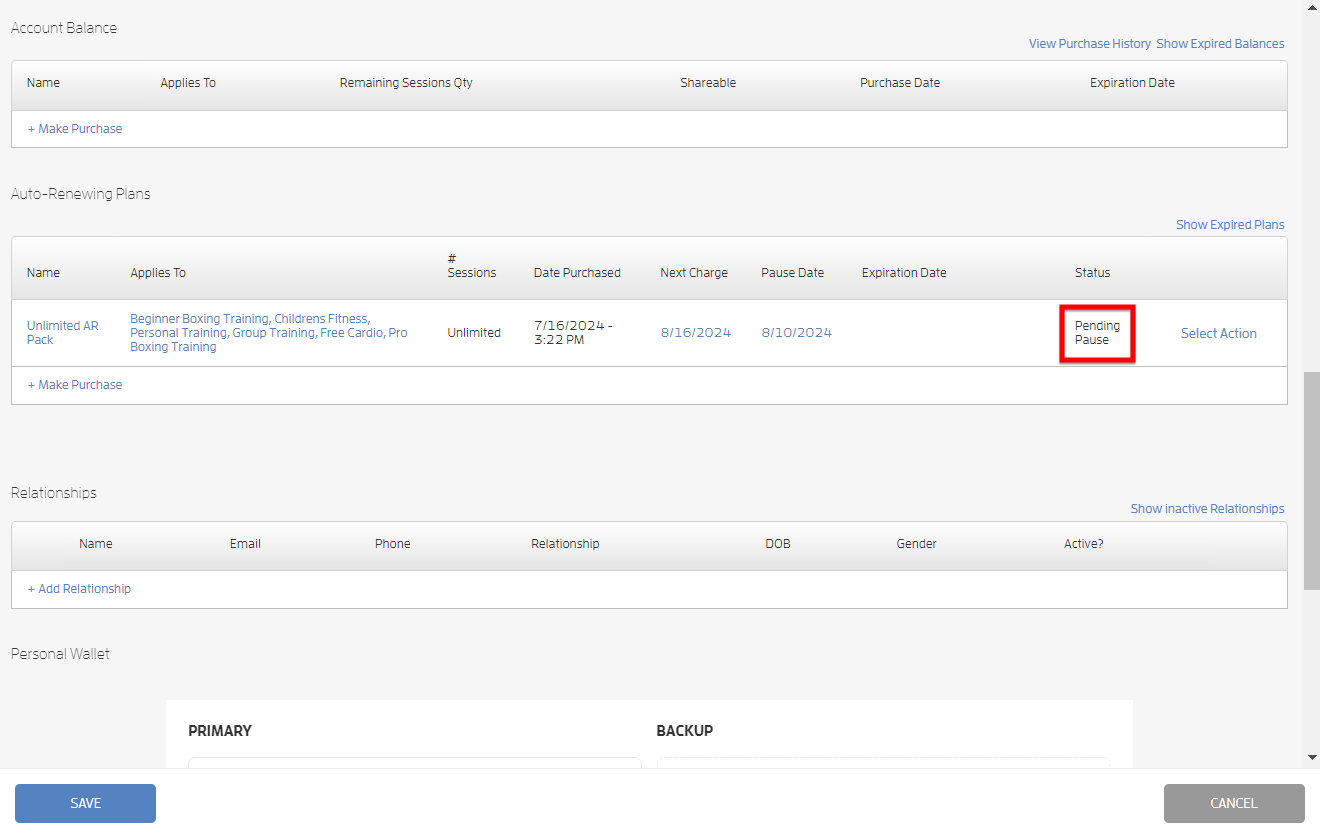
How to cancel Scheduled Booking Hibernation?
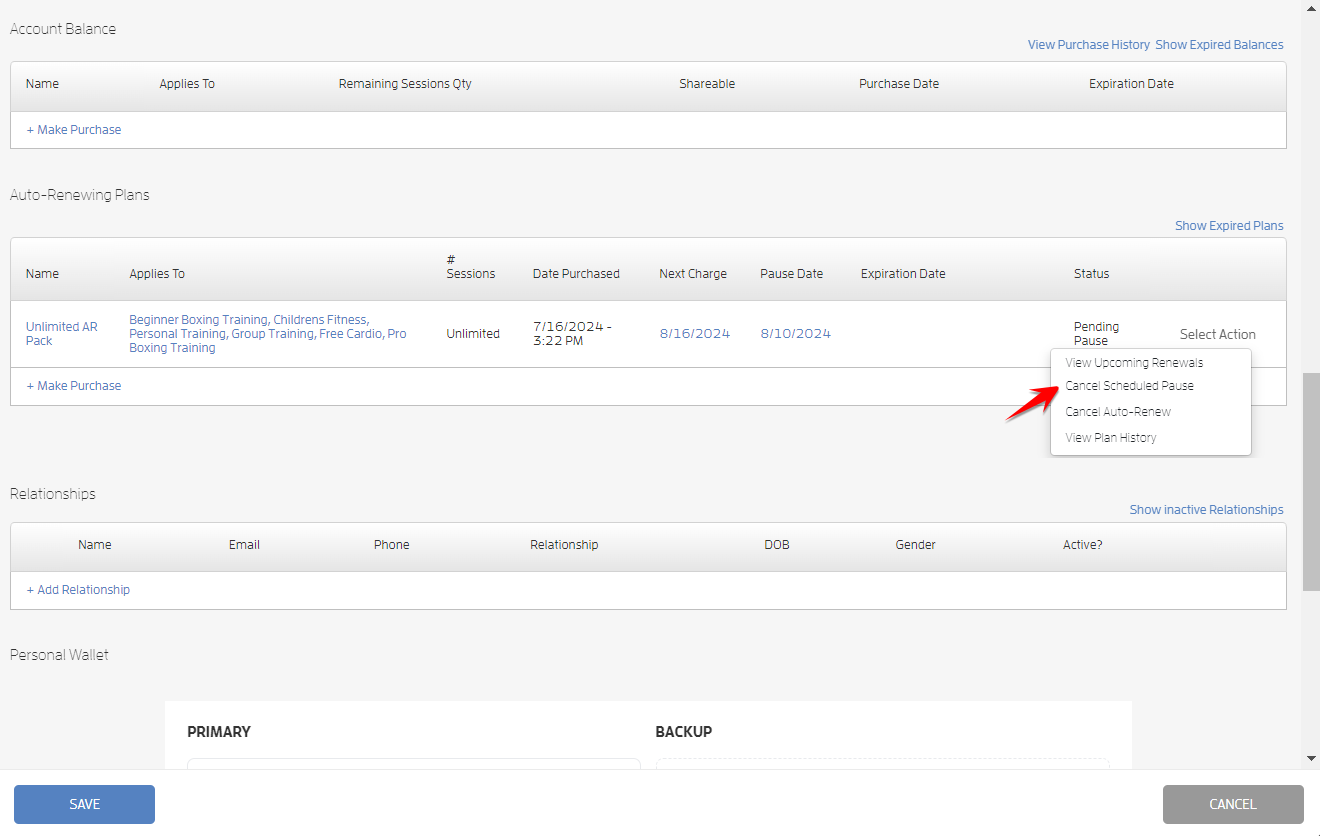
To cancel a scheduled booking hibernation, go to your customer’s profile on your Customers list and scroll down to “Auto-Renewing Plans”. Click the “Select Action” link on the right side then choose “Cancel Scheduled Pause.”
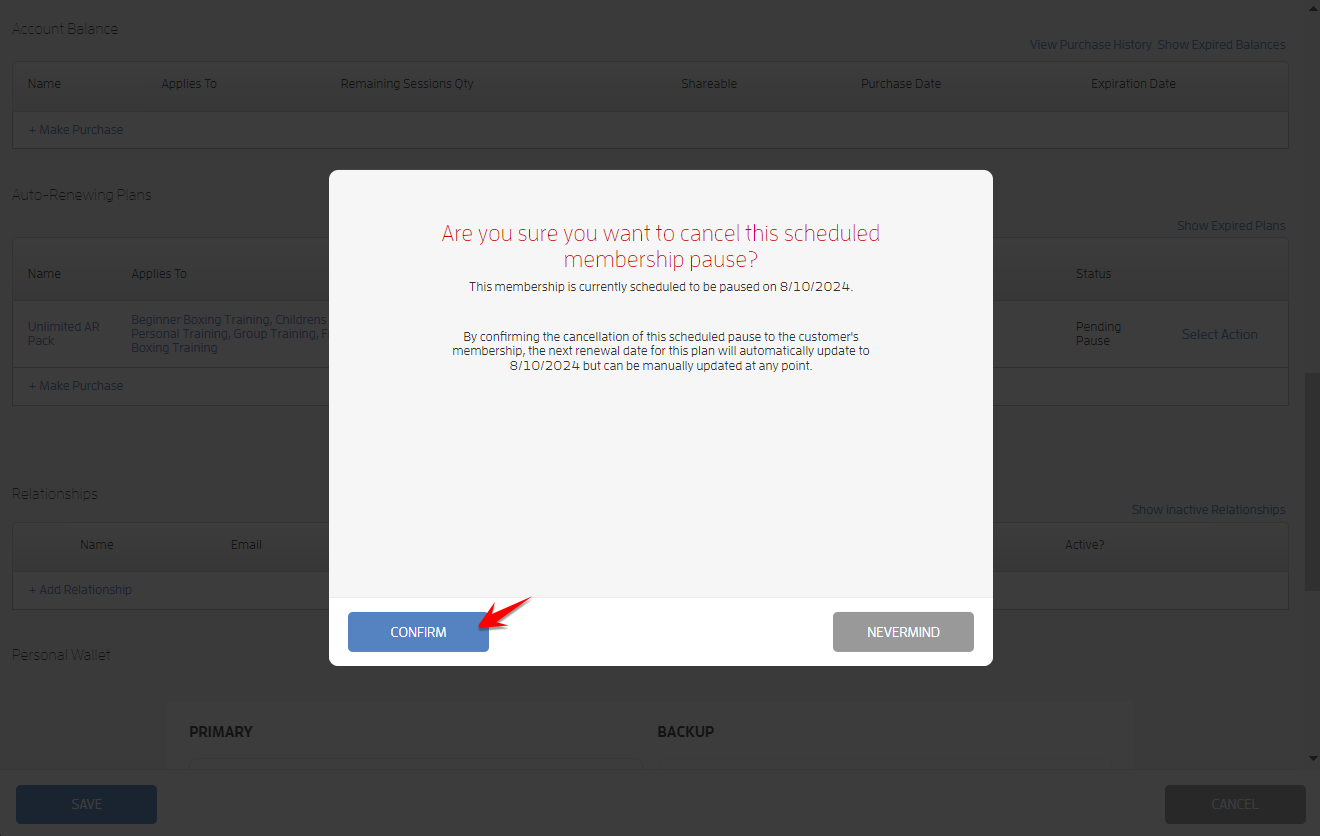
By confirming the cancellation of the scheduled pause to the customer's membership, the next renewal date for the plan will automatically update to the scheduled pause date, in this case it’s 8/10/2024, but can be manually updated at any point. Click CONFIRM.
The Auto-Renewing plan’s status will change to Active.
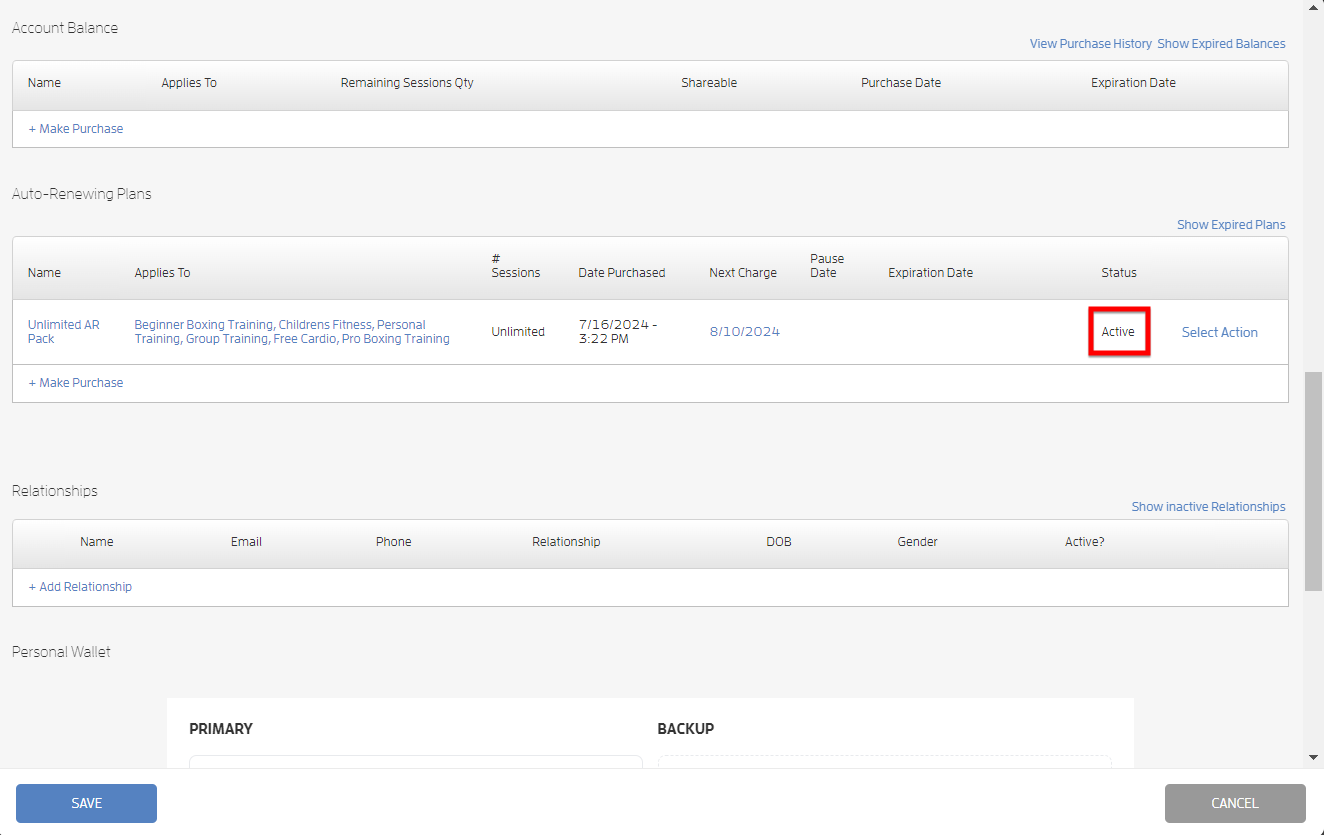
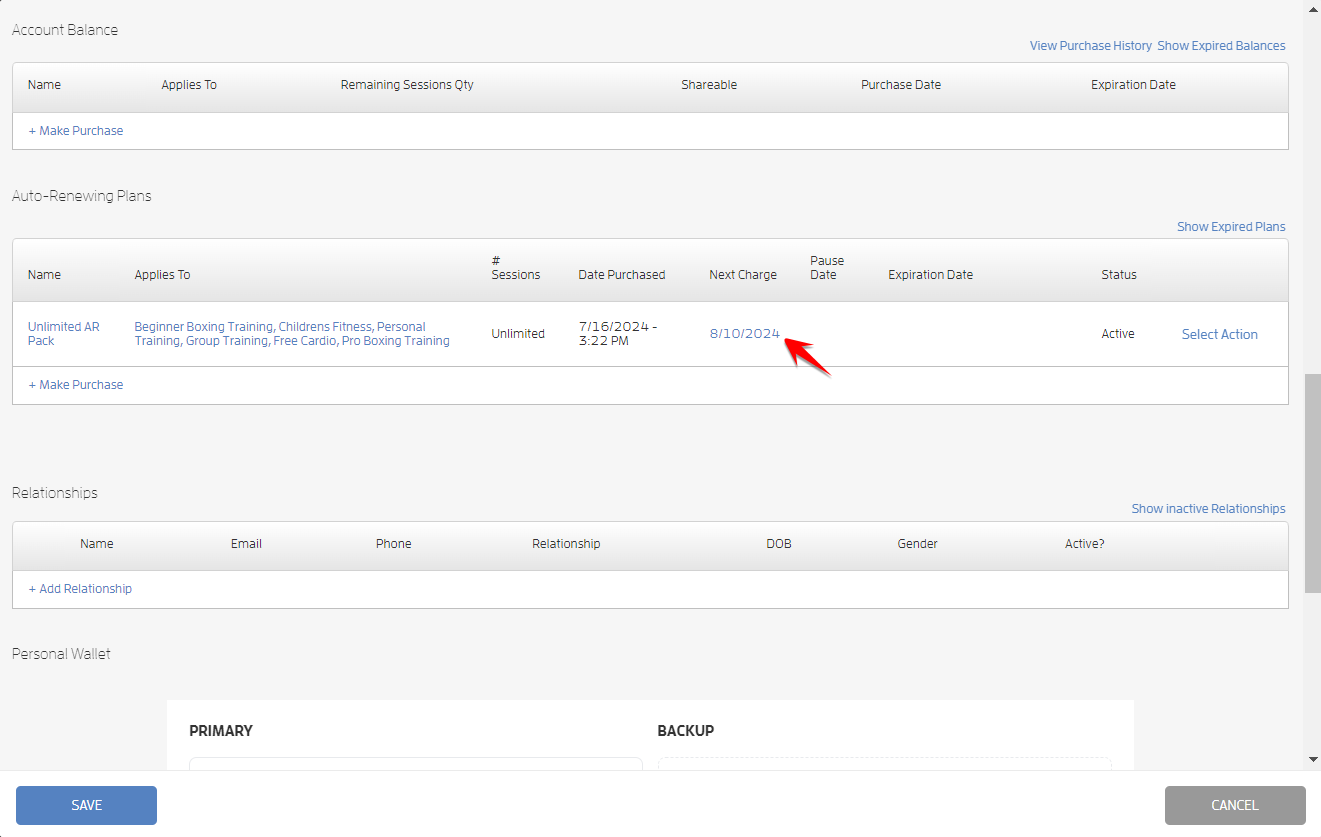
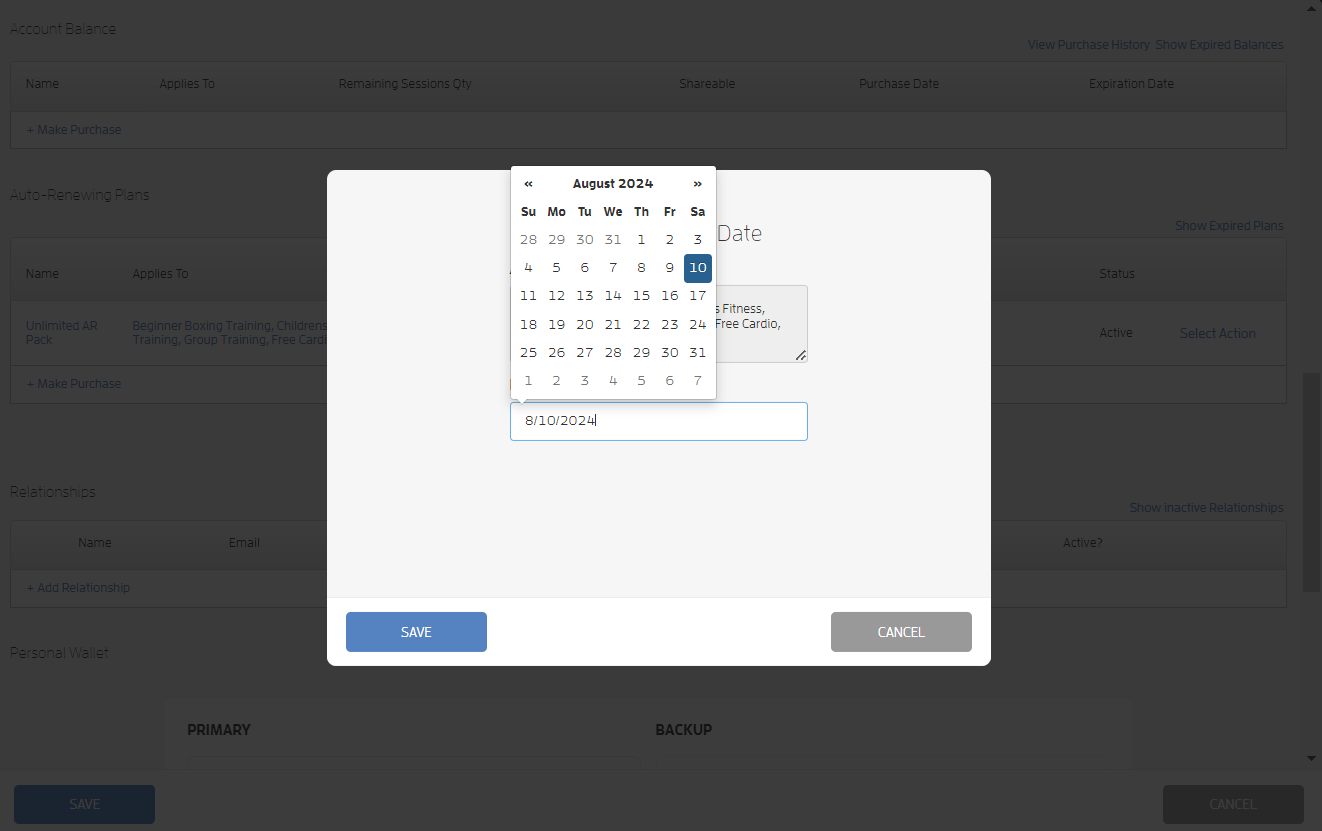
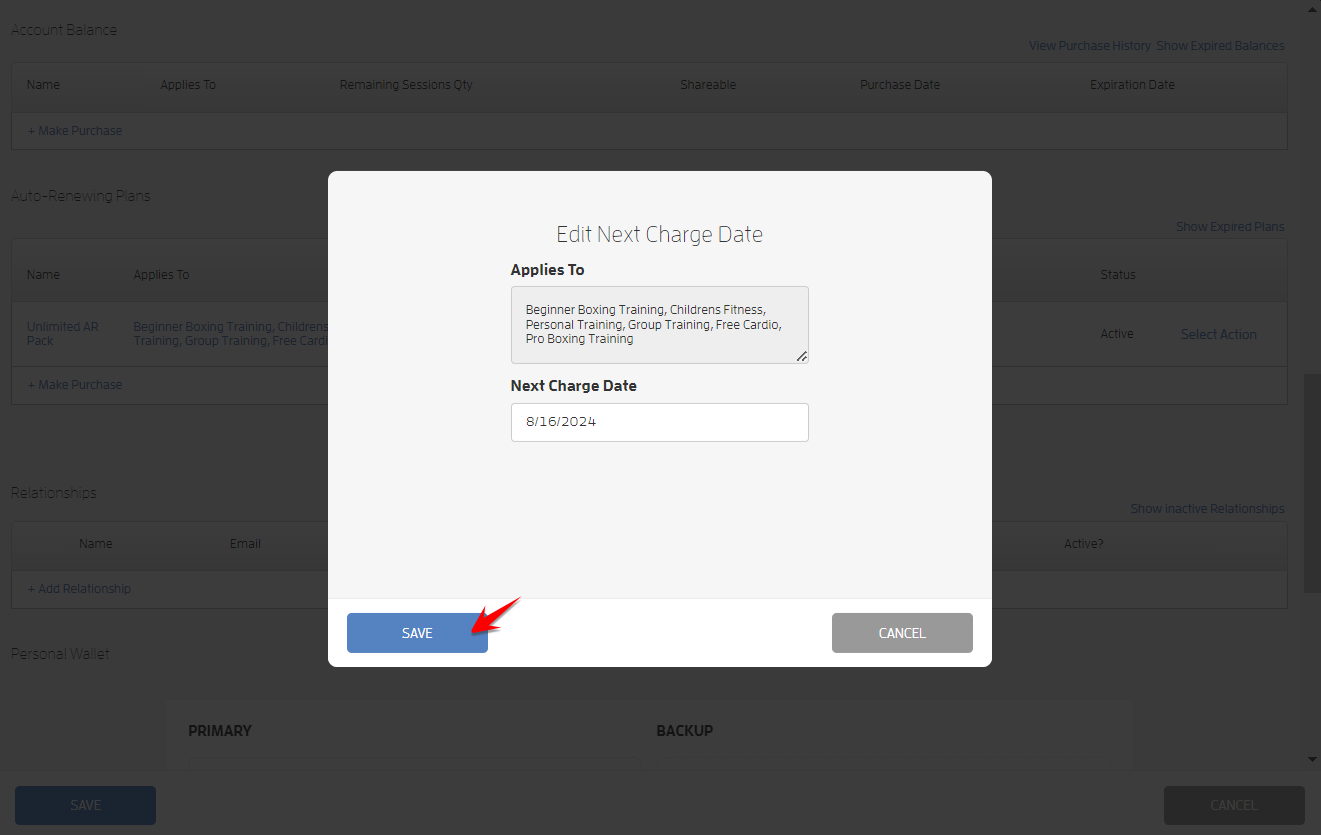
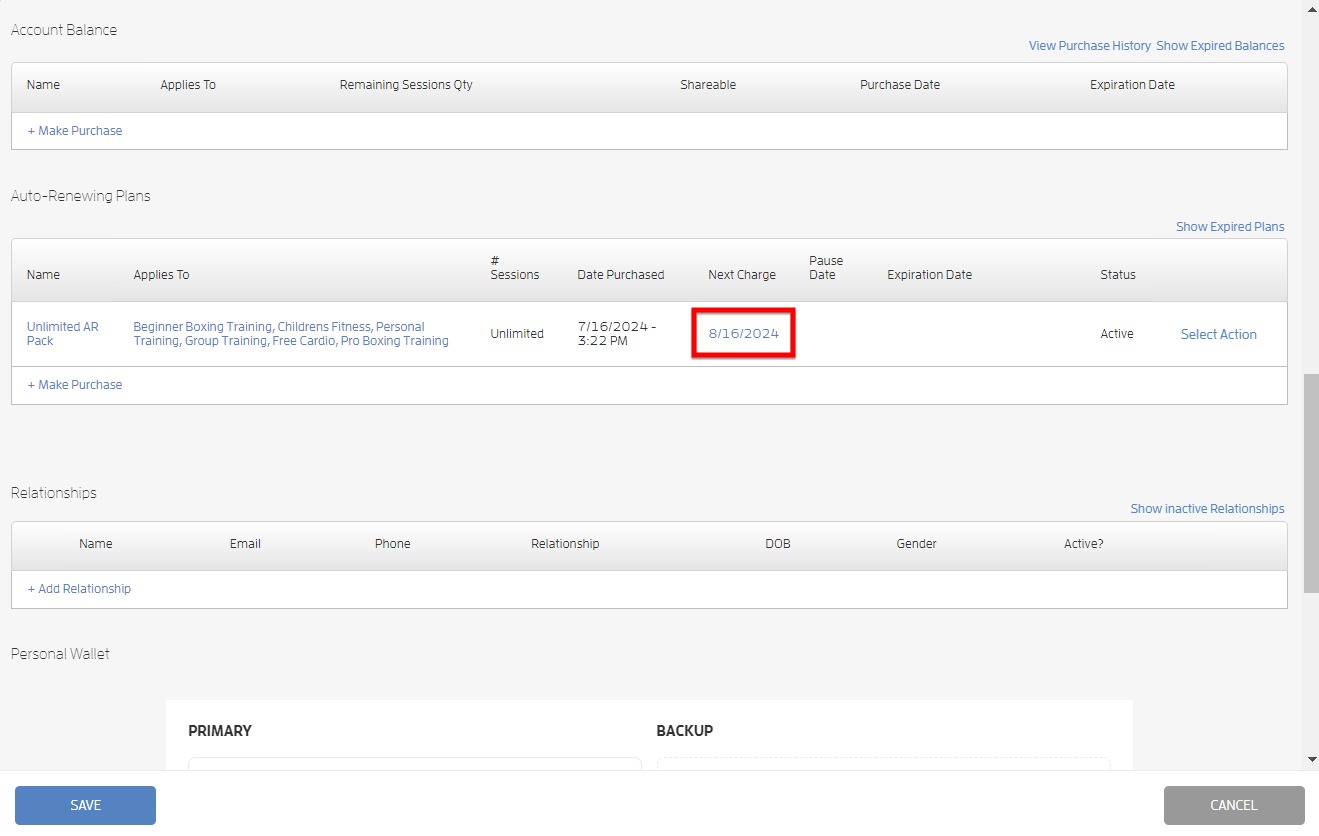
As mentioned above, you can manually update the next renewal date. To do this, click the date under the Next Charge column, use the date picker to select the next charge date then hit SAVE. Screenshots below.
That's about it! Any questions? Chat with us or send us an email to support@fitli.com.