
If your current business credit card on file is expiring, or you'd like to update/change it, it's easy!
Step 1: Log in to your Fitli business account.
Step 2: Select your business account by using the pulldown menu in the upper right.
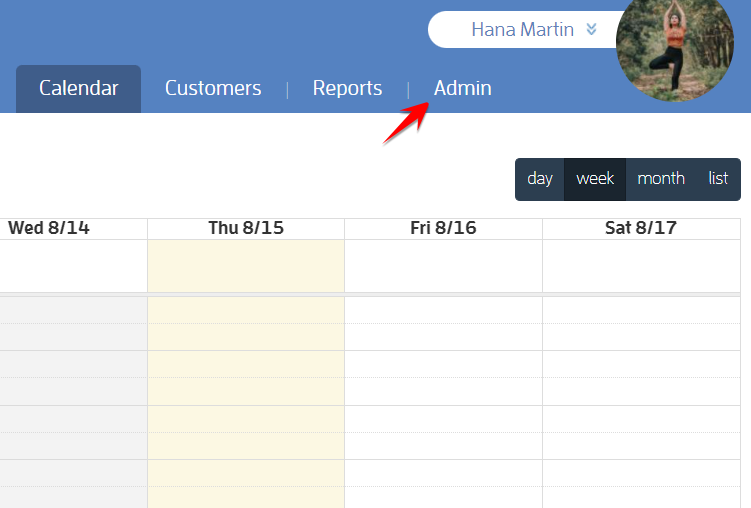
Step 3: Choose "Admin" at the top.
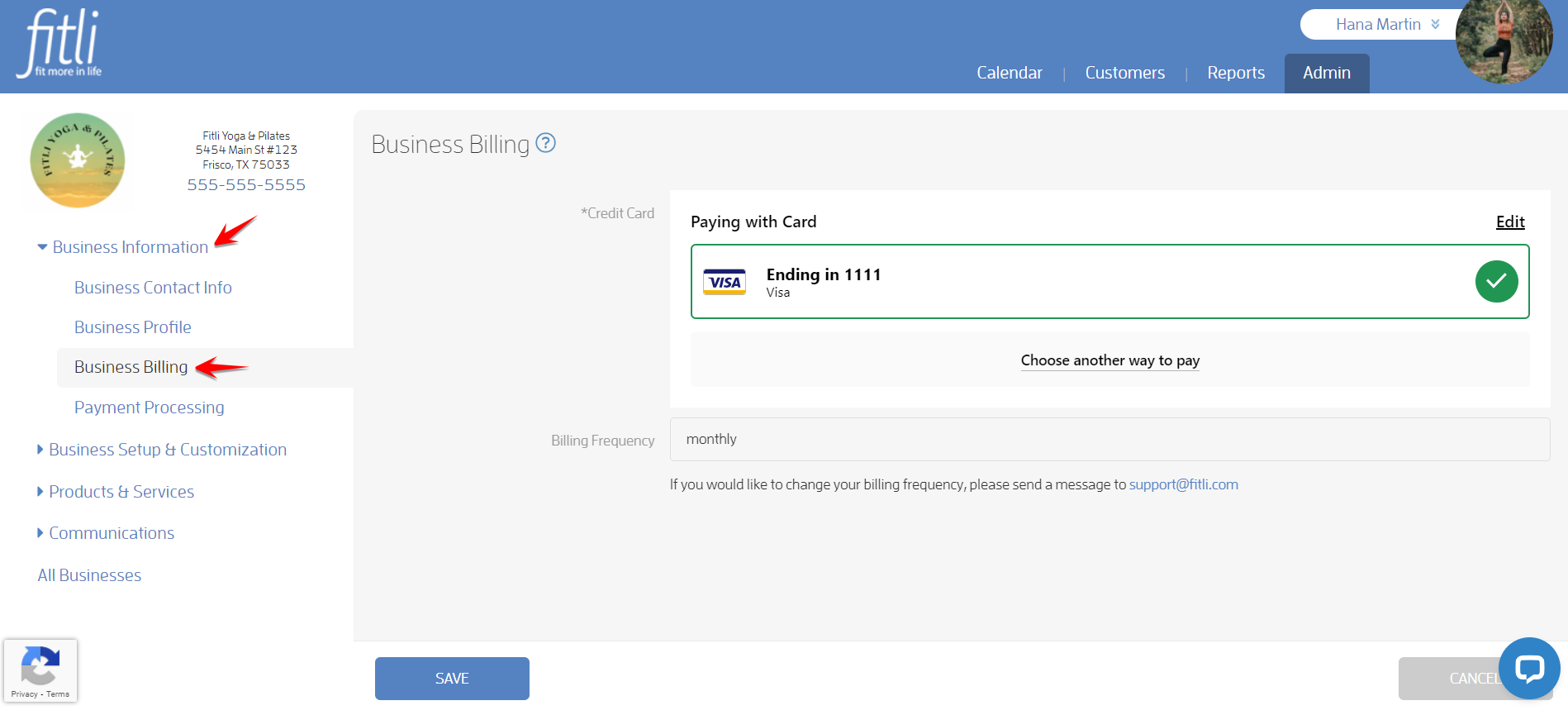
Step 4: Click "Business Information" then "Business Billing" on the left.
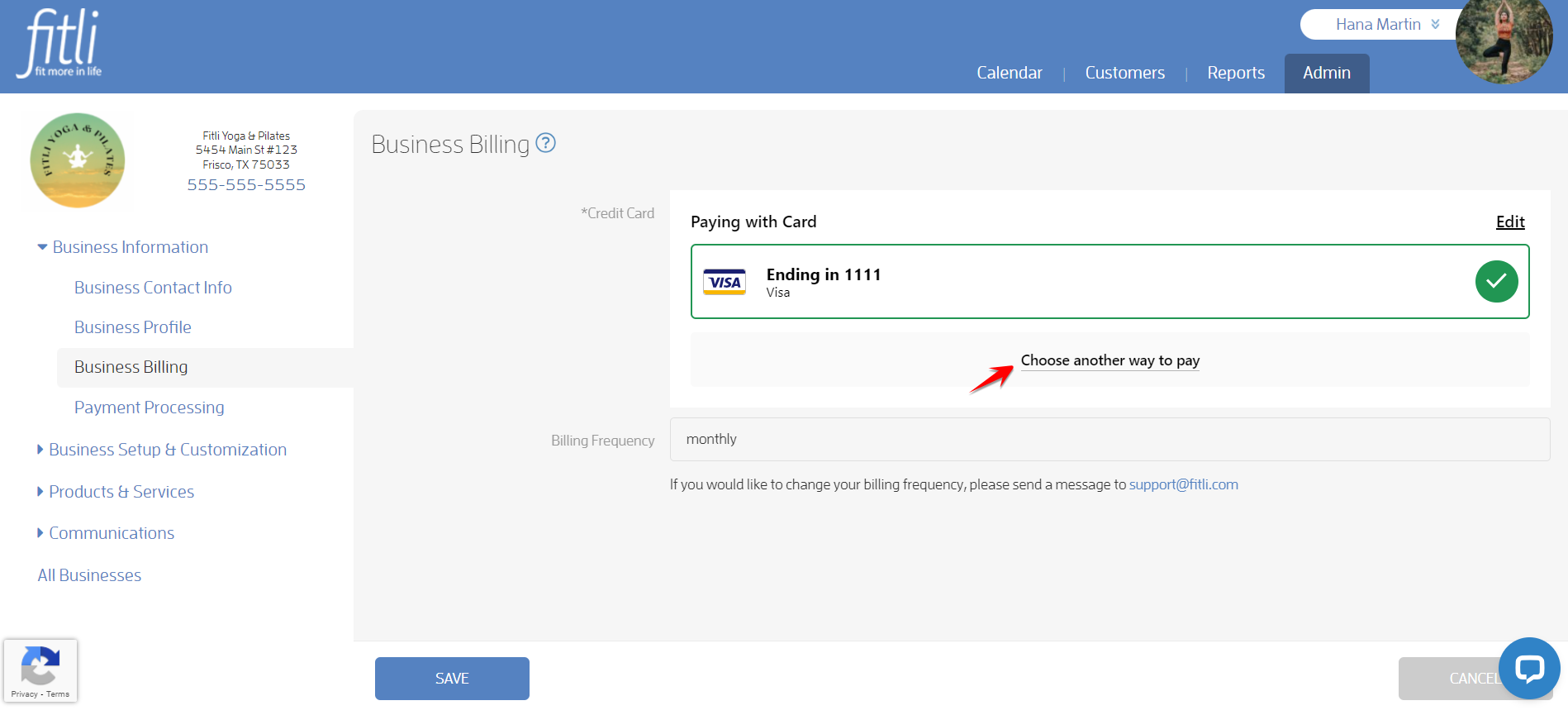
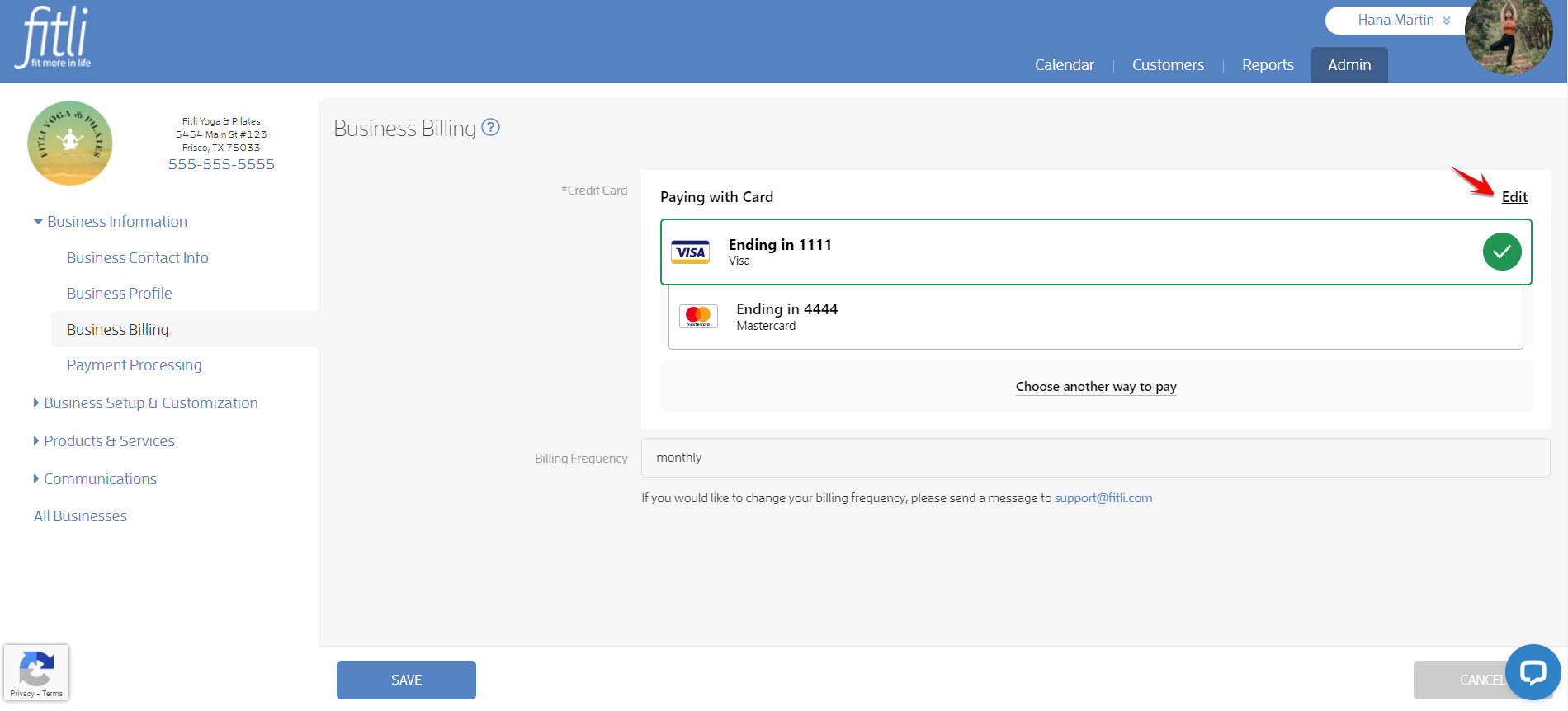
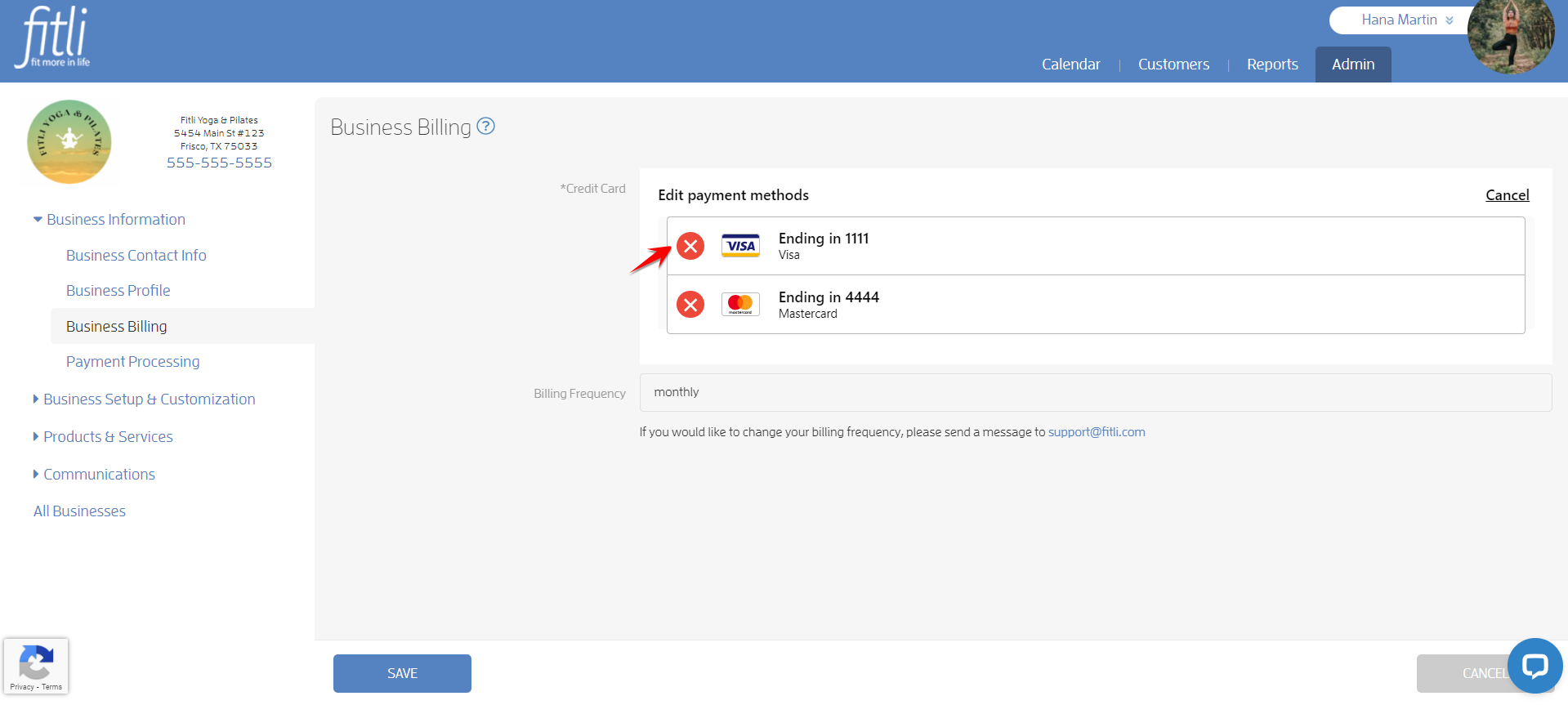
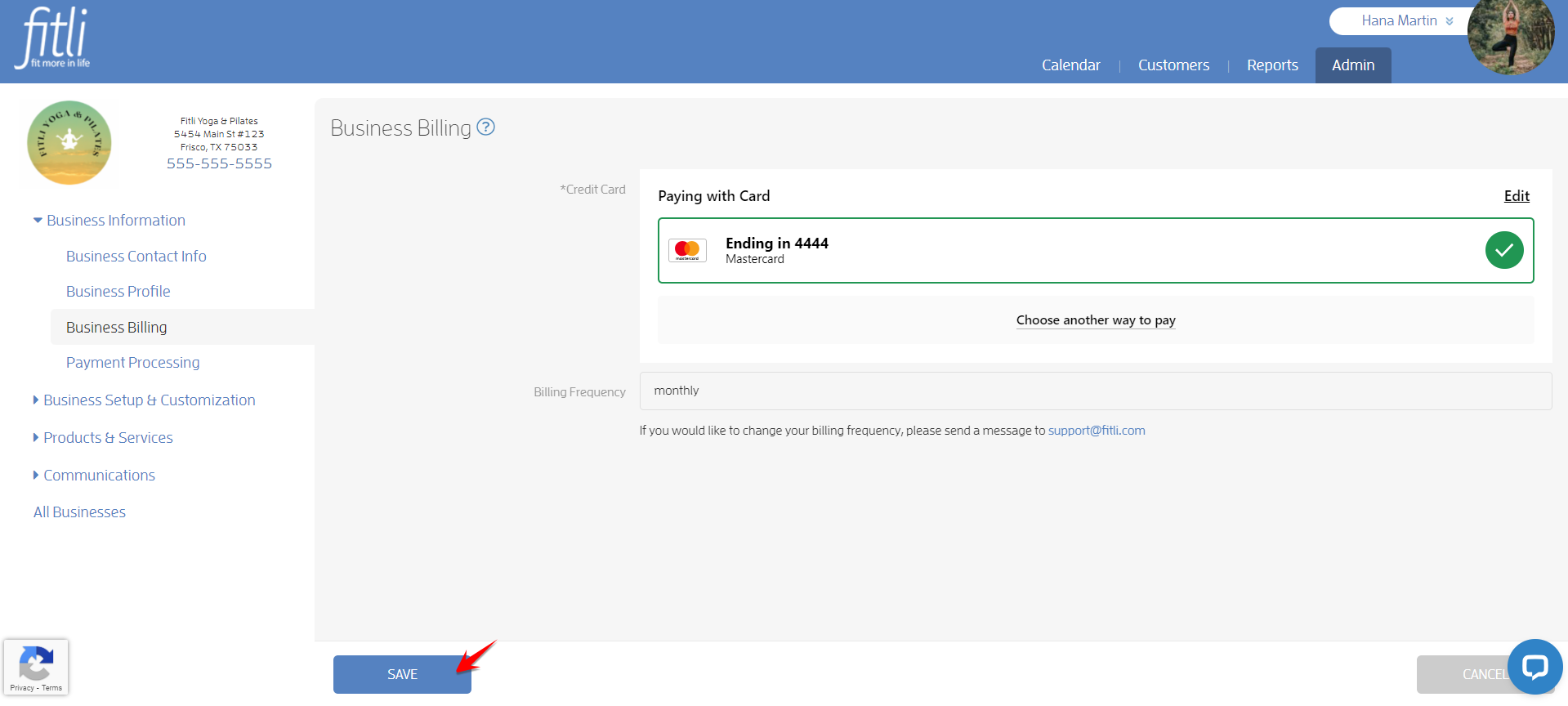
Step 5: Click "Choose another way to pay" in the right side card screen to either add another payment method, OR, to delete your existing expired or old payment method, click "Edit", then click the red "X" to remove your old card. Make sure to click SAVE.
Choose Another Way to Pay
Click "Choose another way to pay".
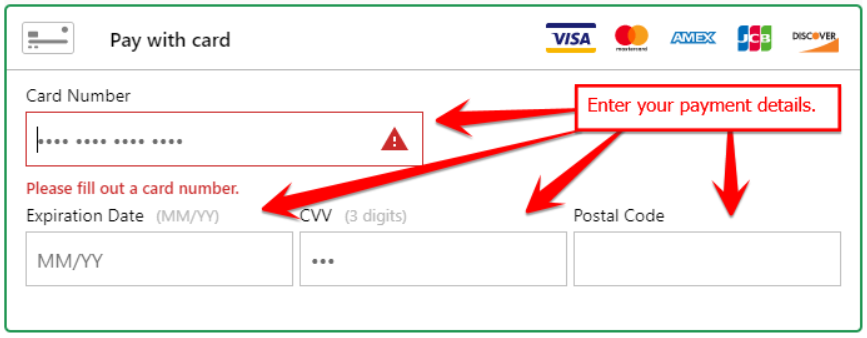
Enter your new credit card information in the card section and click SAVE.
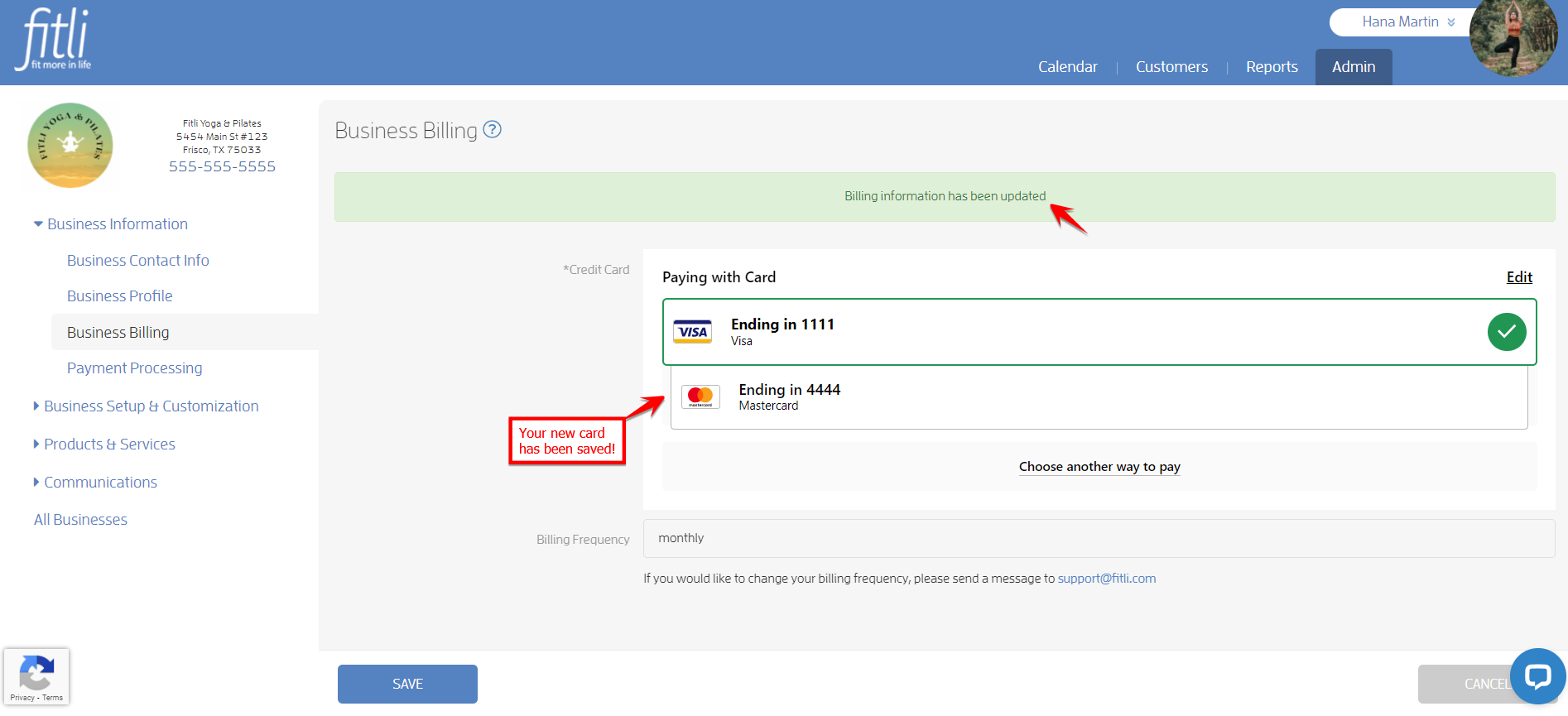
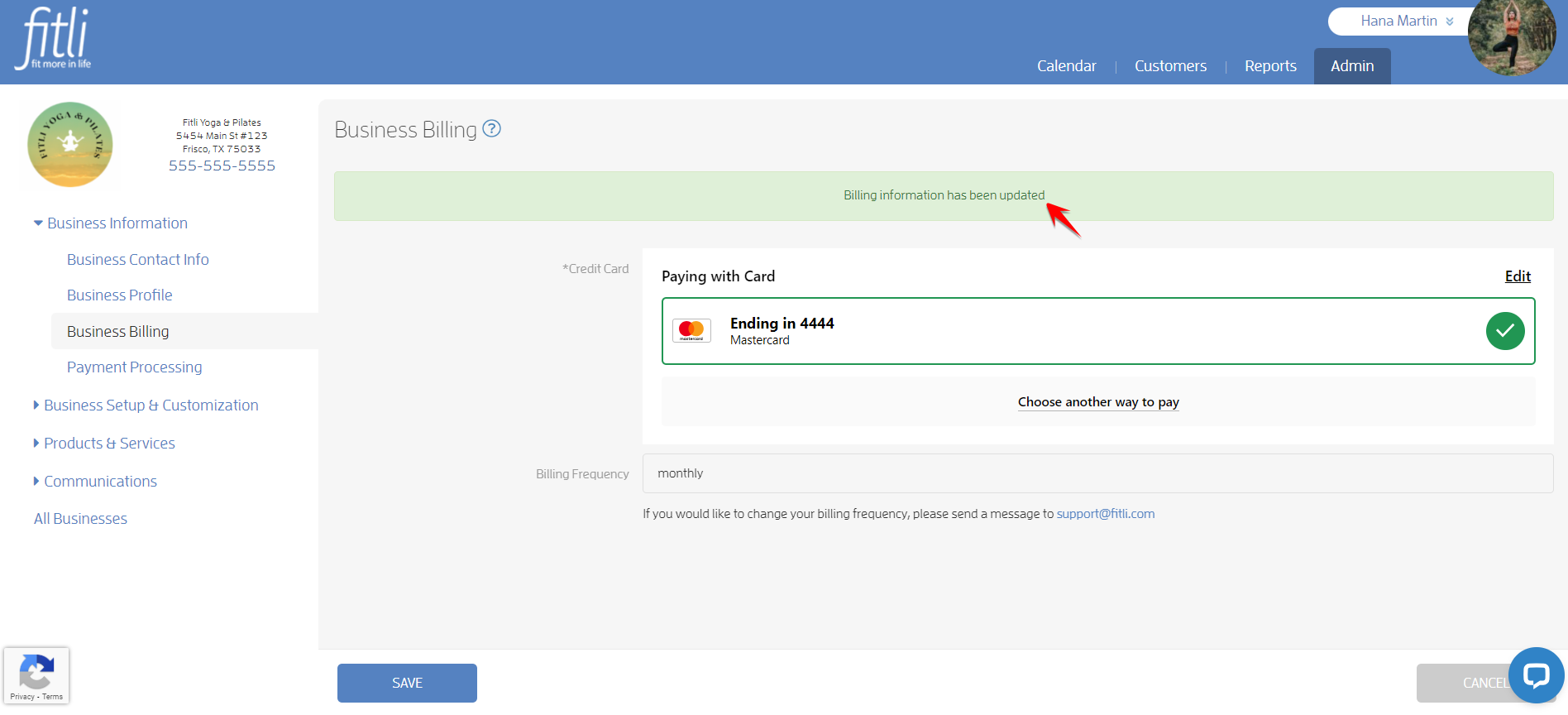
A confirmation message in green will appear at the top and you'll see the new credit card saved.
Delete your Existing Expired or Old Card
Click "Edit".
Clic "X" beside the card you want to delete.
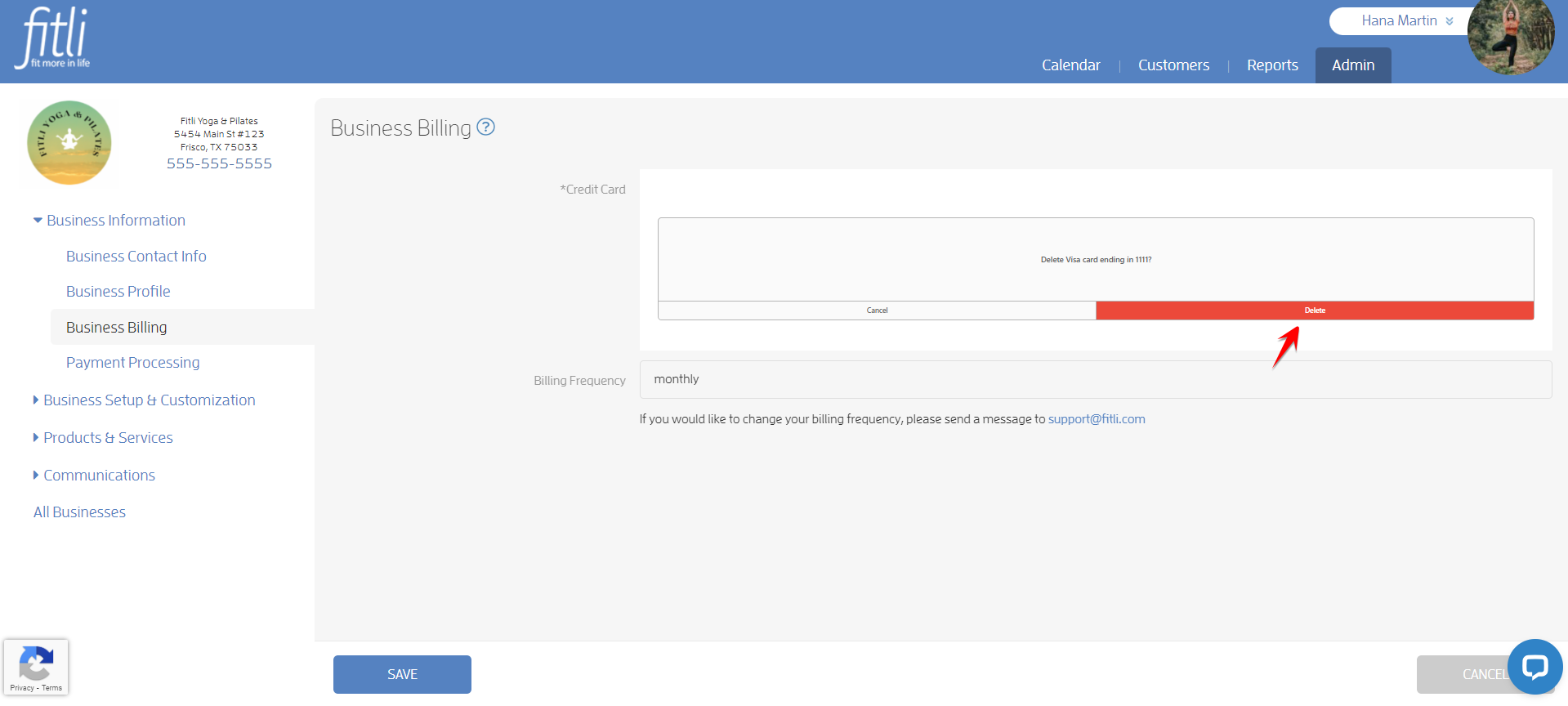
Confirm deletion.
Click SAVE. Very Important!
A confirmation message in green will appear at the top. You'll see the new credit card saved and set as the default credit card to be used for payments on your account!
Any questions? Chat with us at fitli.com or send us an email to support@fitli.com.