
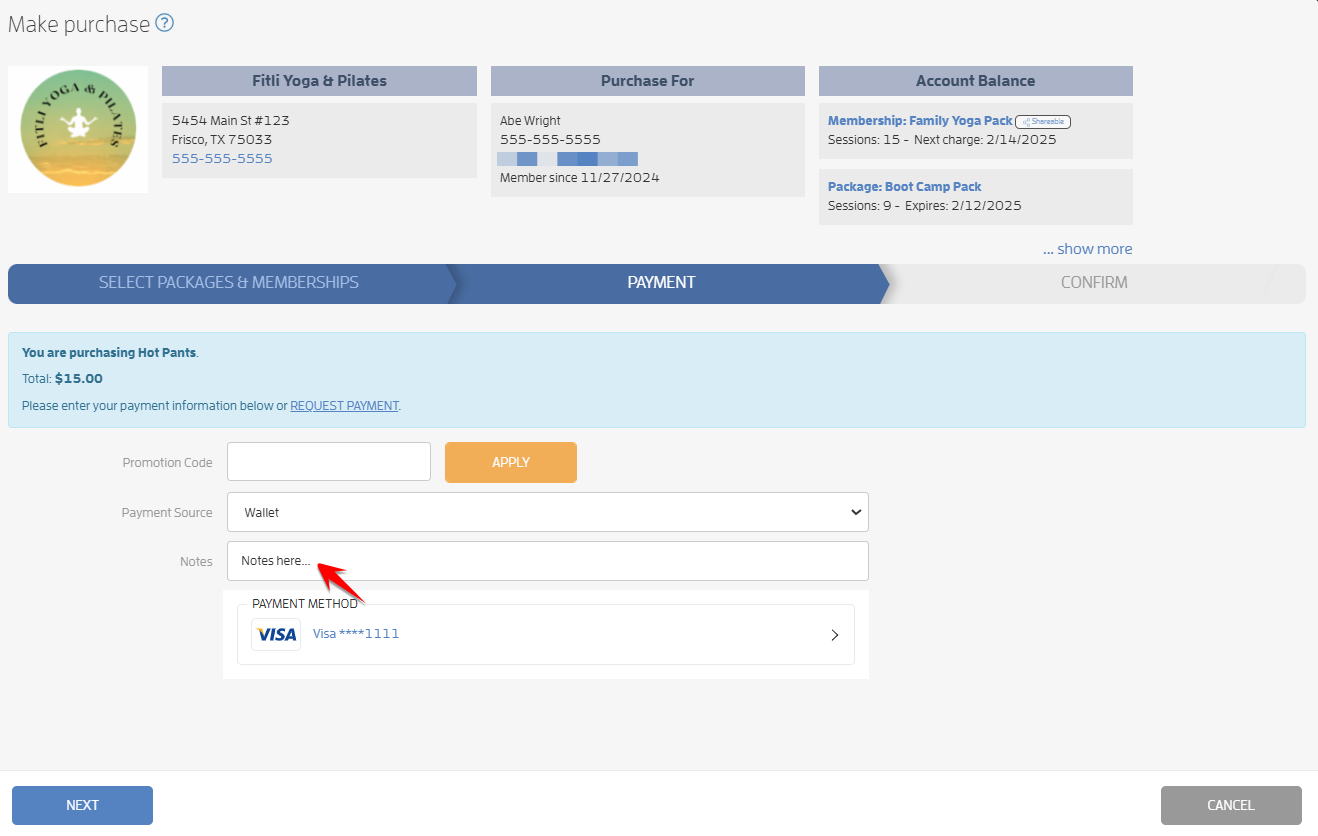
If you're using the "Notes" section of the purchase process to record notes for your client transactions (check numbers, tracking cash purchases, or need to update when a client paid), you can edit the notes on the Sales Report.
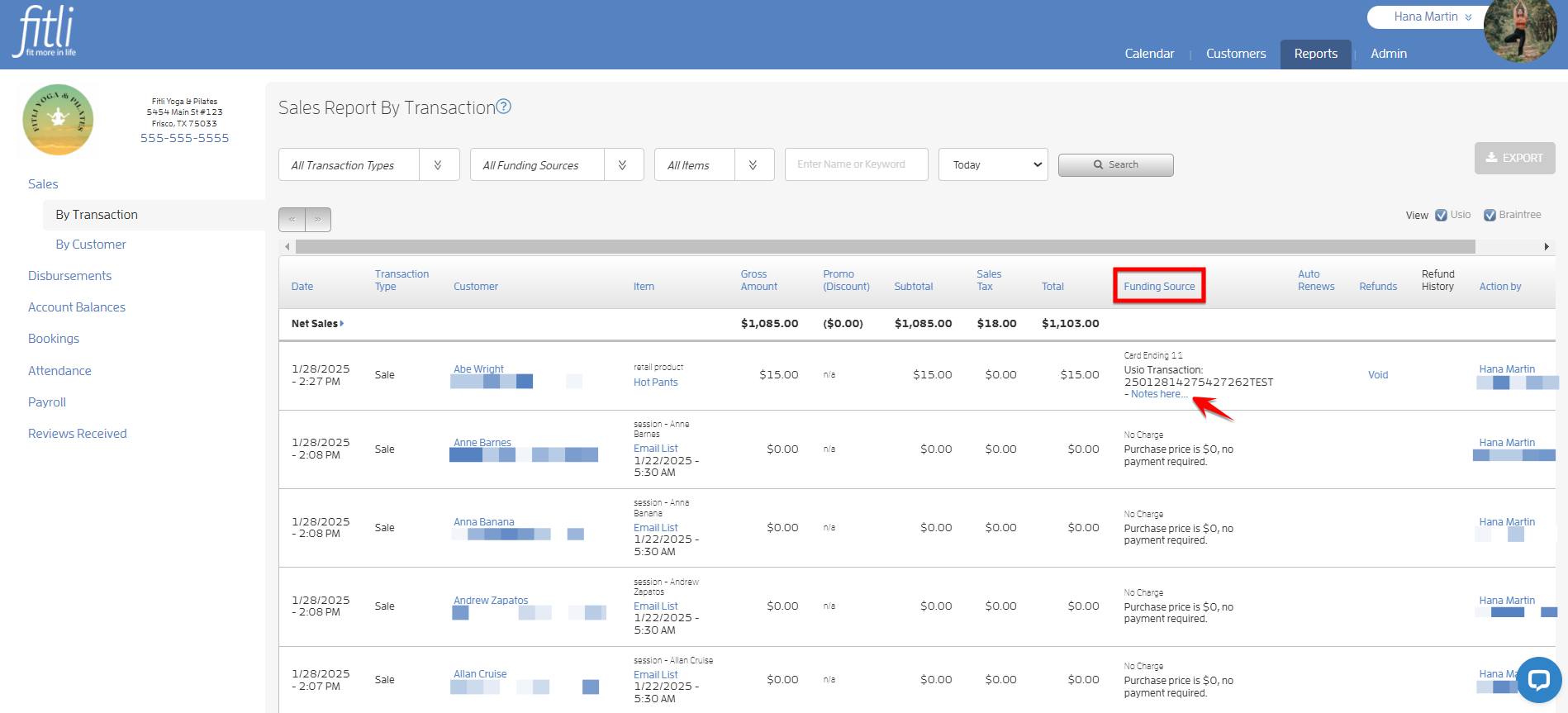
First, head to the "Sales Report By Transaction" section, and click on a note in the "Funding Source" column pertaining to the purchase you want to update.
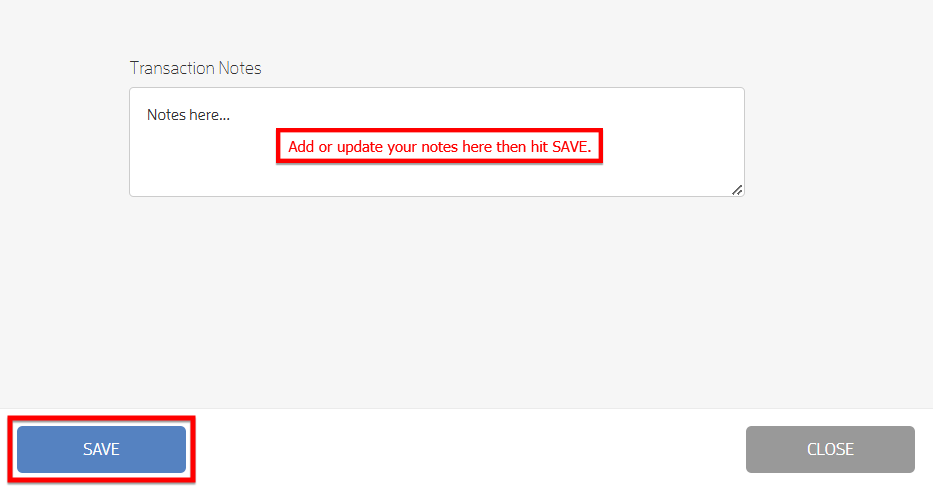
Clicking on the note brings up a popup to edit or change the note. Click Save and your note is updated!
That's about it! Any questions? Chat with us or send us an email to support@fitli.com.