
If you have some important announcements for your clients and you want to save time instead of emailing them, you can set up a banner message to display to all your customers! You can choose when you want it to appear. You can even choose the background and the text color. Awesome, right?
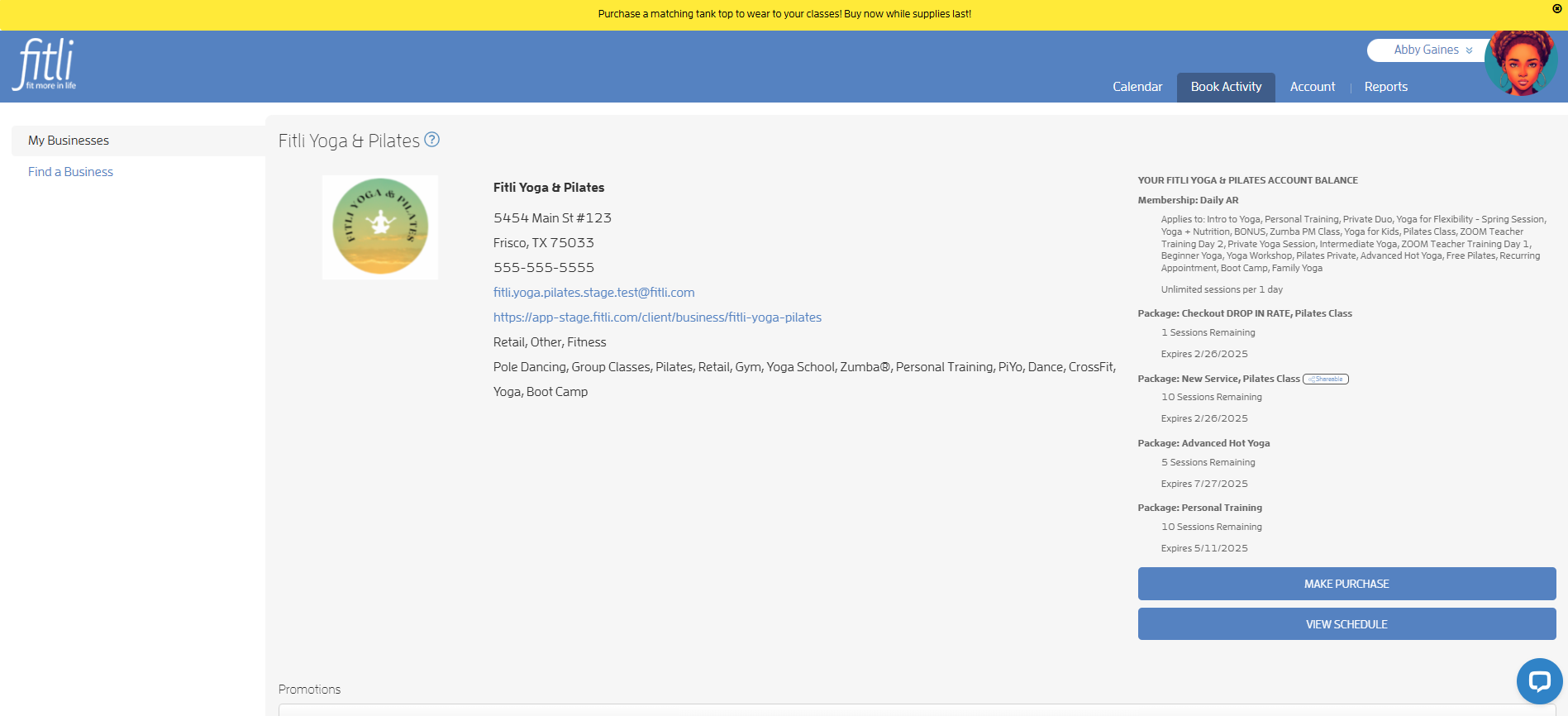
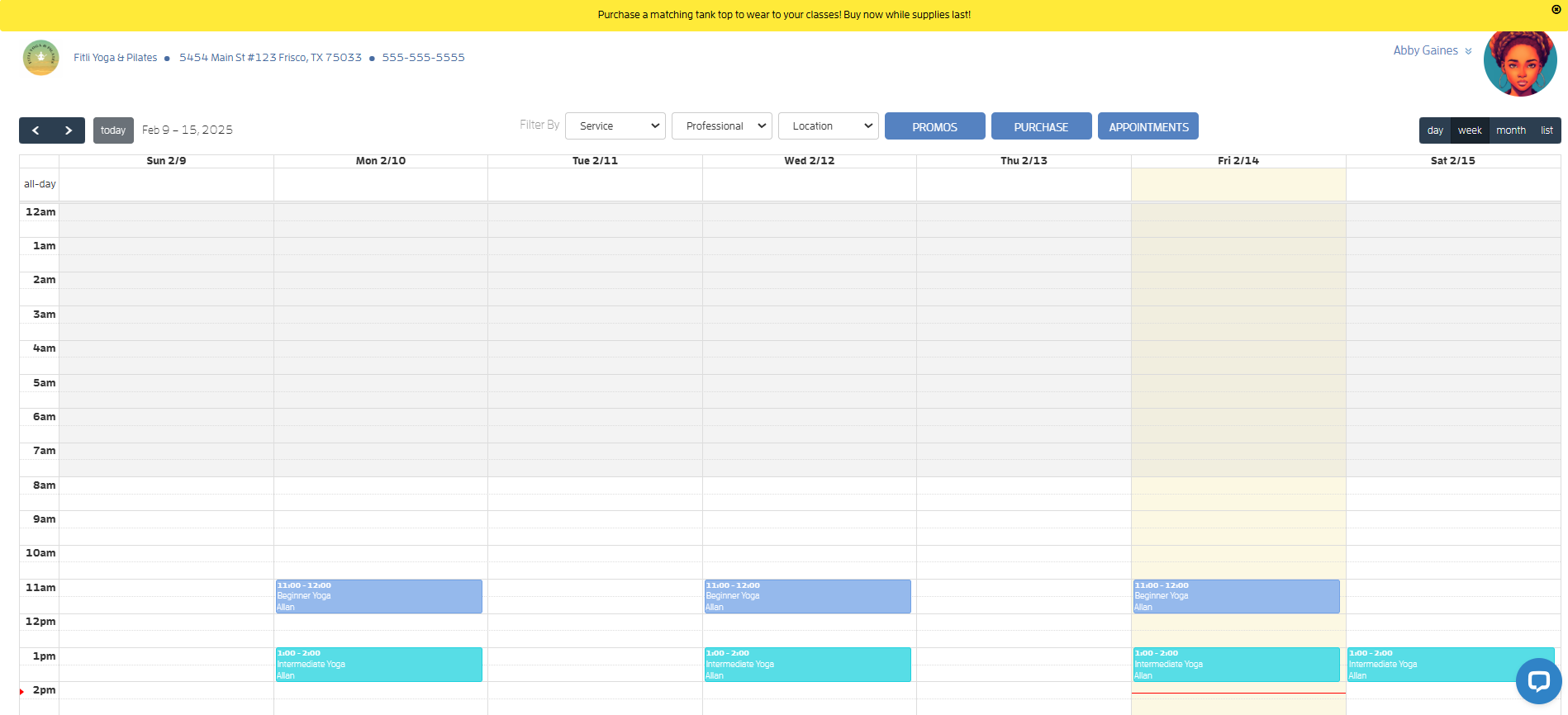
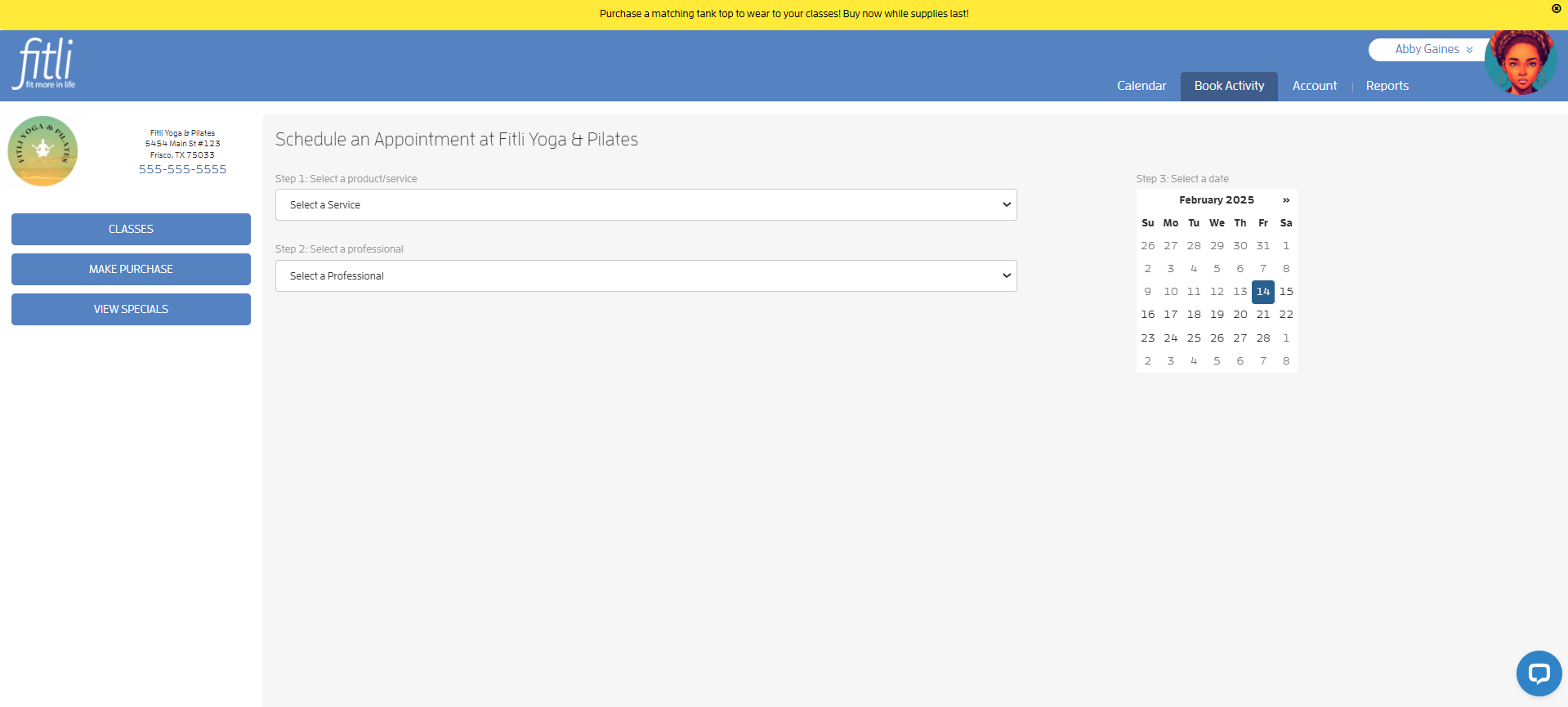
The banner message will appear like a heading on your clients' end on your business profile, public schedule and appointments sections.
Here's how to set that up.
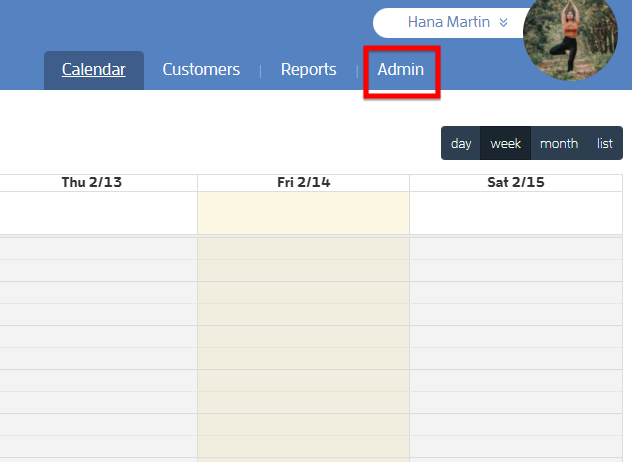
Go to the "Admin" section of your account.
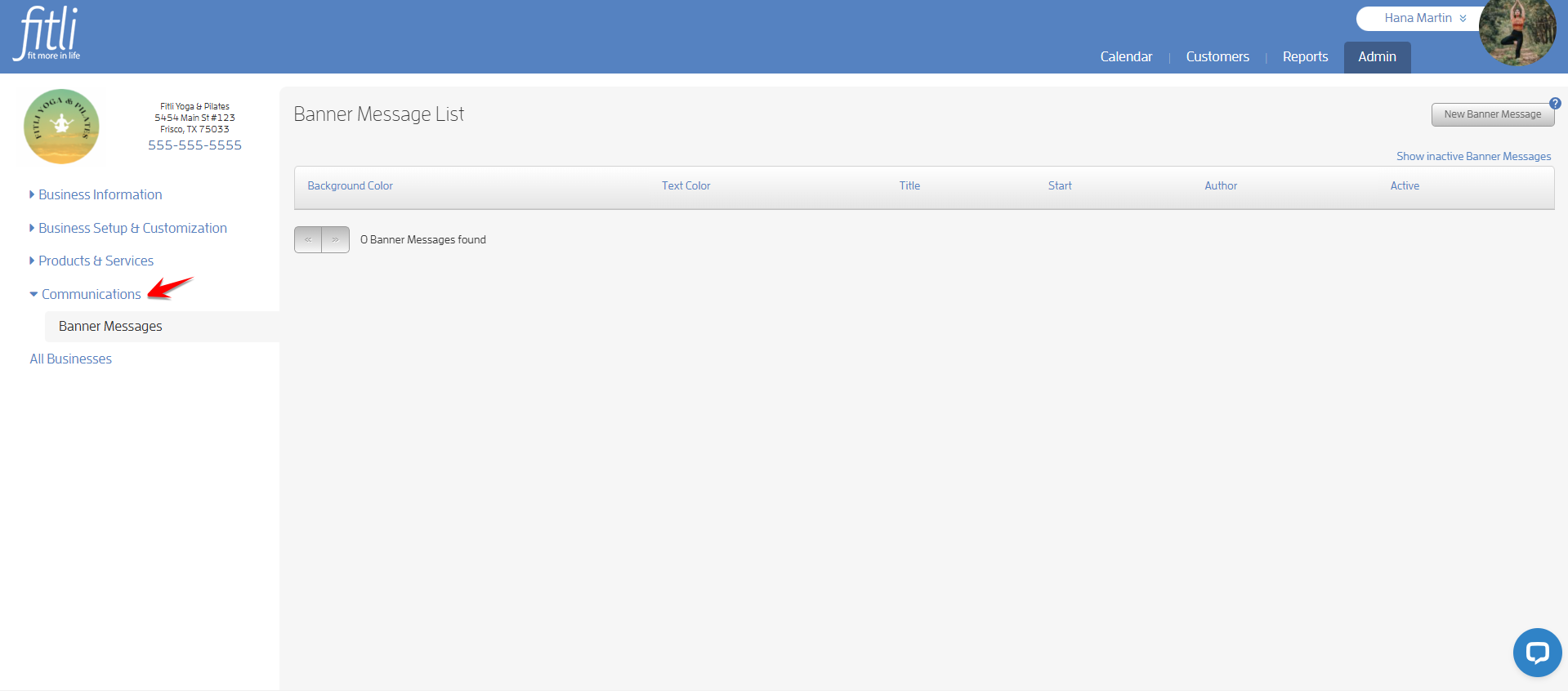
Click "Communications" at the left to be directed to "Banner Messages."
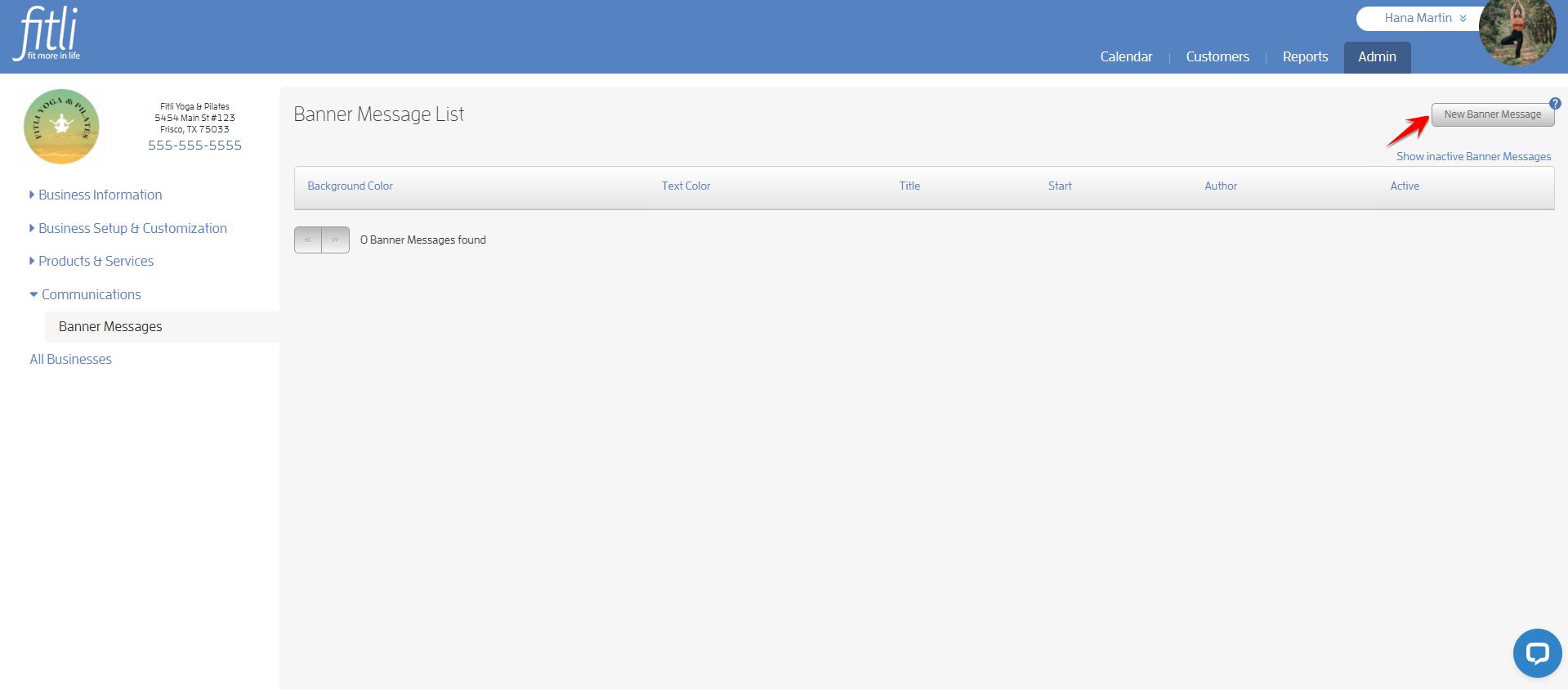
On the Banner Message List page, click the "New Banner Message" button.
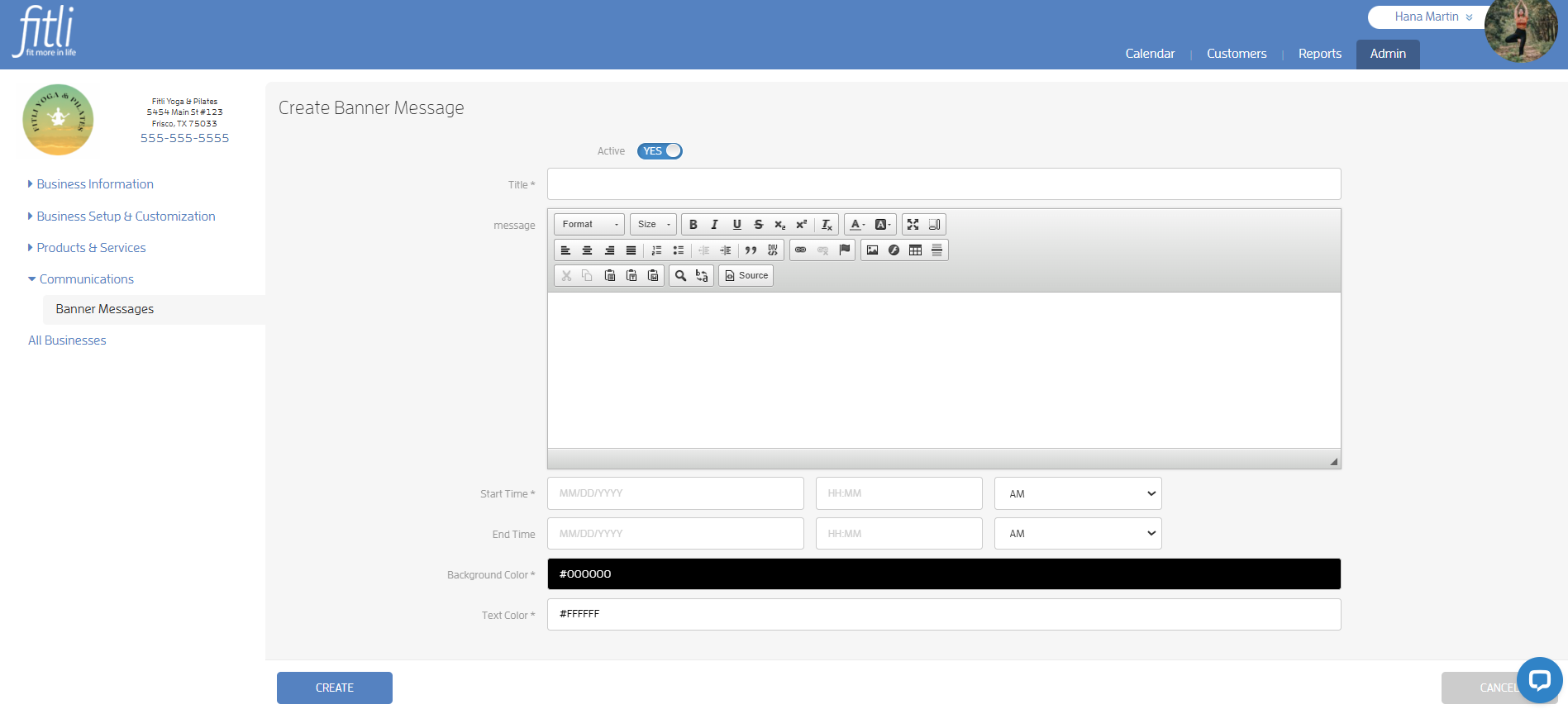
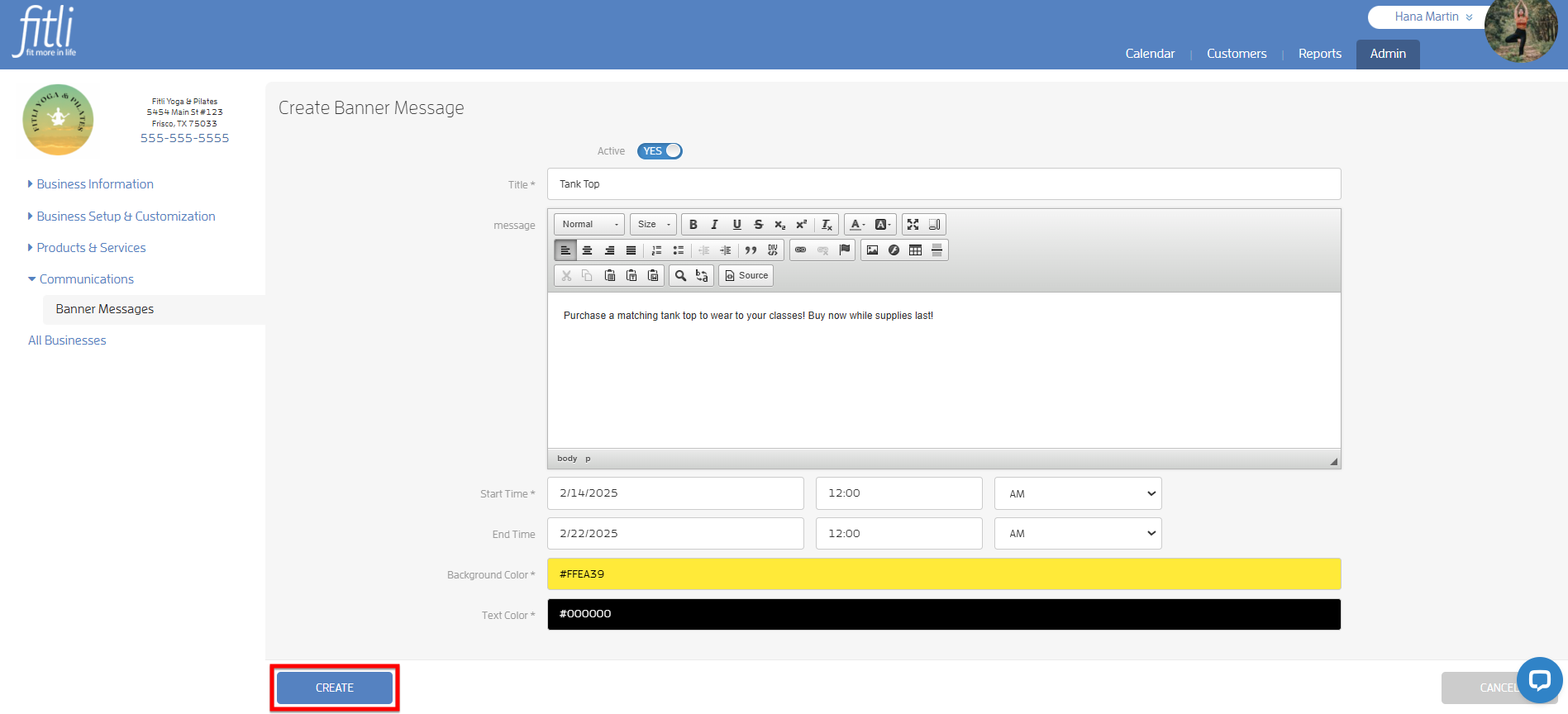
Fill out the "Create Banner Message" form then hit CREATE.
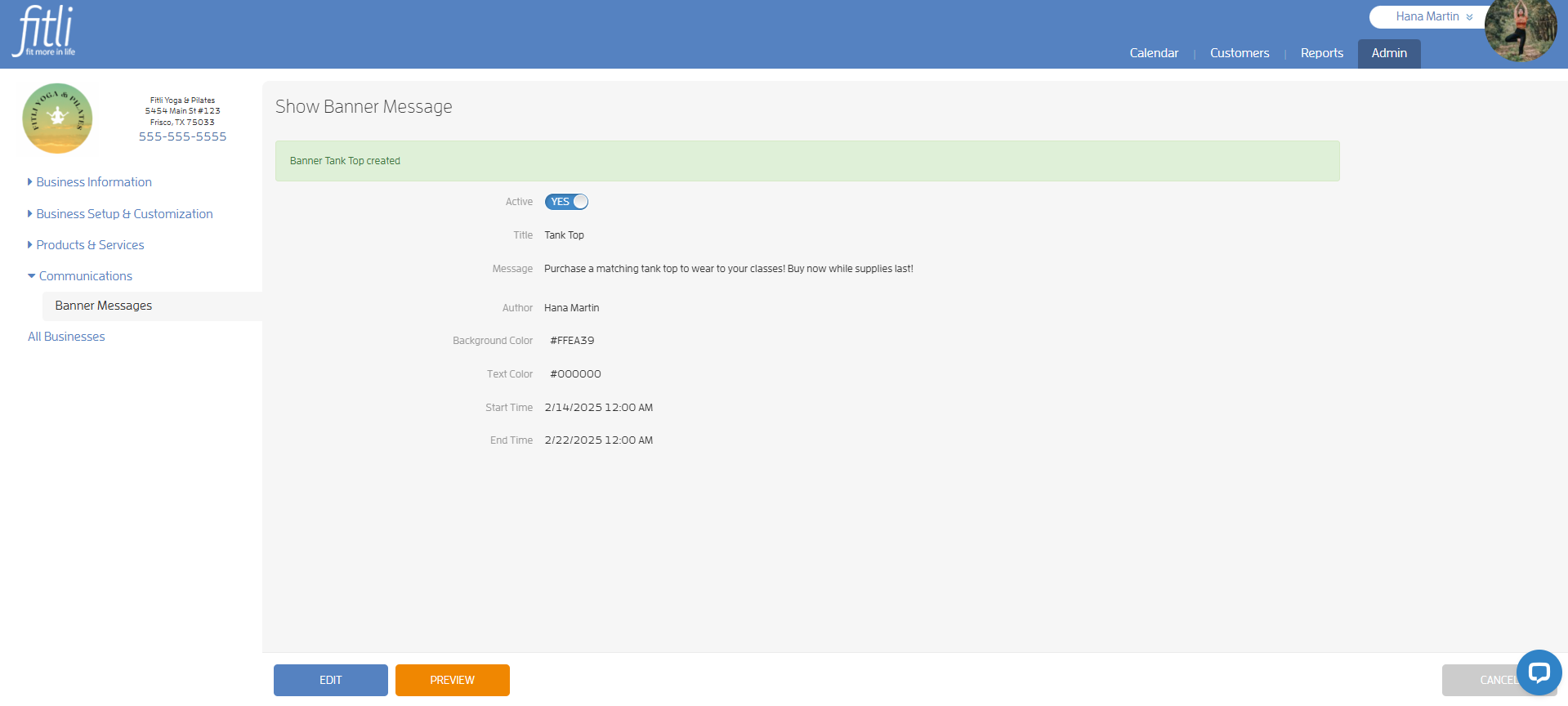
When done, a message in green at the top will confirm that you've successfully created a banner message!
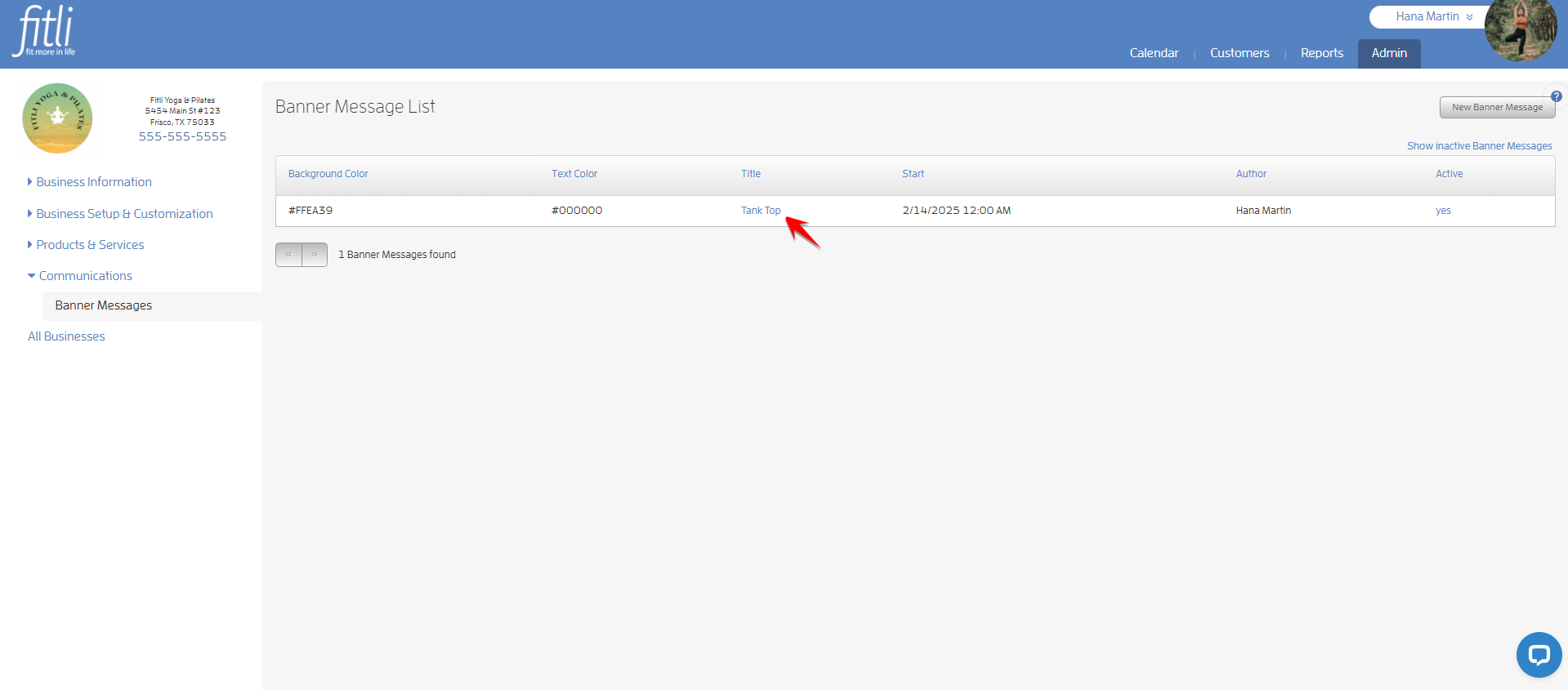
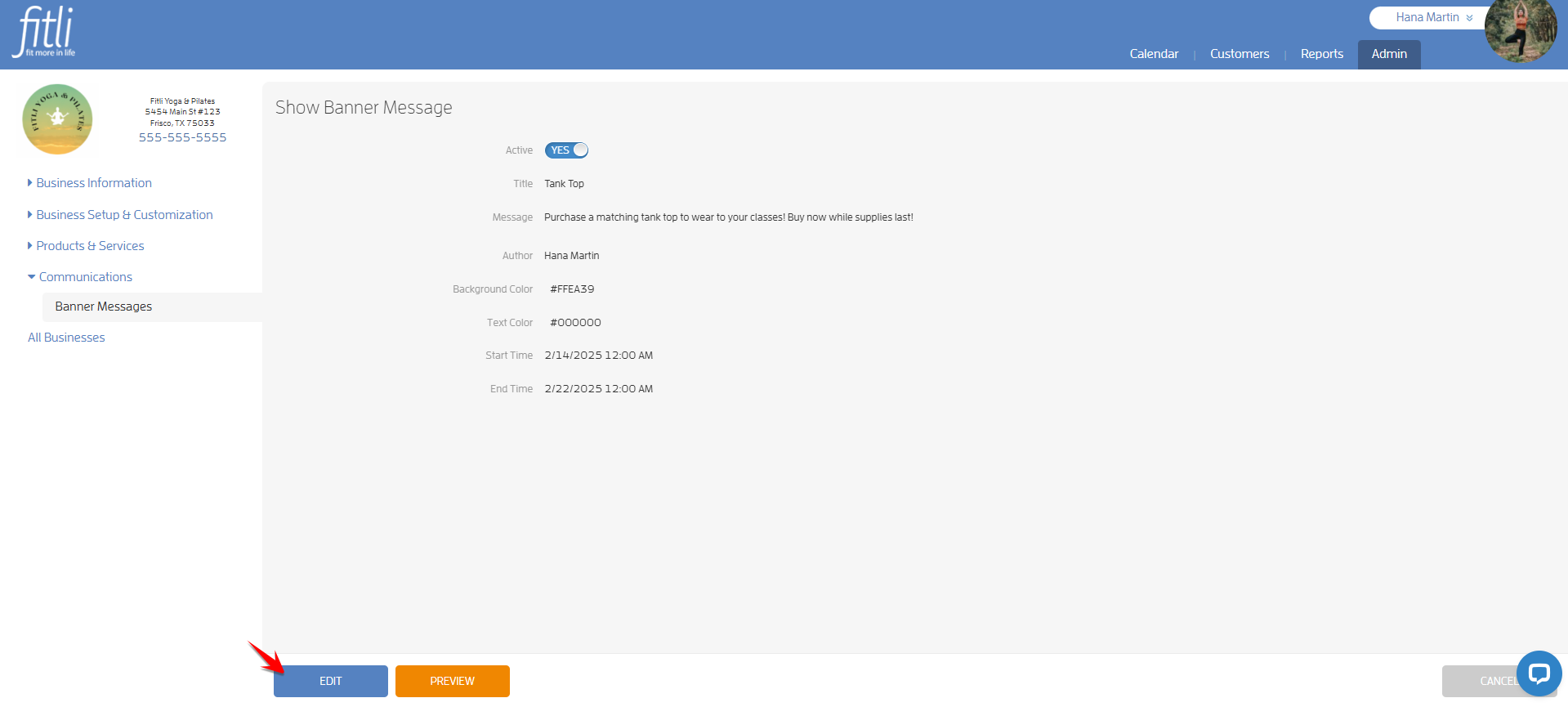
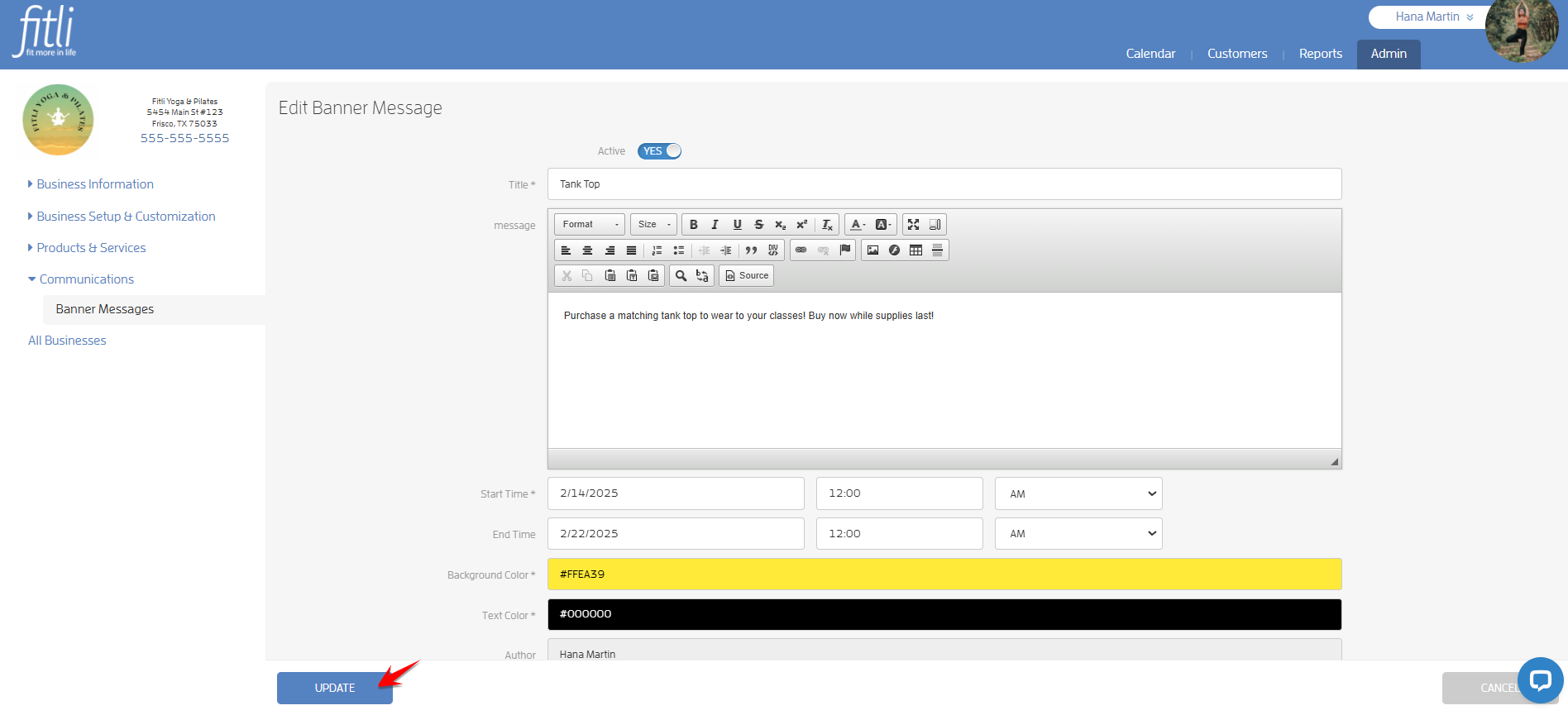
If you need to make some changes to your banner message, click the title to open it, click "Edit", update the message and hit "Update".
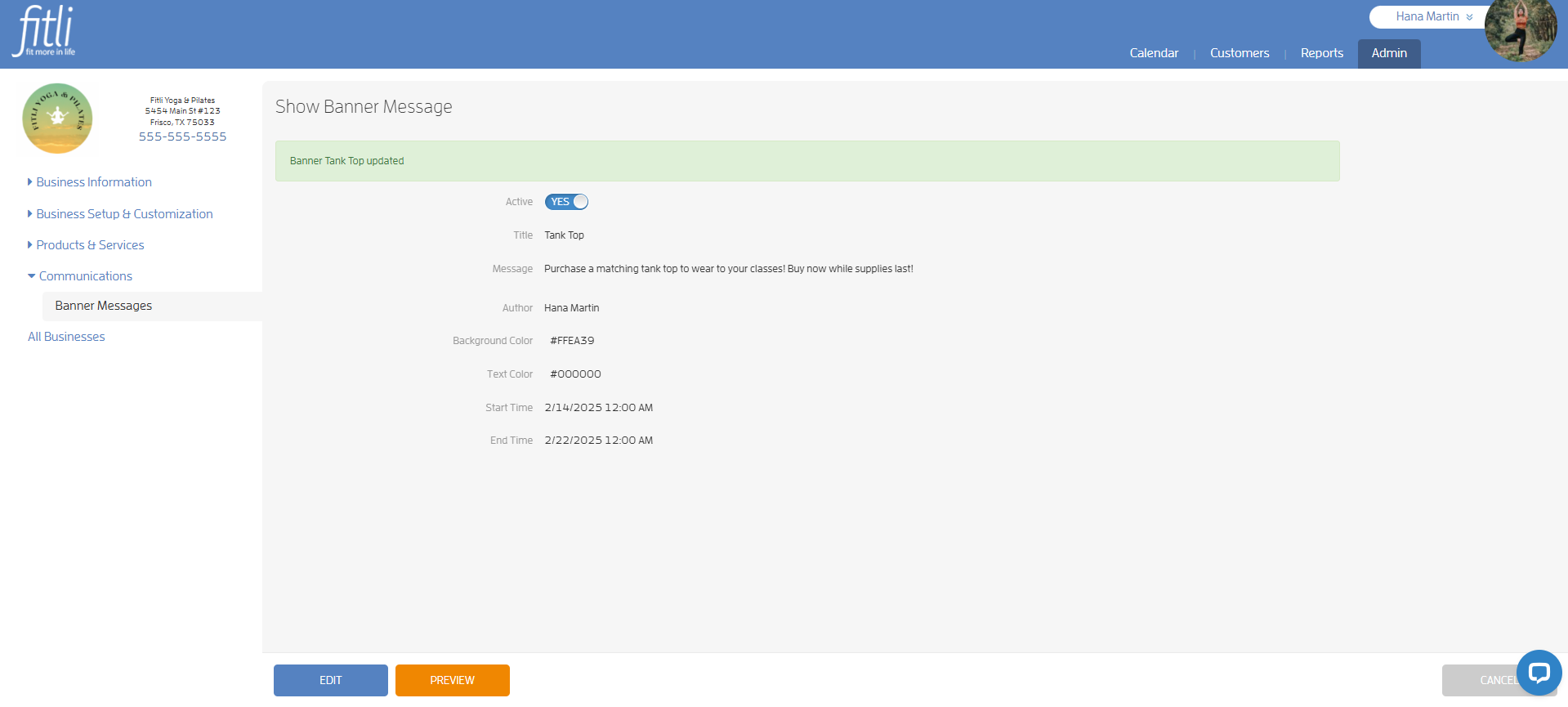
A message in green at the top will confirm that you've successfully updated the banner message!
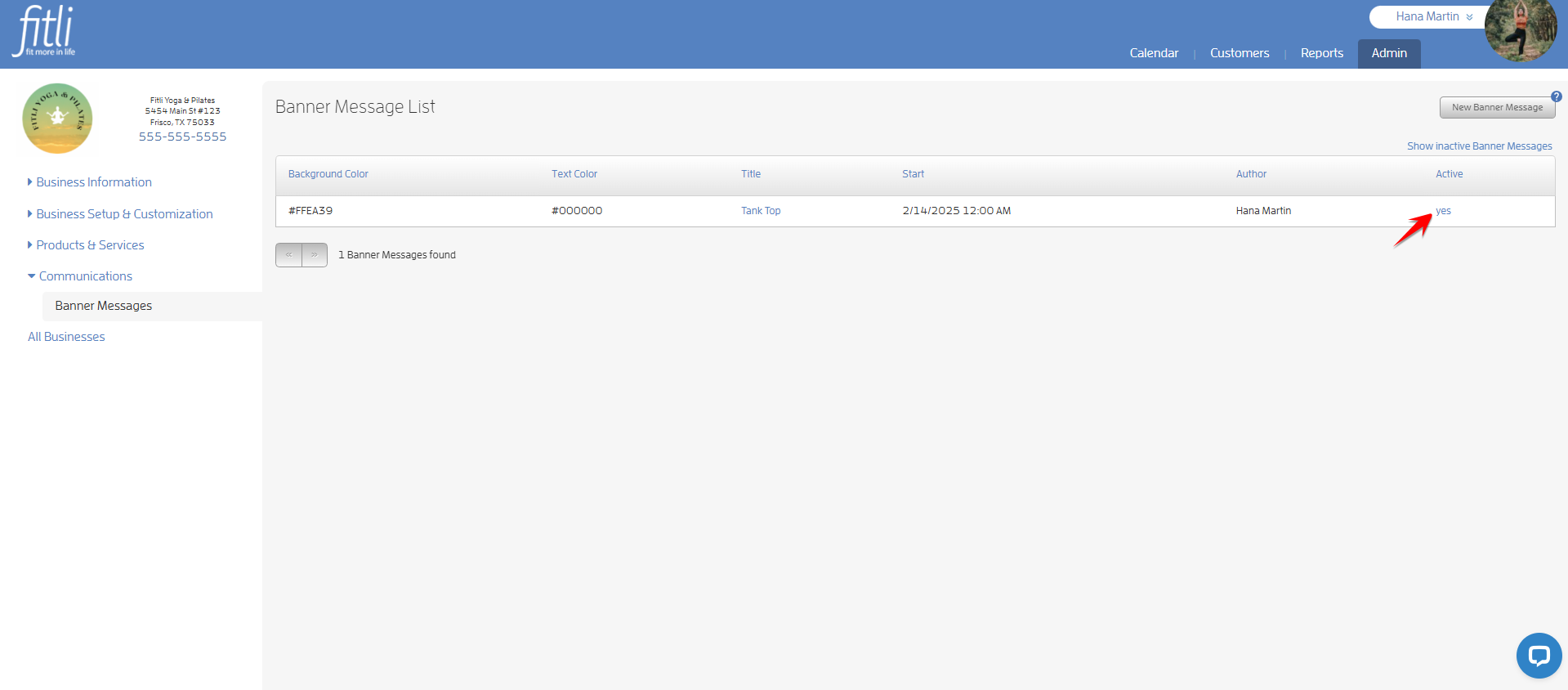
To deactivate a Banner Message, click "yes" under the "Active" column.
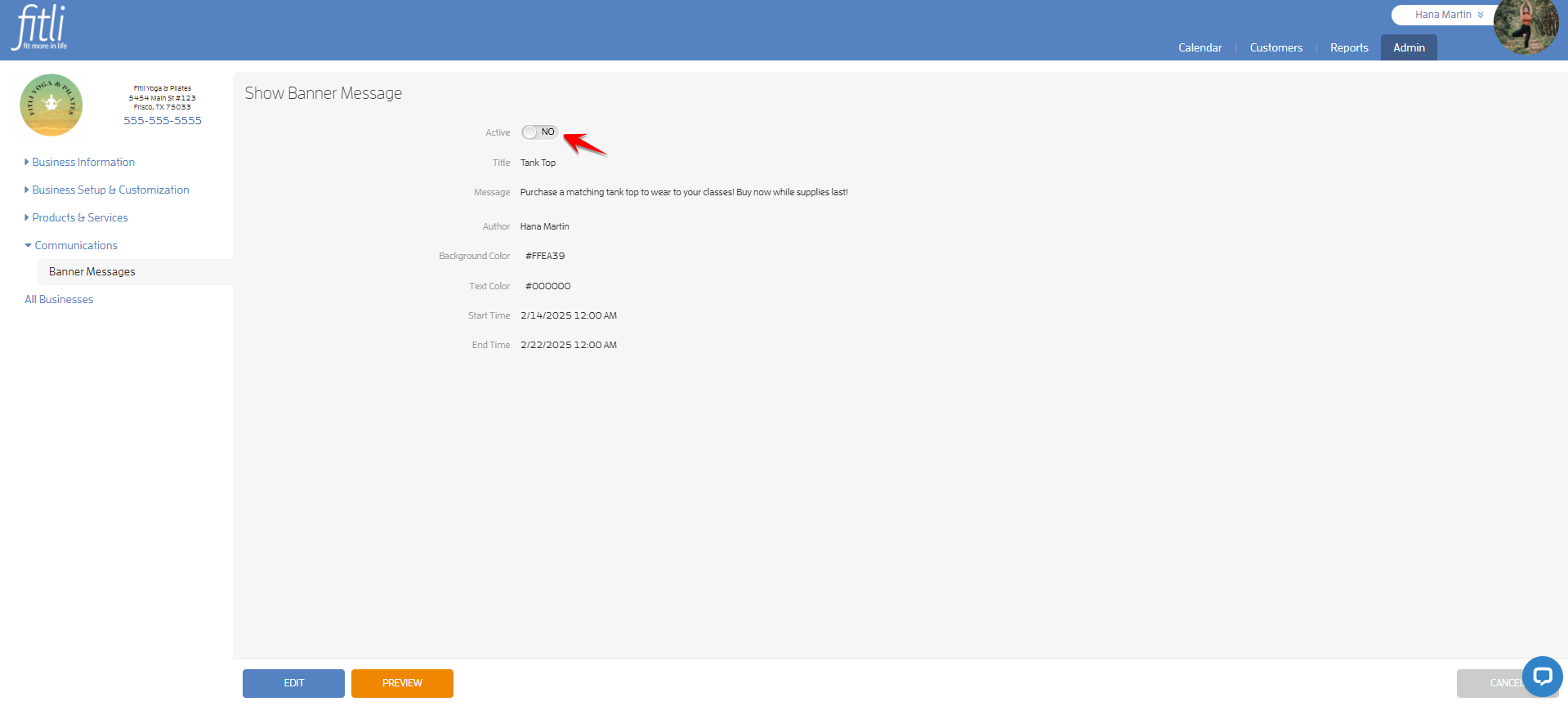
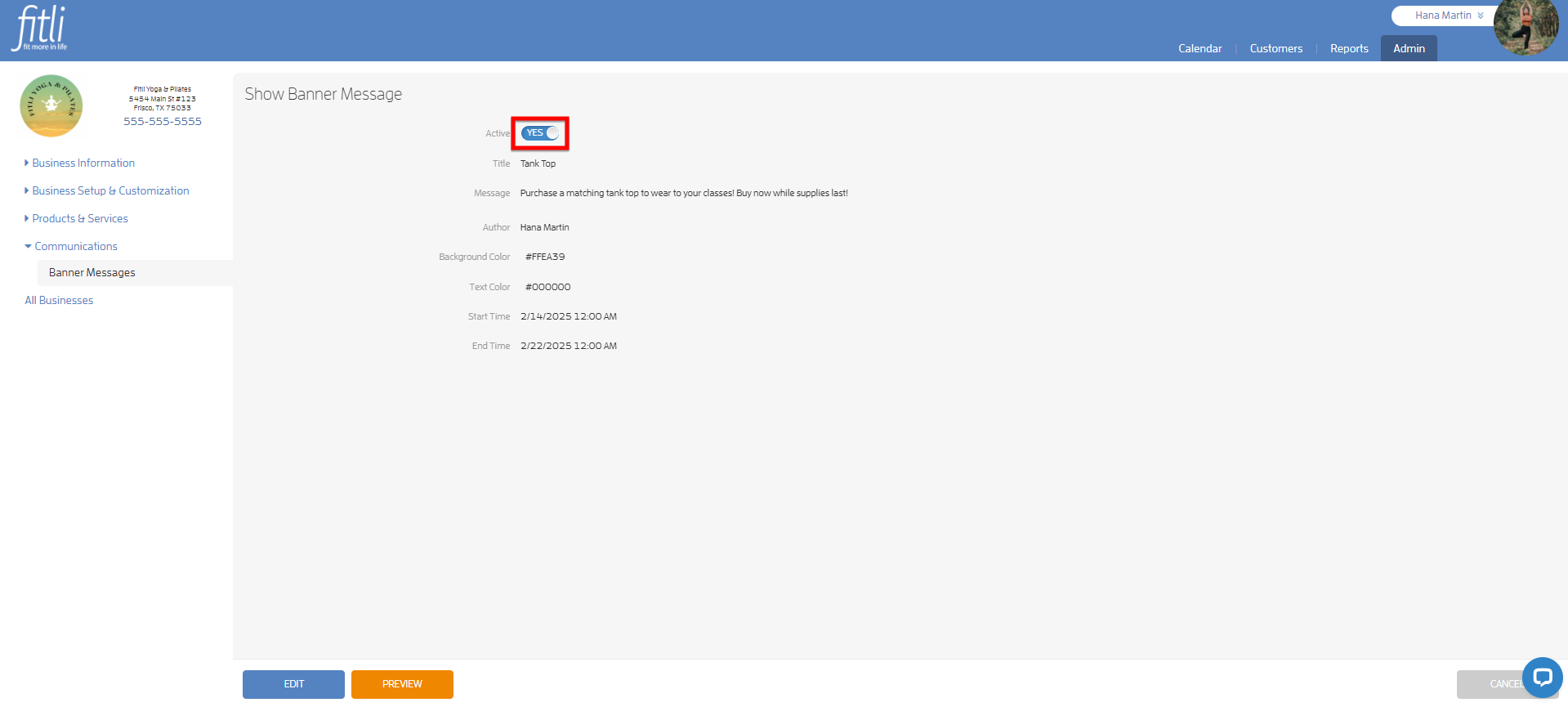
Or, click the title and turn OFF the active slider.
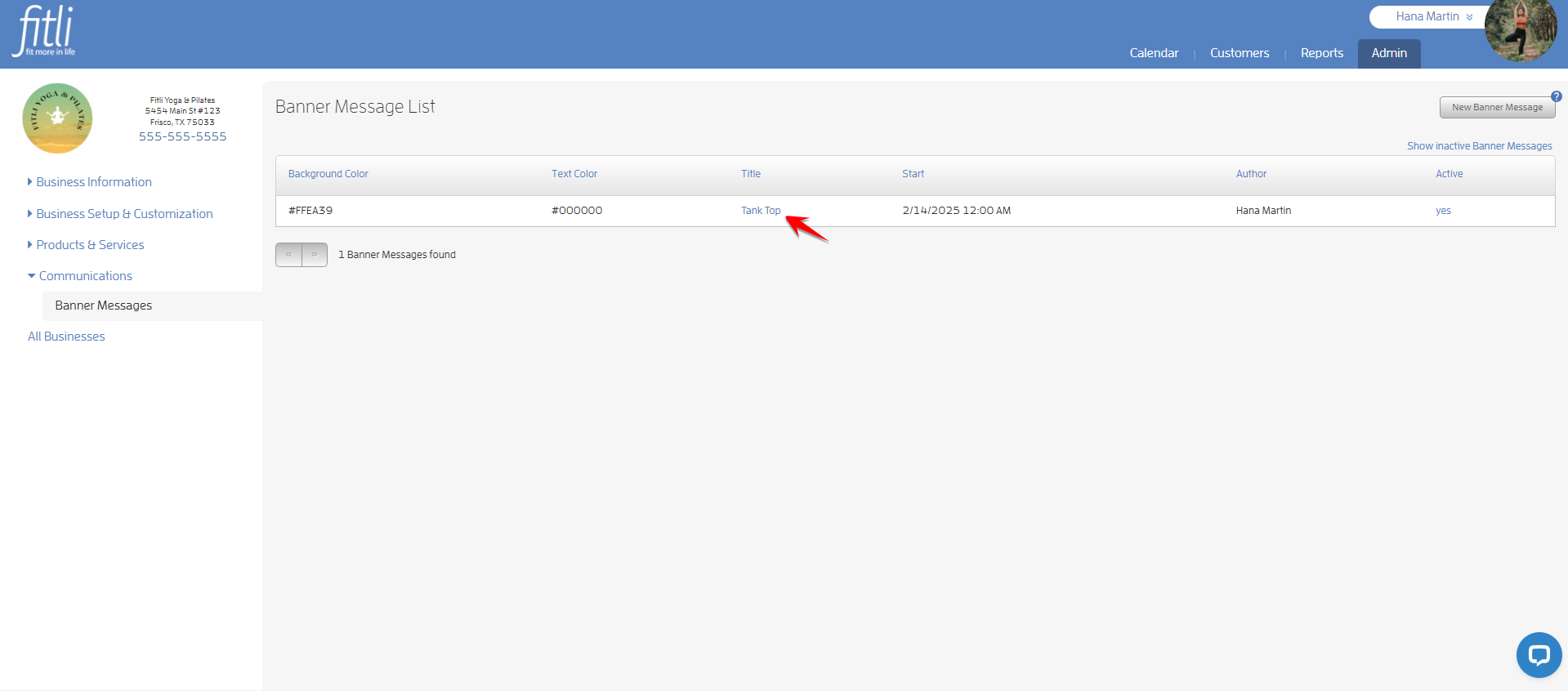
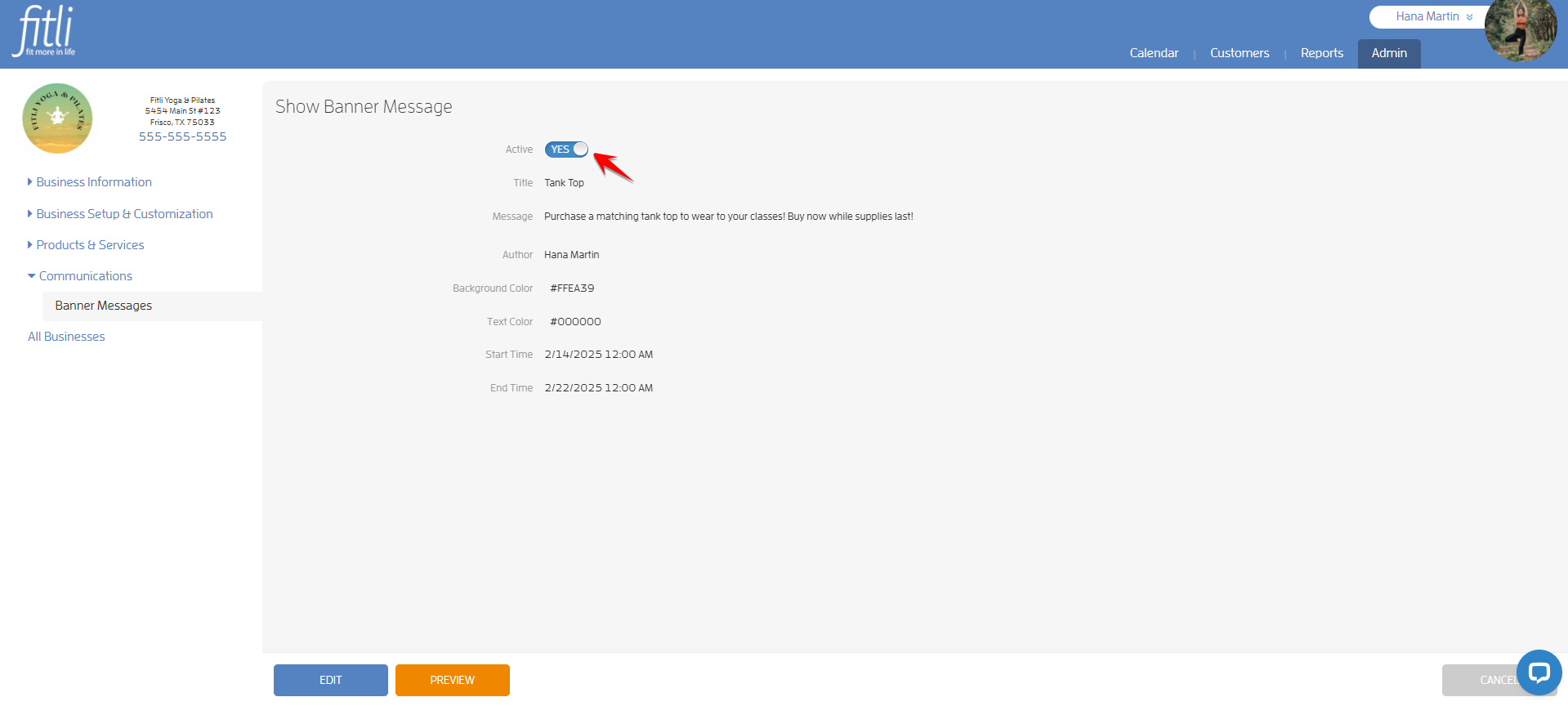
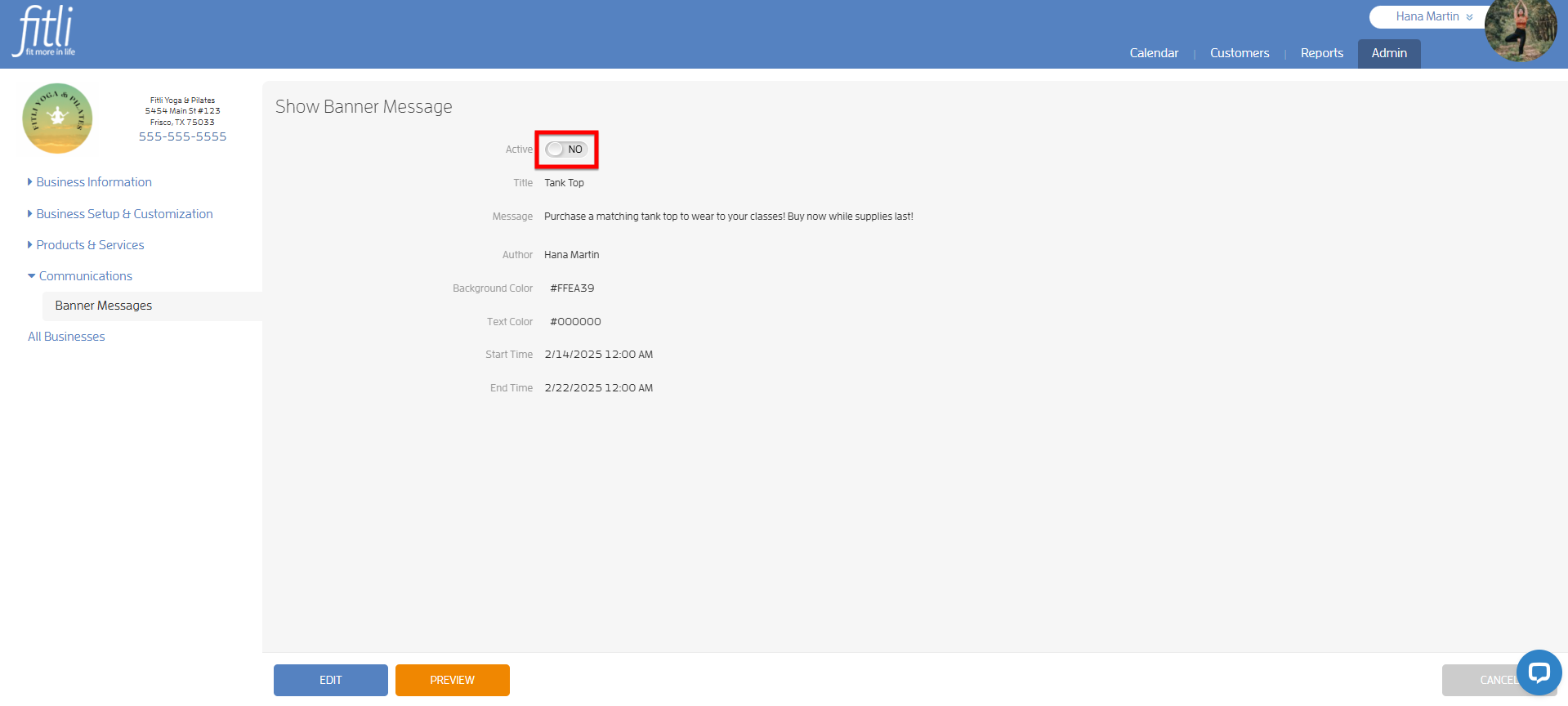
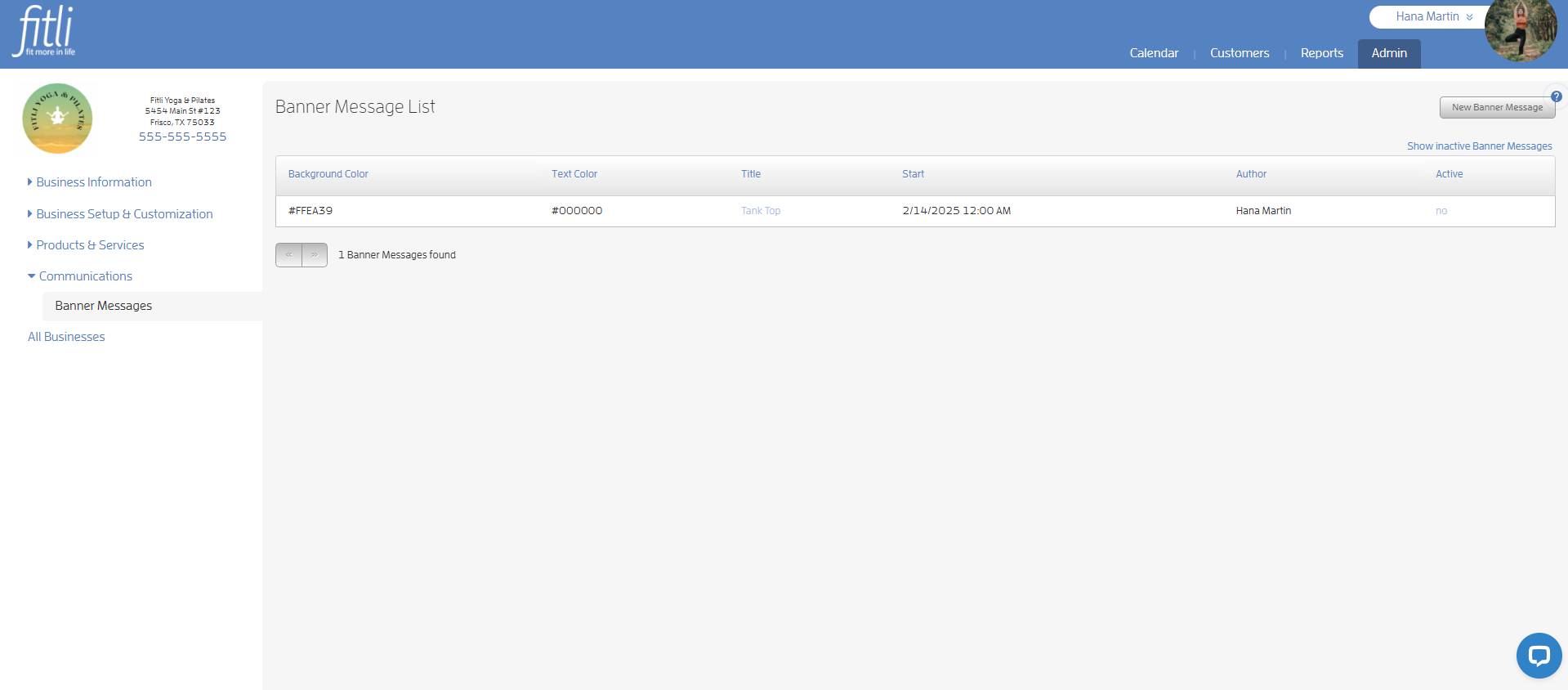
To activate a banner message, click "Show inactive Banner Messages" at the top right and click "no" under the "Active" column.
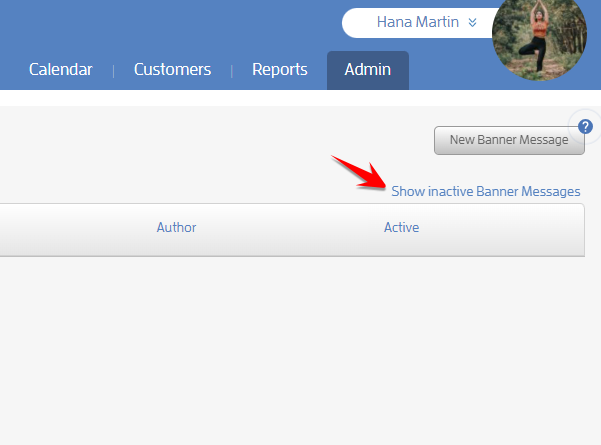

Or, click the title and turn ON the active slider.

CLIENT VIEW:
Now that you've successfully created a banner message, your clients will see it at the top part of your business profile, public schedule and appointments sections. Clients can make the banner message go away and not show it again by choosing the small "x" on the right side.
That's about it! Any questions? Chat with us or send us an email to support@fitli.com.