
You can upload photos for your individual clients - they'll be displayed in their Customer Profile and on the Class/Appointment roster! This should help you identify your customers, build loyalty and brings a better look and feel to the interface.
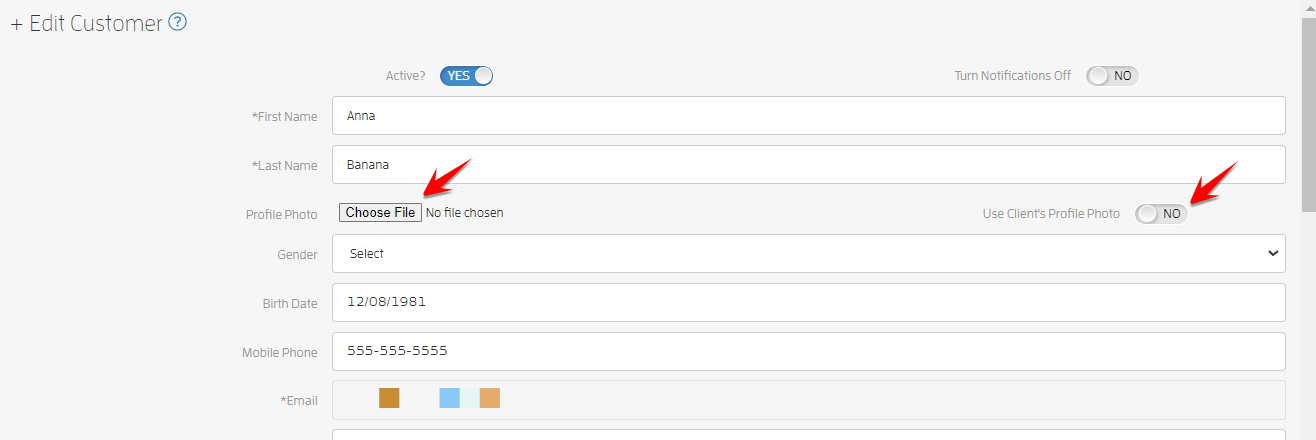
To add a photo to a customer, head into their Customer Profile from the Customers list. Then, under "Profile Photo" click the "Choose File" button to upload a photograph from your local computer. These images can be in any standard image file format. If the client has already uploaded/added their own photograph, you can choose to use their photograph by turning on the "Use Client's Profile Photo" toggle. Or, upload your own by clicking the button and adding one.
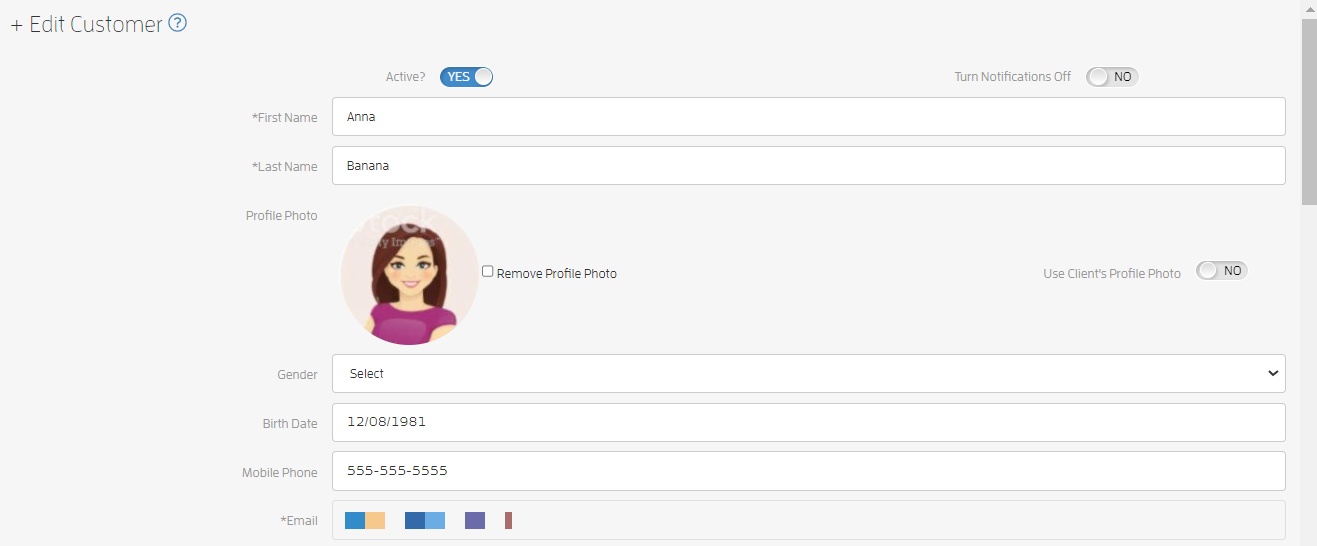
Once you've added a customer photo clik SAVE. You'll see it displayed on their Customer Profile as shown below.
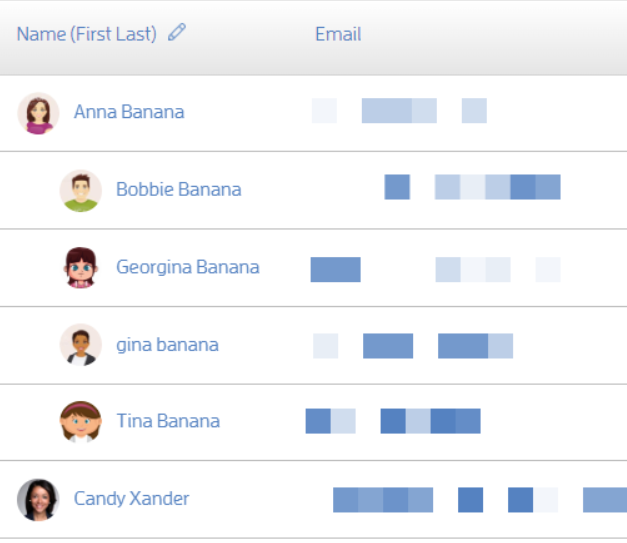
Their new photo will appear on the Customers list.
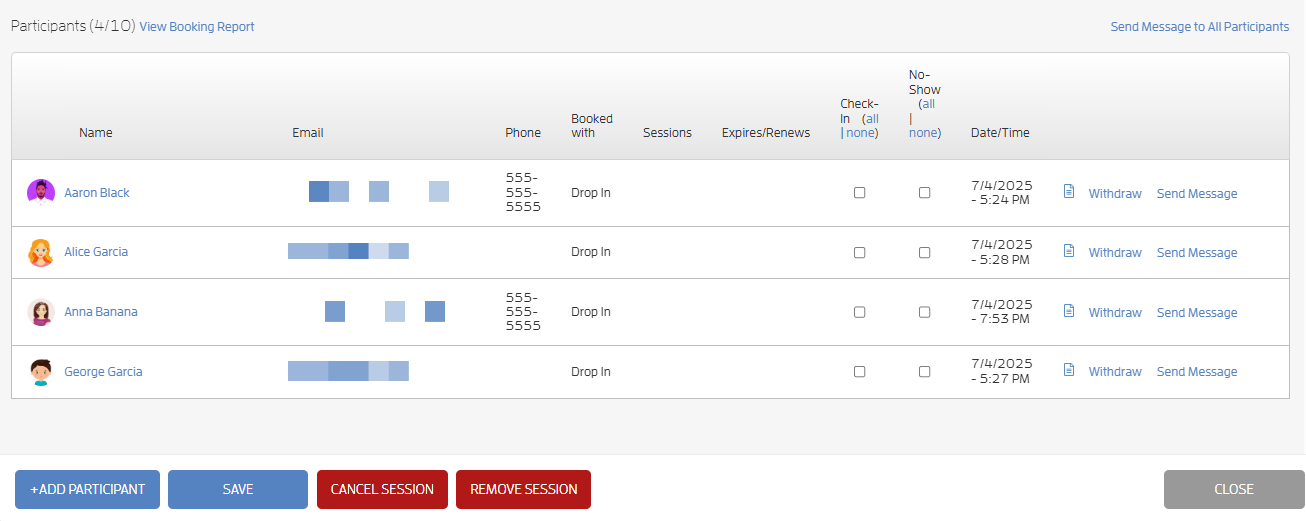
And on the Class/Appointment roster!
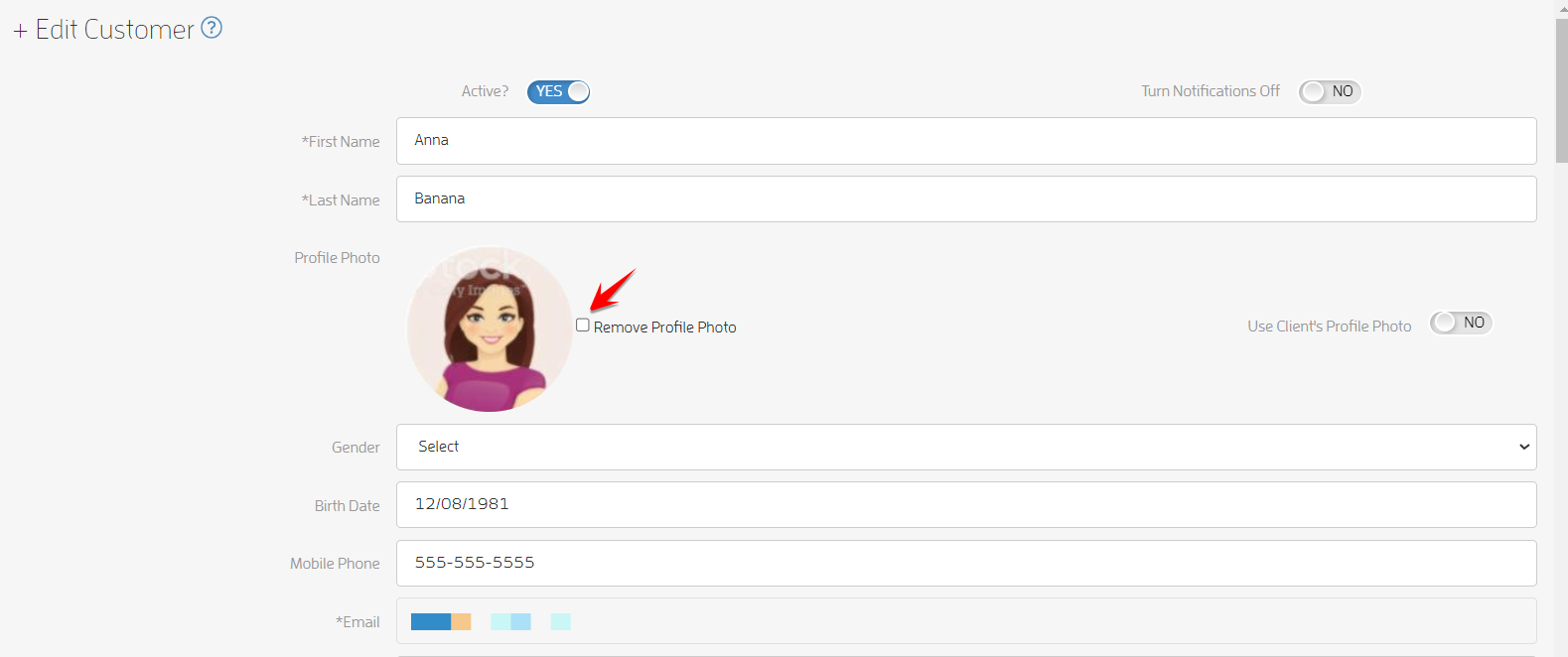
We take privacy very seriously and won't ever sell, share or give these images to anyone - they belong to your client and you! You can remove their photograph from their profile at any time by choosing the "Remove Profile Photo" option as shown below.
Thanks and if you have any questions, feedback or suggestions, please contact us at support@fitli.com.