
This feature allows your customers to initiate the cancellation of their auto-renewing packages/memberships or request cancellation from your business. You can easily set this up by adding a new auto-renewing package/membership or editing an existing one with just a few clicks, here’s how.
Log in to your Fitli business account and go to ADMIN.
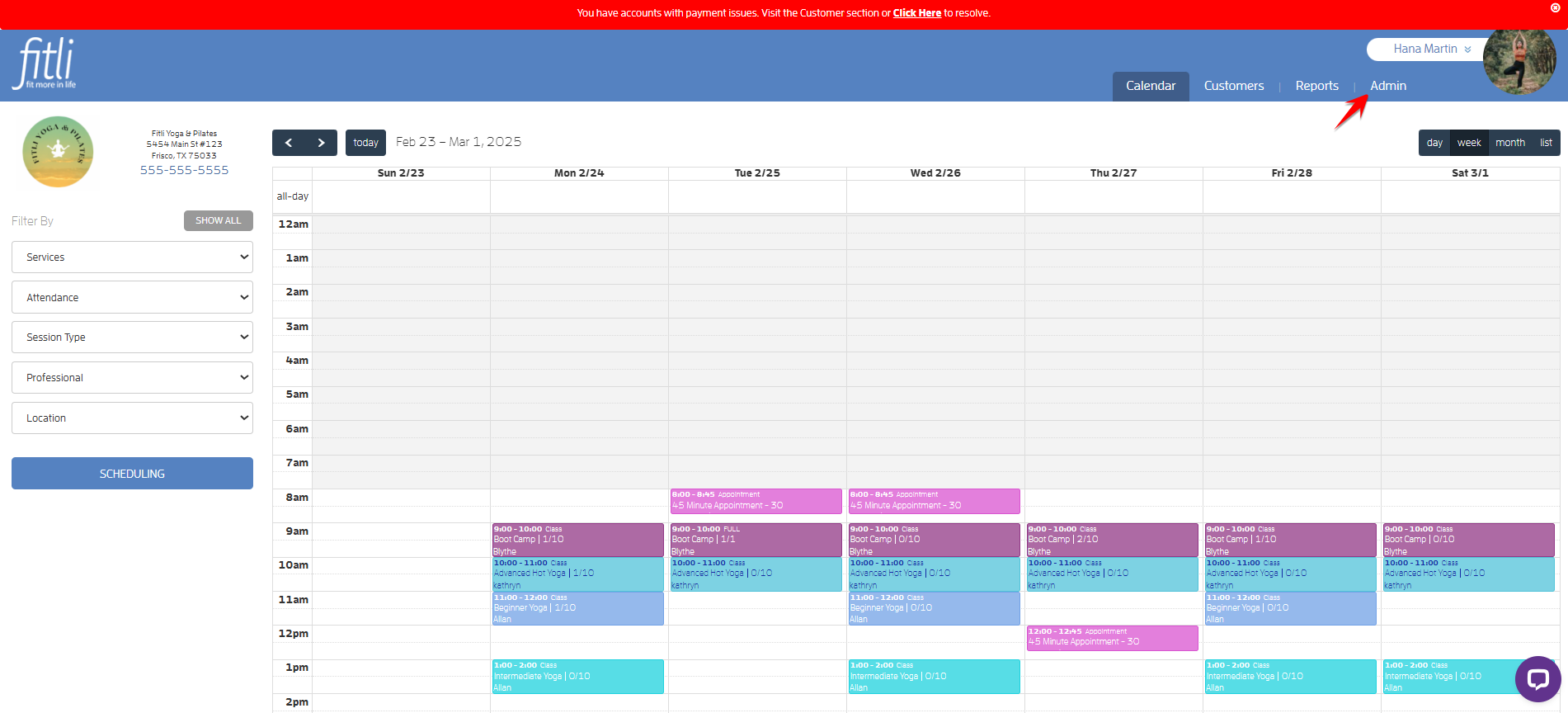
Go to "Products & Services" > "Packages & Memberships". Then, add a new auto-renewing package/membership or edit an existing one.
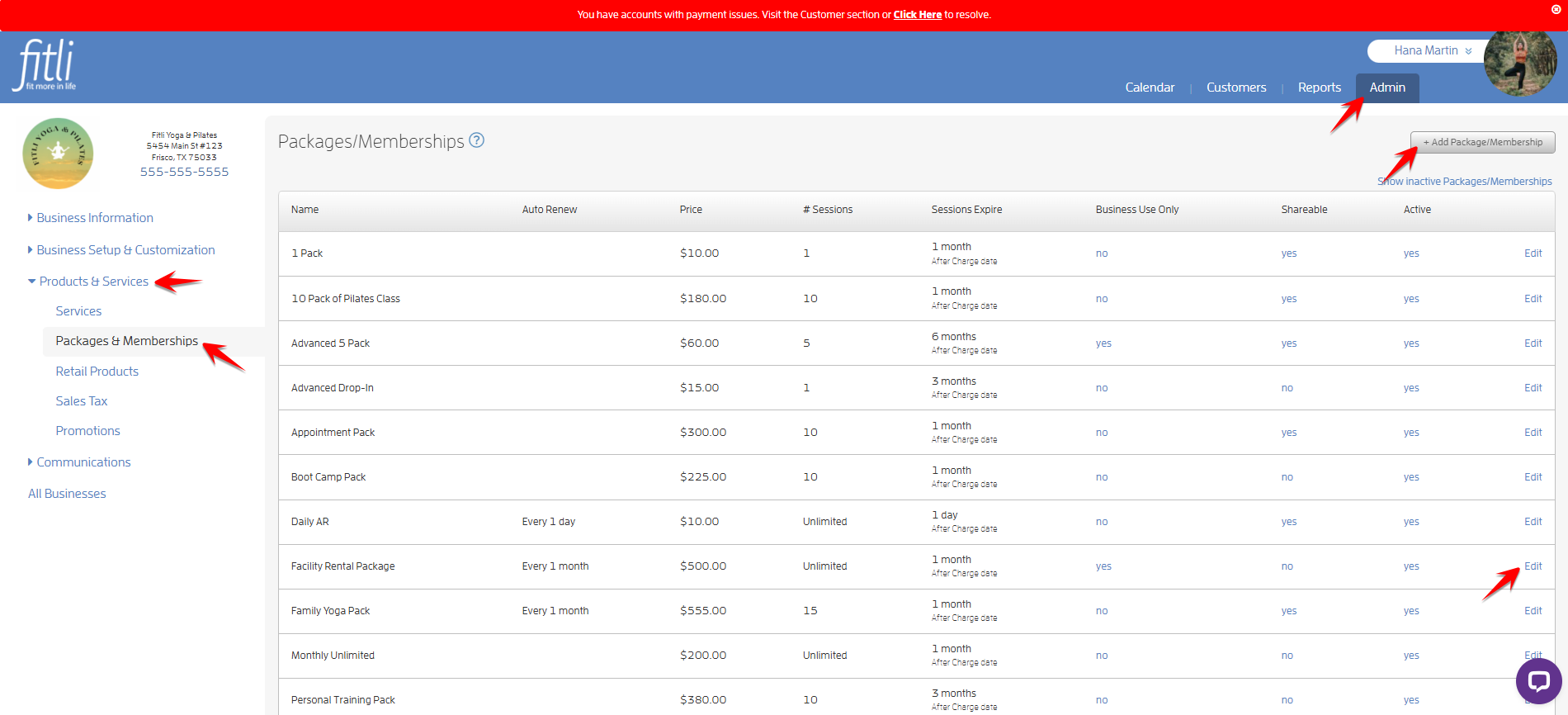
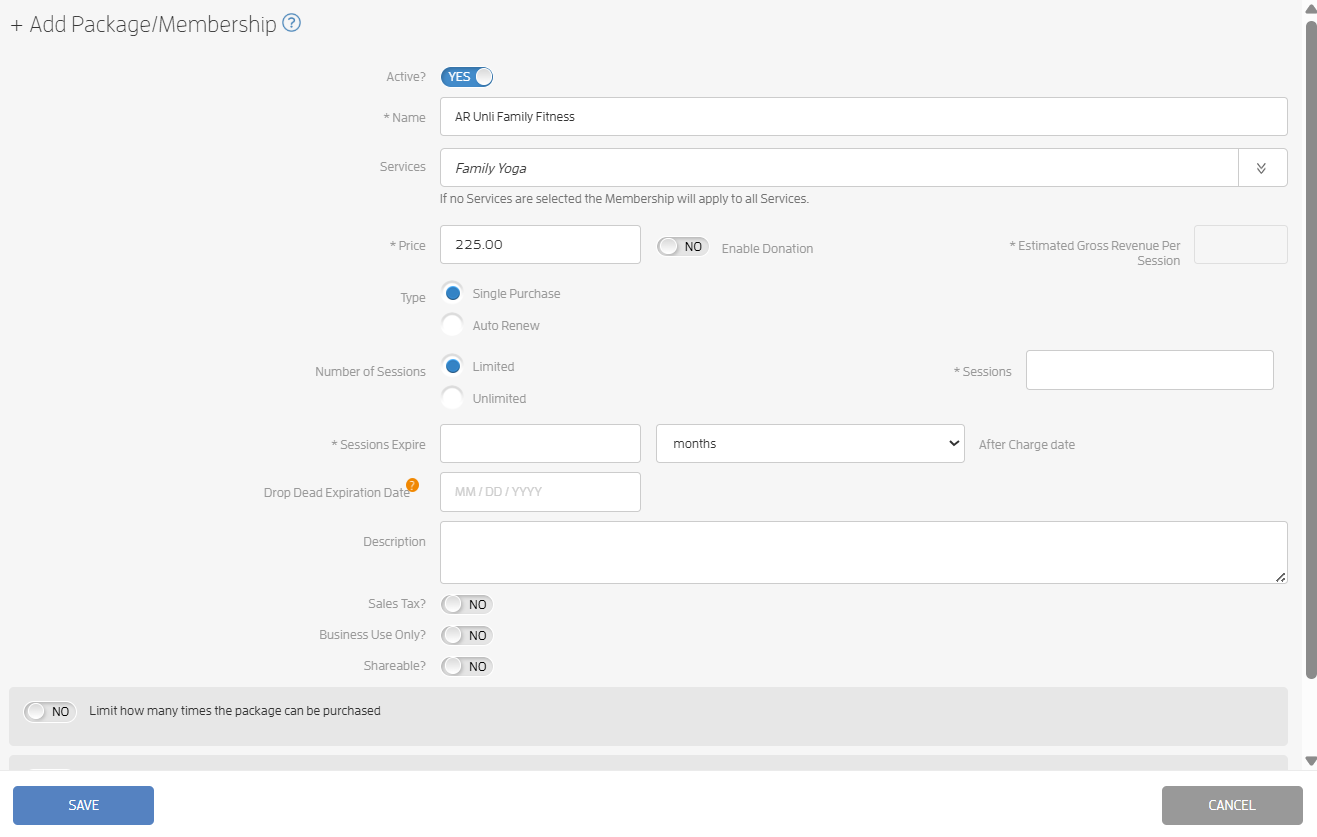
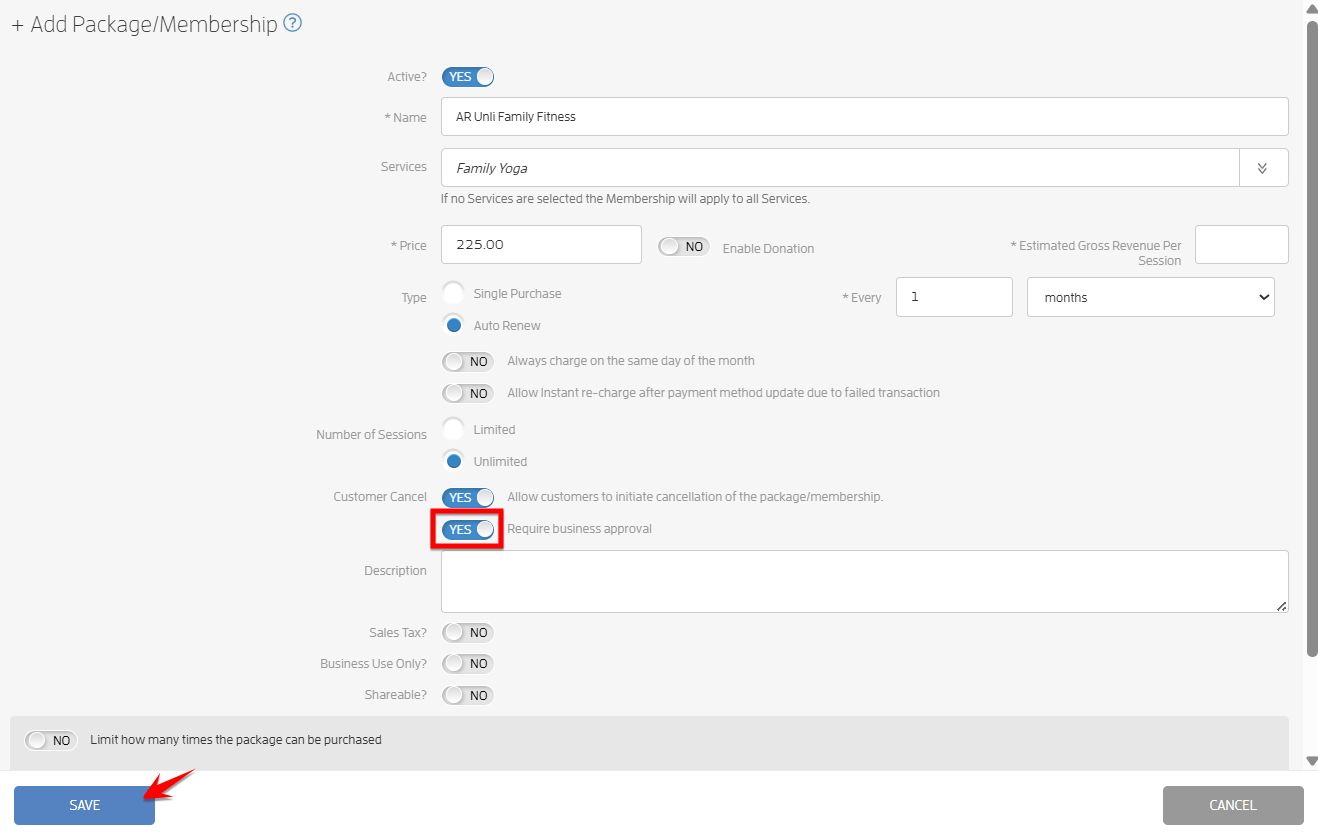
+ Add Package/Membership
To do this, fill out the "+ Add Package/Membership" modal. You’ll notice that if you click "Auto-Renew", you’ll see the "Customer Cancel" section.
Note: The "Allow customers to initiate cancellation of the package/membership" toggle is turned on by default when creating a package or membership. You can turn it off if you don’t want your customers to initiate cancellation. The "Customer Cancel" section will only appear for auto-renewing packages/memberships.
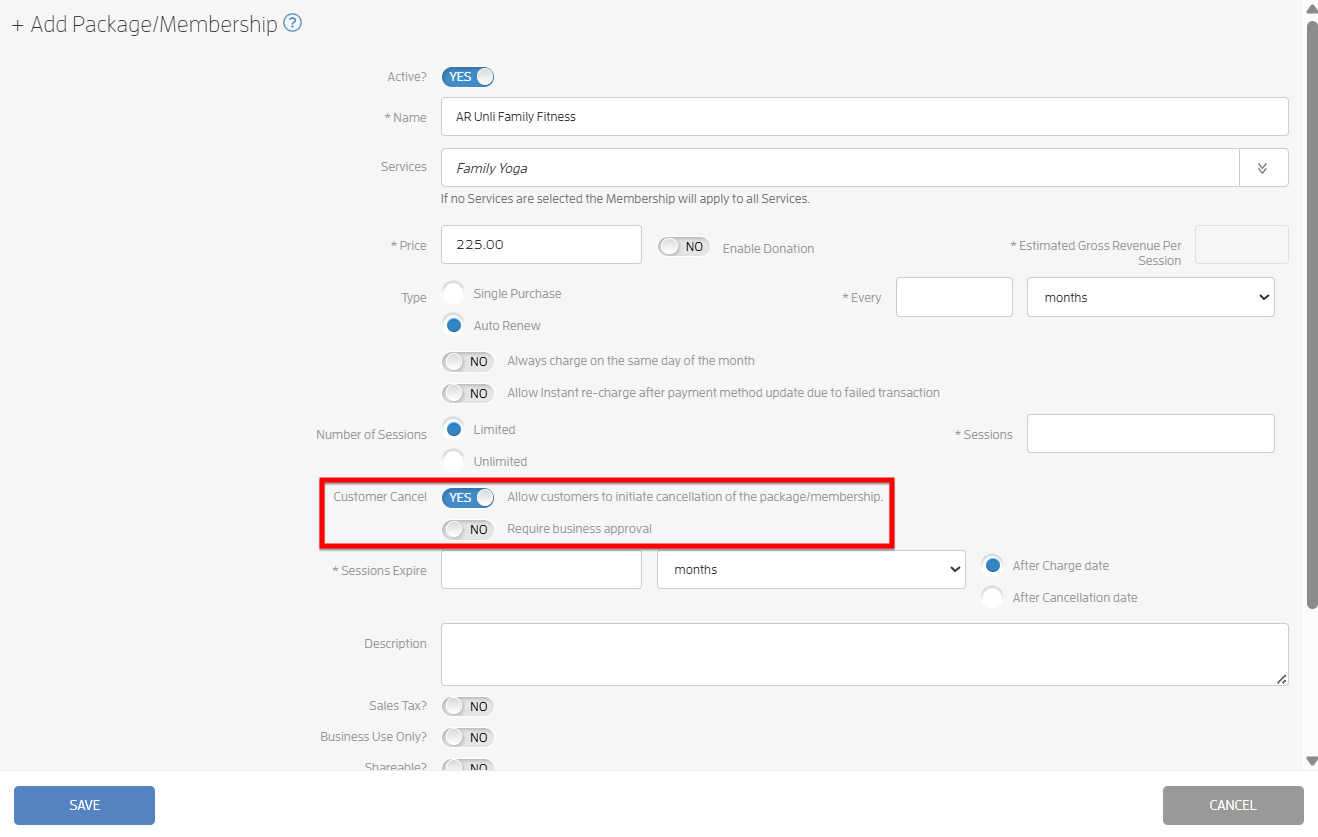
Turn on the "Require business approval" toggle if you want to allow your customers to request cancellation from your business but wish to maintain final approval per your cancellation policies. Otherwise, leave it off to allow customers to cancel their auto-renewing membership/plan as they see fit.
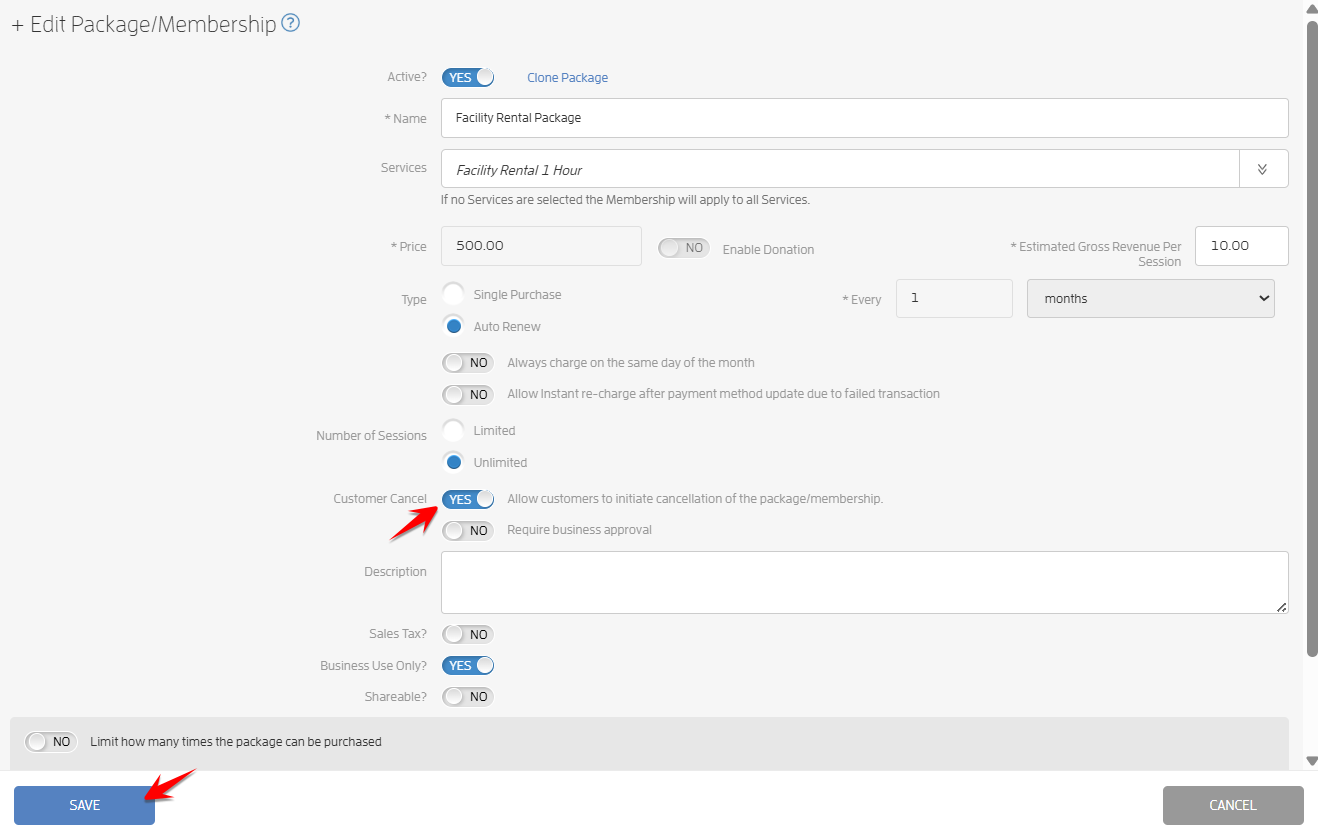
+ Edit Package/Membership
To do this, click "Edit" to open the package/membership, turn on the "Allow customers to initiate cancellation of the package/membership" toggle and hit SAVE.
Note: When editing an existing package, the "Allow customers to initiate cancellation of the package/membership" toggle is turned off by default. Turn it on if you want your customers to initiate cancellation without your approval.
If you want your customers to request for cancellation with your approval, turn on the "Require business approval" toggle. In the example below, the business does not require it.
What will happen next?
Require Business Approval
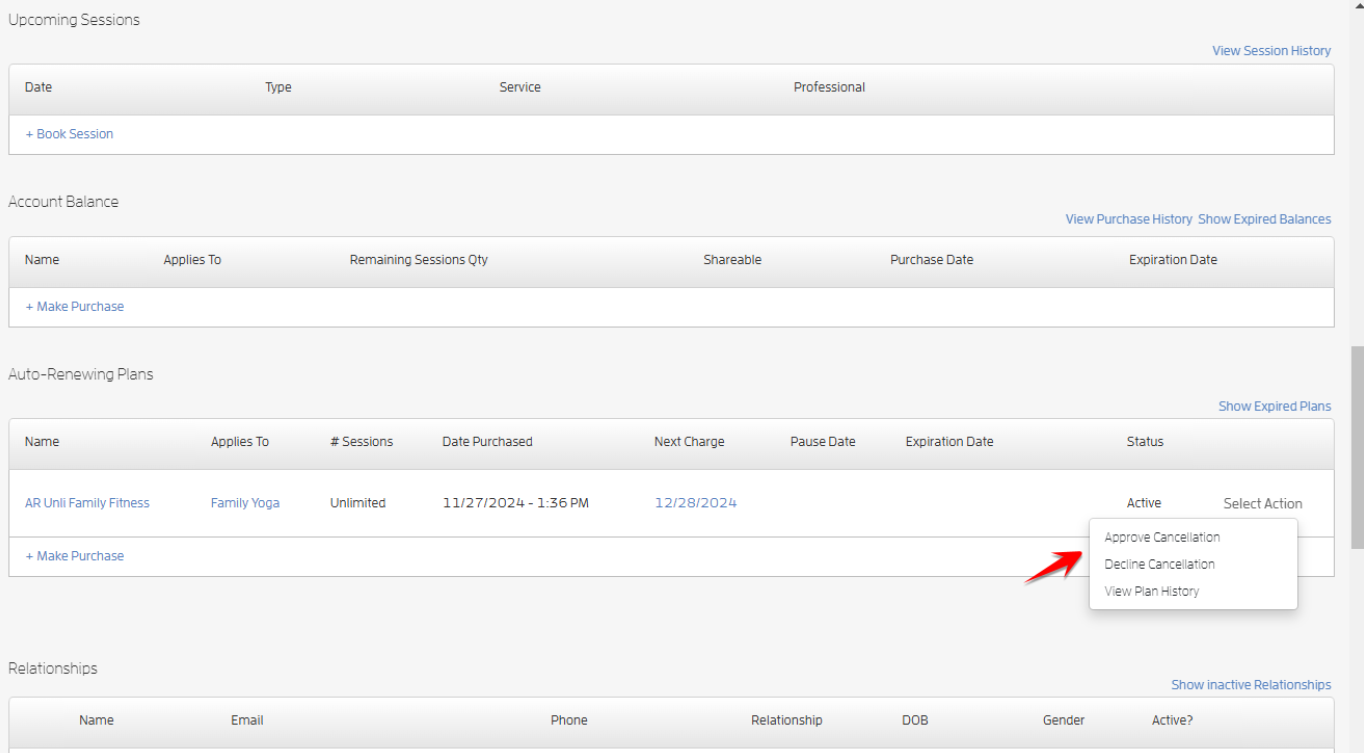
If your customer requests cancellation from you, their package/membership will not be automatically cancelled and you’ll be notified. You can click the link in the email to be taken directly to their profile at the point where the package is visible and the dropdown link will be available for you to Approve or Decline their cancellation request. Screenshots below.

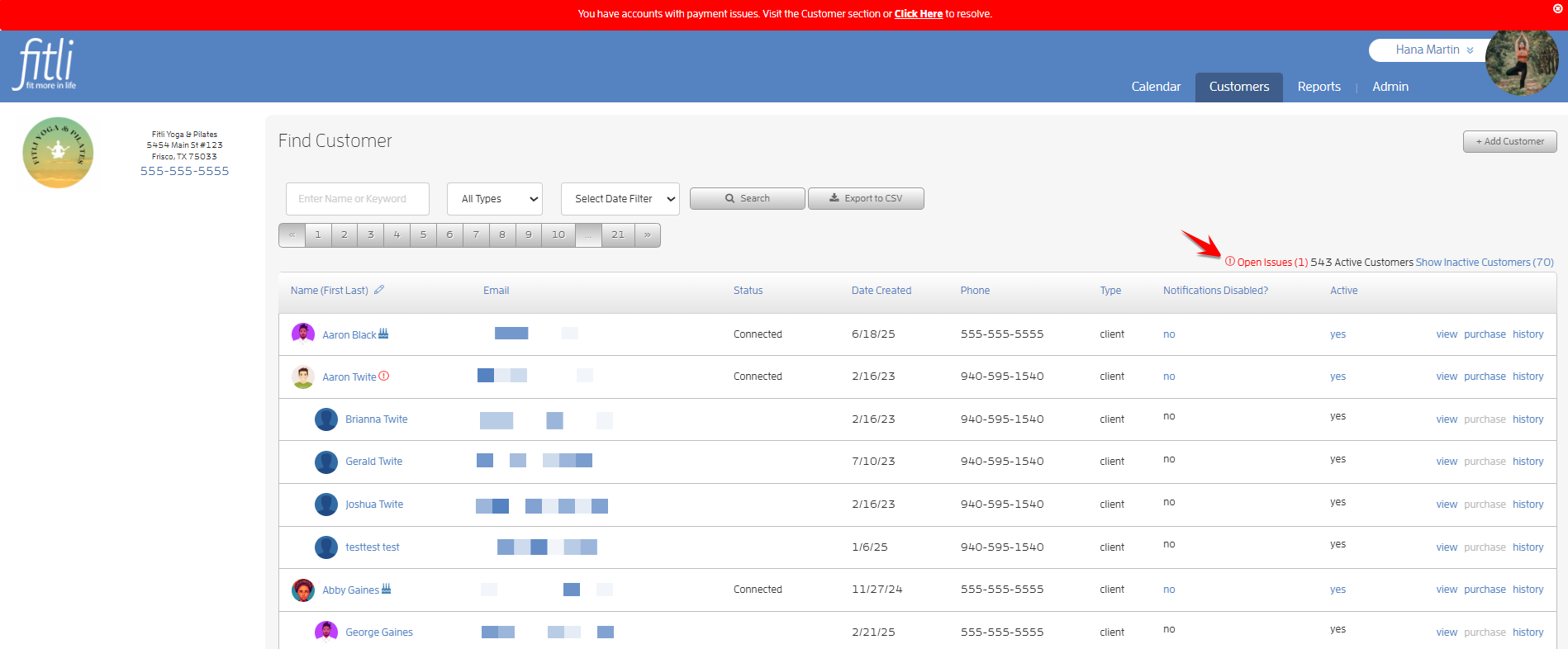
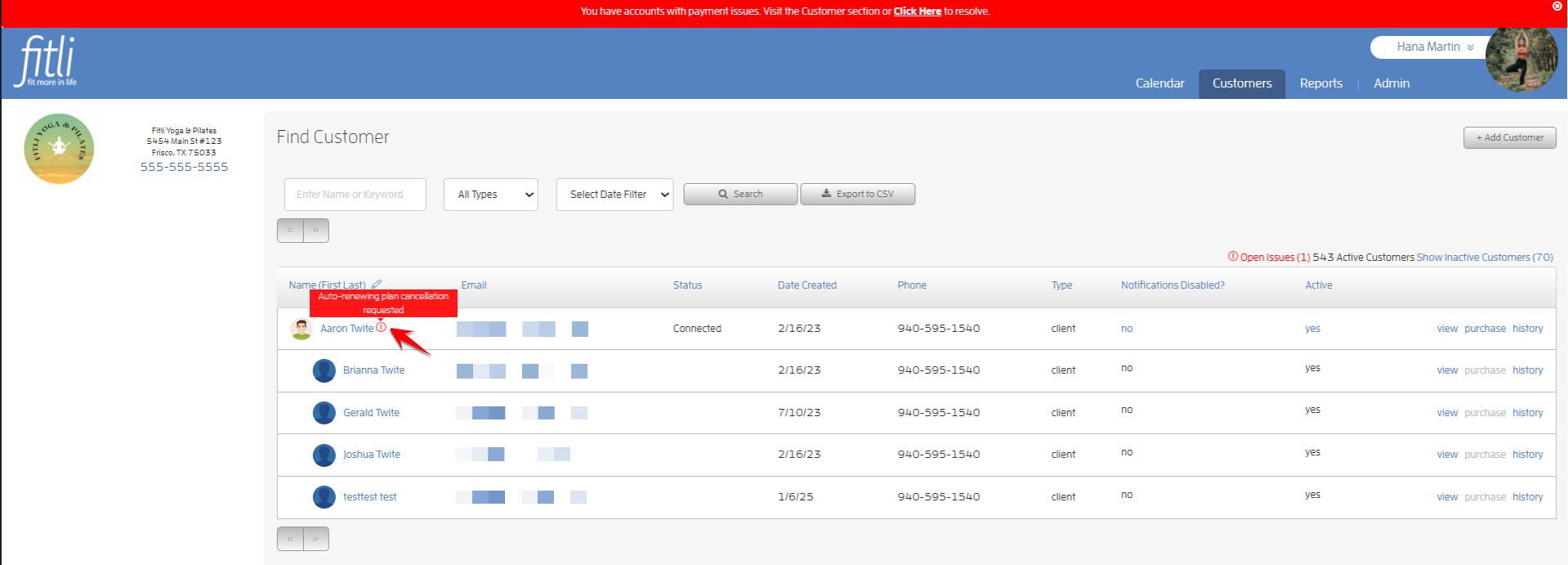
Or, you can head over to your Customers list. You’ll see the "Open Issues (X)" link in red. Clicking on it will pull up your customer who requested the cancellation. You’ll see the red (!) indicator beside your customer’s name. Hovering your mouse over it will show you that your customer requested cancellation.
Note: The red (!) indicator will also show up for your customers who have failing auto-renewing memberships.
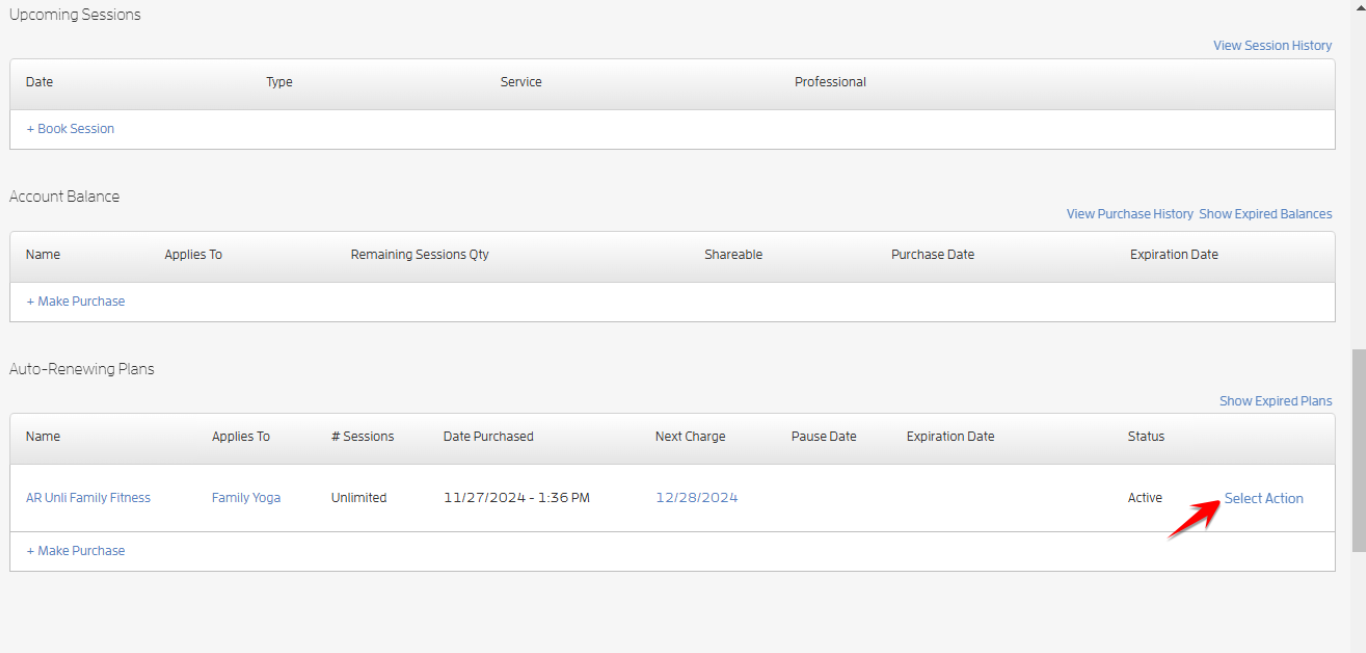
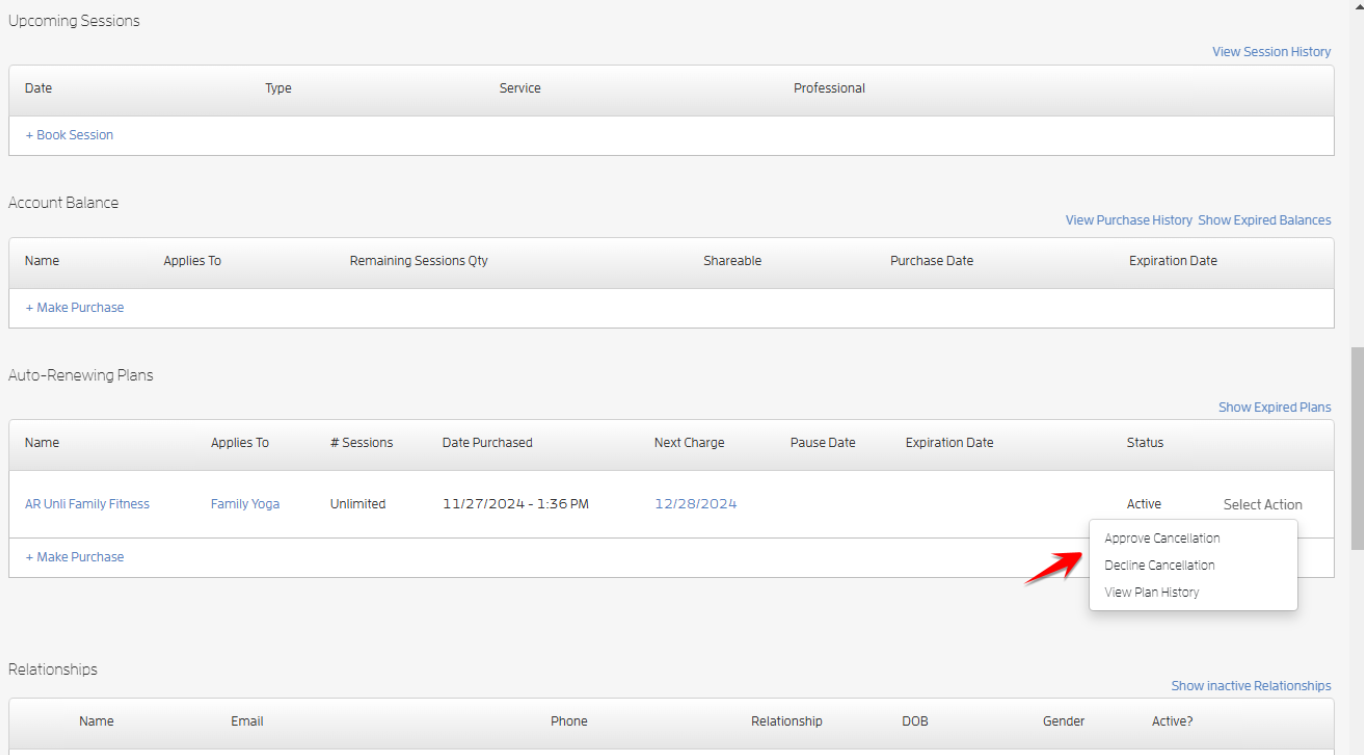
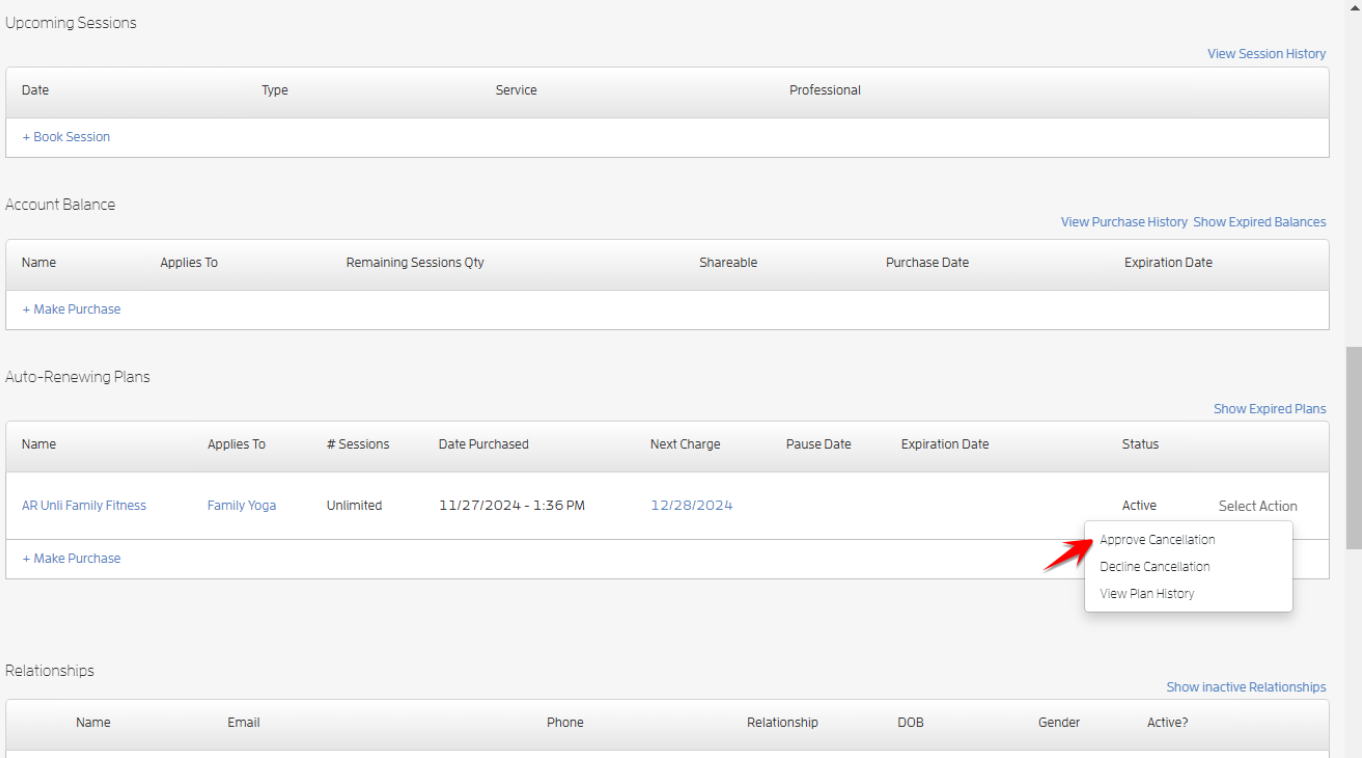
Open your customer’s profile, scroll down to Auto-Renewing Plans, click the "Select Action" link then Approve/Decline their cancellation request.
If you choose to decline their request, click "Decline Cancellation". You can turn on the toggle on the confirmation modal to add a short message to be included in the notification back to your customer then hit CONFIRM. If you choose not to send them a personalized message, just hit CONFIRM.
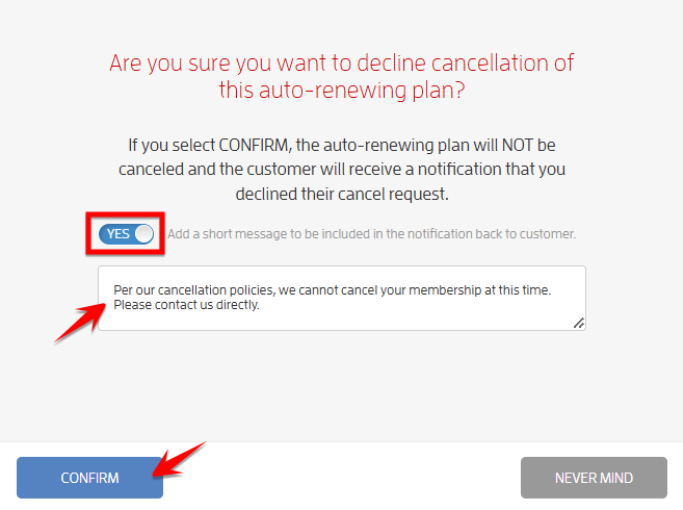
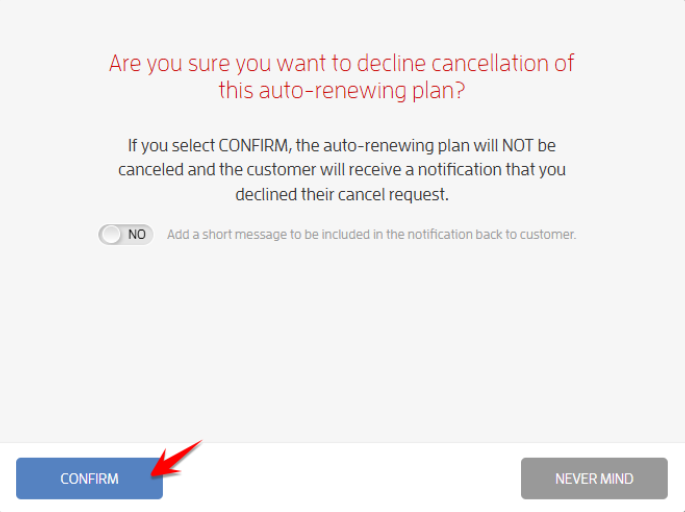
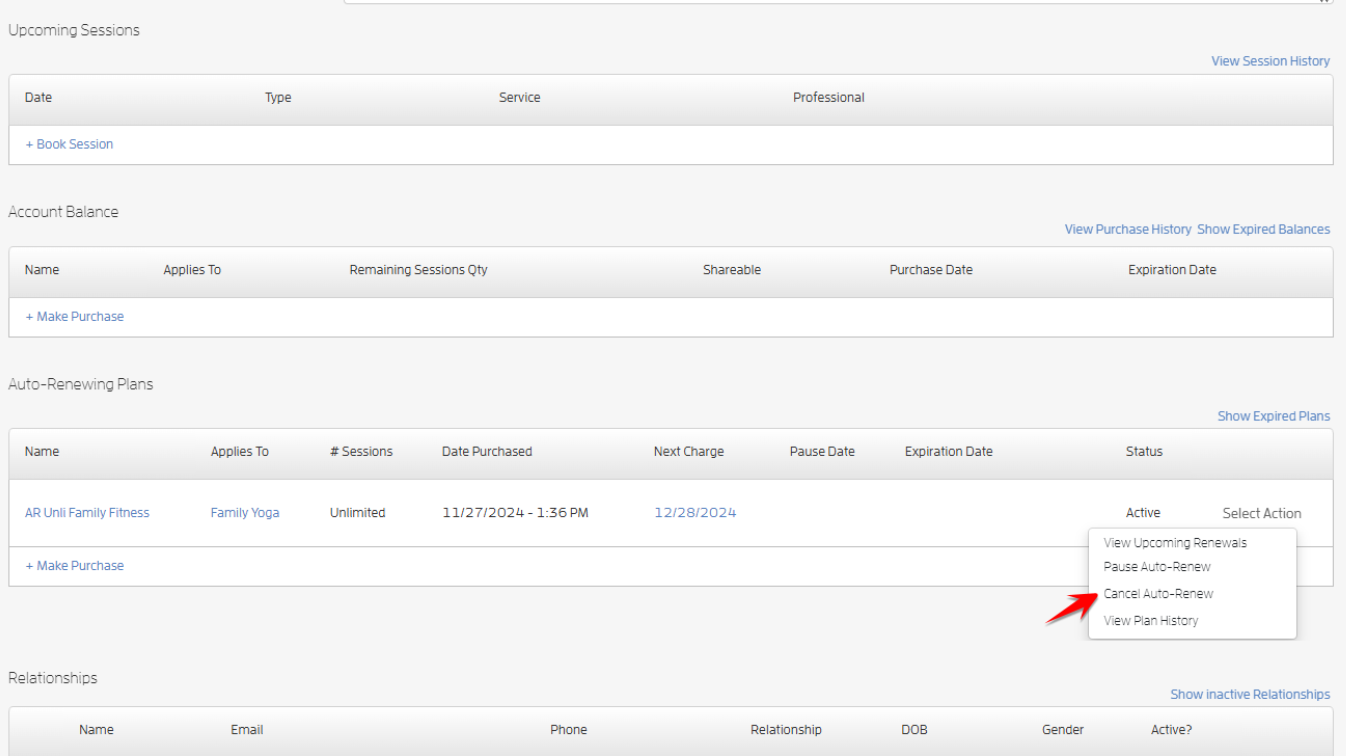
Your client will be notified and you'll see "Cancel Auto-Renew" on the "Select Action" link.
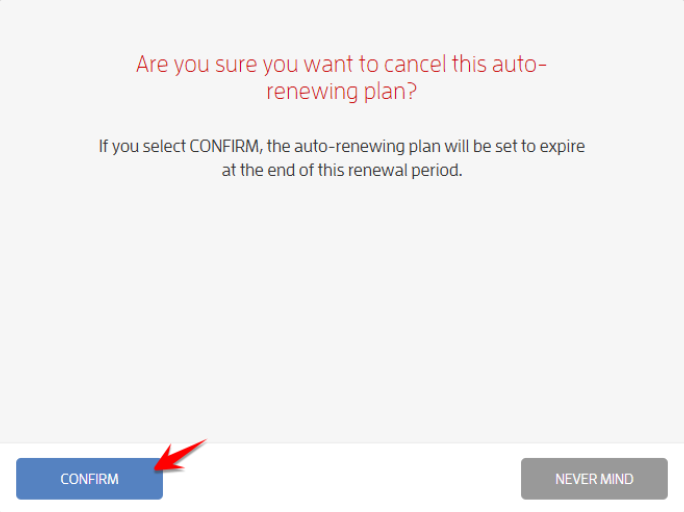
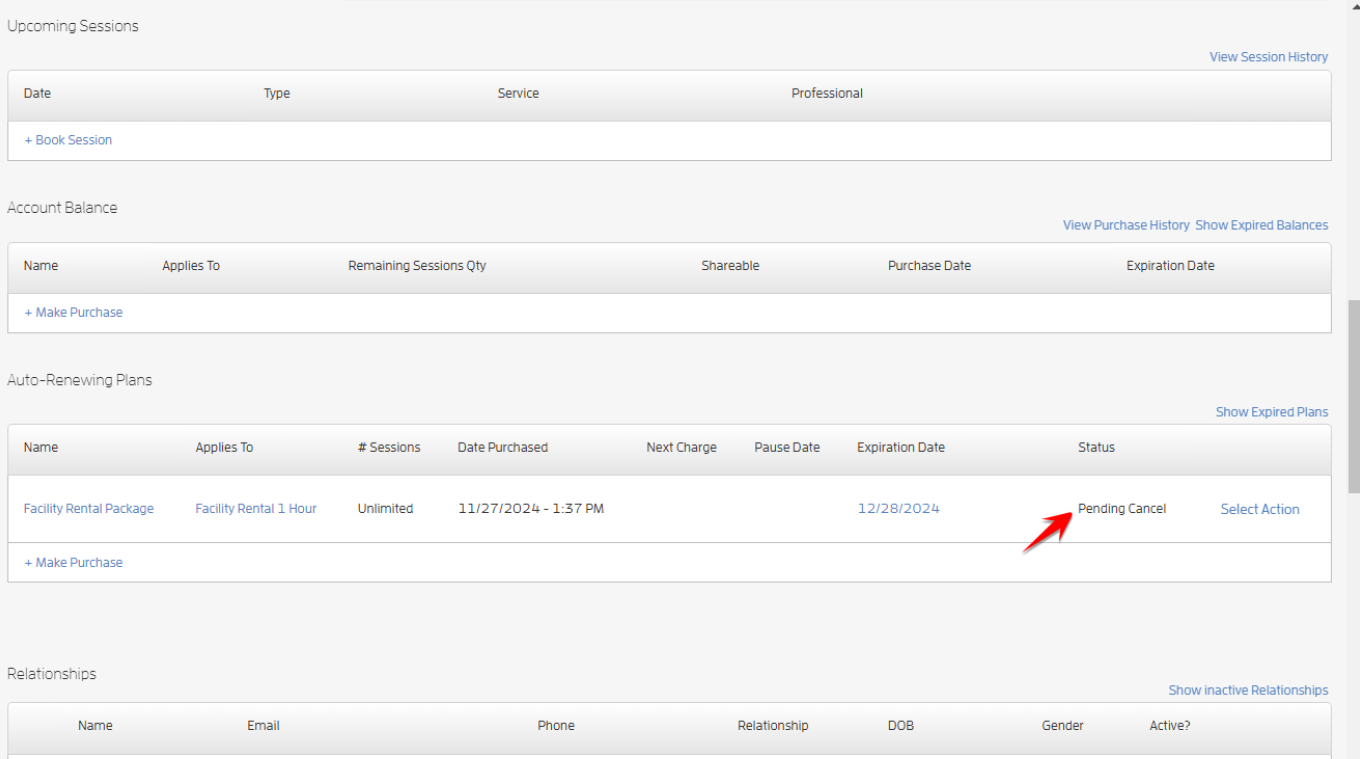
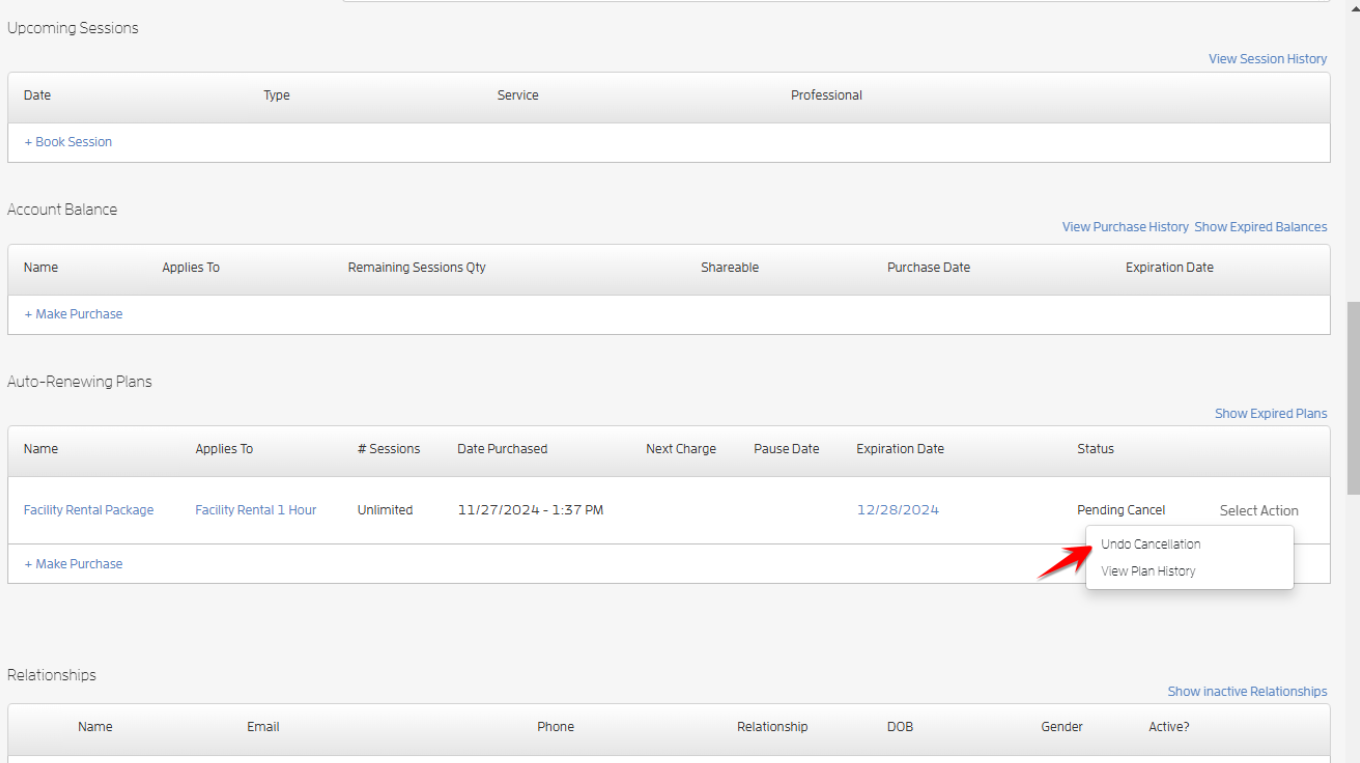
If you choose to approve their request, click "Approve Cancellation" then CONFIRM. Their auto-renewing plan will be set to expire at the end of the renewal period. They’ll be notified that you approved their cancellation request. It will also remind them that they can use their package/membership for bookings until the last day of the current period. On their profile, you’ll see that their membership's status changed from “Active” to “Pending Cancel.” You'll also see on the Select Action link the option to Undo Cancellation.
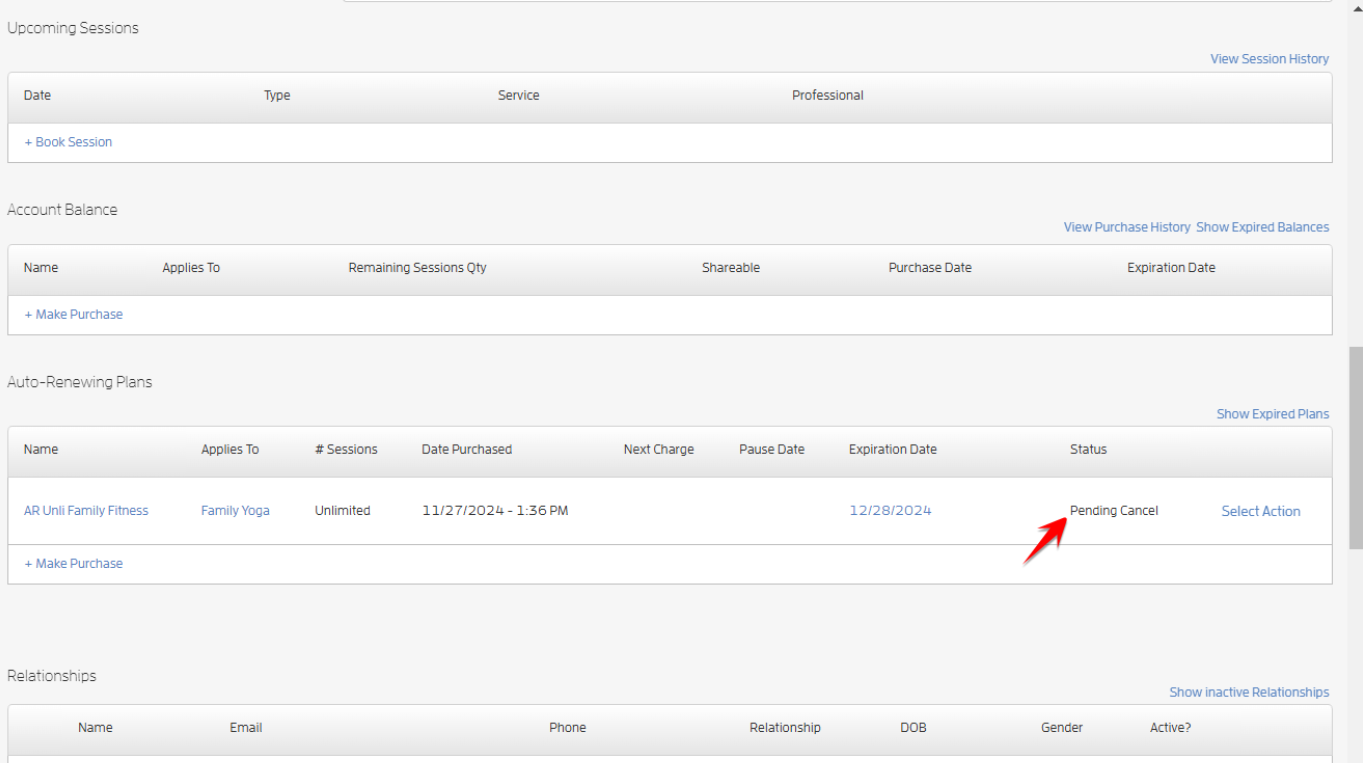
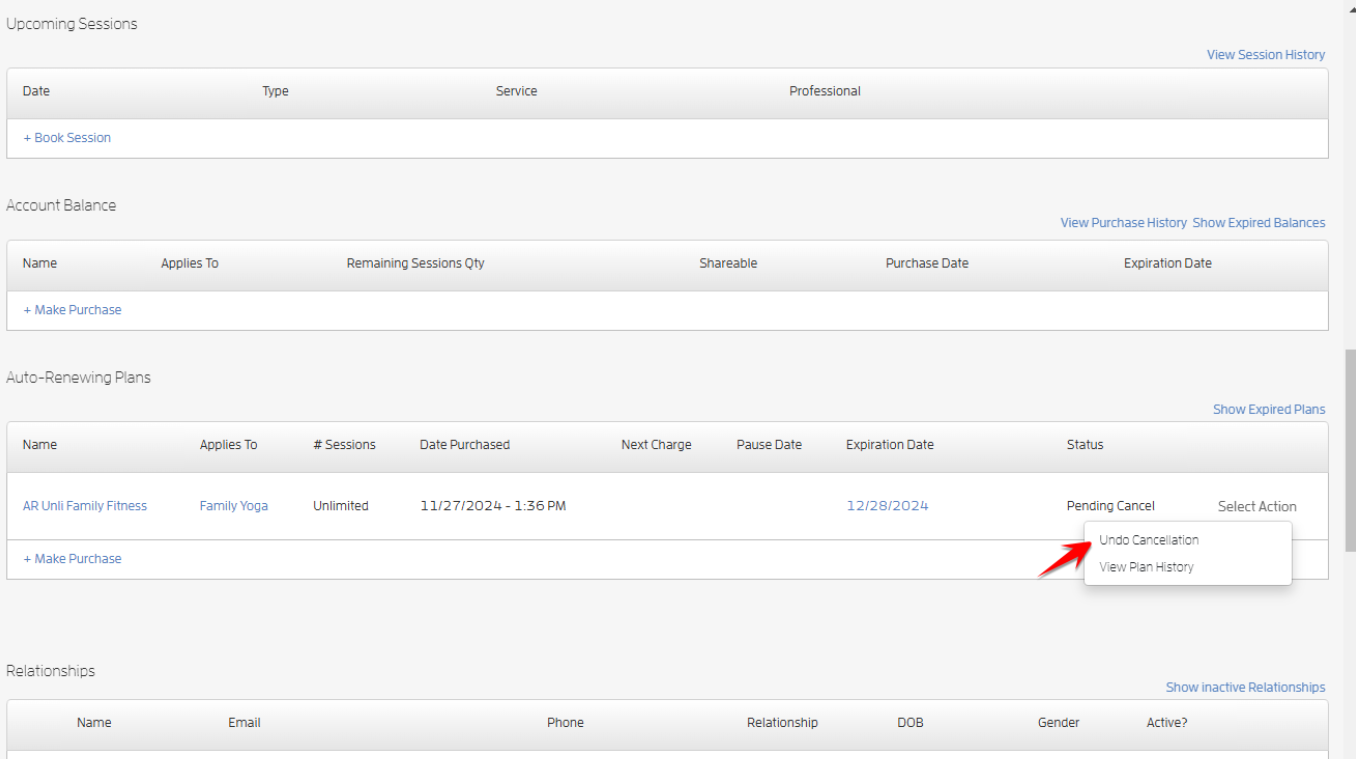
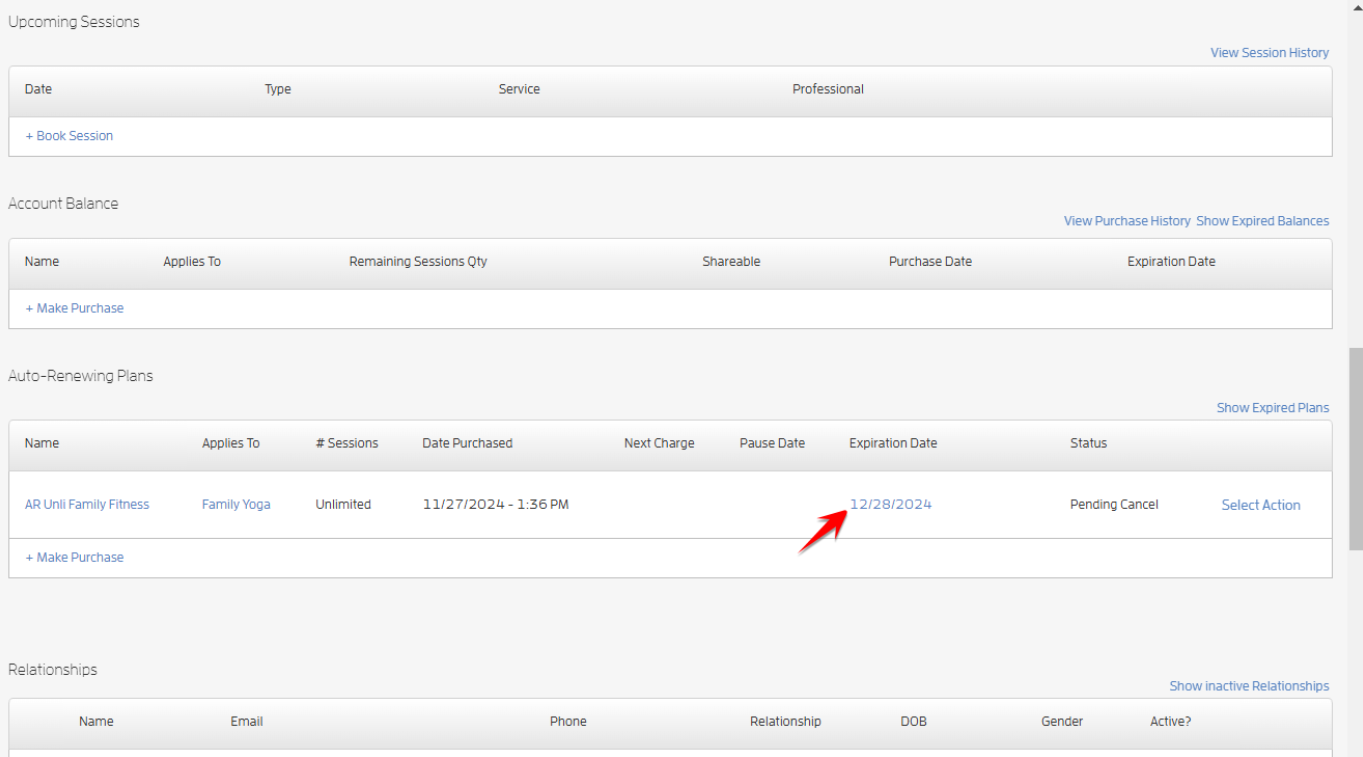
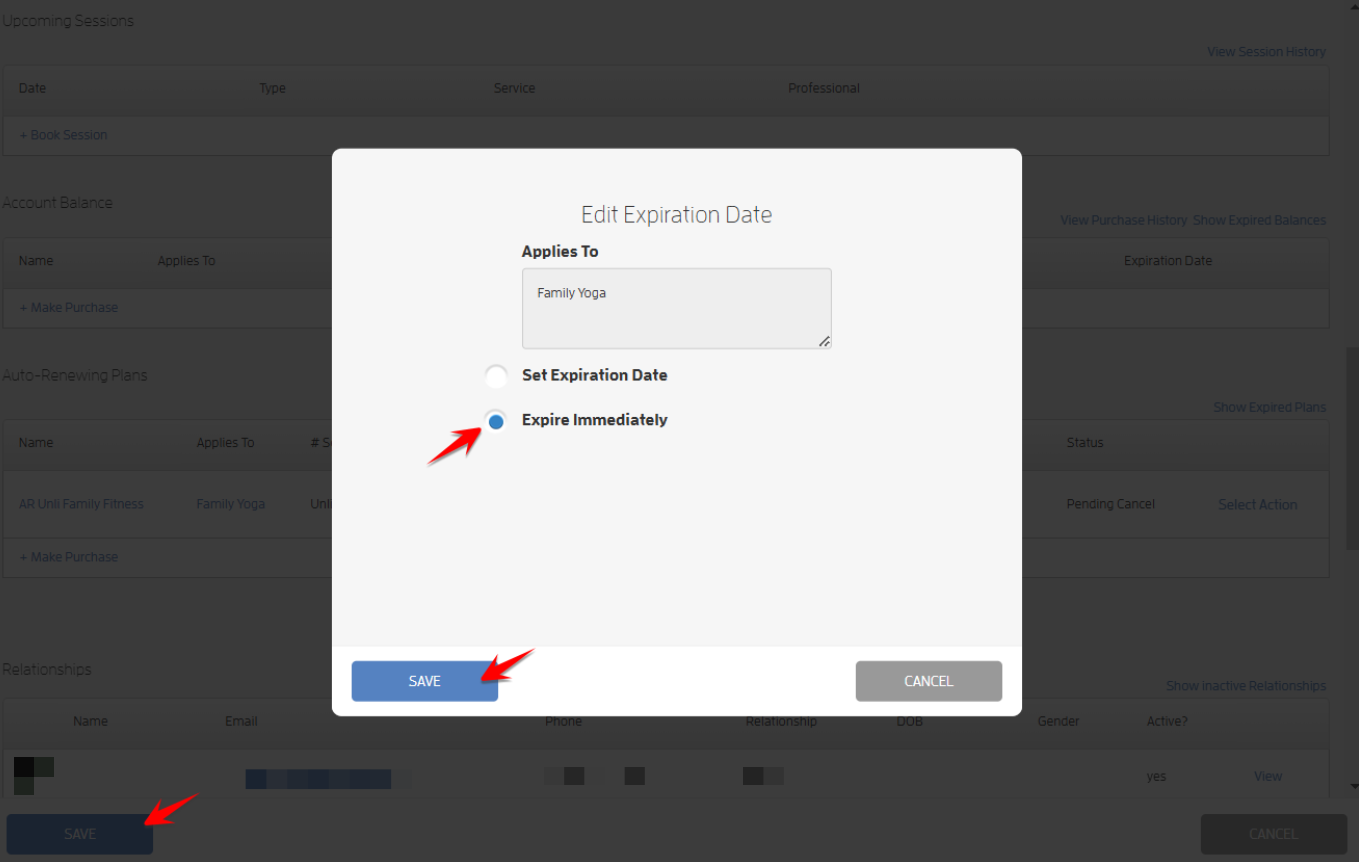
If your client wants to cancel their membership immediately, you can do this with just a few clicks. Simply click the date under the Expiration Date column, select "Expire Immediately" on the modal then click SAVE twice.
Allow customers to initiate cancellation without your approval
If you choose to allow your clients to initiate cancellation without your approval, they can easily cancel their membership on their account, you and your client will be notified. You’ll see on their profile that their membership's status changed from “Active” to “Pending Cancel.” You'll also see on the Select Action link the option to Undo Cancellation. Screenshots below.

If your client wants to cancel their membership immediately, you can do this with just a few clicks. Simply click the date under the Expiration Date column, select "Expire Immediately" on the modal then click SAVE twice.
That's about it! Any questions? Chat with us or send us an email to support@fitli.com.